Keyhole
 Dennis Brändle63 downloads
Keep attachments on your own private storage (S3-compatible or your own server) and view them in your notes. Credentials stay on the device, never in your notes.
- Overview
- Scorecard
- Updates24
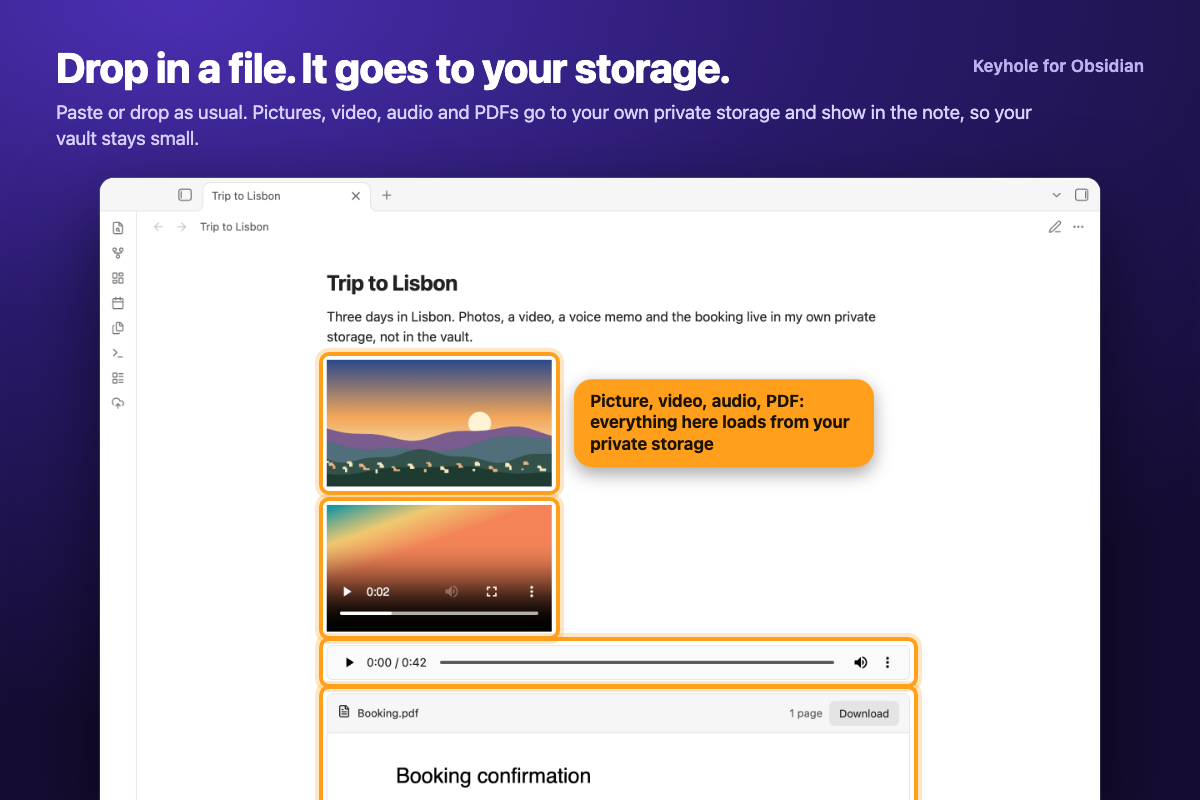
Keep your Obsidian attachments on storage that belongs to you. Drop or paste a file into a note as usual: Keyhole uploads it to your own S3-compatible bucket, WebDAV or server and shows it in the note. Your vault stays small, and nothing is ever public.
Install from the Obsidian community directory · Set-up · Privacy · Limitations
What it does
- Private by design: nothing is publicly readable. Notes contain only
keyhole://links, never tokens or signed URLs. - Secrets stay on the device: keys, tokens and passwords live in Obsidian's keychain, not in your vault, so they are never synced or committed to Git.
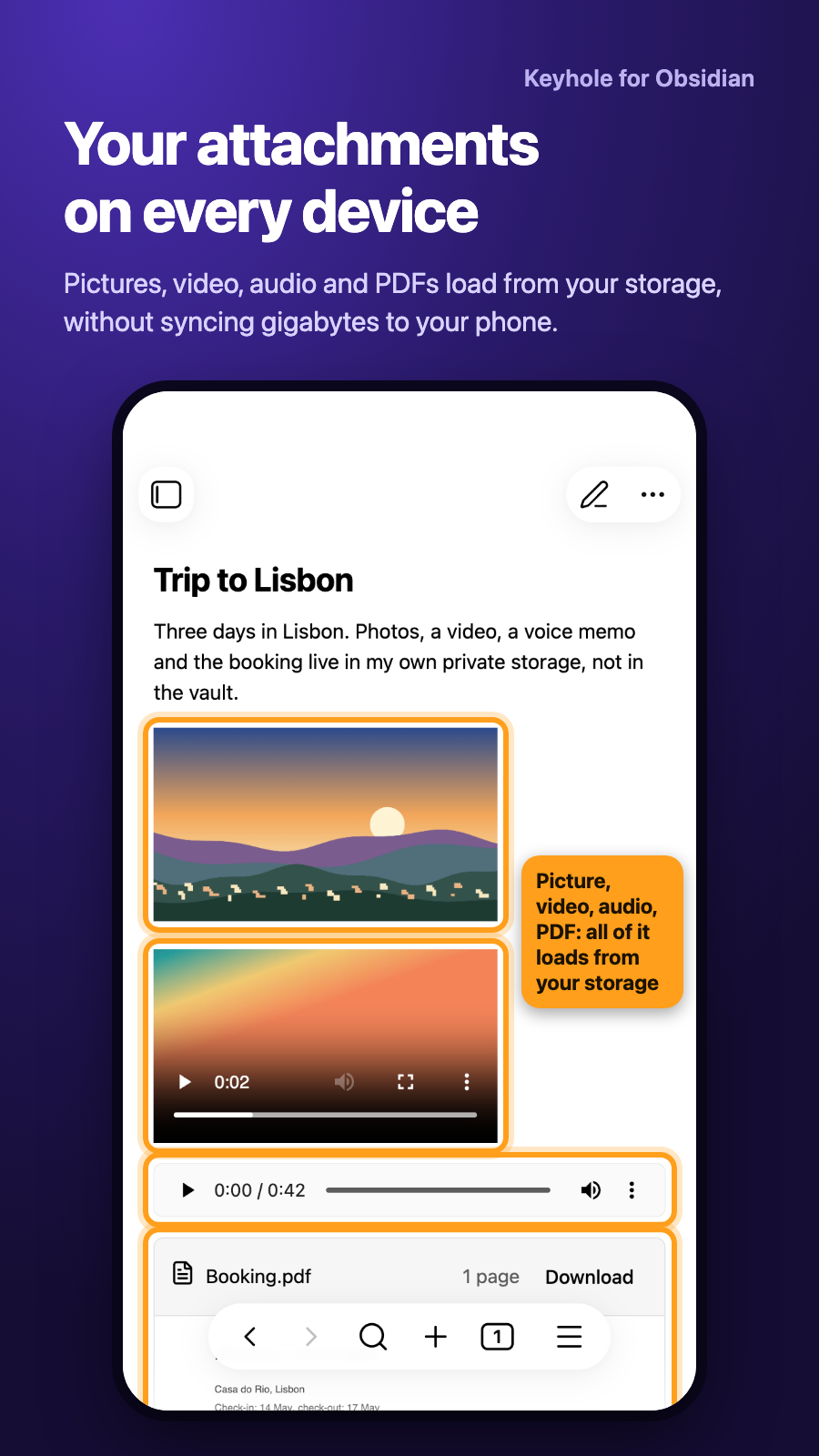
- All kinds of files: pictures, PDFs rendered in the note, audio and video (streamed from S3 or the Keyhole server), and any other file as a download card. One switch per kind decides what is uploaded.
- Works where attachments work: Reading view, Live Preview, hover previews, Canvas and the image viewer, on desktop and mobile.
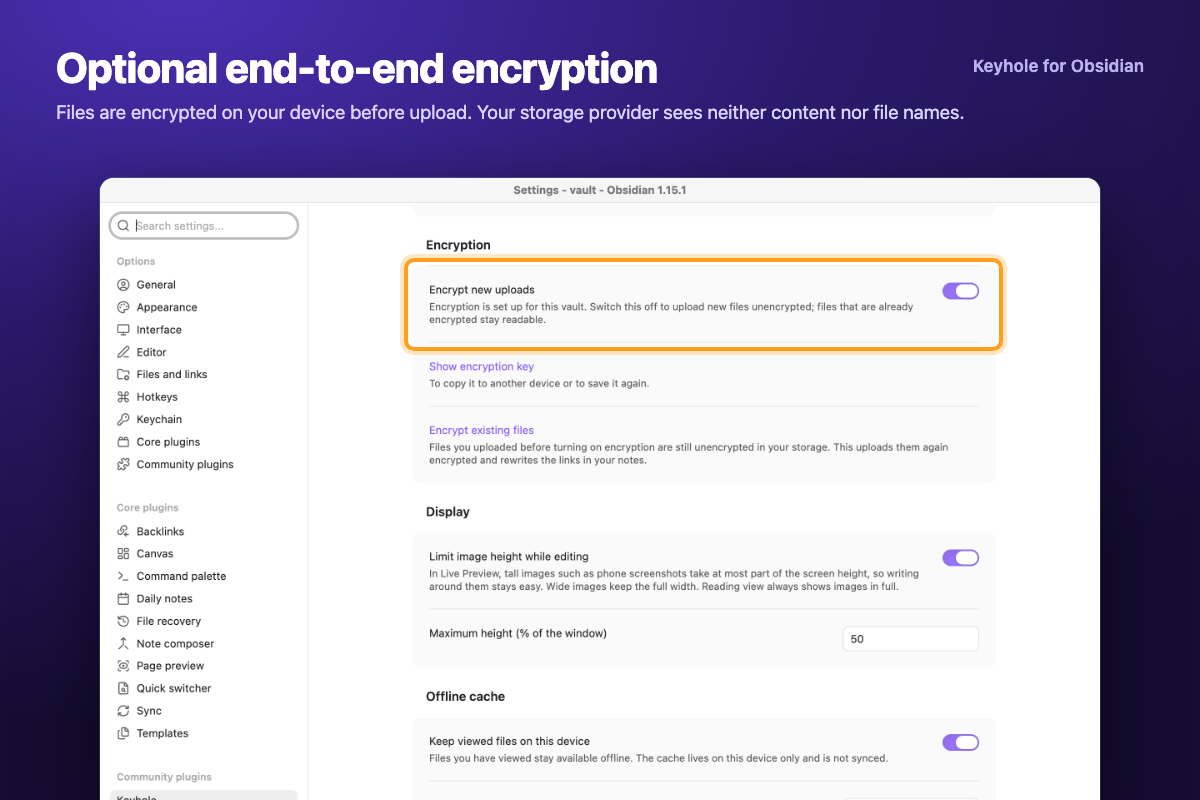
- Optional end-to-end encryption: files are encrypted on your device before upload, so the storage provider sees neither content nor file names.
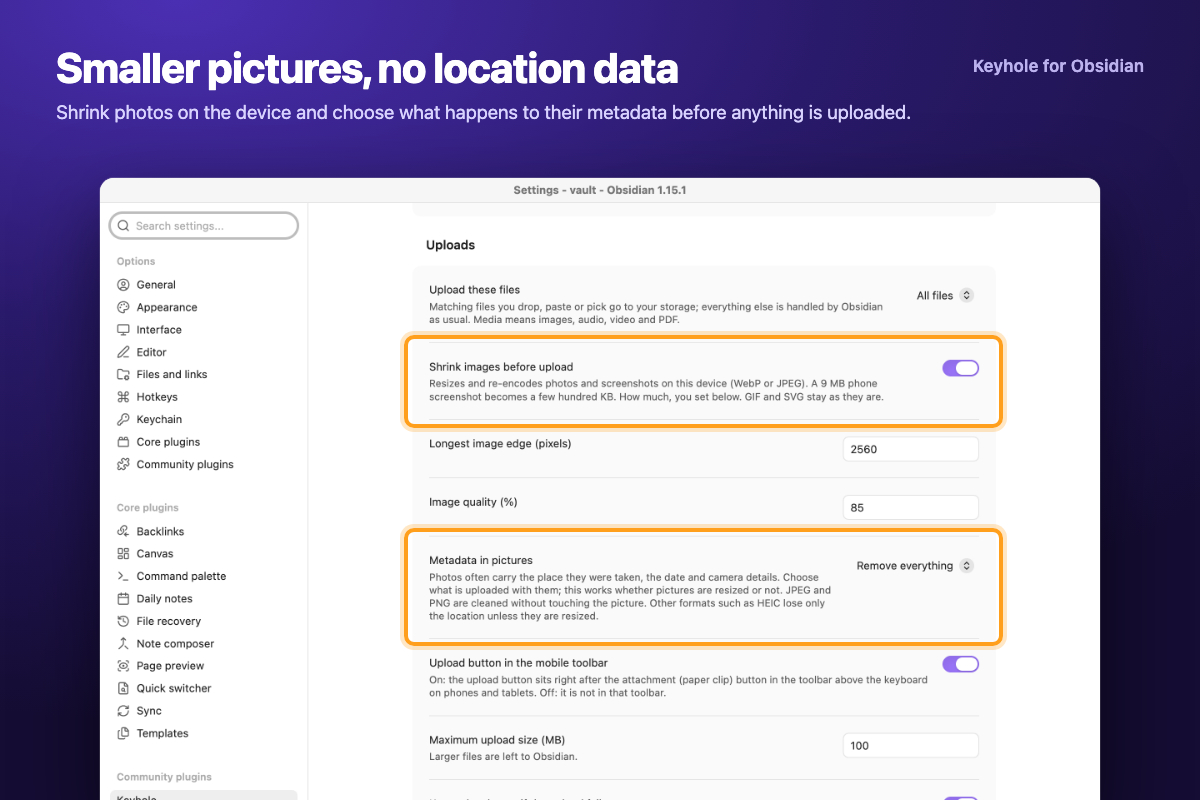
- Smaller pictures, no location data: photos are shrunk on the device, and you choose what happens to their metadata.
- Offline: files you have viewed are kept on the device, up to a size limit you choose.
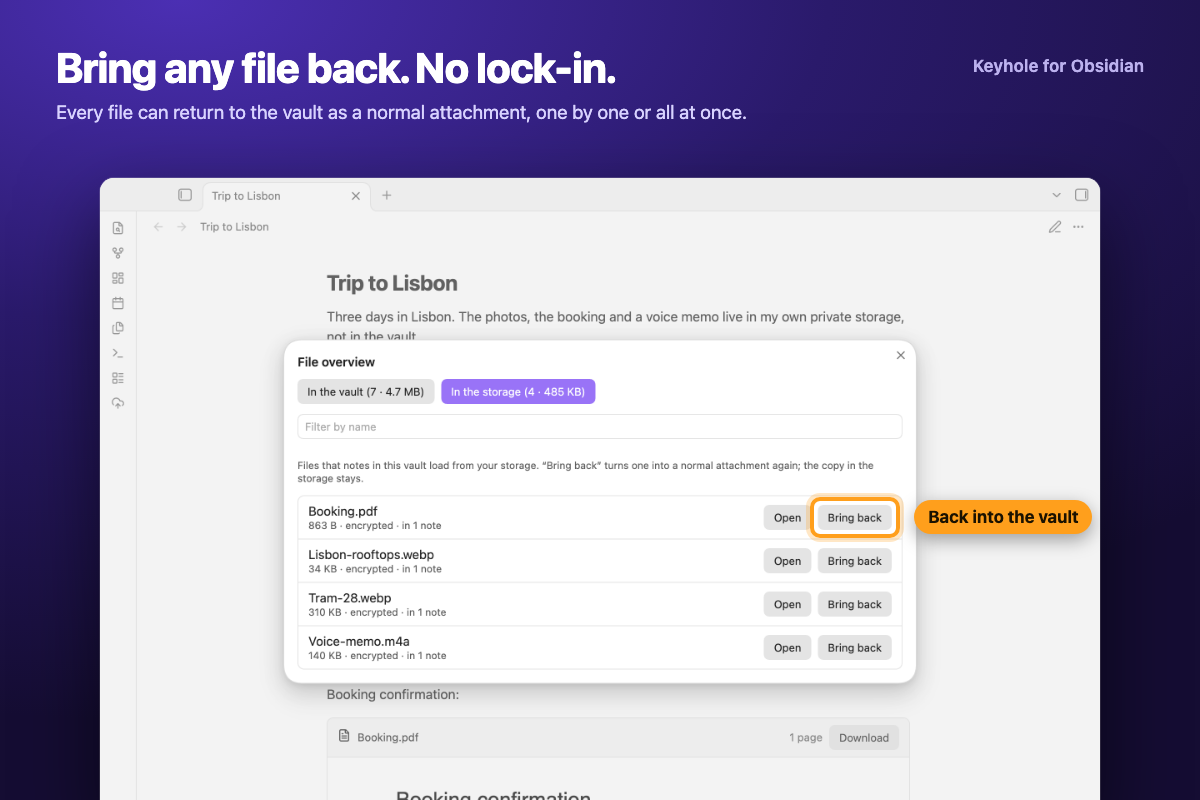
- No lock-in: every file can come back into the vault as a normal attachment, one by one or all at once.
- Never lose a file: if an upload fails (you are offline, say), the file is saved as a normal local attachment instead.
 |
 |
 |
 |
On phones and tablets:
Keyhole is in beta. It is tested on macOS and iPhone. The newer features (end-to-end encryption, large uploads, the file overview and the set-up guide) have not been tried on a phone yet, and Android has not been tested at all. Design notes: docs/CONCEPT.md.
Storage you can use
| Storage | Examples |
|---|---|
| S3-compatible | AWS S3, Cloudflare R2, Backblaze B2, Wasabi, Garage, SeaweedFS, MinIO |
| Keyhole server | keyhole-server: a small server of its own, no dependencies, Docker image |
| WebDAV | Nextcloud, Synology, rclone serve webdav, Caddy, nginx |
Keep your bucket private. Keyhole never needs public access, and it needs no CORS configuration.
Install
Open Settings → Community plugins → Browse in Obsidian, search for Keyhole, install and enable it. Or start from its page in the community directory.
Manual install: download main.js, manifest.json and styles.css from the latest release into <vault>/.obsidian/plugins/keyhole/.
Setup
The first time you enable Keyhole, a set-up guide opens and goes through it step by step: connect your storage and test it, choose what is uploaded, decide about encryption, place the upload button (on phones) and move the attachments you already have. You can leave it at any point and open it again from the settings or the command palette. On a second device that already has the vault's settings, a short version only asks for what never syncs: the secret and, if you use encryption, the key.
The same by hand:
- Enable Keyhole under Settings → Community plugins.
- Open Settings → Keyhole and choose your storage.
- Enter the endpoint, bucket and access key ID, or your server URL.
- Paste the Secret access key (or Token or password) and press Save. It is stored in this device's keychain, not in the vault, so do this once on every device.
- Click Test connection.
Cloudflare R2 example
- Endpoint:
https://<account-id>.r2.cloudflarestorage.com - Region:
auto - Bucket: your private bucket
- Credentials: an R2 API token with Object Read & Write on that bucket only
Keyhole server
docker run -d -p 127.0.0.1:8080:8080 -v keyhole-data:/data \
  -e KEYHOLE_TOKENS="$(openssl rand -hex 32)" ghcr.io/dbraendle/keyhole-server:latest
Put it behind HTTPS with a publicly trusted certificate (iOS ignores self-installed ones). Then use https://your-host/f/ as the server URL. See the keyhole-server repository.
Using it
- Drop or paste files into a note. Keyhole takes the kinds of files you switched on (pictures, audio, video, PDFs, other files, each with its own switch) that are under the size limit; everything else is left to Obsidian. Images are shrunk on the device first (configurable).
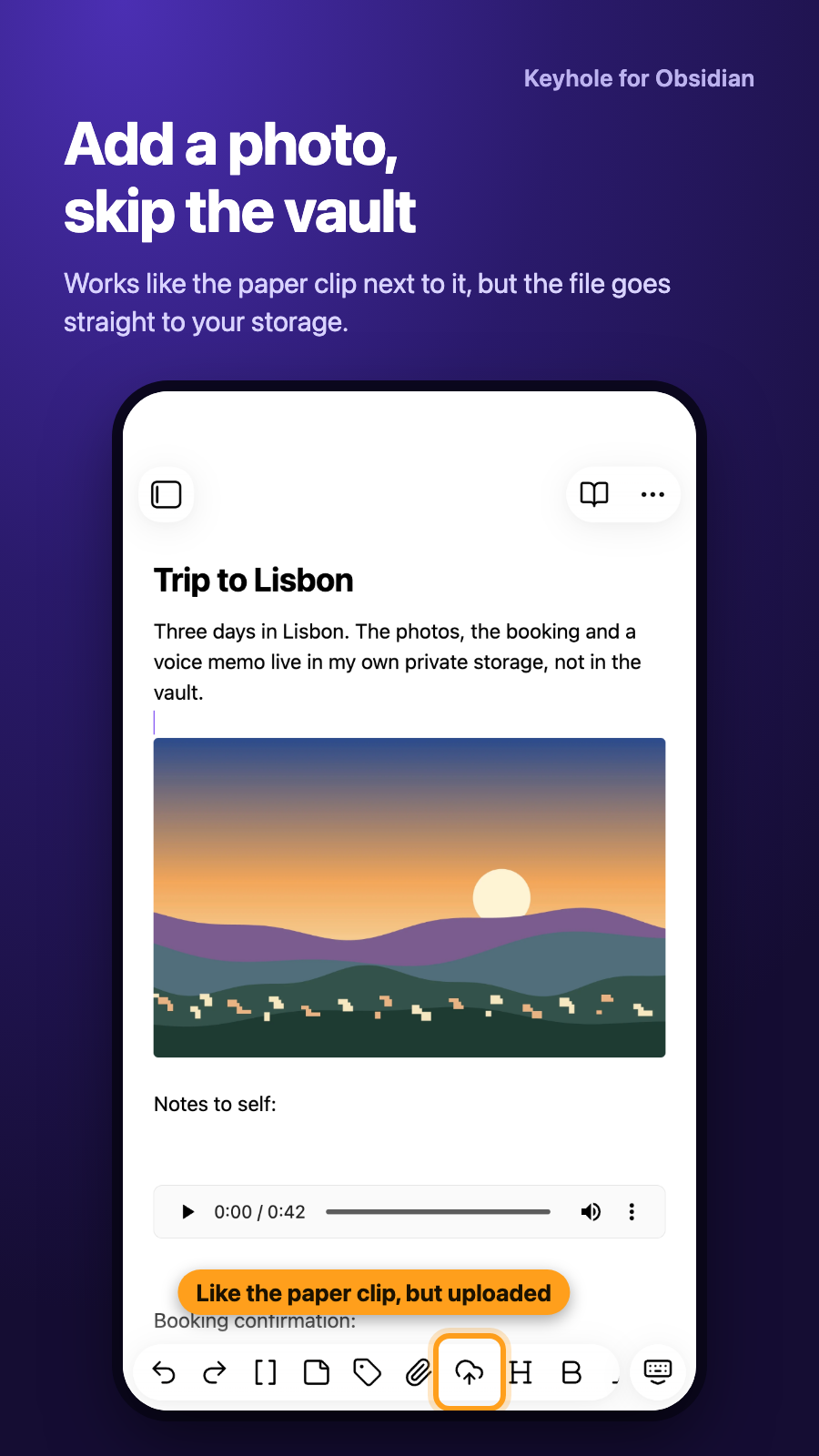
- Upload files (ribbon icon, command palette or the editor's context menu) picks several files at once. On phones Keyhole asks once where this button should go in the toolbar above the keyboard: next to the paper clip, or instead of it, so that the one button left uploads. The setting can be changed later, and Keyhole puts the paper clip back when it is switched off or uninstalled.
- Right-click a Keyhole file (long-press on mobile) to open it, copy its link, download or share it, bring it back into the vault, or delete it from your storage.
- Links work too:
[Booking](keyhole://…)without the!is a plain link; tapping it opens the file. - Links look like
. Resize images as usual:.
Moving existing attachments
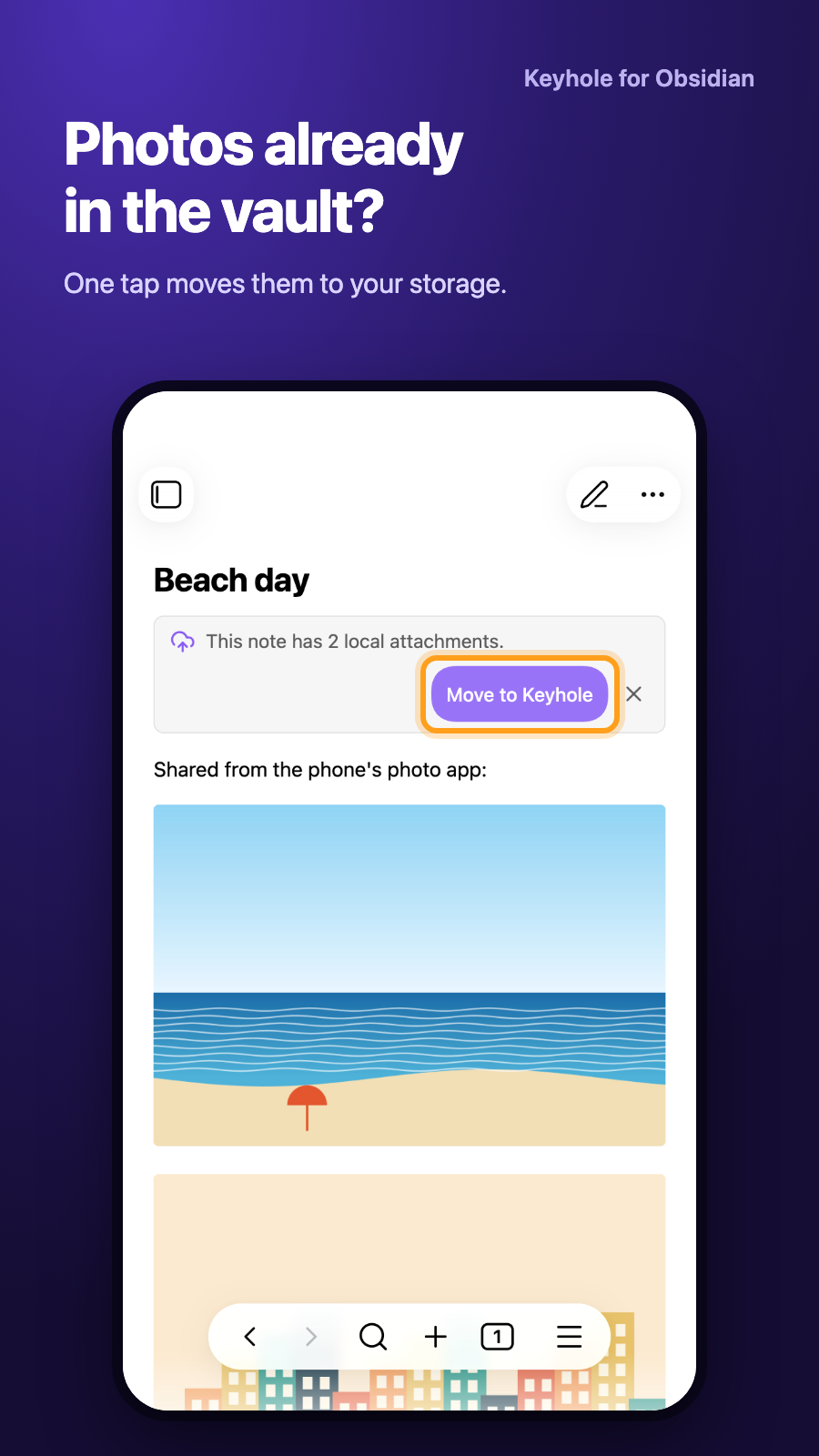
Notes that still have local attachments show a small bar: Move to Keyhole uploads them (images shrunk), rewrites the embeds (sizes like |300 are kept) and moves the local files to the trash. Files that other notes or canvases still use are kept. Shrinking is lossy: if you want to keep originals in full quality, switch off Shrink images before upload or Remove local copies after moving first. The same is available as a command and in the note's ⋯ menu.
To move everything at once, open the File overview and press Move all: every attachment that a note shows and that matches the upload settings is uploaded, one after the other. Let your other devices sync first.
Your way out
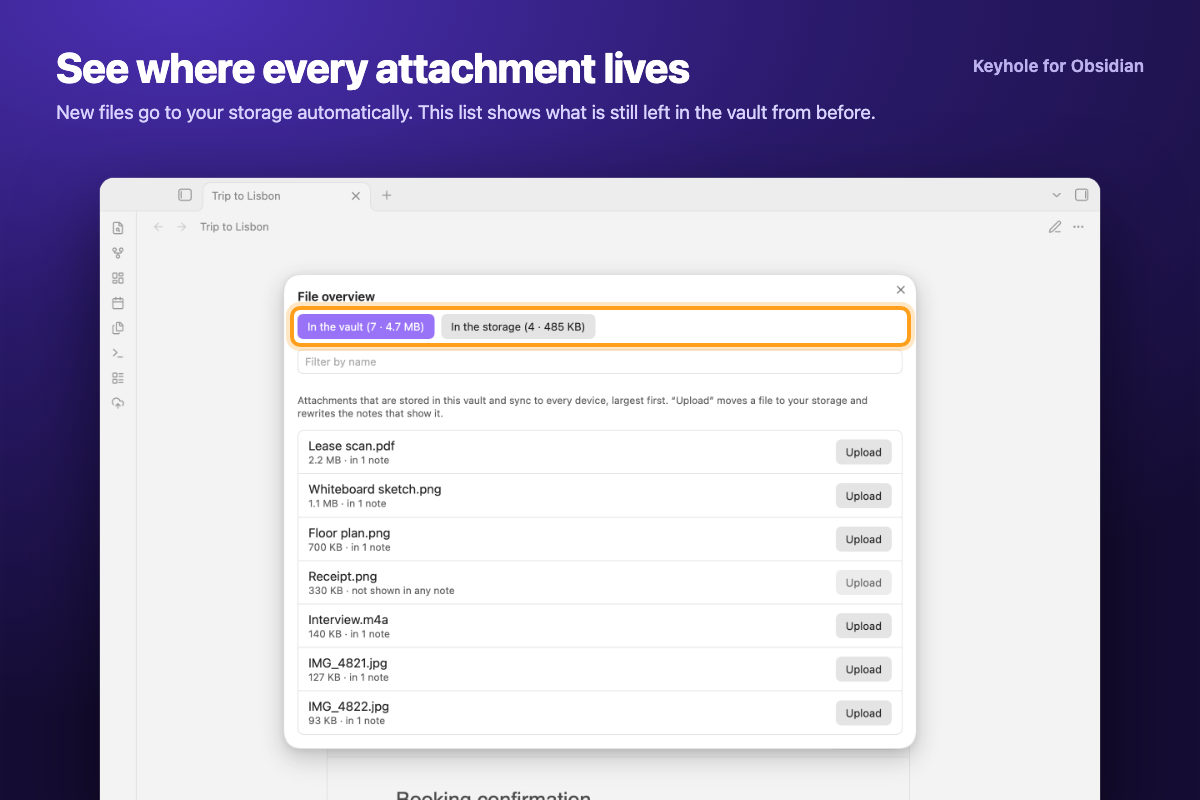
File overview (settings or command palette) shows in one window which attachments are stored in the vault and which are in your storage, with sizes. Each file can be uploaded or brought back on its own.
Bring all Keyhole files back into the vault (settings or command palette) turns every Keyhole file into a normal attachment again. Your storage keeps its copies. You are never locked in.
Keeping the storage tidy
Deleting a link does not delete the file. Clean up storage compares your storage with the notes of this vault and lists files no note uses anymore; you pick what to delete. Only files that Keyhole uploaded under this vault's key prefix are listed, never other files in the same bucket. Deleting is permanent unless your storage keeps versions. Files from the last 7 days are hidden by default, because notes on other devices may not have synced yet.
End-to-end encryption (optional)
Without it, your files are private because the bucket is private, but the provider can read them. With it, they are encrypted on your device (AES-256-GCM) before they leave it, and the object names in the storage are random-looking ids instead of file names.
- Open Settings → Keyhole → Encryption and choose End-to-end encryption.
- Keyhole shows a key (
keyhole-key-v1:…). Save it in your password manager, then paste it back from there. Encryption turns on only after that. - On every other device, paste the same key into the Keyhole settings once.
What you should know before you turn it on:
- There is no recovery. If you lose the key, the encrypted files are gone. The key is kept in each device's keychain, never in your vault.
- Encrypted audio and video cannot be streamed; they are downloaded completely before they play.
- Files you uploaded before stay unencrypted and keep working; only new uploads are encrypted. To encrypt the old ones too, run Encrypt existing files (in the settings or the command palette): it uploads them again encrypted and rewrites the links in your notes and canvases. The old unencrypted copies stay in your storage until you delete them with Clean up storage; do that once all your devices have synced.
- The file name moves from the storage into the link in your note:
. The part after#never leaves your vault. - Still visible to the provider: file sizes, upload times and how many files you have.
- You can switch Encrypt new uploads off again at any time; encrypted files stay readable as long as the device has the key.
Offline
Files you have viewed stay on the device (size limit in the settings). Keep attachments of the current note on this device downloads all of a note's files ahead of a trip.
Languages
Keyhole follows Obsidian's interface language. Available: English, German. Translations are welcome: copy src/i18n/en.ts to a new file named after the language code and register it in src/i18n/index.ts.
Privacy and network use
Keyhole connects only to the storage you configure, to upload and download your files. It sends no telemetry and contacts no other service. You need an account with an S3-compatible provider (often paid beyond a free tier), or your own server.
- Secrets (secret access key, token, password) are stored in Obsidian's keychain on each device. Each one is tied to the server it was saved for: if the storage address in the settings changes to another host, Keyhole asks for the secret again instead of sending it there.
- Settings are stored in the plugin's
data.jsoninside your vault, like for every plugin, and are synced with it if you sync plugin settings. They contain the storage address, bucket, access key ID and WebDAV user name, but no secrets. - Obsidian does not separate plugins from each other: other plugins you install can read the keychain and the files shown in your notes. Only install plugins you trust.
- The offline cache lives in the app's local storage (IndexedDB) on each device, outside your vault. It holds files as they are in your storage: end-to-end encrypted files stay encrypted there, others are not encrypted by Keyhole. It stays there when you remove the plugin: run Clear offline cache on this device first.
- What your storage provider sees: the files themselves and their names. The file name is part of the key (
2026/11/3f2a…-photo.jpg), so it appears in the provider's listings and logs. Unless you turn on end-to-end encryption (see above), Keyhole does not encrypt files; then use a provider or server you trust. - Images are shrunk on your device, never by a service. Metadata in pictures is a setting of its own, independent of shrinking: keep everything, remove the location, or remove everything (the default). JPEG and PNG are cleaned without re-encoding the picture; when everything is removed, the orientation and the colour profile stay, because the picture needs them. Limits: formats such as HEIC, AVIF, WebP and TIFF only lose the location unless they are shrunk; a PNG with a location loses its whole EXIF block, not only the location; GIF and SVG are never touched; a shrunk picture that keeps metadata is saved as JPEG and carries the EXIF data over, but not XMP or IPTC.
- To stream audio and video, Keyhole gives the media player a signed link that expires after a few hours. This is a presigned URL for S3, or an HMAC-signed URL for the Keyhole server. These links exist only while the note is open and are never written to your notes.
- Reading your notes: "Clean up storage", "Restore all notes" and the file overview go through every note in the vault, to find which stored files are still linked and which notes contain Keyhole links. Keyhole only looks for
keyhole://links and never sends note contents anywhere. - Encryption key: when you press Copy in the encryption dialogs, the key is put on the clipboard so you can save it in your password manager.
- Clipboard: when you paste, Keyhole checks whether the clipboard holds files (which it uploads) or text (which it leaves to Obsidian). It writes to the clipboard in two cases: when you choose "Copy link" on a file, and when an upload finishes after you deleted its placeholder from the note (the finished link is put on the clipboard so it is not lost).
- Release files carry GitHub artifact attestations, so you can check that
main.jsandstyles.csswere built from this repository:gh attestation verify main.js -R dbraendle/obsidian-keyhole.
Limitations
- Without Keyhole installed, the embeds show as broken images. The links contain the file name, so nothing is lost, and Bring all Keyhole files back restores normal attachments at any time.
- Obsidian Publish cannot show Keyhole files.
- Plain WebDAV downloads media completely before playback. Use S3 or the Keyhole server for large videos.
- Large files: on S3-compatible storage, files over 16 MB are uploaded in parts of 8 MB, so they do not have to fit into memory. The Keyhole server and WebDAV take a file in one request; on phones, very large files can run into memory limits there. The default maximum is 100 MB (Maximum upload size).
Development
pnpm install
pnpm dev        # watch build into main.js
pnpm check      # lint, tests, production build
pnpm smoke:s3   # SigV4 against a real S3 server (see test/integration/s3-smoke.ts)