Kanji Zoom
 kikyung33 downloads
Enlarge small kanji in Japanese study notes with a full-screen zoom viewer, furigana and hover lookups.
- Overview
- Scorecard
- Updates3
Kanji too small to read? Kanji Zoom opens your Japanese study notes full-screen at up to 72px, so every stroke is clear — with furigana and kanji hover lookups on top.
https://github.com/user-attachments/assets/3414fe81-4e29-4cd0-81a4-2287321b60ea
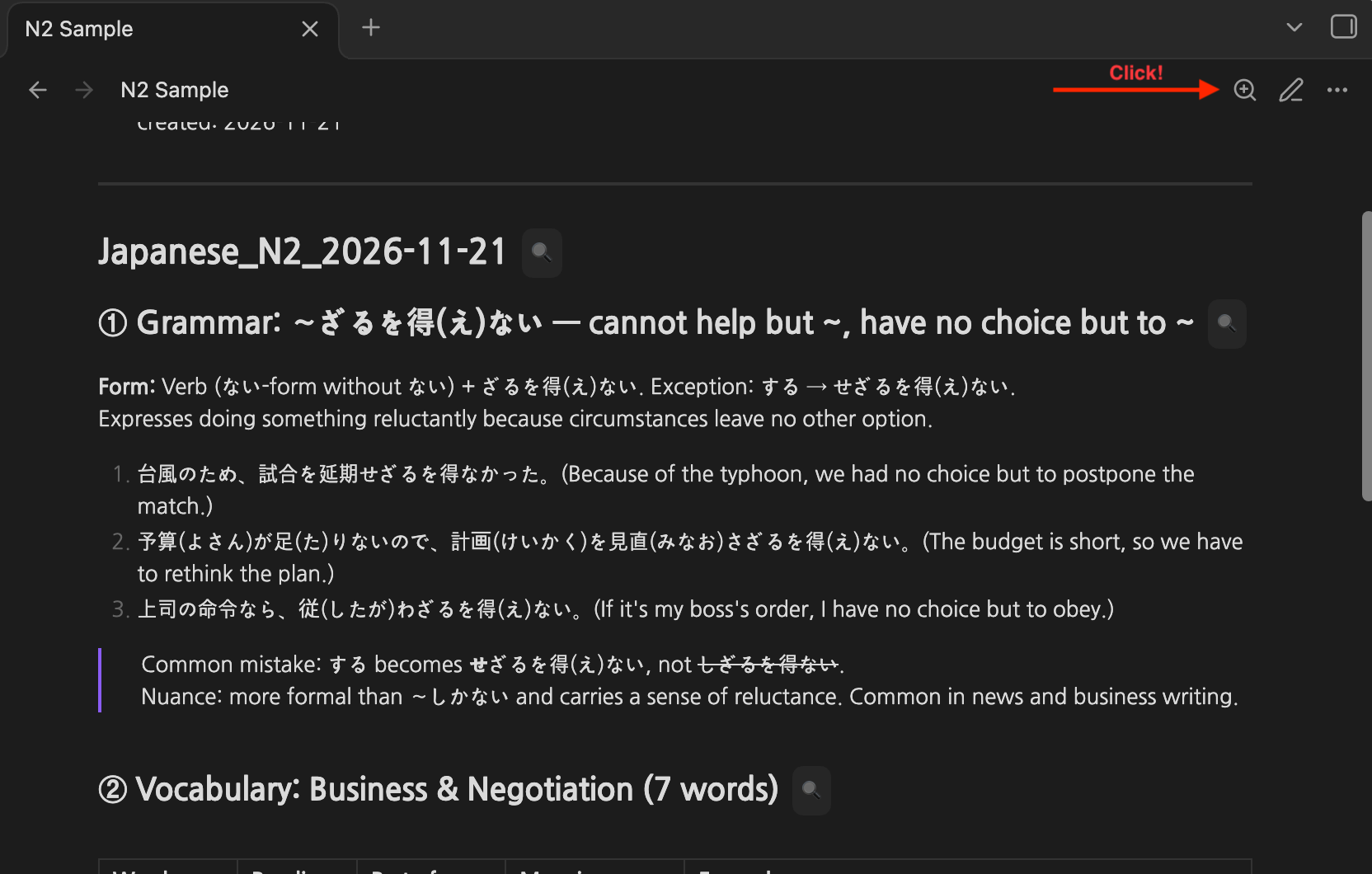 1. Click 🔍 next to the reading/edit toggle |
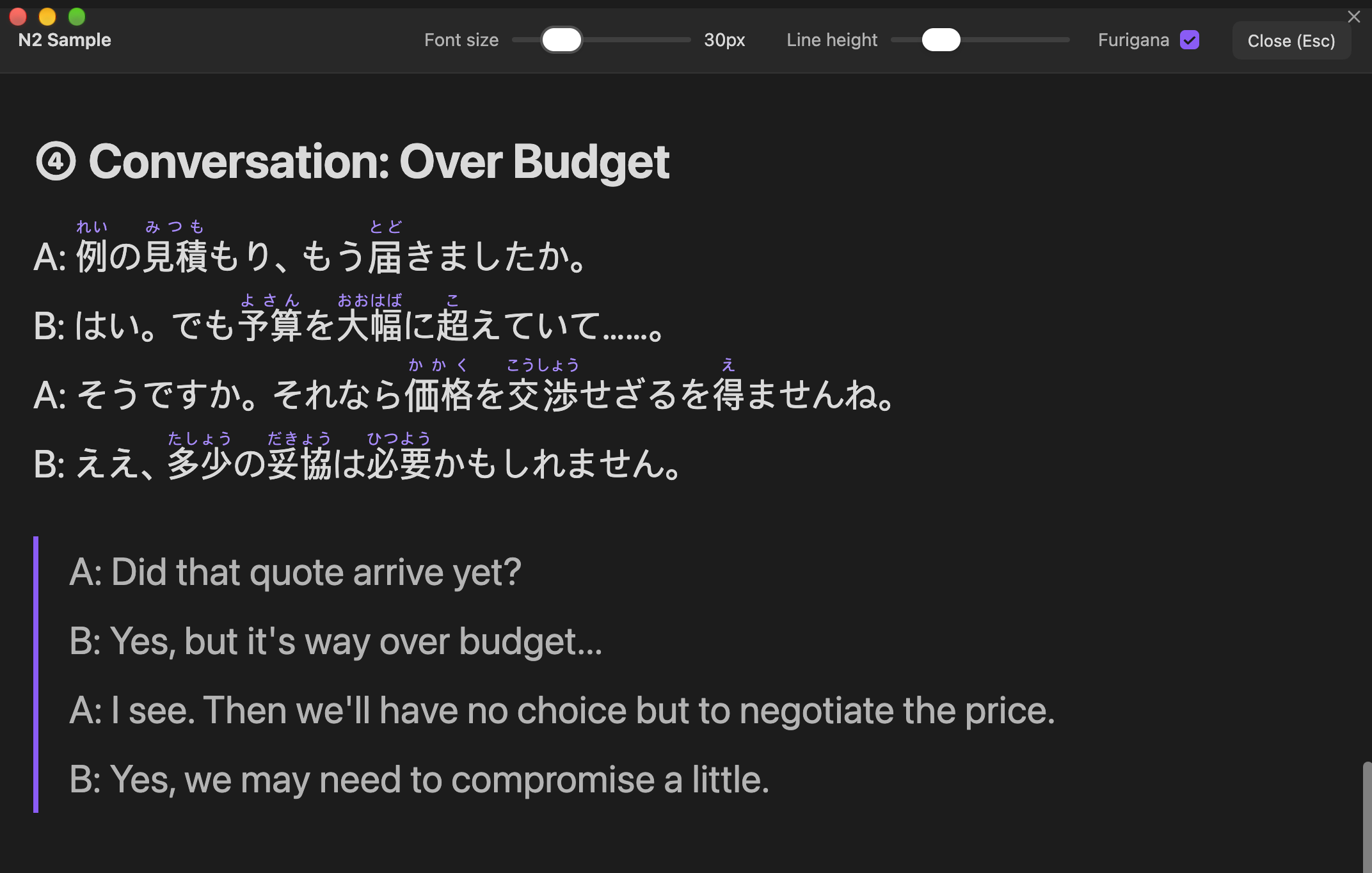 2. Read big with furigana above every kanji |
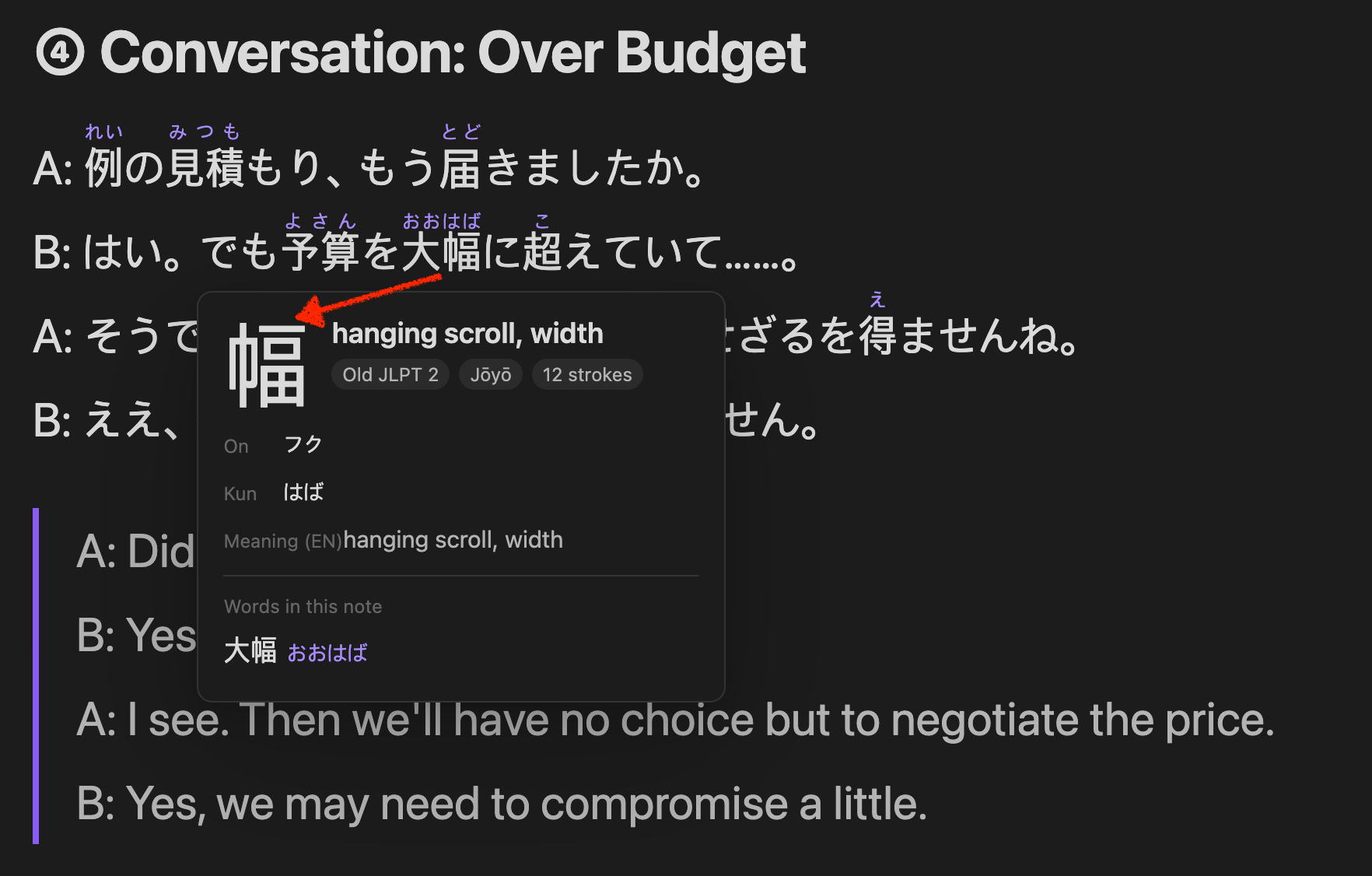 3. Hover a kanji for readings, meanings and your note's words |
Features
- Zoom viewer — opens the current note (or one section) full-screen. Font size 18–72px, line height and furigana toggle are remembered.
- Furigana — inline readings like
参加(さんか)or参加(さんか)are rendered as ruby text above the kanji. - Kanji popup — hover (or tap on mobile) any kanji to see:
- On / Kun readings, meanings, stroke count, grade, old JLPT level (KANJIDIC2, ~3,000 kanji, works offline)
- Meanings in English, French, Spanish or Portuguese — follows Obsidian's language or pick one in settings (falls back to English when a kanji has no translation)
- Optional Korean (hanja) reading — on by default when Obsidian is in Korean
- Words in this note that contain the kanji — pulled from your vocabulary tables, grammar headings and inline readings
- Korean and English UI (follows Obsidian's language).
How to open
- 🔍 icon in the note's header bar (top right)
- 🔍 ribbon icon
- Command palette: Kanji Zoom: Open current note (assign a hotkey if you like)
- Reading view: 🔍 button next to h1–h3 headings opens just that section
In the viewer: + / -, Cmd/Ctrl + = / -, or Cmd/Ctrl + mouse wheel (trackpad pinch too) change the font size; Esc closes.
The viewer's toolbar works as a title bar, so you can still drag the window.
Note format tips
Vocabulary tables are detected by header names:
| Column | Recognised headers |
|---|---|
| Word | 단어, 語, word, kanji (otherwise the first column) |
| Reading | 읽기, 読み, reading |
| Part of speech | 품사, 品詞, pos |
| Meaning | 뜻, 의미, 意味, meaning, translation |
Grammar headings like ## 문법: ~を問(と)わず — ~을 따지지 않고 are picked up as word — meaning.
See samples/ for an example note.
Installation
From Community plugins
Settings → Community plugins → Browse → search Kanji Zoom. (after approval)
Manual
- Download
main.js,manifest.json,styles.cssfrom the latest release. - Put them in
<your vault>/.obsidian/plugins/kanji-zoom/. - Reload Obsidian and enable Kanji Zoom in Settings → Community plugins.
That's it — the kanji dictionary is built into main.js. Nothing else to download, and it works offline.
Development
Only for working on the plugin itself — users don't need any of this.
No Node.js required.
python3 tools/check.py          # build + Obsidian compatibility checks + tests (run before every commit)
python3 tools/build.py          # build only: src/main.js + data/kanji.json → main.js
python3 tools/test.py           # tests only (Node.js, or macOS JavaScriptCore if Node isn't installed)
Edit src/main.js, never main.js (it is generated). tools/check.py catches common Obsidian review rejections: manifest rules, innerHTML, default hotkeys, Node-only require on a mobile-enabled plugin, network calls, regex lookbehind (older iOS), and unfinished manifest values in --release mode. CI runs it on every push.
Regenerate data/kanji.json from the KANJIDIC2 source (maintainers only, e.g. for a new KANJIDIC2 release; the result is committed and embedded at build time):
curl -LO http://www.edrdg.org/kanjidic/kanjidic2.xml.gz
python3 tools/build_kanji.py kanjidic2.xml.gz data/kanji.json
Release: bump version in manifest.json, add it to versions.json, then push a tag with the same version (e.g. 0.1.1). GitHub Actions builds main.js and creates a draft release.
Support
If this plugin helps your study, you can buy me a coffee ☕.
License
- Code: MIT
- Kanji data: KANJIDIC2 © Electronic Dictionary Research and Development Group, used under CC BY-SA 4.0 — see data/LICENSE-KANJIDIC2.md. JLPT levels are the old 4-level ones from KANJIDIC2.