Kami Reader Companion
 Kenny Wu106 downloads
A continuous Kami-inspired Obsidian shell with Reading Stage, precise Outline sync, and adaptive wide content.
- Overview
- Scorecard
- Updates12
A desktop-first Obsidian 1.13+ plugin that keeps the workspace on one continuous Kami-inspired Folio Shell across New Tab, Reading, Editing, Graph, Canvas, and other root views. Markdown pane typography stays stable across focus changes; the current document additionally receives:
- continuous Reading and Editing presentation;
- exact current-heading highlighting in the core Outline when its rendered rows map uniquely to note headings, with native highlighting as the safe fallback;
- adaptive use of spare pane width for wide diagrams, tables, code and embeds;
- an explicit Toggle reading stage command for deep Reading View;
- an optional Toggle focus mode command that follows the active editor line and reveals Reading blocks through pointer or keyboard focus;
- a transient Toggle white page preview command for printing-minded review of one active Markdown document without changing the surrounding shell.
The plugin is desktop-only, targets Obsidian 1.13+, and works with Obsidian's Default Theme. It does not require Kami Reader. Kami Reader remains an optional companion for fuller styling of callouts, tables, code, editor syntax, menus, settings, and other components outside Companion's document treatment. No theme detection or integration setting is required.
Companion writes no note content, stores no workspace state, and restores the active theme when disabled.
Version 0.4.1 has maintainer acceptance on macOS and an explicitly approved single-platform release exception. Windows and Linux are not validated for this version. Ticket 07 remains open. See the release notes and acceptance record.
Pane focus does not change document typography or add an automatic deck or date. Companion and Reading Stage respect user font, maximum width, background, and accent settings. White-page preview temporarily overrides only the active document palette.
Reading Stage, Focus Mode, and White Page Preview
Open the document's More options (⋯) menu to toggle Reading Stage, Focus Mode, and White page preview. Checkmarks reflect current state; existing commands remain available. Each active mode has its own exit button in the document header. In a narrow pane, use Tab to reach each button and Enter or Space to exit. Escape closes foreground menus or dialogs before exiting Stage, then Focus.
Pane width controls whitespace and heading scale without shrinking the user's body font. Wide content uses spare pane space; nested list and callout content stays local.
Open the Command Palette and run Kami Reader Companion: Toggle focus mode
to enter the optional focus treatment in either Editing or Reading View. In
Editing View it follows CodeMirror's active line. In Reading View, point to or
keyboard-focus a block to bring it and its neighbors forward; use Arrow Up
and Arrow Down to move between blocks. Workspace chrome remains
contrast-safe throughout; hovered, active, or keyboard-focused controls become
the strongest chrome within their group. Reference panes and surrounding text
retain full readability; markers emphasize the current content.
Focus is temporary per-window intent: it survives Markdown file, pane, and Reading/Editing changes, pauses on Graph, Canvas, or New Tab, and resumes on Markdown. Windows are independent. Explicit exit, Escape, window close, or plugin unload clears it; restarting does not restore it.
Toggle reading stage remains Reading-only and changes the workspace's
spatial presentation. The two modes can be combined: Reading Stage controls
space, while Focus Mode controls attention. Escape exits Reading Stage first,
then Focus Mode. Neither mode is persisted.
Run Kami Reader Companion: Toggle white page preview in either Reading or Editing View to make only the active Markdown leaf use white paper, dark ink, Ink Blue accents, and warm parchment document surfaces. It composes with Stage and Focus, has no default hotkey or Ribbon button, and clears when the active file, leaf, mode, or owner window changes, or when Companion unloads. It never writes frontmatter or saved plugin data. The same light reset also protects Obsidian PDF export when the app is in Dark mode.
Historical screenshots and fingerprints remain unchanged. The 0.4.1 release check
binds its assets to the reviewed implementation and the paired Kami Reader 0.3.1
theme file. npm run check:release validates this approved exception;
npm run check:visual retains the full visual matrix gate. Later versions do not
inherit the exception.
Showcase
Current macOS captures using synthetic example notes. Obsidian 1.13.7, Kami Reader 0.3.1, Companion 0.4.1; the last image uses the Default theme.
| Reading and layout | Interaction and detail |
|---|---|
Light split panes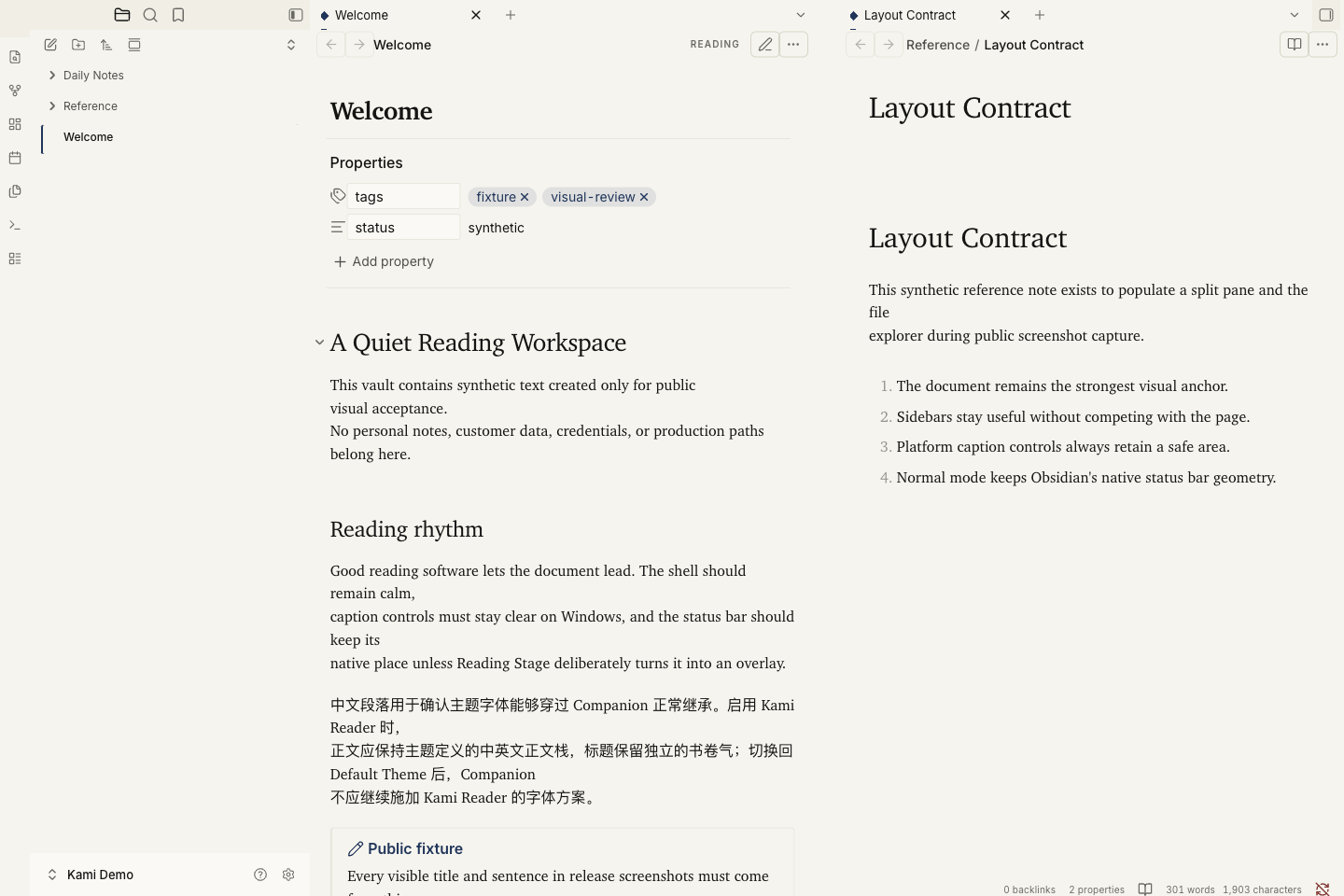 |
Dark split panes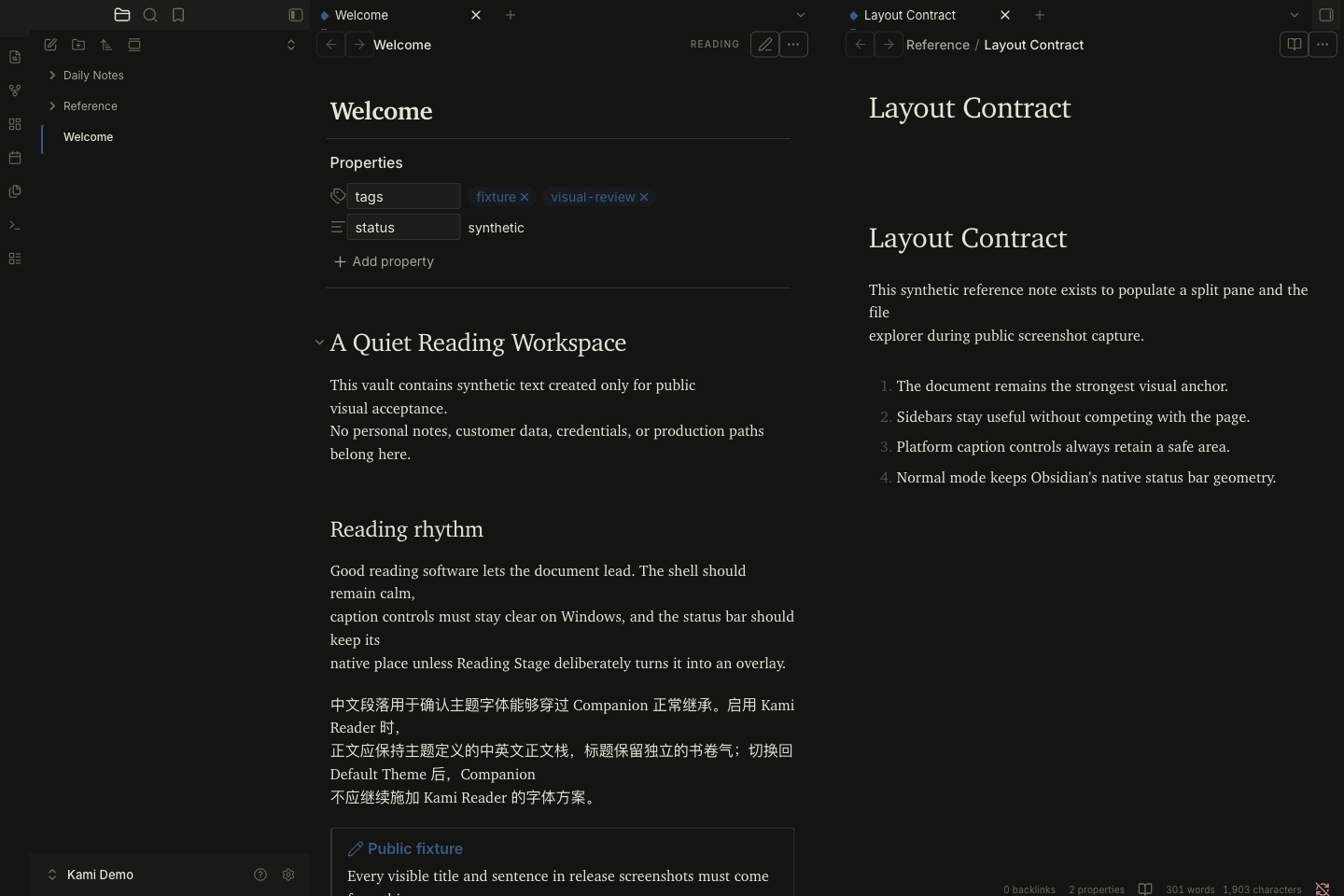 |
Mode menu and exit controls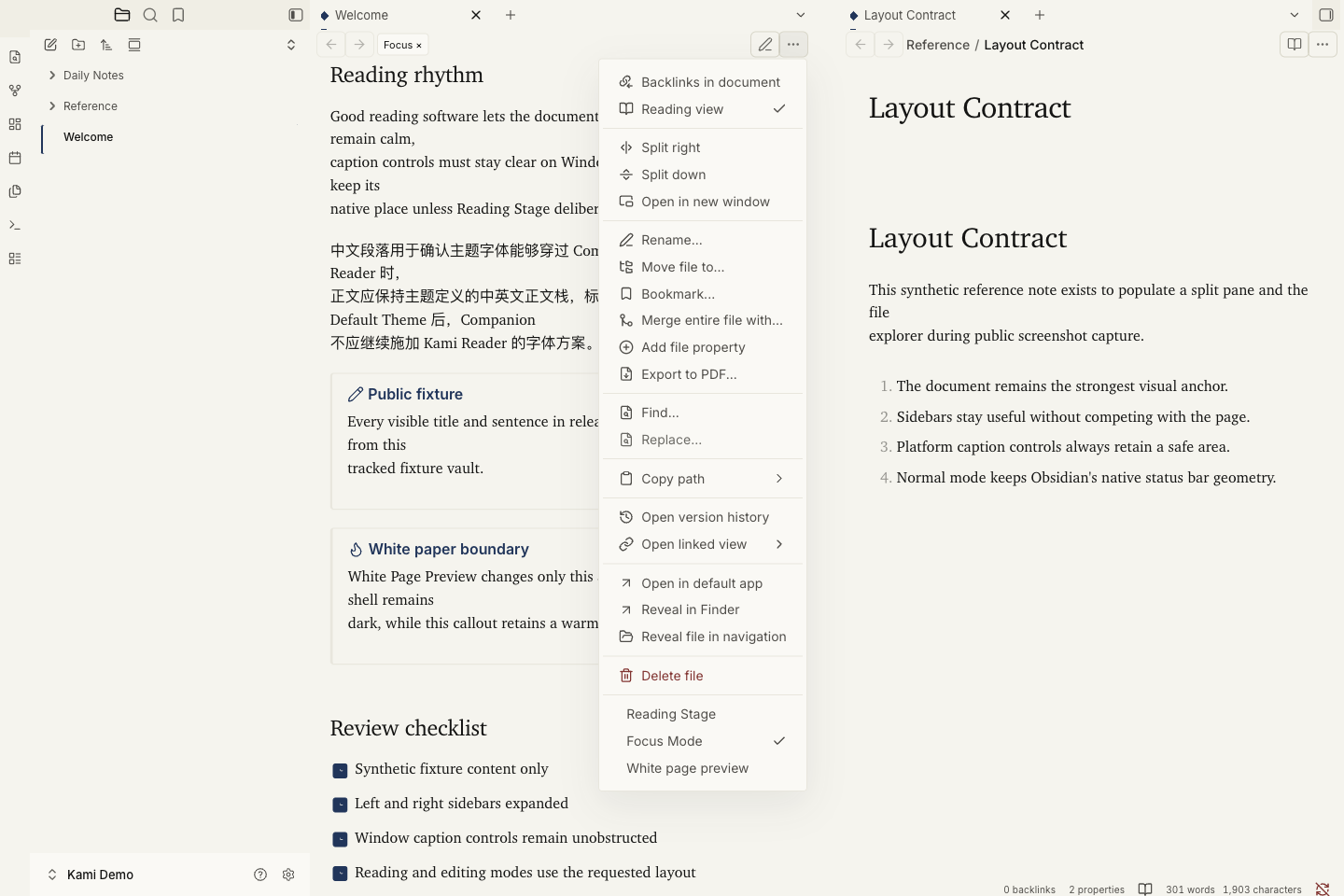 |
Reading Stage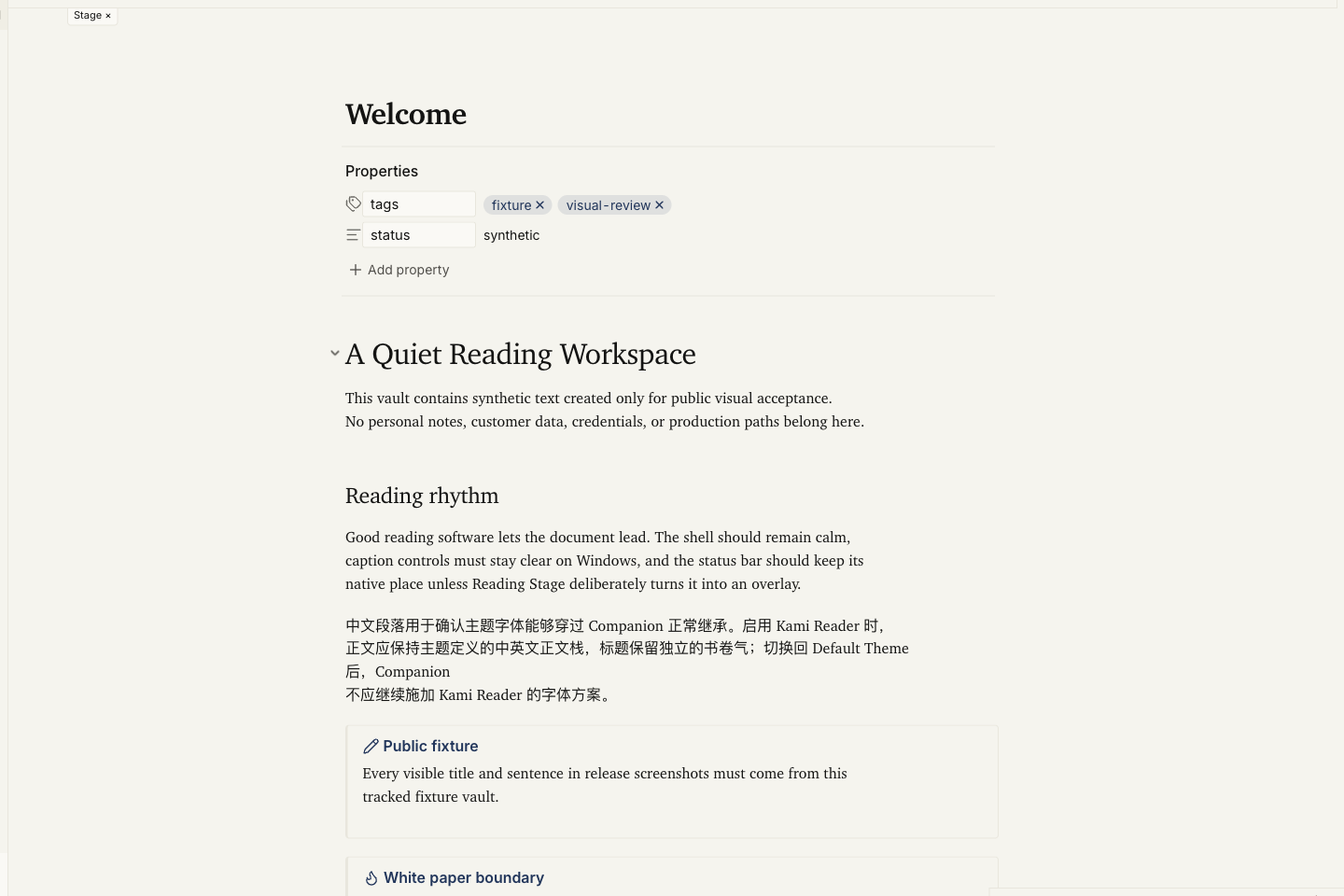 |
White preview in a dark workspace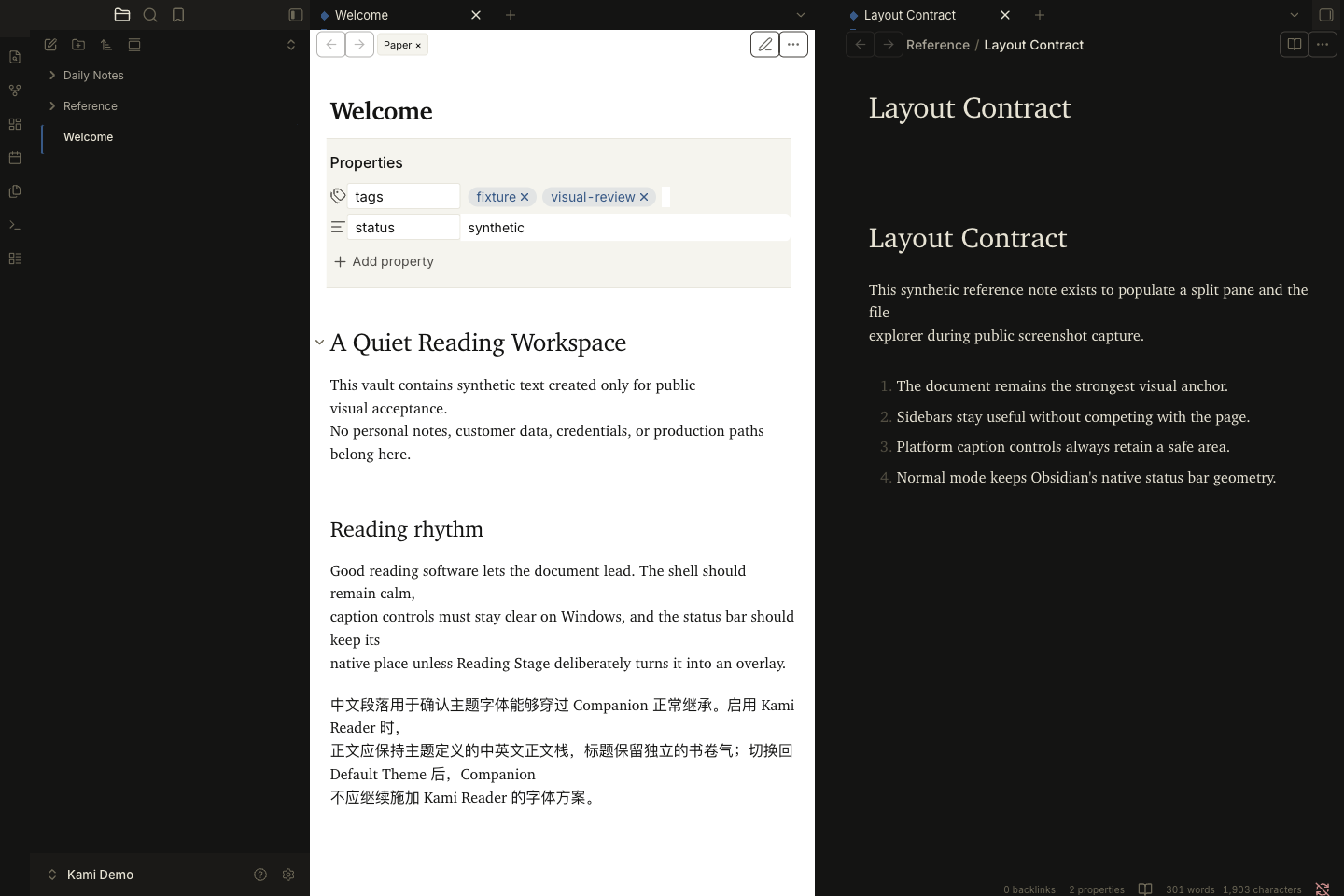 |
Default theme compatibility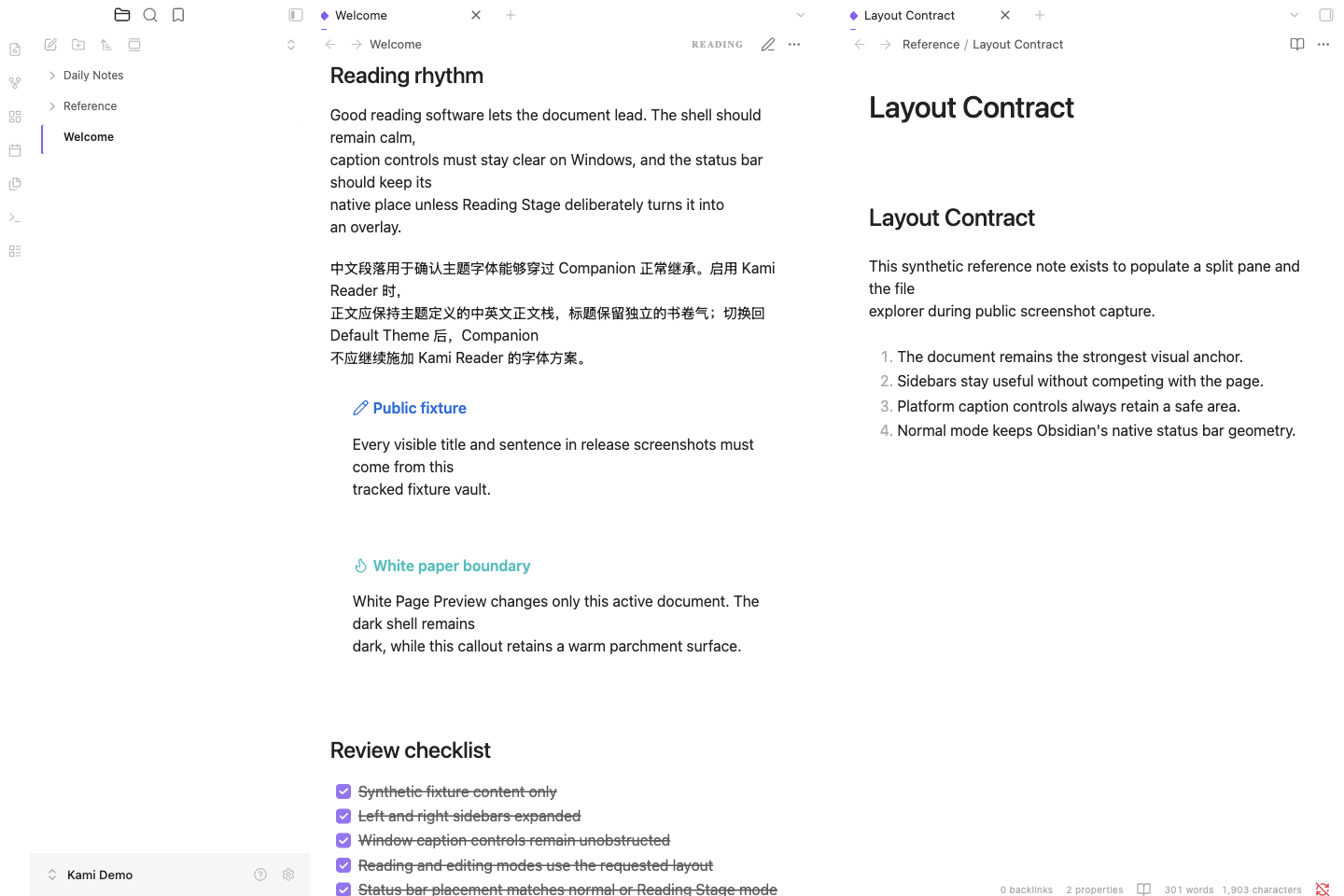 |
Capture record. These examples do not establish Windows acceptance.
Local development
npm ci
npm run check
npm run dev:injector
check:visual also needs the exact paired theme asset:
KAMI_VISUAL_THEME_CSS=/path/to/obsidian-kami-0.3.1/theme.css \
npm run check:release
On PowerShell, set $env:KAMI_VISUAL_THEME_CSS to the same theme.css path
before running npm run check:visual.
Release screenshots must contain only files and text from
tests/fixtures/visual-vault; never capture a personal or production vault.
Companion inherits native --font-text (falling back to --font-text-theme)
for body copy and the optional
--font-heading-theme contract for headings. Themes without the heading token,
including Obsidian Default, safely fall back to their body font.
Paste .dev/inject-kami-reader-companion.js into Obsidian DevTools, then enable
Kami Reader Companion under Settings → Community plugins.
The injector intentionally refuses to update an existing plugin directory. Remove the previous local installation before injecting a new build.