JUnit Failure Notes
 theluckystrike1 downloads
Convert a local JUnit XML report into a note with test counts and folded failure logs.
- Overview
- Scorecard
- Updates1
JUnit Failure Notes converts a local JUnit XML report into a Markdown note. The note shows test counts and folded failure logs. Keep a result beside a project note, review the failed tests, and link the report from a work log. The XML source stays unchanged.
The free commands need no account. Copy a report into your vault before you start. The plugin reads vault files through the public Obsidian API. It does not fetch reports from a CI server.
Features
Choose one local XML file
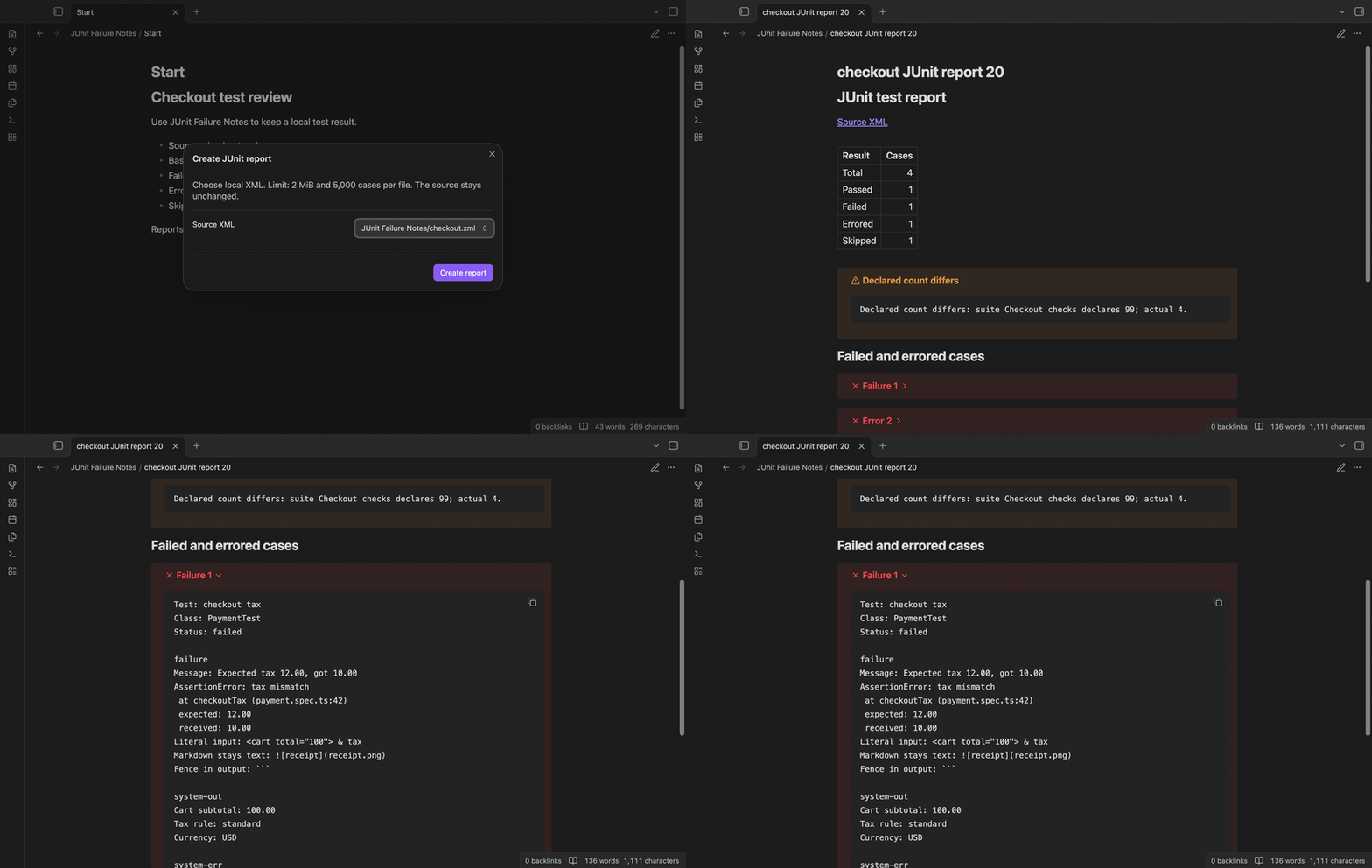
Run Create report from XML from the command palette. The chooser lists XML files in the vault, with their paths. Select one file and select Create report. The command reads the source and opens a new note beside it. A message in the chooser explains a parser error. If the source is invalid, the command creates no success note.
Counts from test cases
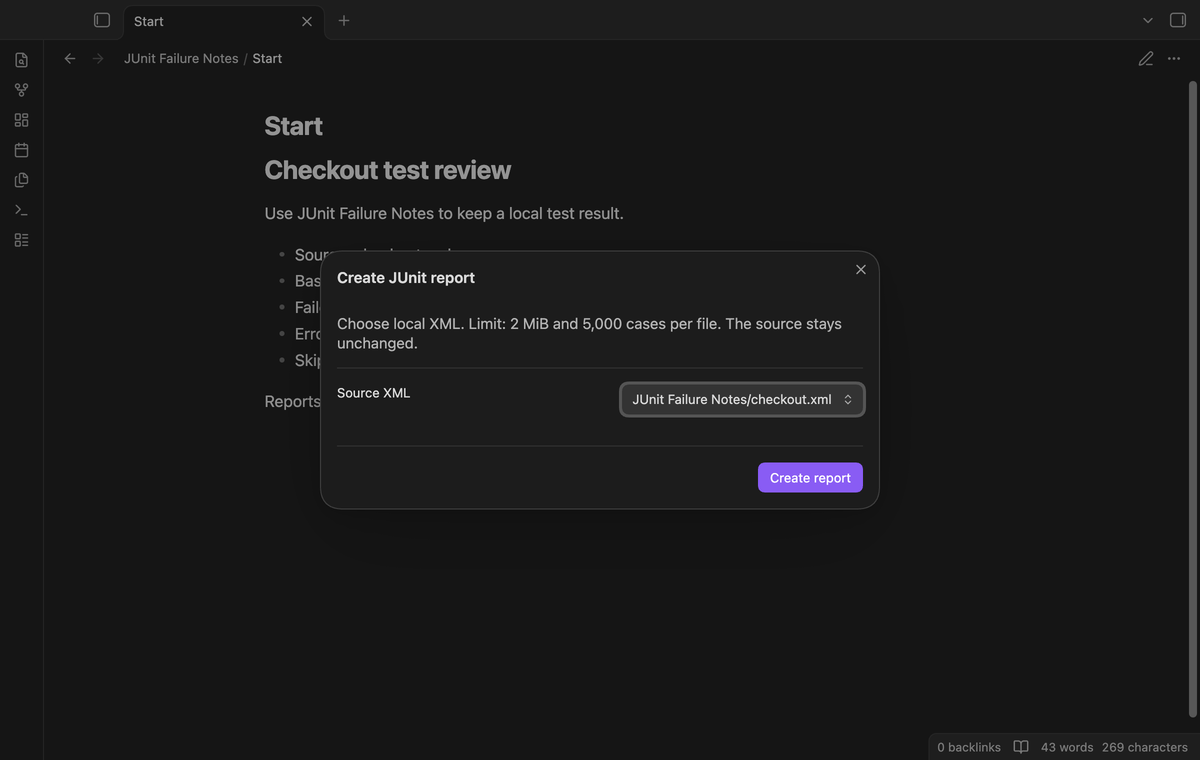
The report supports plain testsuite and testsuites roots, with nested suites. It counts testcase children instead of adding suite totals. The table shows total, passed, failed, errored and skipped counts. An error child takes precedence over failure, and failure takes precedence over skipped. A case without these children counts as passed. A skipped reason does not make the case pass.
Folded failure logs
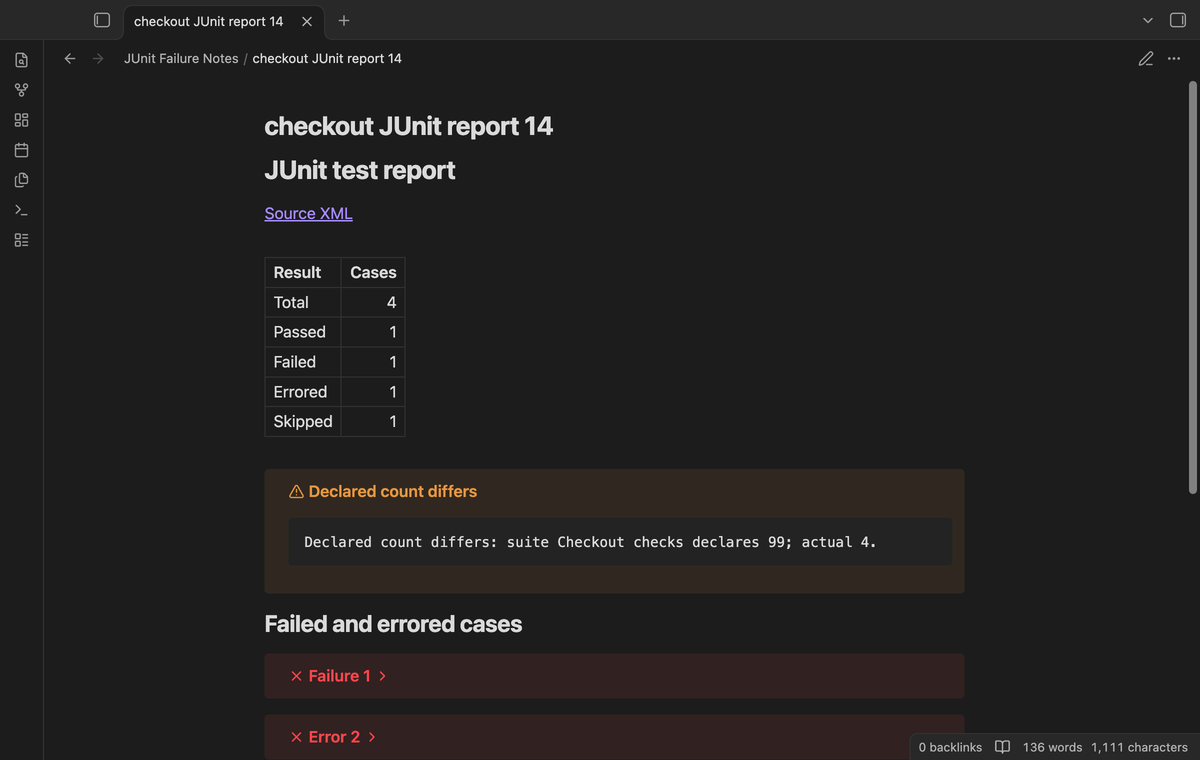
Failed and errored cases have folded callouts. Open a callout to read the test name, class name, status, message and case logs. The supported log elements are failure, error, system-out and system-err. Text goes inside a code fence longer than the backtick runs in that text. Supplied HTML and Markdown image text stay literal. A log over 20,000 characters ends with a visible truncation mark.
Declared count warnings
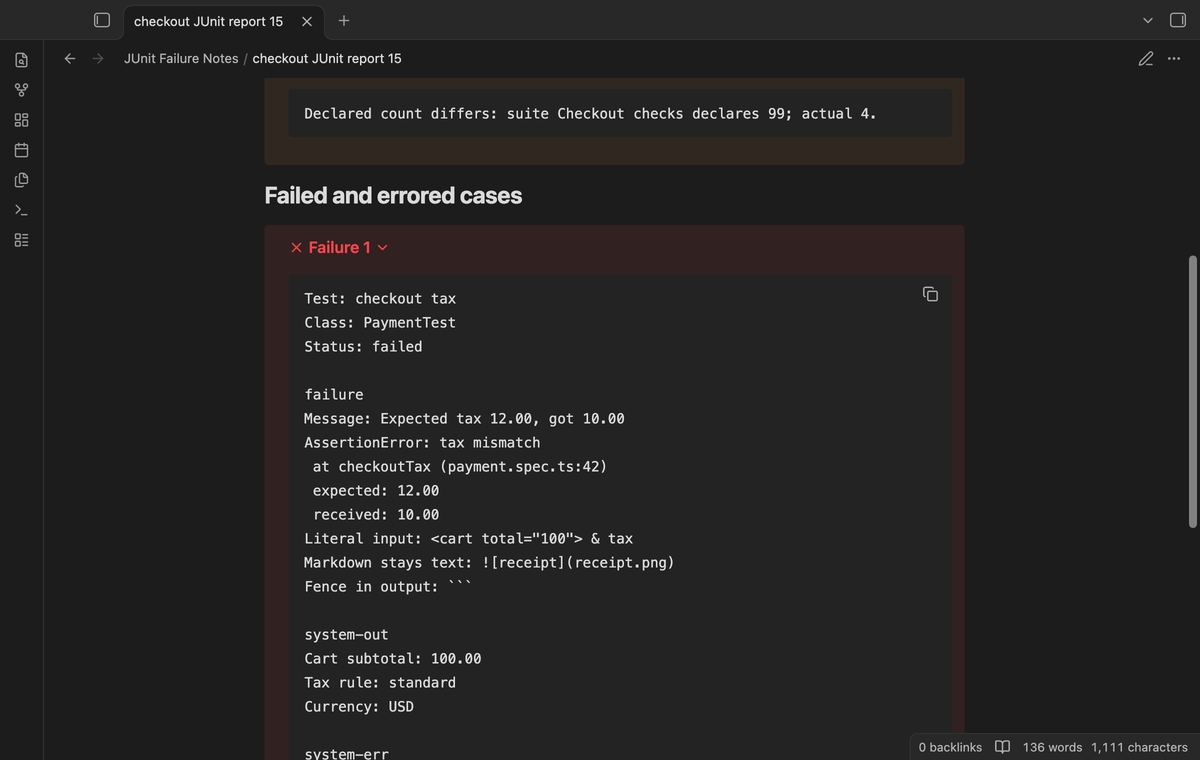
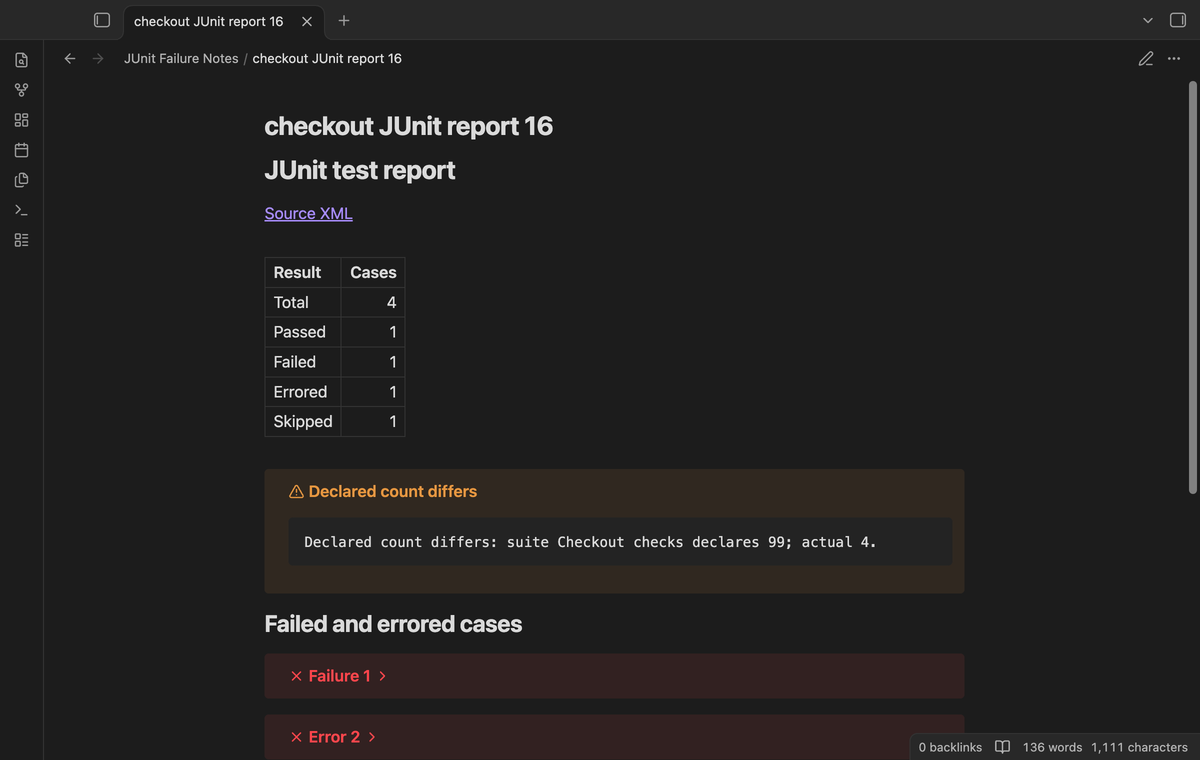
A suite can declare a test count that differs from its testcase elements. The report uses the actual count and shows a warning with the declared value and the actual value. Nested suites are visited once. Parent and child totals are not added together. This helps when a tool writes stale summary attributes into a report.
New notes with source links
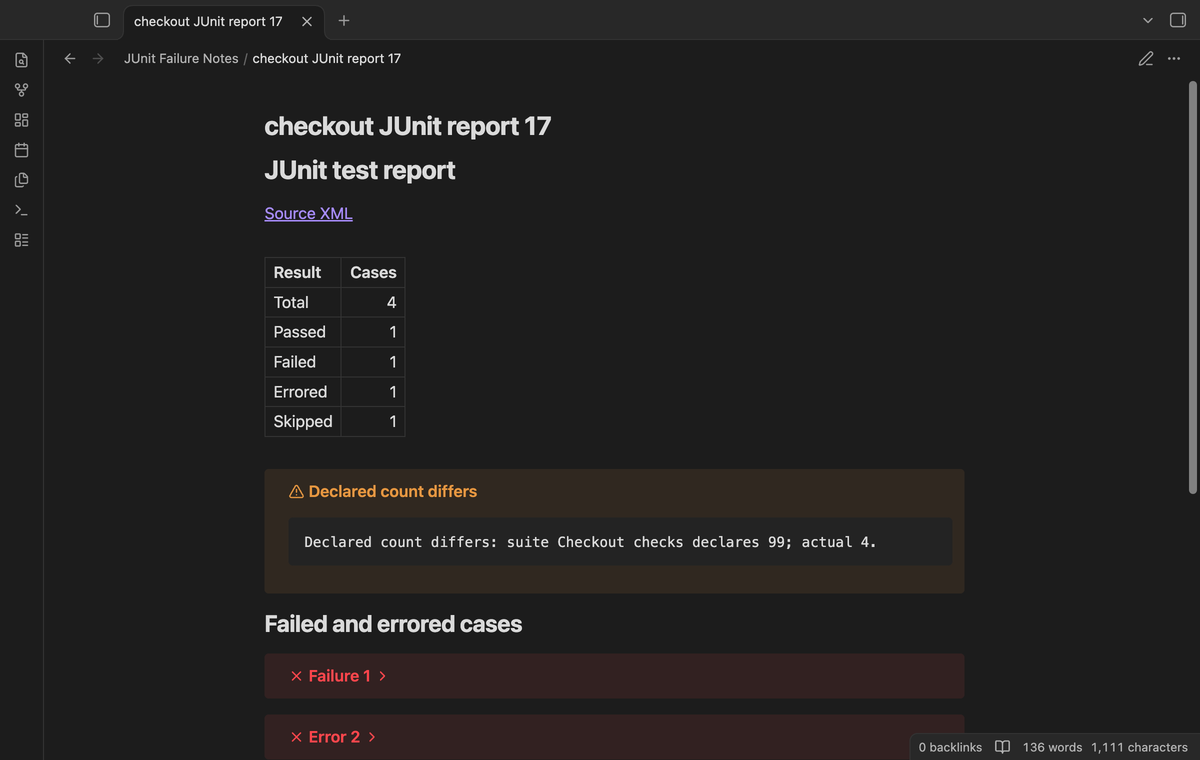
The report has a link to the local XML source. If the output path exists, the plugin adds a number, starting with 2. It keeps the prior report. For example, checkout.xml produces checkout JUnit report.md, then checkout JUnit report 2.md. The file name comes from the source path. The command does not replace the XML or update a prior report.
Folder reports (Pro)
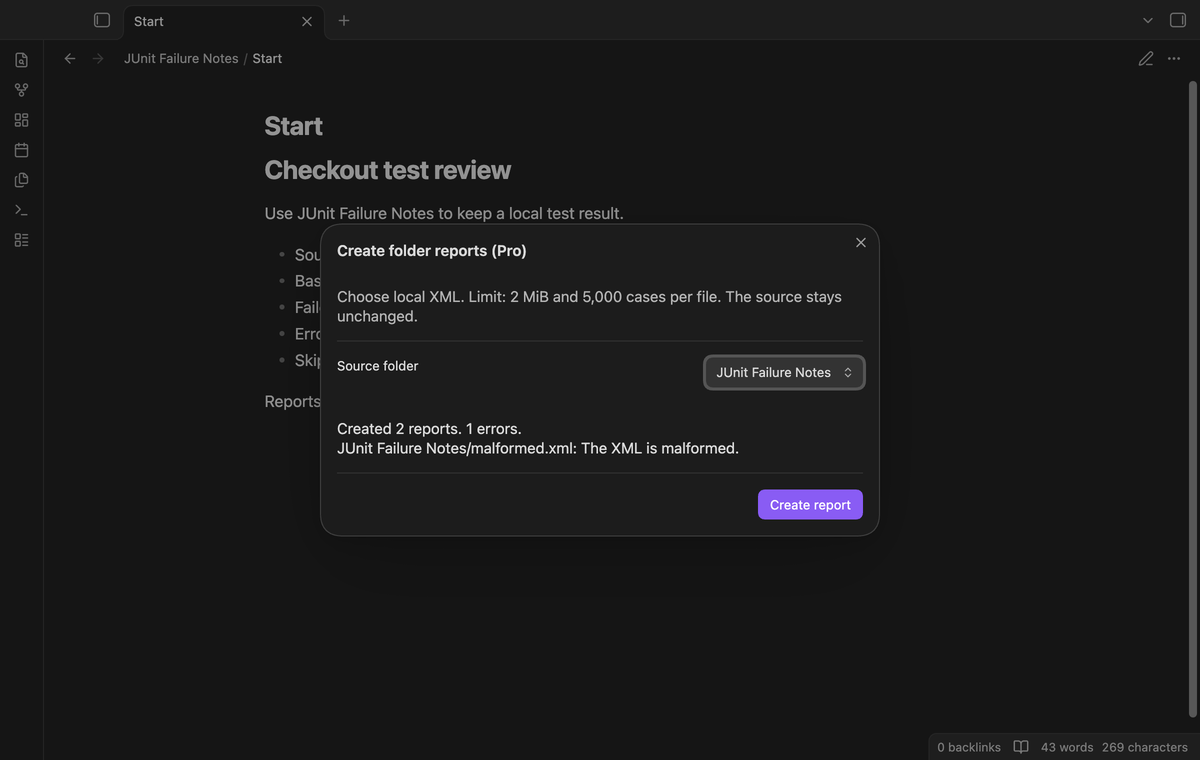
Run Create folder reports (pro) and select a folder that contains XML files. Child folders are included. The command creates a report for each supported file and lists errors for files it cannot parse. A bad file does not prevent a later valid file from getting a report. The result message shows the number of created reports and errors. Generated notes stay beside their source files.
Local baseline comparison (Pro)
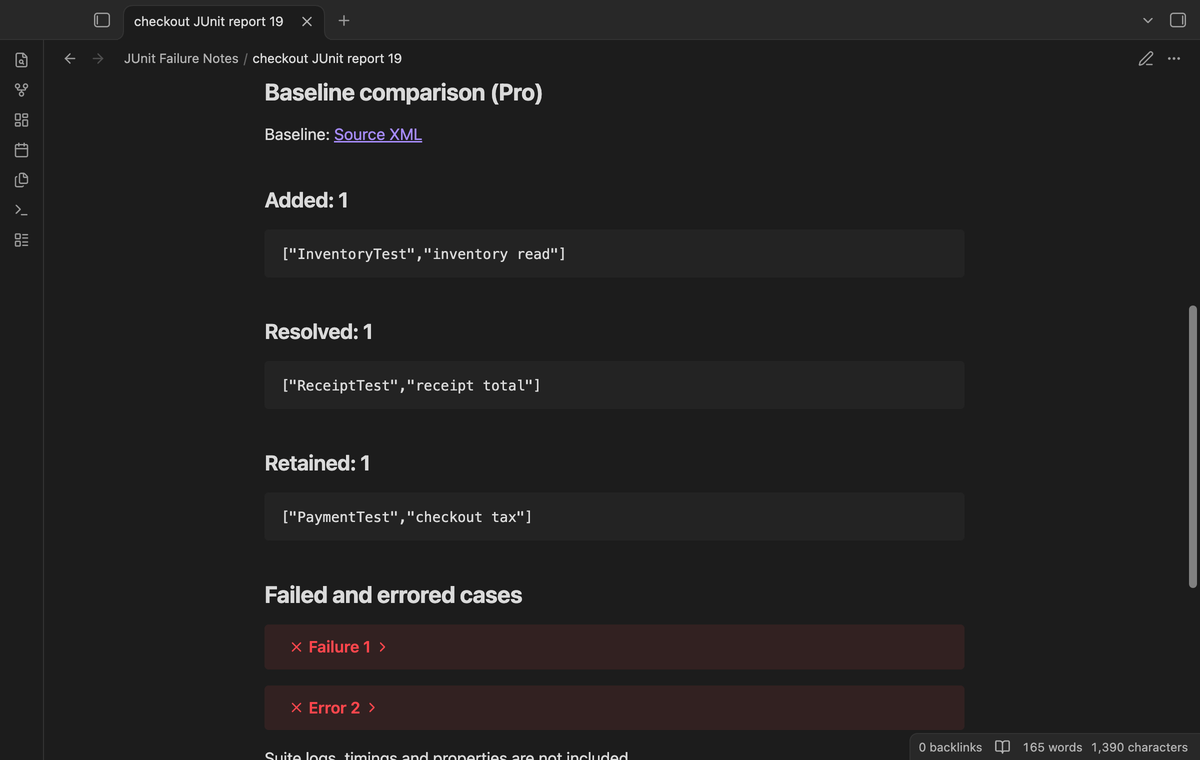
Run Save local baseline (pro) and choose a report XML file. This saves unique failed and errored class-name and test-name pairs in local plugin settings. Run Compare with local baseline (pro) to choose a later XML file. The new note lists added, resolved and retained names. Saving another baseline replaces the prior baseline. It compares names, not log text, duration or assertion messages. Duplicate pairs count once in the comparison; duplicate testcase elements still count separately in the test table.
Install
After a release is available, copy main.js, manifest.json and styles.css into <vault>/.obsidian/plugins/junit-failure-notes/. Enable the plugin in Settings → Community plugins. This version needs Obsidian 1.13.4 or later.
The plugin uses browser APIs and the public Vault API. Its manifest permits mobile loading. Real iOS and Android tests are still required before a mobile reliability claim.
Usage
- Save a JUnit XML report inside the vault.
- Open the command palette and run JUnit Failure Notes: Create report from XML.
- Choose the source path and select Create report.
- Read the counts, then open a folded failure callout.
- Follow Source XML to inspect the original file.
To keep a history, create a new report after a test run. Existing notes keep their content. Move or rename the source after creating a report only if you also check its source link. The plugin does not track source moves or refresh generated notes.
Settings
The settings tab shows the fixed limits and the saved baseline source. The limits are 2 MiB per XML file, 5,000 testcase elements and 20,000 characters per log. These limits cannot be changed in this version. Reports go beside their XML sources.
The Pro section has the GitHub Sponsors sign-in controls. Free reports stay available when Pro is off. Baseline data stays saved when you sign out, but a comparison needs active Pro access.
FAQ
Which dialects are supported?
Use plain roots and the child elements listed above. Namespaced XML, DOCTYPE and ENTITY declarations are rejected. Suite-level logs, properties and timing charts are omitted. Successful and skipped case logs are not written as failure callouts.
What has not been tested?
Real iOS and Android devices, Windows and Linux desktop, the light theme, the full set of JUnit dialects, huge folder batches and live payment or GitHub device approval have not been tested. Sponsorship tests use local test responses. The tests cover parser errors, nested counts, literal logs, output collisions, input limits and Pro guards.
Payment, account and network
The core features are free. Pro features need a GitHub Sponsors sponsorship of theluckystrike: $5 a month or more, or $15 once. A total payment of $15 meets the payment requirement for Pro without further payment. Sign-in and the checks below still apply. Your notes stay readable and editable with or without Pro.
GitHub handles the payment. Sponsor at https://github.com/sponsors/theluckystrike. You need no account for the free features. Pro needs the GitHub account that sponsors.
Until you select "Sign in with GitHub" in the settings, JUnit Failure Notes makes no network requests. Sign in uses the GitHub device flow. JUnit Failure Notes sends its public client ID and the scope read:user to https://github.com/login/device/code and shows you a code. While you enter the code at https://github.com/login/device, it asks https://github.com/login/oauth/access_token every few seconds to check the sign-in status. The scope permits profile reads only. GitHub needs this access to show the sponsorship tier. It grants no repository scope and no write access.
After sign in, JUnit Failure Notes sends one query to https://api.github.com/graphql. It checks if the signed-in account sponsors theluckystrike. It asks for the tier and the total payment to theluckystrike. The plugin reuses a successful check for 7 days. Failed checks can retry after 6 hours. Select Refresh to request an earlier check. It sends no note content, file names or other vault data, and it has no telemetry.
After a successful check, Pro can work offline for up to 14 days. Sign out or a negative sponsorship answer turns Pro off. The plugin stores the GitHub token through the secret storage API of Obsidian. It does not put the token in its saved settings or its local sponsorship data. The local storage of this device keeps your GitHub login, the tier and the time of the last check. Sign out clears the token. You can also revoke the access in your GitHub settings, under Applications.
Support
After the public repository is available, use its issue tracker for bugs and feature requests. Include your Obsidian version, the error text and a small XML example with private information removed. The source code uses the MIT license. Test fixtures contain sample test names and logs.