Image Kit
 Robert Fleming59 downloads
Size, align, and caption images alongside Obsidian's native image controls. Layout is saved in the link itself.
- Overview
- Scorecard
- Updates2
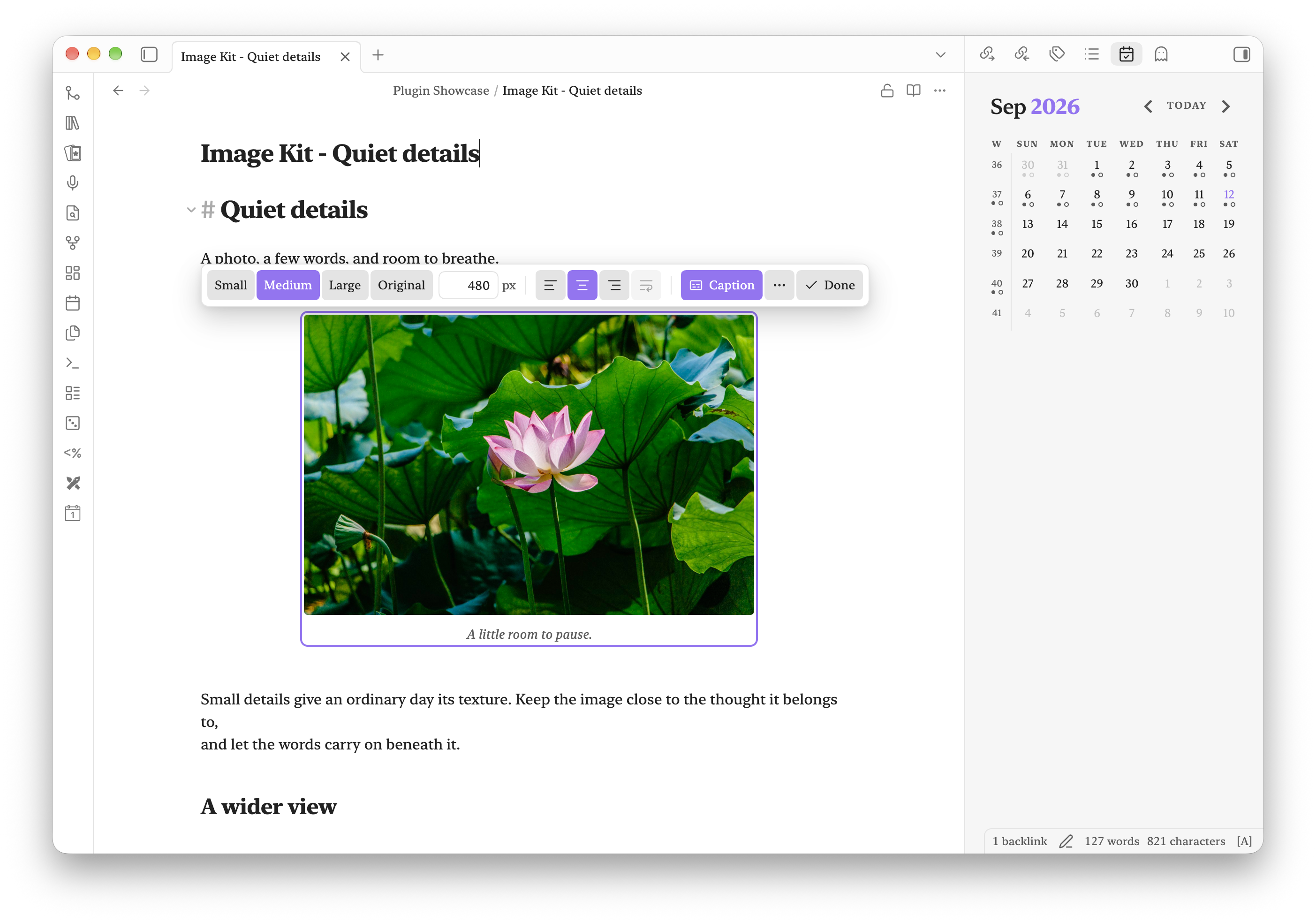
Your everyday image workflow, in one place: choose a size, place the image, add a caption, and get back to writing. Image Kit puts these controls beside Obsidian’s native image actions on desktop and mobile.
What you can do
- Apply Small, Medium, Large, Original, or an exact width.
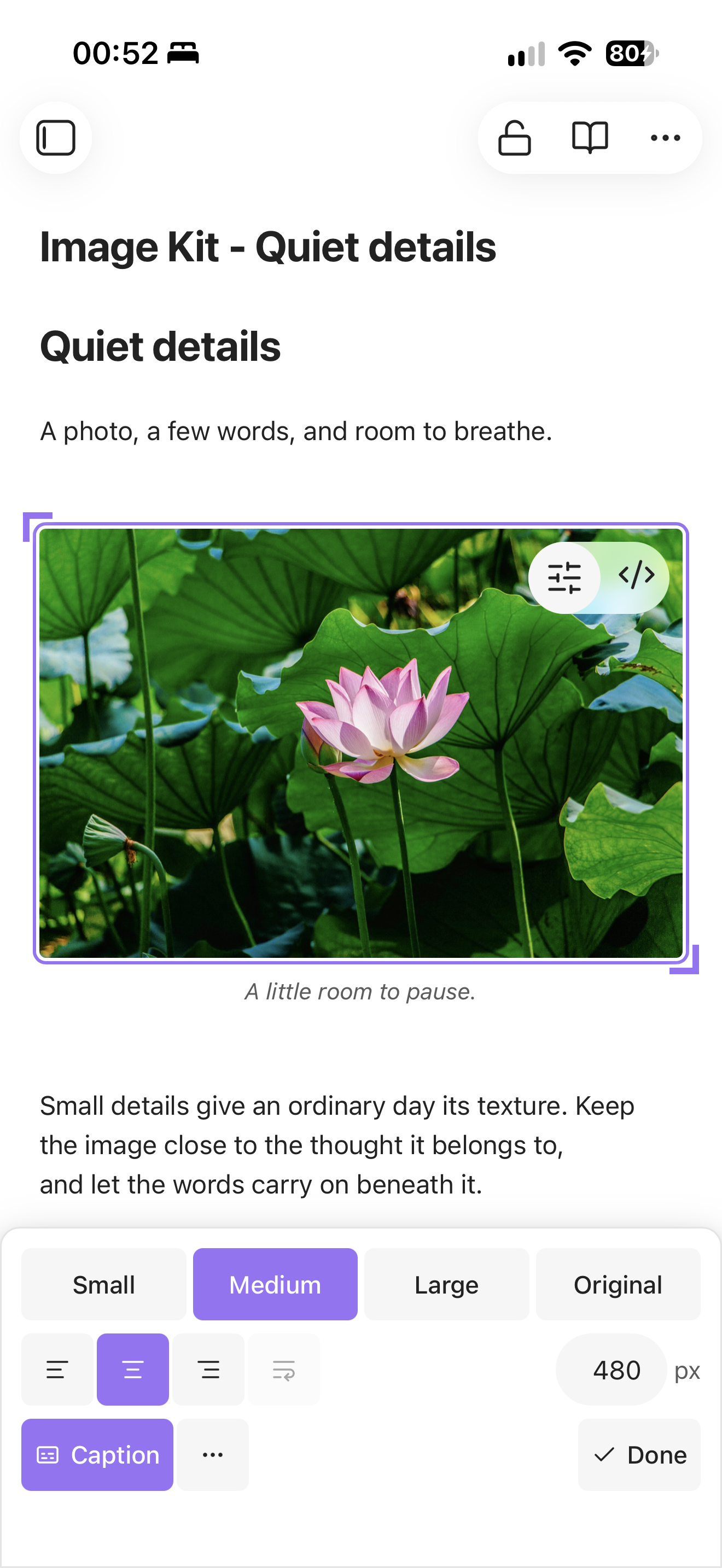
- On mobile, drag either diagonal corner grip to preview a new size; tap Done or outside the image to save.
- Align left, center, or right, and wrap text around an image.
- Add and edit a plain-text caption without editing the link syntax.
- Reveal the attachment in the file explorer, copy it, or open it fullscreen.
- Reset size and alignment while keeping the caption.
- Remove an image from the note while keeping its attachment.
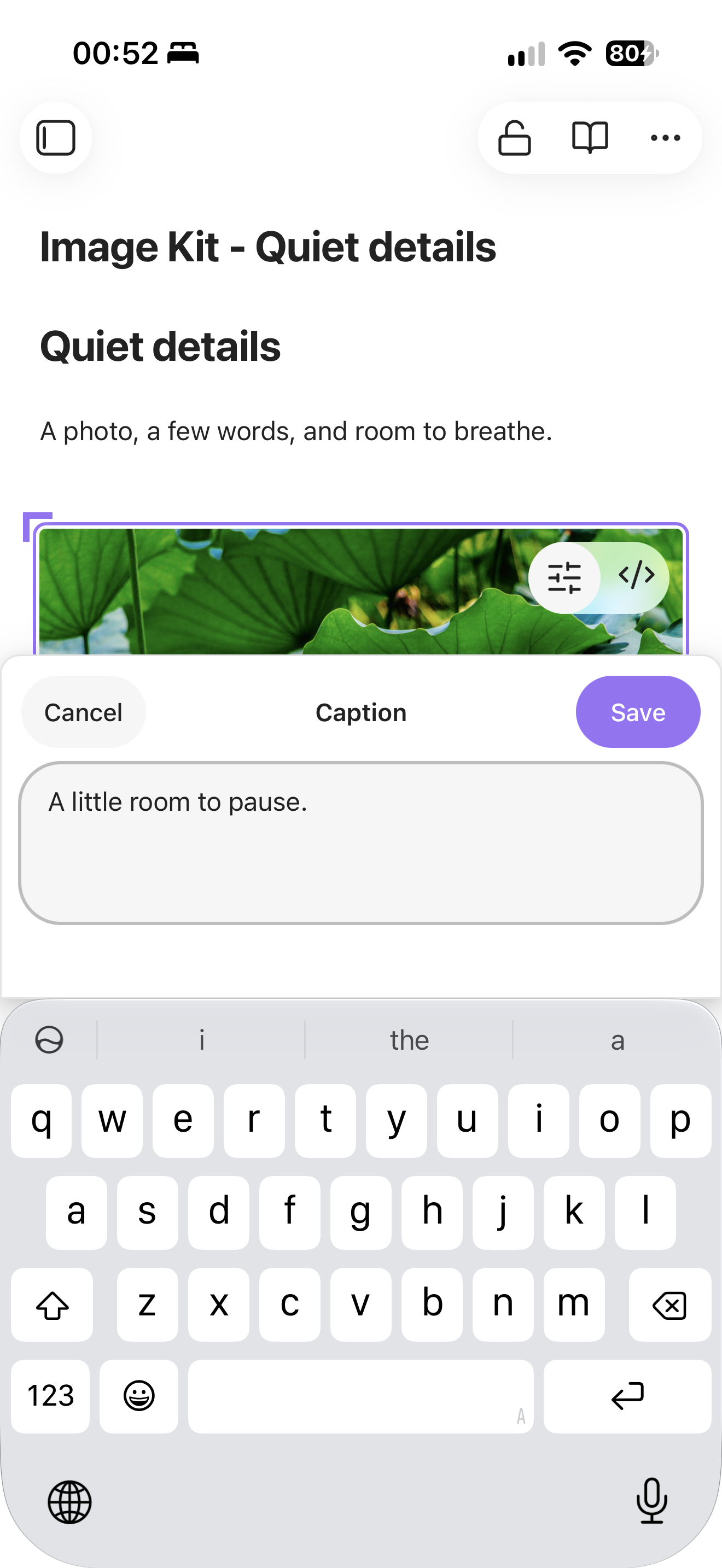
In Live Preview, Edit image appears before Obsidian’s Edit this block button. The native zoom and resize controls remain available. The desktop toolbar stays aligned to the note column; phones get a compact bottom panel and a slide-up caption editor with Save and Cancel above the text field. With Page Lock, locked images stay available to view while image editing is blocked.
Made for touch, too
Resize with the corner grips, choose an alignment, and tap Done. Captions open in a bottom sheet with Save and Cancel above the keyboard.
The complete image workflow
Use Image Kit on its own for individual image layout, or add its companions:
| Plugin | What it adds |
|---|---|
| Image Kit | Size, placement, captions, and attachment shortcuts |
| Fullscreen Image | Fullscreen viewing with zoom buttons, pan, and gallery navigation |
| Simple Gallery | Photo galleries inside notes, with sections and captions |
Each plugin works independently. Image Kit delegates fullscreen viewing to Fullscreen Image when enabled, or to Obsidian otherwise. Simple Gallery owns gallery editing.
Start using it
- Hover over an image in Live Preview, or tap its Edit image action on mobile.
- Choose a size and alignment. Use Caption to add or change the caption.
- Select Done and continue writing.
More actions includes file shortcuts, fullscreen viewing, Reset, and Remove image from note. Reading view keeps captions and alignment visible, with image editing controls hidden.
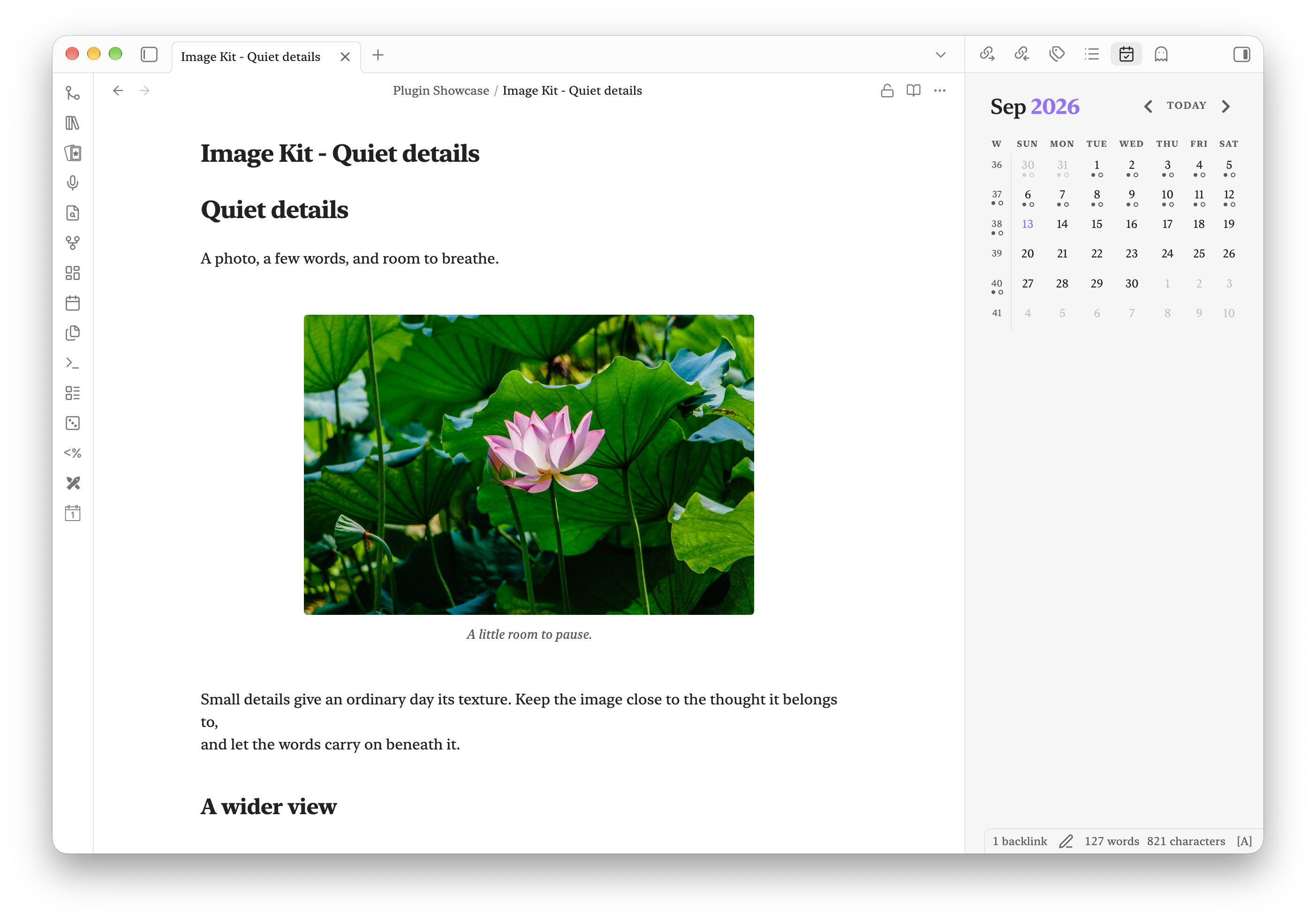
See the finished layout and Page Lock integration
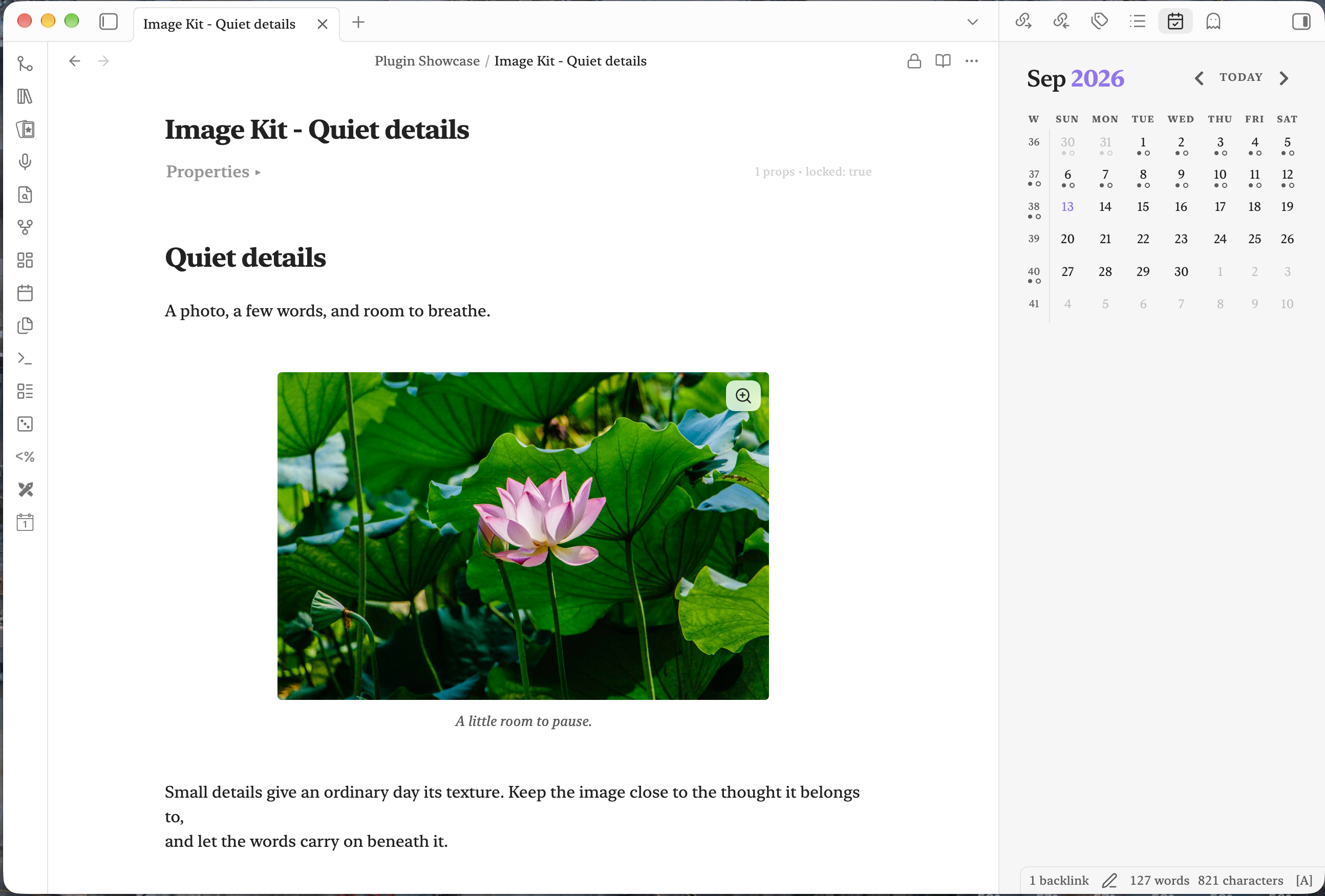
Your notes stay yours
Layout is saved in the image link:
![[photo.jpg|A little room to pause.|center|480]]
There is no separate layout database. Obsidian can still apply the width if Image Kit is removed; visible captions and alignment need a compatible plugin or renderer. The optional paste/drop handler keeps the original image bytes and is off by default, so your existing attachment workflow can continue.
Image Kit makes no telemetry requests. Remote image links follow Obsidian’s normal behavior. It does not convert, compress, crop, rotate, or annotate images.
Installation
Requires Obsidian 1.13 or newer, on desktop or mobile.
Download main.js, manifest.json, and styles.css from the
latest release. Place them in
<vault>/.obsidian/plugins/image-kit/, reload Obsidian, and enable Image Kit in
Settings → Community plugins. Keep your existing data.json when updating.
For mobile, you can also add haivri/obsidian-image-kit through
BRAT. Image Kit is not yet listed in
Obsidian’s Community plugins directory.
Captions are plain text. Avoid numeric-only captions and standalone layout keywords such as
center, which the image-link syntax interprets as size or alignment. Local attachments are
the primary supported workflow; external images in Reading view and popout windows have
limited support.
Screenshots and development
The showcase bootstrap provides the demo note and photo credits. See CONTRIBUTING.md for testing.
npm ci
npm test
npm run lint
npm run build
npm run publish:vault
Support
If Image Kit improves your workflow, you can support development on Buy Me a Coffee.
License
MIT. Demo photographs retain their own license and attribution.