Pixel Perfect Image
 Johan Sanneblad27k downloads
Pixel perfect 100% image resizing, copy to clipboard, show image in Finder/Explorer, and much more.
- Overview
- Scorecard
- Updates30
Available in: English • Deutsch • Español • Français • 日本語 • 中文
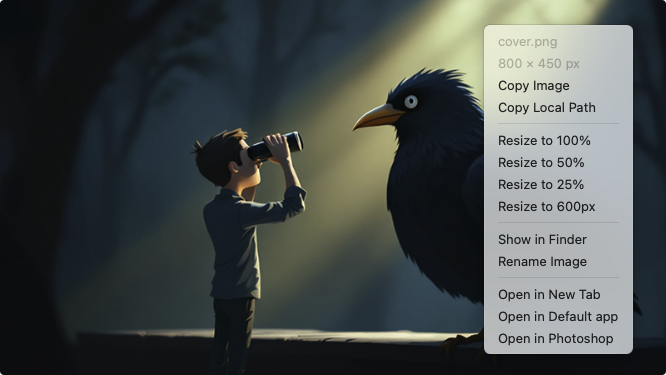
Pixel Perfect Image is a plugin for Obsidian that helps you manage images in your notes. Right-click any image to view its details, resize it to exact pixel dimensions, or perform file operations like copying it to the clipboard or opening it in your default app.
If you love using Pixel Perfect Image, please consider buying me a coffee or Sponsor on GitHub ❤️.
Features
- Pixel perfect resize: Quickly resize images to pixel perfect percentages (100%, 50%, 25%) or custom widths in pixels
- Mousewheel support: Quick resize with mousewheel (hold Alt/Option and scroll)
- Copy image to clipboard: For quick paste into other programs
- Copy local file path to clipboard: If you want to access the image from terminal
- Show in Finder/Explorer: Open file browser with your image selected
- Open in default system viewer: Open the image in your default application
- Rename images: Quickly rename image files right from the context menu
- Works with both Wikilinks and standard Markdown image links
- Quick open in new tab: CMD/CTRL + click to open image in new tab
How to Use
- Install the plugin from Obsidian's Community Plugins
- Right-click an image in your notes
- Available options:
- View filename and dimensions
- Resize to preset percentages
- Copy, open, or show in system
- Rename image files
- Quick resize with mousewheel:
- Hold Alt key (Option on macOS) and scroll over an image
- Scroll up to increase size, down to decrease
- Modifier key can be changed in settings (Alt/Ctrl/Shift)
- Zoom percentage can be adjusted in settings (default 20%)
- Each scroll step changes size by the configured percentage of current width
- Quick actions:
- CMD/CTRL + click: Open image in new tab
The plugin calculates the new width based on the original image dimensions.
Examples
Original wikilink:
![[image.png]]
After resizing to 50%:
![[image.png|500]]
(assuming the original image was 1000px wide)
Using custom resize width:
![[image.png|600]]
(setting exact width to 600 pixels)
You can configure multiple custom widths (e.g., 600, 800, 1200) in settings, which will appear as separate menu options.
Installation
- Open Obsidian Settings
- Navigate to Community Plugins
- Search for "Pixel Perfect Image"
- Click Install
- Enable the plugin
Settings
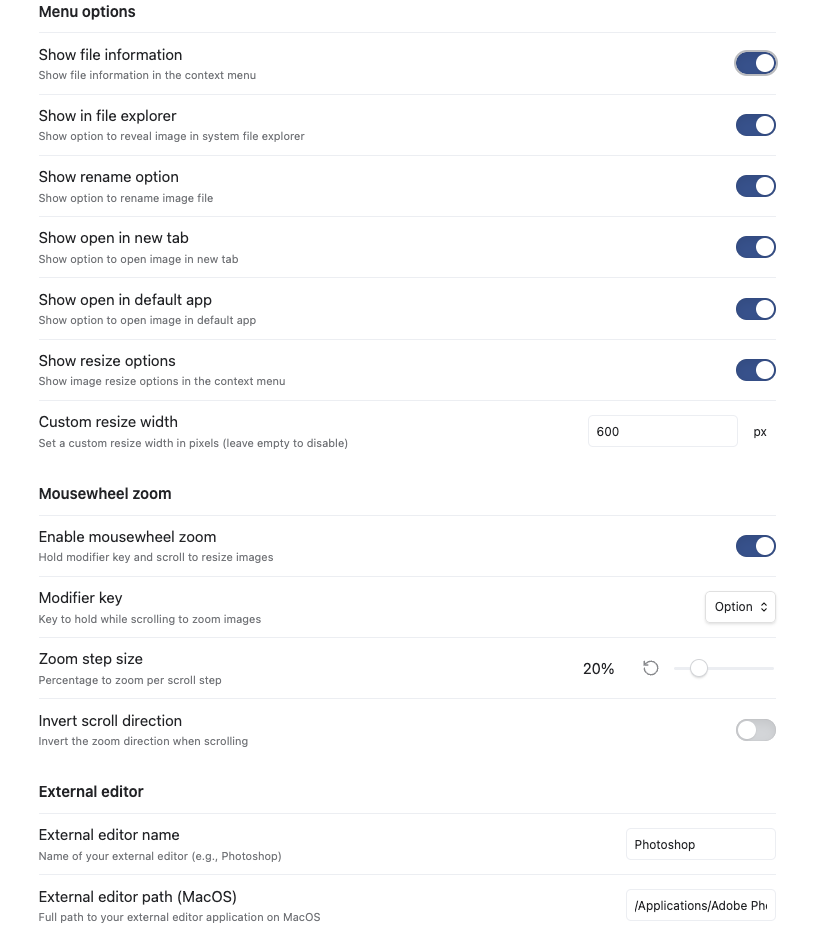
The plugin offers several settings to customize its behavior:
- Menu options:
- Toggle individual menu options (main toggle to show/hide menu customization)
- Show file information in context menu
- Show "Show in Explorer/Finder" option
- Show rename option
- Show delete image and link option
- Show "Open in new tab" option
- Show "Open to the right" option
- Show "Open in new window" option
- Show "Open in default app" option
- Resize options:
- Custom resize sizes (comma-separated, supports percentages like 25%, 50% or pixels like 600px, 800px)
- CMD/CTRL + click behavior:
- Configure what happens when CMD/CTRL + clicking an image (do nothing, open in new tab, or open in default app)
- Mousewheel zoom:
- Enable/disable mousewheel zoom
- Choose modifier key (Alt/Ctrl/Shift)
- Adjust zoom step size
- Invert scroll direction
- Advanced:
- Confirm before delete (show confirmation dialog before deleting files)
- Debug mode for troubleshooting
Known Issues
Windows and Minimal Theme
When using Pixel Perfect Image on Windows PCs with the Minimal theme, the built-in image zoom can interfere with the right-click menu. To resolve this:
- Install the Style Settings plugin
- Go to Style Settings > Minimal > Images
- Enable the "Disable image zoom" option
This will ensure the best experience with Pixel Perfect Image's right click menu.
Image Converter Plugin Compatibility
If you're using the Image Converter plugin, you should disable its "Right-click menu" option in settings to prevent conflicts with Pixel Perfect Image's context menu.
Support
If you have any questions, suggestions, or issues, please open an issue on the GitHub repository.
Enjoy using Pixel Perfect Image!