Header Enhancer
 hobeedzc12k downloads
Level up your headers, customize your notes. Header Enhancer makes your notes header better and more useful.
- Overview
- Scorecard
- Updates17
A powerful Obsidian plugin that enhances markdown headers with automatic numbering, intelligent backlink management, and custom fonts.
Current Version: 0.6.0
✨ Features
🔢 Smart Auto Numbering
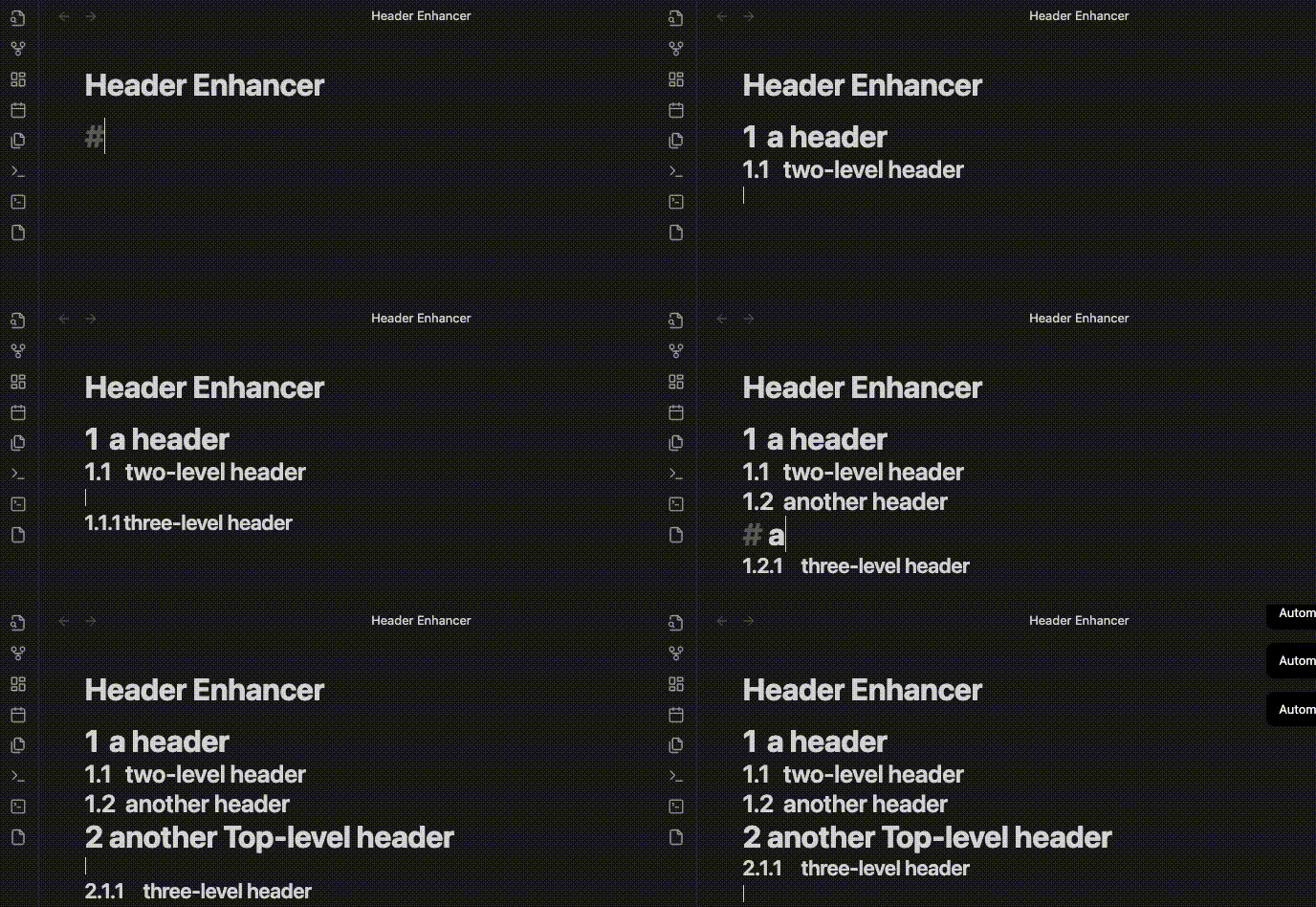
Automatically adds hierarchical numbering (1.1, 1.2, 2.1) with real-time updates.
- Global & per-document control with master switch
- Auto header level detection and configurable separators (
.,-,/,,) - Flexible start levels (H1-H6) and YAML frontmatter override
- Bulk operations across entire vault with confirmation dialogs
🔗 Intelligent Backlink Management
Automatically updates [[file#header]] links when headers change, with batch processing and bidirectional support.
🎨 Font Customization
Separate font family and size controls for headers and document titles, with live preview and organized font categories.
📝 YAML Configuration
Per-file control using frontmatter with smart defaults:
---
header-auto-numbering: ["state on", "start-level h2", "end-level h6", "start-at 1", "separator ."]
---
New in v0.5.0: YAML mode now supports default settings - no need to add YAML to every file!
🚀 Installation
From Community Plugins (Recommended)
- Open Settings → Community plugins → Browse
- Search "Header Enhancer" → Install → Enable
Manual Installation
- Download latest release
- Extract to
<vault>/.obsidian/plugins/header-enhancer/ - Reload Obsidian
⚙️ Usage Guide
Quick Start
Enable the Plugin
- After installation, find "Header Enhancer" in settings
- Turn on "Enable Auto Numbering Function" master switch
Start Using
- Press
Enteron a header line (e.g.,## Header) - Plugin automatically adds numbering (e.g.,
## 1. Header) - Sub-headers get hierarchical numbers (1.1, 1.1.1, etc.)
- Press
Dual-Level Control System
Global Control (Entire Vault)
- Location: Settings → Header Enhancer → "Enable Auto Numbering Function"
- Purpose: Controls auto-numbering functionality for entire vault
- Status: When disabled, auto-numbering unavailable for all documents
Document Control (Individual File)
- Method 1: Click header icon 📝 in left sidebar (ribbon)
- Method 2: Command palette (
Ctrl/Cmd+P) → "Toggle Document Auto Numbering" - Requirement: Global switch must be enabled first
- Status: Bottom status bar shows current document state
Settings Explained
Numbering Configuration
- Start Level: Which header level to begin numbering (e.g., start from H2, skip H1)
- End Level: Which header level to stop numbering
- Auto Detection: Automatically detect header levels in document
- Separator: Number separator, supports
.(1.1),-(1-1),/(1/1),,(1,1) - Start Number: First header number (default: 1)
Font Customization
- Header Fonts: Control Markdown headers (#, ##, ###) font family/size
- Title Fonts: Control document title font family/size
- Organized font categories (Serif, Sans-Serif, Monospace, etc.)
- Live preview in settings panel
Backlinks
- Enable "Update Backlinks" to auto-update links when adding/removing numbers
- Supports
[[file#header]]format link maintenance
Per-File YAML Configuration
🆕 New in v0.5.0: YAML mode now has smart defaults!
How it works:
- Choose "YAML Controlled" mode in settings
- Set default configuration (start level, end level, start number, separator)
- All files automatically use default settings - no manual YAML needed
- Only add YAML for files that need special numbering
For files needing custom rules:
---
header-auto-numbering: ["state on", "start-level h2", "end-level h6", "start-at 1", "separator ."]
---
Parameters:
state on/off: Enable/disable numbering for this filestart-level h1-h6: Starting header level (replaces oldfirst-level)end-level h1-h6: Ending header level (replaces oldmax)start-at N: Starting numberseparator ./-/,/: Separator character
Quick Commands:
Apply Custom YAML Configuration: Insert template with your default settingsReset Auto Numbering YAML: Reset to default valuesRemove Auto Numbering YAML: Remove YAML configuration
Note: Old format (first-level, max) still works but is deprecated and will be removed in future versions.
Common Commands
| Command | Access | Description |
|---|---|---|
| Toggle Global Auto Numbering | Command palette | Enable/disable numbering for entire vault |
| Toggle Document Auto Numbering | Ribbon icon / Command palette | Control current document numbering |
| Apply Custom YAML Configuration | Command palette | Insert YAML template with your default settings (v0.5.0) |
| Reset Auto Numbering YAML | Command palette | Reset existing YAML to default values |
| Remove Auto Numbering YAML | Command palette | Remove YAML configuration from file |
Usage Tips
Daily Usage
- ✅ Press
Enteron header line to auto-add/update numbering - ✅ After editing a header or changing its level, move the cursor to another line to refresh numbering
- ✅ Click ribbon icon to quickly toggle current document numbering
Bulk Operations
- ⚠️ Always backup vault before bulk operations
- 💡 Bulk apply shows confirmation dialog with scope options
- 💡 Bulk remove supports safe rollback mechanism
Special Scenarios
- 📝 Daily notes: Global on, disable individual files with YAML
- 📚 Knowledge management: Use different separators for different doc types
- 🎯 Project docs: Start from H2, preserve H1 as document title
🐛 Known Issues
- Default separator uses tab character (
\t)
Report bugs at GitHub Issues
📊 Changelog
v0.6.0 (Current)
Community Scorecard Improvements
- Replaced unsafe settings UI HTML rendering with Obsidian DOM APIs
- Moved runtime-injected styles into
styles.css - Added reproducible dependency locking and pinned package versions
- Updated compatibility metadata for Obsidian 1.8.7+
v0.5.2
Bug Fixes
- Fixed manual/YAML header level ranges not being fully respected
- Fixed deleting or replacing selected heading text with Backspace or direct typing
- Fixed indented code fences causing later header numbering issues
v0.5.1
Bug Fixes and Improvements
- Fixed Enter key behavior for automatic header numbering
- Fixed YAML state synchronization with document toggle button
- Improved overall stability and user experience
v0.5.0
Major YAML Mode Improvements
- 🎯 Smart defaults for YAML mode - no need to add YAML to every file
- 📝 New unified YAML format:
start-levelandend-level(more intuitive) - ✨ Separate default configuration for YAML mode
- 🔧 New command: "Apply Custom YAML Configuration" with user defaults
- ⚠️ Old format (
first-level,max) deprecated but still supported - 🗑️ Removed duplicate "Add Auto Numbering YAML" command
v0.4.1
- Fixed headers with spaces support (English & Chinese)
- Improved regex pattern matching for special cases
v0.4.0
- Global & document-level dual control system
- Auto header level detection
- Enhanced i18n and status indicators
Full changelog: doc/changelog.md
💖 Support
Made with ❤️ by Hobee Liu
Contributions welcome! See GitHub for details.