Graph Presets
 Sphinx32 downloads
Save & switch named Graph View presets — filters, color groups, and node positions. Presets stored in data.json, syncable via git.
- Overview
- Scorecard
- Updates1
Save and switch named Graph View presets in Obsidian — filters, color groups, and node positions. Presets are stored in data.json, syncable via git across devices.
Features
- 💾 Save current graph state as a named preset (filters, color groups, display settings, node positions)
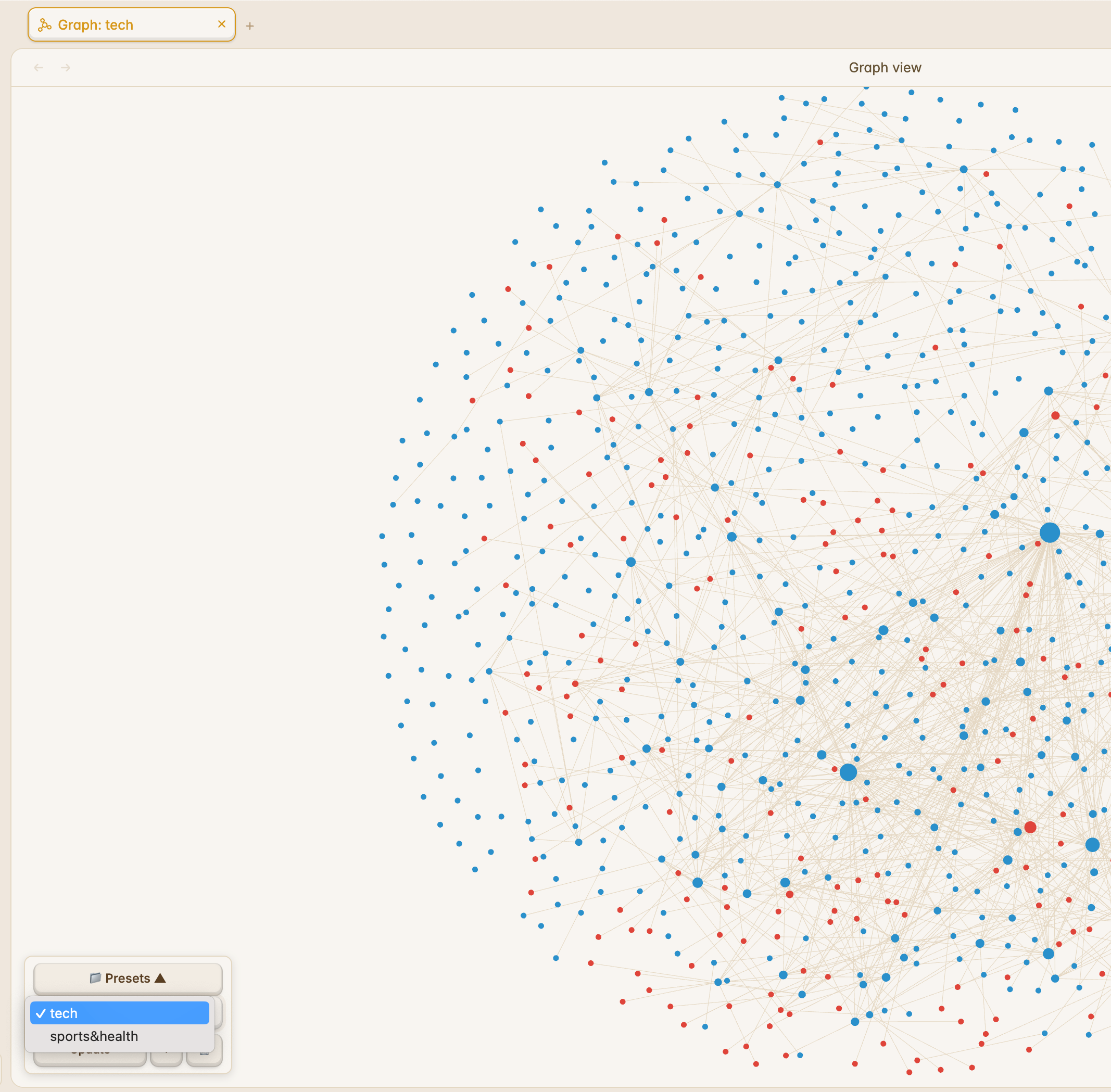
- 🔄 Switch presets from a floating panel in the Graph View
- ➕ Save As New creates a copy without overwriting
- ✏️ Rename & delete presets from settings
- 🏷️ Tab titles show the active preset name (
Graph: My Preset) - 🔀 Multi Graph View — each tab tracks its own preset independently
- 📦 Git-friendly — presets live in
data.json, commit and sync across machines
Screenshot
Installation
Community Plugins
Once accepted to the Obsidian Community Plugin list, install via Settings → Community Plugins → Browse → "Graph Presets".
Manual (BRAT)
- Install BRAT
- Add
Sphinxes0o0/graph-presetsas a beta plugin - Enable "Graph Presets" in Community Plugins
Manual (direct)
cd YOUR_VAULT/.obsidian/plugins/
git clone https://github.com/Sphinxes0o0/graph-presets.git graph-presets
cd graph-presets && npm install && npm run build
Then enable "Graph Presets" in Settings → Community Plugins.
Usage
- Open the Graph View (
Cmd+G/Ctrl+G) - Set up your filters, color groups, and display options
- Click 📁 Presets in the bottom-left corner
- Click Save → enter a name → press Enter
| Button | What it does |
|---|---|
| Save | Create a new preset (prompts for name) |
| Update | Overwrite the current preset (no prompt) |
| + | Save As New — always prompts for name |
| 🗑 | Delete the selected preset |
Settings Tab
Settings → Community Plugins → Graph Presets → ⚙️
- Rename or delete presets
- The Graph View floating panel is where you activate presets
How It Works
Save → dataEngine.getOptions() → { search, colorGroups, ... } → data.json
Load → dataEngine.setOptions(preset.options) + worker.postMessage(nodePositions)
Contributing
git clone https://github.com/Sphinxes0o0/graph-presets.git
cd graph-presets && npm install && npm run dev
npm run dev— watch mode, auto-rebuild on changesnpm run build— production build
License
MIT
85%
HealthExcellent
ReviewSatisfactory
Details
Current version
0.7.0
Last updated
2 weeks ago
Created
2 weeks ago
Updates
1 release
Downloads
32
Compatible with
Obsidian 1.5.0+
Platforms
Desktop, Mobile
License
MIT