Gradient Text
 MatheusZarkov446 downloads
Custom gradient colors for headings, bold, italic, and links — with preset palettes or full custom color pickers.
- Overview
- Scorecard
- Updates1
An Obsidian plugin that paints your notes with gradient colors — headings, bold, italic, wikilinks, external links, and even normal text — using curated preset palettes or a full custom color picker.
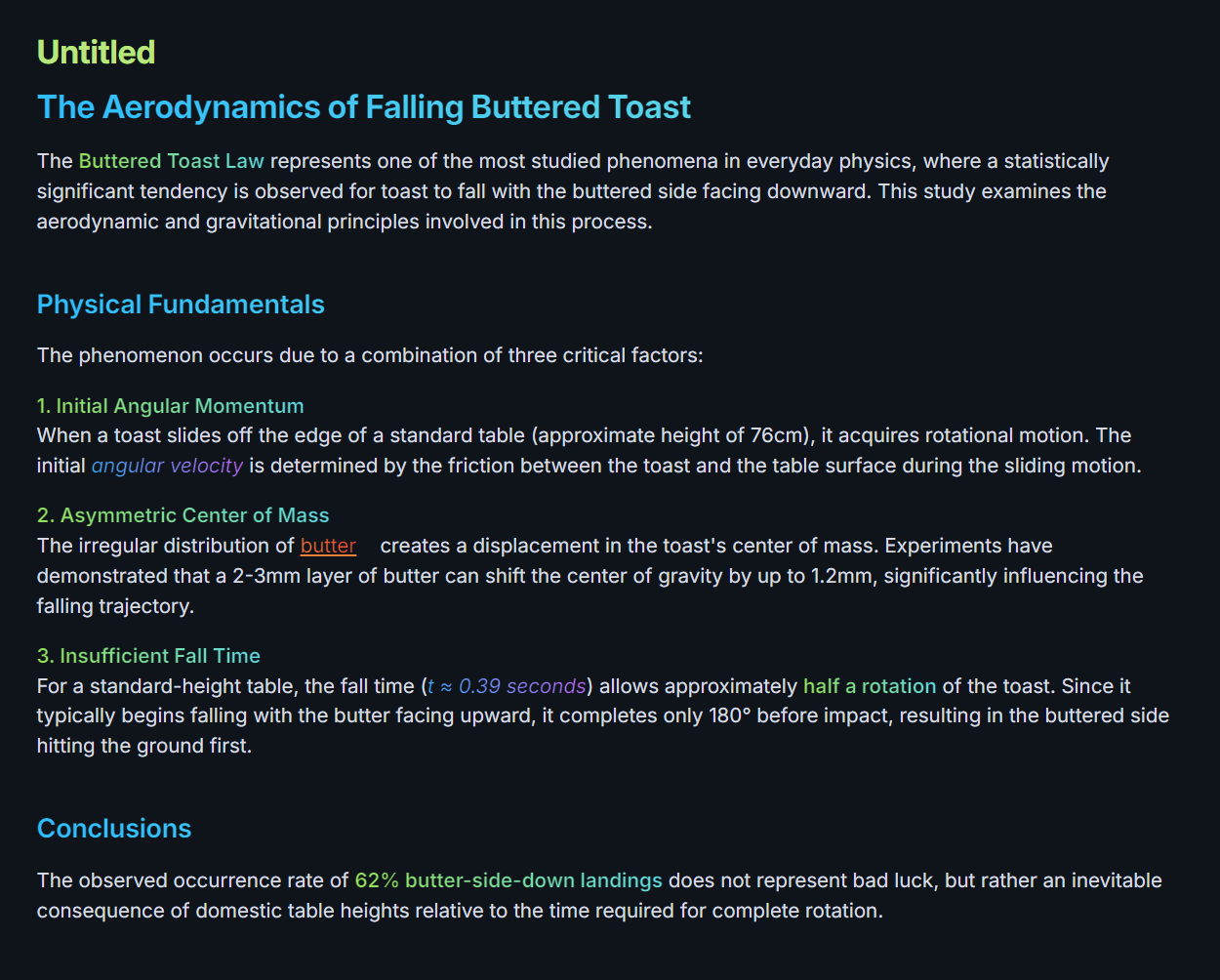
Features
- Per-element gradients. Independent control for headings, bold, italic, wikilinks, external links, and normal text.
- Five preset palettes — Green Snake, Midnight Green, Inferno, Underwater, Mystic Purple.
- Full custom color picker with HEX / RGB / HSL inputs, two- or three-stop gradients, and a draggable saturation/hue canvas.
- "None" disables per element so you can keep gradients on headings while leaving body text plain.
- Global on/off toggle plus command palette entries (
Disable all gradients,Enable all gradients,Toggle all gradients,Toggle normal text gradient). - Theme-safe. When disabled, text falls back to your theme's native colors (heading color, link color, etc).
- Works in both Reading view and Live Preview.
Settings
Each element row has:
- A dropdown to pick a preset,
Custom, orNone. - Three color dots (visible only in
Custommode) — click any to open the color picker. Right-click the middle dot to remove the optional middle color and use a two-stop gradient instead. - A reset button (↺) to restore default colors.
- A live preview label on the right so you can see the effect without leaving Settings.
Installation
From the Obsidian Community Plugins (once approved)
- Open Settings → Community plugins.
- Click Browse, search for Gradient Text.
- Install and Enable.
Manual installation
- Download
main.js,manifest.json, andstyles.cssfrom the latest release. - Drop them into
<your-vault>/.obsidian/plugins/gradient-text/. - Reload Obsidian and enable the plugin in Settings → Community plugins.
Commands
| Command | What it does |
|---|---|
Gradient Text: Disable all gradients |
Turns every gradient off (theme defaults take over). |
Gradient Text: Enable all gradients |
Restores all gradients. |
Gradient Text: Toggle all gradients on / off |
Flips the global switch. |
Gradient Text: Toggle normal text gradient |
Quickly turns the body-text gradient on or off. |
Tips
- Gradients on normal text are opt-in (off by default) because they affect every paragraph in the editor.
- Use Custom with a middle color for sharper highlights (e.g. orange → white → red).
- Set an element to None if your theme already styles it nicely and you just want to leave it alone.
License
HealthExcellent
ReviewCaution
About
Paint notes with gradients for headings, bold, italic, wikilinks, external links, and regular text using five curated palettes or a full custom color picker with two- or three-stop gradients. Control gradients per element with live previews, toggle them globally or individually, and fall back to theme colors when disabled; works in Reading view and Live Preview.Details
Current version
0.2.0
Last updated
3 months ago
Created
3 months ago
Updates
1 release
Downloads
446
Compatible with
Obsidian 1.5.0+
Platforms
Desktop, Mobile
License
MIT