
- Overview
- Scorecard
- Updates4
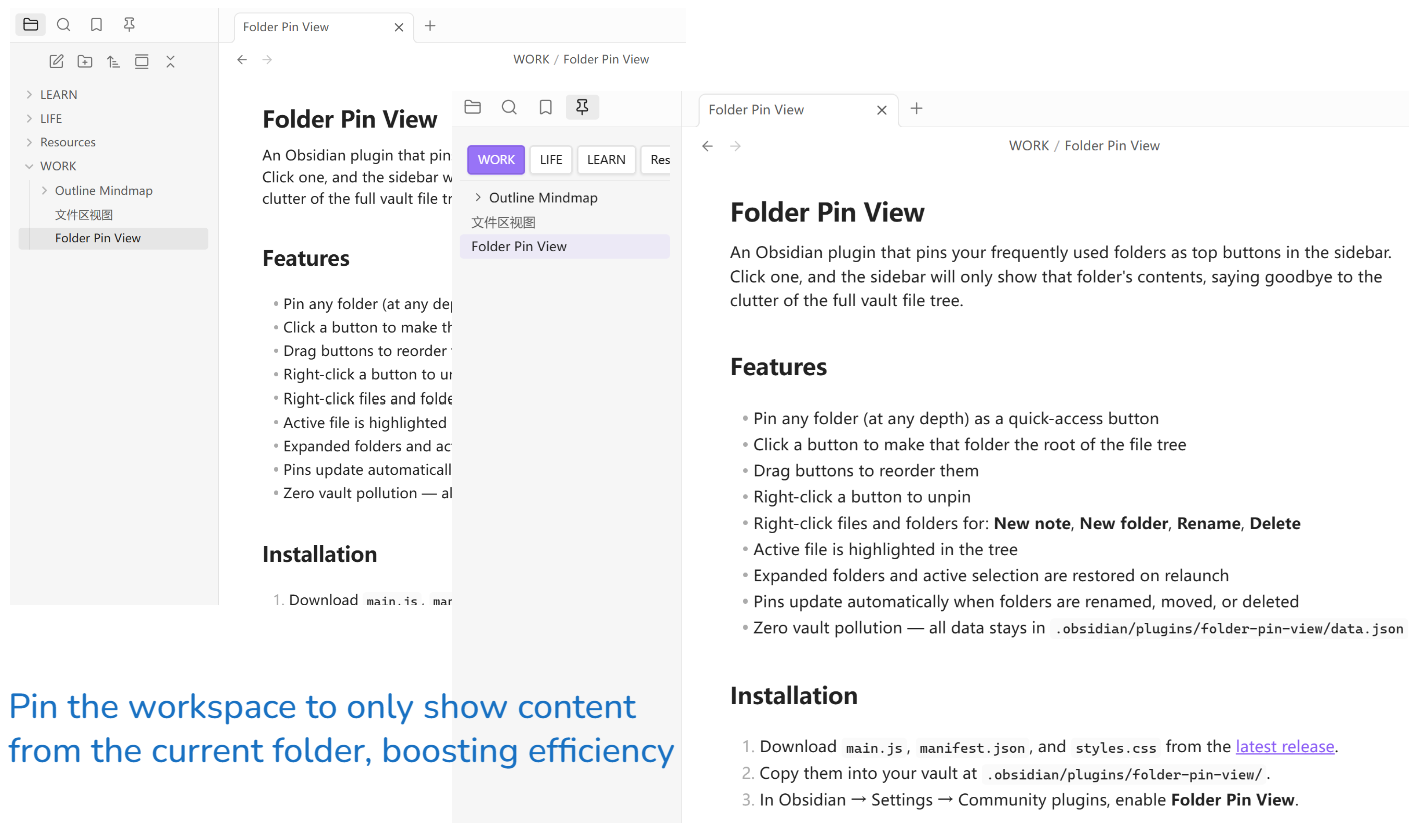
An Obsidian plugin that pins your frequently used folders as top buttons in the sidebar. Click one, and the sidebar will only show that folder's contents, saying goodbye to the clutter of the full vault file tree.
Features
- Pin any folder (at any depth) as a quick-access button
- Click a button to make that folder the root of the file tree
- Drag buttons to reorder them
- Right-click a button to unpin
- Toolbar: New note, New folder, Sort A-Z / Z-A, Expand all, Collapse all
- Right-click files and folders for: Rename, Delete
- Active file is highlighted in the tree
- Expanded folders and active selection are restored on relaunch
- Pins update automatically when folders are renamed, moved, or deleted
- Zero vault pollution — all data stays in
.obsidian/plugins/folder-pin-view/data.json
Installation
- Download
main.js,manifest.json, andstyles.cssfrom the latest release. - Copy them into your vault at
.obsidian/plugins/folder-pin-view/. - In Obsidian → Settings → Community plugins, enable Folder Pin View.
Usage
Pin a folder — right-click any folder in the native file explorer → Pin folder.
Switch folders — click any button in the pin bar at the top of the panel.
Reorder pins — drag a button left or right.
Unpin — right-click a button → Unpin.
Create / rename / delete — right-click any file or folder inside the panel.
Development
npm install
npm run build   # outputs main.js
npm run dev     # watch mode
Folder Pin View(中文)
一个 Obsidian 插件,将常用文件夹固定为侧边栏顶部按钮,点击后侧边栏只展示该文件夹的内容,告别全库文件树的干扰。
功能
- 固定任意深度的文件夹为快捷按钮
- 点击按钮,将该文件夹设为文件树的根节点
- 拖拽按钮调整顺序
- 右键按钮取消固定
- 工具栏:新建笔记、新建文件夹、A-Z / Z-A 排序、展开全部、折叠全部
- 右键文件/文件夹:重命名、删除
- 当前打开的文件在树中高亮显示
- 重启 Obsidian 后恢复上次展开的文件夹和选中状态
- 固定的文件夹被重命名、移动或删除时自动同步
- 零笔记污染,所有配置只写入
.obsidian/plugins/folder-pin-view/data.json
安装
- 从 最新 Release 下载
main.js、manifest.json、styles.css。 - 将这三个文件复制到 vault 的
.obsidian/plugins/folder-pin-view/目录。 - 在 Obsidian → 设置 → 第三方插件 中启用 Folder Pin View。
使用方法
固定文件夹 — 在原生文件浏览器中右键任意文件夹 → Pin folder。
切换文件夹 — 点击面板顶部的固定按钮。
调整顺序 — 拖拽按钮左右移动。
取消固定 — 右键按钮 → Unpin。
新建 / 重命名 / 删除 — 右键面板内的任意文件或文件夹。
开发
npm install
npm run build   # 输出 main.js
npm run dev     # 监听模式
HealthExcellent
ReviewSatisfactory
About
Pin frequently used folders as top buttons in the sidebar and set any button as the file-tree root to show only that folder's contents. Reorder or unpin buttons, right-click to create/rename/delete items, preserve expanded folders and active selection across restarts, and store pins in plugin data.Details
Current version
2.2.0
Last updated
3 weeks ago
Created
3 weeks ago
Updates
4 releases
Downloads
89
Compatible with
Obsidian 1.5.0+
Platforms
Desktop, Mobile
License
MIT
Author