Focus Modes
 Jose David Murillo74 downloads
Switch the file explorer between named focus presets, each showing only the folders you choose.
- Overview
- Scorecard
- Updates2
Switch the Obsidian file explorer between named focus presets, like iPhone Focus modes for your vault.
Each preset is a saved set of any number of folders, from anywhere in the vault. While a preset is active, the file explorer shows only those folders (with everything inside them) plus the parent folders needed to reach them. Switch between presets in one click, or from the command palette or a hotkey.
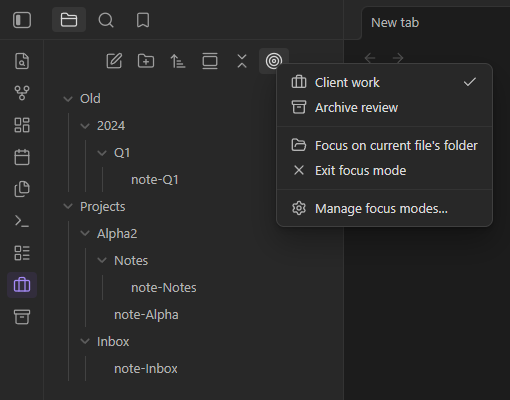
Other plugins, such as Folder Focus Mode and Explorer Focus, focus the explorer on a single folder. Focus Modes is for switching between saved contexts that each span several folders, for example "Client work" = Projects/Acme + Inbox + Reference/Contracts.
Hiding is purely visual and limited to the file explorer:
- Quick Switcher, search, graph view, tags, and backlinks are unaffected.
- Files are never closed, moved, or modified. A note open outside the focus stays open; it just isn't listed in the explorer.
Install
From Community plugins
Once the plugin is approved, open Settings → Community plugins → Browse, search for Focus Modes, then install and enable it.
With BRAT (beta versions)
- Install BRAT from Community plugins.
- Run the command BRAT: Add a beta plugin for testing and enter
JDMurillo-Art/Obsidian-Focus-Modes. - Enable Focus Modes under Settings → Community plugins.
Manually
- Download
main.js,manifest.json, andstyles.cssfrom the latest release. - Copy them into
<your vault>/.obsidian/plugins/focus-modes/. - Reload Obsidian and enable Focus Modes under Settings → Community plugins.
Requires Obsidian 1.13.0 or later. On older versions of Obsidian, version 0.1.0 is installed instead.
Usage
Create a preset. Go to Settings → Focus Modes → New preset. A new preset opens at the top of the list. Give it a name and icon, add folders by typing in the Folders box and picking from the list, then click Confirm (or Cancel to discard it).
Edit a preset. Each preset is a card showing its icon, name, and folders. Click Edit to open it, make your changes, then click Confirm to apply them or Cancel to discard them. Use the arrows to reorder presets and the trash icon to delete one.
Switch presets using any of these:
- The target button in the file explorer toolbar opens a menu with your presets (the active one is checked), Focus on current file's folder, Exit focus mode, and Manage focus modes….
- Right-click a folder and choose Focus on this folder for a one-off focus that isn't saved as a preset.
- Turn on Pin to ribbon for a preset to get a ribbon button for it. The button is highlighted while that preset is active.
- Commands: Focus: preset name, Exit focus mode, and Toggle last focus mode. Assign hotkeys to any of them.
Only one preset is active at a time. Activating a different preset switches directly to it; activating the active one turns focus off.
The active preset is remembered across restarts. A one-off folder focus is not.
When you rename or move a folder, presets that include it (or anything inside it) update automatically. Deleted folders are removed from presets.
Compatibility and limitations
- Explorer Focus and File Explorer++ hook into the same part of the file explorer. If either is enabled, Focus Modes shows a one-time warning, because running them together may cause conflicts.
- The plugin relies on an undocumented part of Obsidian's file explorer (
getSortedFolderItems). If a future Obsidian update changes it, Focus Modes shows a single notice and leaves the explorer untouched rather than breaking it. - Mobile: tested in Obsidian's mobile emulation (phone and tablet layouts), not yet on a physical device. Please open an issue if something doesn't work on your phone or tablet.
Credits
See CREDITS.md.