Search...Search plugins and themes...
⌘K
Sign in
  • Get started
  • Download
  • Pricing
  • Enterprise
  • Account
  • Obsidian
  • Overview
  • Sync
  • Publish
  • Canvas
  • Mobile
  • Web Clipper
  • CLI
  • Learn
  • Help
  • Developers
  • Changelog
  • About
  • Roadmap
  • Blog
  • Resources
  • System status
  • License overview
  • Terms of service
  • Privacy policy
  • Security
  • Community
  • Plugins
  • Themes
  • Discord
  • Forum / 中文论坛
  • Merch store
  • Brand guidelines
Follow us
DiscordTwitterBlueskyThreadsMastodonYouTubeGitHub
© 2026 Obsidian

Focus Explorer

WantenWanten111 downloads

An Obsidian file explorer with folder focus.

Add to Obsidian
  • Overview
  • Scorecard
  • Updates7

Focus Explorer

An Obsidian file explorer with folder focus at its core.

Folder focus

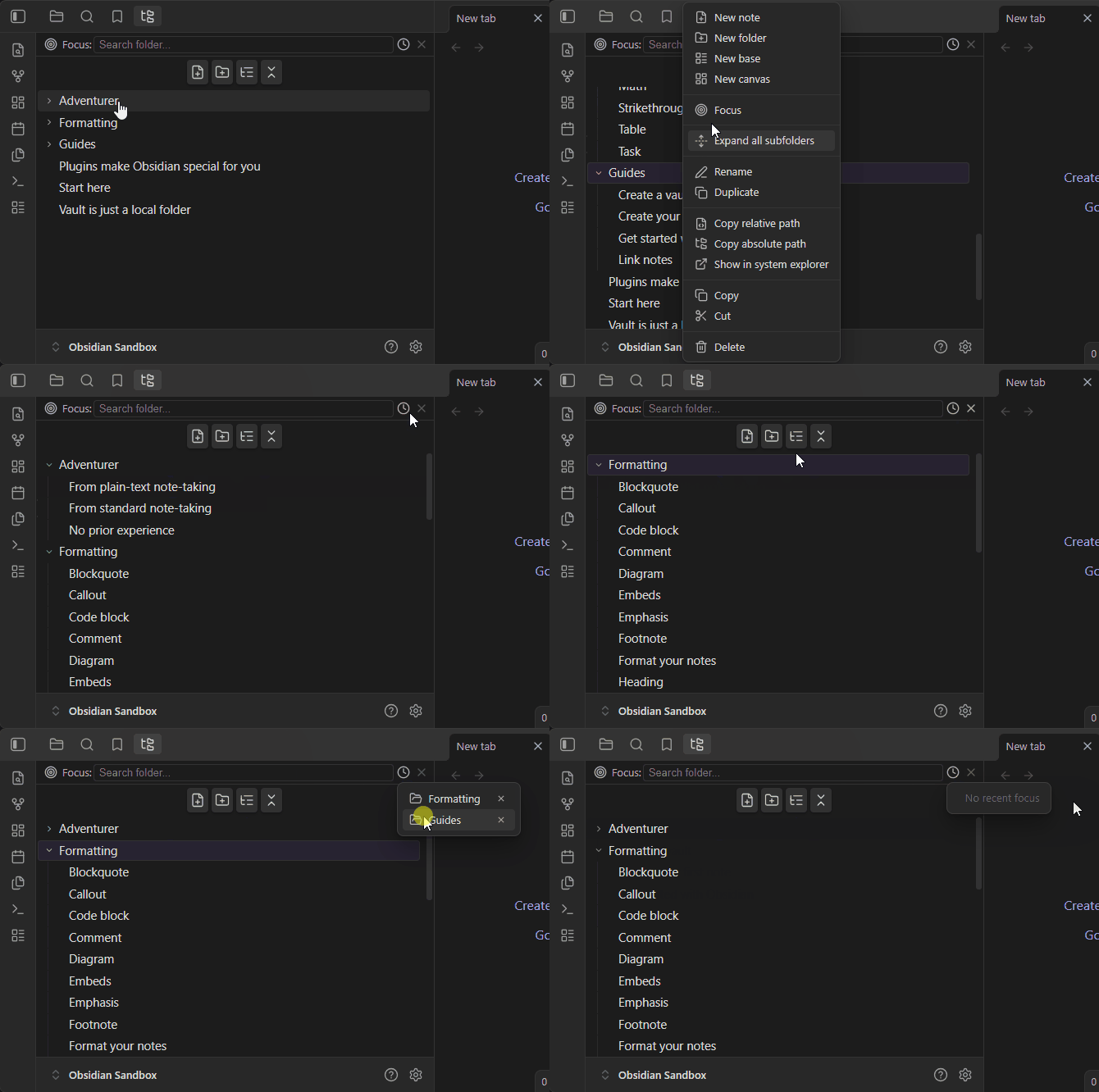
Right-click any folder → Focus to show only that folder's subtree. Everything outside it is hidden, so you can work on one area of your vault without distraction. Great for large vaults, per-project workflows, or when attachments and archives keep drowning out the notes you actually care about.

Choosing a folder to focus

Three ways to pick the target, all from the focus bar at the top of the view:

  • Search input — click it (or just start typing) to list every folder in the vault with a fuzzy filter as you type; matches jump straight into parents/children hierarchies. Click a row or press Enter to focus it.
  • Recent history — the clock button lists recently focused folders for one-click re-focus. Entries you no longer need can be removed individually right inside the menu.
  • Context menu — right-click any folder in the tree → Focus, or use Clear focus on empty areas / the same menu.

The clear (×) button exits focus mode and restores your previous expansion state exactly as it was.

What focus mode does

  • Only the focused subtree is rendered; expanding folders never leaks content from outside it.
  • Creation lands inside the focused folder: New note / New base / New canvas always go to the focused root — even the header buttons skip Obsidian's new-note location setting while it points outside the focused subtree.
  • Search, drag & drop targets, and auto-reveal all respect the focus boundary — dragging a file onto empty space moves it into the focused folder instead of the vault root.
  • Focus state is persisted across restarts and follows folder renames automatically.

File tree essentials

Beyond focus, this is a full explorer: indentation guides and expand/collapse chevrons (folders first), inline creation at the correct position and depth, rename (F2) that preserves each file's extension, duplicate, delete-to-trash with confirmation, copy/cut/paste and drag & drop with multi-select support, keyboard navigation (arrows / Enter / F2 / Delete), middle-click to open in a new tab, and an auto-reveal toggle that keeps the tree synced with the active editor file.

Installation

Manual install: copy main.js, manifest.json, and styles.css into VaultFolder/.obsidian/plugins/focus-explorer/, reload Obsidian, and enable the plugin in Settings → Community plugins.

License

AGPL-3.0

HealthExcellent
ReviewPassed
About
Focus the file explorer on a single folder to show only its subtree, hiding everything else so you can work without distraction. Keep creation, search, drag-and-drop and auto-reveal confined to the focused folder, persist focus across restarts, and pick targets via fuzzy search, recent history or the context menu.
FoldersSidebarNavigation
Details
Current version
1.0.6
Last updated
3 weeks ago
Created
3 weeks ago
Updates
7 releases
Downloads
111
Compatible with
Obsidian 1.13.0+
Platforms
Desktop, Mobile
License
AGPL-3.0
Report bugRequest featureReport plugin
Author
WantenWantenwanten
github.com/WantenMN
GitHubwantenmn
  1. Community
  2. Plugins
  3. Folders
  4. Focus Explorer

Related plugins

Portals

Pin folders and tags as customizable tabs with icons, colors, and folder notes for easier navigation.

Notebook Navigator

A better file browser and calendar inspired by Apple Notes, Bear, Evernote and Day One.

Vertical Tabs

Offer an alternative view that displays open tabs vertically, allowing users to group and organize tabs for a better navigation experience.

Recent Files

Display a list of recently opened files.

Folder notes

Create notes within folders that can be accessed without collapsing the folder, similar to the functionality offered in Notion.

Hide Folders

Quickly toggle the visibility of specific folders in the file navigator based on configured names. Useful for hiding attachment folders.

Reveal Active File Button

Add a button to the top of the File Explorer, to reveal the active file.

Custom File Explorer sorting

Manual or automatic config-driven reordering and sorting of files and folders in File Explorer.

Quick Explorer

Perform file explorer operations (and see your current file path) from the title bar, using the mouse or keyboard.

Flexplorer

Enhance the file explorer with custom sorting, pinning, and hiding.