File Filter
 Sebastien Delisle345 downloads
Filter your vault and your notes in a keystroke — type a word, watch everything irrelevant get out of the away.
- Overview
- Scorecard
- Updates8
An Obsidian plugin with two features: a live filter for the Files pane, and a paragraph-level filter for the editor.
Editor inline filter
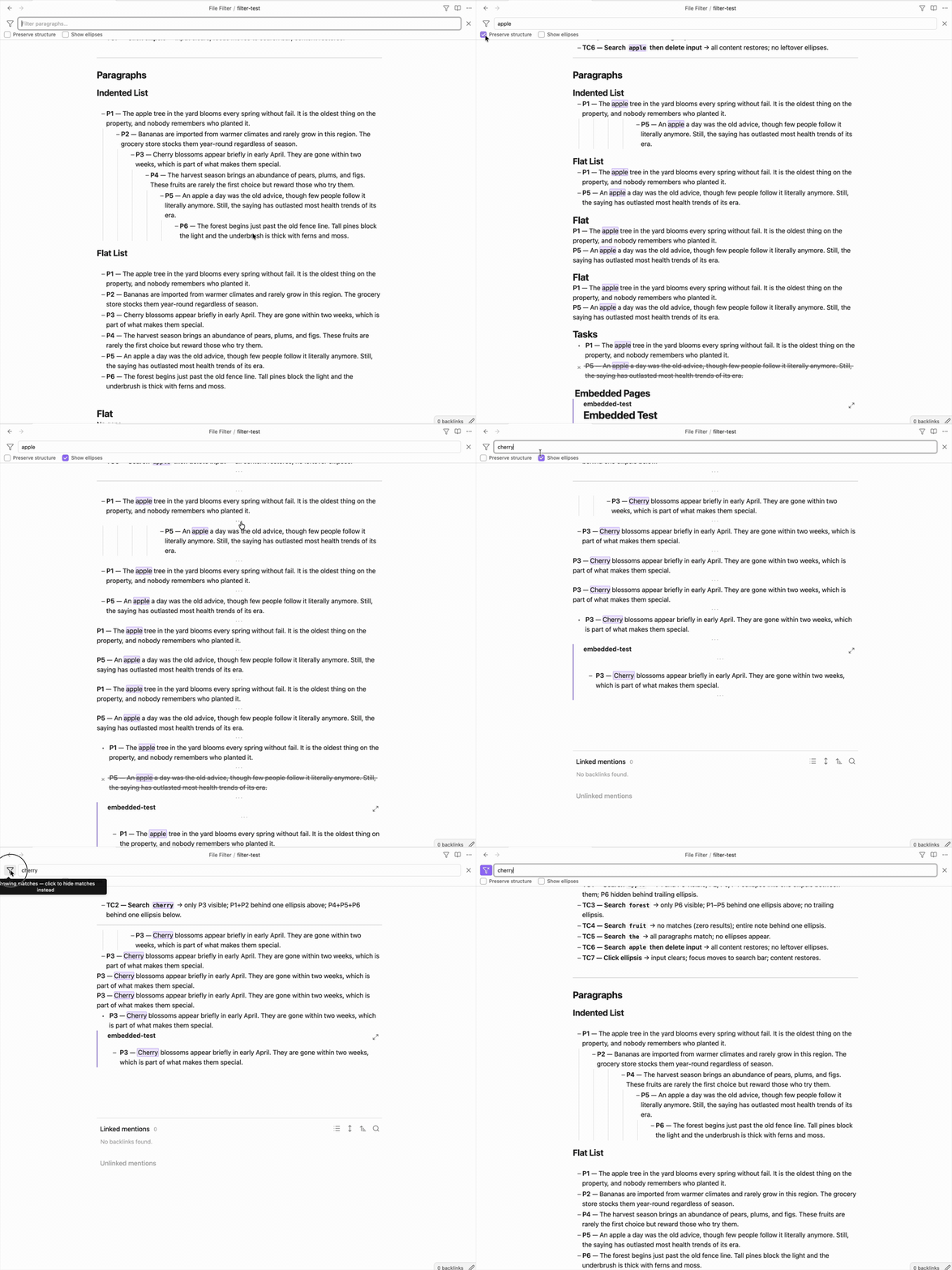
Click the filter icon in the note header (or press the customizable hotkey Cmd+F) and a filter field appears below the header.
Type anything and watch non-matching paragraphs be hidden. Optionally, you can collapse the hidden paragraphs into an ··· ellipsis. Matching text is highlighted inline.
- Click ··· or press Escape to clear the filter
- Press Cmd/Ctrl+Z after clicking ··· to restore the previous query
- Untick Show ellipses (in settings or under the filter input) to hide the ··· separators entirely
Filter words out
You can also use the filter in reverse: hide every paragraph that contains a word, and keep the rest.
Click the filter icon at the left of the search bar to switch to exclude mode — the icon gains an accent and the placeholder changes to Filter out paragraphs…. Type a word and matching paragraphs disappear instead of being shown.
Click the icon again to switch back. Closing the filter bar resets to normal (include) mode.
Task keywords
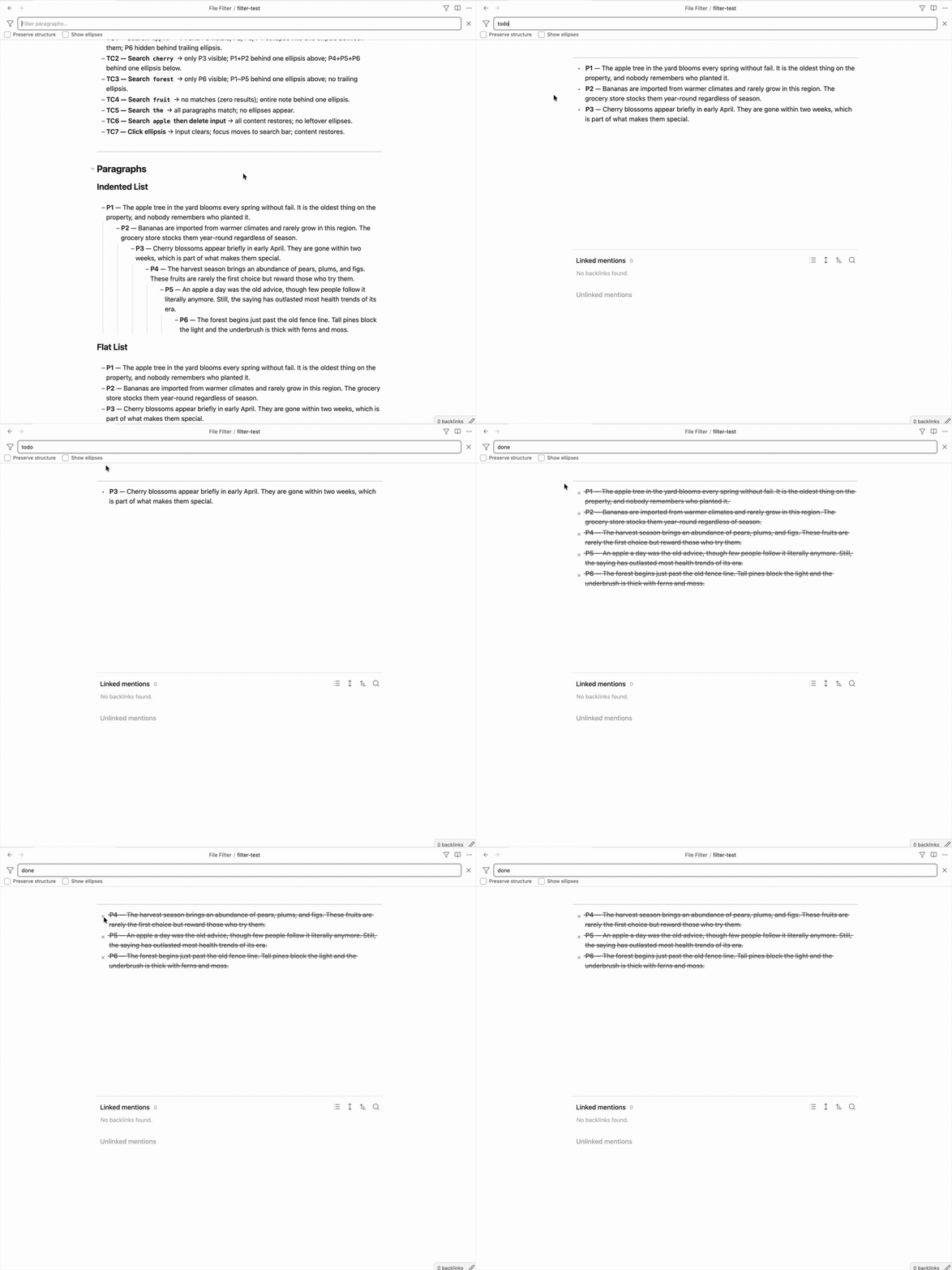
Three queries also match task syntax, on top of normal text matching:
taskortodo— also matches unchecked tasks (- [ ])done— also matches completed tasks (- [x])
So typing todo shows every open task on the page, and switching to exclude mode with done hides everything already completed. Only the exact keyword triggers this — done tasks is matched as plain text.
Note: the filter is designed for editing mode (Live Preview / Source). Filtering in reading mode also works but is known to be buggy.
Preserve structure (setting)
Enable Preserve structure in Settings → File Filter — or use the checkbox under the filter input — to keep ancestor headers visible when filtering a page.
Without this setting, only blocks whose text contains the search term are shown. With it enabled, any header that sits above a matching block in the document hierarchy is also shown — even if the header itself does not contain the search term.
Example: searching apple in a note structured as:
# Fruit Notes
## Varieties
A paragraph about apples.
Without Preserve structure: only the paragraph is shown.
With Preserve structure: # Fruit Notes, ## Varieties, and the paragraph are all shown.
File explorer filter
Click the filter icon in the Files pane (leftmost button in the nav bar). A search field appears below the nav buttons.
Type anything — the filter matches against the full file path, including folder names. So searching boston would surface:
Notes/
  Locations/
    Boston.md
Food/
  Pies/
    Boston Creme Pie.md
Press Escape or click × to clear the filter and return to the normal view.
Behaviour:
- Matches any substring of the full path (case-insensitive)
- Folder hierarchy is preserved for every matching file
- Collapsed folders that contain matches are automatically expanded while the filter is active, then restored when cleared
- All file types are included, not just Markdown notes
Other Plugins
Check out Date List and Calendar List if you liked this plugin.