Enhanced Canvas
 robertttbs25k downloads
Syncs Canvas node connections with properties in note, automating document relationship management.
- Overview
- Scorecard
- Updates32
This Obsidian plugin enhances Obsidian Canvas with features I find essential.
✨New Feature✨
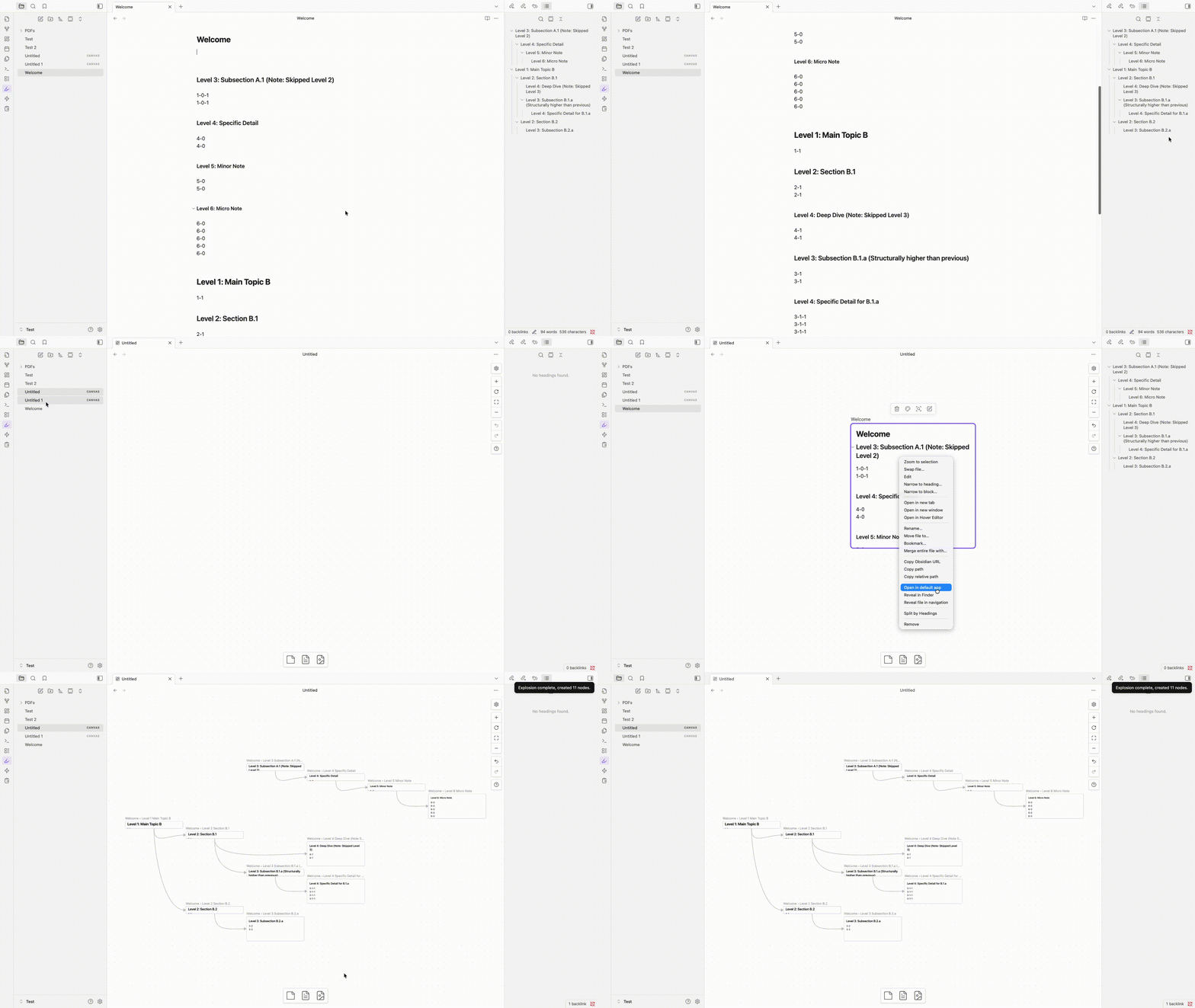
Split Node by Headings
Split Node by Headings instantly deconstructs a single node into a hierarchical tree based on its headings. You can try this by right-clicking on a file (text) node and selecting "Split by headings" in Canvas.
Send Note to Canvas
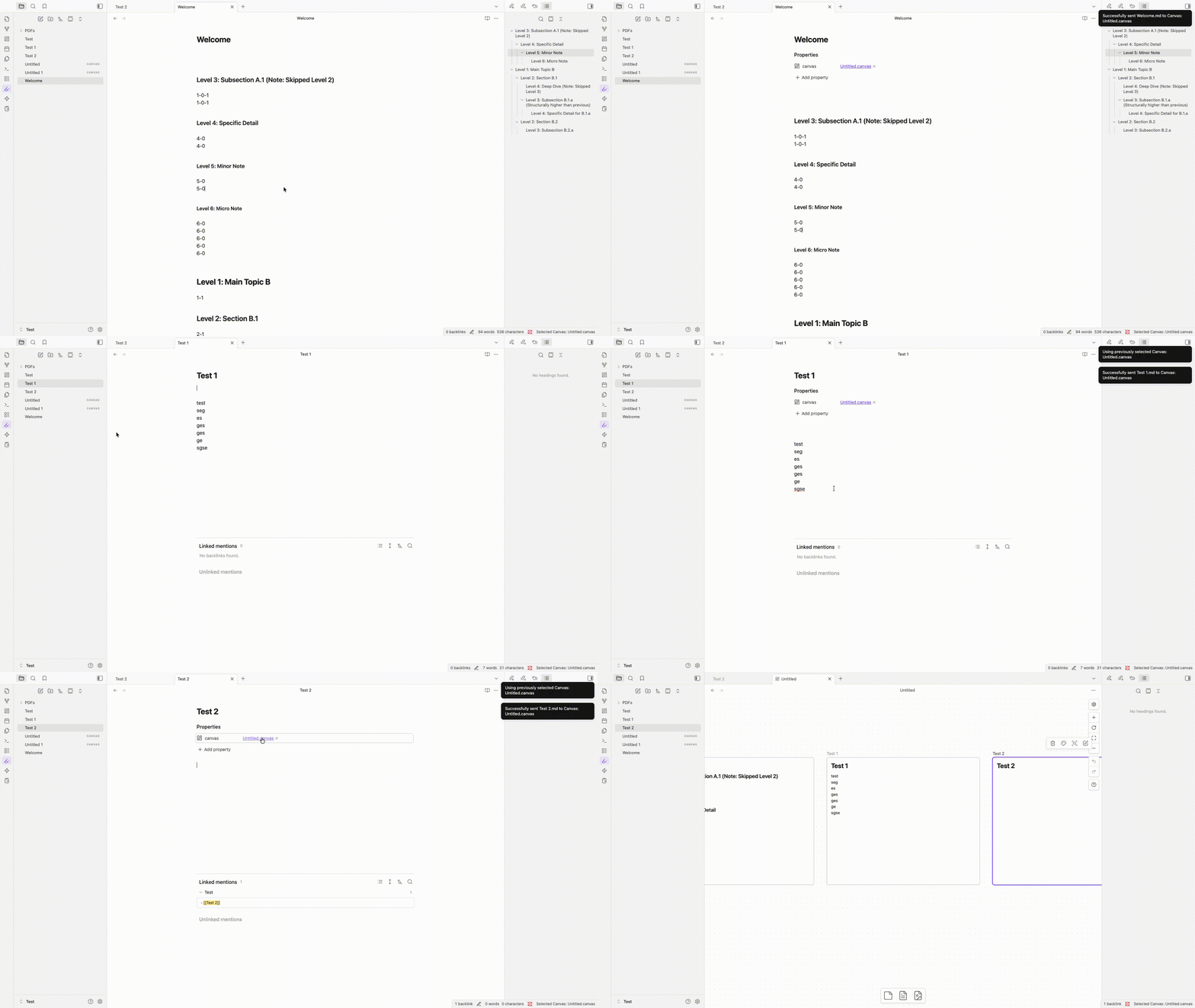
With the "Send to Canvas" command, you can push your current markdown note directly to a specific Canvas. It automatically appends a "canvas" property to your note, allowing you to navigate back to the board instantly in the future.
Once you have sent a note, that Canvas becomes the "Selected." You can then use the "Send to Selected Canvas" command on other notes to instantly add them to the same board—bypassing the file selection step entirely.
Auto-Resize Node
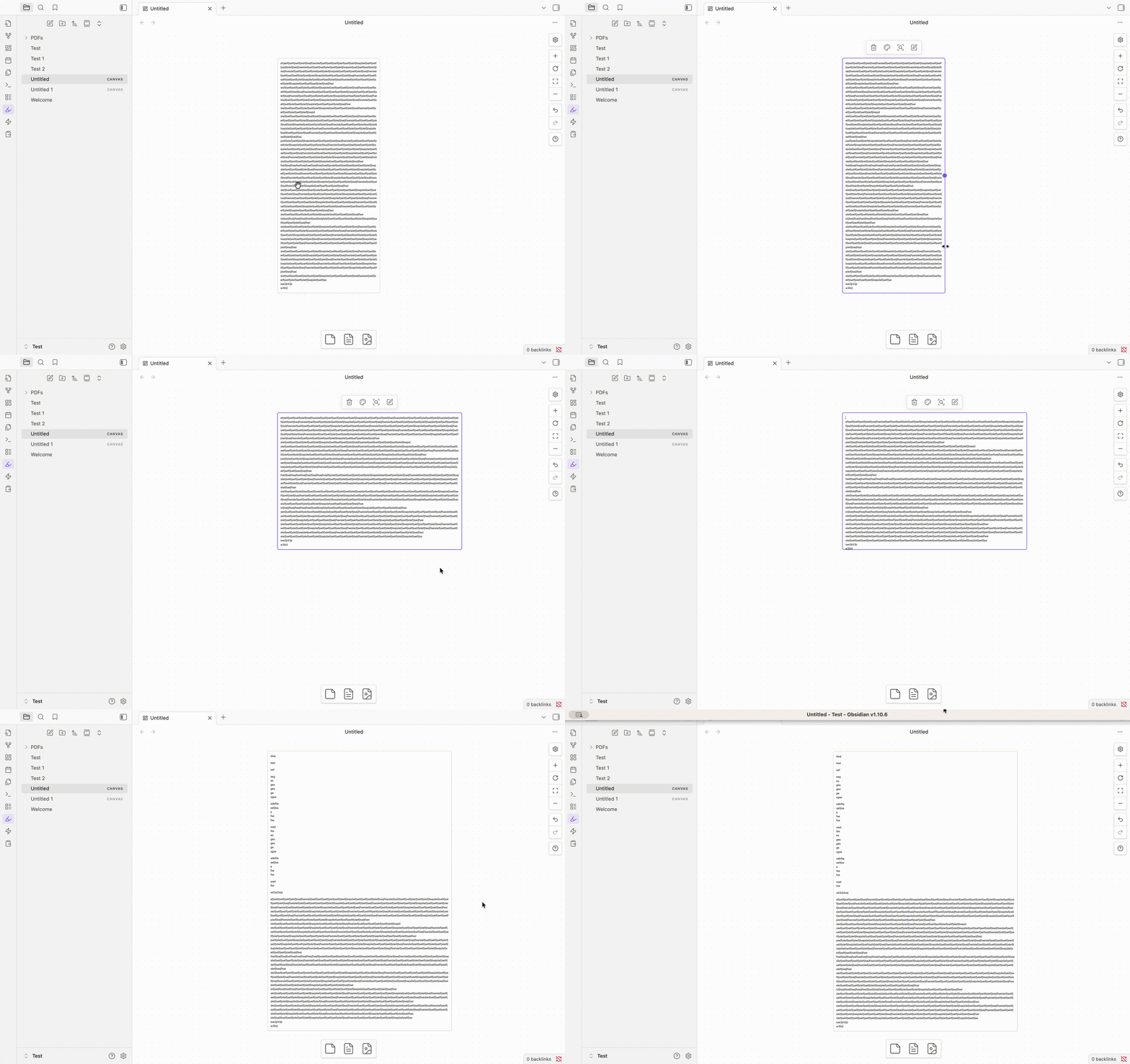
With this update, double-clicking the bottom edge engages "Auto-Resize." Now, when you drag the right edge to adjust the width or update the text, the height dynamically adjusts to fit your text. No need for repeated double-clicking!
Dragging the bottom edge to manually adjust the height disables the node's auto-resize feature.
Main Feature
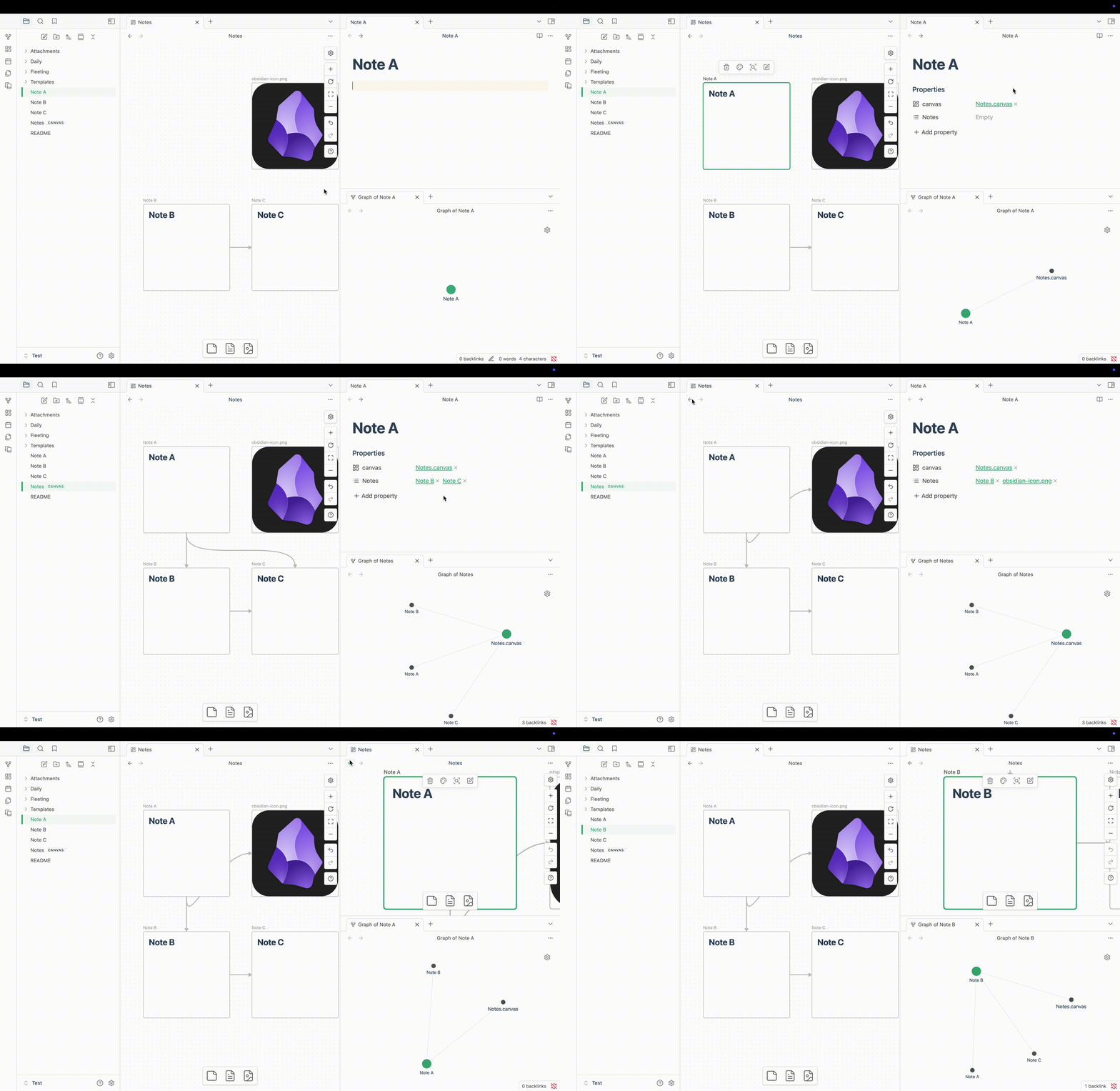
Based on this demo:
Node addition: When a note is added to the canvas, the plugin generates a 'canvas' property with a link to its corresponding canvas file.
Edge addition: Creating an edge in the Canvas generates a link to the target note within a property named after the canvas file (e.g., 'Canvas 1'), where the property name is derived from the canvas file name without its '.canvas' extension.
Node Focusing: Upon clicking a link to a .canvas file from a note, the system automatically focuses and zooms to the associated node in the canvas.
Note 1: All Canvas-related properties will be added when this plugin is enabled, and all properties added by this plugin will be removed upon disabling it.
Note 2: If you delete or rename a .canvas or Markdown file, all associated properties will also be updated.
Hide The Frontmatter by Default
In version after 1.0.12, the frontmatter (properties) in Canvas nodes is hidden by default.
To view or edit properties in a Canvas node, comment out or remove the code below in
.obsidian/plugins/obsidian-enhanced-canvas/style.css.
.markdown-embed .metadata-container,
.markdown-embed-content .metadata-container {
display: none !important;
}

.mod-inside-iframe.is-live-preview .metadata-container {
display: none !important;
}
Commands
Adjust edges with shortest path
- Adjusts edges between selected nodes using shortest path
Delete edges between selected nodes
- Removes all edges between selected nodes
Add edges according the links in notes
- Automatically creates edges between selected nodes based on links within notes
Remove the property of all nodes in current Canvas
- Removes properties from all nodes in the current Canvas
Demo
- Add edges according the links in notes
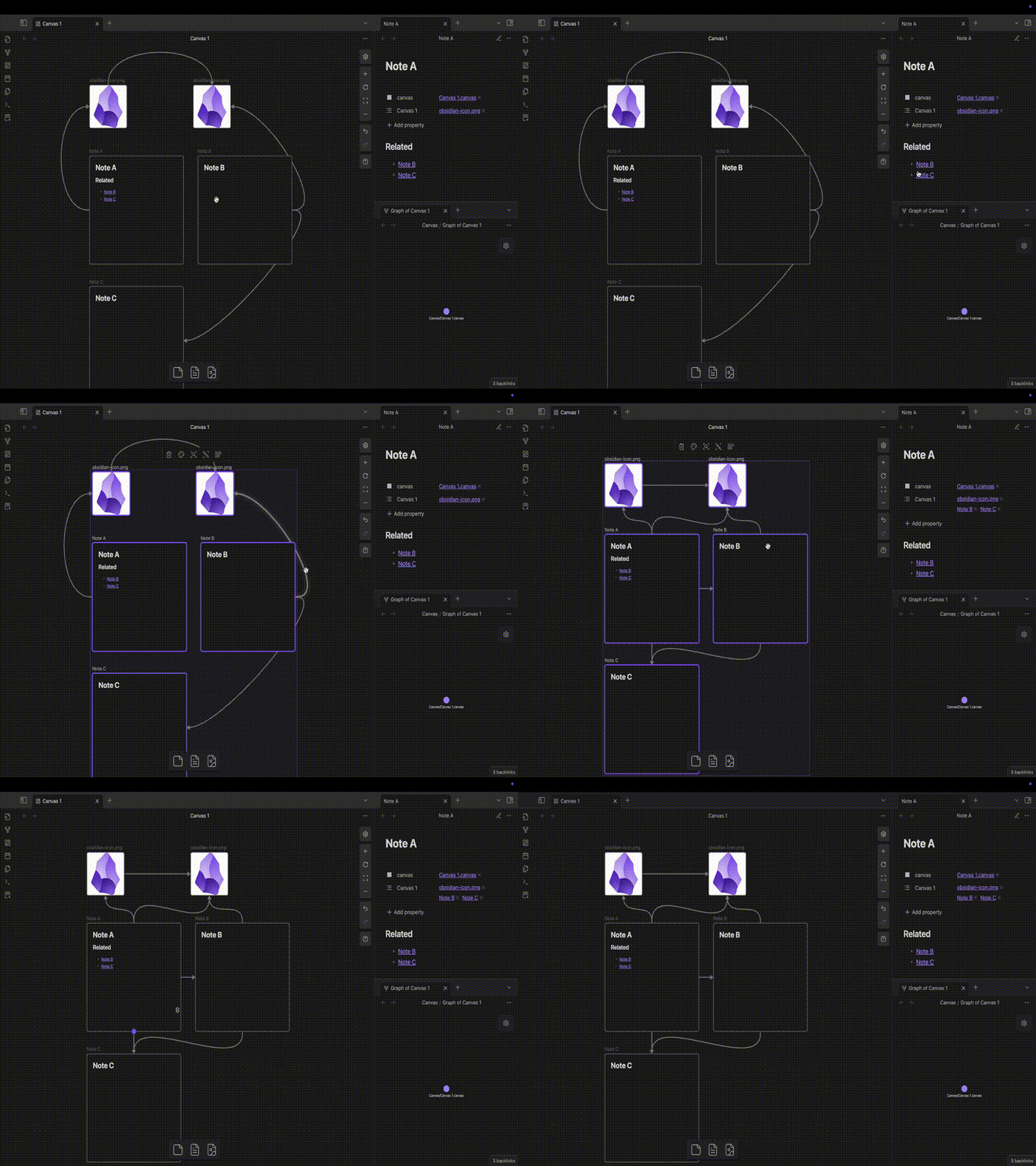
Automatically establishes connections based on existing markdown links in notes
It integrates Adjust edges with shortest path
Optimizes edge paths in Canvas for minimal distance
Supports all node types (text nodes, group nodes, images, nested Canvases, etc.)
Installation Steps
Search for "Enhanced Canvas" in the community plugins and install it. Once enabled, it automatically adds all properties to existing .canvas files.
Contributing
All contributions are welcome!
Say Thank You
If you are enjoying Enhanced Canvas, then please support my work and enthusiasm by buying me a coffee on https://buymeacoffee.com/robertttbs.