Engiware
Import packaged Engibook components and expand lightweight images into optional, on-demand 3D views.
- Overview
- Scorecard
- Updates5
Packaged engineering components and lightweight, expandable 3D previews for Obsidian.
Keep component notes, manuals, scaled drawings, schematics, and models together.
Engiware imports a single .engibook package into ordinary vault files and shows
component images that expand into optional 3D views.
Install
Requires Obsidian 1.8.7 or later.
Community directory
Open Settings → Community plugins → Browse, search for Engiware, then select Install and Enable. You can also open the Engiware listing and select Add to Obsidian.
The listing is published under Green Pipe Partners LLC. Version 0.4.0 passed Obsidian's automated review with no warnings or recommendations, verified artifact attestations, and a byte-for-byte reproducible build.
New listings can take time to reach the in-app catalogue: Obsidian mirrors its community directory to the app's catalogue on an hourly schedule. If Engiware does not appear in Browse yet, fully quit and reopen Obsidian after the catalogue sync to refresh the app's cached list.
BRAT
In BRAT, choose Add beta plugin and enter:
https://github.com/GreenPipePartners/obsidian-engiware
Then enable Engiware under Settings → Community plugins.
Manual installation
Create <vault>/.obsidian/plugins/engiware/ and download these three files from
the latest release
into that folder:
Reload Obsidian and enable Engiware. All runtime dependencies are bundled.
Try the demonstration
Download GPP_Demo-Component_1.0.0.engibook,
then run Engiware: Import .engibook from the command palette and select it.
You can also copy an .engibook into a vault, open it, and choose Deploy and open.
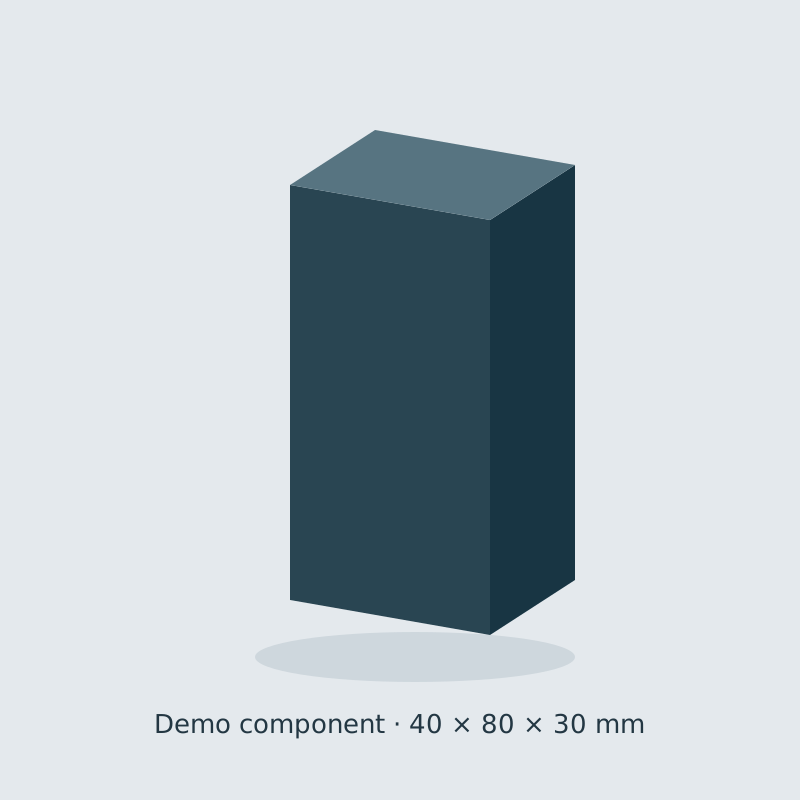
The demo contains an original 40 × 80 × 30 mm model, a scaled SVG front view, an illustrative contact schematic, a guide, and a preview image, all MIT-licensed.
Component packages
Engibooks use {provider_code}_{part_number}_{engibook_version}.engibook.
Underscores separate the fields; hyphens within a part number are preserved.
For example, AB_1606-XLE240E_1.0.0.engibook uses AB for Allen-Bradley.
With 0.4.1+, shared families can use literal balanced brace groups, such as
AB_5069-L3{xx}ER{M}_1.0.0.engibook. Use the note's associated_part_numbers list
to enumerate exact members and keep their SKU-specific specifications separate.
See shared component families.
The content version is independent of the plugin version. All versions of that
part deploy to the stable ID AB_1606-XLE240E. The default layout is:
EngiLib/
├── AB_1606-XLE240E.md
└── Assets/AB_1606-XLE240E/
    ├── schematic/
    ├── manuals/
    ├── 2d_scaled_component/
    ├── 3d_rendered/
    ├── asset-provenance.json
    └── engibook.json
Choose the folder under Settings → Engiware → Deployment directory.
It defaults to EngiLib; nested folders are supported, and an empty value
uses the vault root. The setting applies to subsequent imports. Asset links are
adjusted for the chosen location, including PDF anchors and the image/GLB paths.
The extracted note and assets work as native vault files. Obsidian can link,
index, edit, and sync them. PDF files open in the native viewer; editable
.excalidraw.md drawings use the separate Excalidraw community plugin.
Engiware validates the inventory and hashes before deployment. A newer content version replaces the files listed in its package, including local edits. Files absent from the new inventory stay in place. Identical packages can be reimported without rewriting files; older versions and conflicting reuse of a version number are rejected. Interrupted deployments can be resumed by importing the package again. The installed version is committed after the assets and note.
New versioned packages use format v2, supported by Engiware 0.4.0+. Legacy v1 packages can still be imported. The archive is a snapshot; editing extracted files does not rewrite it.
See Engibook format and packaging to create your own packages.
Sample a Perspective view
Engiware 0.6.2 embeds a native Perspective view as an interactive utility. The 1606-XLE240E pilot uses the existing 2D component SVG: one Boolean changes its actual DC OK lamp between green and red.
The runtime is maintained independently at
https://github.com/GreenPipePartners/engispark. Try the same package in the
standalone player at https://greenpipepartners.github.io/engispark/. Engiware
bundles the versioned @greenpipepartners/engispark library and shared CSS, so
embedded samples also work offline.
```engispark
package: EngiLib/Assets/AB_1606-XLE240E/schematic/AB_1606-XLE240E-DC-OK_0.2.0.engispark
```
Select Sample view, then toggle DC OK signal. Reset sample restores
the packaged value. Opening the .engispark file directly starts the sample too.
Extract Ignition files writes the enclosed native project ZIP, native tag
JSON and README under <deployment directory>/Exports/ for Designer import.
The preview evaluates the exact view.json from the import ZIP. The current
native profile covers SVG Drawings, flex containers, labels, checkboxes,
direct/indirect tag bindings, indexed view-property bindings, bidirectional
writes and scalar map transforms.
Unsupported native behavior produces an explicit compatibility error.
See Engispark format and runtime for boundaries and rebuild steps.
Expand an image into 3D
Models with [email protected] nodes expose Show terminations in the expanded
viewer. Guides start hidden. Select a terminal label to inspect its connection
kind, evidence status, entry position, outward direction and routing eligibility.
Amber ? labels identify provisional locations. The overlay is generated from
meshless GLB nodes and does not change physical model bounds. Existing GLBs
continue to display normally.
Termination metadata may additionally carry [email protected]. The
inspector states Maximum ferruled wire: … AWG, its manufacturer or conservative
area-derived basis, the maximum copper area in mm², collar,
applicable crimped-envelope/barrel-length limits, and manufacturer evidence.
Ratings are independently verified, provisional, unknown, or N/A. A geometric
frame's eligibility does not establish its conductor capacity.
wireEndFromAwg() creates AWG-specific requests. checkWireCapacity() checks
the explicit largest-conductor gauge, preparation and recorded limits;
resolveWireTerminations() checks both ends, including shared physical-clamp
occupancy and geometric eligibility. Bare ends, twin ferrules, unknown ratings,
missing required ferrule dimensions and ineligible frames cannot authorize a sized
route. The earlier no-wire resolveTermination() call is geometry-only inspection.
Add an engiware code block to a note:
```engiware
model: EngiLib/Assets/GPP_Demo-Component/3d_rendered/model.glb
image: EngiLib/Assets/GPP_Demo-Component/3d_rendered/preview.svg
title: Demo component
height: 420
```
| Field | Meaning |
|---|---|
model |
Vault path to a self-contained GLB |
image |
Vault path to a preview image |
title |
Optional title; defaults to the model filename |
height |
Optional inline image height, 180–800 CSS pixels; default 420 |
Reading view and Live Preview display an ordinary image. Click Expand, or focus the image and press Enter/Space, to initialize the optional viewer. Drag to orbit, scroll or pinch to zoom, and right-drag to pan. Reset view fits the camera to the model without changing its geometry, axes, or scale.
Image, Esc, or closing the modal releases its 3D resources.
If the normal graphics attempt fails, the expanded image stays visible with a Try 3D anyway? confirmation. Choose Keep Image, or Try 3D anyway to allow the browser's available WebGL 2 implementation, including software rendering where supported. The retry uses reduced quality (640 px, up to 10 fps, no antialiasing) and may be slow. No model is read or decoded while the confirmation is open. The choice applies to that attempt; it does not change your saved settings. If WebGL 2 is still unavailable, the image remains usable with an explanation. No hardware-vendor configuration is required.
Performance settings
Under Settings → Engiware:
- Image-only mode: expand images without initializing any 3D renderer.
- 3D render size: cap the longest rendered edge at 640, 960, or 1280 pixels.
- Interaction frame limit: 10–30 fps, with 20 fps as the default.
On Obsidian 1.13 or later, these controls also appear in the global settings search. Earlier supported versions render the same controls in Engiware's tab.
Views render on demand with no idle animation loop. Closing or switching to the image cancels pending work and disposes graphics resources. The renderer lowers resolution and the interaction frame limit after slow draws, and shows a warning if they remain slow. It keeps the 3D view available until you switch back to the image. Graphics errors or a lost WebGL context still return to the image. GLBs must embed their resources; external texture downloads and external compression decoders are not used.
Privacy and file access
Engiware works offline, makes no network requests, and includes no telemetry,
accounts, payments, or advertisements. The import command reads the local
.engibook or .zip file you explicitly select, including a file outside the
vault. It writes extracted files only into the current vault through Obsidian's
public Vault API. Preview images and models are read from the vault.
During an import, Engiware checks the immediate children of the package's
destination folders and their parents for file/folder and case-insensitive name
collisions before writing any package contents. These checks are scoped to the
component's destination paths.
Development and support
Development checks require Node.js 22.18+ and Python 3.10+ (the packager uses only Python's standard library). Python is not needed to install or use the plugin.
npm ci
npm run verify
See CONTRIBUTING.md for development and release instructions. Builds and tests are self-contained. Runtime checks have been performed on Obsidian 1.13.7 for Linux, including graphics confirmation and retry, simulated slow draws and no-WebGL image fallback, PDF/Excalidraw compatibility, configurable deployment paths, versioned replacement, interrupted-upgrade resumption, import conflicts, cancellation, and resource cleanup. Mobile runtime testing is still pending; the plugin uses browser-compatible APIs.
Report bugs or request features in GitHub issues.
License
Copyright © 2026 Green Pipe Partners LLC. MIT. See third-party notices for Three.js and fflate attribution.