Editor Width Slider
 mugishomp87k downloads
Customize Obsidian's editor width with a slider for a tailored editing experience.
- Overview
- Scorecard
- Updates6
A plugin for Obsidian that allows you to adjust the editor line width using a simple slider in the status bar.
Features
- Adjust the line width of the editor using a slider in the status bar.
- Increase or decrease the line width to customize your editing experience.
- Simple and intuitive interface for easy usage.
Feature: Custom for Individual Files using YAML
With the Obsidian Line Width Slider Plugin, you can now customize the editor width for individual files by specifying an "editor-width" field in the YAML frontmatter of your notes. This feature allows you to have different line widths for different files, giving you greater flexibility in your note-taking and editing experience.
Setting the Editor Width
To set a custom editor width for a specific file, follow these steps:
Open the note for which you want to customize the editor width.
In the YAML frontmatter section at the top of the note, add an "editor-width" field. The value of this field should be a number between 0 and 100, representing the desired editor width as a percentage of the viewport width. For example:
---
title: My Customized Note
editor-width: 75
---
Demo
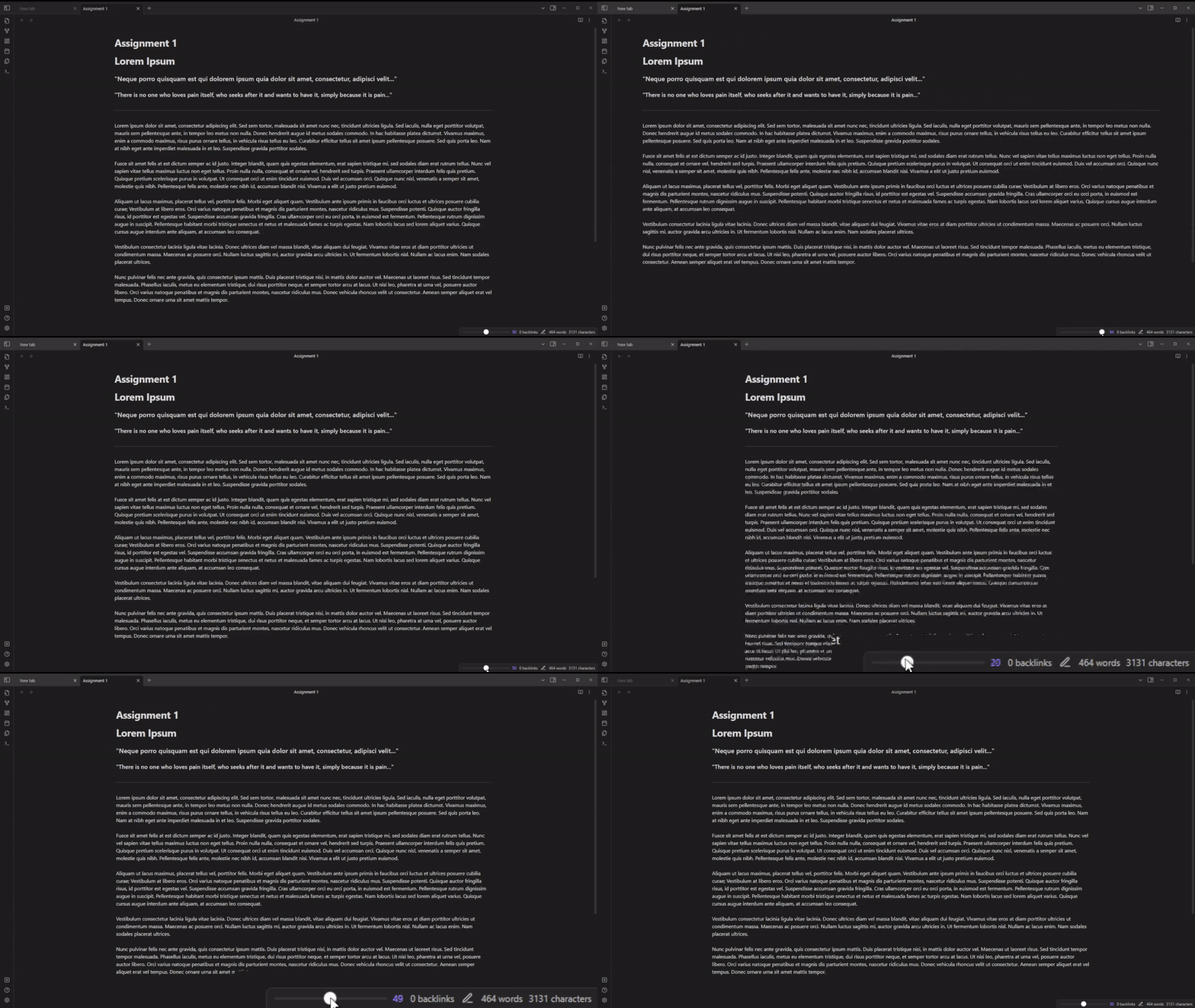
Here is a brief demo showcasing the basic functionality of the Line Width Slider plugin.
Installation
- Download the latest release of the plugin from the Releases page.
- Extract the plugin folder from the downloaded ZIP file.
- Copy the plugin folder into your Obsidian vault's
.obsidian/pluginsdirectory. - Launch Obsidian and open the settings.
- Navigate to the "Community Plugins" tab and enable the "Line Width Slider" plugin.
- Enjoy using the Line Width Slider in the status bar to adjust the editor line width.
Usage
- Once the plugin is enabled, you will see a slider in the status bar.
- Drag the slider to the left or right to increase or decrease the editor line width.
- The changes will be applied to the editor in real-time.
Feedback and Support
If you encounter any issues or have suggestions for improvements, please create a new issue on the GitHub repository.
Support Me
If you find my work valuable or simply want to support this broke CS student's caffeine-fueled coding adventures, you can make a donation through PayPal. Your contribution is greatly appreciated and helps keep the coffee flowing! ☕️🖥️

License
This plugin is licensed under the MIT License. See the LICENSE file for more information.
Please note that this plugin is provided as-is without any warranty. Use it at your own risk.