DiceCloud Character Importer
 Dreiza21 downloads
Imports public DiceCloud v2 characters as Obsidian notes compatible with Fantasy Statblocks and Initiative Tracker.
- Overview
- Scorecard
- Updates2
DiceCloud Character Importer
Turn a public DiceCloud v2 character into a clean, combat-ready Markdown note.
Install from the Community directory · Report a bug · Request a feature
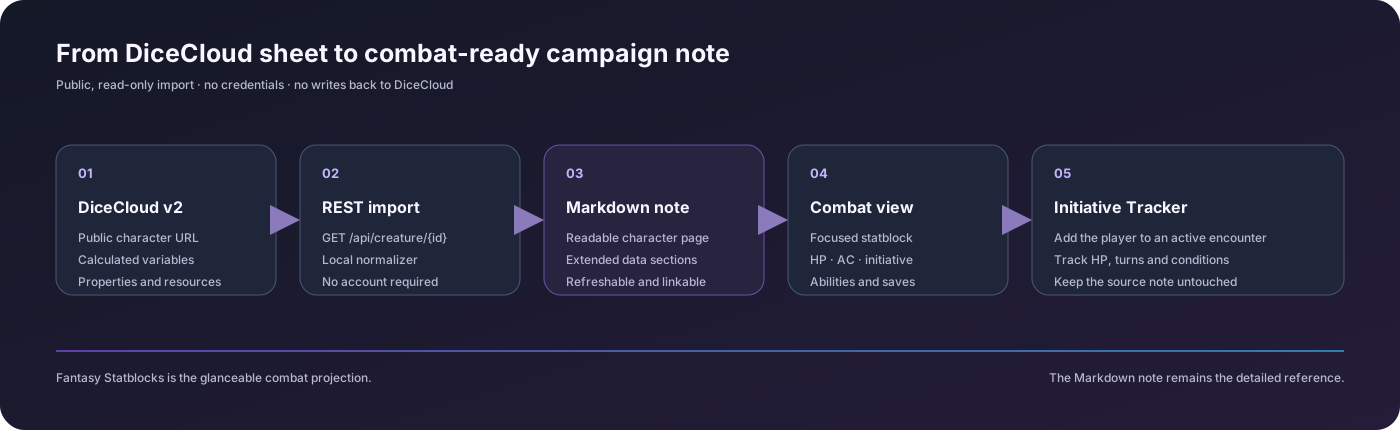
From a public DiceCloud sheet to a focused statblock and an Initiative Tracker combatant.
Why this exists
DiceCloud is excellent at calculating character sheets. Markdown is excellent at keeping campaign notes close to the rest of the vault. This plugin connects the two without pretending that a player character is a monster.
The workflow above is a static image rather than Mermaid so it renders consistently on the GitHub and Obsidian community pages.
Features
| One-click import Paste a public URL or character ID. |
Combat summary HP, AC, initiative, level, abilities, skills and saves. |
Tracker-ready Add the current character to Initiative Tracker. |
| Readable Markdown Keep extended character data in normal note sections. |
Safe refreshes Update from DiceCloud while preserving local current HP. |
No credentials Public read-only requests only. |
Install
Community directory
- Open the DiceCloud Character Importer page.
- Click Add to Obsidian or install it from Settings → Community plugins → Browse.
- Enable the plugin.
Manual installation
Copy main.js and manifest.json into:
<Vault>/.obsidian/plugins/dicecloud-importer/
Then enable DiceCloud Character Importer under Settings → Community plugins.
Quick start
Open the command palette with Ctrl+P on Windows/Linux or Cmd+P on macOS, then run:
| Command | What it does |
|---|---|
| Import public DiceCloud character | Creates or updates a character note from a URL or ID. |
| Refresh current note from DiceCloud | Re-fetches the public sheet and preserves current-hp. |
| Add current character to Initiative Tracker | Adds the current PJ to an active tracker. |
| Start Initiative Tracker encounter with current character | Opens a new encounter with the current PJ. |
The default destination is Characters/DiceCloud/. Change it in the plugin settings.
What the generated note contains
Focused Fantasy Statblock
The statblock deliberately contains only the information useful at a glance during combat:
- HP and AC
- Initiative modifier
- Level and class
- Six ability scores
- Speed
- Skills and saving throws
- Source and image, when available
The statblock does not dump every DiceCloud feature, action, item or spell into the creature panel.
Extended Markdown sections
The complete imported projection remains available below the statblock as normal Markdown:
- abilities and modifiers;
- skills and saving throws;
- spell DC, spell attack bonus and spell slots;
- spells;
- traits and class features;
- actions;
- inventory;
- synchronization metadata.
This keeps the bestiary view useful while preserving the information the DM may need between turns.
Privacy and permissions
The importer only requests:
GET https://dicecloud.com/api/creature/{characterId}
It does not request, store or transmit DiceCloud credentials. It never writes to DiceCloud. The plugin uses a small ID-to-note-path map for imported characters instead of scanning every file in the vault.
Limitations
DiceCloud is a calculation engine with a rich property tree. Its automation, effects and formulas cannot be represented losslessly in a Fantasy Statblock. This plugin creates a practical projection for note-taking and combat rather than a second DiceCloud implementation.
Only public DiceCloud v2 characters are supported. DiceCloud v1 routes are not supported.
Development
This plugin is intentionally small and ships as plain JavaScript; no build step is required.
git clone https://github.com/EnzoIP3/dicecloud-importer.git
cd dicecloud-importer
node --check main.js
Pull requests and issue reports are welcome.
License
MIT. See LICENSE.