Daylio Mood Graph
 toldry2k downloads
Visualizes Daylio mood data as a color-coded graph annotated by vault entries.
- Overview
- Scorecard
- Updates20
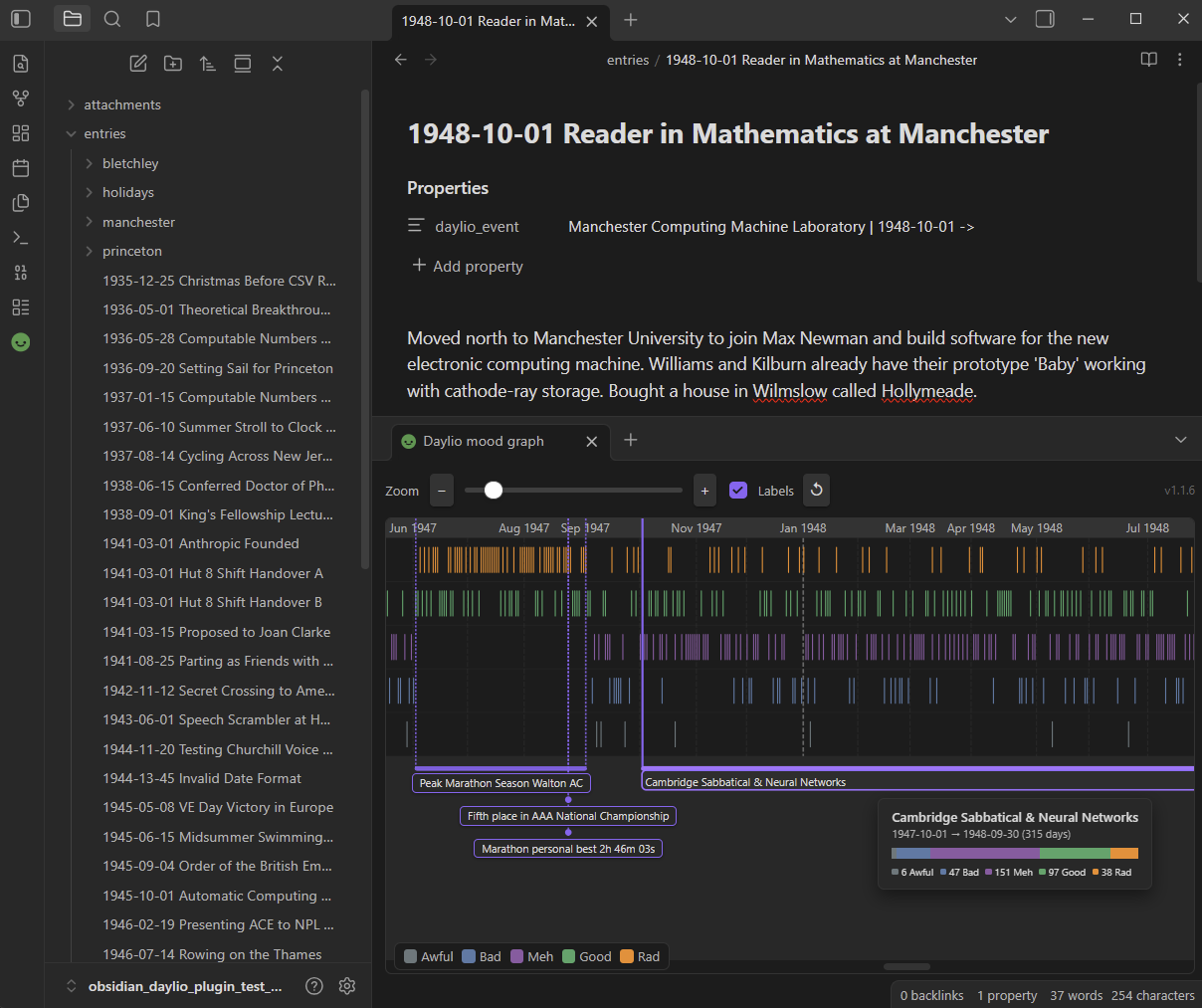
An Obsidian plugin that renders Daylio mood data as a color-coded graph, annotated with Obsidian vault entries.
Table of Contents
- Quick Start / Demo Vault
- Installation
- Setup
- Annotating the Graph with Vault Events
- Development
- Technical Details
Quick Start / Demo Vault
Try out the plugin with pre-populated sample data:
Download the Example Vault Zip, extract it, and open it in Obsidian (the plugin is already installed and configured) to see a working graph with sample entries and event annotations out of the box.
Installation
From the Obsidian Community Plugin Hub
Follow the link:
Manual installation
- Create a new directory named
daylio-mood-graphat<OBSIDIAN_VAULT_ROOT>/.obsidian/plugins/ - Download the files from the latest release and copy them into
<OBSIDIAN_VAULT_ROOT>/.obsidian/plugins/daylio-mood-graph - Open the Obsidian vault and go to Settings → Community plugins → enable Daylio Mood Graph.
Setup
1. Export data from Daylio
In the Daylio app: More → Export Entries → CSV (table). Move the CSV file into the Obsidian vault.
e.g. <OBSIDIAN_VAULT_ROOT>/attachments/daylio_export_2026_08_19.csv
2. Format Obsidian archive's entries' filenames
To associate entries with specific dates, the .md file names must begin with an ISO date, e.g:
2020-04-13 First Corona Lockdown.md
3. Tell the plugin where the CSV is
Settings → Community plugins → Daylio Mood Graph → CSV file path
4. Open the graph
Select the smiley-face icon  in the left ribbon, or run the command
Daylio Mood Graph: Open mood graph from the command palette
(Ctrl+P / Cmd+P).
in the left ribbon, or run the command
Daylio Mood Graph: Open mood graph from the command palette
(Ctrl+P / Cmd+P).
The graph opens as a horizontal split pane below the active note.
Annotating the graph with vault events
Vault notes can annotate the graph in two ways: Point Events (single-date milestones) and Range Events (multi-day timeline spans).
- Inside an Obsidian entry, press Ctrl+; (Windows/Linux) or Cmd+; (macOS) to add a note property, or run the command Add file property from the command palette (Ctrl+P / Cmd+P).
- Set the property name to
daylio_event. - Write the name of the event, and specify date range if needed:
1. Point Events
---
daylio_event: "Began university"
---
By default, the date of the event will be taken from the entry's filename. To override it, use the pipe | sytnax:
---
daylio_event: "Began university | 2003-04-05"
---
Multiple point events can be specified in a single note using Obsidian's native List property:
---
daylio_event:
  - "Got a cat"
  - "Got a dog"
  - "Got a ferret | 2026-08-20"
---
2. Range Events
For multi-day events that span across a date range, use the inline pipe (|) and arrow (->) syntax:
---
daylio_event: Summer Vacation | 2026-07-12 -> 2024-07-28
---
Point events and multiple range events can also be combined in list properties:
---
daylio_event:
  - Got a cat
  - Summer Vacation | 2026-07-12 -> 2026-07-28
  - Ongoing Project | 2026-03-01 ->
---
An unspecified end-date is treated as an ongoing event.
Development
Building
npm install # first time only
npm run build
After building, copy build/main.js, manifest.json,
and styles.css into the Obsidian vault's plugin folder and reload Obsidian.
The shorthand npm run update:test-vault builds and copies in one step.
[!TIP] Developer Workflow Tip: It is recommended to keybind Obsidian's built-in command "Reload app without saving" to a keyboard shortcut such as Ctrl+R (Windows/Linux) or Cmd+R (macOS) under Settings → Hotkeys. This enables a rapid development loop: run
npm run update:test-vault, switch to Obsidian, and press Ctrl+R (or Cmd+R) to see changes instantly.
Running the tests
The test suite uses Vitest and requires no Obsidian
runtime — the Obsidian API is replaced by a minimal stub for unit tests, and
the integration tests read real files directly from obsidian_daylio_plugin_test_vault/.
Technical Details
For in-depth details on the plugin's internal design, data flow, and module responsibilities, see the Architecture section in AGENTS.md.