DayDeck
 Shivraj Rath504 downloads
Organize your mind: a powerful cognitive dashboard that separates strategy from frictionless execution.
- Overview
- Scorecard
- Updates6
Your day, compiled.
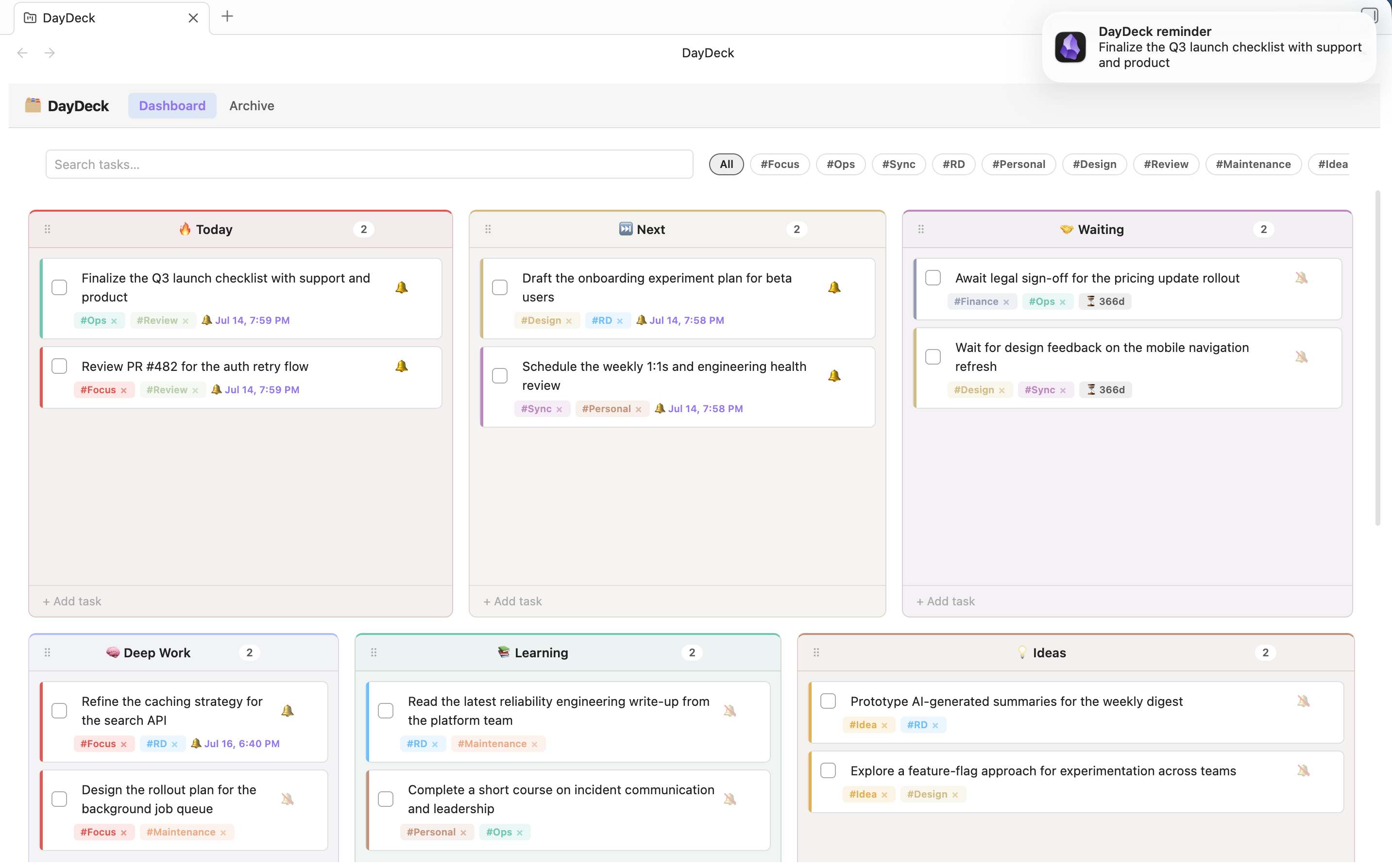
DayDeck is a cognitive task management dashboard for Obsidian designed to bridge the gap between strategic thinking and immediate execution. It replaces traditional linear to-do lists with a flexible, visual multiple group system that adapts to your workflow.
🧠 The Philosophy
In the "Two Hat" workflow:
- Hat 1: The Strategist - High-level sections (Learning, Admin, Backlog). This is your conceptual workspace where you organize what needs to be done, not when.
- Hat 2: The Operator - "Today" and "Next". This is your execution engine. Time is the only resource here, so tasks must be specific and actionable.
DayDeck ensures you never lose sight of the big picture while staying focused on shipping today's work.
🚀 Quick Start
- Install DayDeck from the Obsidian Community Plugins store
- Open DayDeck via the ribbon icon or
Ctrl+P→ "Open DayDeck dashboard" - Start capturing tasks using the Quick Capture bar at the top
- Organize your workflow by dragging sections and tasks to fit your needs
📸 Interface Overview
Light Mode
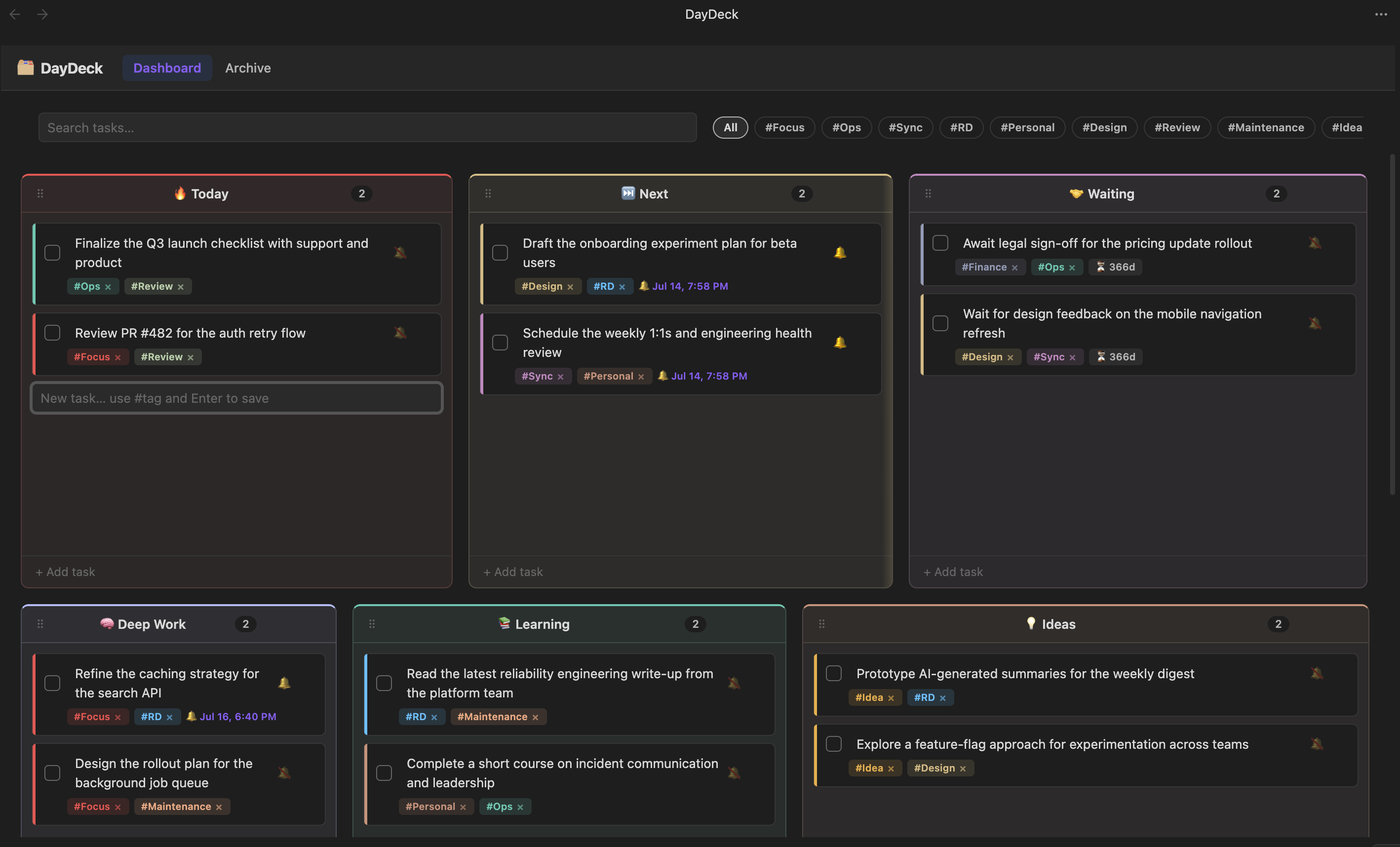
Dark Mode
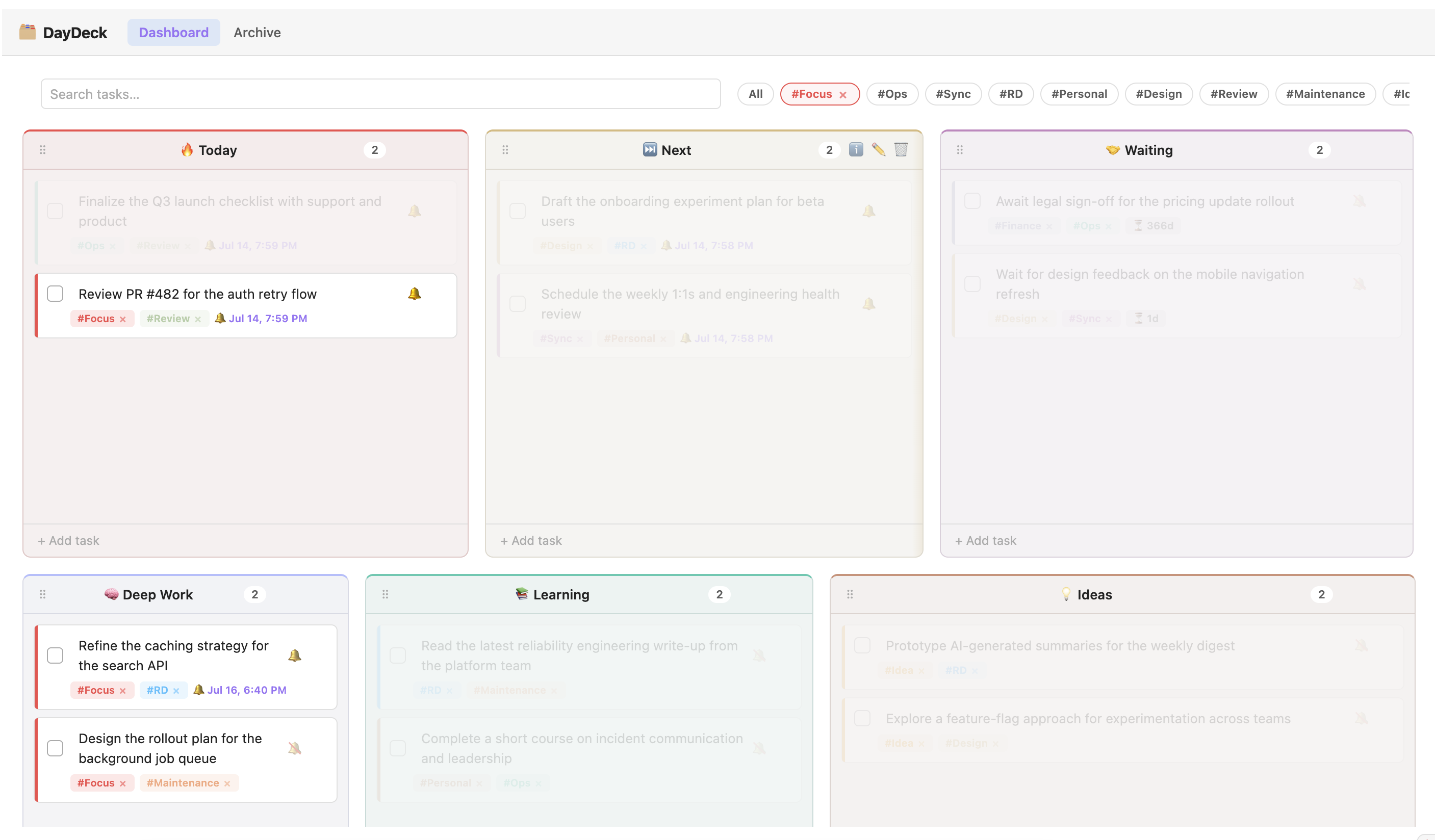
Tag Filtering
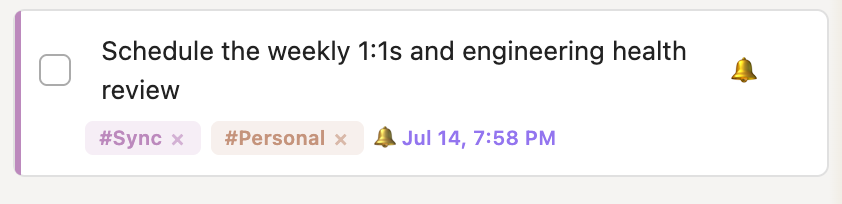
Task Reminders
Section Settings
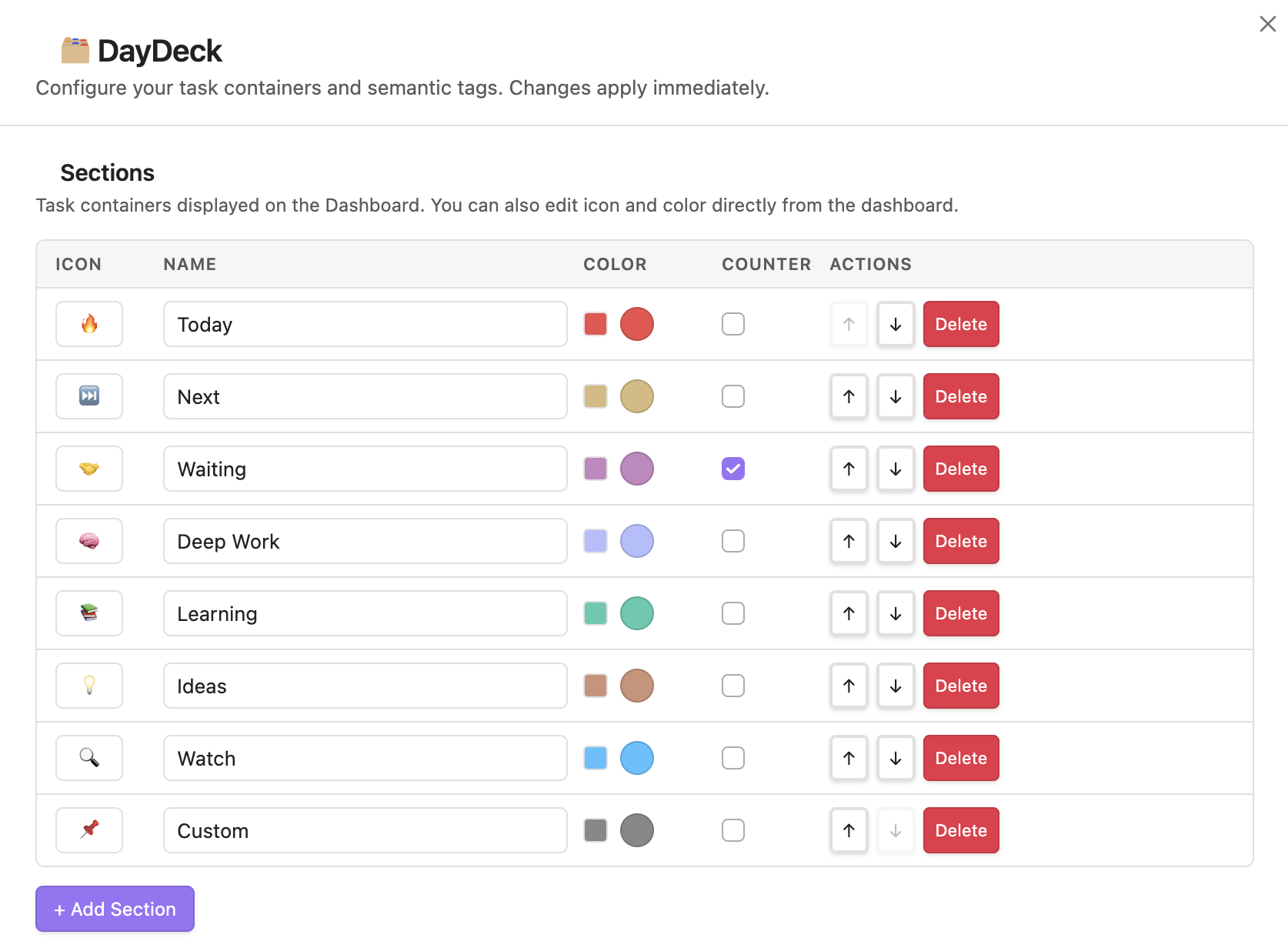
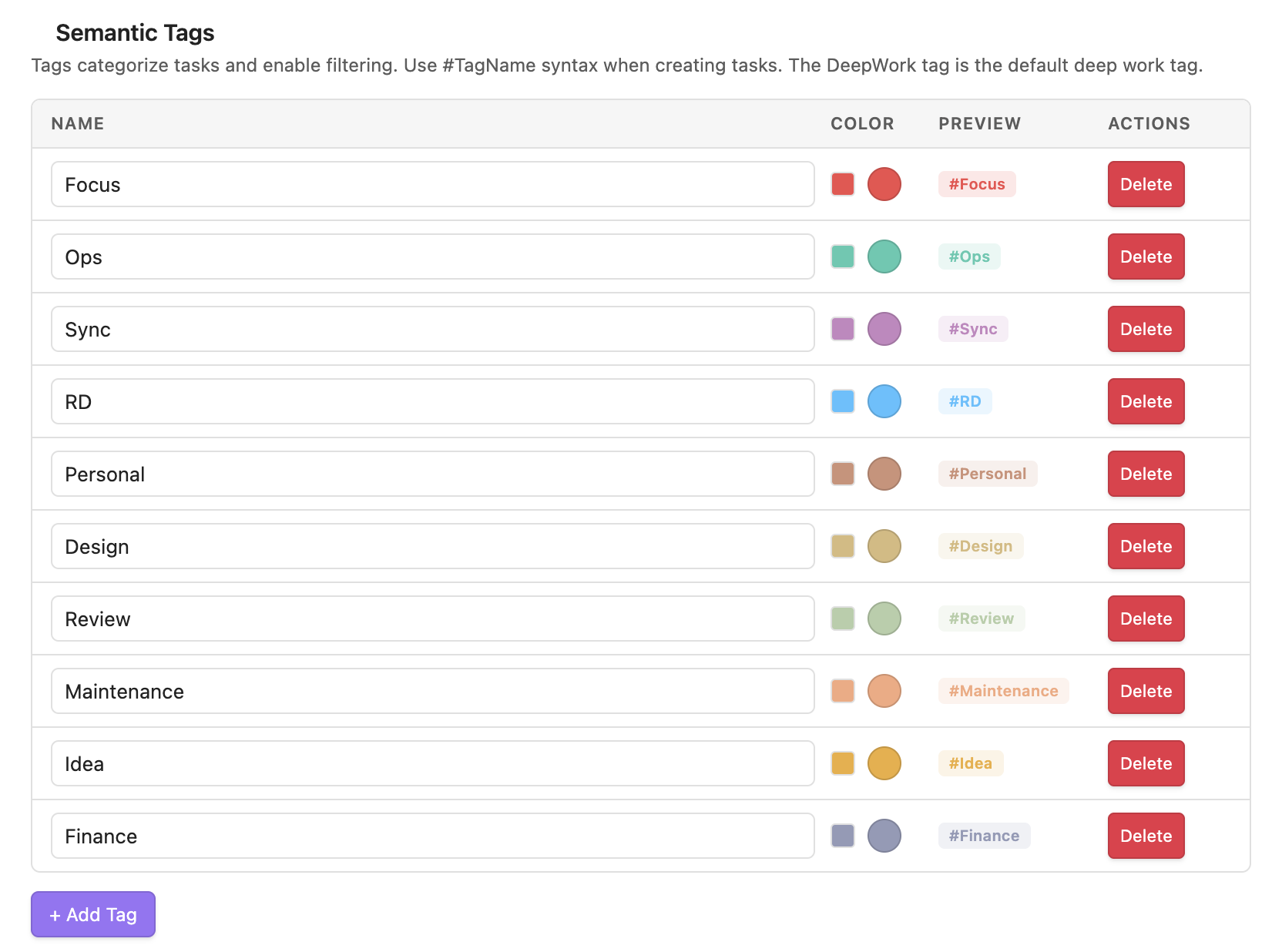
Tag Settings
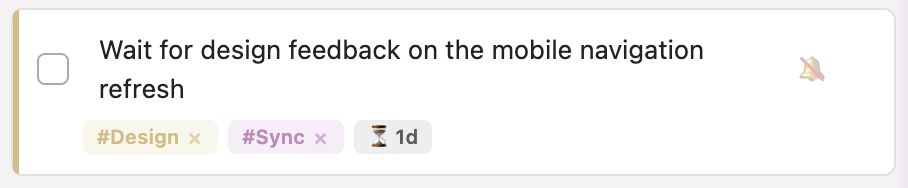
Waiting Time Counters
🌟 Key Features
📊 Responsive Section Grid
- Drag-and-drop sections (Today, Next, Waiting, Focus Hub, Learning, Ideas, Watch, etc.) to organize your workflow
- Customizable sections with unique icons, colors, and widths
- Resizable sections - drag the right edge to adjust width (240px-900px)
- Section descriptions - add tooltips with purpose and examples for guidance
⚡ Smart Capture
- Quick Capture bar for instant task entry
- Inline tagging with
#tagsyntax to instantly categorize tasks - Tag suggestions appear as you type with keyboard navigation
- Multi-tag support - assign multiple tags to any task
🏷️ Semantic Tagging
- Custom tags with unique colors (e.g., the built-in
#Focustag) - Tag filtering via clickable pills in the Quick Capture bar
- Multi-tag filtering - combine multiple tags for precise filtering
- Visual indicators - task cards show color-coded tag indicators
⏰ Task Reminders
- Date/time reminders with intuitive pickers
- Visual highlighting for overdue reminders
- Desktop notifications when reminders are due
- Date-only reminders for daily/weekly check-ins
⏱️ Waiting Time Counters
- Track elapsed time for tasks in waiting sections
- Enable per-section - perfect for "Waiting for Review" or "Blocked" sections
- Automatic formatting - shows time in human-readable format
📦 Archive System
- Historical ledger of completed tasks grouped by month
- Search functionality to find past completed work
- One-click restore to bring tasks back to active sections
- Task metadata preserved including tags and completion dates
🛠️ Installation
Option 1: Community Plugins (Recommended)
- Visit the DayDeck plugin page
- Open Settings → Community Plugins in Obsidian
- Disable Restricted Mode
- Browse plugins and search for "DayDeck"
- Click Install and then Enable
Option 2: Manual Installation
Build the Plugin:
- Make sure you have Node.js and npm installed
- Run
npm installto fetch dependencies - Run
npm run devfor continuous development mode
Install in Obsidian:
- Navigate to your Obsidian vault's plugin folder:
.obsidian/plugins - Copy the entire
docketfolder there - Restart Obsidian
- Go to Settings → Community Plugins, disable Restricted Mode, and enable Docket
- Click the "Docket" button on your left sidebar to open the view
- Navigate to your Obsidian vault's plugin folder:
⚙️ Configuration
Open the DayDeck Settings tab from the plugin's sidebar menu to customize:
Sections
- Rename sections to match your workflow
- Change icons using emoji or short text
- Adjust order by dragging sections in the settings
- Set width for each section (240px-900px)
- Choose colors for visual organization
- Enable waiting time counters for sections that track elapsed time
- Add descriptions and examples to guide your workflow
Tags
- Add custom semantic tags with unique colors
- The DeepWork tag is automatically created for focus filtering
- Assign colors to tags for visual distinction
- Tags appear as clickable filter pills in the Quick Capture bar
⌨️ Usage Quick Reference
| Action | Method | Description |
|---|---|---|
| Open DayDeck | Ctrl+P → "Open DayDeck dashboard" |
Opens/focuses the dashboard |
| New Task | Type in Quick Capture + Enter |
Adds task to active section |
| Tag Task | #tag in task text |
Assigns a semantic tag |
| Filter by Tag | Click tag pill in Quick Capture | Filter view to show only tagged tasks |
| Multi-tag Filter | Click multiple tag pills | Filter by multiple tags simultaneously |
| Clear Filters | Click "All" pill or Escape |
Remove all active filters |
| Move Task | Drag task card | Move between sections or reorder |
| Reorder Section | Drag section header (⠿) | Reorder sections on dashboard |
| Resize Section | Drag right edge of section | Adjust section width |
| Edit Task | Double-click task text | Inline edit with tag support |
| Context Menu | Right-click task card | Access all task actions |
| Set Reminder | Click 🔔 icon on task | Set date/time reminder |
| Clear Reminder | Right-click → Clear reminder | Remove reminder from task |
| Delete Task | Click × on card or context menu | Permanently removes |
| Complete Task | Click checkbox on card | Moves to Archive |
| Restore Task | Click "Restore" in Archive | Moves back to Today section |
| Archive Search | Type in Archive search bar | Filter completed tasks |
| Section Info | Click ℹ️ on section header | View section description and examples |
| Edit Section | Click ✏️ on section header | Modify section properties |
| Add Section | Click "+ Add Section" button | Create new custom section |
💡 Tips & Tricks
Workflow Optimization
1. Use the Two-Hat System Effectively
- Keep strategic sections (Learning, Ideas, Backlog) separate from execution sections (Today, Next)
- Review your strategic sections weekly and move actionable items to Today/Next
- Use the "Waiting" section for tasks blocked on external dependencies
2. Leverage Tag Filtering for Focus
- Create tags for different work modes:
#DeepWork,#Admin,#Communication - Filter by
#DeepWorkduring focus sessions to eliminate distractions - Use
#Urgentfor time-sensitive items that need attention
3. Optimize Section Layout
- Resize sections based on your typical task volume
- Wider sections for high-volume areas like "Today"
- Narrower sections for reference areas like "Ideas"
- Order sections left-to-right by priority or workflow stage
4. Use Section Descriptions
- Add clear descriptions to each section explaining its purpose
- Include 4 practical examples in the section settings
- This helps maintain consistency when adding new tasks
Task Management
5. Quick Capture Best Practices
- Use inline tags when capturing:
Review PR #DeepWork #CodeReview - Be specific with task descriptions to make them actionable
- Use the Quick Capture bar as a scratchpad - type and press Enter quickly
6. Smart Reminder Usage
- Set date-only reminders for recurring tasks (weekly reviews, monthly reports)
- Use specific time reminders for time-sensitive deadlines
- Overdue reminders are visually highlighted - check these daily
7. Archive as a Learning Tool
- Review your Archive monthly to identify patterns in your work
- Use the search function to find similar completed tasks
- Restore tasks when similar work comes up again
Advanced Techniques
8. Multi-Tag Filtering
- Combine tags for precise filtering:
#DeepWork+#Backendfor backend focus sessions - This is powerful for specialized work modes or project-specific filtering
9. Waiting Time Tracking
- Enable counters on "Waiting" sections to track response times
- Use this data to identify bottlenecks in your workflow
- Follow up on tasks that have been waiting too long
10. Section Color Coding
- Use colors to indicate section types: red for urgent, blue for strategic, green for active
- This creates visual hierarchy and makes scanning faster
11. Keyboard Shortcuts
- Use
Ctrl+P→ "Open Docket dashboard" for quick access - Press
Escapein Quick Capture to clear filters and blur input - Use arrow keys to navigate tag suggestions when typing
12. Context Menu Power
- Right-click any task to access all available actions
- Move tasks between sections quickly via the context menu
- Toggle tags directly from the context menu without editing
Maintenance
13. Regular Reviews
- Weekly: Review strategic sections and move items to execution
- Monthly: Clean up Archive and review completed work patterns
- Quarterly: Reassess your section structure and tag taxonomy
14. Tag Hygiene
- Keep your tag list focused and meaningful
- Remove unused tags periodically
- Consider tag hierarchy (e.g.,
#Work/Backend,#Work/Frontend)
🎨 Customization Examples
Example Section Layout
[Today (400px)] [Next (320px)] [Waiting (280px)] [Focus Hub (350px)]
[Learning (300px)] [Ideas (280px)] [Backlog (320px)]
Example Tag System
#DeepWork(red) - Focus sessions, no interruptions#Admin(blue) - Administrative tasks, meetings#Communication(green) - Emails, messages, calls#Learning(purple) - Study, research, skill development#Urgent(orange) - Time-sensitive items
Example Section Descriptions
Today Section:
- Description: "Tasks I will complete today. Keep this focused and achievable."
- Examples:
- "Review PR #123"
- "Write documentation for API"
- "Fix bug in login flow"
- "Deploy to staging"
🤝 Contributing
I welcome pull requests, bug fixes, and contributions from the community! If you'd like to contribute to DayDeck, please check out the CONTRIBUTING.md guide for details on how to get started.
🤝 Support
Found a bug or have a feature request? Please open an issue on GitHub.
☕ Buy Me a Coffee
If you find DayDeck helpful and want to support its development, consider buying me a coffee!