Current Pane Media Gallery Viewer
 usero2-endofday290 downloads
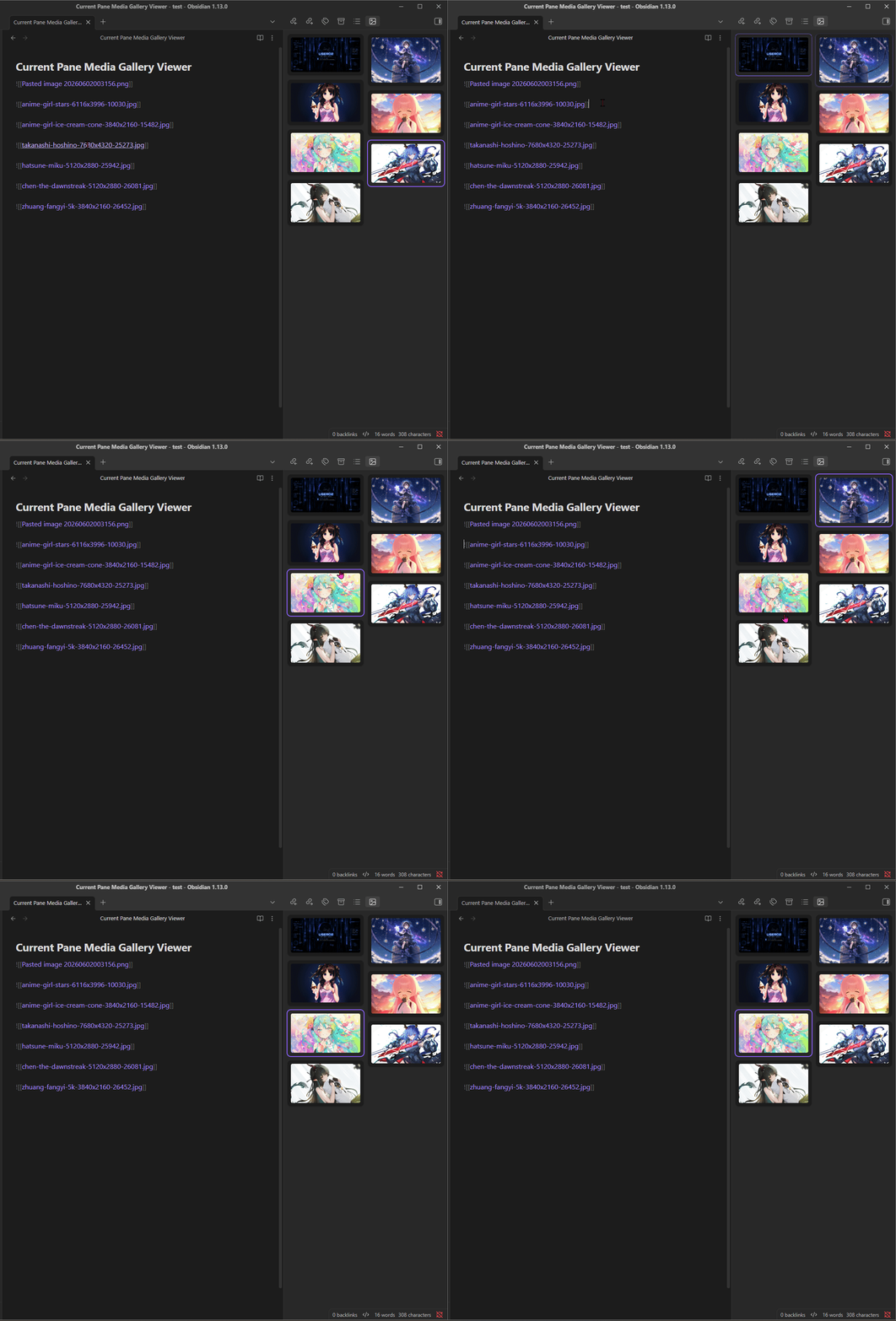
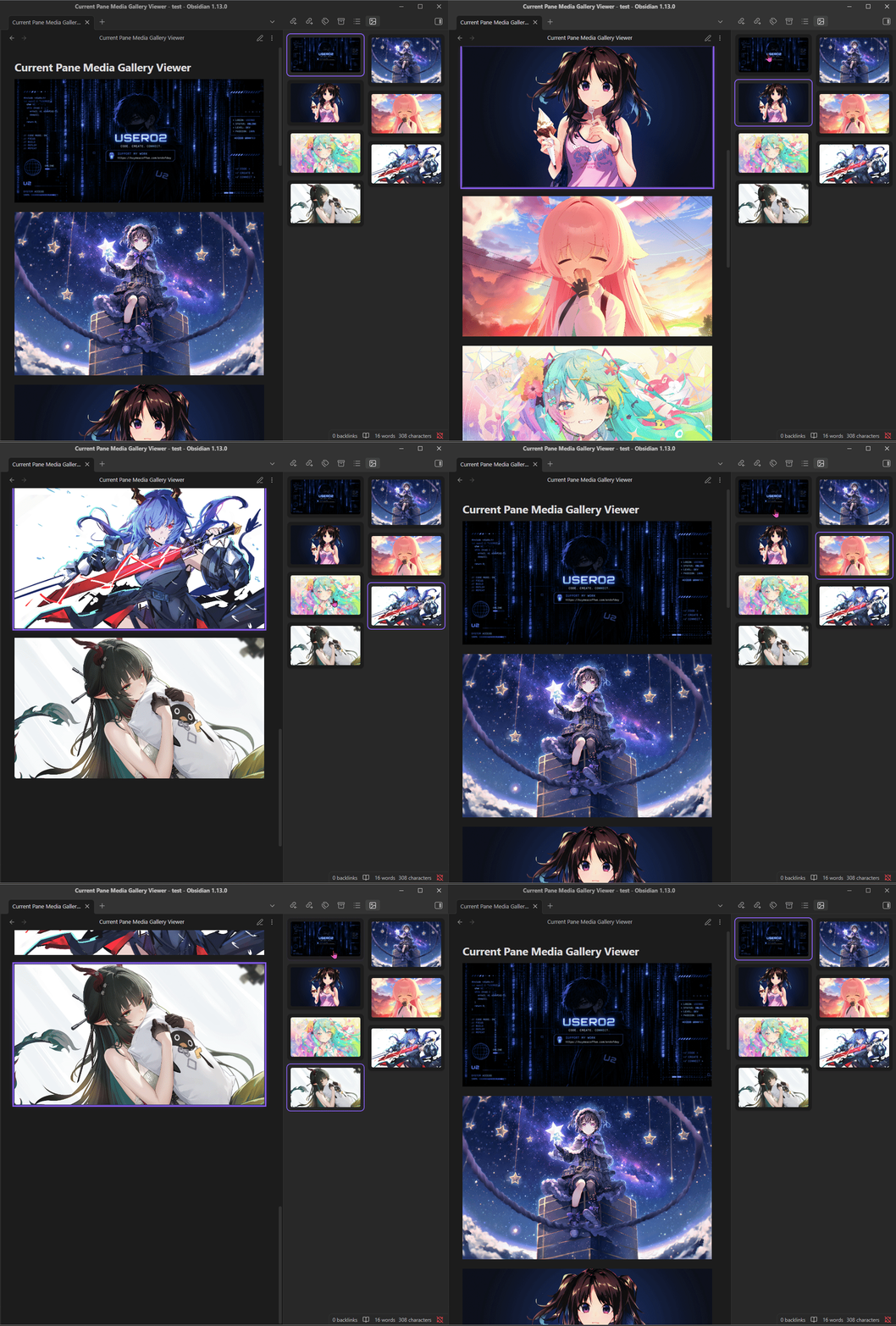
Preview media (image/video) under cursor in the right pane during editor mode.
- Overview
- Scorecard
- Updates3
A powerful and dynamic media gallery plugin for Obsidian. It automatically gathers all images and videos from your currently active markdown document and displays them in a dedicated, highly customizable side pane.
Perfect for visual thinkers, researchers, and anyone who works with media-heavy notes!
Editing View
Reading View
✨ Features
- Automatic Media Extraction: Instantly scans your active note and displays all embedded images and videos.
- Two-Way Synchronization:
- Document to Gallery: Move your cursor or click on an image in your note, and the gallery will automatically scroll to and highlight the corresponding media.
- Gallery to Document: Click on any media in the gallery pane, and your document will automatically scroll to that exact location. It works seamlessly in both Live Preview/Source Mode and Reading Mode.
- Double-Click to Zoom: Double-click any image in the gallery to open a beautiful, full-screen native zoom modal.
- Context Menu: Right-click any image in the gallery to access powerful options:
- Copy to Clipboard: Quickly copy images to your system clipboard.
- Open in System Explorer: Jump directly to the physical file on your computer.
- Reveal file in navigation: Locate the image file in your Obsidian File Explorer.
- Delete Image: Delete the file from your vault and automatically clean up its markdown references in the active document.
- Occurrence Cycling: If you use the exact same image multiple times in a document, clicking its thumbnail in the gallery will intelligently cycle through each occurrence in your note.
- 6 Beautiful Layouts: Choose how you want to view your media:
- Masonry: A gapless, left-to-right cascading layout.
- Vertical (1 Column): Large, single-column feed.
- Vertical (2 Columns): Standard two-column grid.
- Horizontal (1 Row): A scrollable horizontal filmstrip.
- Horizontal (2 Rows): A double-row filmstrip.
- Fit All: Packs all media compactly to fit the pane without scrollbars.
- Lazy-Rendering Support: Built with robust native DOM handling. Clicking media in the gallery works perfectly even for items buried deep at the bottom of extremely long notes in Reading Mode.
🆕 What's New in 1.0.2
- Feature: Added Reveal file in navigation to the context menu, allowing you to instantly locate media files in the Obsidian File Explorer.
- Bug Fix: Fixed an issue where images with spaces in their names or folder paths (URL-encoded as
%20) were failing to load in the gallery pane.
🛠️ Installation
- Download the latest release from the GitHub repository.
- Extract the folder into your Obsidian vault's plugin directory:
.obsidian/plugins/ - Restart Obsidian.
- Go to Settings > Community plugins and enable Current Pane Media Gallery Viewer.
🚀 How to Use
- Open the Command Palette (
Ctrl/Cmd + P). - Search for
Open Media Galleryand hit Enter. - The Media Gallery pane will appear (usually in the right sidebar).
- Open any note with images or videos, and watch the gallery populate automatically!
- Double-click an image in the gallery to view it in full screen.
- Go to the Plugin Settings to change the layout style on the fly.
⚙️ Settings
- Layout Style: Choose between Masonry, Vertical, Horizontal, or Fit-all layouts.
- Max Image Height: Limit how tall images can be in the gallery (0 for unlimited).
- Hide Scrollbar: Toggle the visibility of the scrollbar for a cleaner look.
- Auto Play Video: Automatically play videos when they appear in the gallery.
❤️ Support & Donate
If this plugin has improved your Obsidian workflow, saved you time, or you just want to support its continued development, please consider donating!
Your support is incredibly appreciated, helps fix bugs, and keeps this project alive and growing. 🙏
https://buymeacoffee.com/endofday
(Note: Please replace the link above with your actual BuyMeACoffee, Ko-fi, or Patreon link!)
Built with ❤️ for the Obsidian Community