Pixel Banner
 jparkerweb196k downloads
Enhance your notes with customizable banner images.
- Overview
- Scorecard
- Updates106
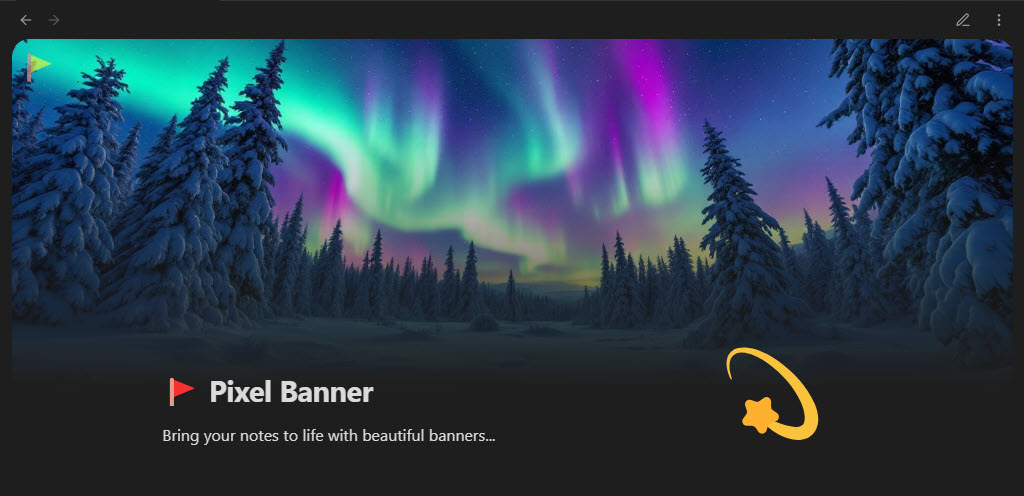
Pixel Banner is a powerful Obsidian plugin that transforms your notes with customizable banner images, creating visually stunning headers that enhance your knowledge workspace. Go beyond simple note-taking with banners that provide visual context and improved aesthetics.
Maintained by

Key Features
✨ Smart Banner Creation
- AI-Generated Banners: Create stunning, custom banners using AI generation without design skills.
- Banner Collection: Browse and use professional banner images and videos from the integrated Pixel Banner Plus Collection, including many free options.
- 3rd Party APIs: Connect to Pexels, Pixabay, Flickr, and Unsplash to automatically fetch banner images based on keywords.
- Local Image Support: Use images from your vault as banners with advanced customization options.
- External File Support: Reference images outside your vault using the
file:///protocol (e.g.,file:///C:\Images\banner.jpgon Windows orfile:///Users/username/Images/banner.jpgon macOS/Linux). - Video Banner Support: Add dynamic MP4 and MOV videos from your vault as animated banners, with full download support from the Pixel Banner Plus Collection.
- Direct URL Banners: Apply banners from any web URL for maximum flexibility.
- Note Properties Integration: Control all banner aspects through Obsidian's
propertiesfeature.
🎨 Visual Customization
- Position Control: Fine-tune banner placement with precise vertical and horizontal positioning for perfect alignment.
- Appearance Options: Customize transparency, border radius, animation effects, and spacing for seamless integration.
- Display Flexibility: Choose between display modes (cover, auto, contain) with options for repetition and sizing.
- Banner Icons: Add and customize decorative icons with control over size, position, color, background, and style.
- Icons Without a Banner: Give a note just an icon (emoji, text or image) and it shows as a compact header, in reading view, editing view, embedded notes and PDF export.
- Readable Banner Width: Turn on Match readable line length (or set
banner-max-width: readableon a note) so banners are as wide as the text column. - Position Animation Switch: Choose whether a banner slides to its new position when you move the focal point (Animate banner position changes).
- Title Integration: Style in-line titles with custom colors that complement your banner designs.
- Hide Frontmatter: Automatically hide banner-related fields in reading view for a cleaner look.
⚡ Efficient Workflow
- Banner Selection Modal: Quick visual picker for local images with sorting options.
- Command Integration: Access all banner functions via command palette and hot keys.
- Quick Action Icons:
- Select: Quickly choose a banner source.
- Pin: Save a banner from a URL or API as a local file.
- Refresh: Get a new image from the same keyword or URL.
- View: Open the full banner image in a modal.
- Custom Field Names: Rename any banner property field to fit your workflow.
- Export to PDF: Notes exported with Obsidian's Export to PDF keep their banner at the top of the first page, styled like the note. Turn it off with Include Banner in PDF Export in General settings.
📂 Smart Organization
- Folder-Specific Settings: Configure default banner behavior per folder.
- Image Shuffling: Automatically rotate through images in specified folders.
- Direct Children Option: Apply settings only to immediate folder contents.
- Default Saved Banners Folder: Configurable default location for saving downloaded banners from the collection or pinned from APIs.
- Use Note Filename for Banner Images: Automatically name saved banner images after the note they belong to for better organization.
- File Extension Preservation: Automatically saves banners with correct file extensions (.jpg, .png, .gif, .svg, .mp4, .mov).
🎬 Video Banner Features
- Video File Support: Full support for MP4 and MOV video files as animated banners.
- Video Collection: Download and use professional video banners from the Pixel Banner Plus Collection.
- Smart UI Elements: Video banners display with distinct badges and play icons for easy identification.
- Flexible Saving: Choose custom save locations and filenames when downloading video banners.
- Seamless Integration: Videos work with all existing banner features (positioning, sizing, icons, etc.).
- PDF Export: A video banner prints the frame it is showing when the note is exported to PDF.
💎 Premium Features (Pixel Banner Plus)
- Token-Based System: Generate AI banners with a flexible pay-as-you-go model.
- Banner History: Access your previously generated banners.
- Prompt Inspiration: Get AI assistance with banner ideas.
- Daily Game: Play a fun daily game to earn banner tokens.
- No Subscription Required: Purchase tokens only when needed.
Enhance your Obsidian experience with beautiful, intelligent banners that make your notes visually distinctive and organized. Whether you prefer AI-generated art, professional designs from the store, or your own images, Pixel Banner helps create a visually cohesive knowledge base.
Network use and privacy
Pixel Banner makes no network request when it loads unless you have saved Pixel Banner Plus credentials, and it contacts the other services below only when you set them up. Opening some Plus screens makes the public requests described under Pixel Banner Plus. It collects no analytics and sends nothing about your notes. Your own API keys are stored in the plugin settings and are sent only to the service they belong to.
- Pexels (
api.pexels.com): searches for a photo when a note's banner uses a keyword (or the default keywords setting supplies a fallback keyword) and the Pexels source is selected, or when you use the picker's search or the Test API key button. Sends the keyword and your Pexels API key. - Unsplash (
api.unsplash.com): the same, for the Unsplash source. Sends the keyword and your Unsplash access key. - Pixabay (
pixabay.com): the same, for the Pixabay source. Sends the keyword and your Pixabay API key. - Flickr (
www.flickr.com, images fromlive.staticflickr.com): the same, for the Flickr source. Sends the keyword and your Flickr API key. - Image downloads: the chosen photo is then loaded from the provider's image host. A banner set to a web address loads that address, and Pin downloads it into your vault.
- Pixel Banner Plus (
pixel-banner.online): used only for the optional Plus features (AI banner generation, the banner and icon collections, generation history, voting and the daily game). The daily game is a web page frompixel-banner.onlineshown inside Obsidian, and it is given your Plus email and API key. Requests send your Plus email, your Plus API key and the plugin version, plus what the feature needs, such as your prompt or a reference image you pick. If you have saved Plus credentials, the plugin also checks them when it loads and again whenever a Plus screen opens. With no Plus credentials saved, the only requests to this service are for public information, such as the plugin settings page asking for the current Plus version and the icon collection browser listing icons. Choosing an icon also sends your Plus email if one is saved. - Release notes and settings screens show a few images hosted in this plugin's GitHub repository (
raw.githubusercontent.com).
Local images from your vault never leave your machine.
🔧 Installation
- Open Obsidian and go to Settings
- Navigate to Community Plugins and disable Safe Mode
- Click on Browse and search for "Pixel Banner"
- Install the plugin and enable it
🚀 Basic Workflow
Open a note and click the
Banner Flagin the top left corner of your Note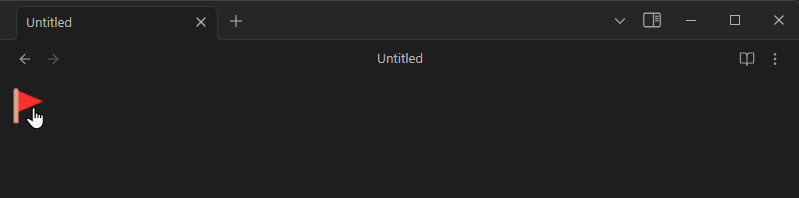
Select a
Sourcefor your Banner (the AI and Collection options require you to first create a FREE Pixel Banner Plus account at: https://pixel-banner.online)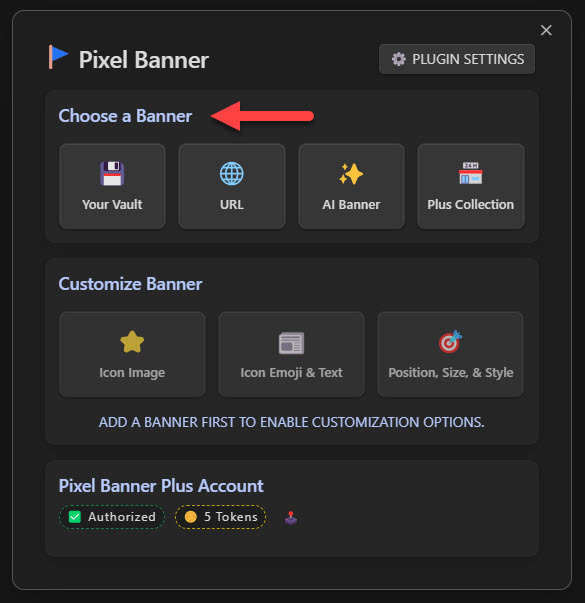
Optionally Add an
Icon Image(choose from your vault, the web, or our online free collection)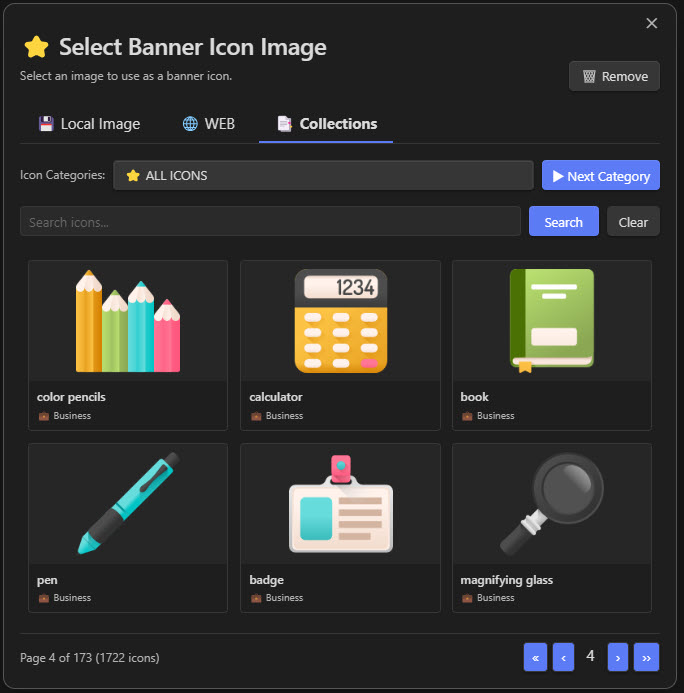
Optionally Add
Icon Emoji & Text(this can be any text, but it is advised to use an Emoji 🤣)A note does not need a banner for this: with only an icon it shows as a compact header at the top of the note.
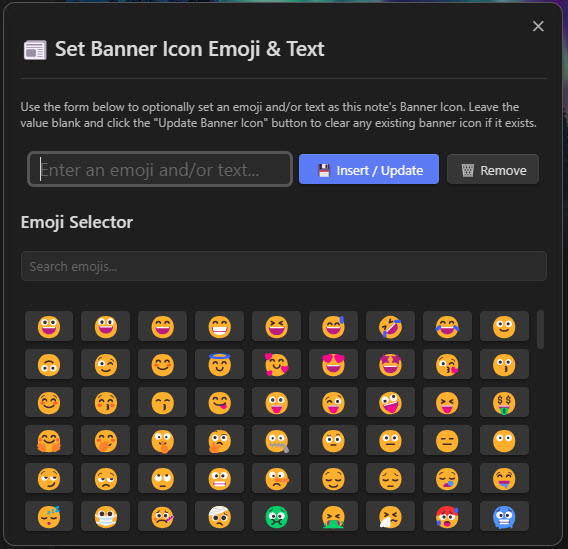
Optionally adjust the
position,size,color, and otherpropertiesfor theBanner ImageandBanner Iconof the note (by default they will inherit the General settings in Pixel Banner's main setting page, but are customizable per note)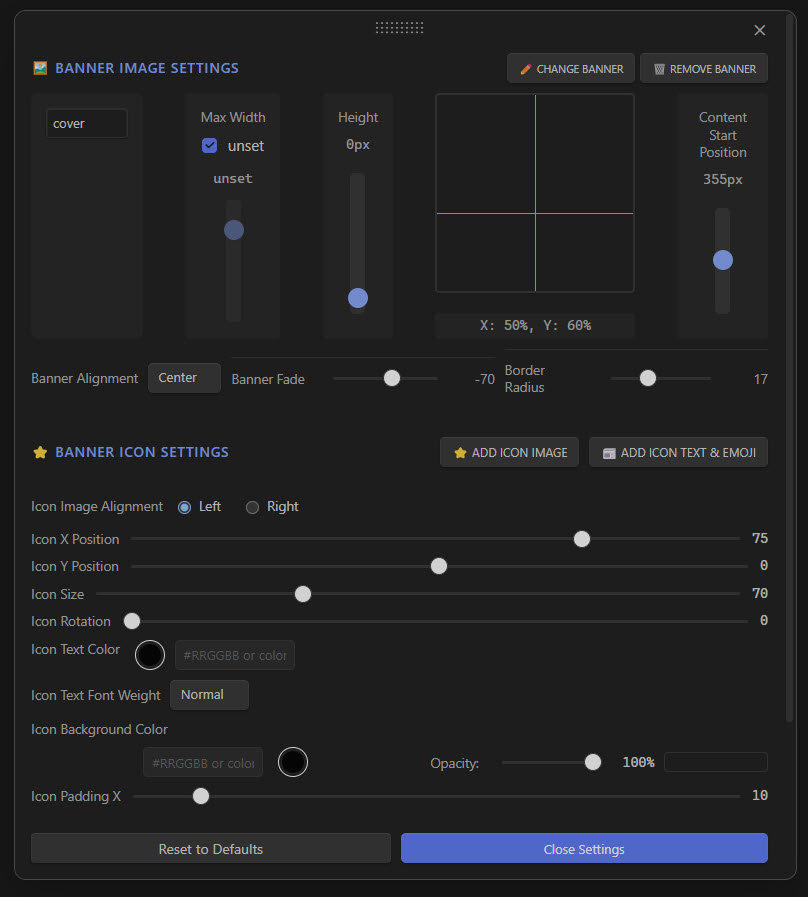
Click the
Banner Flagicon anytime to adjust any of these settings (the GUI is the most user-friendly way to adjust a note's pixel banner settings though you can also access and modify them through thepropertiesof the note)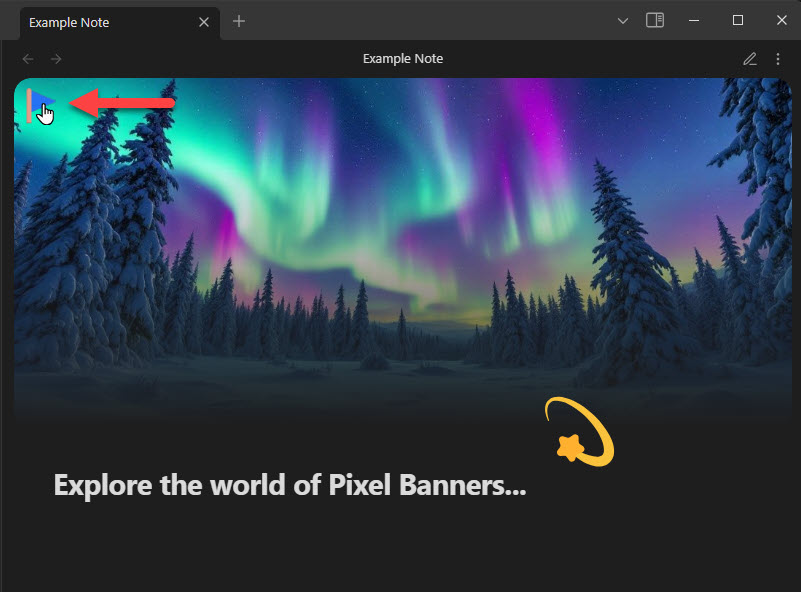
🗂️ Using External Images (file:// Protocol)
You can now reference images stored outside your vault using the file:/// protocol. This is useful for:
- Sharing banner images across multiple vaults
- Using images from a central image library
- Referencing system-wide image collections
Usage Examples (frontmatter):
- Windows:
banner: file:///C:\Images\banner.jpgorbanner: file:///C:\Users\username\Pictures\banner.png - macOS:
banner: file:///Users/username/Pictures/banner.jpgorbanner: file:///Applications/MyApp/images/banner.png - Linux:
banner: file:///home/username/Pictures/banner.jpgorbanner: file:///opt/images/banner.png
Note: The image file must exist at the specified path and be accessible to Obsidian.
Privacy and access: reading an external file works on desktop only (not on mobile) and is read only. The plugin reads only the single file path you name, never writes to it or to any other file outside your vault, and nothing is sent anywhere.
📝 Manual Banner Configuration (Frontmatter)
You can manually configure banners by editing the frontmatter (properties) of your notes. Pixel Banner supports multiple formats for maximum flexibility:
Put link values in quotes. When you type frontmatter by hand (in source mode, a template, or another tool), always wrap
[[...]],![[...]]and Markdown link values in double quotes, as in the examples below. Without quotes, YAML does not read them as text (see Important Notes). Values entered through Obsidian's Properties panel or Pixel Banner's own pickers are quoted for you.
Supported Banner Formats
Wiki Link Formats
banner: "[[folder/subfolder/image.jpg]]"
banner: "[[subfolder/image.jpg]]"
banner: "[[image.jpg]]"
banner: "![[folder/subfolder/image.jpg]]"
banner: "![[subfolder/image.jpg]]"
banner: "![[image.jpg]]"
Markdown Image and Link Formats
banner: ""
banner: ""
banner: ""
banner: ""
banner: "[title](folder/subfolder/image.jpg)"
banner: "[](My%20Image.jpg)"
The last form is what Obsidian writes when Use [[Wikilinks]] is turned off (Settings → Files and links); URL-encoded paths like My%20Image.jpg are supported.
Plain Path Formats
banner: folder/subfolder/image.jpg
banner: subfolder/image.jpg
banner: image.jpg
banner: "folder/subfolder/image.jpg"
banner: "subfolder/image.jpg"
banner: "image.jpg"
URL Formats
banner: https://example.com/image.jpg
banner: "https://example.com/image.jpg"
Keyword Formats (API Search)
banner: sunset beach
banner: "sunset beach"
banner: nature, landscape, mountains
Important Notes
- Partial Path Resolution: Paths like
image.jpgorsubfolder/image.jpgare resolved relative to your note's location - Quote link values: YAML gives
[and!special meaning at the start of a value, so unquoted links are not read as text:banner: [[image.jpg]]is read as a list inside a list. The banner still shows, but the next time the properties are saved (by Obsidian or a plugin) the value is rewritten as- - image.jpgand its property type shows as?.banner: ![[image.jpg]]can stop Obsidian from reading the note's properties at all, so no banner and no properties appear.- Write them as
banner: "[[image.jpg]]"andbanner: "![[image.jpg]]". Pixel Banner shows a one-time notice when it finds an unquoted banner link in a note.
- Video Support: All formats work with video files (.mp4, .mov) as well as images
🎯 Image Property Format Setting
Pixel Banner allows you to choose how banner image paths are saved in your frontmatter when using the GUI. This setting is especially useful for compatibility with other plugins like Make.md (or any other plugin that prefers the plain path format).
To configure this:
- Go to Settings → Pixel Banner → General tab
- Find the Image Property Format dropdown
- Choose your preferred format:
image- Plain path format (e.g.,banner: image.jpg) - Compatible with Make.md and other plugins that prefer the plain path format[[image]]- Wiki link format (e.g.,banner: "[[image.jpg]]")![[image]]- Embedded wiki link format (e.g.,banner: "![[image.jpg]]")
Note: The plugin can read all three formats regardless of this setting. This setting only affects how new banner paths are saved to frontmatter when inserted through the GUI.
🎬 Working with Video Banners
Adding Video Banners
- From Your Vault: Select video files (.mp4, .mov) from your vault just like images
- From Collection: Browse video banners in the Pixel Banner Plus Collection (marked with video badges)
- Download & Save: Videos are automatically saved with correct file extensions and you can choose the save location
Video Banner Features
- Smart Badges: Video banners display with "VIDEO" badges for easy identification
- Seamless Experience: All existing banner features work with videos (icons, positioning, etc.)
- Flexible Saving: Choose where to save downloaded videos and customize filenames
🎊 Confetti & Particle Effects
Bring a note to life with animated effects that play over it while it is open.
- Quick start: add
banner-confetti: "type: snow"to a note's frontmatter (the field name can be changed in settings) - Presets: 14 to choose from, including snow, leaves, light and heavy rain, fireworks, confetti, hearts, sparkles and bubbles
- Works everywhere you look: each split pane runs its own effect, and the white presets switch to darker colours in light themes
- Customize: tweak colors, speed, size and other properties with a live preview, from the 🎊 button in the Target Position modal
- Considerate by default: respects your system's reduced-motion preference, and can be turned off on mobile
🎉 Happy Pixel Bannering 🤣
click a version below to view its features via a YouTube video 📺


Appreciation
If you enjoy Pixel Banner please consider sending me a tip to support my work 😀
🍵 tip me here
Any ko-fi donator automatically recieves free Tokens to spend in Pixel Banner Plus!
Feedback and Support
If you encounter any issues or have suggestions for improvements, please open an issue on the GitHub repository.