CouchDB Sync
 Chris Oguntolu1k downloads
Simple, reliable live synchronization of your vault with a self-hosted CouchDB server. End-to-end encrypted with AES-256-GCM: note content and metadata (file paths, sizes, timestamps).
- Overview
- Scorecard
- Updates19
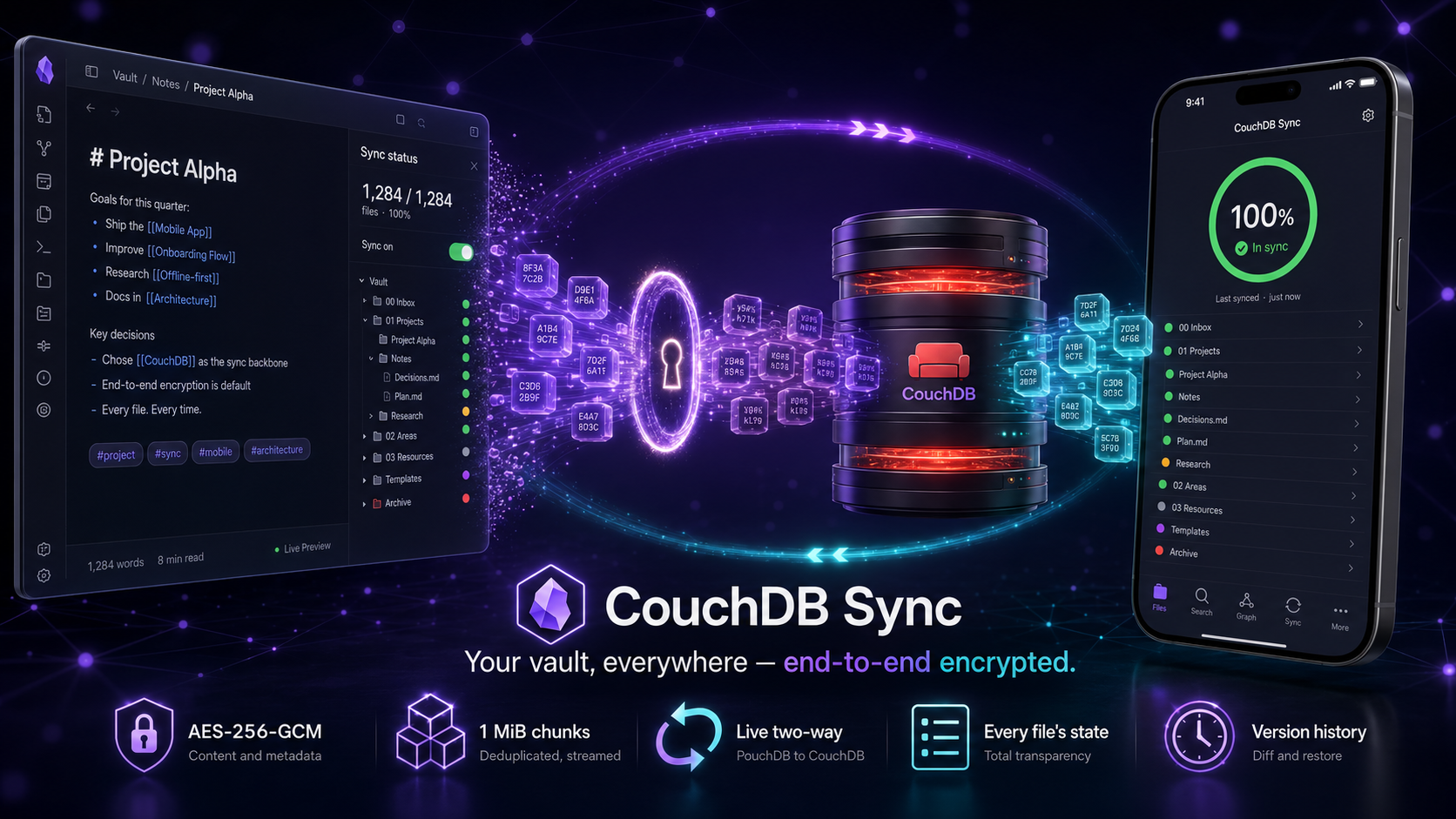
☁️ CouchDB Sync for Obsidian
[!IMPORTANT] Beta. It works well and is genuinely useful for everyday syncing, but it's still maturing and behaviour may change between versions. A little caution is wise: as with any sync tool, please keep backups of important vaults. Bug reports and feedback are very welcome — thank you for helping shape it. 🙏
Keep the same notes on every device — on your own server, readable only by you.
Write a note on your laptop and it appears on your phone. Edit it on the train and your desktop has it when you get home. Nothing goes through a company's cloud: your notes travel to a server you choose, and they are locked before they leave your device, so whoever runs that server sees nothing but scrambled data.
There are no pop-ups to click away and no "rebuild your database" rituals. One switch says whether this vault syncs, and a panel shows you the honest truth about every single file.
🌱 New to syncing? Start here
Three ideas cover almost everything:
| Term | What it means for your vault |
|---|---|
| 🗄️ Server | The meeting point. Every device uploads its changes there and picks up everyone else's. It runs CouchDB — free, open-source database software. You can rent one for a few euros a month or run it on a computer at home. |
| 🔐 Passphrase | A secret sentence you invent. It locks your notes before they leave your device and unlocks them on the other side. The server never learns it, so it must be exactly the same on every device. Lose it and your notes cannot be recovered — write it down somewhere safe. |
| 🔄 Sync | The continuous back-and-forth. Once it is switched on, it just runs: you edit, it uploads; someone else edits, it downloads. |
The short version of a normal day: you write notes and never think about this plugin again. It is running in the background, and the status bar at the bottom of Obsidian quietly tells you how things are going.
You need a server for this. That is the one piece of setup this plugin cannot do for you. Getting a server walks through the options, from "pay someone else to run it" to "run it yourself in one command".
What you get
🔐 Everything is encrypted before it leaves
Encryption is on by default and covers more than most sync tools: not only what you wrote, but also your file names, folder structure, file sizes and timestamps. Someone who steals the whole server database gets a pile of numbered blobs — no titles, no folder names, no hints.
📊 A status panel that tells you the truth
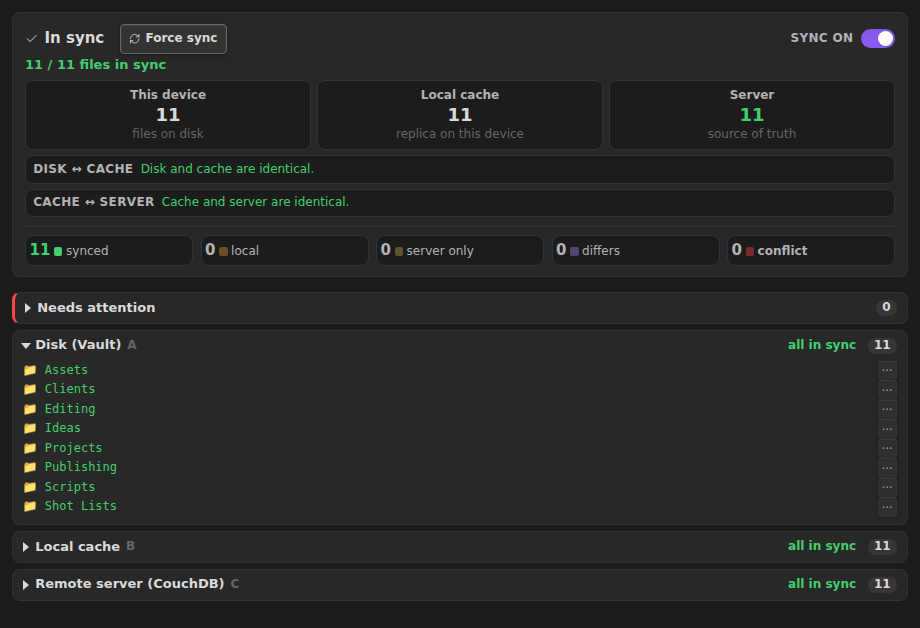
See all three places your notes live at a glance — this device, the on-device local cache, and the server — with the exact delta between each pair. When they match it says so; when the server can't be reached it says that (e.g. a login error) instead of pretending everything is fine.
Open it from the status bar and see how many files are in sync (1,284 / 1,284 · 100%) plus a folder tree of every file, colour-coded:
| State | What it means | |
|---|---|---|
| 🟢 | In sync | This file is identical here and on the server. Nothing to do. |
| 🟠 | Local only | It exists here but hasn't been uploaded yet. |
| ⚪ | Remote only | It exists on the server but hasn't been downloaded here yet. |
| 🟣 | Differs | Both sides changed. The plugin will reconcile it automatically. |
| 🔴 | Conflict | Two devices edited it at the same time. Handled by your chosen rule — see below. |
Folders show the most urgent state inside them, so a green folder really means "everything in here is fine". Files being transferred right now shimmer and show their progress.
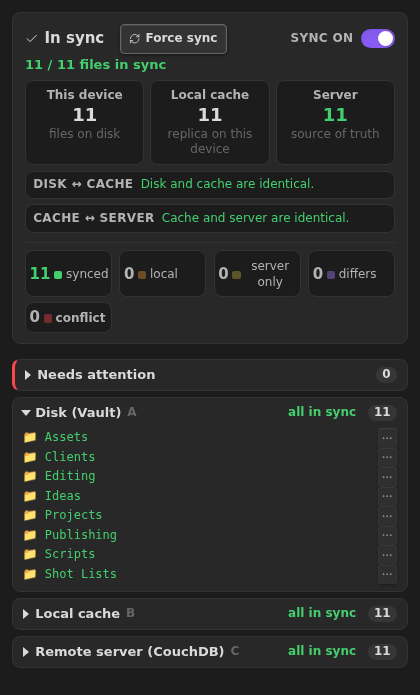
The same panel on mobile — every store, every file, and the same per-file actions
(a ⋯ menu on each row: upload, download, resolve, view history, and more).
🕰️ Every version, kept
The plugin keeps a history of each note (the last 50 versions). Open it, compare any two versions side by side, and restore an older one on all devices with one click. Restoring is itself just another version, so you can always undo the undo.
⚖️ Conflicts without pop-ups
If two devices edit the same note before they can talk to each other, the plugin resolves it by a rule you pick once — either the newest edit wins, or one device you nominate always wins. It never interrupts you to ask. And because every version is kept, the other version is never actually gone.
📦 Big files, small memory
Photos, PDFs, audio, video — files are cut into 1 MB pieces and only the changed pieces are uploaded. Identical pieces are stored once, even across different files. A 600 MB file syncs without Obsidian ever holding it in memory.
🛟 Hard to break
Sync is one switch, and it is honest: on means running, off means nothing touches the network. If Obsidian ever shuts down uncleanly mid-sync, the plugin starts up switched off and tells you why, so you can never land in a loop that crashes on every launch. "Wipe local cache" only ever touches this device — the server is never harmed by anything you can press here.
🚀 Getting started
🧩 Step 1: Get a server
Pick whichever fits you. All you need at the end are four things: a web address, a database name, a username, and a password.
Option A — let someone host it for you (easiest). Search for "CouchDB
hosting"; providers like IBM Cloudant
or a small managed CouchDB plan give you a URL and login without any admin work.
Make sure the address starts with https://.
Option B — run it yourself. If you have a home server, a NAS (Synology and Unraid both offer CouchDB), or a small cloud VM, CouchDB installs in minutes. If you have Docker, a test server is literally one command from this repository:
docker compose -f docker-compose.couchdb.yml up -d
That gives you http://127.0.0.1:5984 with user admin and password
password — perfect for trying things out on one computer. Change that password
and use https:// before you sync anything real over the internet.
Option C — keep your server off the open internet (Cloudflare Tunnel). If you
run CouchDB at home but would rather not forward a port or hand out your IP
address, a Cloudflare Tunnel
puts a public hostname in front of it. cloudflared runs next to CouchDB and
dials out, so your router needs no inbound rule, and the certificate is handled
for you:
cloudflared tunnel create obsidian
cloudflared tunnel route dns obsidian couch.example.com
cloudflared tunnel run --url http://127.0.0.1:5984 obsidian
Then enter https://couch.example.com as the web address in Step 2. A plain
tunnel needs no setting in the plugin — it is invisible to it.
⚠️ A tunnel hides where your server is; it does not lock the door. Anyone who knows the hostname reaches your CouchDB, so
require_valid_user = truebelow and a strong password are what actually protect it.
Locking the door: Cloudflare Access (optional). To let only your own devices reach the hostname at all, put a Cloudflare Access application in front of it and give each device a service token:
- In Cloudflare Zero Trust, create a service token per device (Access → Service Auth → Service Tokens). Copy the client ID and client secret — the secret is shown only once.
- Add a policy to the application for
couch.example.comwhose action is Service Auth and which includes those tokens. With any other action, Access answers the plugin with a login page. - In the plugin, under Connection & encryption, turn on Cloudflare Access, paste the client ID and secret, and press Test.
The token is stored on that device only — in Obsidian's app storage, never in
the vault's data.json — so a backup or a synced copy of the vault does not carry
it. That is also why you enter it on every device, and again if the app's data is
ever cleared. The switch itself is part of the settings, so a device that is
missing its token says so instead of failing silently.
If the test fails, the message names which door is shut: a rejected token (wrong, expired or revoked), a policy that is not set to Service Auth, or — past Access — CouchDB itself refusing the user name and password.
One-time server setting. However you got your server, open its configuration and add this. It lets Obsidian talk to it and allows large files:
[chttpd]
enable_cors = true
require_valid_user = true
max_http_request_size = 4294967296
[cors]
origins = app://obsidian.md,capacitor://localhost
credentials = true
Finally, create an empty database (the default name this plugin expects is
obsidian).
🔌 Step 2: Connect Obsidian
Open Settings → CouchDB Sync and fill in the four things from Step 1:
- Server URL — the full address, e.g.
https://couch.example.com:6984 - Database name — e.g.
obsidian - Username and Password
- Press Test connection. Green means you're good.
🔑 Step 3: Choose your passphrase
Type a Passphrase. Your notes are always end-to-end encrypted, so this is required — invent something long that you can write down; a short sentence works well.
⚠️ Write it down now. The passphrase never reaches the server, which is the whole point — but it also means nobody can reset it for you. And it must be typed identically on every device, or they will not understand each other's notes.
▶️ Step 4: Let it run
Make sure the switch in the status card says Sync on. That's it — your notes start uploading, and sync restarts by itself every time you open Obsidian.
📱 Step 5: Add your next device
Install the plugin there, enter the same server details and the same passphrase, switch it on, and wait. Your vault downloads itself. If you use the master device wins rule, turn on This device is the master on exactly one device — usually your main computer.
🎛️ Using it day to day
The status bar (bottom edge of Obsidian) is two controls in one:
- the icon switches sync on and off
- the label (
CouchDB 63%) opens the full status panel in the sidebar
The status panel is the same panel embedded in the settings tab — same tree, same buttons. From it you can:
- press Force sync to run a full pass right now
- expand the tree and hover any file for a ⋯ menu with only the actions that make sense for it: download / overwrite local, upload / overwrite server, sync once, delete on this device, delete everywhere, remove from index
- click 🕘 to browse, compare and restore that file's versions
- apply any of those to a whole folder at once
🧩 Requirements
- Obsidian 1.7.2 or later
- A CouchDB server you can reach (Step 1)
- Tested and validated on desktop. Mobile is supported by design (the plugin uses Obsidian's own networking, so it works without special server tweaks) but has not yet been through a full mobile test round.
⌨️ Commands
Available from Obsidian's command palette (Ctrl/Cmd + P).
| Command | What it does |
|---|---|
| Open sync status panel | Opens the panel in the sidebar |
| Force sync | Runs a full sync pass right now |
| Turn sync on/off | The master switch, without leaving your keyboard |
| Wipe local cache (does not download) | Clears this device's local copy only |
| Show what's new | Re-opens the release note for the installed version |
⚙️ Settings
| Setting | Default | What it does |
|---|---|---|
| Server URL | (empty) | Your server's full web address, including https:// |
| Database name | obsidian |
Which database on that server to use |
| Username / Password | (empty) | Your login for the server |
| Test connection | — | Checks all of the above, and unlocks the status view |
| Encryption passphrase | (empty) | Required. Notes are always end-to-end encrypted (AES-256-GCM); use the same passphrase on every device |
| Where credentials are kept | this device | What unlocks the encrypted password/passphrase in data.json: a key held on this device only, or a passphrase asked at every launch |
| Conflict strategy | newest wins | Who wins when two devices edit the same note |
| This device is the master | off | With master wins: this device's version always wins. Turn on for exactly one device |
| Sync hidden files | off | Also sync .obsidian (your settings, themes, plugins), .git, etc. The two lists below apply either way |
| Do not sync these | a safe default list | One path per line, never synced — notes and attachments included. A line ending in / matches that folder at any depth, so node_modules/ also covers Projects/app/node_modules/ |
| Sync these anyway | (empty) | One path per line, and these win: synced even when hidden or excluded above (e.g. .obsidian/snippets/) |
| Download from server | — | Server wins here: overwrite this device's files with the server's version and fetch anything missing. Uploads nothing; local-only files are kept; any overwritten edit is saved to history |
| Upload to server | — | This device wins on the server: overwrite the server's copy of every file with this device's, and add local-only files. Server-only files are kept (not deleted). Affects every other device |
| Wipe local cache | — | Deletes this device's copy. The server is not touched |
| Reset the server from this device | — | Start the server over: delete everything on it and re-upload this device's files. Checks the server first and names the files that exist only there — the ones the reset destroys — before asking. Also how you change your passphrase (below) |
🔁 Changing your passphrase
Your passphrase is not a login you can just replace — it is the key everything on the server was locked with, and it decides the names your files are filed under. Change it and the server's existing contents become unreadable to you. So the passphrase is not changed so much as the server is rebuilt around the new one.
On the device whose files you trust:
- Switch sync off (the toggle in the status panel). Do this first — the passphrase field saves on every keystroke, and a sync running in the background would upload files locked with a half-typed passphrase.
- Enter the new passphrase under Connection & encryption.
- Press Reset server under Actions, and confirm. It empties the server, discards this device's cache and re-uploads every file under the new passphrase. Sync turns itself back on. Expect an extra dialog here saying the server's files cannot be read with this passphrase — that is exactly right: the new key cannot open the old contents, so the plugin cannot list what the reset will delete. Continue.
- Wait until the counters read the same number three times over — e.g.
112 / 112 local · 112 / 112 on server.
The new passphrase has to be entered on every other device by hand. On each one: switch sync off, type in the same passphrase, press Wipe local cache, and switch sync back on. It downloads the vault afresh.
⚠️ The version history does not survive this. The reset deletes everything on the server, past versions included, and files that existed only on the server are gone too — only the device you reset from is preserved. Copy anything you still need off the other devices first.
A device you forget will keep the old passphrase, fail to read anything, and can push its old copy back. Work through all of them.
🔒 What the plugin does with your data
Locked before it leaves your device — your note text, your file and folder names, file sizes, creation and modification dates, and which pieces make up which file. All of it is encrypted with AES-256-GCM, using a key derived from your passphrase. The server stores it and can read none of it.
Still visible to whoever runs the server — that data exists and roughly how much of it there is, how many files and versions there are (approximately), which pieces repeat, and when versions were created. Nothing that reveals a title, a folder, or a word you wrote.
On this device — the local cache keeps some information in the clear (file paths, sizes, fingerprints) so the status panel can work offline. Use Wipe local cache any time you want that removed; it only ever touches this device.
Your credentials — your server password and your encryption passphrase are
stored encrypted in the plugin's own data.json inside your vault; that file
holds no readable password. What unlocks them stays out of the vault, so copying,
backing up or file-syncing the vault does not carry the key along. Two choices,
under Settings → Credential storage:
- This device (default) — a random key generated on first use and kept in this device's local storage. No prompt, ever. A vault copied to another device therefore arrives without usable credentials: enter them once there.
- Ask a passphrase at every launch — the key is a passphrase you type once per session and that is stored nowhere at all.
Either way the credentials never leave your device and are never sent to the
server. If you upgraded from an older version, the plaintext is replaced the first
time the settings are saved — but older backups of data.json still contain it.
Where things go — only to the server you configured yourself. Nothing is sent anywhere else, ever. With sync switched off, the plugin makes no network requests at all.
☕ Support
CouchDB Sync is free and open source, built and maintained in my spare time. If it keeps your notes together across your devices, you can support continued development with a coffee — it's genuinely appreciated.
🛠️ Development
npm install
npm run dev      # watch build -> main.js
npm run build    # type-check + production bundle
npm test         # unit tests
Copy manifest.json, main.js and styles.css into
<vault>/.obsidian/plugins/couchdb-sync/.