Command Tracker
 namikaze-40p2k downloads
Track the number of times the command is used.
- Overview
- Scorecard
- Updates25
An Obsidian plugin that tracks the number of times the command is used.
This plugin helps optimize the plugins and hotkeys used.
You can check the date of last use of each command and how much times each command is used daily.
- If you find a command you use frequently from the command palette, you may want to assign a hotkey to it.
- If a hotkey which a command assigned is rarely used, you may want to consider ceding the hotkey to another command (or uninstall the target plugin).
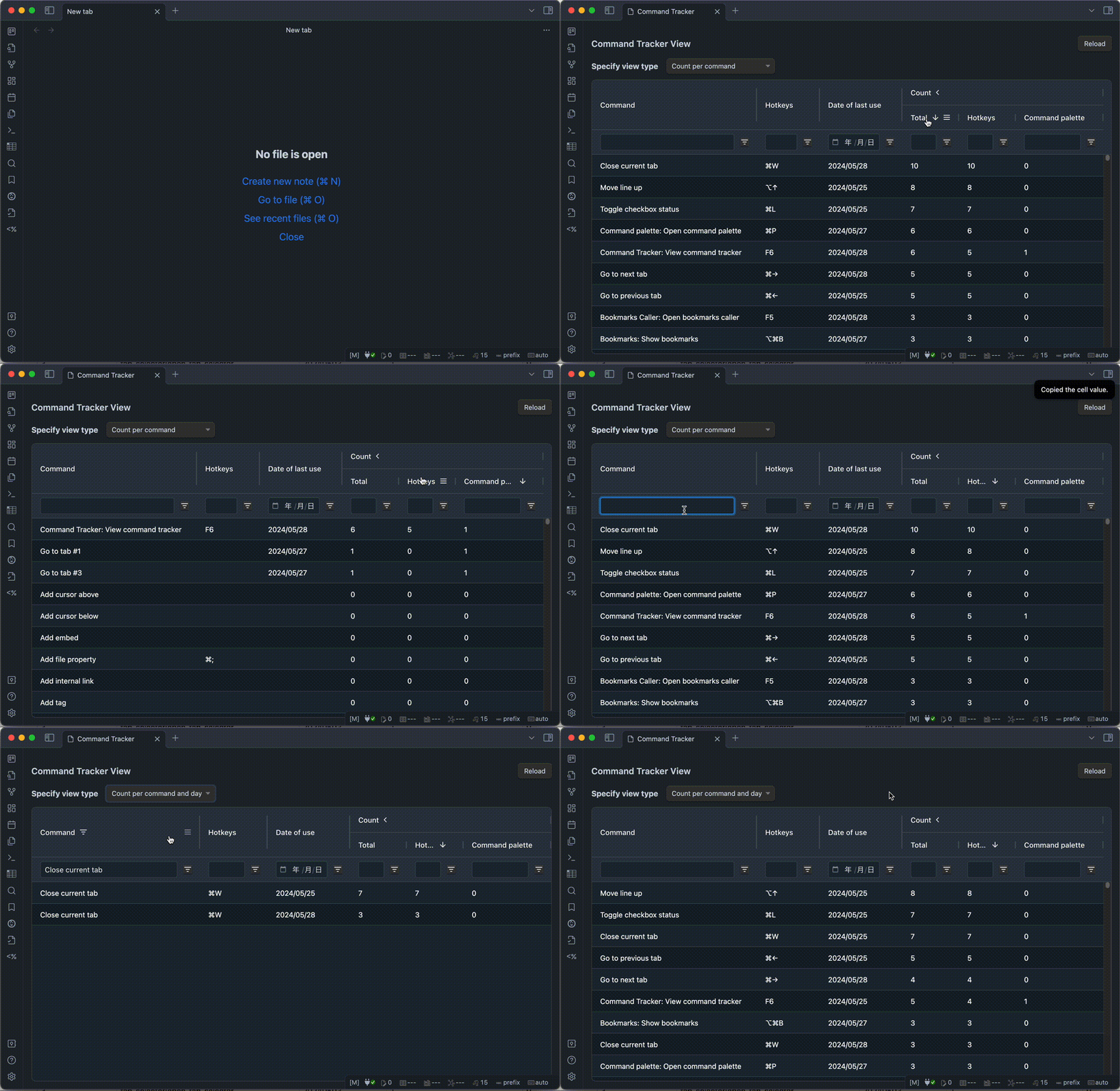
How to use
- When a command is executed, this plugin records it.
Command Tracker: View command trackercommand to view recorded information.
[!NOTE]
- Supported: The following command execution methods.
- Use hotkeys.
- Select from command palette.
- Not supported: Other command execution methods.
- Example, select from the Ribbon, execute by UI operation and etc...
- Known bugs:
- When you restart Obsidian with the
Command Tracker Viewtab open, the hotkeys don't appear in the table.
- If you close and reopen the
Command Tracker Viewtab, the hotkeys will appear in the table.- When you open the
Command Tracker Viewtab without a keyboard connected, the hotkeys don't appear in the table.
- After connecting a keyboard, close and reopen the
Command Tracker Viewtab to show the hotkeys.
[!TIP]
- Location of recorded data
- The history of command usage is recorded in IndexedDB.
[!CAUTION]
- Data of “Command Tracker” is deleted in the following cases.
- All data is deleted in the following cases.
- When the "Delete all data" operation in the settings.
- When this plugin is updated, disabled or uninstalled. (You can protect data in the settings on desktop. Not available on mobile.)
- Some data is deleted in the following cases.
- When the number of records exceeds the configured maximum (default 2000) and a new record is written, the oldest record is deleted.
- When a new record is written, records that have exceeded the retention period set from the date of use (default 60 days) are deleted.
Installation
You can find and install this plugin through Obsidian’s Community Plugins Browser.
For detailed steps or alternative installation methods, click here.
HealthExcellent
ReviewSatisfactory
About
Track each command execution and display last-used dates and daily usage counts. Inspect per-command histories and hotkey associations to spot frequently used commands to assign hotkeys or reclaim rarely used bindings.Details
Current version
0.5.6
Last updated
4 weeks ago
Created
2 years ago
Updates
25 releases
Downloads
2k
Compatible with
Obsidian 1.8.9+
Platforms
Desktop, Mobile
License
MIT