Text Block Timer
 wth4616946786k downloads
Add a timer to text block to track task time consumption.
- Overview
- Scorecard
- Updates10
Text Block Timer Plugin
A text block timing tool designed for Obsidian, allowing you to add a count-up stopwatch function to any text line in your notes.
Latest Change (V1.0.9)
Code Encapsulation: Timer is now encapsulated and no longer exposes internal HTML code.
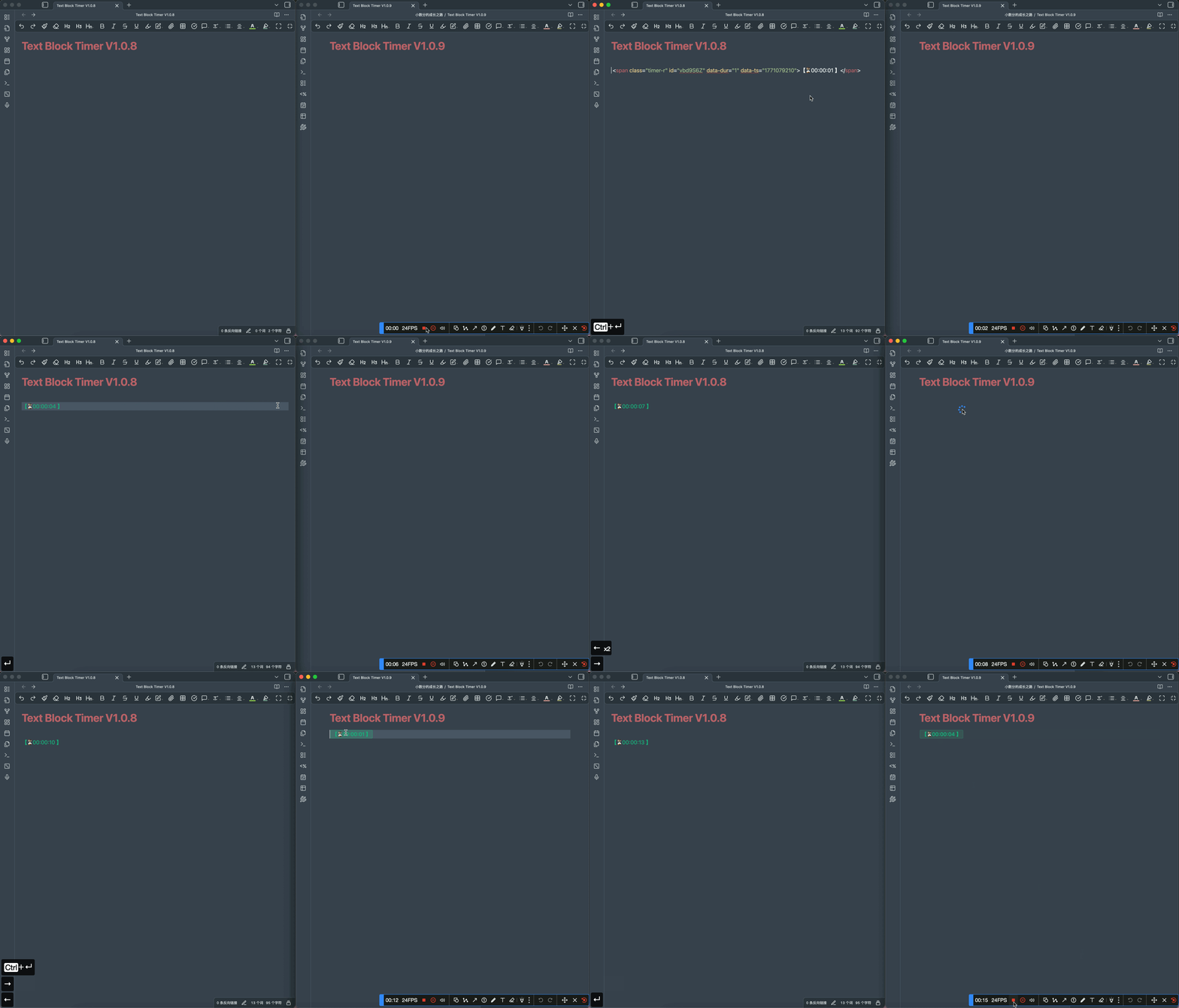
Fixed Undo History Pollution: Timer updates no longer affect undo/redo(Thanks to mosmash for providing the solution and submitting a Pull Request!)

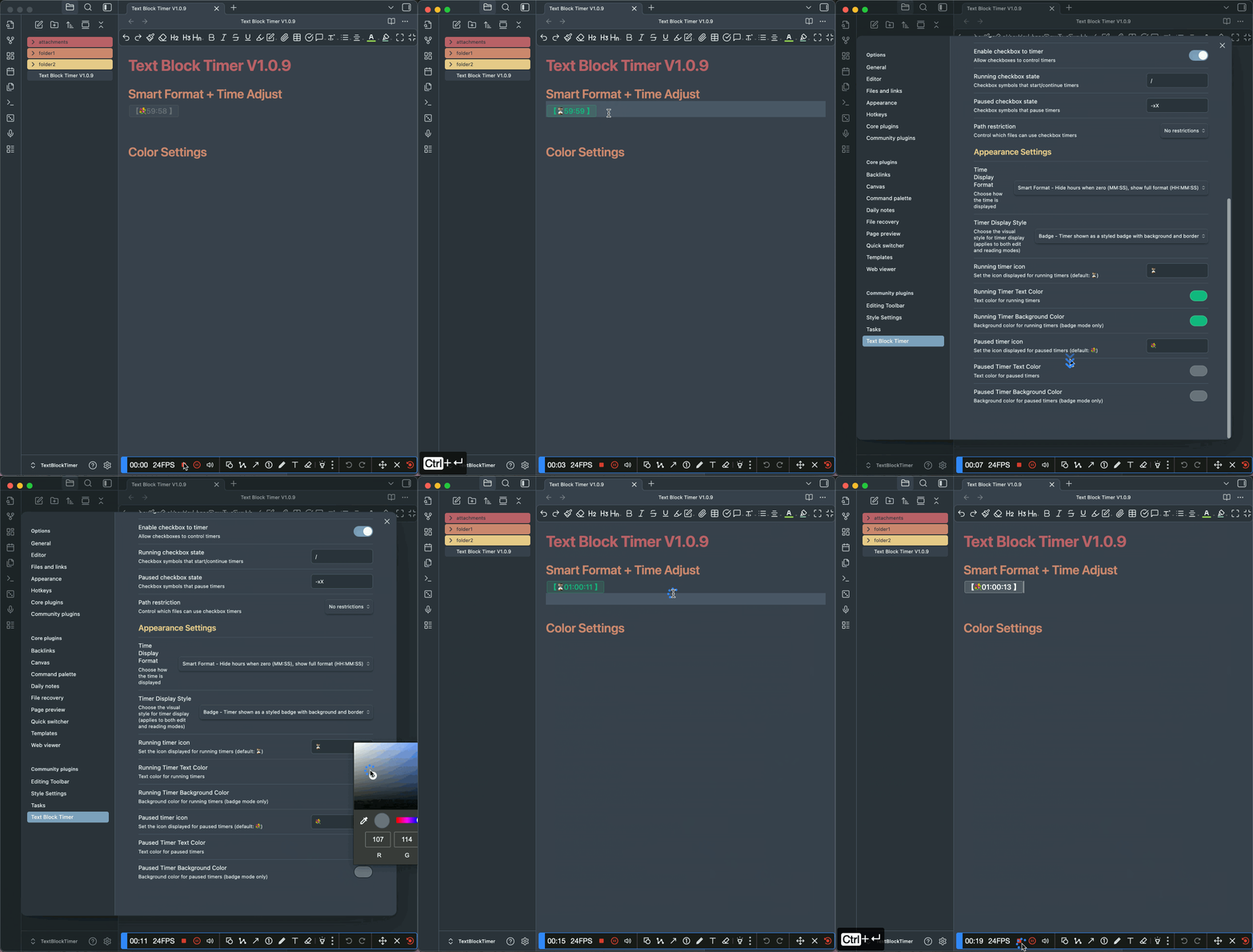
Timer Style Optimization: Redesigned timer appearance with cleaner display and option to hide hours digit.
New Feature: Time Adjustment: Added iPhone-style scroll wheel time picker UI for adjusting durations.
Closed Issues in this release:
- #12 [Bug Report] Text Block Timer: Ctrl+Z — from p0nczek
- #11 [Feedback/Suggestion] Hiding HTML in Callouts & Custom Time Formatting — from p0nczek
- #7 Hope to add the function of ending the timer — from kyle-one
🙏 I sincerely apologize for the long hiatus — due to a busy schedule with work and life, updates were paused for a while. Thank you for your patience and continued support!
Features
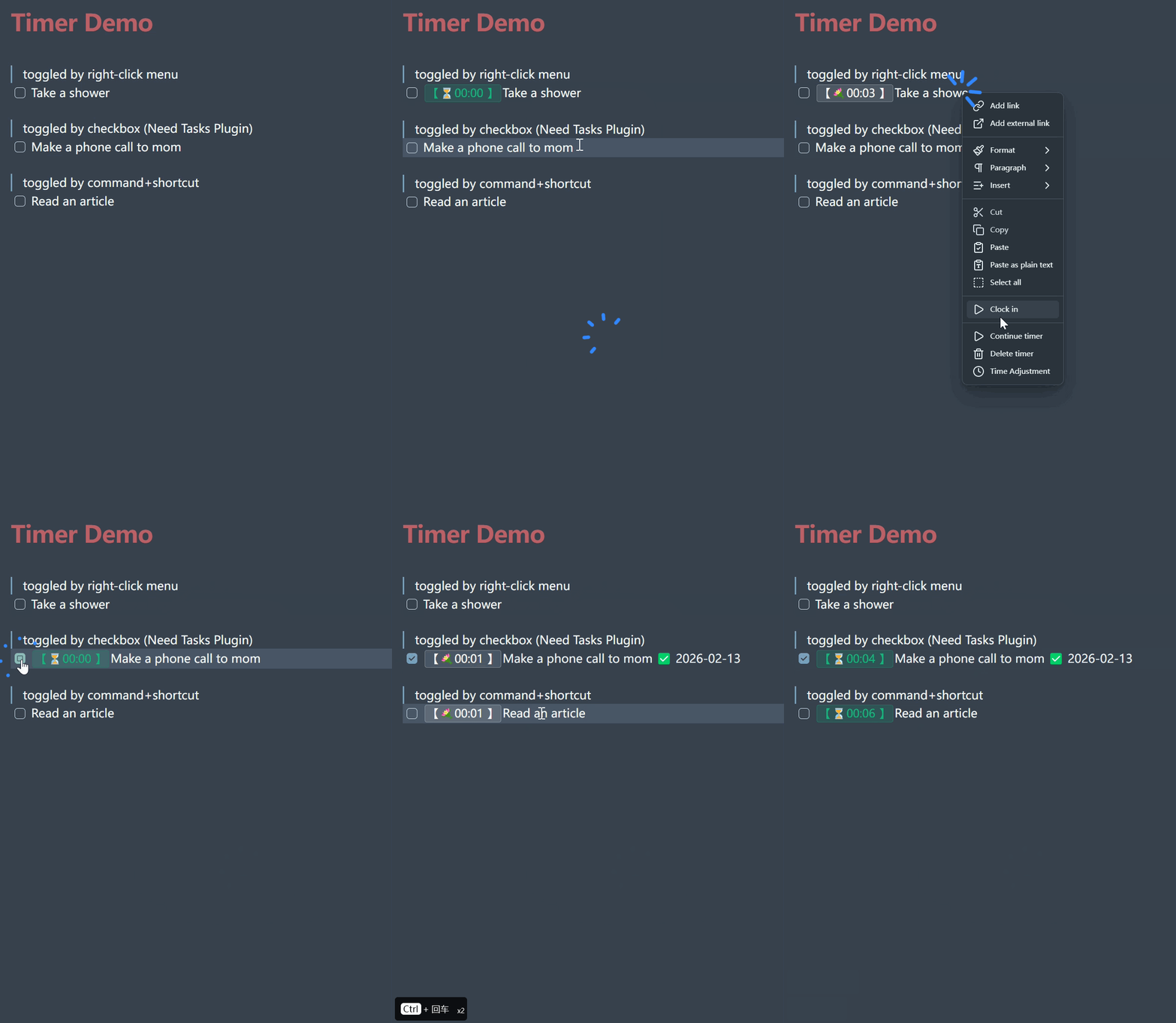
- Add timers to any text line, supporting multiple timers running simultaneously (stopwatch function).
- ▶️/⏸️ Start, pause, and resume timing for tasks.
- ⏳ Real-time display of cumulative time cost.
- 💾 Persistent storage of timing data.
- 🔄 Users can optionally choose whether to continue timing when files or Obsidian is closed (by default, closing a file will not cause failure of the real-time stopwatch).
- By modifying the task status, you can automatically trigger the start and update of the timer
How to use
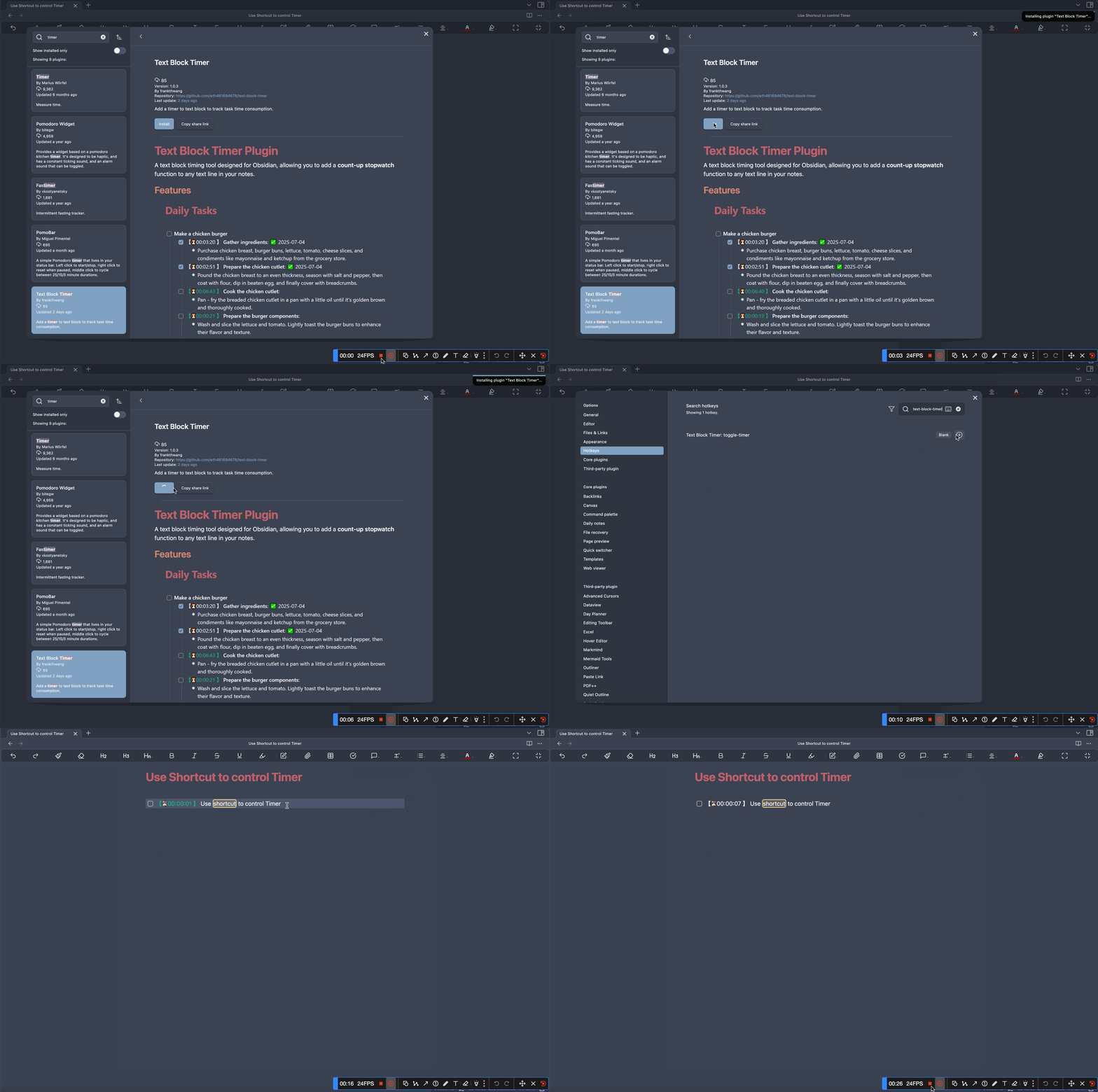
1. Command Palette + Shortcut (Recommended⭐️)
- Configure a shortcut for the command "Text Block Timer: Toggle timer" for quick access.
- When the cursor is on a text block, press the shortcut key to start, pause, resume, or delete the timer.
- The timer will be displayed in the format
【⏳00:00:00 】at the beginning of the text line.
2. Mouse Operations (Not Recommended)
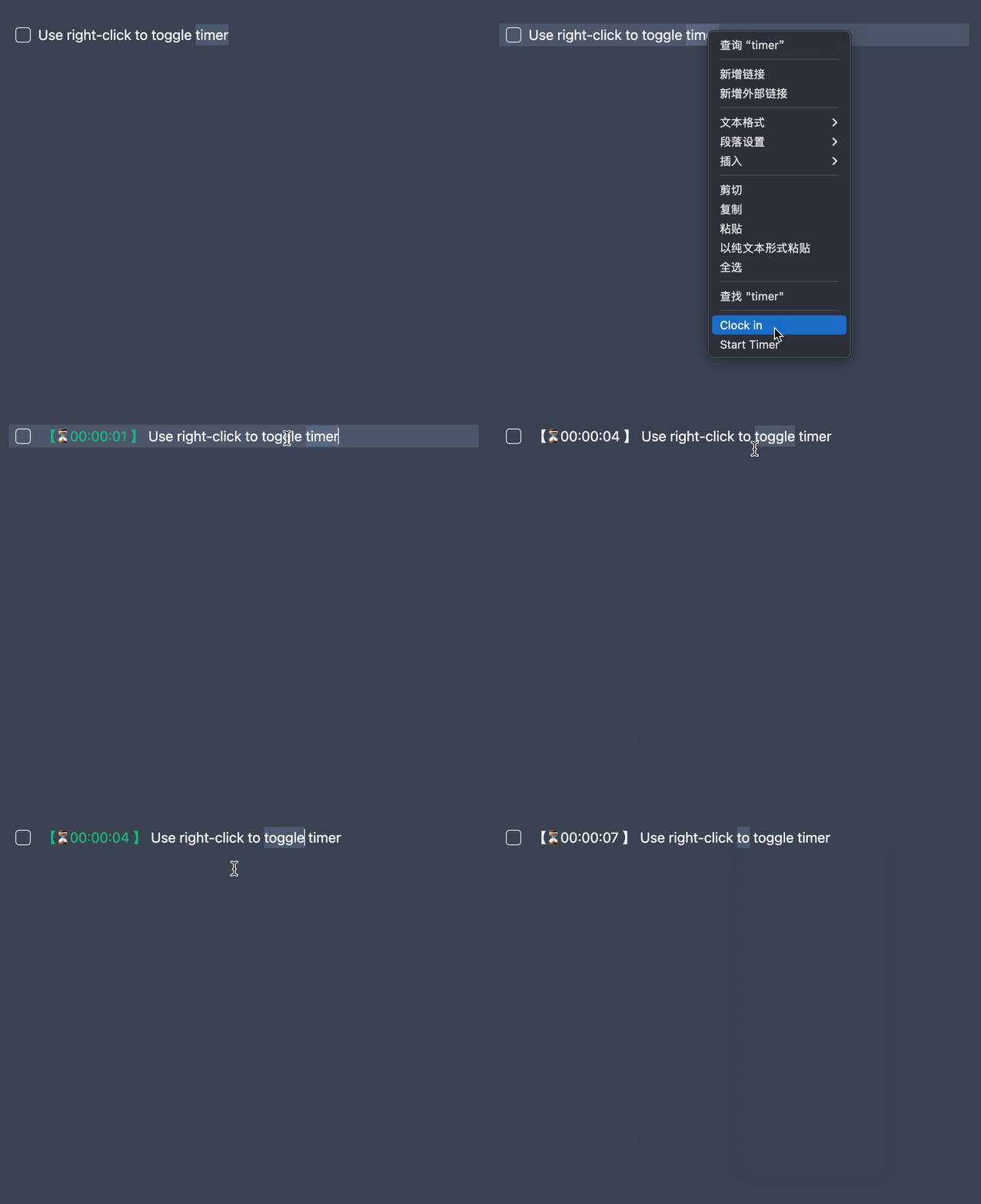
- Right-click on a text line.
- Select "Start Timer", "Pause Timer", "Resume Timer", or "Delete Timer".
3. Control Timer by Task Status Automatically (Recommended⭐️)
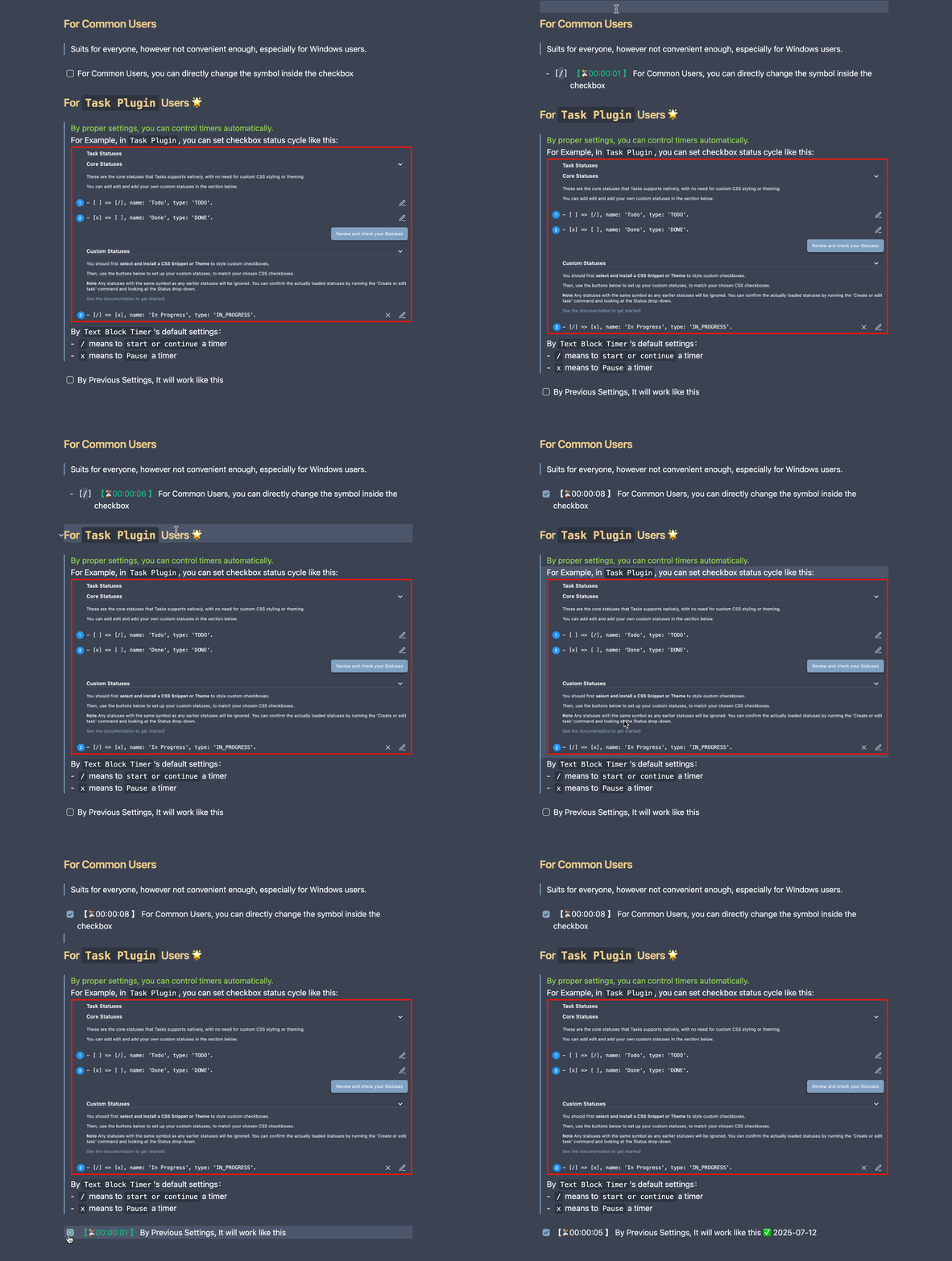
- For For Common Users, you can directly change the task status [ ] to trigger the start and update of the timer (Suits for everyone, however not convenient enough, especially for Windows users.)
- ⭐️For
Task PluginUsers, you can trigger the start and update of timers by simply clicking the checkbox (Convenient but needs pre-settings)
Custom Settings
Users can customize the following options in the plugin Settings:
1. Whether to continue timing after the file or Obsidian closed
Users can freely choose whether to continue the timing after closing the file or disabling Obsidian.
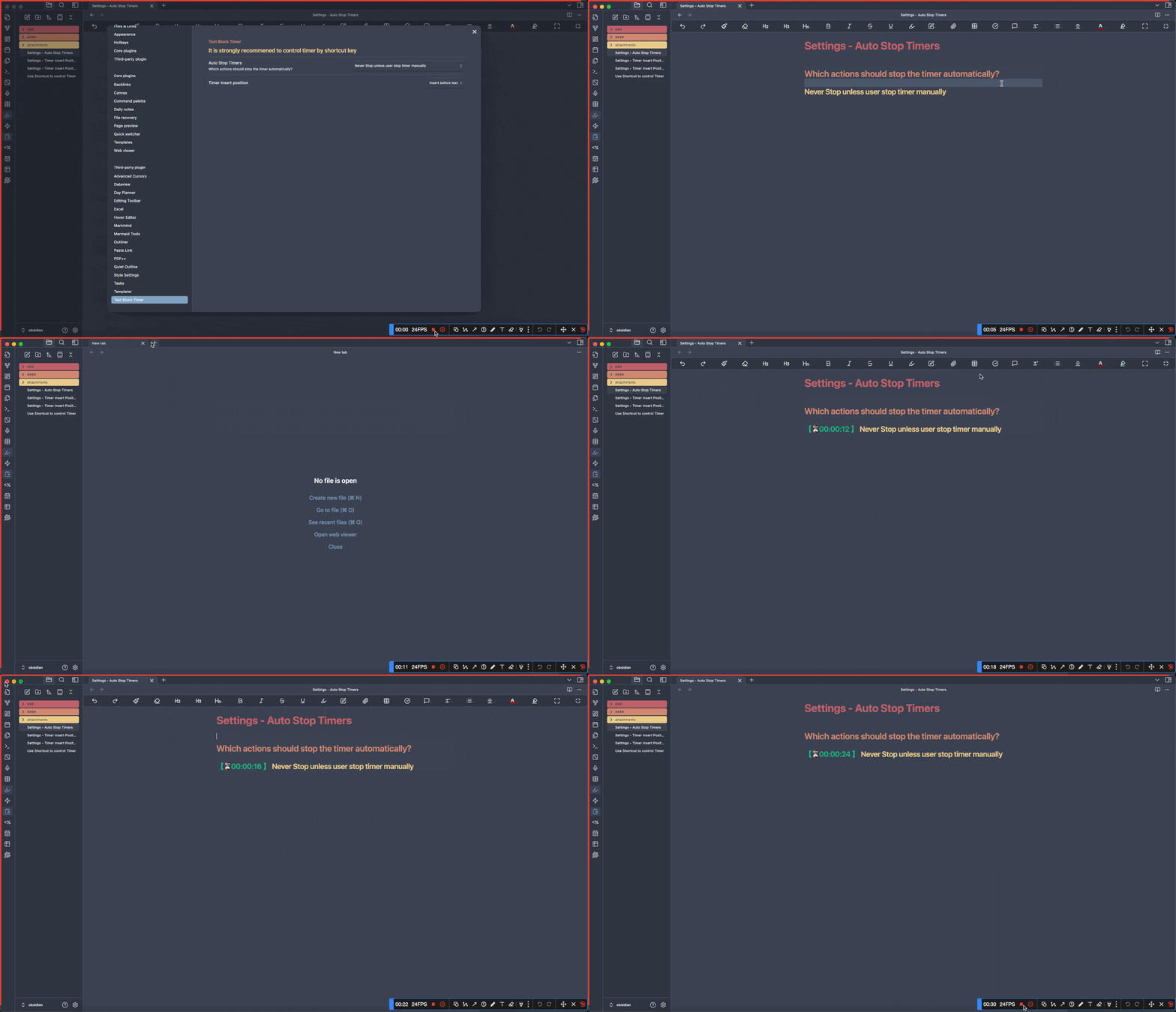
1.1 never stops unless the user stops manually
After a user closes a file or exits Obsidian, the timer will still "time in the background". When the file is opened next time, the time spent during the closure period will be counted as the timer time and the timing will automatically resume.
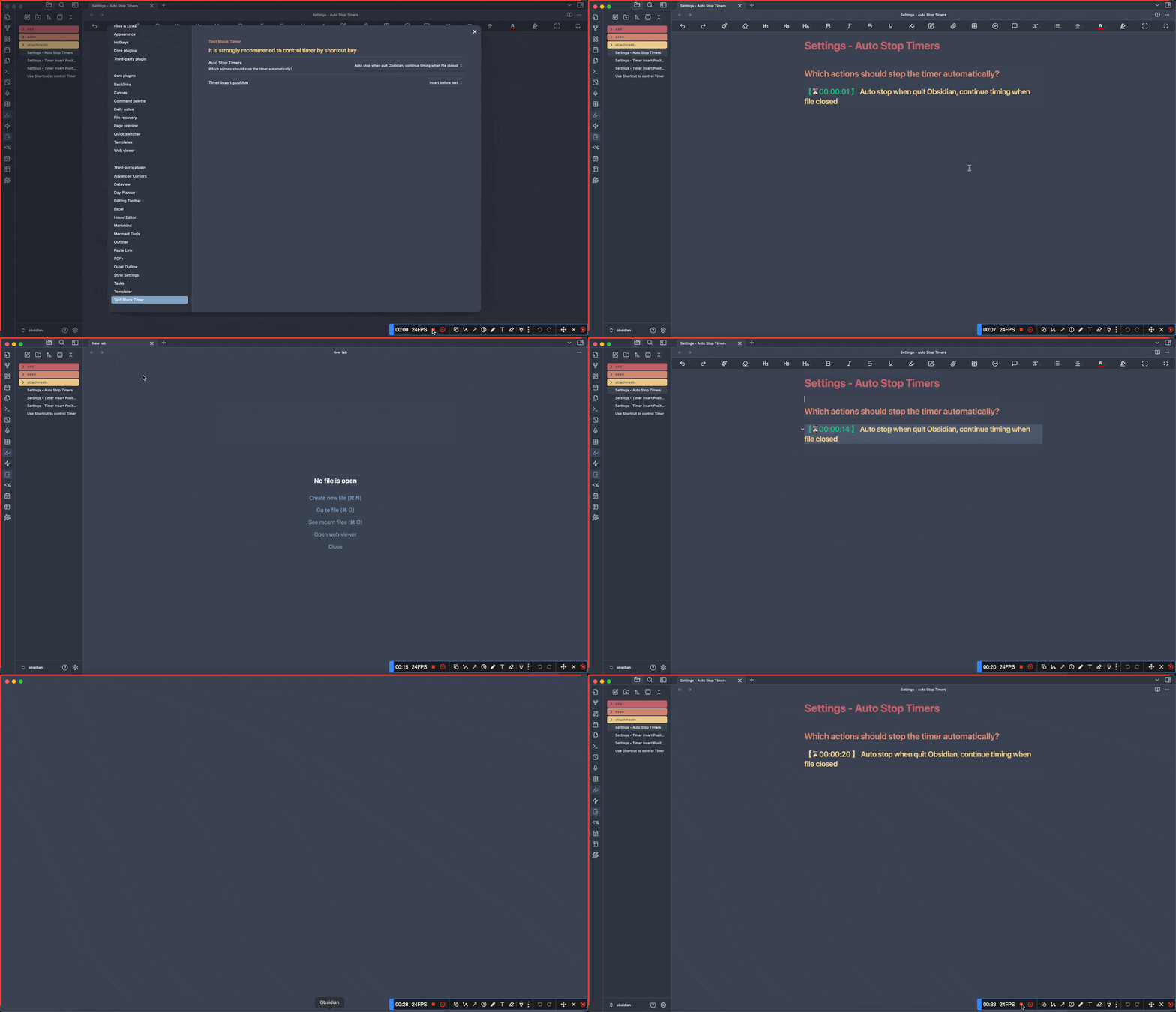
1.2 auto-stop only when exiting Obsidian. Background timing continues when closing files (recommended, default option)
After the user closes a file, the timer will still "time in the background". When the file is opened next time, the time spent during the closing period will be counted as the timer time and the timing will automatically resume. However, once the user exits Obsidian, all timers will stop immediately to prevent significant data errors caused by the user forgetting to manually close the timers.
1.3 auto-stop immediately when closing a file
After the user closes a file, all timers will stop immediately. However, if a file is closed by mistake, it may cause the timer to pause.
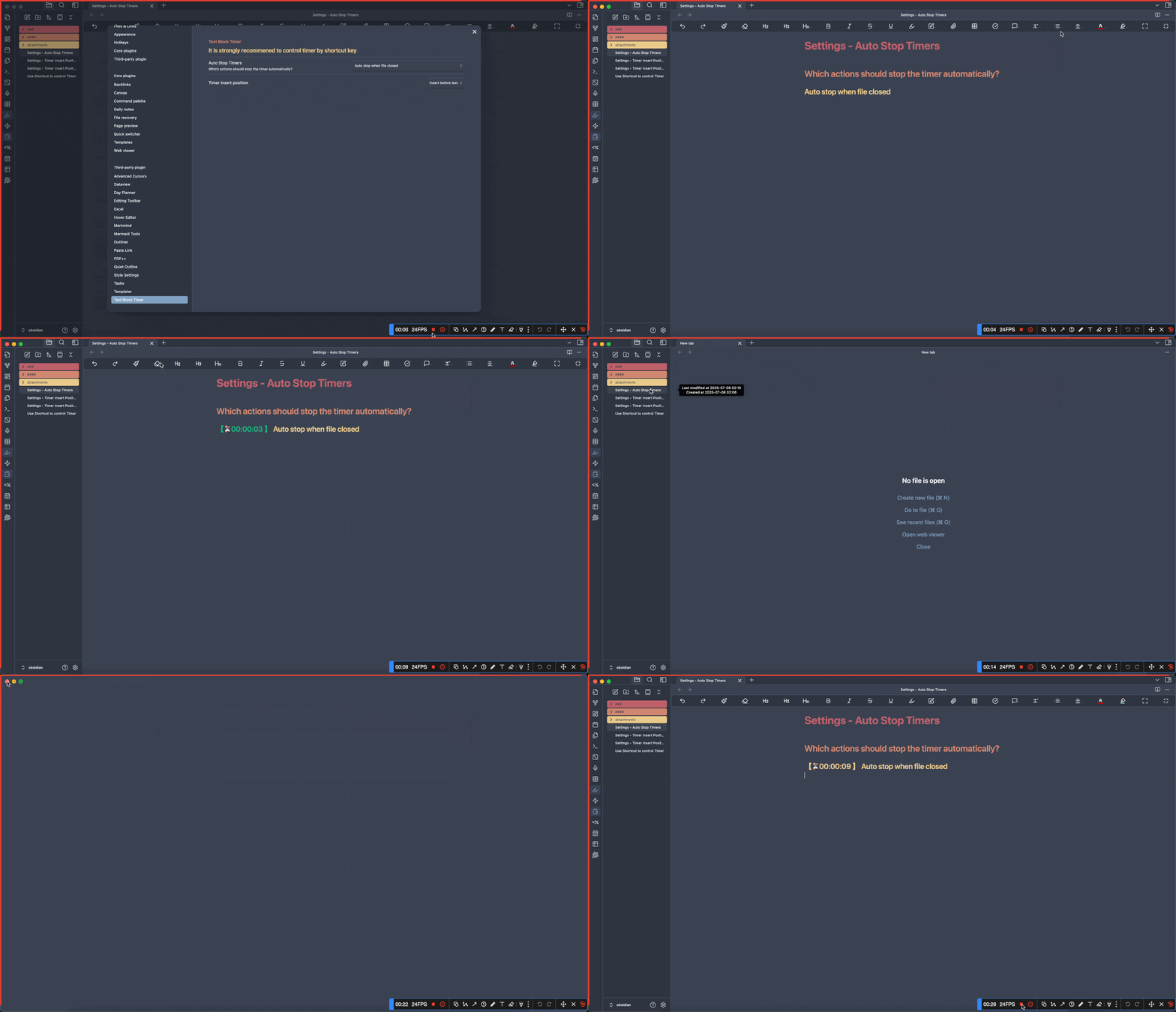
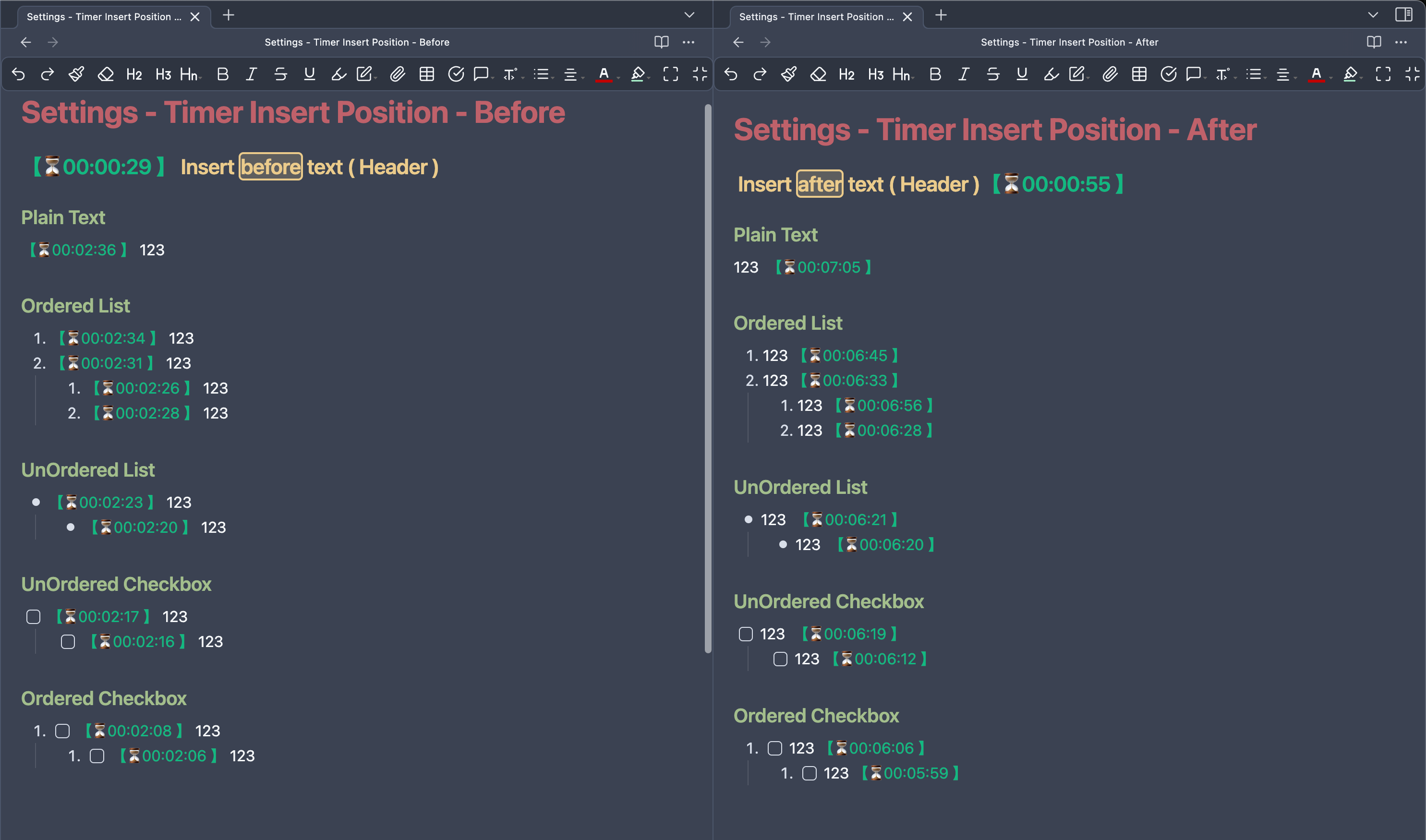
2. Timer insert position
Users can choose to insert a timer label either before or after the text block.
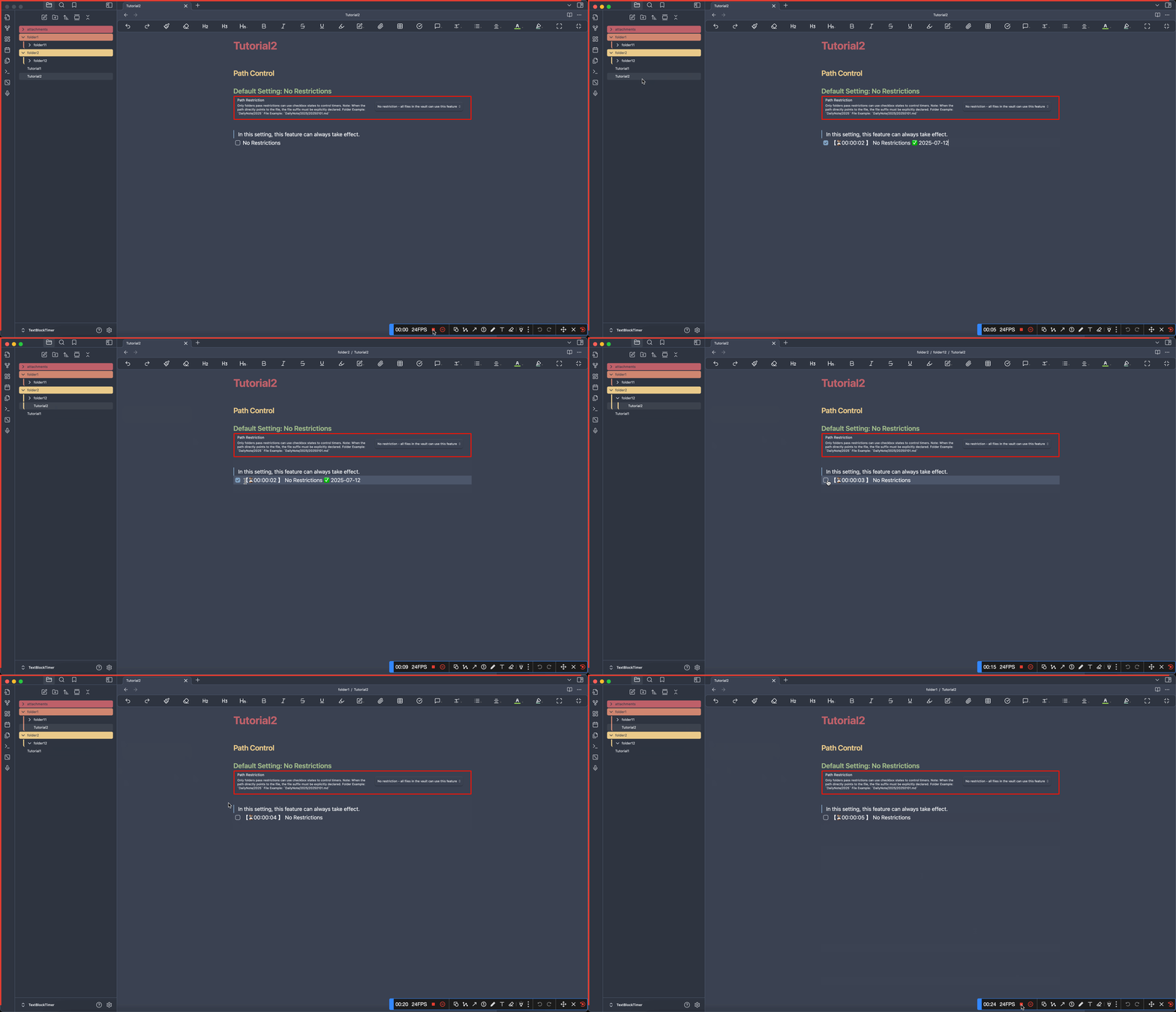
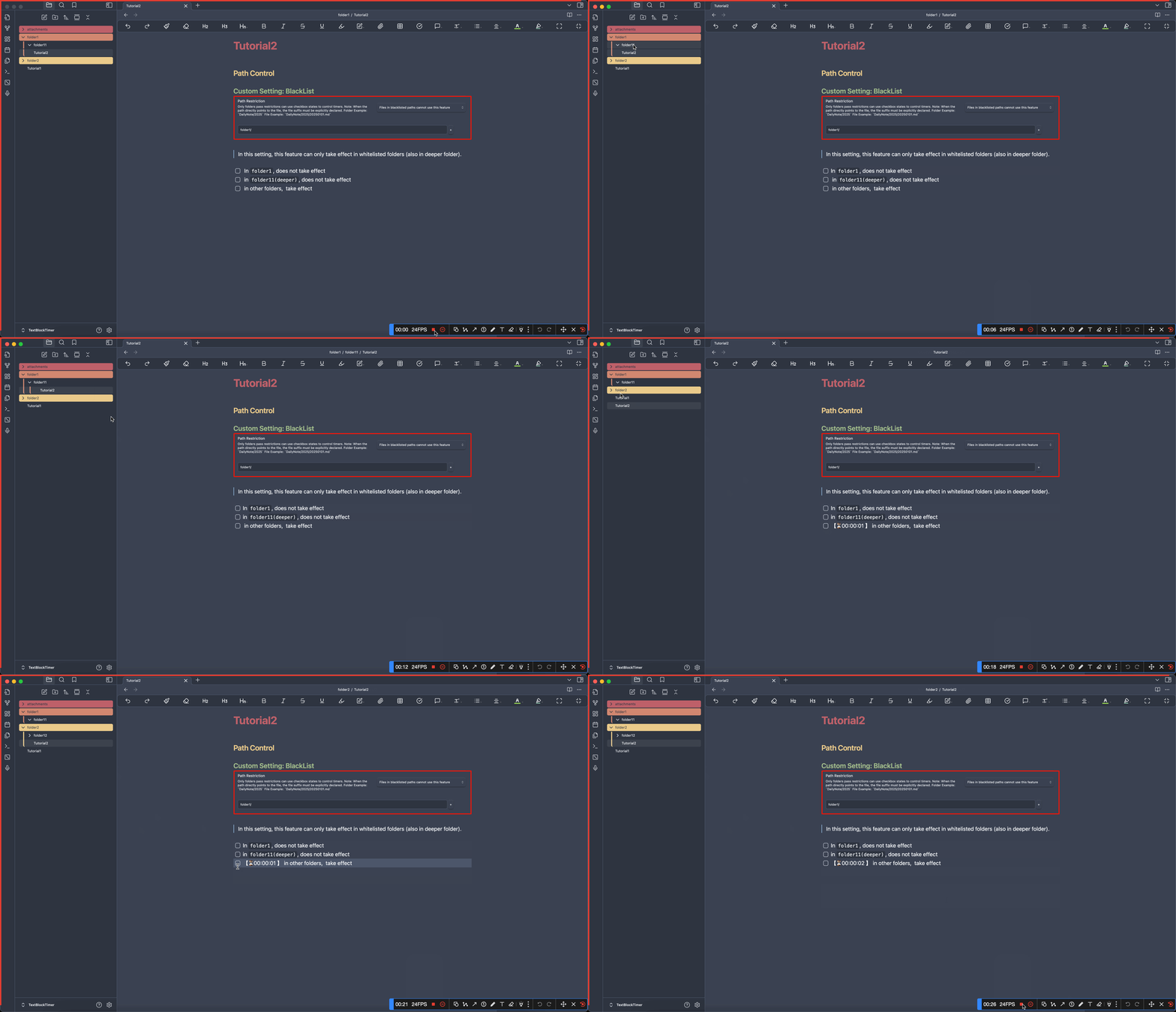
3. Control Timer by Task Status Automatically - Path Control
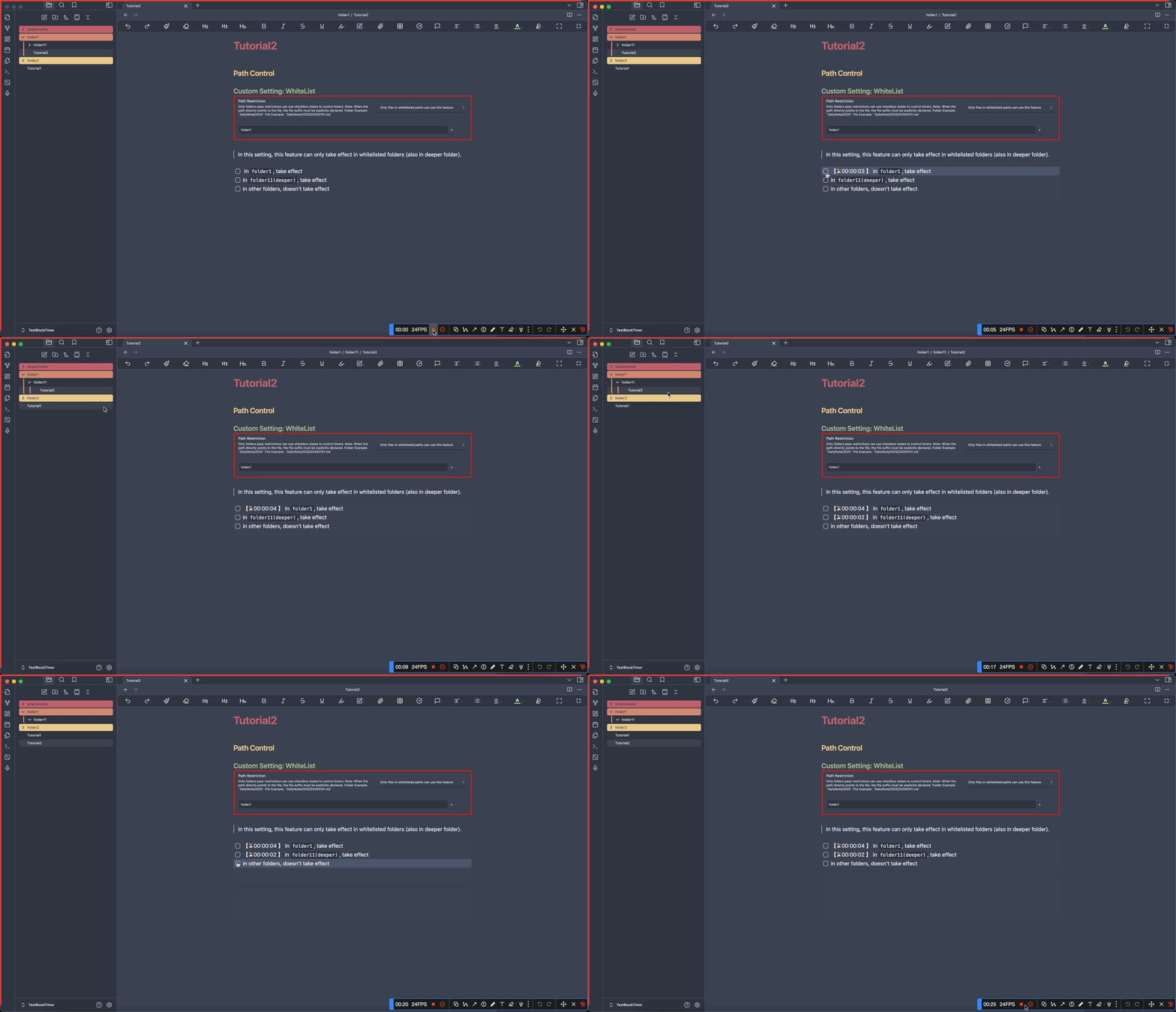
In the default settings, path control is disabled. When you only want to use the timer in specific folders, you can use a whitelist or blacklist to control it, which will only take effect in one of the two ways.
- Disable path control:this feature can always take place
- Whitelist:only folders in the whitelist will work
- Blacklist:folders in the blacklist will not work
Version Log:
- V1.0.9
- ==Critical Bug Fix==: Fixed the undo history pollution issue — timer real-time updates no longer pollute the editor's undo/redo stack. (Thanks to mosmash for providing the solution and submitting a Pull Request!)
- Timer Style Optimization: Redesigned the timer rendering style; added option to hide hours digit for shorter durations.
- ==New Feature==: Added Time Adjustment function with an iPhone-style scroll wheel time picker UI, accessible via right-click menu and command palette, fully compatible with mobile.
- ==Code Encapsulation==: Timer is now encapsulated and no longer exposes internal HTML code.
- Closed issues: #12, #11, #7
- V1.0.8
- Appearance optimization: Added a timer emoji customization function. Now you can use your favorite ICONS to represent the running and paused states respectively.
- V1.0.7
- ==Major Optimization==: Resolved the potential stuck issue when Obsidian switches back to the foreground, improved the timer performance.
- V1.0.6
- BUG Fix: Resolved the issue of startup failure caused by incorrect language configuration code
- V1.0.5
- ==Major Feature==: This plugin now supports usage on the Mobile end!
- ==Major Optimization==: Added support for read-only mode, now the timer can be updated in real time and data can be persisted even in read-only mode.
- ==Major Feature==: Added a timer deletion function, which can be accessed through the command line or right-click menu.
- Slimming Plan for Timer Blocks: The length of Timer blocks has been significantly reduced by 60% in version V1.0.5.
- Bug Fix: Fixed the issue where time display was incorrect after exceeding 24 hours.
- V1.0.4
- ==Major Feature==: Now you can control the timer switch by the checkbox in the task front.
- Improve the function of creating timers, now it will not directly expose the span's source code
- V1.0.3
- ==Major Optimization==: Closing a file no longer causes the timer to fail. Users can freely choose whether to continue timing when the or Obsidian is closed (see custom settings).
- Added custom settings: Users can now choose the position to insert the timer (before or after texts).
- Improve compatibility with markdown, adding support for ordered checkboxes and headings.
- V1.0.2
- Added language support for Chinese, English, Japanese, and Korean.
- V1.0.1
- Improved display effects by adding a space before the time label.
- Fixed the issue where adding a timer to a task list caused the task checkbox to fail.
- V1.0.0
- Plugin release
Development Information
- Developer: frankthwang
- Version: 1.0.9