ColorNote Backup Import
 theluckystrike1 downloads
Import ColorNote version 7.1 backups as dated notes and checklists.
- Overview
- Scorecard
- Updates1
Import ColorNote version 7.1 backups as dated notes and checklists. Select a local backup, enter its password, and review the record counts. Then create notes and an import report in a new vault folder. The core import is free and does not require an account.
The file header must contain version 7.1. Other versions are rejected. Keep the original backup so that you can check the result against ColorNote after import.
Features
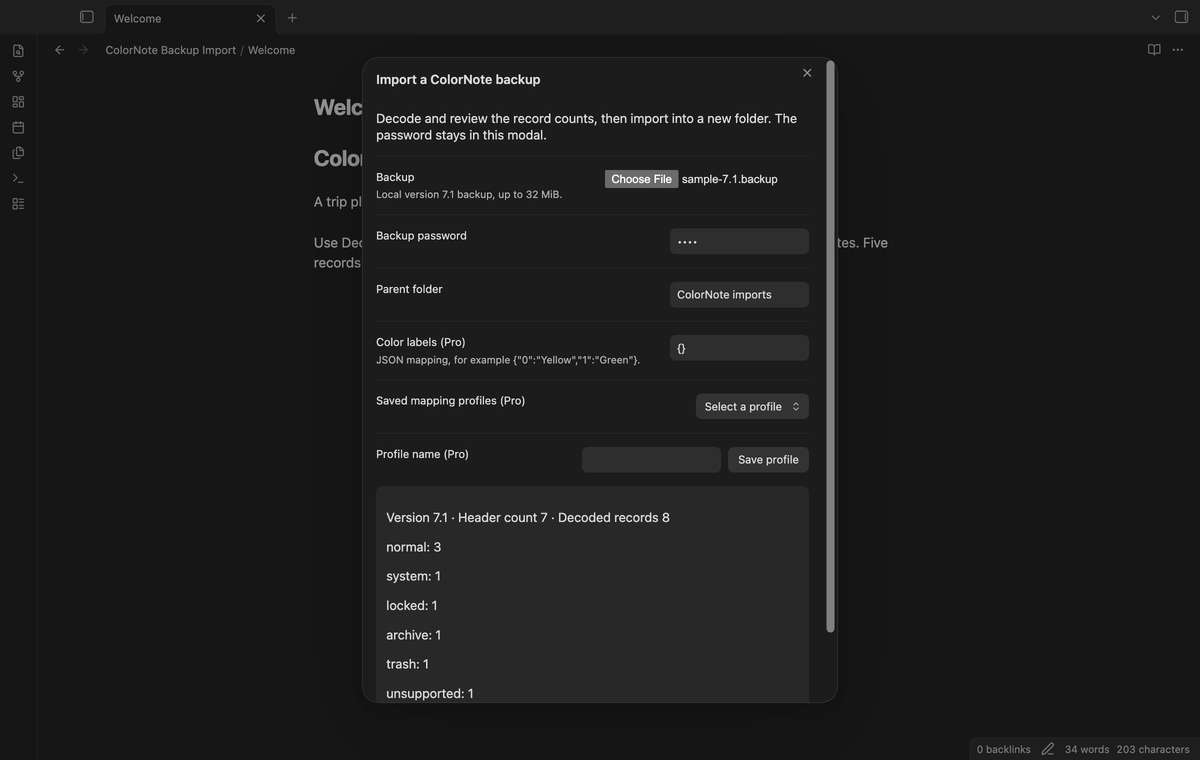
Local backup preview
Select one backup from your device with the file control. This control can read a file outside the vault because that is where a ColorNote backup can be stored. The plugin reads the file that you select. It does not search folders for backups.
The browser decoder uses bundled AES-CBC and MD5 code. It checks the header, cipher block length, padding, record lengths, UTF-8 and JSON before an import can start. A failed check gives a cause in the modal. The password remains in the modal and is cleared when the modal closes or the import succeeds.
Dated notes and checklists
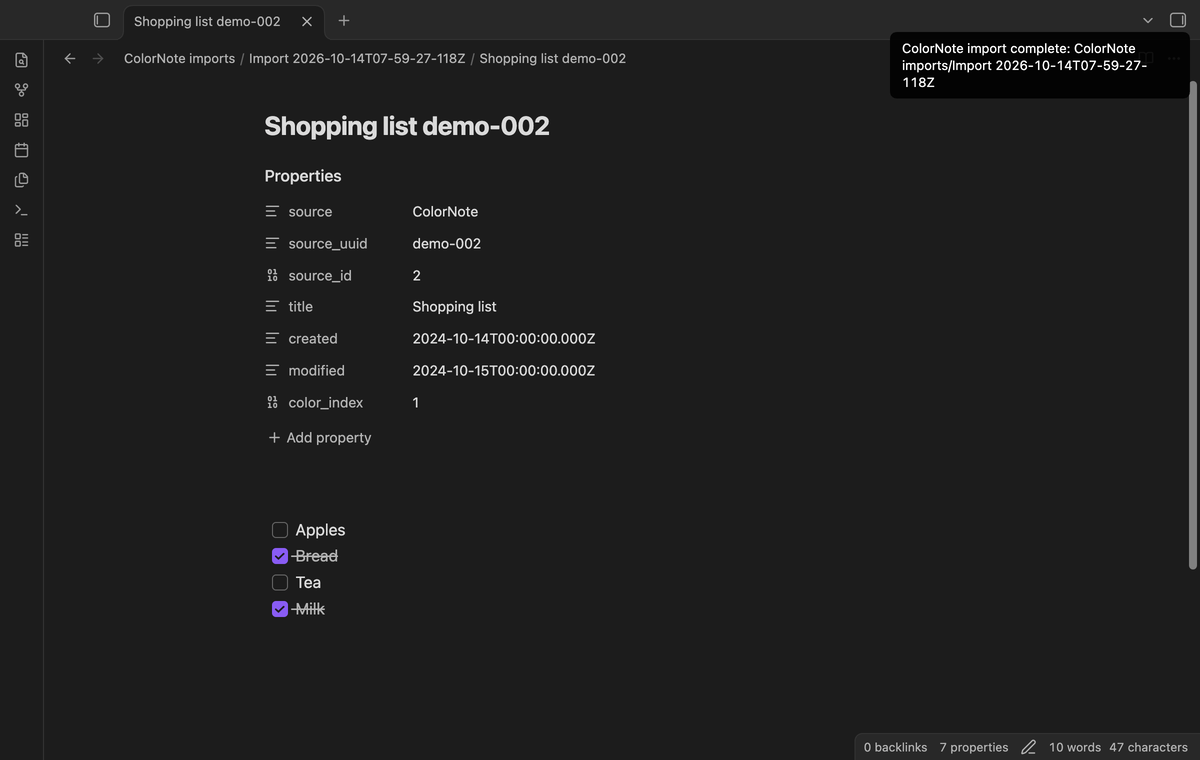
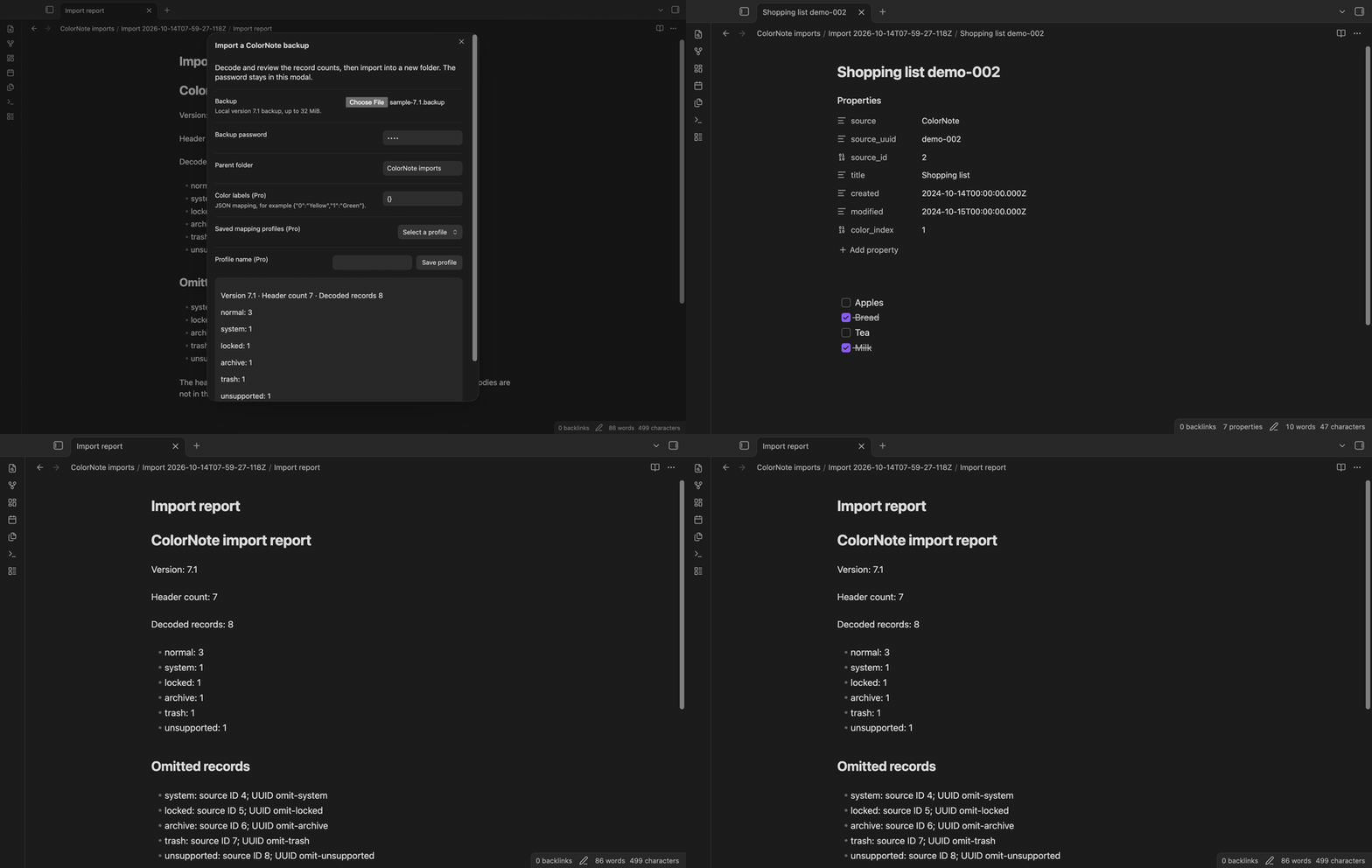
Normal records become Markdown notes. The frontmatter includes the source UUID, source ID, original title, creation date, modification date and color index. Dates are stored as UTC text. Source timestamps are also passed to the vault as creation and modification times. The filesystem and sync service can affect those file times later.
Lines that start with [ ] become unchecked Markdown tasks. Lines that start with [V] become checked tasks. Text elsewhere in a line is kept. Note filenames contain a cleaned title and a UUID suffix. Duplicate titles therefore have separate paths. A numeric suffix handles a further collision after name cleaning.
New import folder and report
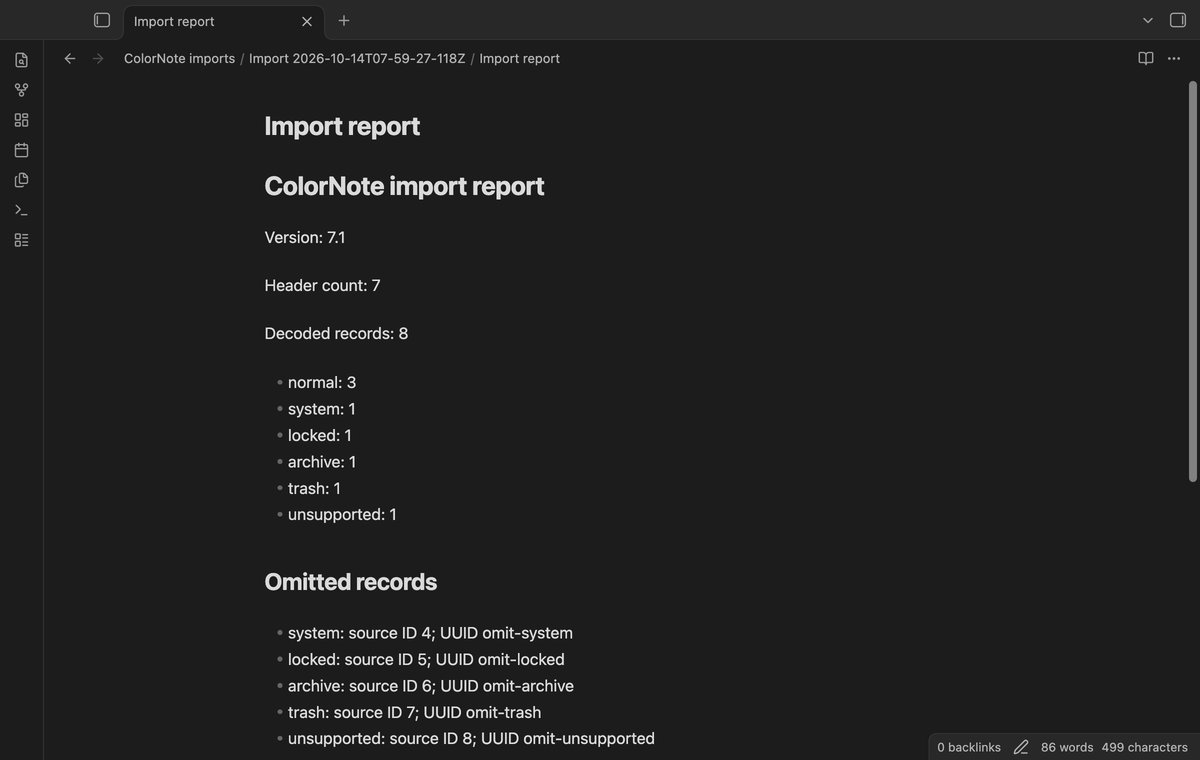
The plugin creates a new timestamped folder below the parent folder that you enter. It writes notes into that folder and creates Import report.md beside them. Repeat imports use separate folders. They do not merge with an earlier import.
The report shows the header count and the number of decoded JSON records. These values can differ. The decoder reads the framed record stream to its end instead of stopping at the header count. The report also counts normal, system, locked, archive, trash and unsupported records. Omitted rows include their class and source ID, with a UUID when present. Their note bodies are omitted from the report.
Saved mapping profiles (Pro)
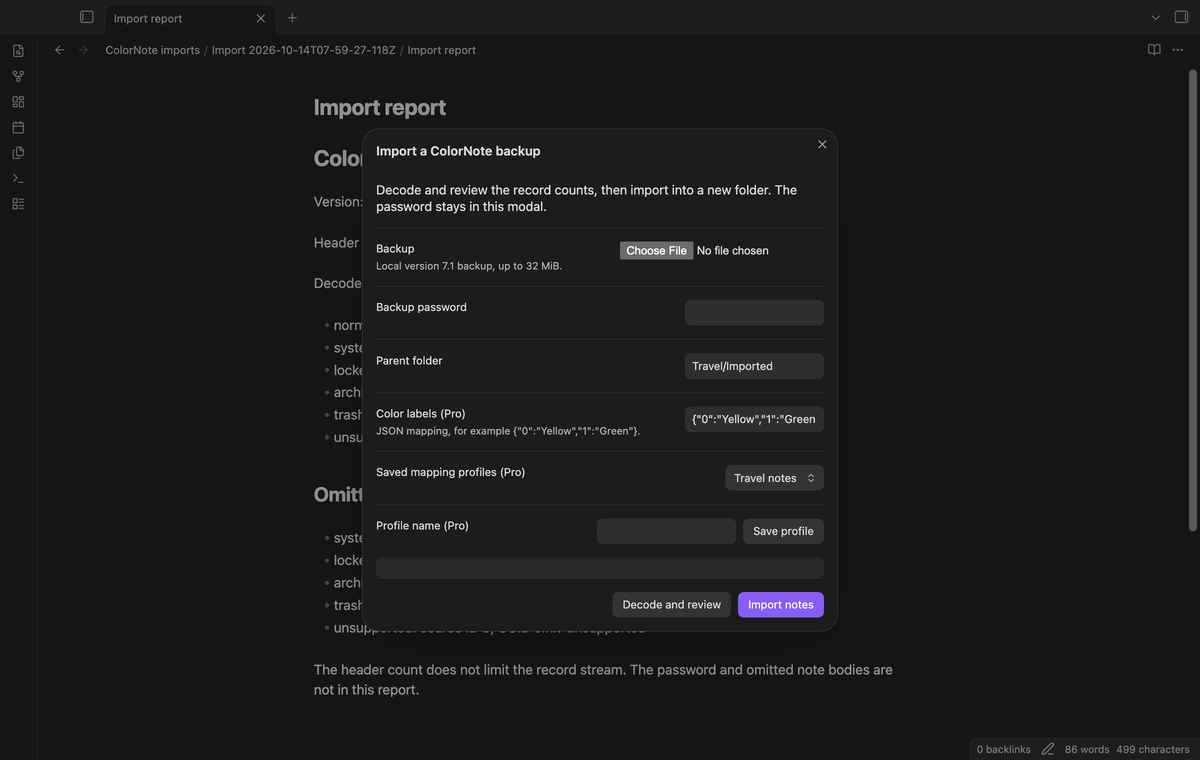
Save a profile with a name, parent folder and color labels. For example, map color index 0 to Yellow and place an import below Travel notes. Select a saved profile when you open the import modal again. A profile with an existing name replaces that profile. The limit is twenty saved profiles.
Color labels are entered as a JSON object, such as {"0":"Yellow","1":"Green"}. Keys must be integer text and labels must be text of eighty characters or less. With Pro active, a mapped label is added as color_label in note frontmatter. The original numeric color_index remains available. Profiles contain folder paths and labels, and are saved in the plugin settings in this vault.
Compare two backups (Pro)
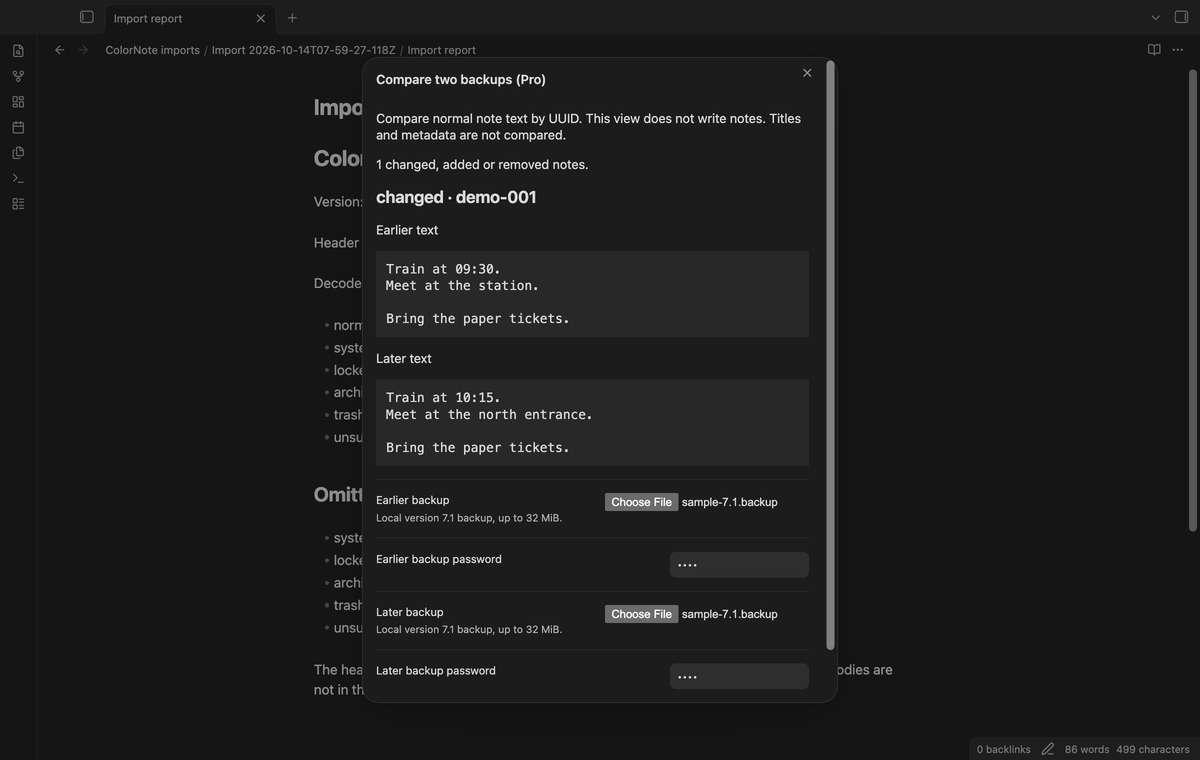
Select an earlier and a later version 7.1 backup. Enter each password, then select Compare note text. The view pairs normal records by UUID and shows added, removed and changed note text. It does not write notes or update an existing import. Earlier and later text appear in separate blocks.
A title change alone is not a text change. System, locked, archive, trash and unsupported records are excluded from this comparison. Duplicate UUIDs in normal records cause an error because the view cannot select a reliable pair. Use the import report to check the omitted classes before you interpret a comparison.
Install
Download main.js, manifest.json and styles.css from a release when one is available. Put these files in .obsidian/plugins/colornote-backup-import/ in your vault. Reload Obsidian and enable ColorNote Backup Import in Community plugins. The manifest gives the minimum app version.
For a local build, use the exported repository with the Node and npm versions stated in package.json. Run npm ci, npm test and npm run build. Copy the build files to the plugin folder. The source and the bundled cipher dependencies use the MIT license. Their notices are in LICENSE and THIRD_PARTY_LICENSES.md.
Usage
- Open the command palette and select ColorNote Backup Import: Import a ColorNote backup.
- Select a local backup and enter its password. No default password is entered for you.
- Enter a parent folder, such as
ColorNote importsorTravel/Imported notes. - Select Decode and review. Check the decoded and omitted record counts.
- Select Import notes. Read the completed folder path in the modal.
- Open
Import report.mdin that folder. Check some note bodies, checklist marks and source dates against ColorNote.
The input limit is 32 MiB. Decoded records stay in memory while the preview is open. Closing the modal before import discards this preview. Once vault writes have started, closing the modal does not cancel them. If a write fails, the error includes the number of completed note writes. A partially written folder can remain. Inspect that folder before you retry in a new folder.
Settings
The settings tab contains the GitHub Sponsors controls and a saved profile count. Folder paths and backup passwords are entered in the import modal. A folder must be relative to the vault root. Empty, hidden and parent path segments are rejected. Use ordinary folder names without filename control characters.
To save a profile, turn on Pro, enter its folder and color mapping, enter a profile name, and select Save profile. Close and open the modal to select the saved profile. Signing out turns off profile use and comparison. It leaves the stored profiles in the vault settings for a later sign in.
FAQ
Which backups were checked?
The named 2024-10-14, 2026-06-15 and 2026-07-25 version 7.1 samples decoded to 9, 20 and 49 JSON records in local unit checks. Synthetic backups cover malformed data and the import controls. The opaque prefix before the first note record is skipped; it is not imported as a note.
What is excluded?
Individually locked notes, reminders, calendar-specific titles and internal link repair are outside this version. Archive and trash records are reported but do not become normal notes. Missing UUIDs, unknown record types and invalid required metadata are reported as unsupported.
What was not tested?
Physical Android and iOS devices, Linux and Windows app runs, a large production vault, operating system file-picker differences, filesystem timestamp persistence after sync, and recovery from a real full disk were not tested. The runtime uses browser APIs, but this is not proof of physical mobile operation. A live paid GitHub sponsorship was not used for tests.
Payment, account and network
The core features are free. Pro features need a GitHub Sponsors sponsorship of theluckystrike: $5 a month or more, or $15 once. A total payment of $15 meets the payment requirement for Pro without further payment. Sign-in and the checks below still apply. Your notes stay readable and editable with or without Pro.
GitHub handles the payment. Sponsor at https://github.com/sponsors/theluckystrike. You need no account for the free features. Pro needs the GitHub account that sponsors.
Until you select "Sign in with GitHub" in the settings, ColorNote Backup Import makes no network requests. Sign in uses the GitHub device flow. ColorNote Backup Import sends its public client ID and the scope read:user to https://github.com/login/device/code and shows you a code. While you enter the code at https://github.com/login/device, it asks https://github.com/login/oauth/access_token every few seconds to check the sign-in status. The scope permits profile reads only. GitHub needs this access to show the sponsorship tier. It grants no repository scope and no write access.
After sign in, ColorNote Backup Import sends one query to https://api.github.com/graphql. It checks if the signed-in account sponsors theluckystrike. It asks for the tier and the total payment to theluckystrike. The plugin reuses a successful check for 7 days. Failed checks can retry after 6 hours. Select Refresh to request an earlier check. It sends no note content, file names or other vault data, and it has no telemetry.
After a successful check, Pro can work offline for up to 14 days. Sign out or a negative sponsorship answer turns Pro off. The plugin stores the GitHub token through the secret storage API of Obsidian. It does not put the token in its saved settings or its local sponsorship data. The local storage of this device keeps your GitHub login, the tier and the time of the last check. Sign out clears the token. You can also revoke the access in your GitHub settings, under Applications.
Support
Use the issue page of the published repository when it is available. Include the header version, app version and exact error message. Do not attach a personal backup or password to a public issue. You can describe a synthetic record that gives the same error. For publisher information, see notemods.com.