
- Overview
- Scorecard
- Updates5
A plugin for Obsidian that helps you collapse node in canvas.
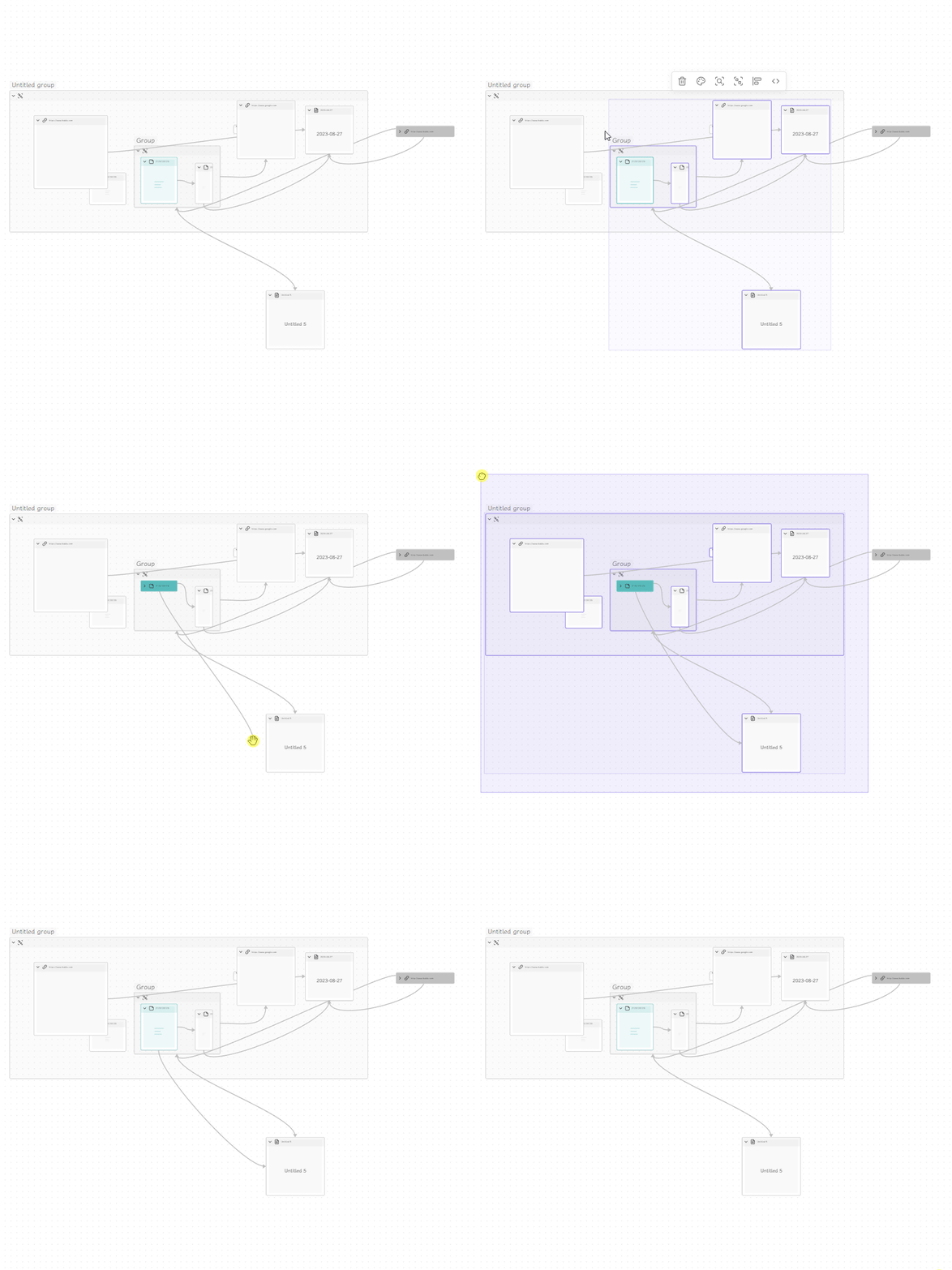
Usage
- Commands
Fold All Nodes- Collapses all nodes in the workspaceExpand All Nodes- Expands all nodes in the workspaceFold Selected Nodes- Collapses only the selected nodesExpand Selected Nodes- Expands only the selected nodes
- Context menu in canvas
Selection Menu- Shows the context menu for selected nodesNode Menu- Shows the context menu for a specific node or nodesSet Node Alias- Set a custom alias for the node (shown in collapsed state)Set Node Thumbnail- Set a custom thumbnail image for the node (shown in collapsed state)Remove Node Customizations- Remove alias and thumbnail from the node
- Direct Click on the Header
Click- Collapse or expand the node
- Thumbnails and Aliases in Collapsed State
- Enable in settings to show thumbnails and/or aliases when nodes are collapsed
- For thumbnails: Add
thumbnail: path/to/image.jpgorthumbnail: https://example.com/image.jpgto node metadata, or use the context menu - For aliases: Add
alias: Your Alias Textto node metadata, use frontmatter aliases for file nodes, or use the context menu
Installation
- Not ready for market yet
- Can be installed via the Brat plugin
- Manual installation
- Find the release page on this github page and click
- Download the latest release zip file
- Unzip it, copy the unzipped folder to the obsidian plugin folder, make sure there are main.js and manifest.json files in the folder
- Restart obsidian (do not restart also, you have to refresh plugin list), in the settings interface to enable the plugin
- Done!
Support
If you are enjoying this plugin then please support my work and enthusiasm by buying me a coffee on https://www.buymeacoffee.com/boninall. .
HealthFair
ReviewCaution
About
Collapse and expand nodes in Canvas using workspace commands, context menus, or direct header clicks. Set or remove custom aliases and thumbnails to display in the collapsed state and fold all or selected nodes.Details
Current version
2.0.0
Last updated
2 years ago
Created
3 years ago
Updates
5 releases
Downloads
16k
Compatible with
Obsidian 1.1.0+
Platforms
Desktop, Mobile
Sponsor