Search...Search plugins and themes...
⌘K
Sign in
  • Get started
  • Download
  • Pricing
  • Enterprise
  • Account
  • Obsidian
  • Overview
  • Sync
  • Publish
  • Canvas
  • Mobile
  • Web Clipper
  • CLI
  • Learn
  • Help
  • Developers
  • Changelog
  • About
  • Roadmap
  • Blog
  • Resources
  • System status
  • License overview
  • Terms of service
  • Privacy policy
  • Security
  • Community
  • Plugins
  • Themes
  • Discord
  • Forum / 中文论坛
  • Merch store
  • Brand guidelines
Follow us
DiscordTwitterBlueskyThreadsMastodonYouTubeGitHub
© 2026 Obsidian

CMDS Eagle

Yohan KooYohan Koo7k downloads

Connect Eagle asset library to Obsidian. Search, embed, and upload images to cloud (ImgHippo, R2, S3, WebDAV).

Add to Obsidian
  • Overview
  • Scorecard
  • Updates11

Obsidian plugin to connect Eagle asset library with your vault.

Features

  • Search & Embed: Search Eagle library and embed images directly into notes
  • Cloud Upload: Upload images to cloud storage (ImgHippo, Cloudflare R2, Amazon S3, WebDAV)
  • Paste/Drop Integration: Automatically handle pasted or dropped images
  • Batch Convert: Convert all local images in a note to cloud URLs
  • Cross-Platform Sync: Automatically convert image paths between Mac and Windows

Installation

Using BRAT (Recommended)

  1. Install BRAT plugin
  2. Open BRAT settings → Add Beta Plugin
  3. Enter: johnfkoo951/cmds-eagle
  4. Enable the plugin

Manual Installation

  1. Download main.js, manifest.json, styles.css from Releases
  2. Create folder: .obsidian/plugins/cmds-eagle/
  3. Copy downloaded files into the folder
  4. Enable plugin in Obsidian settings

Requirements

  • Eagle app running locally
  • Obsidian 1.5.0+

Usage

Search & Embed

Search your Eagle library and embed images directly into notes.

Search and Embed

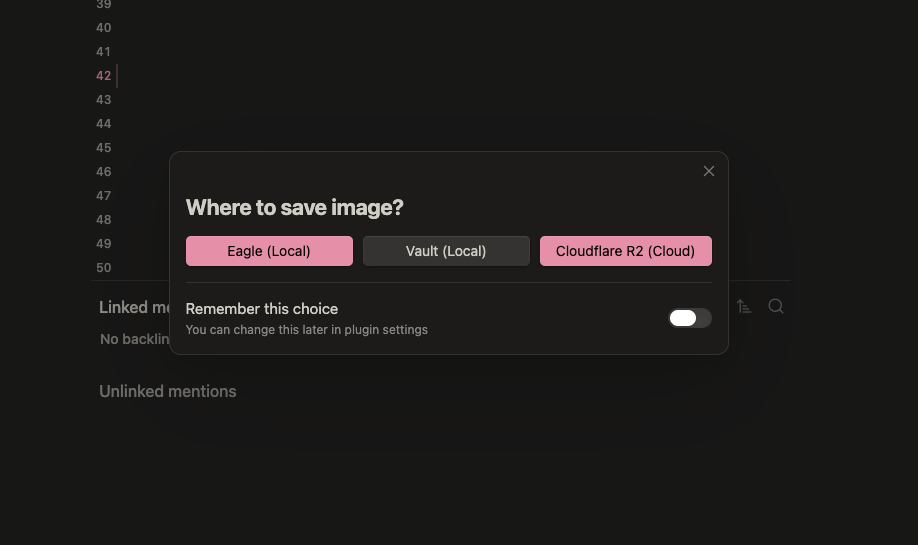
Image Paste/Drop

When pasting or dropping images, choose where to save them.

Search Modal Search Results

Cloud Upload

Upload images to cloud storage for sharing and portability.

Cloud Upload Paste Options

Cross-Platform Sync

Use the same Eagle library across Mac and Windows with automatic path conversion.

Cross-Platform Sync

How it works:

  1. Register your computers in settings (Mac and Windows)
  2. Eagle library synced via cloud storage (e.g., Dropbox, iCloud, OneDrive)
  3. Image paths automatically convert when opening notes on different platforms

Settings:

  • Enable cross-platform path conversion: Turn on/off the feature
  • Auto-convert paths on file open: Automatically convert paths when opening notes

Manual conversion:

  • Command: Convert cross-platform image paths in current note

Settings

Configure your preferred cloud provider and search defaults.

Settings

Cloud Providers

Provider Setup
ImgHippo (Free) Sign up at imghippo.com, get API key from settings
Cloudflare R2 Requires Worker deployment (see docs)
Amazon S3 Standard S3 credentials
WebDAV Works with Synology, Nextcloud, etc.

Cloud Settings

Commands

Command Description
Search Eagle library and embed Open search modal
Upload clipboard Eagle image to cloud Upload from clipboard
Embed Eagle image and upload to cloud Embed + upload in one step
Convert all images in note to cloud URLs Batch convert local images
Convert cross-platform image paths in current note Convert Mac/Windows paths

License

MIT

93%
HealthExcellent
ReviewSatisfactory
About
Connect your Eagle asset library to your vault and search or embed images directly into notes. Upload pasted, dropped, or local images to cloud storage (ImgHippo, Cloudflare R2, S3, WebDAV), batch-convert local images to cloud URLs, and convert image paths for cross-platform Mac/Windows sync.
ImagesAttachmentsSyncing
Details
Current version
1.6.3
Last updated
4 hours ago
Created
5 months ago
Updates
11 releases
Downloads
7k
Compatible with
Obsidian 1.5.0+
Platforms
Desktop only
License
MIT
Report bugRequest featureReport plugin
Sponsor
GitHub Sponsors
Author
Yohan KooYohan Koojohnfkoo951
GitHubjohnfkoo951
  1. Community
  2. Plugins
  3. Images
  4. CMDS Eagle

Related plugins

Image Context Menus

Image context menus (mostly on right click): Copy to clipboard, Open in default app, Show in system explorer, Reveal file in navigation, Open in new tab.

Ink

Hand write or draw directly between paragraphs using a digital pen, stylus, or Apple pencil.

Local Images Plus

A reincarnation of Local Images to download images in Markdown notes to local storage.

Paste image rename

Rename image after pasting, support name pattern and auto renaming.

YAOS

Simple real-time sync powered by your own Cloudflare Worker.

Image auto upload

Upload images from your clipboard by PicGo.

Imgur

Upload images from your clipboard to imgur.com and embeds uploaded image to your note.

Unofficial Supernote by Ratta Integration

View Supernote notes, generate markdown from note and capture screen mirror.

Image Manager

Insert, rename, and sort images within your notes.

Local images

Find all links to external images in your notes, download and save images locally, and adjust the image links in your notes to point to the saved image files.