Mobile Timer for Clockify
 theluckystrike1 downloads
Starts, stops and switches your Clockify timer from a note, on phone and desktop, and shows the running timer and today's total.
- Overview
- Scorecard
- Updates1
Mobile Timer for Clockify starts, stops and switches your Clockify timer from a note. It shows the running timer and today's total. It works on iPhone, iPad, Android and desktop, because it uses no Node module.
It is an unofficial plugin. It is not affiliated with, made by or approved by Clockify or CAKE.com. You need your own Clockify account and API key. The core is free. Pro is optional.
Features
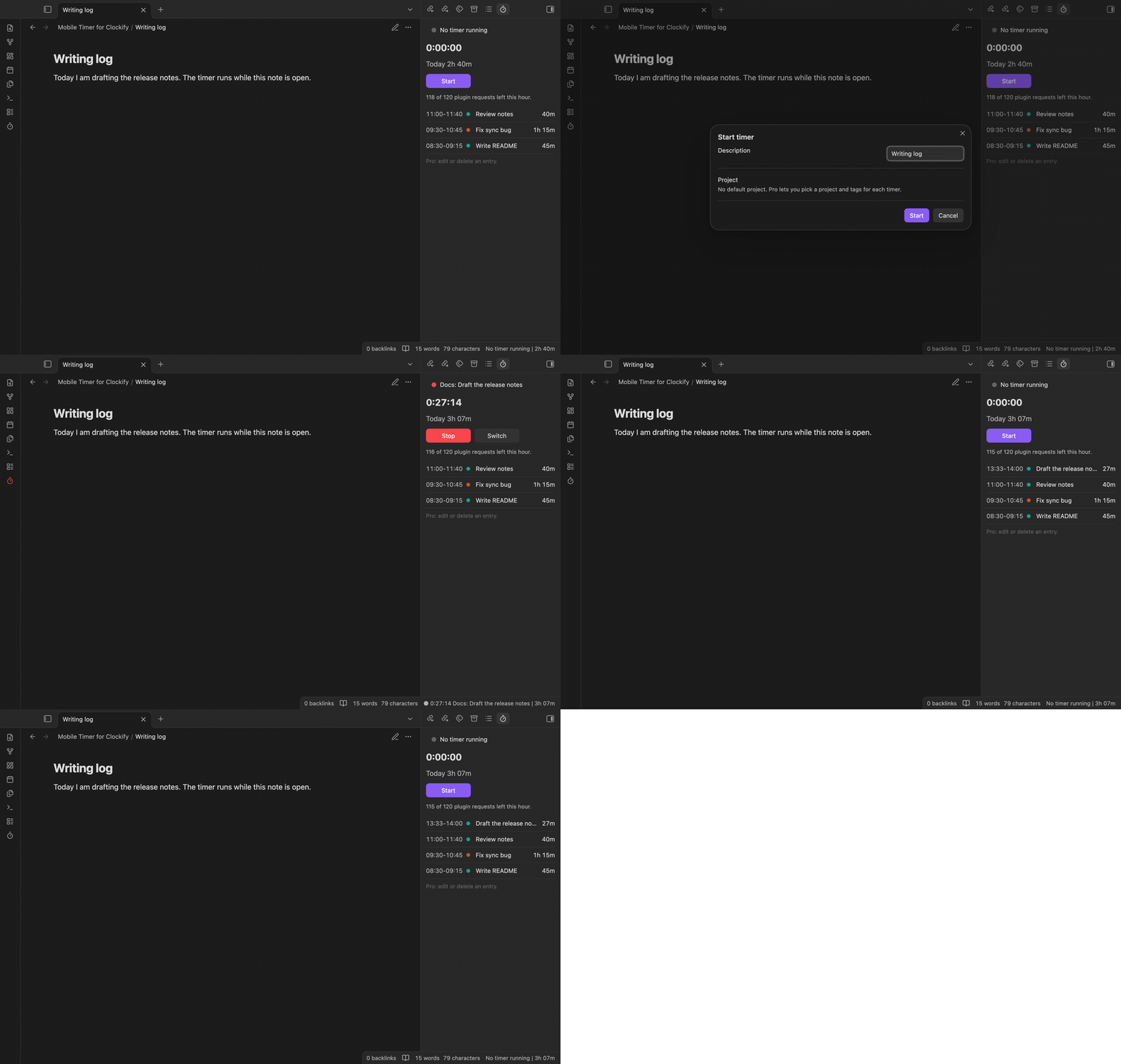
Start, stop and switch a timer
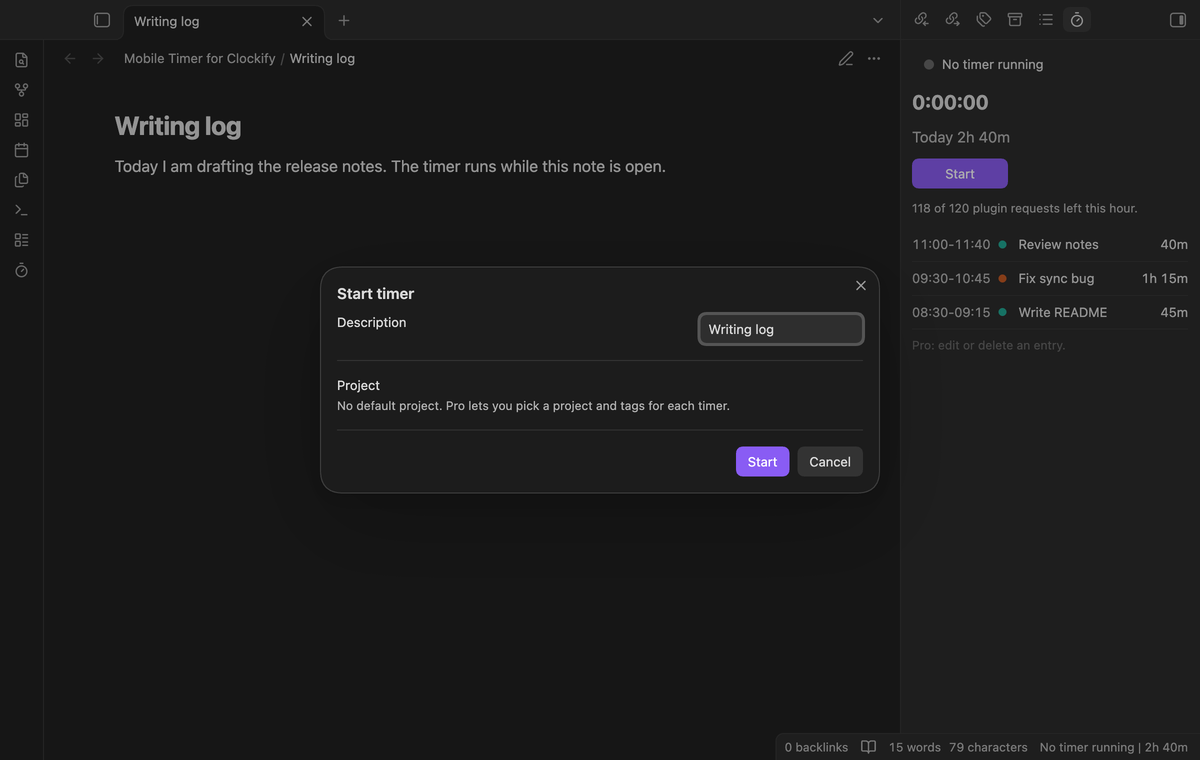
Run "Start timer". A window asks for a description and offers the name of the open note. Select Start or press Enter. "Stop timer" stops it. "Switch timer" stops the running timer and starts a new one.
"Start timer for this note" starts at once with no window, the fastest way on a phone. Both send the note name to Clockify as the description. A setting turns that off. Free timers get one default project.
The timer panel and the ribbon button
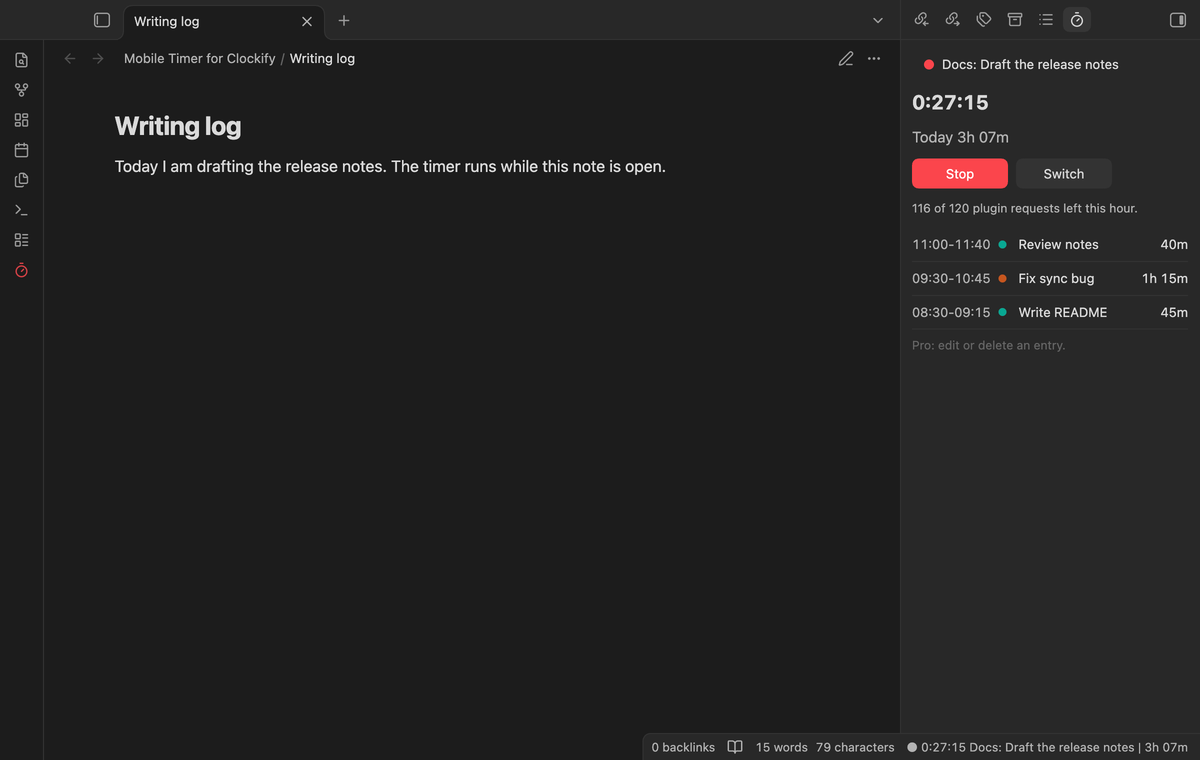
A phone has no status bar, so the plugin has a timer panel. Run "Open timer panel". It shows the clock, today's total, the buttons, and today's finished entries. The ribbon button turns red while a timer runs. The clock counts from the start time that Clockify holds.
The status bar on desktop
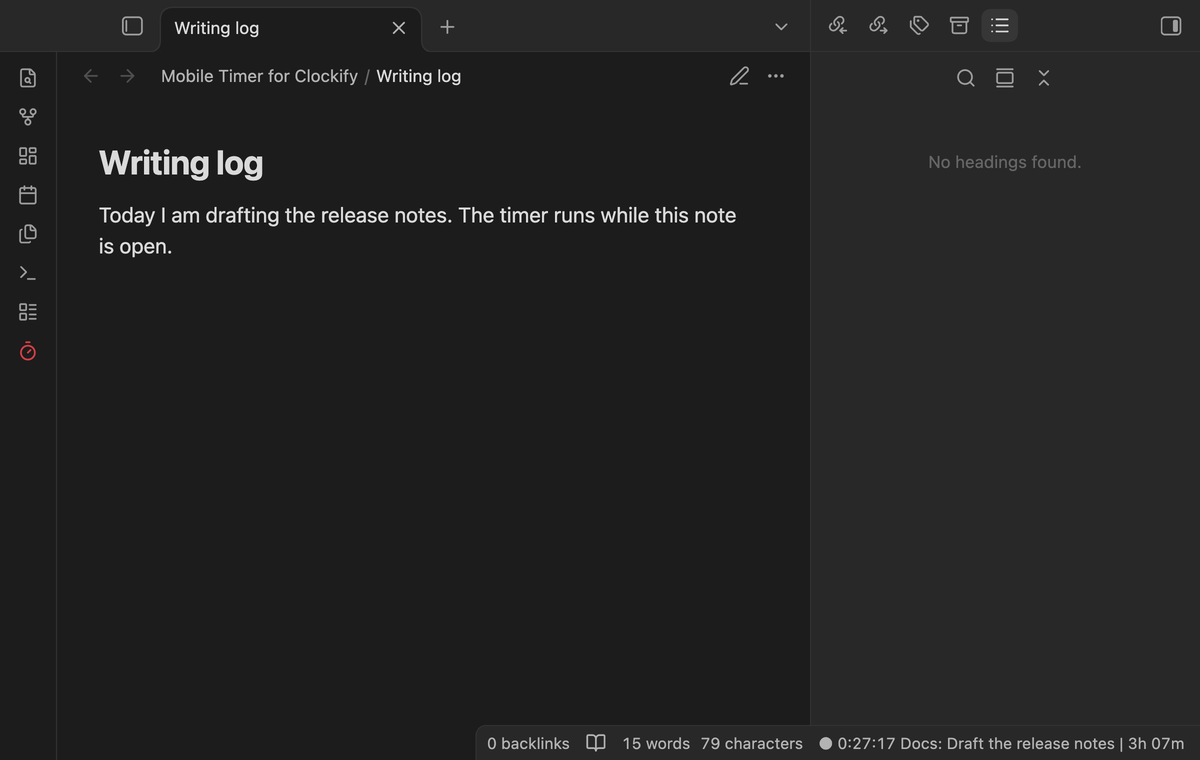
On desktop the status bar shows the clock, the project and description, and today's total. Select it to open the panel. Turn it off in the settings. Mobile has none.
A request budget
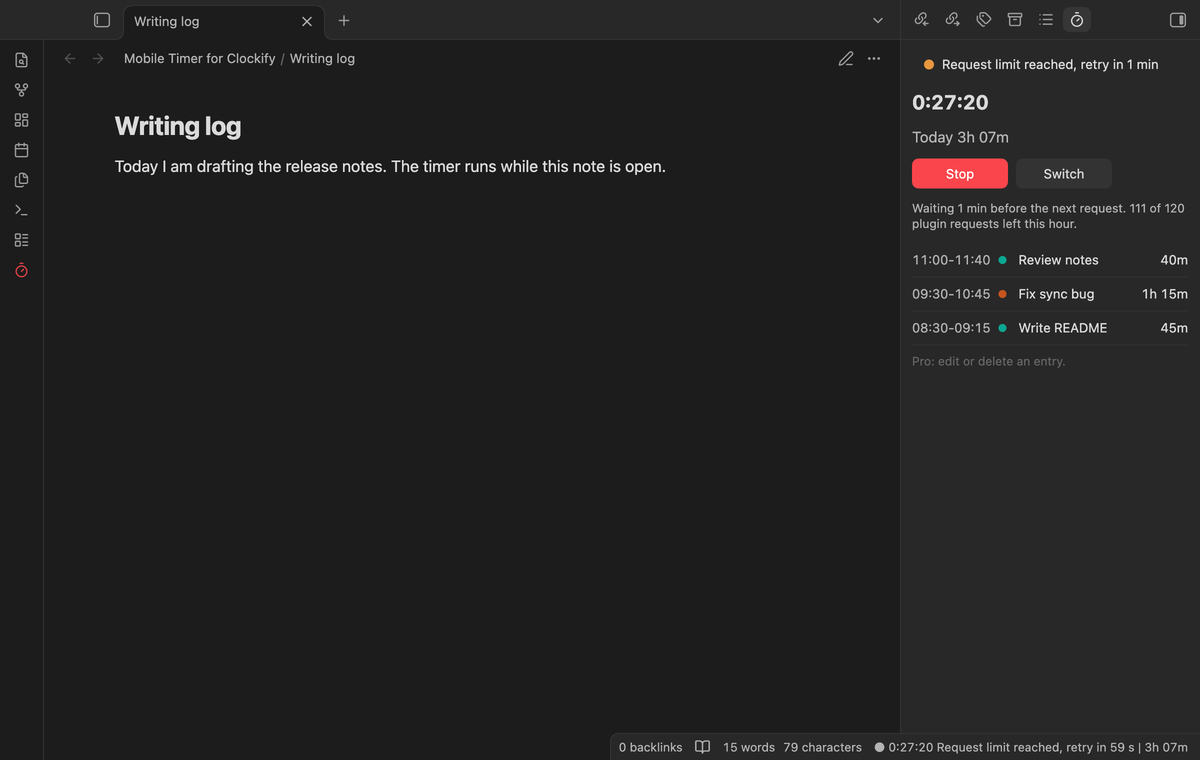
The Clockify documentation names no request limit for a personal key, so the plugin keeps its own: 120 requests in a rolling hour. One request gives the running timer and the day total, and a recent copy costs nothing. Start and Stop cost one request each. Background refreshes stop when 8 requests are left.
After HTTP 429 the plugin follows the Retry-After header, or waits 2 minutes, then 4, up to 20. The panel says how long.
Project and tag pickers (Pro)
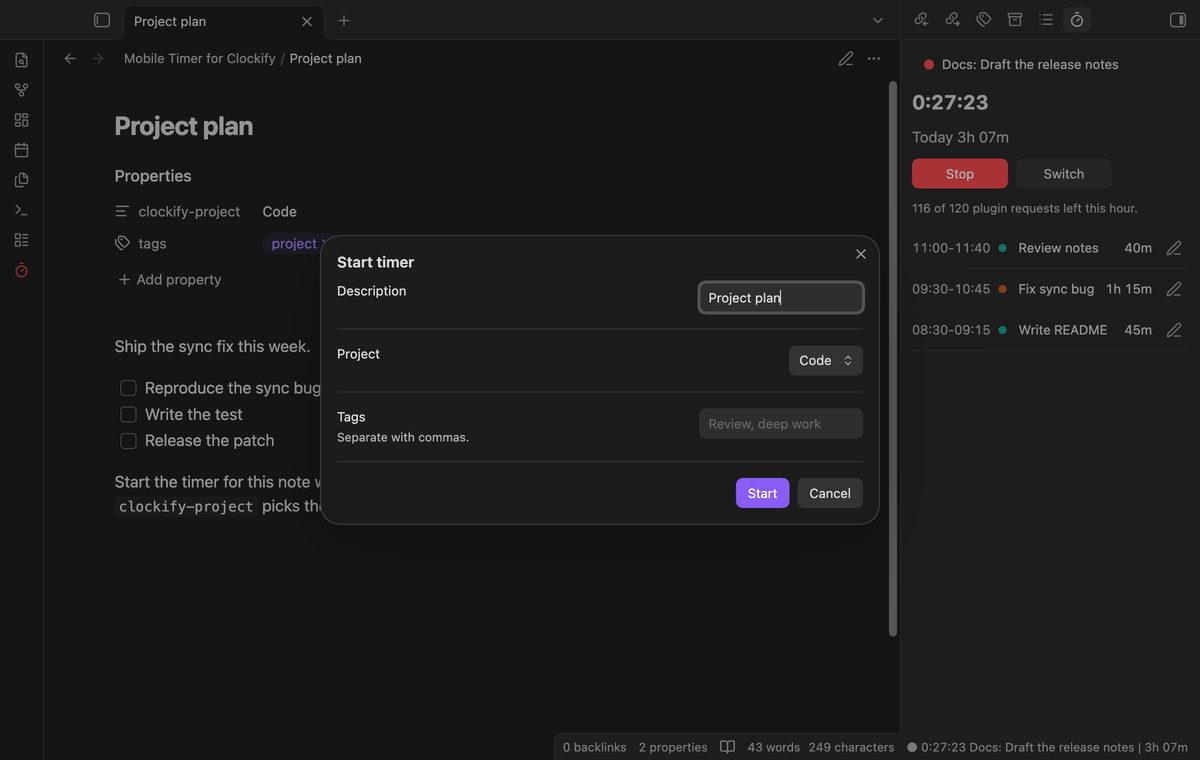
The Start window gets a project list and a tags field. Type names of tags that exist in Clockify, separated by commas. A note can set its own project: add a property named clockify-project with the name of a project.
Reports by project, day or description (Pro)
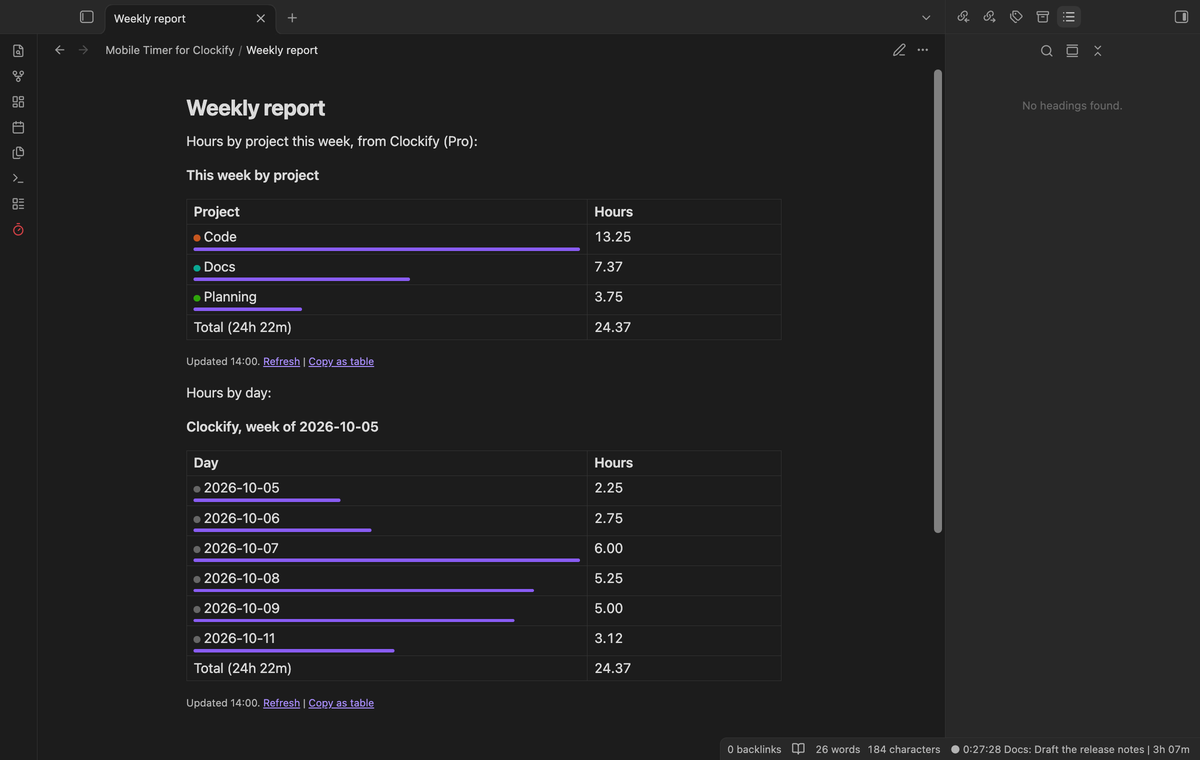
Add a clockify-report code block to a note. range is today, yesterday, last7, week, month, or two dates like 2026-10-01..2026-10-31. by is project, day or description.
```clockify-report
range: week
by: project
```
A report reads up to 1,000 entries, 500 for each request, and the plugin keeps the answer for 15 minutes.
Edit and delete past entries (Pro)
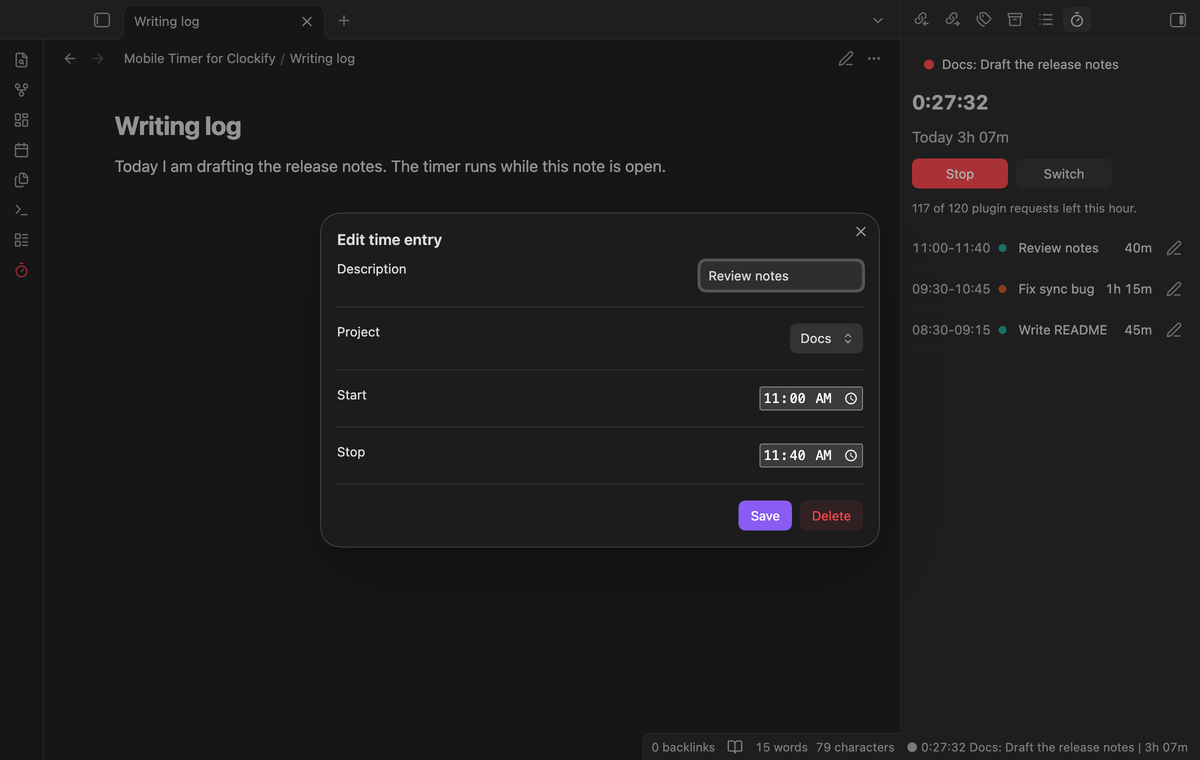
Each finished entry in the panel has an edit button. The window changes the description, project, start and stop time. Select Delete twice to delete the entry.
Offline queue (Pro)
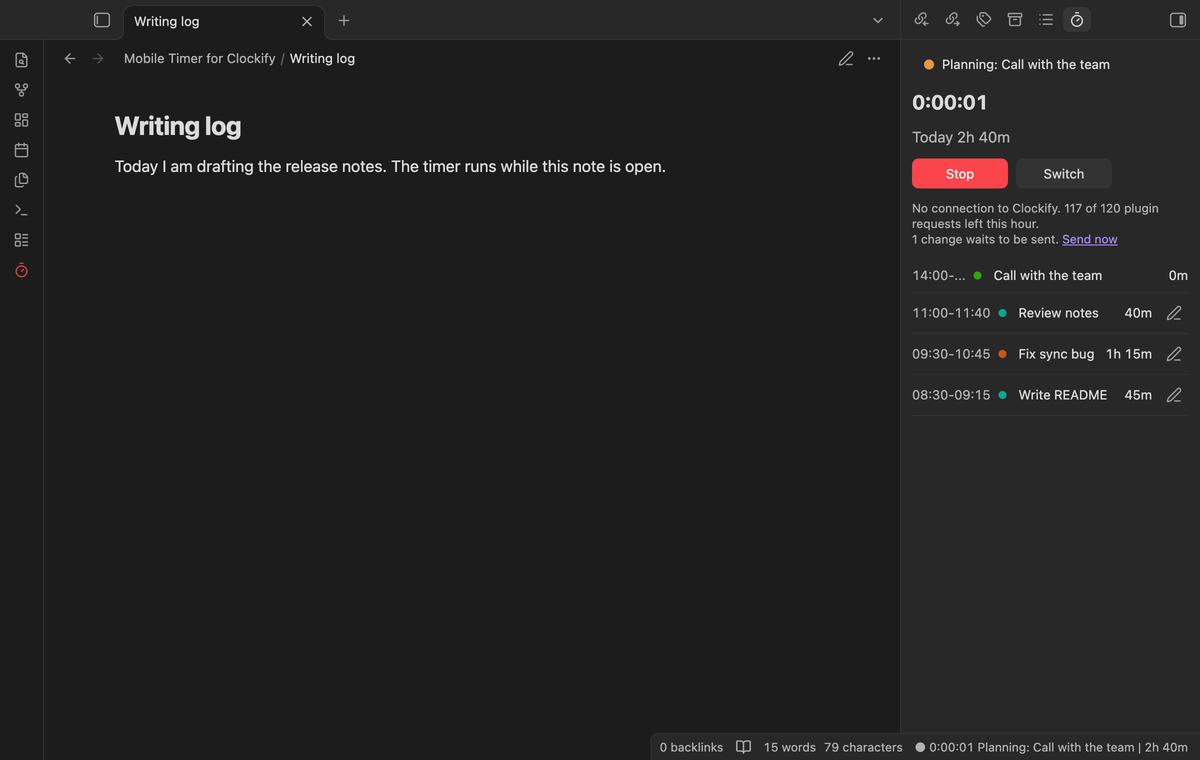
With no connection, a start or stop waits in a queue of up to 40 changes and shows in the panel at once. When Clockify is reachable, the queue goes out in the fewest requests. Without Pro, an action with no connection changes nothing.
Install
When Mobile Timer for Clockify is listed in the community directory, open Settings, then Community plugins, then Browse, and search for "Mobile Timer for Clockify". Select Install, then Enable.
To install by hand, put main.js, manifest.json and styles.css from the latest release in <vault>/.obsidian/plugins/clockify-mobile-timer/. It needs Obsidian 1.13.4 or newer.
Usage
- In Clockify, open your profile settings, then API, and select Generate. If your workspace is on a subdomain, generate the key there.
- In the plugin settings, select the API key field, create a secret and paste the key. Select Check connection.
- Open a note and run "Start timer".
A timer that you start in Clockify shows after the next refresh.
Pro
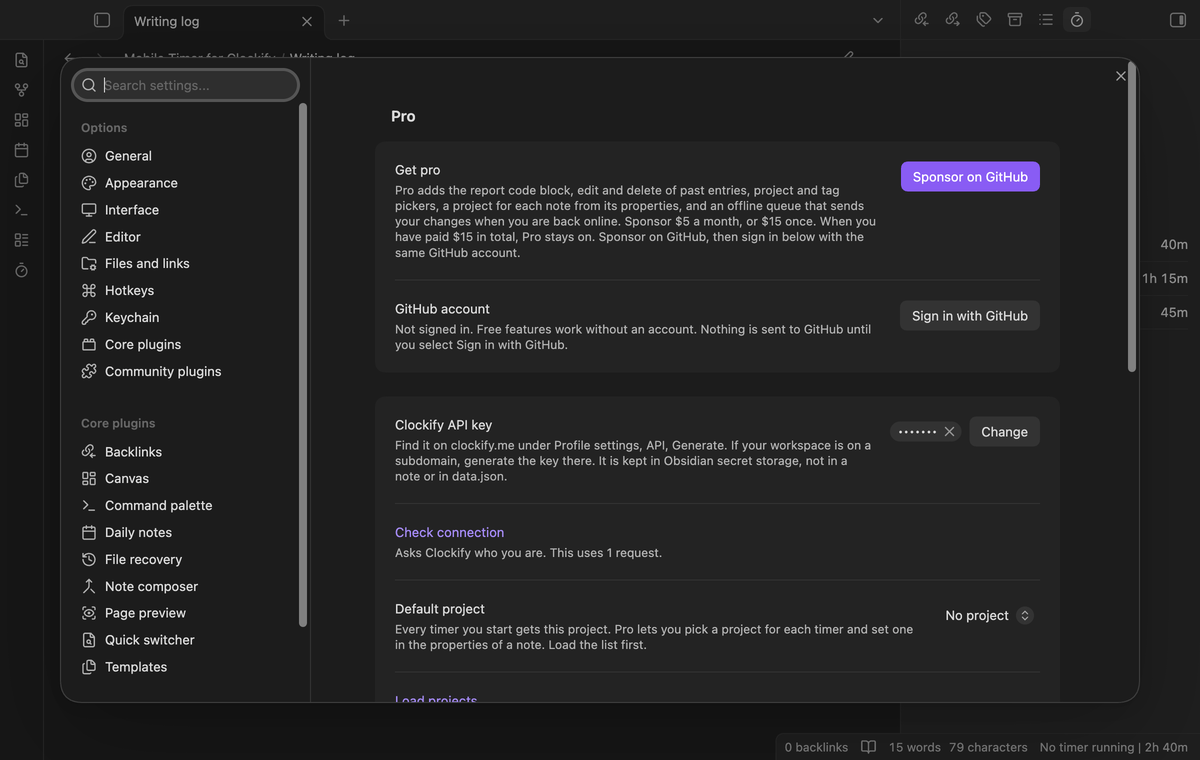
Pro unlocks the report block, edit and delete, the pickers, a project for each note, and the offline queue. $5 a month, or $15 once. When you have paid $15 in total, Pro stays on.
- Sponsor theluckystrike on GitHub Sponsors.
- In the plugin settings, select "Sign in with GitHub".
- The plugin copies a code and opens github.com/login/device. Paste the code there and approve.
If a monthly sponsorship ends before you have paid $15 in total, Pro turns off at the next check, within 7 days.
Settings
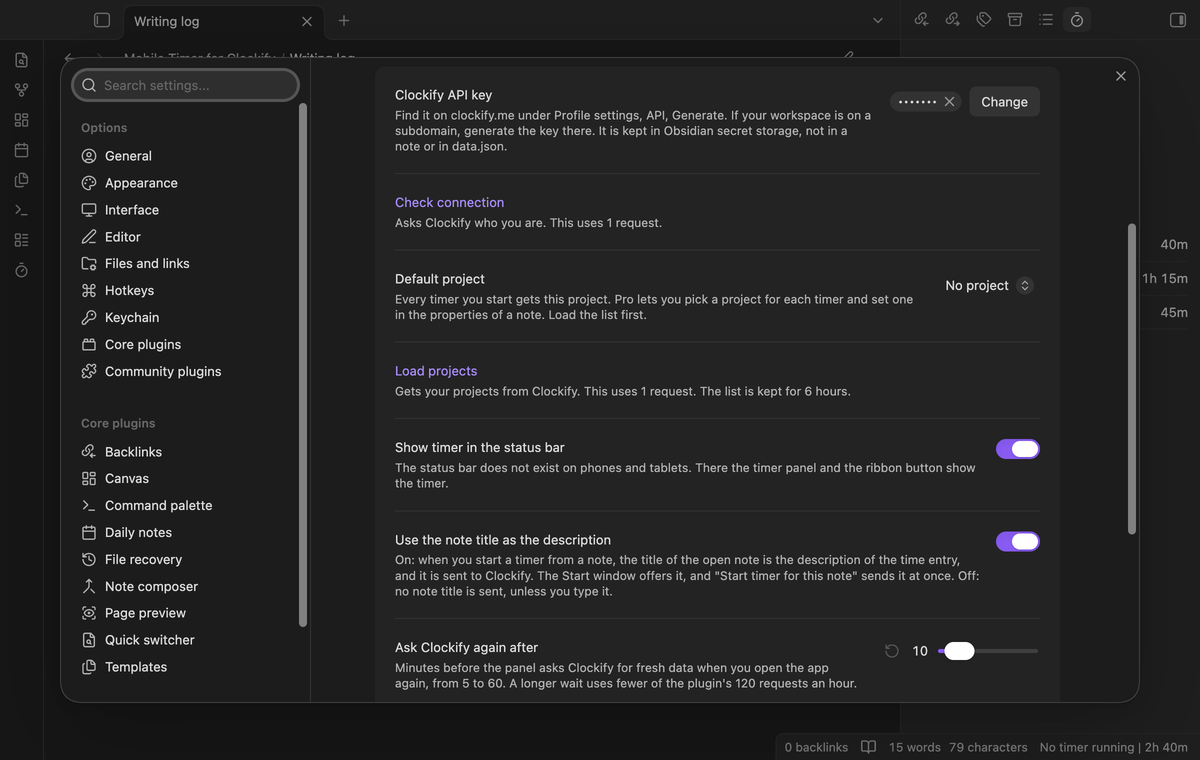
| Setting | Default | Allowed values |
|---|---|---|
| Show timer in the status bar | On | On or off (desktop only) |
| Use the note title as the description | On | On or off |
| Ask Clockify again after | 10 minutes | 5 to 60, in steps of 5 |
| Week starts on | Monday | Monday or Sunday |
FAQ
Does it work on a phone?
Yes. The code uses no Node module and the manifest allows mobile. The screenshots show desktop.
Which entries does the day total count?
All entries that start yesterday or today, cut at midnight of your local time. A timer that started before yesterday shows after "Refresh timer". The plugin uses your default Clockify workspace.
Does the key sync to my other devices?
No. Obsidian keeps secrets on the device. Paste the key on each device.
Payment, account and network
The core features are free and stay free. Pro features need a GitHub Sponsors sponsorship of theluckystrike: $5 a month or more, or $15 once. When you have paid $15 in total, Pro stays on. Your notes stay readable and editable with or without Pro.
GitHub handles the payment. Sponsor at https://github.com/sponsors/theluckystrike. You need a Clockify account for every feature, free or Pro. Pro also needs the GitHub account that sponsors.
Mobile Timer for Clockify talks to Clockify through its public API at https://api.clockify.me/api/v1, only after you save a Clockify API key in the settings. It stays in the secret storage of Obsidian on this device, not in data.json or in a note. Each request carries it in the X-Api-Key header. When you start, stop, edit or delete a timer, the plugin sends the time entry data the call needs: the description, the project id, the tag ids, the start and end time, and, on an edit, the task id and the billable flag. The workspace id, the user id and the entry id are in the address of the request. When you start a timer from a note, the title of the note becomes the description and is sent to Clockify. That happens when you run "Start timer for this note", and when you select Start in the Start window, which opens with the title in its box. The title is the file name without the folder and the extension, cut at 120 characters. Turn off "Use the note title as the description" to send no title. The plugin sends no note content, no folder path and no other vault data, and it has no telemetry. It reads your name, user id, default workspace, projects, tags, running timer and time entries from Clockify when Obsidian opens, when you return to the app or go online, when you open the panel, when you select Refresh, Check connection or Load projects, and when a report block draws. With Pro it also reads when you open the Start window. Each request shows Clockify your IP address. The plugin keeps a copy of your recent entries, projects, tags and queued changes in data.json in your vault. Mobile Timer for Clockify is an unofficial plugin. It is not affiliated with, made by or approved by Clockify or CAKE.com. Clockify is a mark of its owner.
Until you select "Sign in with GitHub" in the settings, Mobile Timer for Clockify sends nothing to GitHub. Sign in uses the GitHub device flow. Mobile Timer for Clockify sends its public client ID and the scope read:user to https://github.com/login/device/code and shows you a code. While you enter the code at https://github.com/login/device, it asks https://github.com/login/oauth/access_token every few seconds whether sign in is done. The scope read:user is read-only access to your profile, which GitHub needs to show the sponsorship tier. It gives no access to repositories and no write access.
After sign in, Mobile Timer for Clockify sends one query to https://api.github.com/graphql: does the signed-in account sponsor theluckystrike, at which tier, and how much it has paid theluckystrike in total. It asks again at most once every 7 days, or when you select Refresh. It sends no note content, file names or other vault data to GitHub, and it has no telemetry.
Pro keeps working for 14 days without a successful check. The GitHub token stays in the secret storage of Obsidian on this device. It is not written to data.json or other vault files, so it does not sync or reach a git repository. The local storage of this device keeps your GitHub login, the tier and the time of the last check. Sign out deletes the token. You can also revoke the access in your GitHub settings, under Applications.
Support
Report a bug or ask for a feature in the issue tracker of this repository. To support the work, use GitHub Sponsors.
npm ci
npm run build
npm test
License
MIT