Search...Search plugins and themes...
⌘K
Sign in
  • Get started
  • Download
  • Pricing
  • Enterprise
  • Account
  • Obsidian
  • Overview
  • Sync
  • Publish
  • Canvas
  • Mobile
  • Web Clipper
  • CLI
  • Learn
  • Help
  • Developers
  • Changelog
  • About
  • Roadmap
  • Blog
  • Resources
  • System status
  • License overview
  • Terms of service
  • Privacy policy
  • Security
  • Community
  • Plugins
  • Themes
  • Discord
  • Forum / 中文论坛
  • Merch store
  • Brand guidelines
Follow us
DiscordTwitterBlueskyThreadsMastodonYouTubeGitHub
© 2026 Obsidian

Cleaning Service

dpvprodpvpro43 downloads

Performs cleanup tasks on the vault.

Add to Obsidian
  • Overview
  • Scorecard
  • Updates13

This plugin helps keeping the vault under control, by possibily removing the following resources.

Orphan files

These are media or attachments that are not referenced anywhere. Cleaning service looks also in frontmatters (for example for annotation-target or similar)

Empty files

These are files either empty or consisting only of whitespace (newlines, tabs, and so on)

Empty directories

Cleaning service can identify and remove empty directories from your vault. A directory is considered empty if it contains no files and only contains other empty directories (or no subdirectories at all). This helps keep your vault structure clean by removing unnecessary empty directories.

Big files

You can specify a limit size and Cleaning service will prompt you delete big files. Use it at your own risk. By default Cleaning service will prompt if about to delete a big file, even if the "ask confirmation" setting is disable.

Expired notes

Cleaning service uses an approach similar to Obsidian Expiring Notes in which a (configurable) attribute is looked for in the frontmatter in order to set an expiration date to notes. For Example:

---
expires: 2022-09-01
---

Cleaning service also comes with utilities command used to easily set expiration date into notes.

Excluded files

Cleaning service can exclude files that are excluded by Obsidian (Settings->Files & Links->Excluded files) but users can also specify different criterias for exclusions (for example based on file extension or path).

How to run

Cleaning service could be set to run at startup. If "ask confirmation" is set, it will prompt the user with a confirmation dialog. User can select which files to delete and which action to perform (trash in Obsidian, trash in OS or delete permanently).

Cleaning service scan can also be launched from a ribbon button or from commands.
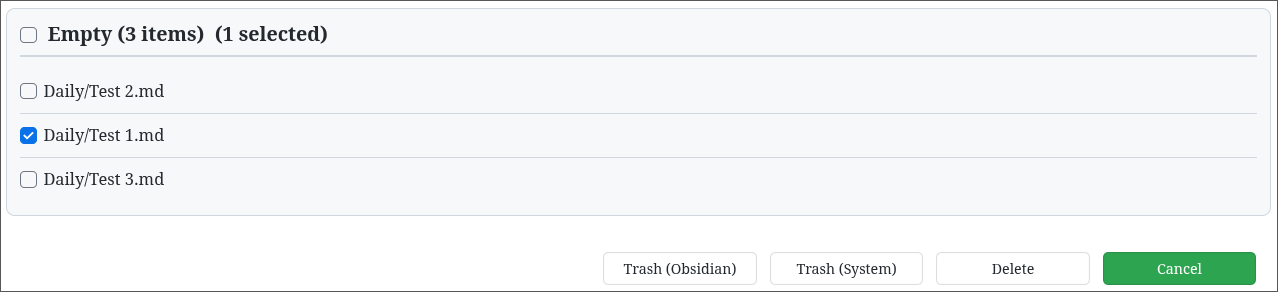
Scan Result Dialog

Copyrights

This plugin is fork obsidian-janitor.

92%
HealthExcellent
ReviewSatisfactory
About
Clean and prune your vault by finding and removing orphan attachments, empty files, empty directories, oversized files, and notes expired via a frontmatter date. Exclude files by Obsidian rules or custom patterns, run scans on demand or at startup, review results, and choose trash or permanent deletion.
FilesAttachmentsFolders
Details
Current version
1.8.2
Last updated
6 days ago
Created
8 months ago
Updates
13 releases
Downloads
43
Compatible with
Obsidian 1.6.6+
Platforms
Desktop, Mobile
License
MIT
Report bugRequest featureReport plugin
Author
dpvprodpvpro
github.com/dpvpro
GitHubdpvpro
  1. Community
  2. Plugins
  3. Files
  4. Cleaning Service

Related plugins

Flexplorer

Enhance the file explorer with custom sorting, pinning, and hiding.

Custom File Explorer sorting

Manual or automatic config-driven reordering and sorting of files and folders in File Explorer.

Multi Properties

Add properties to multiple notes at once. Either right-click a folder or select multiple notes and right-click the selection.

File Explorer Note Count

See the number of notes in each folder within the file explorer.

Create Note in Folder

Add commands to create a note in a specific folder.

File Tree Alternative

An alternative file tree view with separate folder and file panes.

Janitor

Perform cleanup tasks on your vault.

Quick Explorer

Perform file explorer operations (and see your current file path) from the title bar, using the mouse or keyboard.

Custom Attachment Location

Customize attachment location with variables($filename, $data, etc) like Typora.

Trash Explorer

Restore and delete files from the Obsidian .trash folder.