Class Timetable
 Elliott Park191 downloads
A weekly class timetable and course schedule for students, in the sidebar on desktop and mobile. Times live in your notes' frontmatter, so moving or renaming folders never breaks them.
- Overview
- Scorecard
- Updates4
A weekly class timetable and course schedule in the sidebar, on desktop and mobile. And a way into the notes behind each class.
Class times are stored in your notes' own frontmatter, not in plugin settings. Rename a folder, move a note, or edit the YAML by hand: the timetable follows. Nothing lives in a place Obsidian can't see.
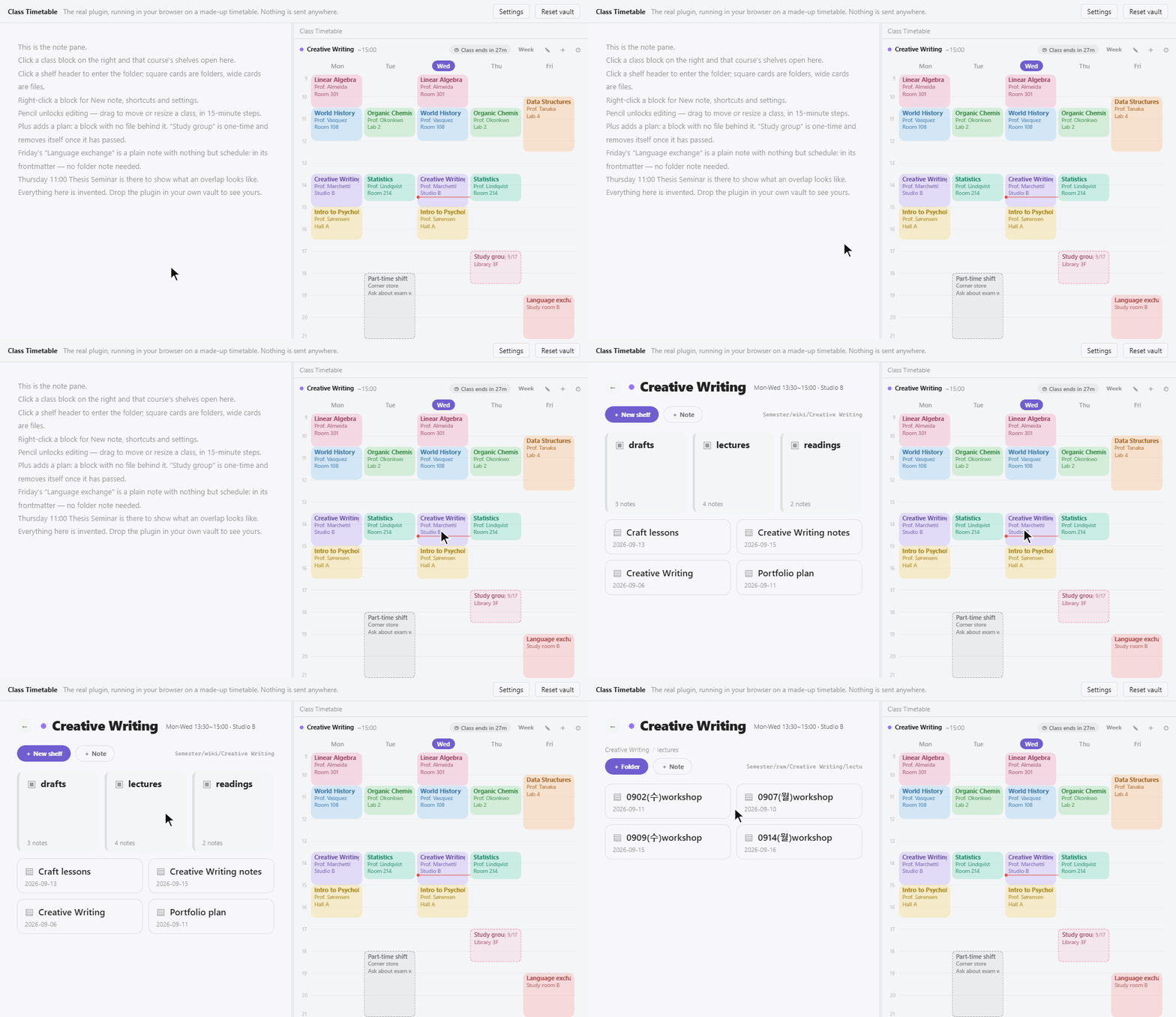
▶ Try it in your browser — no install
The real plugin, on a made-up timetable. Drag a class to move it, click one to
open its shelves, switch the language — it runs the same main.js the release
ships, not a mock-up of it. Nothing is uploaded and no network request is made.
Or install Class Timetable from Settings → Community plugins.
What it does
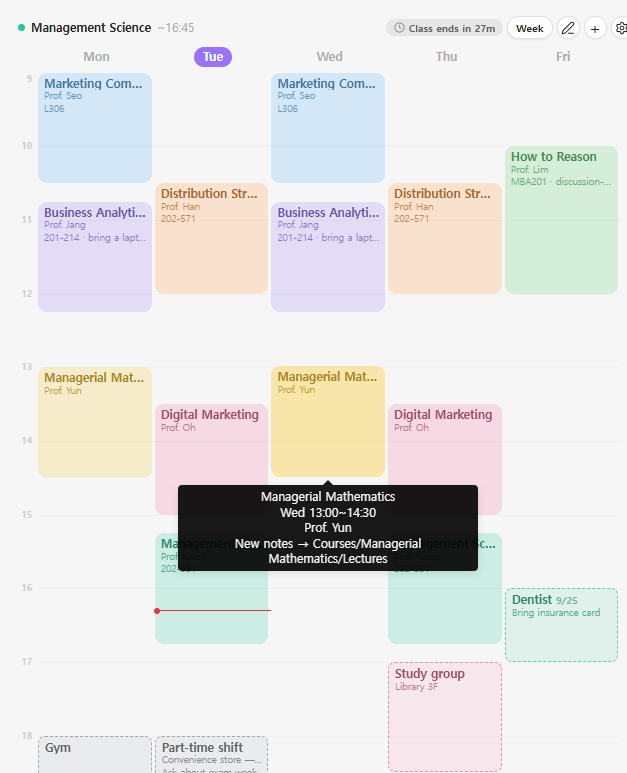
A timetable in the sidebar. Real clock times on the vertical axis, not period numbers. Overlapping classes split the column instead of hiding each other. The current time is marked, and the top bar counts down to the end of the class you're in — or to whatever comes next. When the day is done it says so instead of counting.
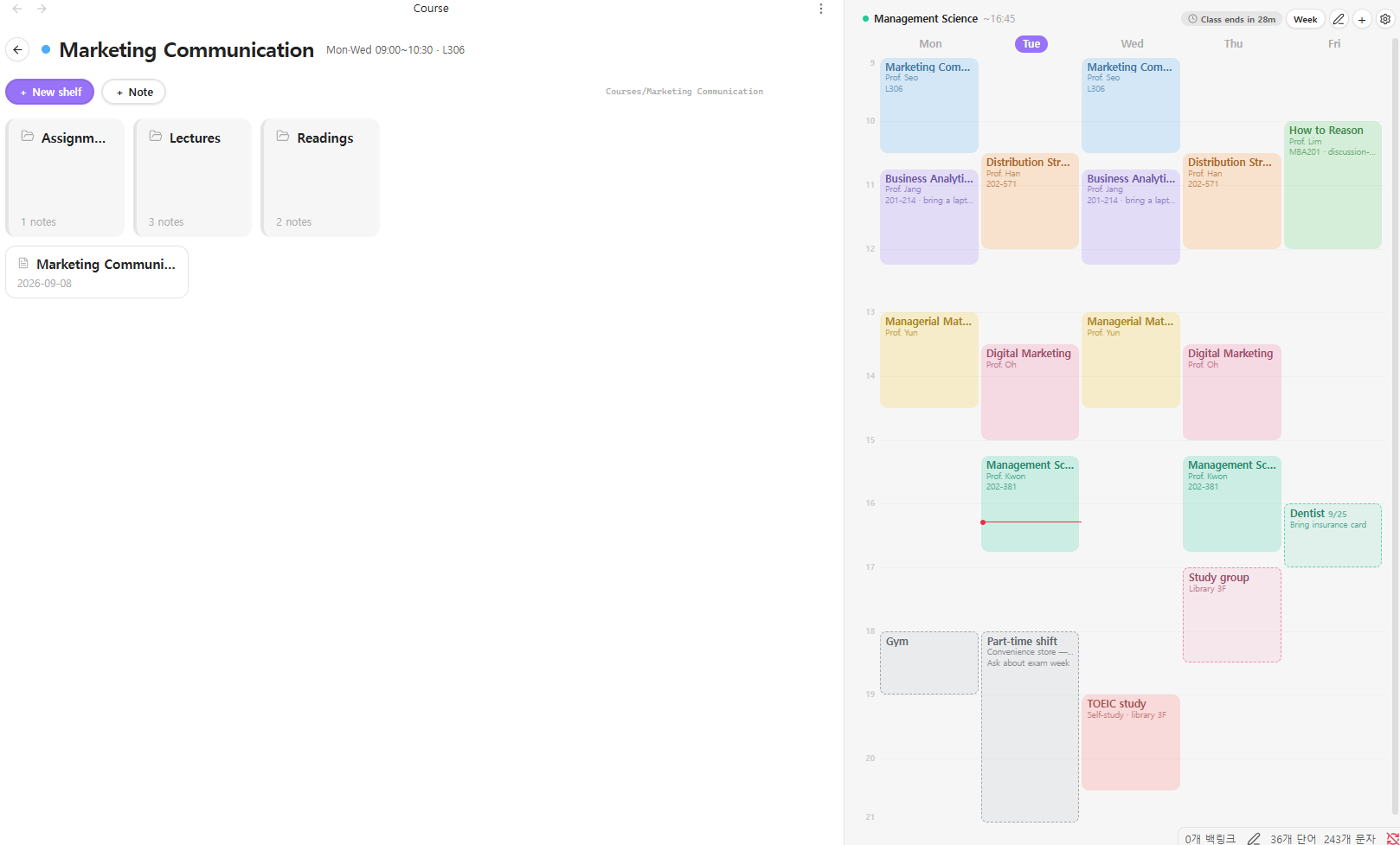
Click a class, get its shelves. Obsidian can't "open a folder", so the plugin opens a view of one: the folders belonging to that class, laid out like a bookshelf. Square cards are folders, wide cards are files. Create, rename and delete them right there — names are typed in place, on the card itself.
Start today's note in one step. Right-click a class → New note. The file name and body come from a template you define ({{course}}, {{date:MMDD}}, {{dow}}, {{week}} …). If today's note already exists, it opens instead of being overwritten.
Plans, without files. Some things don't deserve a note — a shift, a study group, a dentist appointment. Add them straight onto the grid. A one-time plan carries the date it disappears on, and removes itself once that time has passed.
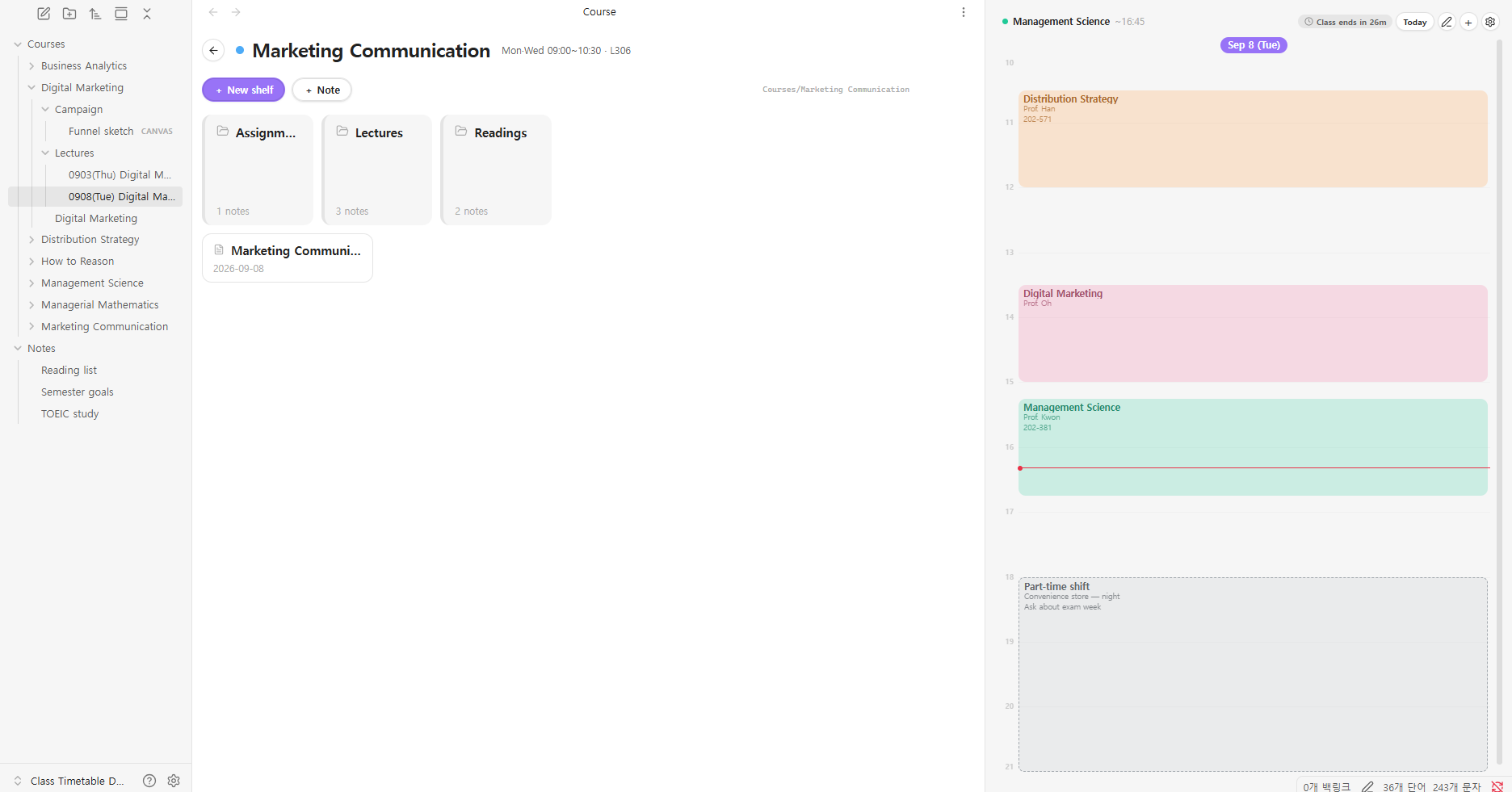
One day at a time, when you want it. Switch between the whole week and today alone.
Four languages. English, 한국어, 中文, 日本語 — switchable at runtime, no restart. What gets written to your files never changes with the language: weekdays are always stored as 월 화 수 목 금 토 일, only the display is translated.
How a class is defined
Any note with a schedule: field becomes a class. That's the whole contract.
---
schedule:
  - 월 10:30-12:00 @ Room 301
  - 수 10:30-12:00 @ Room 301
---
Everything else is optional:
| Key | What it does |
|---|---|
title |
Name shown on the block (defaults to the file or folder name) |
subtitle |
Small line under the name. Line breaks are kept |
notes |
Folder new notes are created in. Follows the folder if you move it |
shortcuts |
Files pinned to the top of the right-click menu |
color |
Block color. Omit it and one is picked from the palette |
semester |
Filter, so last term's classes can stay in the vault |
Times are read generously: 월, 월요일, mon, m, 月, 一 all work, as do 9, 9:00, 09:00 and 0900.
Getting started
- Open the timetable from the ribbon (calendar icon) or the command palette.
- Click the pencil to unlock editing, then drag on an empty cell to add a class. Editing is locked by default so a stray click can't move your week.
- Pick the note or folder the class belongs to. The times are written into that note's frontmatter.
- Click a class block to open its shelves; right-click for notes, shortcuts and settings.
In Settings you can point the plugin at one or more course folders so it only scans those, set the current semester, and edit templates. The gear in the timetable's top bar holds the display options: language, theme, and the hours the grid shows.
Editing
| Left click | Open the class's shelves (Ctrl/Cmd for a new tab) |
| Right click | Menu — new note, shortcuts, edit class, shelves |
| Pencil → drag | Move a class, or drag its edge to resize. 15-minute steps |
| Plus → drag | Add a plan on the grid, with no file behind it |
Finer times than 15 minutes are typed in by hand, on purpose — a shaky drag should not produce a class that starts at 11:47.
When a change would overlap another class or plan, a confirmation appears before anything is written, listing everything it collides with. Overlaps found while scanning (someone else's sync, hand-edited YAML) are only outlined in red — no dialog interrupts your typing.
Mouse, touch and pen are all handled, so editing works the same on a tablet.
Install
From the community plugin browser: Settings → Community plugins → Browse → "Class Timetable" → Install.
Manually: download main.js, manifest.json and styles.css from the
latest release,
put them in <your vault>/.obsidian/plugins/class-timetable/, then reload
Obsidian and enable Class Timetable in Settings → Community plugins.
Desktop and mobile both. The timetable is the same on a phone; editing is handled for touch and pen as well as the mouse.
Notes on data
Classes live in your notes. Plans live in the plugin's data.json, since they have no file of their own — which also means they don't sync between devices the way your notes do.
Nothing is ever deleted without asking. Remove from timetable clears only the schedule: field; the note and its folder stay.
The plugin makes no network requests and collects nothing.
한국어
수업 시간표를 옵시디언 사이드바에 상시 띄워 두고, 블록을 누르면 그 수업의 폴더들이 책장처럼 펼쳐집니다. 시간 정보는 플러그인 설정이 아니라 노트의 frontmatter에 저장되므로 폴더를 옮기거나 이름을 바꿔도 깨지지 않습니다.
schedule: 한 줄만 있으면 어떤 노트든 수업이 됩니다. 폴더노트 구조를 쓰지 않아도 되고, 메모 한 장으로 쓰셔도 됩니다.
---
schedule:
  - 월 10:30-12:00 @ 301호
---
화면 언어는 환경설정(톱니)에서 한국어·English·中文·日本語 중에 고르실 수 있고, 파일에 저장되는 요일 표기는 언어와 무관하게 항상 월 화 수 목 금 토 일입니다.
License
MIT