Itinerary
 Adam Coddington11k downloads
Make planning your trip or event easier by rendering a calendar from event information found in your notes.
- Overview
- Scorecard
- Updates9
Planning a vacation or need to otherwise see a set of events on a monthly, weekly, or daily calendar? If so -- obsidian itinerary can help you keep your plans in order.
Quickstart
Imagine you have a document outlining what you want to do during an upcoming trip to Mexico; you could try to keep track of things in text like this:
# Trip to Mexico

Finally a chance to explore again.

## Oaxaca

Hotel: Hotel Fortin Plaza; check-in 5pm on 31 October check-out by 11am on 4 November

### Day of the dead Parade

Noon on November 1st

See more information here: https://thehaphazardtraveler.com/day-of-the-dead-in-oaxaca/

### Flight to CDMX

Volaris Flight 765; 12:31pm on November 10th, landing at 1:49pm

## Mexico City

Hotel: Zócalo Central Hotel; check-in 3pm on November 4th, check-out by 10am on November 10th
Mostly, though, it's up to your reading ability to keep track of what you have planned for each day, and it's really easy to lose track of things and put yourself into a situation where you forgot to book a hotel one night, or maybe had two conflicting events.
Obsidian Itinerary helps with this by letting you specify events and event calendar displays using a simple format; e.g.:
# Trip to Mexico

```itinerary
initialDate: 2021-11-01
```

## Oaxaca

```itinerary-event
title: Oaxaca
allDay: true
start: 2021-10-31
end: 2021-11-04
color: red
```

### Hotel

```itinerary-event
title: Hotel Fortin Plaza
start: 2021-10-31T17:00
end: 2021-11-04T11:00
color: brown
tag:
- hotel
```

**Hotel Fortin Plaza**
Address: Venus 118, Estrella, 68040 Oaxaca de Juárez, Oax., Mexico
Phone: : +52 951 515 7777

### Day of the dead Parade

```itinerary-event
title: Day of the Dead Parade
start: 2021-11-01T12:00
color: blue
tag:
- outing
```

See more information here: https://thehaphazardtraveler.com/day-of-the-dead-in-oaxaca/

### Other Plans

```itinerary-event
title: Drinks with Tom
start: 2021-11-01T19:00
end: 2021-11-01T21:00
tag:
- friends
```

### Flight to CDMX

```itinerary-event
title: Volaris Flight 765
start: 2021-11-04T12:31
startTimeZone: America/Los_Angeles
end: 2021-11-04T13:49
endTimeZone: America/Mexico_City
color: green
tag:
- flight
```

## Mexico City

```itinerary-event
title: Mexico City
allDay: true
start: 2021-11-04
end: 2021-11-08
color: red
```
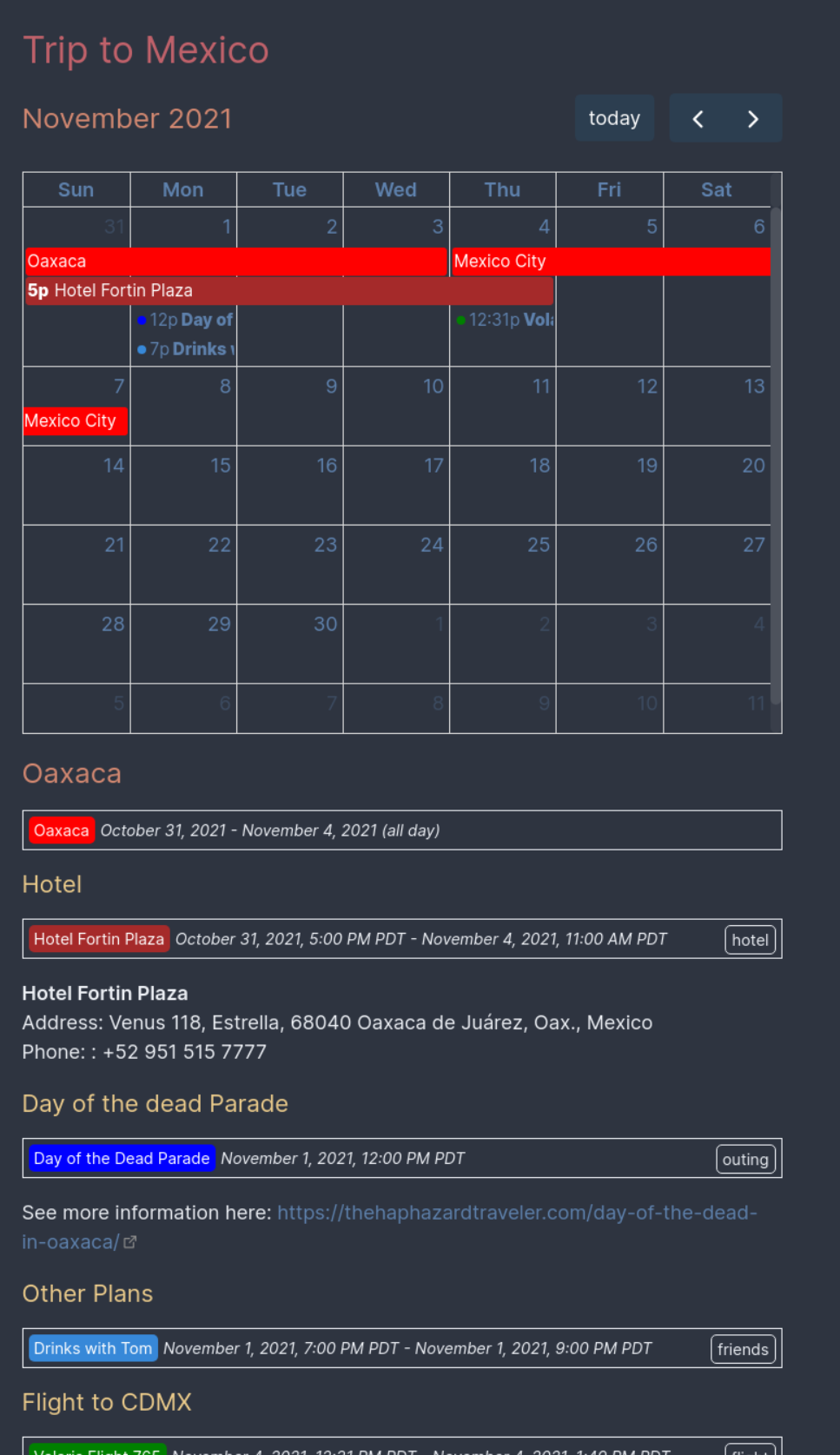
And as a reward for your effort, you can then render calendars for your various plans, e.g:
Inserting events with a form
If you'd rather not remember which fields an event takes, run Itinerary: Insert event from the command palette (or give it a hotkey under Settings → Hotkeys). It opens a form asking for the event's title, start and end, whether it's all-day, the time zones its start and end are in, tags and color, and writes a finished itinerary-event block at your cursor.
- Turning on All day switches the start and end to dates and hides the time zones, which don't apply to whole days.
- For an all-day event, the form asks for the last day the event covers and writes the day after as its
end, since all-dayenddates are exclusive (see "Itinerary Event Options" below). - Both time zones start out as your computer's own, and the end's zone follows the start's until you change it, so only an event that ends somewhere else (a flight, say) needs both set. When they're the same the form writes one
timeZone; when they differ,startTimeZoneandendTimeZone(see "Timezones" below). If you're planning from home for somewhere else, set the start's zone to the destination's. Clear a zone to leave it out, so the time is read in whatever zone the event is displayed in. - The time zone fields suggest zone names as you type (
new yorkfindsAmerica/New_York). - The end can't be before the start, comparing the two in their own zones: a flight that lands at an earlier clock time than it took off is fine.
- The tags field suggests tags already used by events in the same note.
To change an event later, click the pencil button on its summary in your note. The same form opens, filled in with the event's values, and Save rewrites the block where it is.
- Fields the form doesn't show (
url,display,backgroundColor, and any other event option) are kept as they were, after the form's own. Comments in the block aren't kept. - A time written with an offset or zone (
2021-11-01T12:00Z,…+05:30,…[Europe/Paris]) is shown as the same moment on the clock of the event's time zone, or of the zone it was written in if the event has none; saving writes it that way. - A tag containing a comma can't be typed in the tags field, so it isn't shown there, but it is kept.
- If the block changes in the note while the form is open, saving leaves it alone and says so.
Options
While you edit an itinerary or itinerary-event block, the editor suggests the options below as you type a field's name, and some of their values: time zones, true/false, the views initialView accepts, and tags you've already used on events in the same note.
Itinerary Options
You can specify the following options for displaying your itinerary:
source: A link to the note (or a list of links to the notes) to gather events from, e.g."[[My Vacation Plans]]". Links resolve exactly as they do elsewhere in Obsidian, so a note's name is usually enough even if it lives in a subfolder. Defaults to events found in the same note the calendar is rendered in. This field also accepts a path relative to your vault root (e.g.Trips/Mexico.md) instead of a link, but a link is recommended since the editor can autocomplete it. A path may name a note you haven't created yet: the itinerary says so below the calendar, and shows the note's events once it exists. If you rename or move a source note, open itineraries follow it, but Obsidian doesn't update links inside code blocks, so update thesourcetoo.filter: A list of filter expressions (see "Expressions" below) or a single filter expression to use for limiting which events will be displayed. If unspecified, all events found in the selected sources will be included.debug: Iftrue, prints some debugging information below your rendered itinerary: which event rules each event matched and which options each rule set, which events each filter let through or left out (and why), and any calendar options that were translated for FullCalendar 7.rules: Iffalse, the vault's event rules (see "Event rules" below) don't apply to this itinerary, so its events are shown exactly as written. Defaults totrue.
In addition to the above, you can provide any options described in FullCalendar's documentation (this plugin uses FullCalendar 7). Date format options accept either FullCalendar's format objects or Luxon format strings such as titleFormat: "MMMM yyyy". Particularly useful properties include:
initialDate: The date to focus on your calendar. This can be useful for displaying a different month than your current date, for example. Defaults to the current date.initialView: What kind of calendar to show; by default, adayGridMonthview will be shown, but the options include:- For display of dates in a calendar grid (see https://fullcalendar.io/docs/daygrid-view)
dayGridMonth: Shows a whole calendar month.dayGridWeek: Shows a single week.
- For displaying a time grid (see https://fullcalendar.io/docs/timegrid-view)
timeGridWeek: Shows a time grid for a whole week.timeGridDay: Shows a time grid for a single day.
- For a simple list display (see https://fullcalendar.io/docs/list-view)
listYear: For a whole year.listMonth: For a single month.listWeek: For a single week.listDayFor a single day.
- For display of dates in a calendar grid (see https://fullcalendar.io/docs/daygrid-view)
Itinerary Event Options
You can specify the following options for events:
title: (Required) A name for your event.start: (Required) An ISO timestamp representing your event's start time.end: An ISO timestamp representing your event's end time. For all-day events, this date is exclusive: an event withstart: 2021-10-31andend: 2021-11-04covers October 31st through November 3rd.timeZone,startTimeZone,endTimeZone: The time zone your event's times were written in; see "Timezones" below.tag: A single string tag or list of tags to associate with this event. These are useful for specifically marking things like flights or hotel stays so you can generate calendars showing only one kind of event.hidden: Iftrue, this event will not be rendered individually in your notes where you've specified your event, and instead will appear only on relevant itineraries. Defaults tofalse.order: A number deciding where this event is drawn among the other events on the same day: lowest first, with events that have noorderlast. See "Ordering calendar events" below.
Additionally, you can provide any options described here: https://fullcalendar.io/docs/event-parsing; particularly useful properties include:
color: For marking your events in a particular color. You can also setbackgroundColor,borderColorandtextColorseparately; the calendar draws events inbackgroundColorwithtextColortext, and the event summaries in your notes use all three.allDay: For marking your event as an "all-day" event. An event whosestartandendare dates without times is all-day even if you leave this out.
You can add fields of your own, too (to filter on, say); they're shown to filters like any other option.
Mistakes the event summary points out
Where an event block is rendered in your note, it points out likely mistakes. These show up even for hidden events, which would otherwise go unnoticed.
Errors replace the event's summary, since the event can't appear on any calendar:
- There is no
start(unless the event uses FullCalendar'sdateinstead, or recurs withdaysOfWeek,startTime,startRecurand friends). - The
start(ordate) can't be read as a date, such asstart: next tuesday. Write it as an ISO date or time:2021-11-01or2021-11-01T12:00.
Warnings appear in a small line under the summary; the event still appears on calendars:
- A field that looks like a misspelling of a known one, such as
colour,tags,timezoneortitel. Fields that don't resemble a known one are left alone, since they may be your own. - There is no
title, so the event is called "Untitled event". - The
endisn't after thestart(for an all-day event, is before it), so calendars ignore theend. - A
start,endordatelike20211101or2021without quotes, which YAML reads as a number, and so as milliseconds since 1970. Quote it ('20211101') to mean the date.
Recurring events (daysOfWeek, startTime, startRecur and friends) skip the checks on start, end and date, since FullCalendar ignores those for them.
- Only one of
startTimeZoneandendTimeZoneis set, so the other time is read in the event'stimeZone, or the itinerary's time zone if it has none.
Expressions
This library uses filtrex for expression evaluation; see their documentation to see more information about the expression syntax and what functions are available: https://github.com/cshaa/filtrex#expressions.
Any of an event's options can be used in an expression. An option an event doesn't set is simply empty: tag is always treated as a list (so "hotel" in tag works whether an event has one tag, several, or none), allDay and hidden default to false, and anything else reads as empty.
A few things worth knowing about the syntax:
<,<=,>and>=compare two numbers or two pieces of text; since dates are written as ISO text,start >= "2021-11-01" and start < "2021-11-02"picks out a single day's events.tag == "hotel"matches an event whose only tag ishotel; use"hotel" in tagto match any event taggedhotel, andempty(tag)to match untagged events.not,andandorneedtrue/falsevalues, sonot coloris an error for an event without a color, andnot tagis an error for every event; use"hotel" not in tag, or a baretagto pick out tagged events. Withdebug: true, the itinerary explains why each event was left out.
See "Filtering events based upon tag" for an example of a filter expression in action, but realistically they work exactly as you'd probably expect.
Event rules
If you'd like every hotel to be the same color, or always listed first on its day, you don't have to set color or order on each one: add an event rule in the plugin's settings instead. Each rule has:
a name, shown in the settings and in an itinerary's
debugoutput;a "When" expression (see "Expressions" above) picking out the events it applies to, e.g.
"hotel" in tag;the event options to "Set" on those events, written as YAML, e.g.:
color: brown
order: 1
Rules apply to every event in your vault, both on itineraries and in the event summaries shown in your notes. A few things to know about how they combine:
- Every rule's expression is matched against the event as you wrote it, so one rule can't make another one match (a rule matching
color == "brown"won't see a color another rule set). - Every matching rule applies, not just the first. Where two rules set the same option, the one higher in the list wins; drag rules to reorder them.
- Options written in an event always win over rules, option by option: an event with
color: redstays red, but still gets itsorderfrom a rule. - Options are merged as a JSON Merge Patch. Since the event's own options win, a list (like
tagorclassNames) set by a rule only applies to events that don't set that list themselves; a rule can't add to an event's list, so it can't add a tag. - A rule's options mean what they mean in an event:
colorsets the background and border colors, andhidden: nois the same ashidden: false. A rule can't settitle,start,endor the time zones, since those are read before any rule applies, and a rule'sallDaydoesn't change an event whose times are dates (those are always all-day unless the event says otherwise). - Setting an option to
null(color: ~) removes it, as long as the event itself doesn't set it, so a rule can undo a lower rule's option. - An itinerary's
filters see events after rules have applied, so you can filter on a color or order a rule set.
To see a calendar without rules, set rules: false on that itinerary.
Tips
Rendering information for a single day
Say that you have a particularly complicated day that you'd like to render to make sure you've left yourself enough time between things:
```itinerary
initialDate: 2021-11-01
initialView: listDay
```
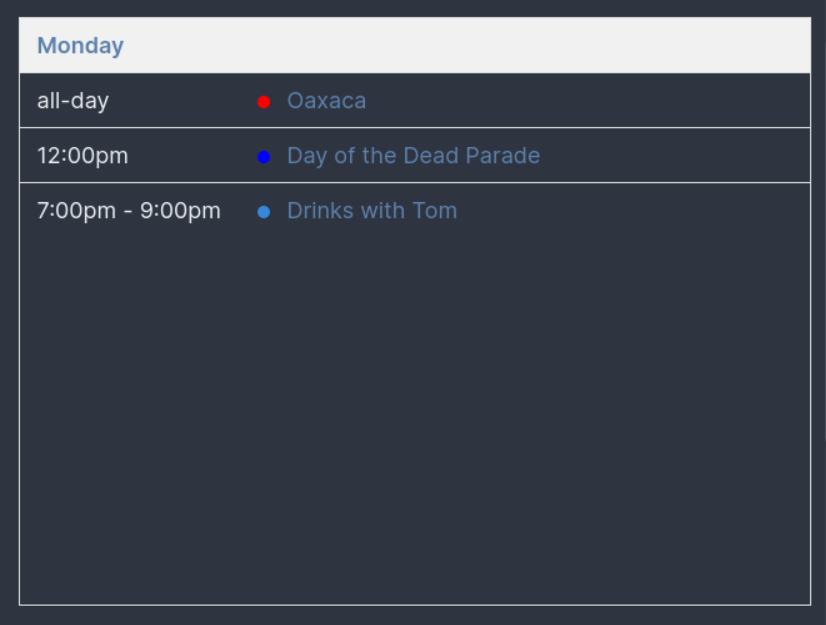
Try using timeGridDay, too!
Rendering a span of time that isn't a week or day
Imagine that you're going to be in some particular place for exactly four days; with the default dayGrid or weekGrid views, you'd have either not all of the relevant events displayed or you'd have many blank days shown. You can instead render a particular number of days easily by using the duration option:
```itinerary
initialDate: 2021-10-22
initialView: dayGrid
duration:
  days: 4
```
This option works for several of the grid options; try timeGrid, too, if you need more detail.
Filtering events to show only all-day events
This is particularly easily done since allDay is an event property:
```itinerary
filter:
- allDay
```
Filtering events based upon tag
You can filter events based upon what tags are available easily, for example:
```itinerary
filter:
- '"hotel" in tag'
```
or
```itinerary
filter:
- '"hotel" not in tag'
```
Note that the single quotes surrounding the whole expression are necessary given that this is a YAML document, and YAML documents have some parsing rules that make this just slightly awkward.
Timezones
Itineraries and events are timezone-aware and will by default interpret your events and display your itineraries using your local timezone. You can, though, override that easily.
Itinerary
If you're planning a proper adventure, you might be far from home for part of your trip, and might want a particular itinerary to be displayed in that locale's timezone. To do that, you can use the timeZone property; e.g.:
```itinerary
initialDate: 2021-10-21
timeZone: America/Los_Angeles
```
If you provide the timeZone option, all events' displayed times will be shifted to be shown in local time of the timezone you've provided.
Event
If your event is occurring far from home, you might want to specify a timezone to interpret the dates/times in:
```itinerary-event
title: New Years Eve Celebration
start: 2021-12-31T18:00
end: 2022-01-01T04:00
timeZone: America/New_York
```
When flying any significant horizontal distance around the globe, you're likely to cross some timezone boundaries during a particular event. If you have events that have differing start/end timezones, you can use the startTimeZone and endTimeZone options, e.g.:
```itinerary-event
title: PDX->YUL (AC 8653, AC 308)
start: 2022-08-07T10:30
startTimeZone: America/Los_Angeles
end: 2022-08-07T20:49
endTimeZone: America/Montreal
```
These specified time zones will be interpreted preferentially over a specified timeZone for your event; you probably want to provide either a timeZone or a startTimeZone/endTimeZone pair, though.
Hiding (or changing) the header toolbar
Maybe you don't want to see the toolbar above your rendered calendar?
```itinerary
headerToolbar: false
```
By default, itineraries show the calendar's title on the left and "Today", previous and next buttons on the right. See https://fullcalendar.io/docs/headerToolbar for how to arrange it differently.
Ordering calendar events
Perhaps you're printing some types of events on a monthly calendar:
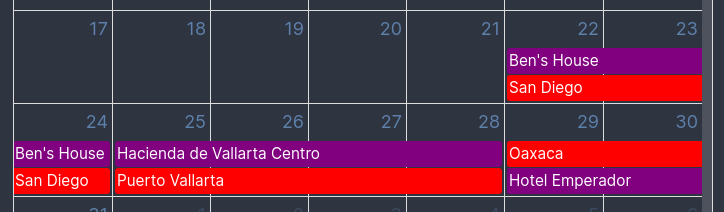
and would rather that the events be displayed in a consistent order:
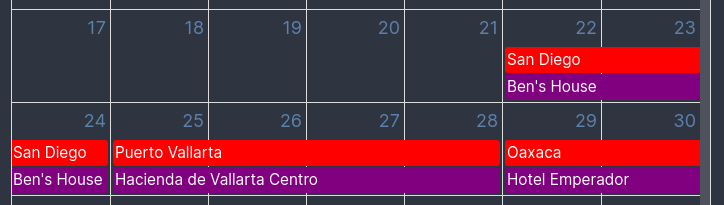
The simplest way is to give your events an order. Within a day, events are drawn lowest order first; events without an order come after all the ones that have one (so a negative order puts an event ahead of everything else), and events with the same order (or none) fall back to the calendar's usual ordering: by start time, then longest first, then all-day events, then by title.
```itinerary-event
title: Hotel Nikko
start: 2021-11-01
end: 2021-11-04
order: 1
```
Itineraries always follow this order exactly, even where the calendar could fit events more compactly by moving later ones up into gaps, so the same kinds of events stay in the same place day to day. Rather than setting order on every event, you can set it for a whole kind of event at once with an event rule; see "Event rules" above.
If you'd rather sort by something else, set the itinerary's eventOrder option, which replaces the ordering above (including order, unless you list it) for that itinerary:
```itinerary
eventOrder: start,color
```
This will suggest to the calendar that you'd like your events ordered first by their start time, and secondarily by their color. An itinerary with its own eventOrder still follows it strictly, but you can let the calendar ignore your ordering where it can arrange events more compactly by setting eventOrderStrict: false; an itinerary that sets eventOrderStrict itself always gets its own setting:
```itinerary
eventOrder: start,color
eventOrderStrict: false
```
The calendar compares order like any other field you name in eventOrder (e.g. eventOrder: order,start), except that it treats an order of 0 the same as no order at all.
See FullCalendar's docs covering this for more details.
Upgrading from version 1
Version 2 of this plugin moves from FullCalendar 5 to FullCalendar 7, which renamed or removed a number of calendar options. Itineraries you've already written should keep working:
- Options FullCalendar renamed (for example
slotLabelFormat, nowslotHeaderFormat, oreventBackgroundColor, noweventColor) are translated to their new names, andbuttonTextis folded into the newbuttonsoption. Options FullCalendar removed are ignored. Adddebug: trueto an itinerary to see what was translated. - The header toolbar is still shown unless you hide it, even though FullCalendar 7 hides it by default.
A few things do behave differently:
- The calendar looks somewhat different, and takes its colors from your Obsidian theme. Events without a
colorof their own are drawn in the itinerary'seventColorif it sets one, or your theme's accent color, instead of always blue. - An event's
borderColornow only affects the event summary in your note; FullCalendar 7 draws each event in a single color. - Renamed options that only make sense with custom CSS (those ending in
ClassNames), andnowIndicatorContent(which FullCalendar 7 split in two), are not translated; see FullCalendar's upgrade guide. - An event whose times are all dates (
start: 2021-11-04,end: 2021-11-08, noallDay) now counts as all-day in filters, matching how the calendar has always drawn it:filter: allDayincludes it andnot allDayleaves it out. - The summary shown where you wrote an all-day event names the last day the calendar draws it on. FullCalendar treats an all-day event's
endas exclusive, so an event ending on November 4th is described as running through November 3rd. - An event whose
startandendare dates without times is drawn as all-day even when it has atimeZone; version 1 drew it as a timed event starting at midnight in that zone. AddallDay: falseto keep the old behavior. - Filters are stricter about types; see "Expressions" above. In particular, a
startorendwritten as a number (milliseconds since 1970) is now compared as an ISO date, so a filter comparing it with a number no longer matches. - The plugin now requires Obsidian 1.13.1 or newer.
Styling
The calendar takes its colors from your Obsidian theme through FullCalendar's --fc-classic-* CSS variables. To change them with a CSS snippet, set them on .itinerary-calendar, .itinerary-popover, .itinerary-event (the popover is the "+N more" list; .itinerary-event is an event's summary in your note), e.g. --fc-classic-today: rgba(255, 200, 0, 0.1).
Development
You'll need Node.js 22 (see .tool-versions).
npm ci
npm run dev        # rebuild main.js on every change
npm test           # unit tests
npm run lint
npm run typecheck
npm run build      # production build
To try a build out, copy main.js, manifest.json and styles.css into .obsidian/plugins/obsidian-itinerary/ in a test vault.
Thanks
This is all built upon the excellent FullCalendar javascript library. If you want to give somebody thanks for the nice rendered calendars, they're the folks who deserve that.