Search...Search plugins and themes...
⌘K
Sign in
  • Get started
  • Download
  • Pricing
  • Enterprise
  • Account
  • Obsidian
  • Overview
  • Sync
  • Publish
  • Canvas
  • Mobile
  • Web Clipper
  • CLI
  • Learn
  • Help
  • Developers
  • Changelog
  • About
  • Roadmap
  • Blog
  • Resources
  • System status
  • License overview
  • Terms of service
  • Privacy policy
  • Security
  • Community
  • Plugins
  • Themes
  • Discord
  • Forum / 中文论坛
  • Merch store
  • Brand guidelines
Follow us
DiscordTwitterBlueskyThreadsMastodonYouTubeGitHub
© 2026 Obsidian

Chenggao

ryyairyyai50 downloads

Preview Notes-style cards and WeChat articles beside the current Markdown note.

Add to Obsidian
  • Overview
  • Scorecard
  • Updates3
Chenggao icon

Obsidian desktop plugin. Keep writing Markdown on the left; preview Twitter-style cards or a WeChat article on the right. Edits update the preview as you type.

中文说明见 README.zh.md. The in-app UI follows the Obsidian language (Chinese when it starts with zh, otherwise English).

  • Cards: paginated Twitter-style cards (1728×2304)
  • Article: WeChat-style preview you can copy into the official editor
  • Export: PNGs go to a sibling 图片/ folder; article HTML can be saved as .wechat.html

Preview

Left: keep writing in Obsidian. Right: Chenggao updates as you type.

Cards paginates the note into Twitter-style images.
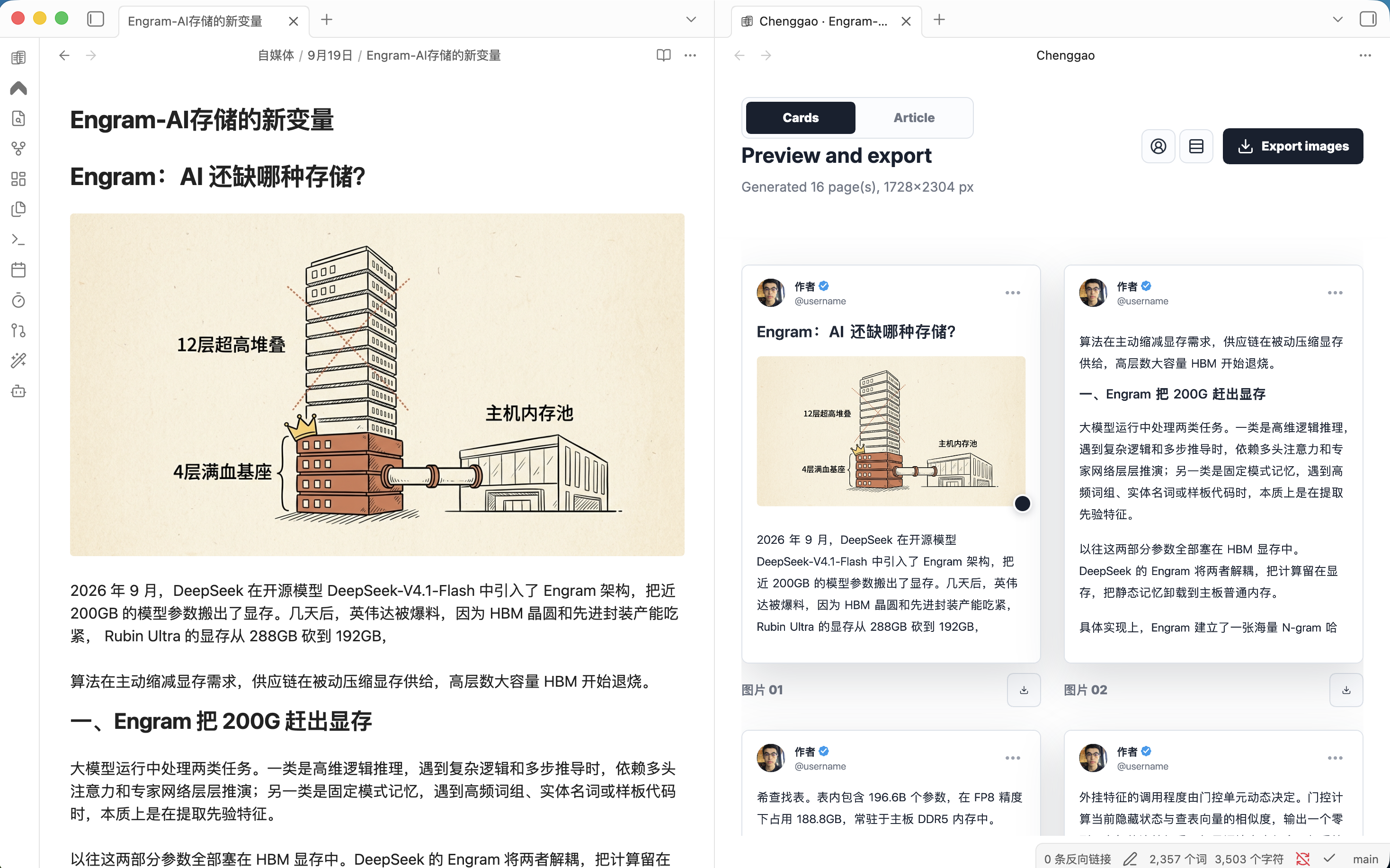
Chenggao Cards mode: Obsidian note on the left, paginated Twitter-style cards on the right

Article shows a WeChat-style long preview you can copy into the official editor.
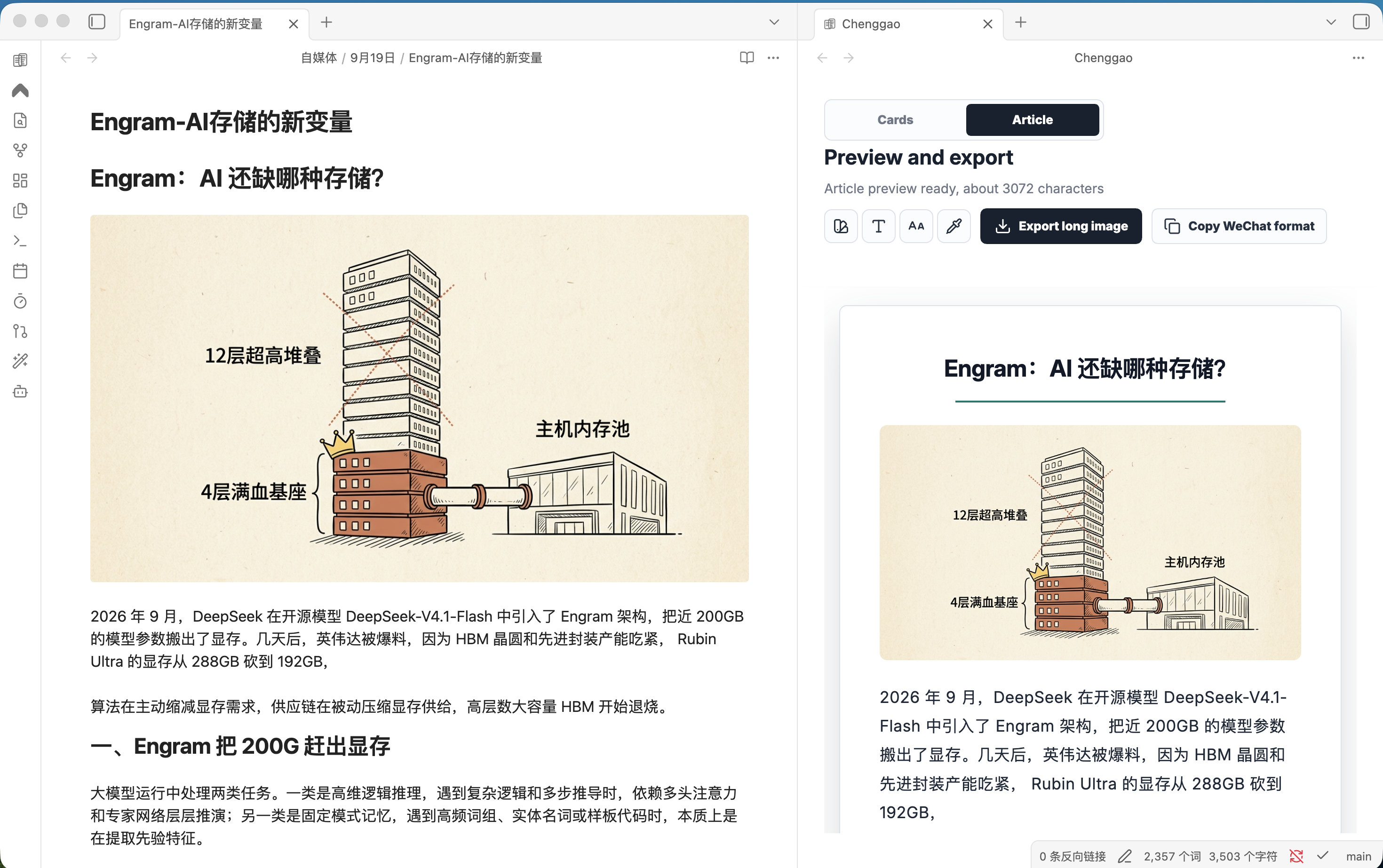
Chenggao Article mode: Obsidian note on the left, WeChat-style article preview on the right

Install

Until it is listed in the community directory, install from this repository.

Build:

git clone https://github.com/RYYAI/Chenggao.git
cd Chenggao
npm install
npm run build

Copy these files into your vault:

.obsidian/plugins/chenggao/
  manifest.json
  main.js
  styles.css

Then enable Chenggao under Settings → Community plugins. Details: install.

Usage

  1. Open a Markdown note
  2. Click the Chenggao ribbon icon, or run Chenggao: Open layout preview
  3. Switch Cards or Article in the preview
  4. Edit the note; the preview refreshes automatically
Command What it does
Open layout preview Open preview beside the current note
Copy WeChat article format Copy WeChat-ready rich text
Export images next to the note Export PNG pages or a long image

Right-click a note title and choose Open with Chenggao. More: usage.

Export paths

Relative to the current note:

Output Path
Card page N 图片/<note>-01.png
Article image 图片/<note>-长文.png
WeChat HTML <note>.wechat.html

Desktop only.

Privacy

Chenggao does not require an account and does not contact remote servers. There is no telemetry. Copying a WeChat article uses the system clipboard. Exporting writes images and optional HTML into the current vault.

Develop

npm install
npm run dev

Source lives in src/. Reload the plugin after a rebuild. See develop.

Libraries

The release bundle includes html2canvas (MIT), JSZip (MIT or GPLv3), and Lucide (ISC).

License

MIT

HealthExcellent
ReviewRisks
About
Preview Twitter-style paginated cards and a WeChat-style article beside your Markdown while you edit, with the right pane updating live. Export card pages as PNGs into a sibling 图片/ folder, save a WeChat-ready HTML or long image, and copy the article content to the clipboard.
ImagesExportSidebar
Details
Current version
1.0.2
Last updated
3 weeks ago
Created
3 weeks ago
Updates
3 releases
Downloads
50
Compatible with
Obsidian 1.8.7+
Platforms
Desktop only
License
MIT
Report bugRequest featureReport plugin
Author
ryyairyyai
GitHubryyai
  1. Community
  2. Plugins
  3. Images
  4. Chenggao

Related plugins

Wechat Converter

将 Markdown 转换为微信公众号排版,并支持一键发送到微信(weixin/wx)公众号(支持自定义 CSS和公众号贴图)、飞书、小红书(rednote)、知乎、微博、CSDN等20+平台。

Notebook Navigator

A better file browser and calendar inspired by Apple Notes, Bear, Evernote and Day One.

Tag Wrangler

Rename, merge, toggle, and search tags from the tag pane.

Flexplorer

Enhance the file explorer with custom sorting, pinning, and hiding.

Vertical Tabs

Offer an alternative view that displays open tabs vertically, allowing users to group and organize tabs for a better navigation experience.

Checklist

Consolidate checklists across all files into a single view.

Recent Files

Display a list of recently opened files.

Longform

Helps you write and edit novels, screenplays, and other long projects.

Image Captions

Add captions to images with inline Markdown and link support. The caption format is compatible with the Commonmark spec and other Markdown applications.

Ink

Handwriting and drawing directly between paragraphs using a digital pen, stylus, or Apple pencil.