
- Overview
- Scorecard
- Updates10

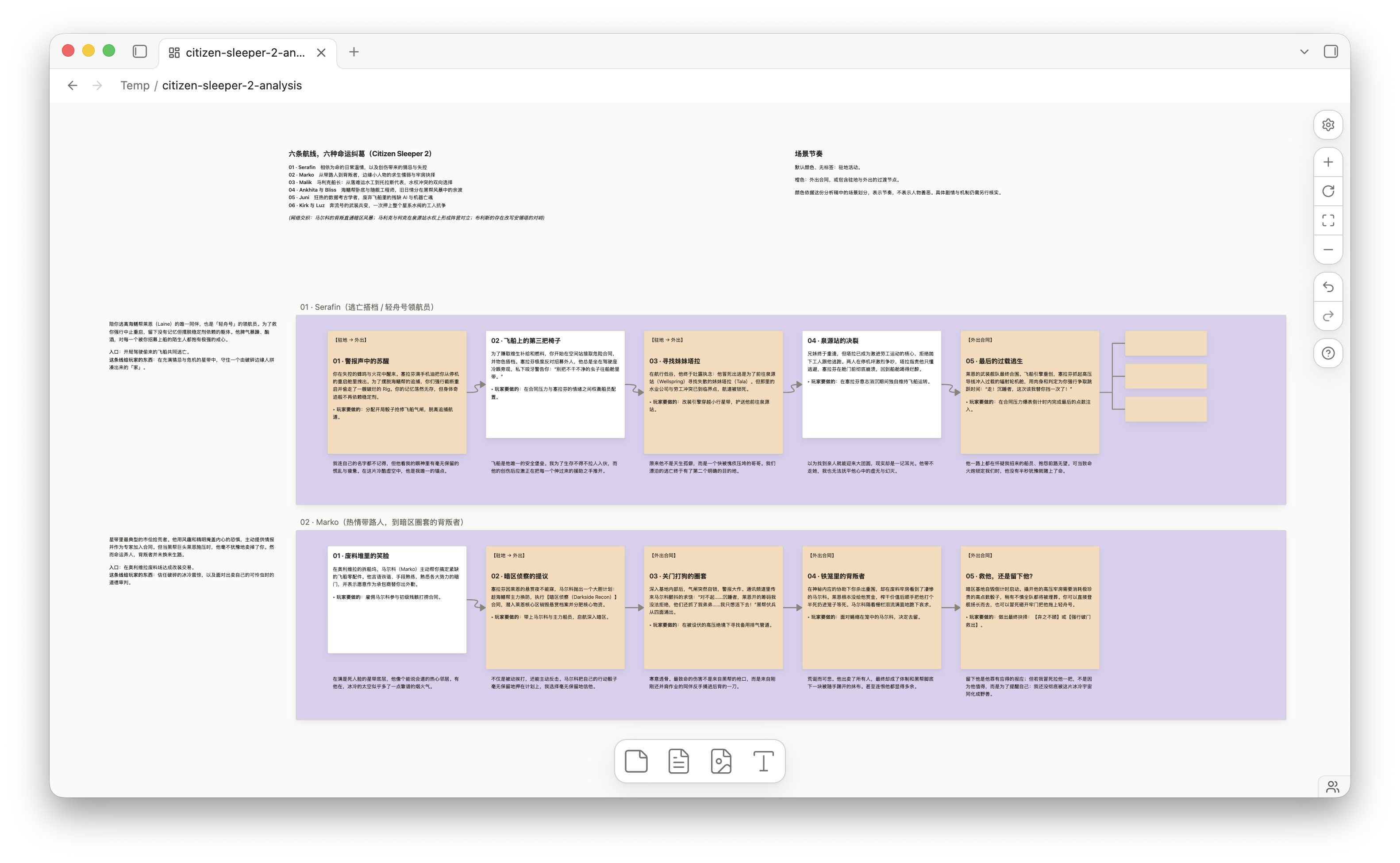
Turn Obsidian Canvas into a real whiteboard. Canvas is a place for you and your AI agent to work together. Canvas Authoring adds everyday whiteboard tools such as borderless text, adjustable font sizes, and text colors, with minimal changes to the existing Canvas data format.
把 Obsidian Canvas 变成真正的白板。 Obsidian Canvas 很适合你和 AI Agent 一起工作。Canvas Authoring 在 Canvas 原有数据结构上做了最小改动,补齐无边框文本、字号调整和文字颜色等常用白板功能,让你们能在同一张白板上协作。
Core features / 核心功能
| English | 中文 |
|---|---|
| Claude Canvas theme. Enabled by default. You can turn it off in the plugin settings. | Claude Canvas 主题。 默认开启,可在插件设置中关闭。 |
| Right-angle mind map connectors. Branch from a card to add child or sibling cards. Arrowless links use right angles. | 思维导图折线。 从卡片展开子节点或同级节点,无箭头关联线显示为直角折线。 |
| Text color and font scale. Change text color independently of the card color and choose 1×, 3×, or 5× text size. | 文字颜色与字号缩放。 文字颜色可独立于卡片底色设置,字号缩放可选 1×、3× 或 5×。 |
| Transparent cards and annotations. Hide a card’s background and border, or add an annotation anywhere on the board. | 卡片颜色透明与备注。 隐藏卡片的底色和边框,也可以在白板任意位置添加备注。 |
Canvas data for AI agents / 给 AI Agent 的白板数据说明
Keep the standard nodes and edges arrays. Add these optional values directly to a node when it needs custom styling.
沿用标准的 nodes 和 edges 数组。需要自定义外观时,在节点对象上直接写入以下可选值。
| Field / 字段 | English | 中文 |
|---|---|---|
"color": "transparent" |
Hides the card background and border. This is an extra value for the existing color field. |
隐藏卡片底色和边框。这是已有 color 字段的扩展值。 |
"fontColor": "3" |
Sets the text color. Use a palette slot string from "1" to "6". Omit the field for the default text color. |
设置文字颜色。使用 "1" 到 "6" 的调色板编号字符串。省略此字段时使用默认文字颜色。 |
"fontScale": 3 |
Sets the text size multiplier on a text node. The menu offers 1, 3, and 5. Omit the field for the default size of 1×. |
设置文字节点的字号倍率。菜单提供 1、3、5 三档。省略此字段时使用默认的 1×。 |
For a right-angle mind map connector, set both "fromEnd": "none" and "toEnd": "none" on the edge. Canvas Authoring uses these standard arrow settings to render the connector as a right angle.
要画思维导图折线,在连线上同时设置 "fromEnd": "none" 和 "toEnd": "none"。Canvas Authoring 根据这两个原生箭头字段把连线显示为直角折线。
Example text node / 文字节点示例
{
  "id": "a1b2c3d4e5f60718",
  "type": "text",
  "x": 0,
  "y": 0,
  "width": 360,
  "height": 120,
  "text": "Ideas / 想法",
  "color": "transparent",
  "fontColor": "3",
  "fontScale": 3
}
More features / 更多功能
| English | 中文 |
|---|---|
| Duplicate cards and groups. Preserve layout, styles, and internal links. On macOS, press Command+D. | 复制卡片与分组。 生成副本,保留布局、样式与选区内部连线。macOS 快捷键为 Command+D。 |
| Copy and paste across apps. Copy card content to other apps. Paste external text into a new card that sizes to the content, with supported rich text converted to Markdown. | 跨应用复制和粘贴。 把卡片内容复制到其他应用,或将外部文字粘贴为自动调整初始尺寸的卡片。受支持的富文本格式会转换为 Markdown。 |
| Export and import Canvas data. Copy selected nodes or a group as JSON, then paste it back as a new copy with its layout and internal links. | 导出与导入 Canvas 数据。 将选区或分组复制为 JSON,再粘贴为新副本,保留布局和内部连线。 |
| Links to specific cards. Paste a jump link into a note or another card to open the target Canvas and focus a specific node or group. | 跳转到指定卡片。 把跳转链接贴到笔记或其他卡片,点击即可打开目标 Canvas 并定位到指定节点或分组。 |
| Import Mermaid diagrams. Open Import Mermaid diagram from the canvas context menu or command palette. Paste a flowchart (TD, TB, BT, LR, or RL) or mind map, with or without a Mermaid code fence. Review the Canvas preview and fix any highlighted errors in the source before importing editable cards and connections. | 导入 Mermaid 图表。 从画布空白处的右键菜单或命令面板打开 Import Mermaid diagram。粘贴流程图(TD、TB、BT、LR 或 RL)或思维导图,可带或不带 Mermaid 代码块。查看 Canvas 预览并在源码中修正高亮提示的错误,再导入可编辑的卡片和连线。 |
Mind map shortcuts / 思维导图快捷键
| English | 中文 |
|---|---|
| Tab adds a child card with a right-angle connector. Select one text or file card first. | Tab 添加子节点,并用直角折线连接。先选中一张文字或文件卡片。 |
| Enter adds a sibling card from the same parent. Select a card with exactly one arrowless incoming connection. | Enter 从同一个上级节点展开同级节点。先选中只有一条无箭头入线的卡片。 |
| Directional follow-up. Run Add follow-up node to add a card with an arrow. Set a shortcut under Settings → Hotkeys. | 带箭头的后续节点。 运行 Add follow-up node,创建带箭头的新卡片。可在 设置 → 快捷键 中为它绑定按键。 |
Use these keys while a card is selected and you are outside text editing.
选中卡片并退出文字编辑后,即可使用这些快捷键。
Installation / 安装
| English | 中文 |
|---|---|
| Community plugins. If Canvas Authoring appears under Settings → Community plugins → Browse, select Install, then enable it. | 社区插件。 如果在 设置 → 第三方插件 → 浏览 搜得到 Canvas Authoring,点击 安装,然后启用插件。 |
Manual install. Copy main.js, manifest.json, and styles.css from a release or the built dist/ folder into .obsidian/plugins/canvas-authoring/ inside your vault. Then enable Canvas Authoring under Community plugins. |
手动安装。 将发布包或构建产物 dist/ 中的 main.js、manifest.json、styles.css 放入仓库的 .obsidian/plugins/canvas-authoring/,然后在 第三方插件 中启用 Canvas Authoring。 |
Usage / 使用方法
| English | 中文 |
|---|---|
| Hover over a card edge to reveal the green branch handle beside the native connector. Click it to branch or drag it to connect to an existing card. Drop it on empty space to choose what to create. | 悬停在卡片边缘时,原生连接点旁会出现绿色分支点。点击可添加子节点,也可以拖到已有卡片建立关联,或拖到空白处选择要创建的卡片类型。 |
| Select a text card and use Text color or Font scale on its floating toolbar. Right-click empty space to find Add annotation below Add card. | 选中文字卡片后,在浮动工具栏调整 Text color 或 Font scale。右键点击空白处,Add annotation 位于 Add card 下方。 |
| To change the appearance, open Settings → Canvas Authoring and toggle Claude Canvas theme. | 要切换外观,打开 设置 → Canvas Authoring,切换 Claude Canvas theme。 |
| To edit Canvas data with an agent, use Copy node data or Copy group data to copy JSON. Use Paste content from clipboard to import the edited JSON as a new copy. File cards carry vault references. | 要与 Agent 协作编辑画板,先用 Copy node data 或 Copy group data 获取 JSON,再用 Paste content from clipboard 将修改后的 JSON 导入为新副本。文件卡片携带仓库内的引用。 |
Compatibility / 兼容性
Canvas Authoring works with Obsidian’s built-in Canvas and requires Obsidian 1.13.0 or later. It uses internal Canvas APIs, so check editing and clipboard behavior after an Obsidian upgrade. Cards and connections remain in the .canvas file when the plugin is disabled. Plugin-specific styling and precise node jumps require the plugin.
Canvas Authoring 基于 Obsidian 原生 Canvas,需要 Obsidian 1.13.0 或更高版本。插件使用 Canvas 内部接口,升级 Obsidian 后建议检查编辑和剪贴板功能。停用插件后,卡片与连线仍保存在 .canvas 文件中。插件提供的外观与精确节点跳转需要启用插件。