Search...Search plugins and themes...
⌘K
Sign in
  • Get started
  • Download
  • Pricing
  • Enterprise
  • Account
  • Obsidian
  • Overview
  • Sync
  • Publish
  • Canvas
  • Mobile
  • Web Clipper
  • CLI
  • Learn
  • Help
  • Developers
  • Changelog
  • About
  • Roadmap
  • Blog
  • Resources
  • System status
  • License overview
  • Terms of service
  • Privacy policy
  • Security
  • Community
  • Plugins
  • Themes
  • Discord
  • Forum / 中文论坛
  • Merch store
  • Brand guidelines
Follow us
DiscordTwitterBlueskyThreadsMastodonYouTubeGitHub
© 2026 Obsidian

Bitcoin Block Stamp

sfr0xyzsfr0xyz539 downloads

Stamp your notes with the current Bitcoin block.

Add to Obsidian
  • Overview
  • Scorecard
  • Updates5

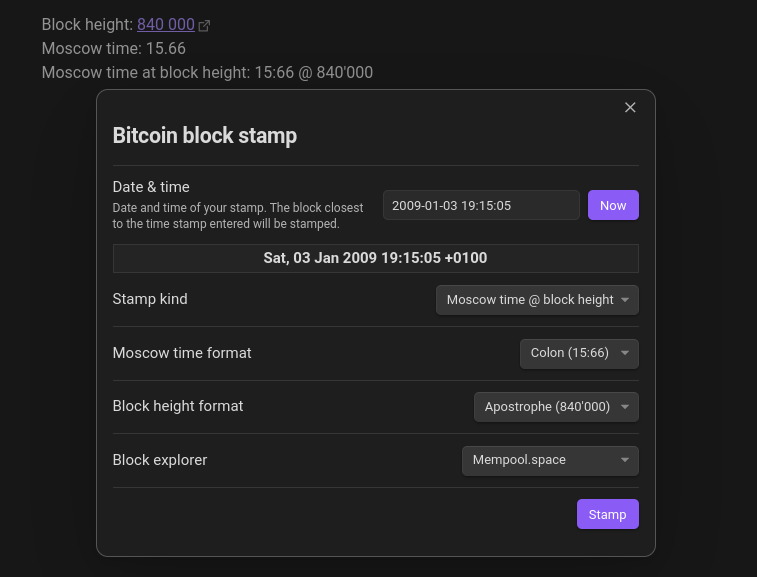
Stamp your notes with the Bitcoin block height and Moscow time. Add the latest stamp or the stamp for any time in the past up to the Genesis block.

BBS Demo Image

Features

  • Insert the latest or custom block height.
  • Insert the latest or custom Moscow time.
  • Insert the latest or custom "Moscow time @ block height", the Moscow Time Bot format.
  • Add a link to your preferred block explorer for the block height.
  • Display the block height and Moscow time in your preferred formats.
  • Use stamp placeholders to replace with the current stamps on note creation or per command.

Usage

After you successfully installed and enabled the plugin, you should see a Bitcoin icon in the sidebar.

  • The Bitcoin icon opens a window that lets you add a custom block stamp. Make sure you are in the editor or live mode in your active note to be able to insert the stamp.
    1. Enter the date and time of your stamp. The block closest to the entered timestamp will get stamped.
    2. Choose the stamp kind, format, and block explorer.
    3. Select Stamp to insert the stamp at your current curser position.
  • Alternatively you can also open this window via the command palette (Ctrl/Cmd + P). Search for "Bitcoin Block Stamp: Insert custom block stamp".
  • If you search for "Bitcoin Block Stamp" in the command palette (Ctrl/Cmd + P) you will see a list of all available commands.
    There you will find commands that let you quickly insert the latest block height / Moscow time / "Moscow time @ block height".
  • If you create a new note with a pre-set template, e.g. daily notes, this plugin will replace all stamp placeholders with the corresponding current block stamps. The default stamp placeholders are {{blockheight}}, {{moscowtime}}, and {{moscowtime@blockheight}}, but you can change this in the settings.
    At any time you can also manually replace all placeholders in your active note with the "Bitcoin Block Stamp: Replace stamp placeholders" command.

Settings

  • Block explorer: Select your preferred block explorer (or none).
    The block height stamp gets inserted as a Markdown link to corresponding block in your selected block explorer. At this time, the Mempool.space, Blockstream.info, and TimechainCalendar.com are supported.
  • Formats
    • Block height format: Select your preferred block height format.
      You can choose between plain (840000), comma (840,000), period (840.000), space (840 000), apostrophe (840'000), and underscore (840_000).
    • Moscow time format: Select your preferred Moscow time format.
      You can choose between plain (1566), colon (15:66), and period (15.66).
  • Stamp placeholders: Placeholders are replaced with the current stamp when you create a new note or when you use the "Replace stamp placeholder" command.
    • Block height placeholder: Set the text which will be replaced with the block height.
    • Moscow time placeholder: Set the text which will be replaced with the Moscow time.
    • Moscow time @ block height placeholder: Set the text which will be replaced with the "Moscow time @ block height".

Third-party sources

This plugin uses the mempool.space REST API to get the Bitcoin blockchain and price data.

Installation

In Obsidian

  1. Go to Settings > Community plugins > "Browse" community plugins, and search for "Bitcoin Block Stamp".

  2. Select Install and after successful installation select Enable.

  3. You should now see Bitcoin Block Stamp under Community plugins in your settings.

Manually

  1. Download the release files from the latest release.

  2. Go to the plugins subdirectory <VAULT_DIRECTORY>/.obsidian/plugins/ in your vault directory.

  3. Create a new directory called "bitcoin-block-stamp" and copy and paste the downloaded files main.js, styles.css, and manifest.json into it.

You should now have main.js, styles.css, and manifest.json in <VAULT_DIRECTORY>/.obsidian/plugins/bitcoin-block-stamp/.

  1. Go to your Obsidian vault and enable the plugin by toggling Bitcoin Block Stamp under Settings > Community plugins > Installed plugins.

Thank you 🙏

Thank you for using this plugin!

Your feedback is very much appreciated. If you have a feature idea/request or found a bug, tag me over nostr or open an issue on GitHub.

If you like this plugin and want to support me, you can buy me a coffee or send me sats via the Bitcoin Lightning Network. Check out my Alby page.

⚡ Lightning address:

[email protected]

Nostr: [email protected]

npub19a6x8frkkn2660fw0flz74a7qg8c2jxk5v9p2rsh7tv5e6ftsq3sav63vp

74%
HealthGood
ReviewSatisfactory
About
Stamp notes with Bitcoin block height and Moscow time, inserting the latest or any historical stamp back to the Genesis block. Insert Moscow time, block height, or "Moscow time @ block height" (Moscow Time Bot format), add a block-explorer link, and replace placeholders automatically on note creation or on demand.
DatesTemplatingSidebar
Details
Current version
1.2.0
Last updated
2 years ago
Created
2 years ago
Updates
5 releases
Downloads
539
Compatible with
Obsidian 0.15.0+
Platforms
Desktop, Mobile
License
MIT
Report bugRequest featureReport plugin
Sponsor
Support
Buy Me a Coffee
Author
sfr0xyzsfr0xyz
github.com/sfr0xyz
GitHubsfr0xyz
  1. Community
  2. Plugins
  3. Dates
  4. Bitcoin Block Stamp

Related plugins

Weread

Sync Tencent Weread highlights and annotations.

Periodic Notes

Manage your daily, weekly, and monthly notes.

LifeOS

Life management system.

Journals

Manage your journals.

Chronology

A calendar and a timeline of the note's creation and modification.

Calendar

Explore your daily notes.

Persian Calendar

Persian Calendar for managing periodic notes based on persian solar (shamsi) calendar.

Notebook Navigator

A better file browser and calendar inspired by Apple Notes, Bear, Evernote and Day One.

QuickAdd

Quickly add new notes or content to your vault.

Templater

Create and use dynamic templates.