Better Kanban Bases View
 Toto Tvalavadze1k downloads
Adds a focused Kanban view for Obsidian Bases with draggable cards, keyboard reordering, note previews, and saved layouts.
- Overview
- Scorecard
- Updates5
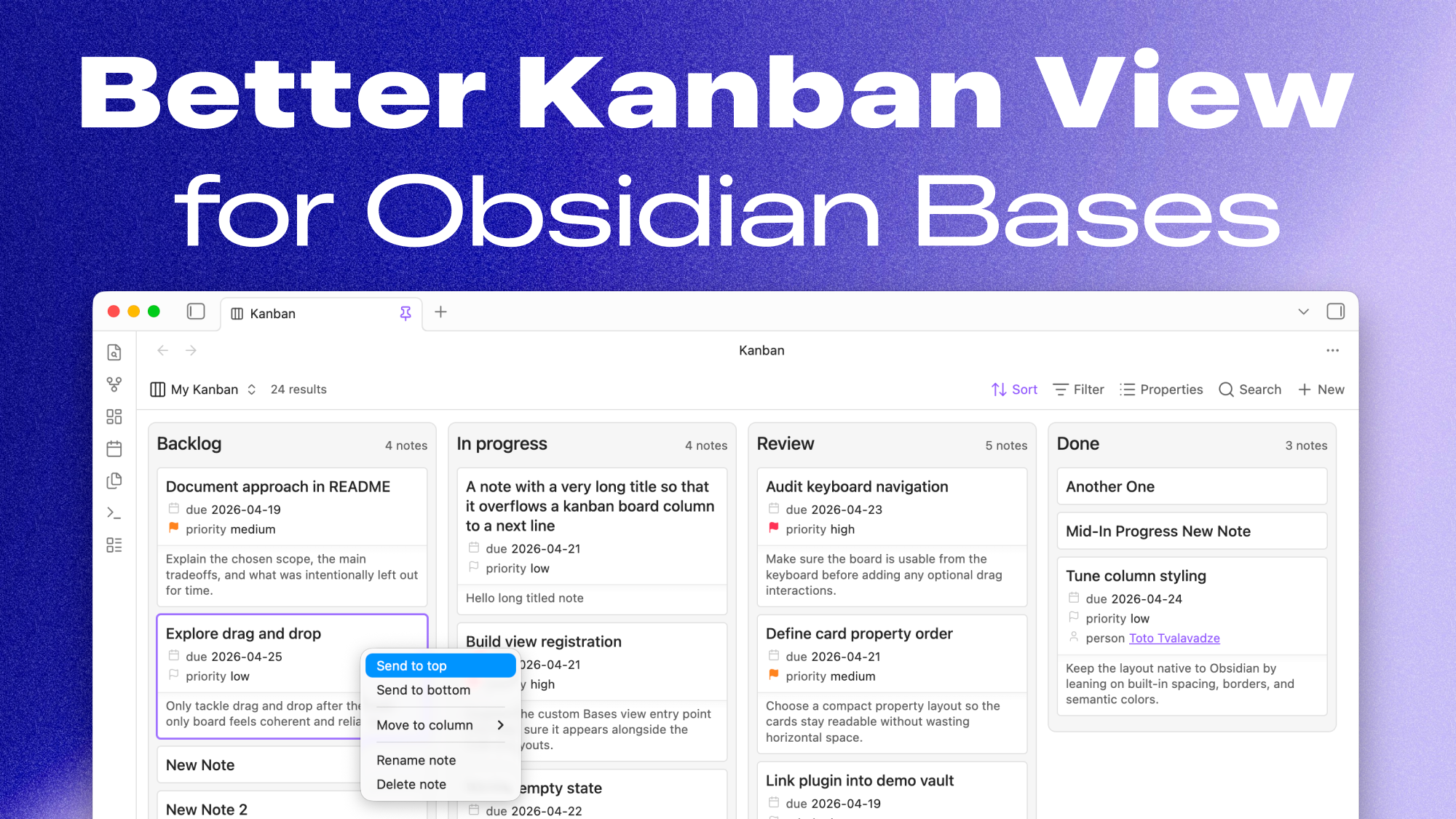
A focused Kanban view for Obsidian Bases with draggable cards, keyboard reordering, note previews, and saved layouts.
Columns are built from the active Bases grouping, and cards show each note's title plus the properties already selected in Bases, including formula values. The view keeps Obsidian's existing Base controls for sorting, grouping, filtering, and property selection, while adding a board layout for planning and reviewing notes.
Install
Once approved in the Obsidian community directory, install Better Kanban Bases View from Settings > Community plugins.
For a manual install, download the release assets and place them in:
.obsidian/plugins/bases-kanban-view-ttvl/
  manifest.json
  main.js
  styles.css
Compatibility
Requires Obsidian 1.10.2 or newer. The plugin uses the Bases view API and is not marked desktop-only.
Features
- A custom
KanbanBases view - Columns derived from the active Bases grouping (see note 1 below)
- Cards that render the note title plus the properties already selected in Bases
- Formula properties selected in Bases render as card metadata with a formula icon
- Optional small or large plain-text note previews below card properties
- Optional native page previews when hovering anywhere on a card
- Exact or relative date display with overdue, today, and tomorrow states
- Per-column soft WIP limits with a visible over-limit warning
- Optional semantic accent colors stored per column and grouping
- Add-note buttons for writable grouped columns
- Drag-and-drop column reordering
- Drag-and-drop card reordering within a column
- Cross-column card moves when the board is grouped by a writable
note.*property - Context menu actions for moving cards and columns
- Card menu actions to rename or delete notes
- Keyboard card focus with arrow keys
- Keyboard card moving with
⌘/Ctrlarrow shortcuts - Animated keyboard card moves that respect reduced-motion preferences
- Persisted column order per grouping
- Persisted manual card order per grouping (see note 2 below)
- View options to hide empty card properties and choose the card preview size
Keyboard usage
Cards can be focused with the mouse or with the keyboard. When a card is focused:
↑and↓move focus within the current column.←and→move focus between columns, keeping the same approximate row where possible.- If no card is focused yet, the first arrow-key navigation starts at the first card in the first non-empty column.
- Moving the mouse over a card focuses that card. After keyboard navigation or keyboard moving, stationary mouse hover is ignored until the pointer moves again.
Card movement shortcuts use Obsidian's modifier key: ⌘ on macOS / Ctrl on Windows and Linux. Boundary shortcuts also use ⌥ on macOS / Alt on Windows and Linux.
⌘↑/Ctrl+↑and⌘↓/Ctrl+↓move the focused card one position within its column.⌘←/Ctrl+←and⌘→/Ctrl+→move the focused card to the adjacent column.⌥⌘↑/Alt+Ctrl+↑sends the focused card to the top of its column.⌥⌘↓/Alt+Ctrl+↓sends the focused card to the bottom of its column.⌥⌘←/Alt+Ctrl+←and⌥⌘→/Alt+Ctrl+→behave the same as the non-option column moves.
Keyboard card movement is available when the board has an active Bases grouping. Cross-column keyboard moves require the grouping to be a writable note.* property because the plugin must update note frontmatter to move the card between groups. Boards grouped by formula.* properties can still use column ordering and same-column card ordering, but formula columns are computed and cannot be used as writable drop targets.
Card previews
Card previews can be set to None, Small, or Large from the view options. Preview text is derived from the note body, skips frontmatter and common Markdown noise, and is truncated to keep cards compact.
Native page previews can also appear when the pointer rests over a card. This behavior is controlled globally from Settings > Better Kanban Bases View > Note hover previews and requires Obsidian's Page preview core plugin. Card previews do not require ⌘ / Ctrl by default; that behavior can still be overridden from Obsidian's Page preview settings.
Date display
Date properties can use exact or relative text across every kanban board. Choose the global mode from Settings > Better Kanban Bases View > Date display. Relative dates retain the exact value in a tooltip, while workflow-oriented date properties such as due, deadline, and scheduled show overdue, today, and tomorrow states.
Column settings
Use the faint ellipsis beside a column's note count to set a soft WIP limit or choose an accent color. WIP limits never block card moves: the count and column border show a warning only after the limit is exceeded. These settings are saved per Base view grouping, so the same group value can be configured differently on boards grouped by different properties.
Formula properties
Formula properties selected in the Bases Properties menu are shown in each card's metadata list. The view uses Obsidian's evaluated Bases values, so formula output renders through the same Value.renderTo path as note and file properties.
Design goals
- Reuse the existing Sort, Group, Filter, and Properties controls instead of introducing separate kanban settings
- Keep the styling minimal so the view feels like part of Bases rather than a themed plugin
- Prefer pragmatic UX decisions over ornamentation or broad customization
- Keep interactions fast and predictable (fast updates, no jumping DOM, etc.)
Privacy and safety
- No telemetry or analytics.
- No network requests.
- No account, license key, or paid service required.
- No access to files outside the vault.
- Uses Obsidian APIs to read notes shown by the active Base, create notes from kanban columns, and update note frontmatter when cards move between writable
note.*groups.
Development
Install dependencies and run the local checks:
npm install
npm test
npm run lint
npm run build
Start watch mode:
npm run dev
For local vault development, symlink this repo into:
.obsidian/plugins/bases-kanban-view-ttvl
Release
The first community release starts at 0.5.0.
- Update
manifest.json,package.json, andpackage-lock.jsonto the release version. - Update
versions.jsononly when the required Obsidian version changes. - Run
npm test,npm run lint, andnpm run build. - Create a GitHub release whose tag exactly matches
manifest.jsonversion. - Attach
main.js,manifest.json, andstyles.cssto the release.
Notes
1. Note on rawKanbanView and runtime API
I wanted column reordering to respect the built-in Bases groupBy UI instead of adding a second grouping selector in plugin settings. Another selector would create a second source of truth for the same concept, which felt confusing and easy to desync from the active Base view.
In practice, the public BasesViewConfig surface exposed the active sort state but did not expose the current built-in groupBy selection in a usable way for this feature, and I could not find a documented public accessor for it. To keep the UI aligned with the actual active Bases view, the plugin reads the active kanban view's runtime query.views entry through rawKanbanView.
This is an intentional tradeoff: it uses observed runtime shape because the documented public API did not appear to expose the active groupBy, but it avoids introducing duplicate settings and keeps column ordering scoped to the grouping the user actually picked in Bases.
2. Note on ordering behavior
Card ordering has two "modes" (not a user facing term), automatic and manual.
In automatic mode, the board simply follows the active Bases sort. If the user chooses a sort from the Obsidian Bases UI, the cards should appear in that order and no manual card arrangement is treated as active.
In manual mode, the user has started rearranging cards directly. At that point, the board behaves like a fixed snapshot of the current grouped board rather than continuing to follow the live Bases sort for card order.
Manual mode is reset as soon as the user changes the Bases sort again.
Future work
- Daily note awareness and interaction for date-typed properties
- Smarter property type detection and cleaner formatting, ideally configurable from the view
- Proper mobile validation; I have not tested it thoroughly yet, although
this.app.emulateMobile(true);suggests the basic layout should be workable