
- Overview
- Scorecard
- Updates3
Auto-convert regex patterns to clickable links in Obsidian, similar to GitHub's autolink feature but with full regex support.
| Editor | Options |
|---|---|
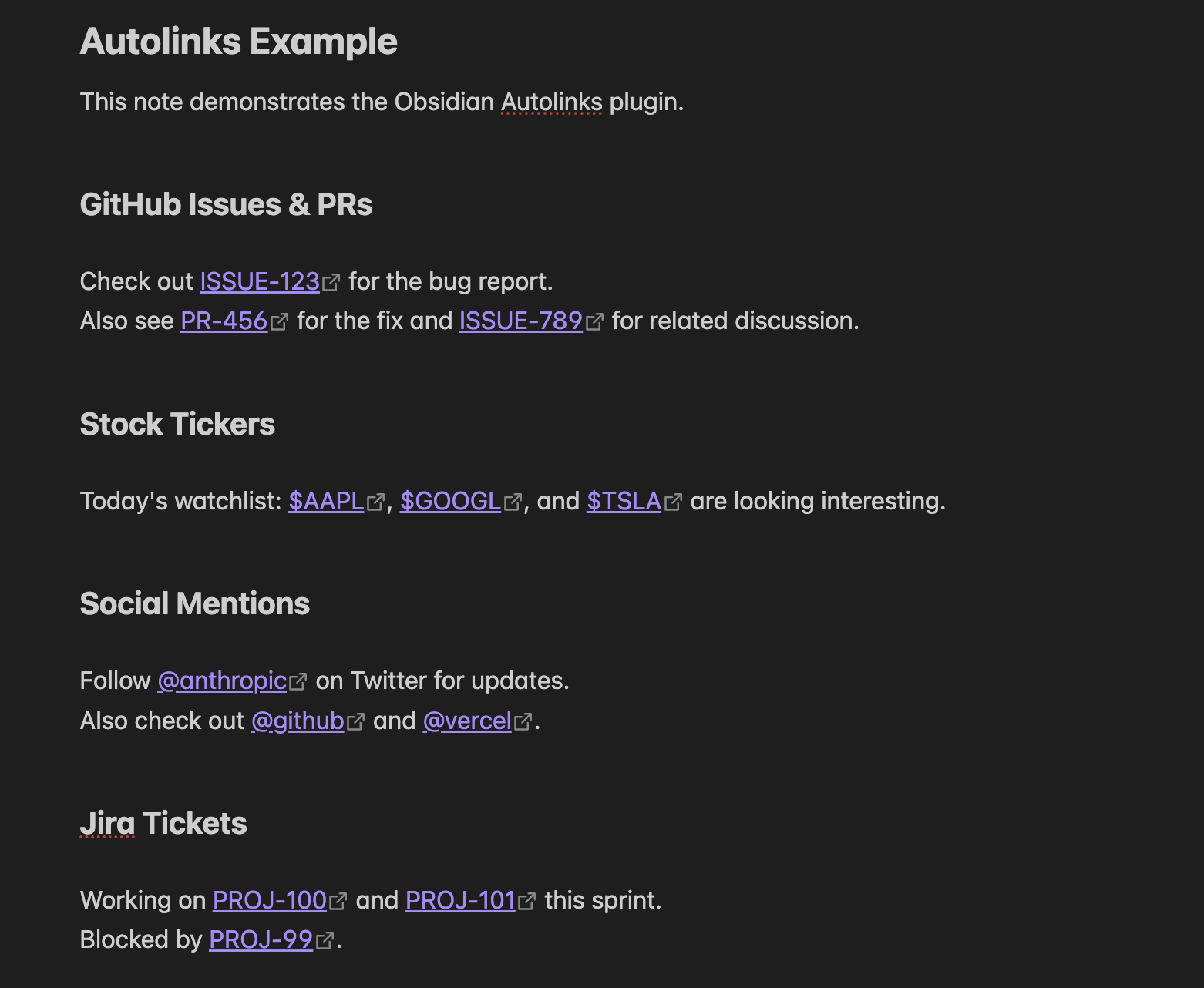 |
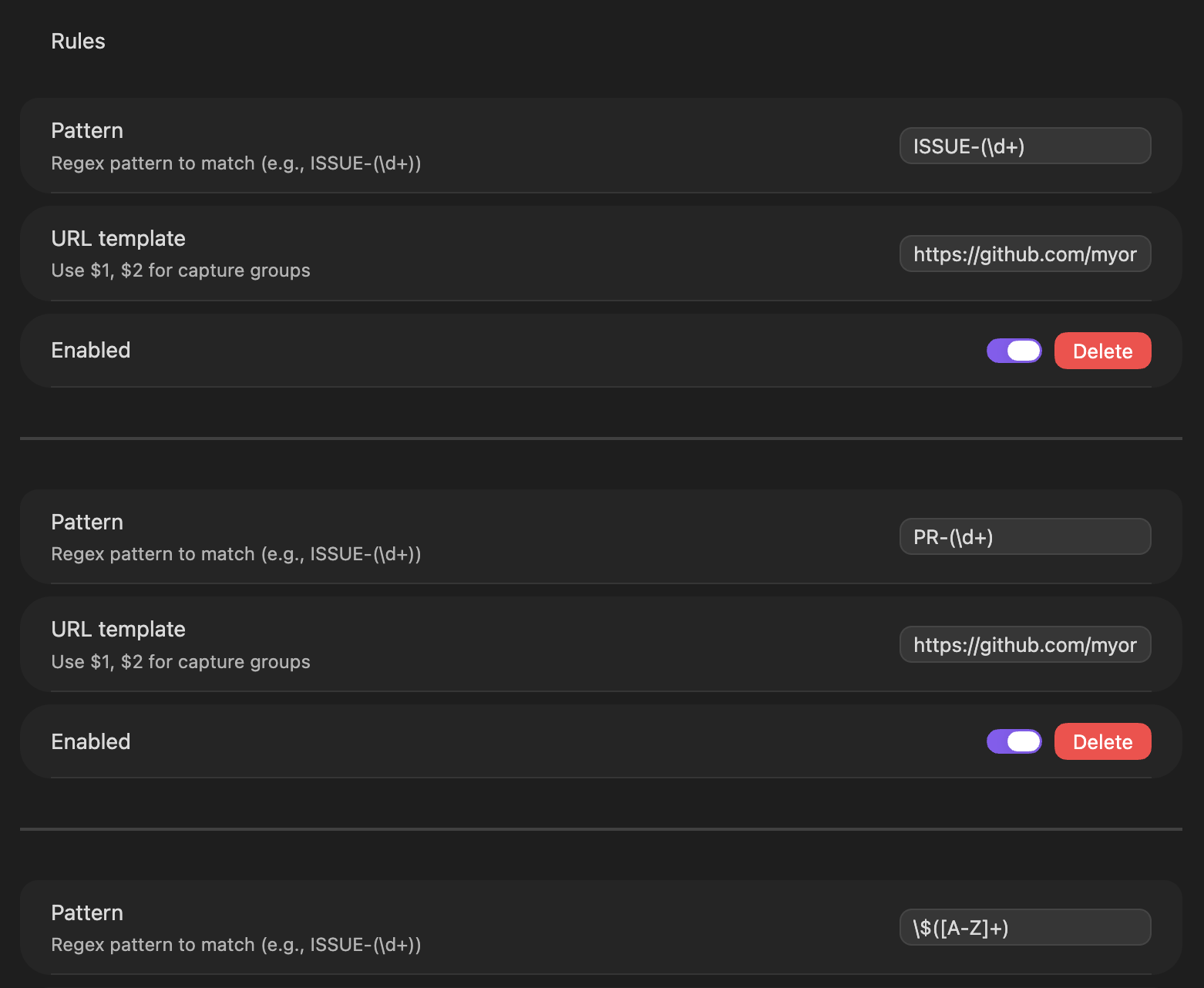 |
Features
- ✅ Regex Pattern Matching: Use full regex patterns with capture groups ($1-$9)
- ✅ Dual Rendering: Works in both Reading View and Live Preview
- ✅ Per-Pattern Toggle: Enable/disable individual patterns
- ✅ Smart Skip Zones: Automatically skips code blocks, inline code, existing links, wikilinks, and frontmatter
- ✅ First-Match-Wins: Prevents overlapping link conflicts
- ✅ Real-time Updates: Changes apply immediately without restart
Installation
From Obsidian Community Plugins
Visit the Obsidian Community Plugins page and click Add to Obsidian, then enable the plugin.
Manual Installation
- Download
main.js,manifest.json, andstyles.cssfrom the latest release - Create folder
<vault>/.obsidian/plugins/autolinks/ - Copy the downloaded files into the folder
- Reload Obsidian
- Enable the plugin in Settings → Community Plugins
Usage
Adding a Pattern
- Open Settings → Auto Links
- Click "Add new rule"
- Enter your regex pattern (e.g.,
ISSUE-(\d+)) - Enter the URL template (e.g.,
https://github.com/myorg/myrepo/issues/$1) - The pattern is automatically enabled
Pattern Examples
| Pattern | URL Template | Input | Output Link |
|---|---|---|---|
ISSUE-(\d+) |
https://github.com/myorg/myrepo/issues/$1 |
ISSUE-123 |
https://github.com/myorg/myrepo/issues/123 |
(ABC|DEF)-(\d+) |
https://notion.so/myteam/$1-$2 |
ABC-123 |
https://notion.so/myteam/ABC-123 |
\$([A-Z]{3}) |
https://finance.yahoo.com/quote/$1 |
$AAPL |
https://finance.yahoo.com/quote/AAPL |
PR#(\d+) |
https://github.com/myorg/myrepo/pull/$1 |
PR#456 |
https://github.com/myorg/myrepo/pull/456 |
@([a-zA-Z0-9_]+) |
https://twitter.com/$1 |
@username |
https://twitter.com/username |
Capture Groups
Use $1 through $9 in your URL template to reference capture groups from your regex pattern:
Pattern: USER-(\d+)-([A-Z]+)
URL: https://example.com/users/$1/type/$2
Input: USER-123-ADMIN
Output: https://example.com/users/123/type/ADMIN
Skip Zones
Auto Links automatically skips creating links in:
- Code blocks:
... - Inline code:
... - Markdown links: text
- Wikilinks: [[page]]
- Frontmatter: YAML front matter at the start of files
Example:
Normal text: ISSUE-123 ← becomes a link

Code block:
ISSUE-123 ← NOT a link
Inline code: `ISSUE-123` ← NOT a link

Existing link: [ISSUE-123](http://example.com) ← NOT a link

Wikilink: [[ISSUE-123]] ← NOT a link
Managing Patterns
- Enable/Disable: Toggle the switch next to each pattern
- Edit: Click on the pattern or URL field to edit
- Delete: Click the trash icon to remove a pattern
- Reorder: Patterns are evaluated in order (first match wins)
Pattern Conflict Resolution
When multiple patterns could match the same text, the first matching pattern wins. This prevents overlapping links.
Example:
Pattern 1: ISSUE-(\d+)
Pattern 2: ISSUE-123

Input: "See ISSUE-123"
Result: Only Pattern 1 matches (Pattern 2 never evaluated for this position)
Regex Tips
Common Patterns
- Numbers:
\d+(one or more digits) - Letters:
[A-Za-z]+(one or more letters) - Alphanumeric:
[A-Za-z0-9]+ - Word characters:
\w+(letters, numbers, underscore) - Specific characters:
[ABC]+(only A, B, or C)
Escaping Special Characters
If your pattern includes special regex characters, escape them with \:
.→\.$→\$(→\([→\[
Testing Patterns
Use regex101.com to test your patterns before adding them to Obsidian.
Troubleshooting
Pattern Not Matching
- Check if the pattern is enabled (toggle should be on)
- Verify the regex syntax is correct
- Check if the text is in a skip zone (code block, inline code, etc.)
- Test the pattern on regex101.com
Links Not Appearing
- Ensure the plugin is enabled in Settings → Community Plugins
- Check browser console for errors (Ctrl+Shift+I / Cmd+Option+I)
- Try disabling and re-enabling the plugin
- Verify the URL template uses correct capture group syntax ($1, $2, etc.)
Invalid Regex Error
The plugin validates regex patterns when you save. If you see an error:
- Check for unmatched brackets:
[,],(,) - Check for unescaped special characters
- Verify capture groups are properly formed:
(...)not(...
Performance
Auto Links is designed for performance:
- Reading View: Processes only visible text nodes
- Live Preview: Uses CodeMirror's syntax tree for efficient skip zone detection
- Lazy Evaluation: Patterns are only evaluated when text changes
- First-Match-Wins: Stops evaluation after first match per position
Development
Building from Source
# Install dependencies
bun install

# Development build (watch mode)
bun run dev

# Production build
bun run build
License
MIT