Asciinema Player
 deeplook750 downloads
Embed local and remote Asciinema asciicast files in Markdown notes.
- Overview
- Scorecard
- Updates7
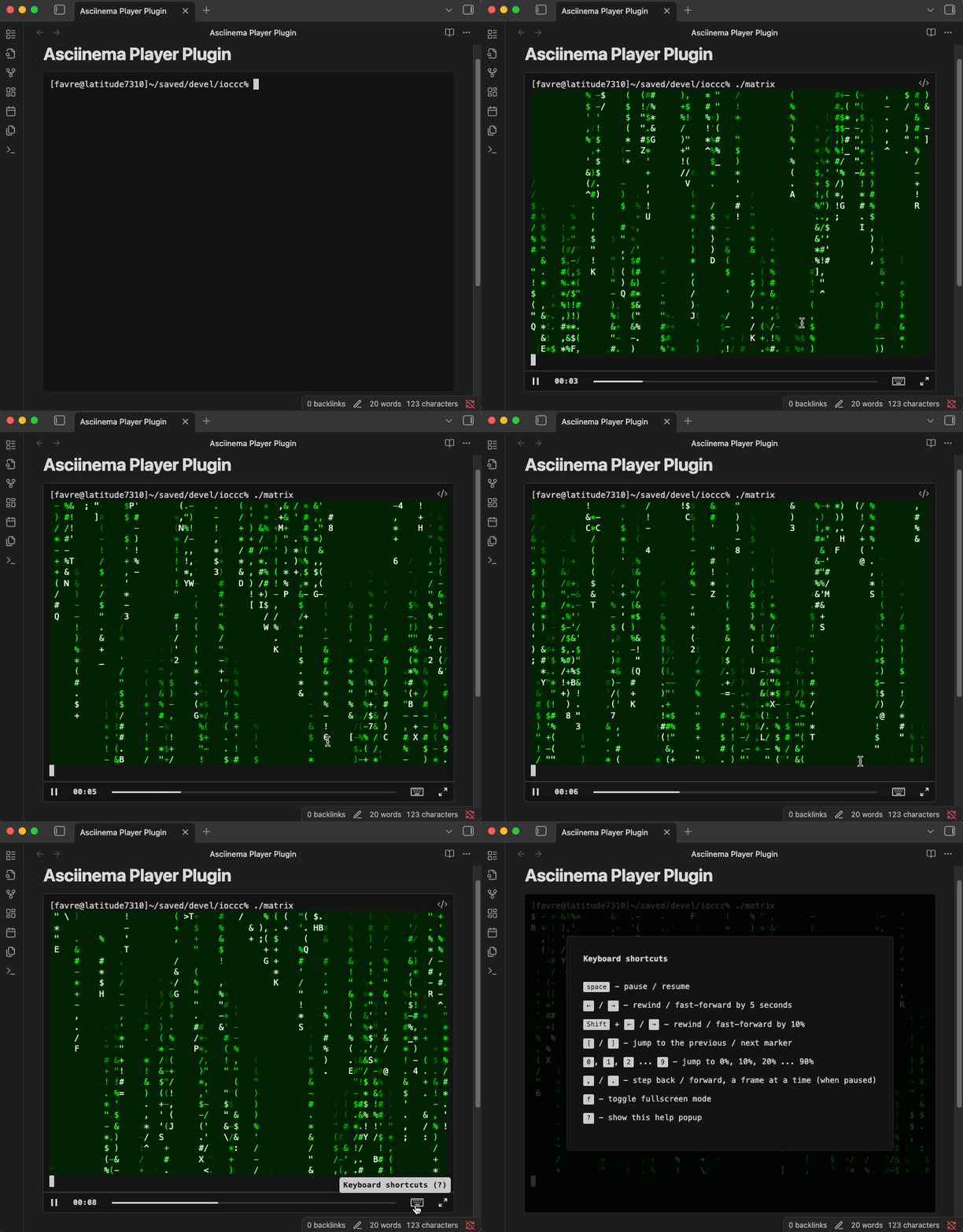
This is an Obsidian plugin to embed terminal recordings made with Asciinema inside Markdown files. These recordings, also known as asciicasts, or shorter: casts, can then be rendered inside Obsidian notes with the interactive Asciinema Player UI. Many example recordings are available on Asciinema.org.
Installation
From Obsidian Website or App
This Asciinema Player plugin is listed on the Obsidian Community Plugins and can be installed directly from there. You can also install it from the Obsidian app: open Settings, enable community plugins if not done yet, browse community plugins, search "Asciinema Player", then install and enable it.
Manual Installation
- Download the ready-to-use zipped archive from the latest releases page on GitHub (named after the plugin id and version tag e.g.,
obsidian-asciinema-player-1.0.6.zip). - Unzip it.
- Move the extracted
obsidian-asciinema-playerfolder into your vault's.obsidian/pluginsfolder. - Then enable the plugin in the "Community Plugins" tab in Obsidian's settings, like when installing any registered community plugin. Example:
curl -O https://github.com/deeplook/obsidian-asciinema-player/releases/download/1.0.6/obsidian-asciinema-player-1.0.6.zip
unzip obsidian-asciinema-player-1.0.6.zip
mv obsidian-asciinema-player /path/to/your-vault/.obsidian/plugins/
Usage
Install asciinema and Create Recordings
To create your own asciicasts install the asciinema CLI tool and make some example recordings as described in the Asciinema Getting-Started documentation.
You can also download examples from Asciinema.org, e.g. https://asciinema.org/a/748822.cast and save them to some place in your Obsidian vault.
Embed Asciicasts into Obsidian Notes
To embed an asciicast into an Obsidian note, use a Markdown code block with the language identifier asciinema where the first line inside the block must be a reference to the desired .cast file:
- For local files, use the Obsidian paths starting at the vault's root (e.g.,
_attachments/748822.cast). - For remote files, prefix the URL with
src:(e.g.,src: https://asciinema.org/a/748822.cast).
```asciinema
src: https://asciinema.org/a/748822.cast
```
```asciinema
_attachments/748822.cast
```
Options
You can customize the player by adding options as key-value pairs after the file path.
| Key | Type | Description |
|---|---|---|
cols |
number |
Set the number of columns for the terminal. |
rows |
number |
Set the number of rows for the terminal. |
autoPlay |
boolean |
Start playback automatically. |
loop |
boolean |
Loop the playback. |
speed |
number |
Set the playback speed (e.g., 2 for double speed). |
theme |
string |
Set the color theme (e.g., dracula, solarized-dark). |
startAt |
string |
Start playback at a specific time (e.g., 1:23). |
idleTimeLimit |
number |
Limit terminal inactivity to a maximum number of seconds. |
poster |
string |
Set the poster (preview) frame, e.g., npt:1:23 shows the frame at 1 minute 23 seconds. |
Example with Options
Here is an example demonstrating how to use multiple options (entries can be commented with a #):
```asciinema
_attachments/demo.cast
cols: 100
rows: 25
autoPlay: true
loop: true
speed: 1.5
theme: solarized-dark
```
The UI provides interactive features with keyboard shortcuts for playing, pausing, jumping, and even chapter markers in the play bar when specified inside the asciicasts.
Update the Plugin
Instead of loading the asciinema-player from an external CDN (Content Delivery Network), this plugin bundles the entire library directly into its code. While this results in a larger initial file size, it guarantees that the player will work every time, even if you are offline or if the external CDN is unavailable. This trade-off makes for a more robust and dependable Obsidian plugin.
If the asciinema-player library is updated, and you think you need the newest version, but it's not bundled in this Obsidian plugin, you will need to update it within the plugin manually:
Prepare the Build Environment
If you want to rebuild or modify the plugin, first install the tooling and dependencies:
npm install -g pnpm
pnpm install
After rebuilding you can remove the node_modules directory again to keep the plugin folder lean:
rm -rf node_modules
1. Check for Updates
To see if a new version of asciinema-player is available, run the following command in the plugin's directory:
pnpm outdated asciinema-player
2. Update the Library
If an update is available, run this command:
pnpm update asciinema-player
This will download the latest version and update the package.json and pnpm-lock.yaml files.
3. Rebuild the Plugin
After the update is complete, you must rebuild the plugin to include the new library code:
pnpm run build
4. Test
Finally, after rebuilding, reload Obsidian and test the plugin thoroughly to ensure the update has not introduced any issues, especially for major version updates.