Archivist GG
 archivist-gg1k downloads
D&D character sheets that do the math and roll on click, for the 2014 and 2024 rules, with a step-by-step builder, spells, inventory, companions and stat blocks.
- Overview
- Scorecard
- Updates18
Website: archivist.gg · Discord: join the Archivist Discord
Archivist GG: D&D character sheets for Obsidian that do the math for you and roll with a click. Build your character step by step, and the sheet works out every number from the rules: saves, skills, attacks, damage, spells, resources and rests. Give your character a portrait, fill a backpack, and watch an item's benefits switch on when you put it on. Around the sheet, monsters and spells you write in your notes appear as parchment stat blocks, dice in your notes roll with a click, and the System Reference Document 5.1 and 5.2 arrive as linked compendiums next to your own homebrew. Everything stays in your vault as ordinary notes you own.
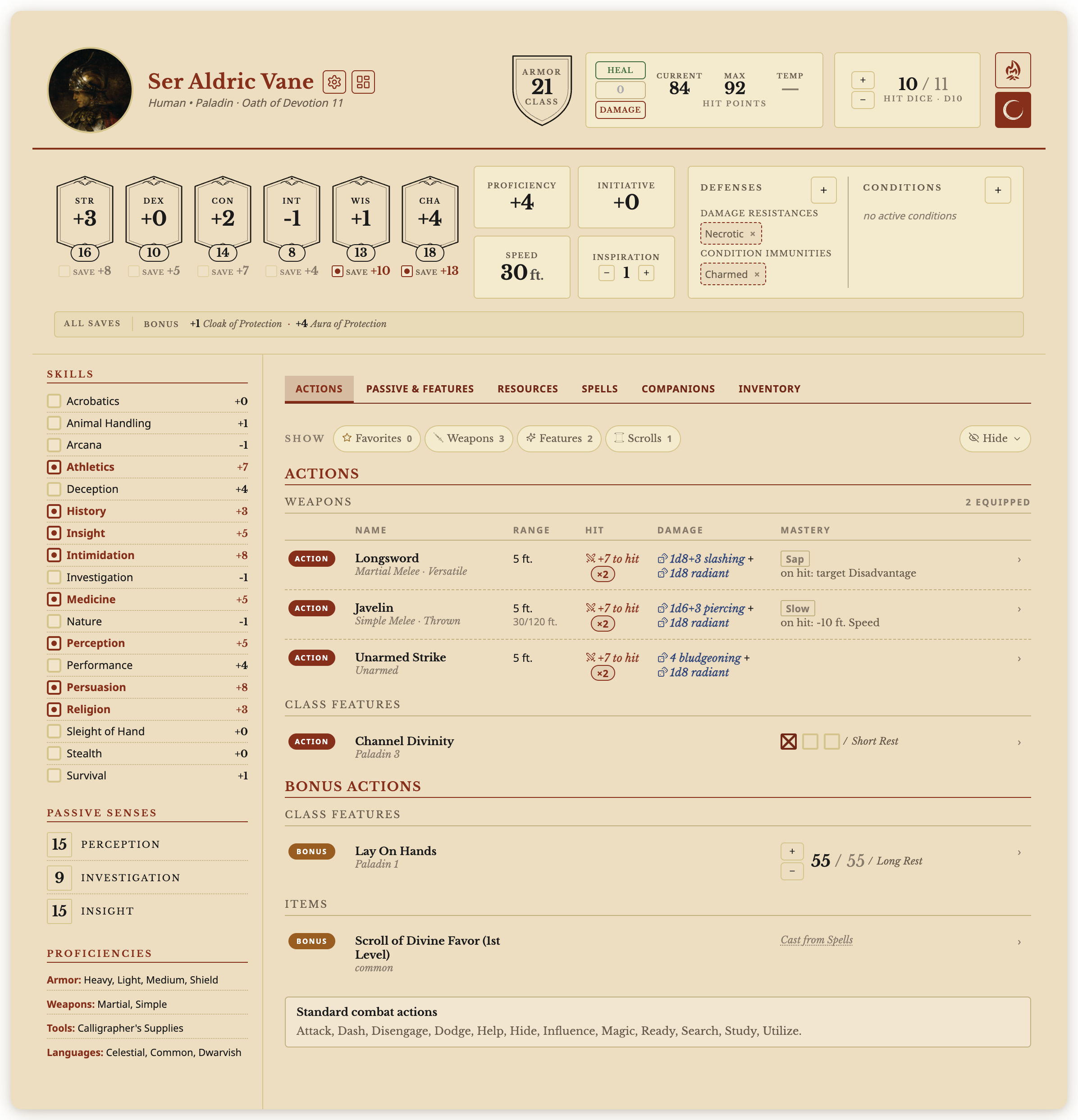
Which Archivist? This is Archivist GG by archivist-gg, listed in Obsidian's Community plugins as Archivist GG. It is not related to other Obsidian plugins or apps named Archivist.
Install
Archivist GG is in Obsidian's Community plugins, so you install it like any other plugin and Obsidian keeps it up to date.
- In Obsidian, open Settings → Community plugins. Turn community plugins on if Obsidian asks, then choose Browse.
- Search for Archivist GG and choose Install.
- Choose Enable.
One-click link. Paste this link into your browser's address bar and Obsidian opens Archivist GG in Community plugins:
obsidian://show-plugin?id=archivist-gg
Recommended: the Dice Roller plugin
Archivist rolls its dice with the free Dice Roller plugin (by Javalent). Install it from Settings → Community plugins → Browse and enable it. Without it, everything else works, and clicking a die shows a message instead of rolling. Archivist's rolls show Dice Roller's 3D dice. To see only the result, turn off Show 3D dice when you roll in Archivist's settings.
Requirements
| Obsidian | 1.7.2 or later, on a computer (Windows, macOS, Linux), an iPad or another tablet. Phones work too, but the layout is not polished for a small screen yet. |
| Rolling | The Dice Roller plugin. |
Installing by hand
Download the three files attached to the latest release, put them in a new folder named archivist-gg inside your vault's .obsidian/plugins folder, restart Obsidian and enable Archivist GG. Obsidian then updates it like any other community plugin.
Updating
Obsidian checks for new versions of your community plugins. To update right away, open Settings → Community plugins and choose Check for updates.
The first start
The first time Archivist starts (and after an update that changes the SRD), it adds the SRD to your vault: about 3,600 read-only notes in Compendium/SRD 5e (SRD 5.1) and Compendium/SRD 2024 (SRD 5.2). That first start takes a little longer than the ones after it. SRD 5e starts hidden from the lists you pick from; turn it on in Settings → Archivist GG → Compendiums.
Then make a character with the New character command, the ribbon button, or New character in the right-click menu of any folder in the file explorer.
Screenshots
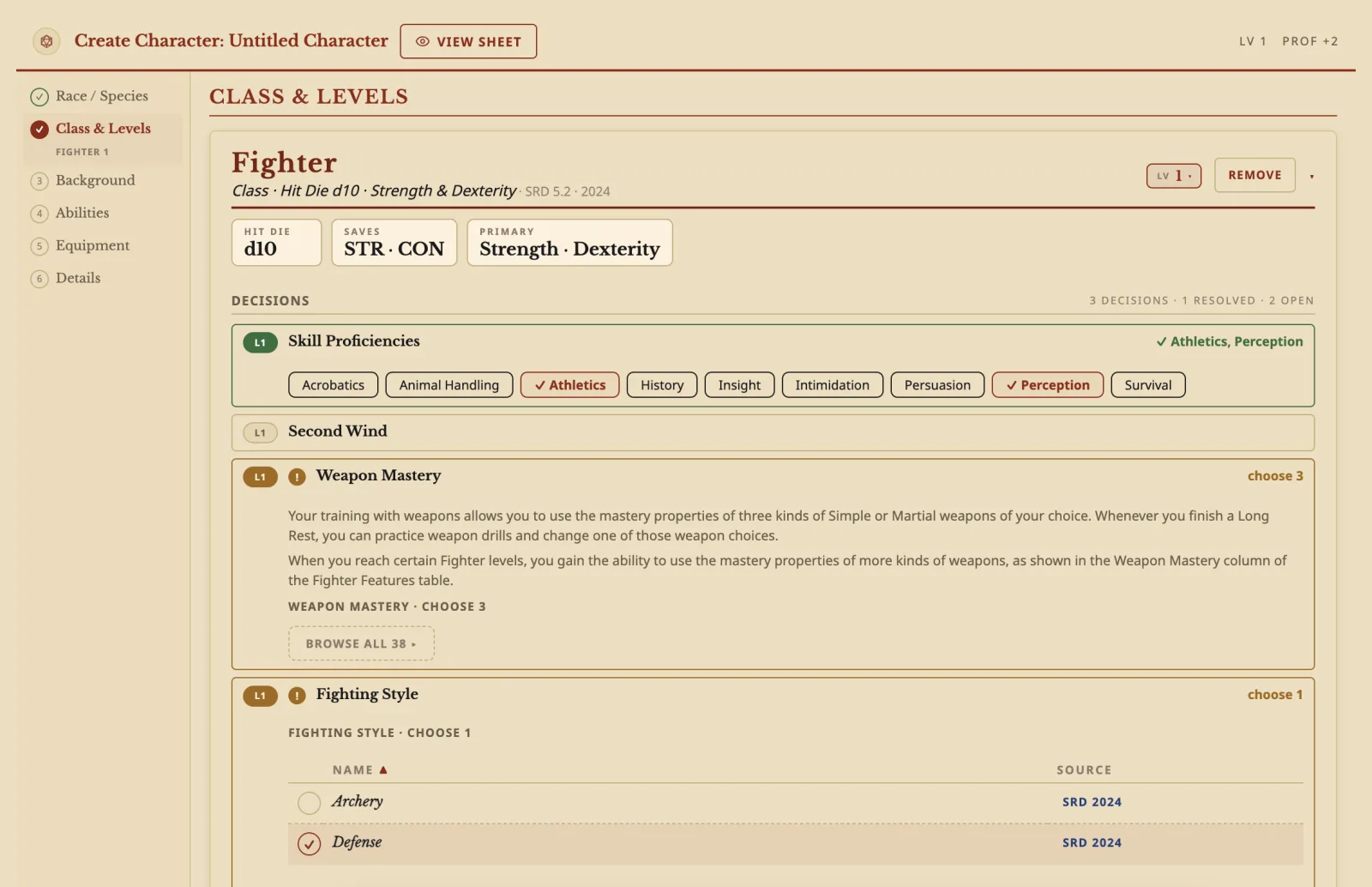
Build your character step by step. The Builder walks you through species, class, background, abilities, equipment and details, and shows which choices are still open.
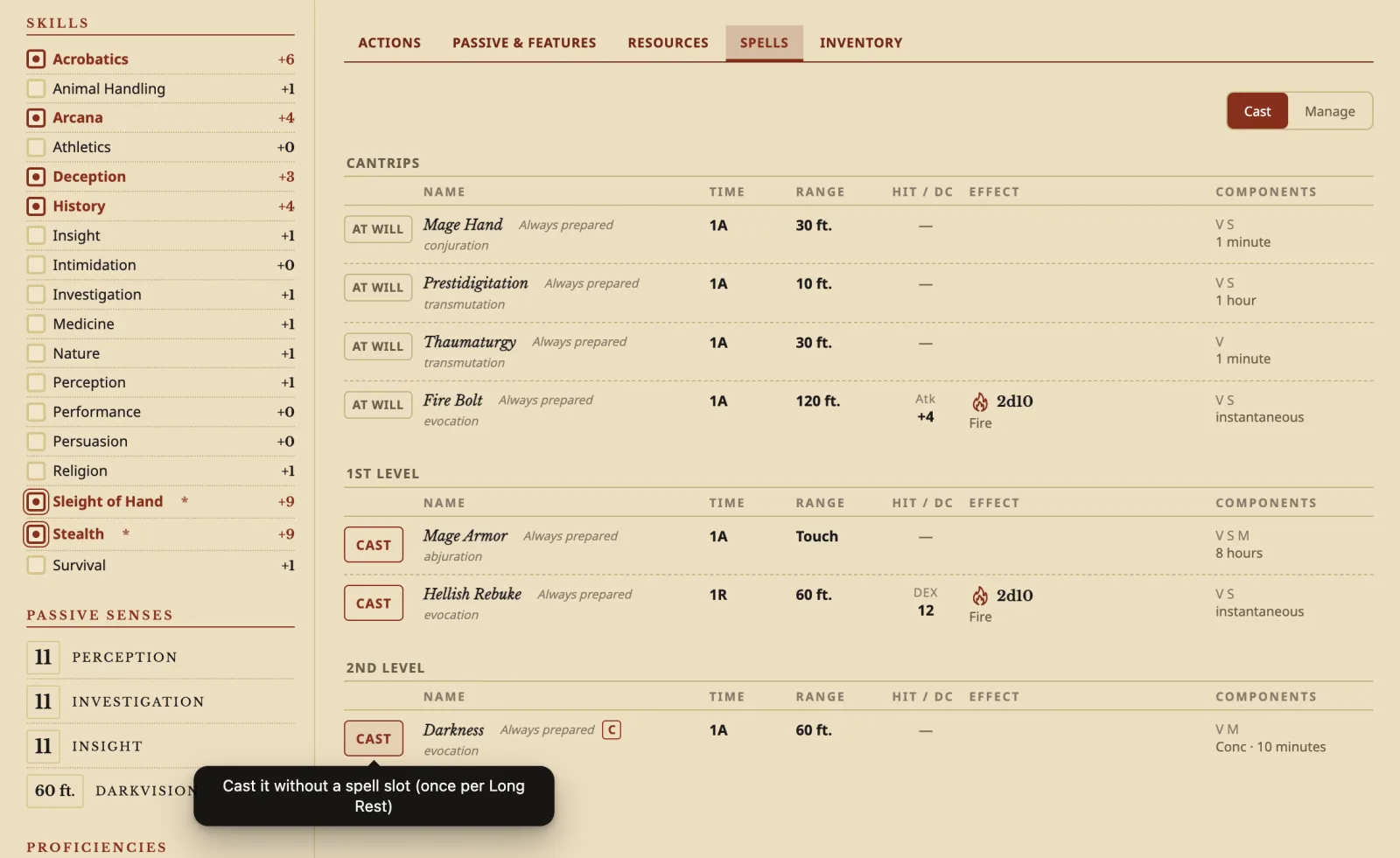
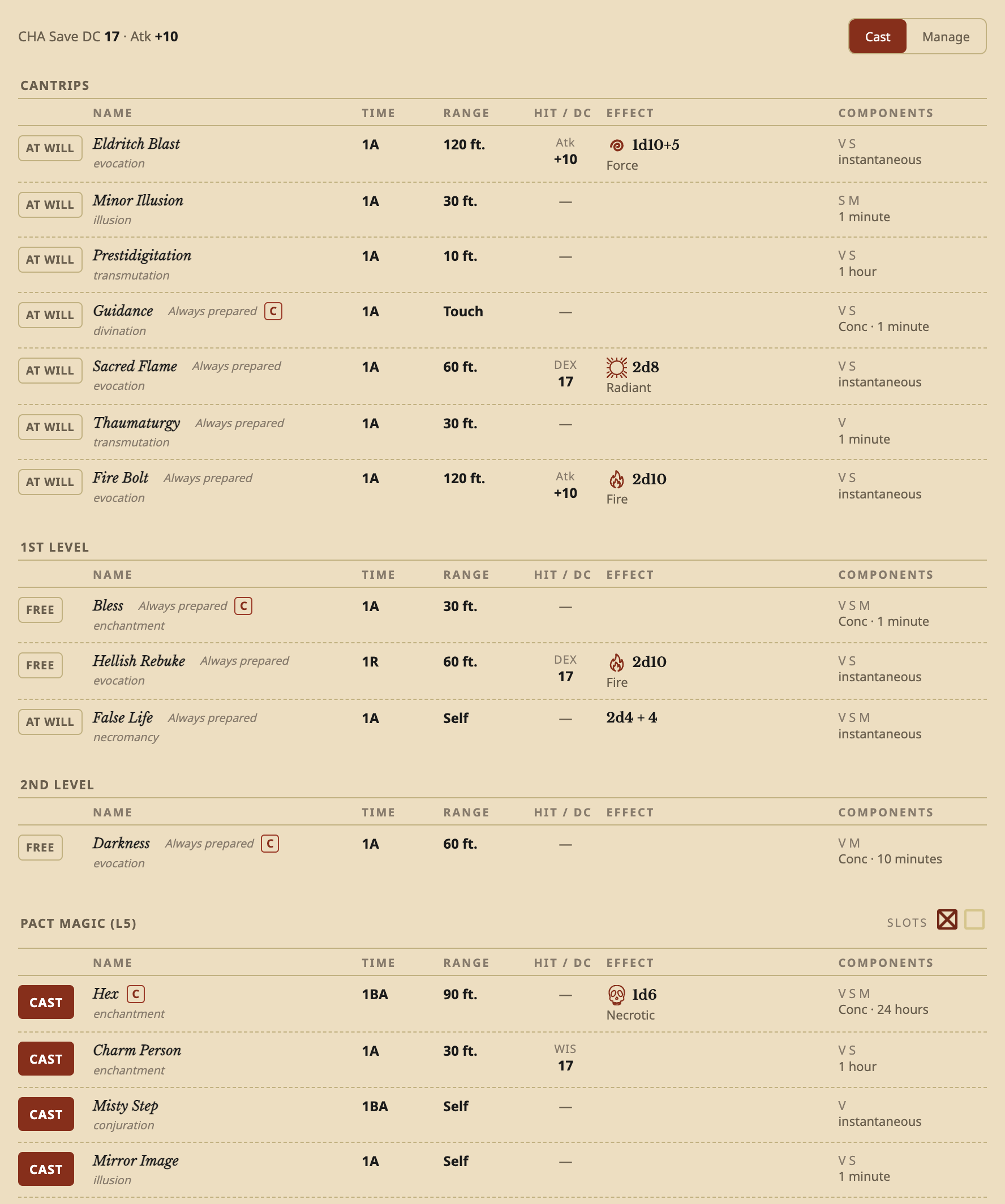
Spells with the numbers worked out. Each spell shows its casting time, range, to-hit or save DC, damage and components. A spell you can cast for free once per Long Rest has its own outlined CAST button.
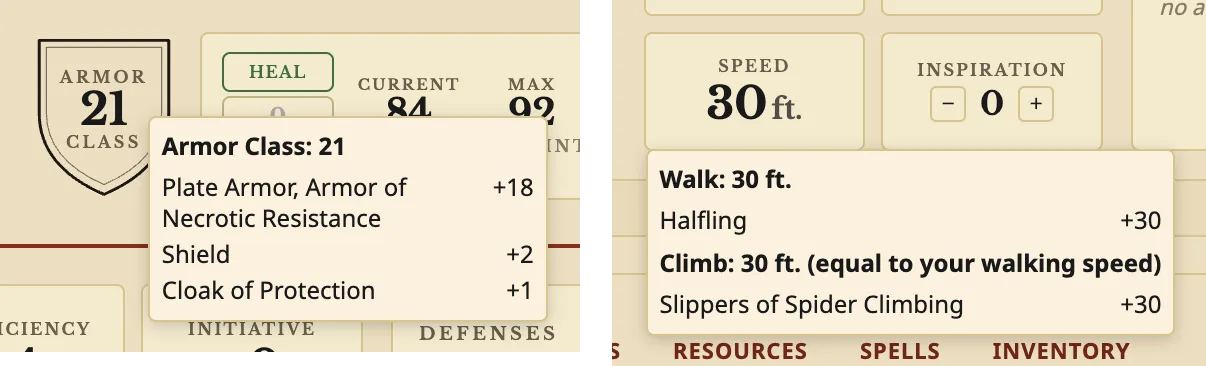
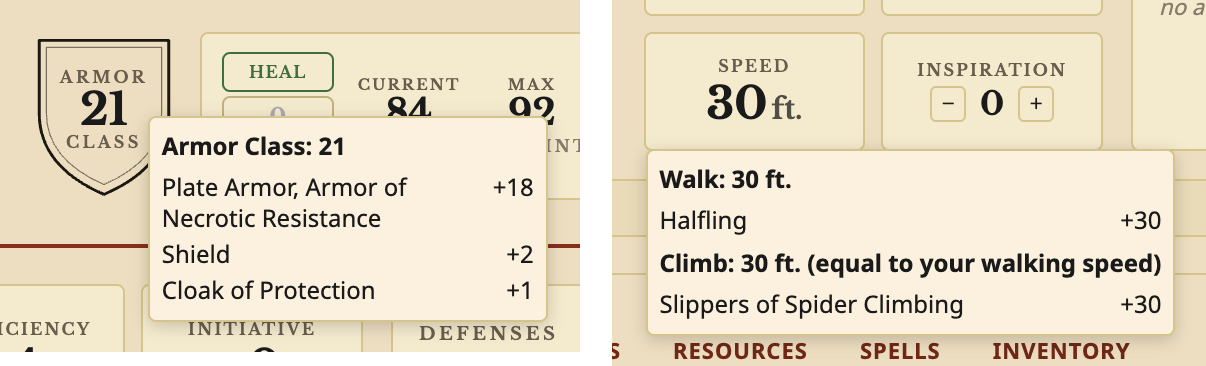
See where every number comes from. Hover your Armor Class or Speed to see what adds up to it.
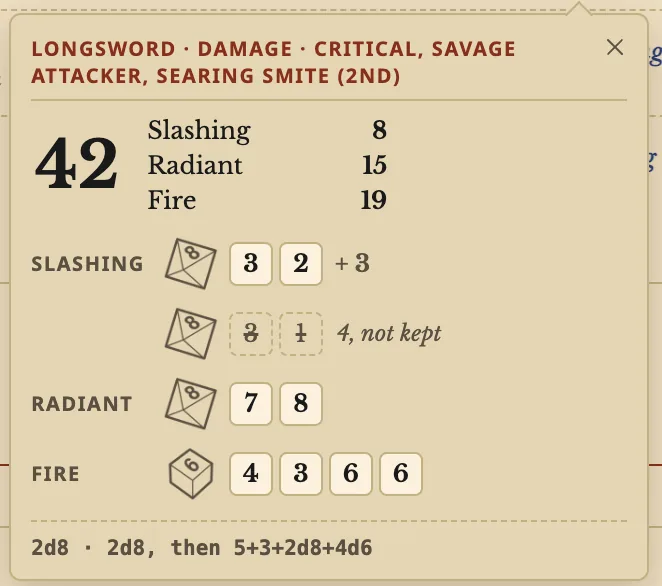
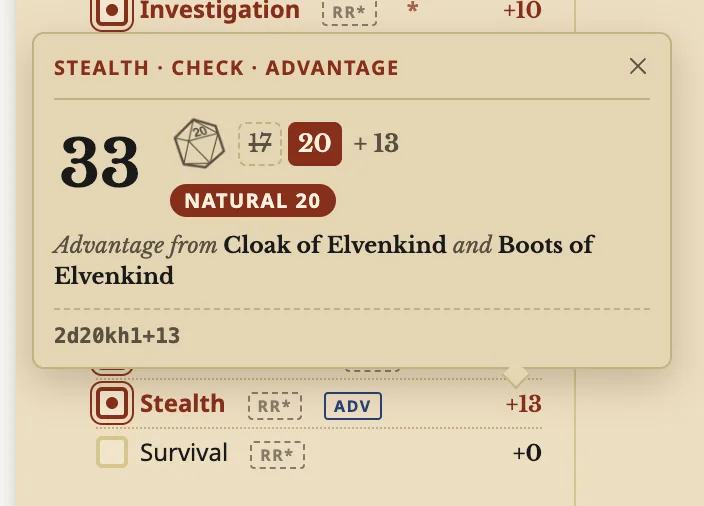
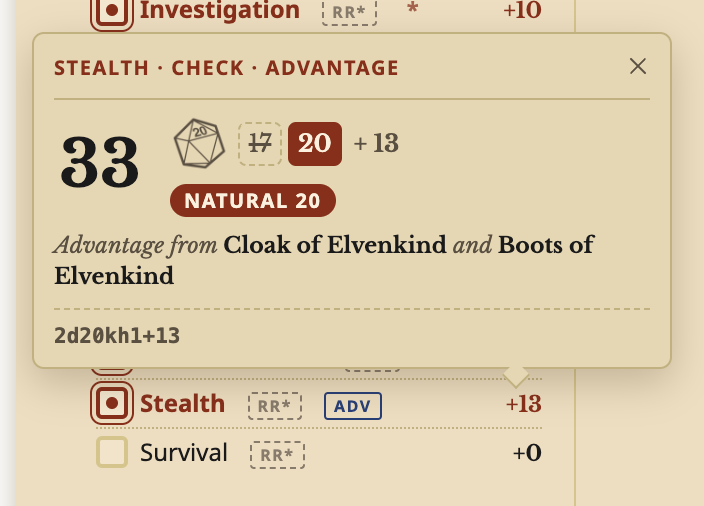
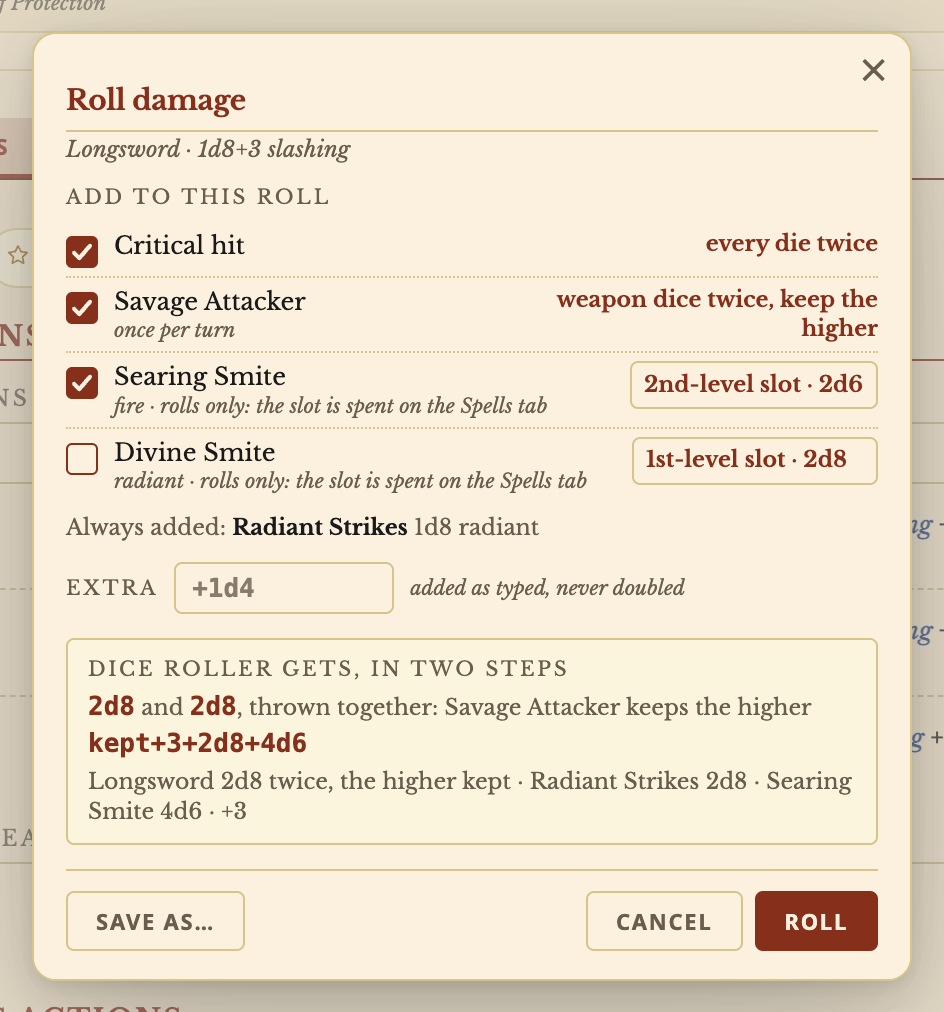
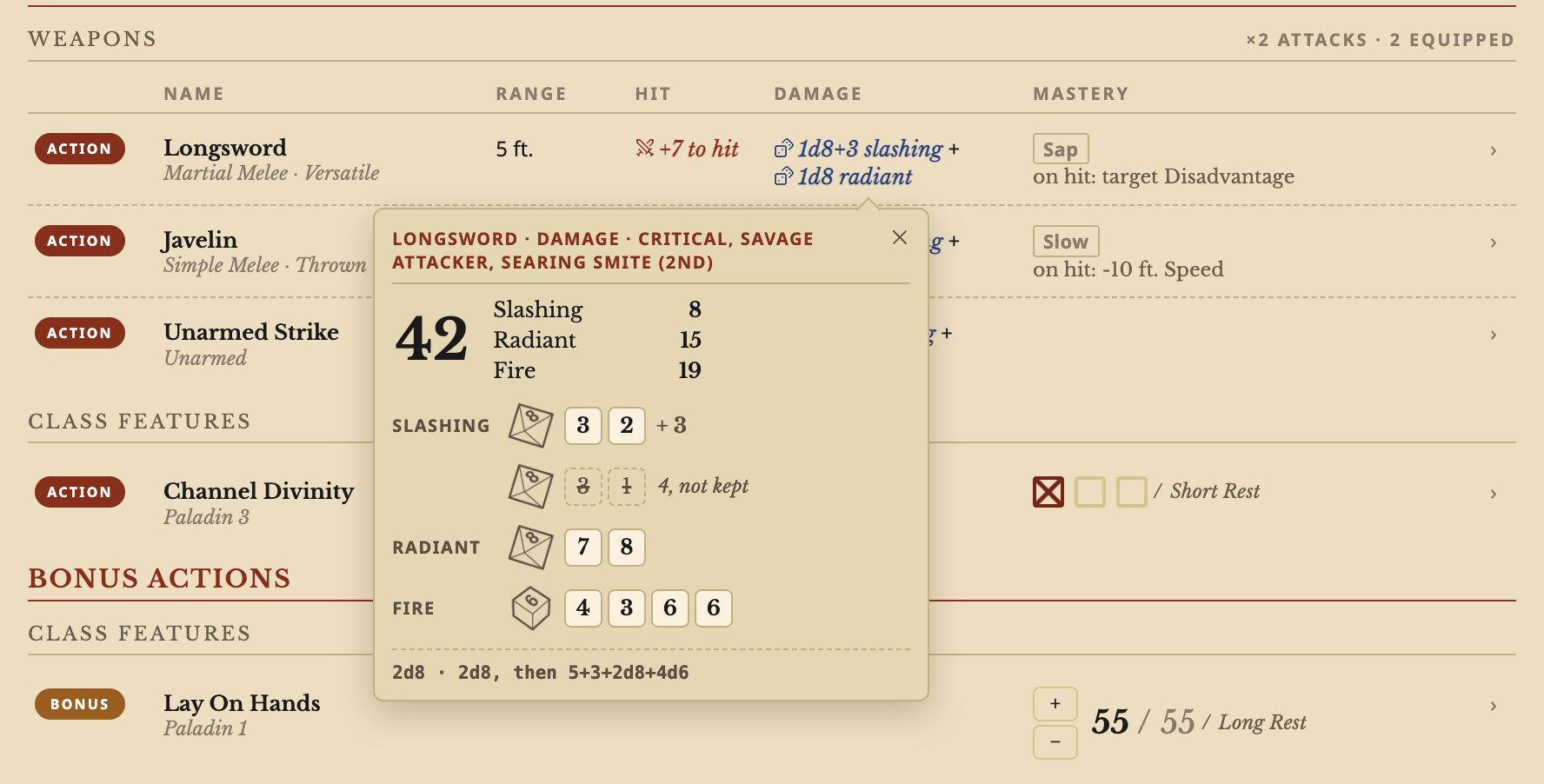
Roll with a click. Every die shows, the damage is split by type, and the roll says where your advantage comes from.
 |
 |
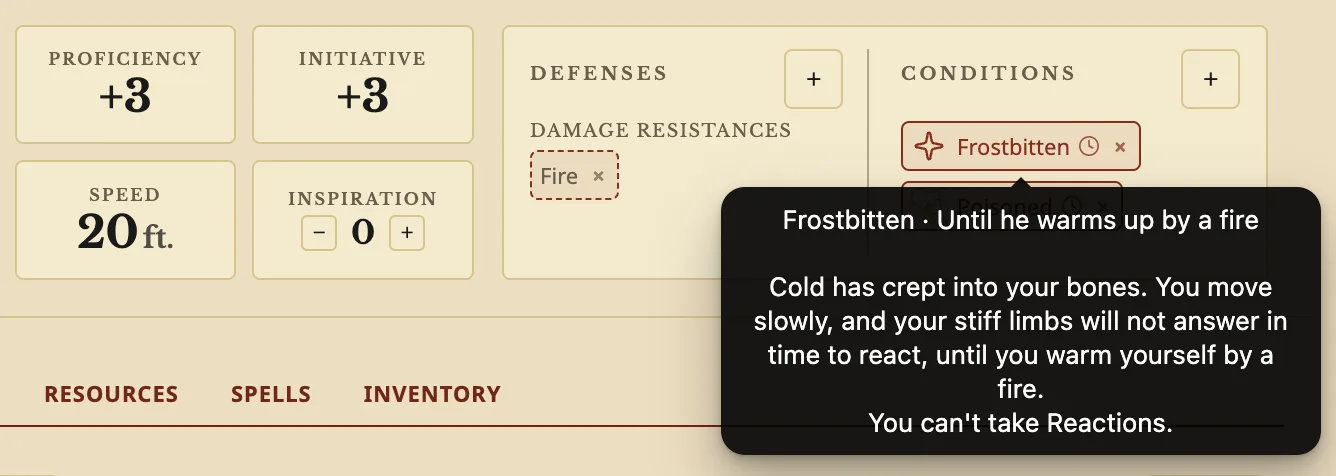
Conditions of your own. Make a condition with your own words and what it does on the sheet, and add a note such as how long it lasts.
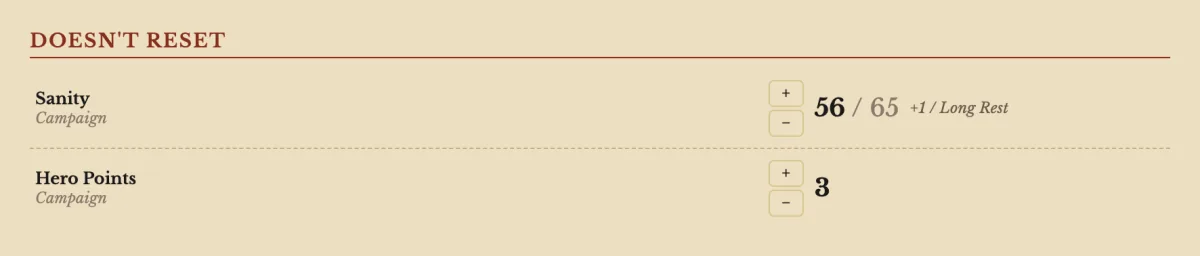
Trackers of your own. Add a tracker yourself, or let an AI helper with the Archivist skills add it for you.
More screenshots are on archivist.gg.
Contents
Features
At a glance:
- A character sheet that works out every number from the rules and your choices, and lets you change any of them yourself.
- Find in the sheet with Cmd+F (Ctrl+F): every match lights up, and each tab says how many it holds.
- A portrait for every character: pick a picture and choose the part that shows.
- Click to roll skills, saves, ability checks, Initiative, death saves, attacks and damage, with advantage, critical hits and a window for special rolls.
- A Builder for new characters and level ups, with every choice explained in its own words.
- Spells, resources and an inventory with bags, stacks, drag and drop, attunement and item icons.
- A Companions tab for familiars, steeds, summoned creatures, Wild Shape forms and companions you add yourself, each a full stat block that rolls.
- The SRD 5.1 and SRD 5.2 as compendiums, plus your own homebrew next to them.
- Stat blocks for monsters, spells, items and more, written right in your notes.
- Dice in your notes that roll with a click, and any compendium entry pulled into a note by typing
{{. - Stat blocks, the sheet and its windows keep their parchment look under any theme, light or dark, and so do their drop-down lists, with a tick on the current choice. A long window keeps its title and buttons in view while the middle scrolls.
- One window at a time. A window you open from another one, such as New condition from the Conditions window, takes its place, with a link back to the first one at the top. Create, Cancel, the link or Esc take you back to the first window as you left it; the × closes both.
- On an iPad or another tablet the sheet fills the screen, and pressing and holding opens the menus.
Character sheet
Every character is an ordinary note in your vault. Open it and you get the sheet. Keep it in any folder, and link, search and back it up like any other note. On Windows and Linux the sheet keeps the same width when a long tab brings up the scroll bar, so nothing jumps as you switch tabs or open a row.
Find in the sheet. Press Cmd+F (Ctrl+F) on a sheet, or the search button at the top of it, and type: every match lights up and the bar counts them ("3 of 23"). Enter and Shift+Enter step through them, and Esc closes the bar. Each tab shows how many matches it holds, and Enter after the last one goes on to the next tab. The sheet uses the same keys as Obsidian's own search in a note.
Header
- Your portrait, name, species, class and subclass with levels.
- Armor Class. Hover it to see how it is worked out: armor, shield, Dexterity, items and features, each with its amount.
- Hit points with Heal and Damage buttons, current, maximum and temporary hit points, and death saves at 0 HP.
- Hit Dice with + and −, worked out from your class levels, so a character you wrote by hand or imported has them too, and the Short Rest (a campfire) and Long Rest (a moon) buttons. A rest shows what it restores; on a Short Rest you spend Hit Dice and take the average or your own roll. A Long Rest also ends your temporary Hit Points, and its window says so.
- Manage & level up opens the Builder; Customize appearance changes the sheet's layout, such as saves as their own section or as a strip, and the order of the tabs: drag them, or hide the ones you never use, for this character or with Use these tabs for every character.
Abilities and saves
- The six abilities with modifiers, scores and saving throws, Proficiency Bonus, Initiative, Speed and Inspiration.
- The Initiative box shows an ADV or DIS tag on its top edge when something gives you advantage or disadvantage on Initiative, such as Feral Instinct or a Weapon of Warning you are attuned to. Hover the tag to see where each one comes from.
- Heroic Inspiration as a counter with − and +, or as a tick box or a star: click it when you gain Heroic Inspiration and again when you use it. Choose the look for each character in Customize appearance.
- Hover an ability to see how its score adds up: the base score, then species, background, Ability Score Improvements, feats and items, each with its amount.
- Hover Speed to see every speed you have (walk, fly, swim, climb, burrow) and where each one comes from: species, feats, items, features, and conditions such as Restrained or Exhaustion.
- An All saves strip for what helps every save, such as the bonus from Aura of Protection or a reroll.
- Defenses (resistances, immunities, vulnerabilities, condition immunities) and Conditions as tags. A tag that comes from an item has a dashed border and names the item when you hover it; its × offers to take the item off. A condition that a feature you switch on gives you, such as Invisible from Nature's Veil, is dashed too and names the feature; its × switches the feature off.
- Your own conditions. The Conditions window lists conditions of your own next to the standard ones. New condition makes one: what it does on the sheet, such as a lower Speed or disadvantage on Dexterity saves, or plain words that always show. Right-click a standard condition to use your own words for it. A condition you add can carry a short note, such as how long it lasts, and so can a defense you add yourself.
Skills, senses and proficiencies
- Every skill with its bonus. The box in front of a skill sets your proficiency. Proficiency and expertise from the rules fill in on their own and say where they come from when you hover ("Expertise from Rogue"); you can also set half proficiency yourself.
- A skill or save you set differently from the rules shows
*. Hover it to see both; click the*to go back to the rules. - ADV and DIS tags show advantage and disadvantage that always apply, and where they come from (Cloak of Elvenkind on Stealth). Rerolls, such as a Halfling's Luck, show too.
- Passive Perception, Investigation and Insight, and your armor, weapon, tool and language proficiencies, all of which you can edit.
Changing a number yourself
- Right-click (or press and hold on a touch screen) Armor Class, Speed, an ability score or a passive sense and choose Edit…. A number you have set yourself offers Go back to the rules, with the rules' number beside it. Option+click (Alt+click) opens the edit box straight away.
- The sheet follows the rules for species, classes, subclasses, backgrounds, feats and items, and for what they give you: Weapon Mastery, Extra Attack, Aura of Protection, Rage on and off, a Warlock's pact weapon, armor too heavy for your Strength, resistances a feat lets you choose, and more.
Portrait
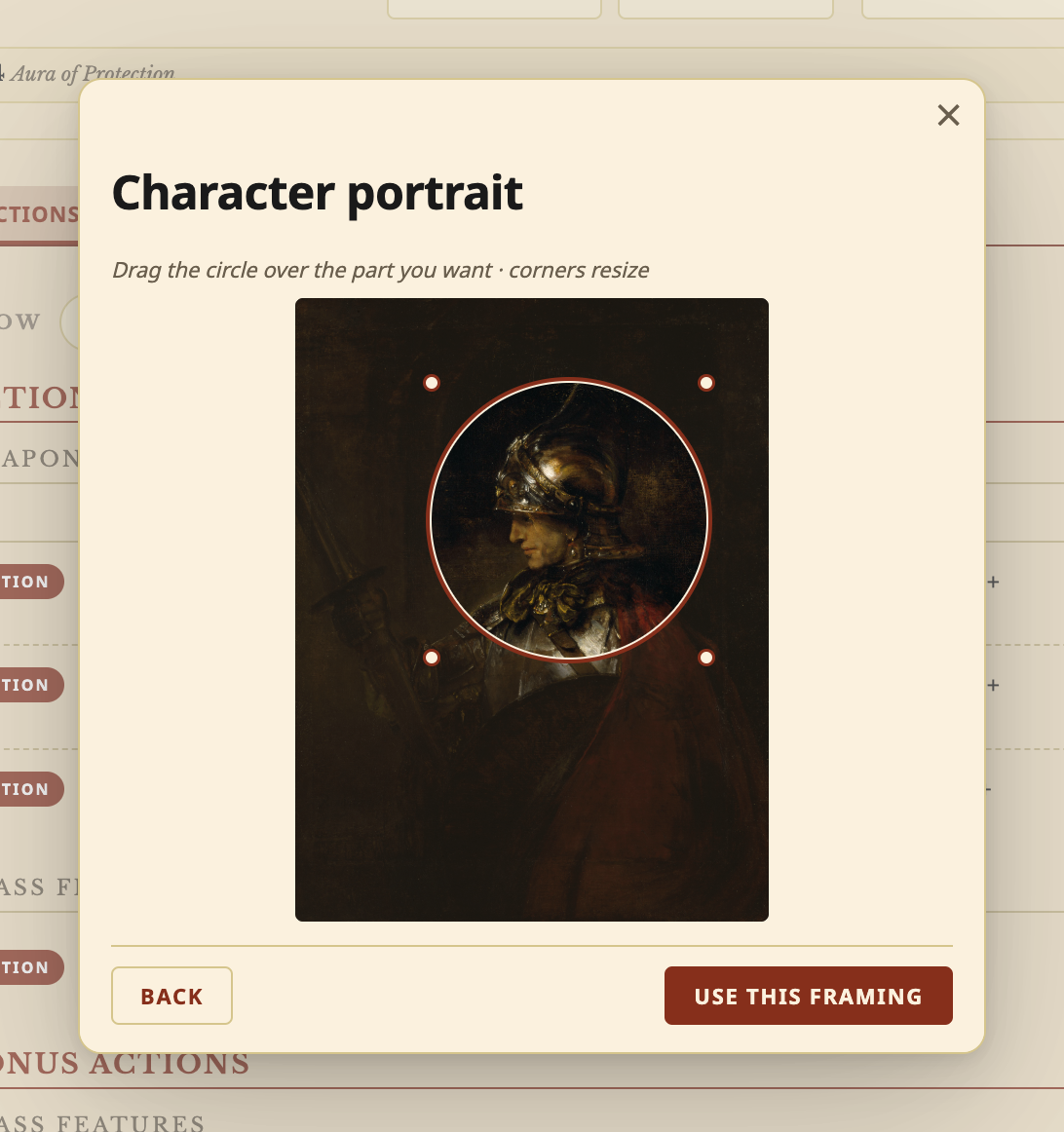
Give every character a face. Click the round picture at the top left of the sheet (a d20 until you choose one):
- Pick a picture from your portraits folder, or tick Show all vault images to browse your whole vault. The search box finds a picture by name.
- Import image brings in a picture from your computer and keeps it in your portraits folder.
- Frame it. Drag the circle over the part you want and pull its corners to make it bigger or smaller, then choose Use this framing.
- The portrait shows on the sheet and in the Builder. Click it again to choose a different picture or frame it again, or choose Remove current image to go back to the d20.
The picture stays an ordinary image in your vault, and the character's note remembers which one you chose and how it is framed. The portraits folder is PlayerCharacters/Portraits unless you choose another in Settings.
Rolling dice
Click a number on the sheet and it rolls. The result appears in the top right corner of the window. Where roll results appear in Settings moves it to another corner, or next to the number you clicked.
Every roll shows Dice Roller's 3D dice, and the result appears once they settle. Rather see only the result, straight away? Turn off Show 3D dice when you roll in Settings.
On a touch screen, press and hold anywhere on the sheet to open the menu a right-click opens, or to see what hovering shows.
Rolling your own dice at the table? Turn off Roll dice when you click a number on the sheet in Settings. A plain click on the sheet then rolls nothing, while Shift+click, Cmd+click (Ctrl+click) and the right-click menu still roll, and dice in your notes still roll with a click.
| On the sheet | Click | Shift+click | Cmd+click (Ctrl+click) | Option+click (Alt+click) | Right-click |
|---|---|---|---|---|---|
| Skill, save, ability modifier, Initiative | Roll d20 + bonus | Advantage | Disadvantage | Edit the number | Menu: the rolls, Edit, proficiency, Go back to the rules |
| Attack (HIT) | Roll to hit | Advantage | Disadvantage | Roll attack… window | Menu: the rolls, Roll attack…, saved rolls, Favorite, Hide |
| Damage | Roll all the damage | Critical hit | Roll damage… window | Menu: damage, critical, each extra bonus, Roll damage…, saved rolls |
Checks, saves and Initiative. Roll a d20 plus your bonus. Advantage and disadvantage that always apply are used for you (advantage on Stealth rolls two d20s and keeps the higher; having both cancels them out), and the result says where the advantage came from. Under the 2024 rules, each level of Exhaustion takes 2 off every d20 you roll, and the sheet's numbers already include it: saves, skills, ability checks, Initiative, attacks and spell attacks.
Death saves. At 0 HP, click DEATH SAVES to roll one and fill in its circle: 10 or more is a success, a natural 1 counts as two failures, and a natural 20 brings you back with 1 HP.
Attacks. Click the HIT of a weapon, an Unarmed Strike or a feature's attack to roll to hit; a spell attack rolls the same way on the Spells tab. Roll attack… lets you choose normal, advantage or disadvantage and add something extra, such as +1d4. With Extra Attack, a weapon shows ×2 (or ×3) after its to-hit: hover it to see where the extra attacks come from, such as "Extra Attack, Paladin 5", and click it (or Roll 2 attacks at the top of the right-click menu) to roll every attack at once, one line each.
Damage. One click rolls the weapon's dice and modifier plus every bonus that applies on every hit, all at once. A bonus that only applies sometimes keeps its own line and its own roll. Shift+click rolls a critical hit by the rule you choose in the Critical hits setting: double the dice (the default), maximum dice plus a roll, or double the total. A hit with two or more damage types shows each type's subtotal.
Roll damage… lets you tick what this hit adds: a critical hit, both hands on a Versatile weapon, a bonus that only applies sometimes such as Sneak Attack, Savage Attacker (roll the weapon's dice twice and keep the higher) or Great Weapon Fighting, and a spell that adds damage to the attack, such as Divine Smite or Searing Smite, at the slot level you choose. It shows the whole roll before you make it, and it spends nothing: you cast the spell on the Spells tab.
Saved rolls. Save as… keeps what you ticked, for this weapon or for all your attacks, and the right-click menu lists it under Saved. A saved roll that no longer fits (say, for a weapon you no longer carry) is greyed out with the reason. Manage saved rolls… renames, reorders and deletes them.
The result shows what you rolled ("Stealth · Check · Advantage"), the total, every die (a die that was not kept is struck through, and a natural 20 or 1 stands out in colour), where your advantage came from, and each damage type's subtotal. In a corner of the window it shows every roll, from the sheet, a stat block or the dice in your notes, and your last three stay in one panel: the newest in full, the two before it as a line each, starting with its result. A line's × removes that line; the card's × or Esc closes them all. Next to the number, close it with its ×, a click anywhere else, Esc, or your next roll.
Anything you can roll gets a dotted underline when you hover it. Dice in your notes and in stat blocks roll the same way.
 |
 |
Actions, features and resources
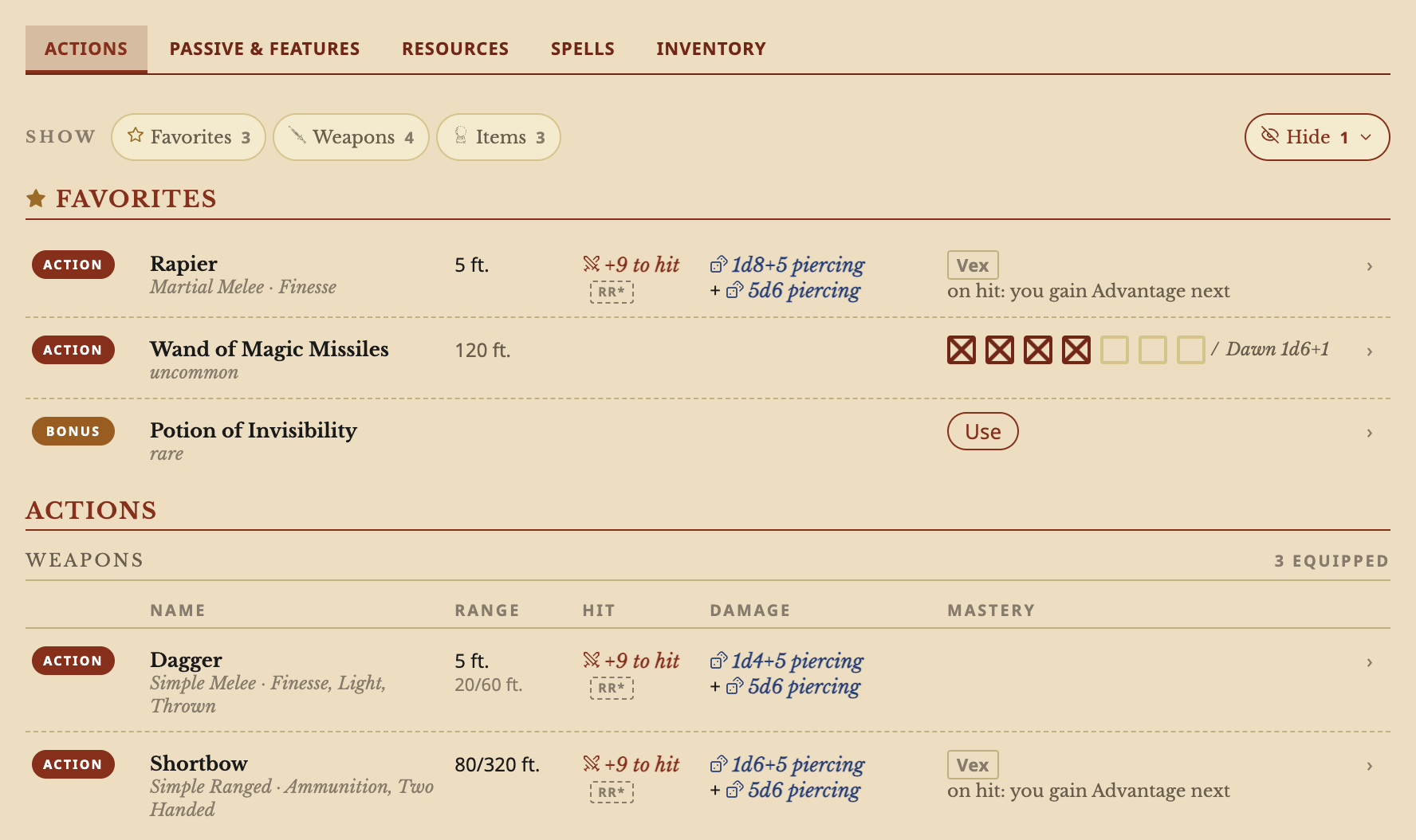
Actions tab. Everything you can do on your turn, grouped into Actions, Bonus Actions and Reactions:
- Your weapons with range, to hit, damage and mastery (Vex, Sap, Slow and the rest, with what each does on a hit), how many attacks each one makes (×2 after the to-hit with Extra Attack), which weapons are equipped, weapons a feature gives you, and the Unarmed Strike.
- Natural weapons, such as a species' claws, fangs or horns, get their own row next to the Unarmed Strike, with their own damage die and damage type. A trait you switch on adds its attack only while it is on.
- Damage bonuses such as Sneak Attack or Radiant Strikes sit right in the damage column, and a critical range wider than 20 shows under the weapon.
- Class features with their uses, items with charges, and consumables with a Use button.
- A feature you switch on, such as Rage, has an Activate button in front of its uses, which reads Active while it is on. How long it lasts shows under its name, and a rest ends it. A later feature can give it another way to pay: from Sorcerer 7, Innate Sorcery also offers Spend 2 Sorcery Points.
- Mark a row as a Favorite from its right-click menu to pin it to the top; the Show filters narrow the list and Hide tucks rows away.
- Click a row to open its full text and see how its numbers add up.
Passive & Features tab. Species, background, class and subclass features, feats, and passive or free actions, each with where it comes from and at what level. Features you switch on (Rage) or use have their button here.
Resources tab. Every limited resource, grouped by when it comes back (Short Rest or Long Rest): Hit Dice, use boxes, pools such as Lay On Hands, and dice that work like Hit Dice (the die, how many are left, − and +, and a box to type a number). Hover a die to see when it grows, such as "d6 at Bard 3, d8 at Bard 5". A feature that spends another resource lets you spend it right there. A tracker you write yourself can count from an ability score, such as a pool of 5 times your Wisdom score: it grows when an item or an increase raises that score and keeps what you have spent.
Option tabs. Classes that choose from a list of options get their own tab, such as Eldritch Invocations or Metamagic: a table with filters, how many you know, prerequisites, and Activate or Spend buttons where an option has them. An option whose prerequisite you no longer meet stays listed so you can swap it out, and does nothing until you meet it. An option's card shows its uses as the number they come to for you, such as "Uses: 65 / Long Rest" for a pool of 5 times your Wisdom score.
Spells
- Your spell save DC and spell attack at the top, with Cast and Manage modes.
- A bonus to one class's spells changes only that class: while Innate Sorcery is on, your Sorcerer spell save DC goes up by 1 and your Sorcerer spell attacks roll with advantage, and your other classes' spells stay as they are.
- A feature that gives you an extra cantrip, such as the Druid's Magician or the Cleric's Thaumaturge, adds one to how many cantrips you can have.
- Spells grouped by level: cantrips, leveled spells with their slot boxes, a Warlock's Pact Magic slots, spells you can cast for free or at will from a species, feat or invocation, and always-prepared spells marked as such.
- Columns for casting time, range, Hit / DC, effect (damage dice with a damage type icon, healing, targets) and components with duration, plus concentration and ritual marks.
- CAST spends a slot. A spell attack's Atk rolls to hit, with its ADV or DIS on a line under the number, as on a weapon.
- CAST on a spell that summons a creature, such as Find Familiar or Animate Dead, opens the summon window and adds the creature to the Companions tab.
- Spells from a feat. A feat that gives spells, one you write yourself or import, now gives them: the Builder asks for the spells it lets you choose (cantrips, a spell list, a spell of a given level or school) and for its spellcasting ability, and they appear on the Spells tab, with a free cast for a spell it lets you cast once per Long Rest.
- Free casts. A spell you can cast once per Long Rest without a slot, such as a species' spells or the level 1 spell from Magic Initiate, has an outlined CAST that counts the cast and greys out once it is used; a rest gives it back.
- A cantrip that needs concentration, such as Guidance, has a CAST button in place of At Will, and casting it starts your concentration.
- A choice that picks a list of spells, such as a Circle of the Land Druid's land, prepares that list's spells, and Natural Recovery casts one of them without a slot.
- When a class can change its prepared spells shows where you do it: the Long Rest window lists Spells you can change for each class that changes them after a rest (a Wizard picks from its spellbook), and a class that changes them when it gains a level says so on its card in the Builder.
- Items that hold spells (a wand or staff with charges) get their own section with the item's charges. CAST spends those charges and uses the item's own save DC and attack bonus, and works only while the item is equipped (and attuned, if it needs attunement). Spell scrolls work too.
Companions and Wild Shape
A familiar, a steed, the creatures you animate or summon, and your Wild Shape forms get their own Companions tab, the last tab. It appears once a character has a companion, or a spell, feature or class option that brings one, such as Find Familiar, Find Steed, Animate Dead, Animate Objects, Giant Insect, Summon Dragon or the SRD 5.1 Conjure spells. Any other character can show it from Customize appearance, where it is listed but hidden, to keep companions you add yourself.
- Cast to summon. CAST on a spell that summons a creature opens the summon window: the creatures you can choose from, the one you pick as its full stat block beside it, and what the spell asks for, such as its kind (celestial, fey or fiend), its size or how many. The creatures sit in a table with their challenge rating, AC and Hit Points: Find searches it, Size and Compendium narrow it, and Sort orders it (a casting that mixes creatures keeps a list with how many of each). A dot marks what your creature is now, its kind and its form. How you cast it picks the way: a spell slot of a level you choose, a Pact slot, a free cast, as a ritual, or the scroll or item that holds the spell. A line says what the casting spends, and the button says it again. Then the creature joins the tab. Casting a spell that gives you only one creature again, such as Find Steed, updates the one you have. Until you cast, a card with Summon waits on the tab for each spell or feature that can bring a creature. To cast without the window, turn off Ask which creature to summon when you cast in Settings: the cast then only spends what it costs, and you add or change the creature on the Companions tab.
- Creatures your DM allows. The switch Show every creature (outside Find Familiar's limits), after Sort in the summon window, adds every other creature of your shown compendiums under its own heading, each one tagged: for the creature a spell would not give you but your DM lets you take, such as an Imp from Find Familiar. The window says what the DM allowed, and the creature's card on the tab says DM allowed.
- Add a companion. Add a companion on the Companions tab brings in any creature from your shown compendiums, for a DM ruling, a hireling or a pet: pick it from a table you can filter by challenge rating, type, size and compendium, give it a name, and say where it comes from ("DM ruling" unless you write your own words, which its card shows). Dismiss sends it away and Call back brings it back.
- Creatures from every compendium. The summon window and the Wild Shape forms list creatures from every compendium you have not hidden, SRD 5.1 and SRD 5.2 alike. Each row names its compendium, the Compendium filter ticks compendiums on and off, and Sort orders the list by name, challenge rating or compendium.
- A full stat block, worked out for you. Each creature has its own Hit Points with Heal and Damage beside them, temporary Hit Points and Hit Dice, its abilities, saves, skills and Initiative, and attacks that roll on its own numbers. Hover a number that grows with you or with the spell to see how it is worked out, such as "10 + the spell's level (2)". A creature from a class option uses that class's level, also when you have more than one class.
- Its own conditions. A creature has its own conditions and Exhaustion, which change its rolls and never yours. The Conditions window greys out the conditions it is immune to.
- Dismiss and Summon. Dismiss sends a creature away. A familiar from Find Familiar waits in its pocket dimension and Call back brings it back for free, and so does a companion you added yourself. Any other creature needs a real casting to come back: Summon… opens the summon window on your last picks, where you can also choose another creature or form, and casting it spends a slot, a Pact slot or a free cast, or nothing as a ritual. A creature's menu renames it, adds a note, changes its form (a familiar from an owl to a cat) or removes it.
- Mixed castings. One casting of Animate Dead can raise Skeletons and Zombies together, and Animate Objects can animate objects of different sizes (a Large object counts as two, a Huge one as three). An Animated Object's stat block shows the size you picked.
- The SRD 5.1 Conjure spells. Conjure Animals, Conjure Minor Elementals and Conjure Woodland Beings ask how many creatures you call, by challenge rating (one of CR 2, two of CR 1, four of CR 1/2 or eight of CR 1/4), with more from a higher slot. Conjure Elemental, Conjure Fey and Conjure Celestial let you call a stronger creature from a higher slot.
- At 0 Hit Points. A creature a spell brings, such as a familiar or Animate Dead's Skeletons, is gone at 0 Hit Points until you cast the spell again: a Long Rest heals the ones still standing and leaves the fallen out, and the creature's card says it is gone. A companion from a feature or a feat, or one you added yourself, comes back at full Hit Points after a Long Rest.
- Its attacks in your Favorites. Mark a companion's attack as a Favorite and it joins the Favorites at the top of the Actions tab, with its own to-hit and damage.
- Several of one creature. Animate Dead's Skeletons or Animate Objects' objects share one stat block with a row of Hit Points boxes. Click a box to pick that creature, or Shift+click to pick several: Heal and Damage act on the ones you picked, Apply to in the Conditions window gives a condition to the ones you choose, and an attack rolls for the picked creature or for each standing one, each with its own advantage or disadvantage. A box's own menu heals that creature, drops it to 0, dismisses it or removes it, and for a dismissed one casts the spell again (Cast Animate Dead…).
- Features that change a companion. Investment of the Chain Master gives your familiar a flying or swimming speed and lets it attack when you command it with a Bonus Action. A Draconic Sorcerer's Dragon Companion casts Summon Dragon without Concentration: the summon window asks.
Wild Shape. A Druid's Companions tab holds a Wild Shape block: the beasts you can turn into (a 2024 Druid picks its known forms in the Builder), each with its challenge rating, AC and Speed, its first attack with the to-hit in a column of its own, and the damage with its type (Bite, +4, 1d6+2 Piercing), and your uses. SHIFT turns you into one and spends a use:
- The form's stat block comes first, with your Hit Points (2024) or the beast's Hit Points in front of yours (2014), and the beast's attacks.
- Temporary Hit Points. SHIFT gives you temporary Hit Points equal to your Druid level (2024). If you already have some, the block asks first: Keep yours or Take the new ones (they never add up), with the higher one picked for you. The form's Your Hit Points line says what the shift gave you or what you kept. Changing back keeps them, and a Long Rest ends them.
- A strip under the sheet's header names the form, with END to change back.
- Numbers the form gives you, such as its AC, Speed and Strength, turn green on the sheet, and hovering one says it comes from the form.
- The Spells tab says you can't cast spells in this form, and the Wild Shape row on the Actions tab has SHIFT and END.
- The form ends when the rules say so, with a message: when you have the Incapacitated condition (2024), or when the beast drops to 0 Hit Points (2014), and then the rest of the damage carries over to you.
- After a Long Rest, the rest window offers to change one of your known forms (2024).
- Known forms. The window where you choose them (in the Builder, or Change known forms… in the block's menu) lists every beast you may learn, with Find, drop-down filters for challenge rating, movement, size and compendium, and Sort. The beast you pick shows its stat block beside the list, and the Known strip at the top shows the ones you have chosen. Flying beasts stay out until Druid 8 (2024), and a line says how many are left out.
Inventory
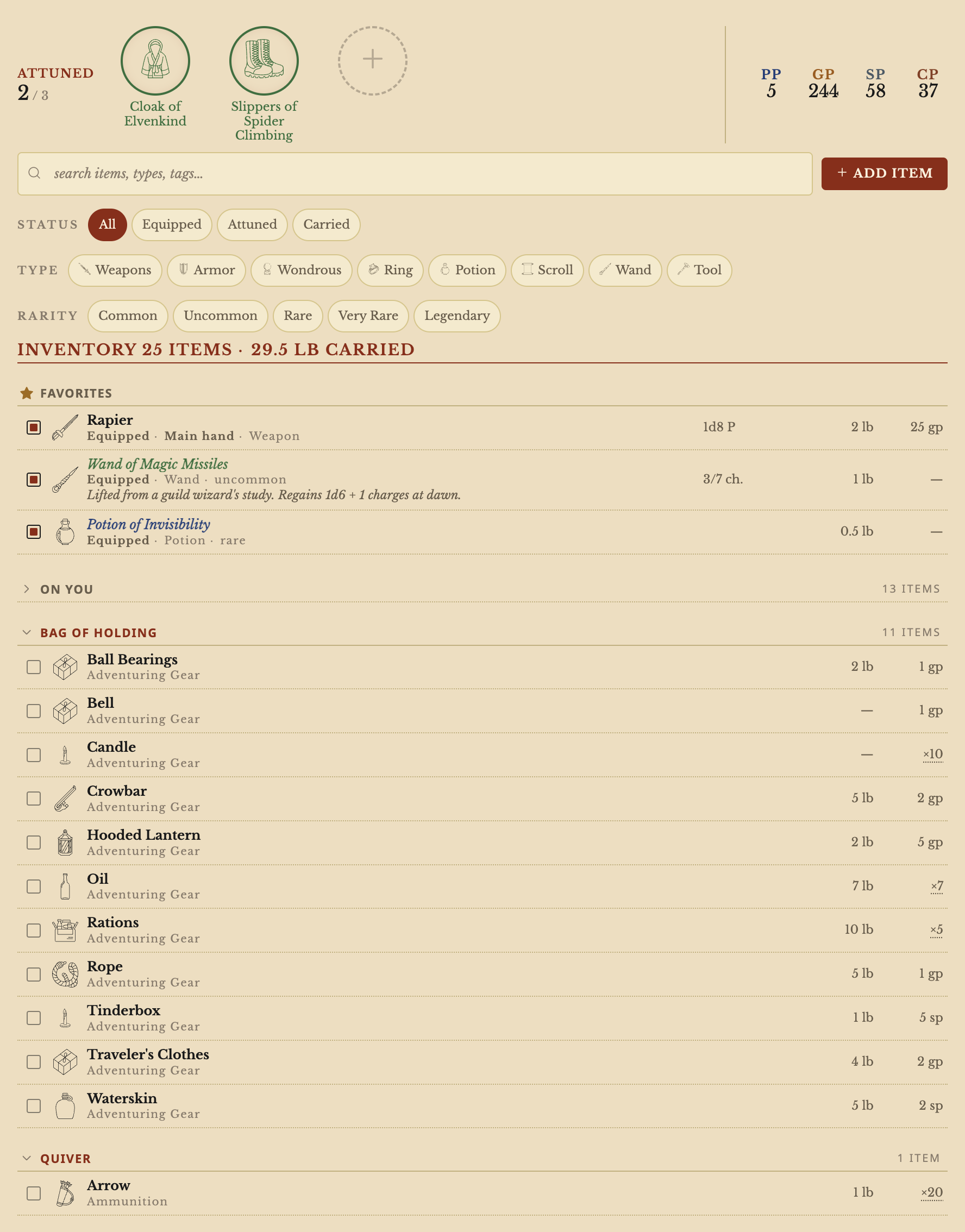
- Three attunement slots with your attuned items' icons, and a Coins card with every coin (PP, GP, EP, SP, CP) and your total in gold. Click the card to add or subtract coins.
- Search, filters for equipped, attuned or carried items, type and rarity, and Add item from any compendium you can see. The list stays open while you add several items, each with − and + to add more than one at a time, and shows what you have added.
- Sections for Favorites, On you, and each container (a Backpack, a Quiver, a Bag of Holding whose contents weigh nothing), with the total weight you carry.
- Stacks. Click a stack's ×N to change how many you have (−, +, or type a number; it also shows what one weighs and costs). Anything you add, move or unequip joins a matching stack; Split one off separates one, and equipping a stack of weapons takes one from it.
- Drag and drop. Drag a row into a container, out of it, or onto On you. Drop it on a matching item to add it to that stack. An item that is equipped or attuned, has its own note, charges or changes, or is a container keeps its own row.
- Each row's menu: Equip or Unequip, Move to another container, Trade with… another character, Quantity, Split one off, Edit note, Remove.
- Select picks several rows at once to trade, move or remove them together.
- Trade items and coins with another character in your vault. The Trade window shows the two characters side by side, each with their coins right above their items. Both sides list what that character has On you first, then each container, and the two lists line up row for row. Move items either way (part of a stack, a container with what is in it; worn or attuned items come off), add coins, then Trade. Undo puts both characters back, and each Inventory keeps a Given and received list.
- Benefits follow what you wear. An item's resistances, immunities, AC, saves, senses, speeds and effects count while it is equipped (and attuned, if it needs attunement). A magic weapon that needs attunement attacks as a plain weapon until you attune it.
- Item notes, charges with when they come back ("Dawn 1d6+1"), and a Customize card for changes to one item.
- Icons for weapons, armor, gear, potions, wands, rings and more.
Builder
Make a character with New character (the command, the ribbon button, or the right-click menu of any folder), and the Builder opens. Come back later with Manage & level up to level up or change a choice.
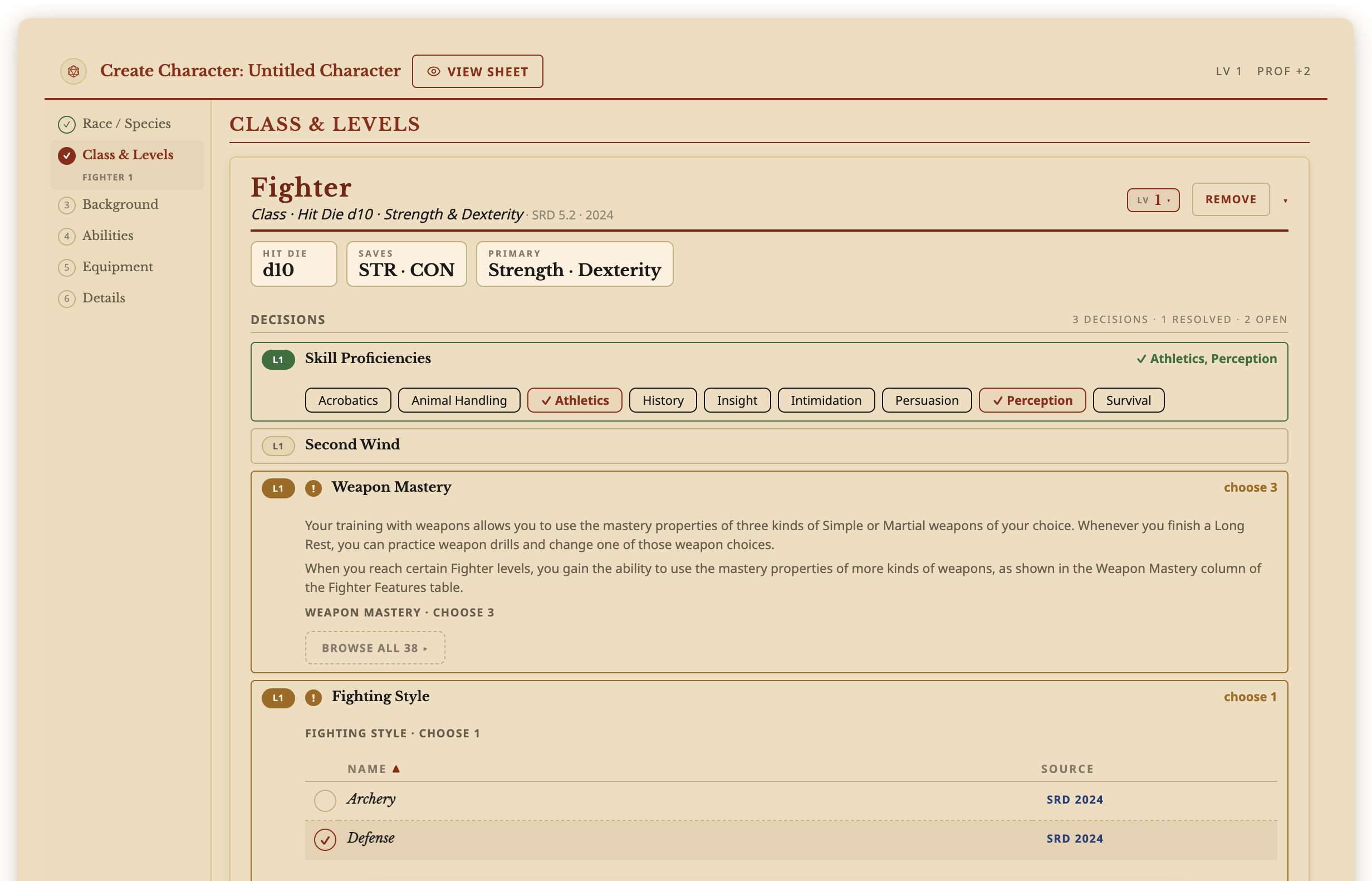
- Six steps: Race / Species, Class & Levels, Background, Abilities, Equipment and Details.
- Every pick is a list of what is in your compendiums, SRD and homebrew together, with where each one comes from. Select one to read its full card before you decide.
- Every edition in every list. Lists are not split by edition: a 2024 character can pick a 2014 spell, feat or option, and the other way round. Only a compendium you hide stays out of the lists.
- Your first class sets the rules. A character follows the edition of its first class: a 2024 class plays the 2024 rules for conditions, Exhaustion and actions, a 2014 class the 2014 rules. Characters you made before follow their class too, with no change to their note.
- What you decide lists every choice your pick asks for (skills, a lineage, a Fighting Style, Weapon Mastery, a subclass, feats or Ability Score Improvements) with its level, and marks what is still open.
- Features by level shows the whole class progression: features you have are filled in, the ones ahead are hollow.
- Multiclass with Add another class, set ability scores by standard array, point buy, typing them in or rolling, and take your starting equipment from your class and background.
- An older species with a 2024 background. When your background gives ability increases, a species written for the 2014 rules adds none of its own, as the 2024 rules say. The Abilities step explains it, and its Keep species ability increases switch keeps both if your table allows it.
- The same skill or tool twice. When your species and your background give you the same skill or tool, the Builder lets you take a different one in its place.
- The SRD 5.1 subraces (Hill Dwarf, High Elf, Lightfoot Halfling, Rock Gnome) get their parent species' ability increases, speed, senses, languages and traits.
- A 2024 Druid picks its Wild Shape forms under Known forms, with the class's other choices.
Compendiums
A compendium is a folder of notes inside your Compendium folder, one note for each monster, spell, item and so on.
- SRD 5.1 and SRD 5.2 included. Archivist adds both as read-only compendiums (
SRD 5eandSRD 2024): every SRD spell, monster, magic item, class, subclass, species, background, feat and condition. An update only touches the notes that changed, and Archivist notices any changed SRD note, so a fix to the SRD reaches your vault with the update that brings it. SRD 5e starts hidden from the lists you pick from. - Your own homebrew. Keep your own monsters, spells, items and more in your own compendiums, next to the SRD. Save any stat block to a compendium with the button beside it; if you do not have one yet, Archivist offers to make one.
- Name them your way. Give SRD 5e and SRD 2024 any name in Settings → Archivist GG → Compendiums, and Archivist shows it wherever it names them. Your folders, notes and links keep their names.
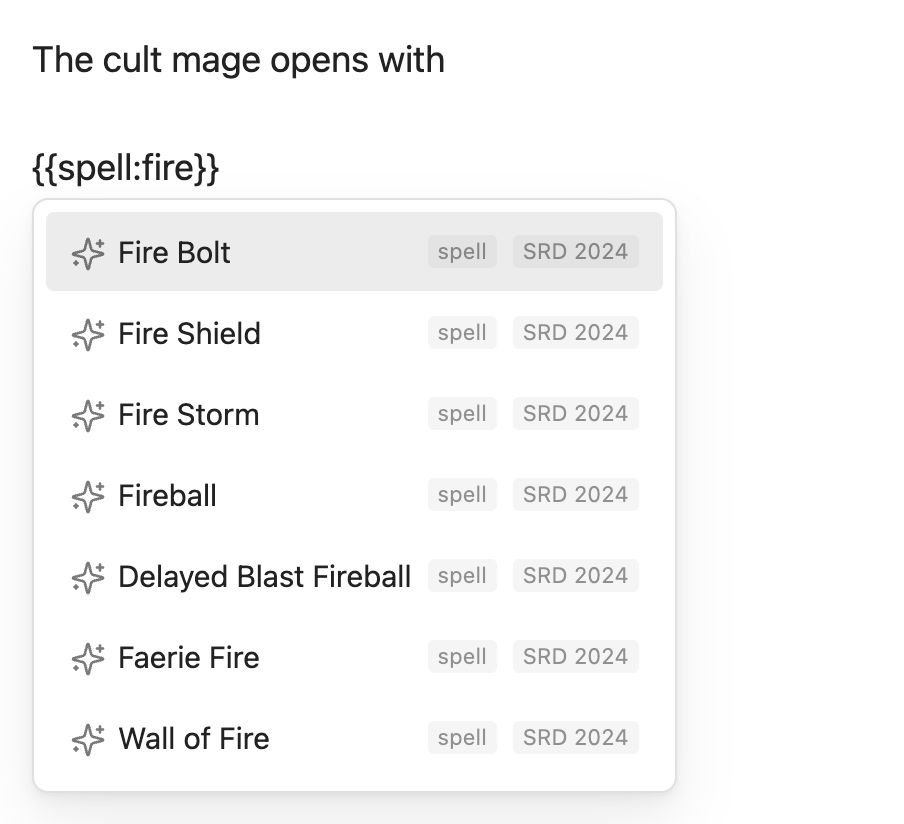
- Show or hide, lock or unlock. Each compendium has a Visible switch (whether its entries show up in the sheet's and the Builder's lists and when you type
{{) and a Read-only switch. "Save as new" copies an entry from a read-only compendium into one you can edit. - Changes show up right away. Edit, add, rename or delete a compendium note and Archivist uses it at once, with no restart. An open sheet shows the change the next time it updates.
- Quick to start. Archivist remembers your compendiums on each device, so later starts only read the notes that changed.
- Bring your own content with an AI assistant. The Archivist skills teach an AI assistant such as Claude to turn a character sheet, a PDF or your own homebrew into notes Archivist reads, and to check and update older notes: download the Archivist skills.
Stat blocks
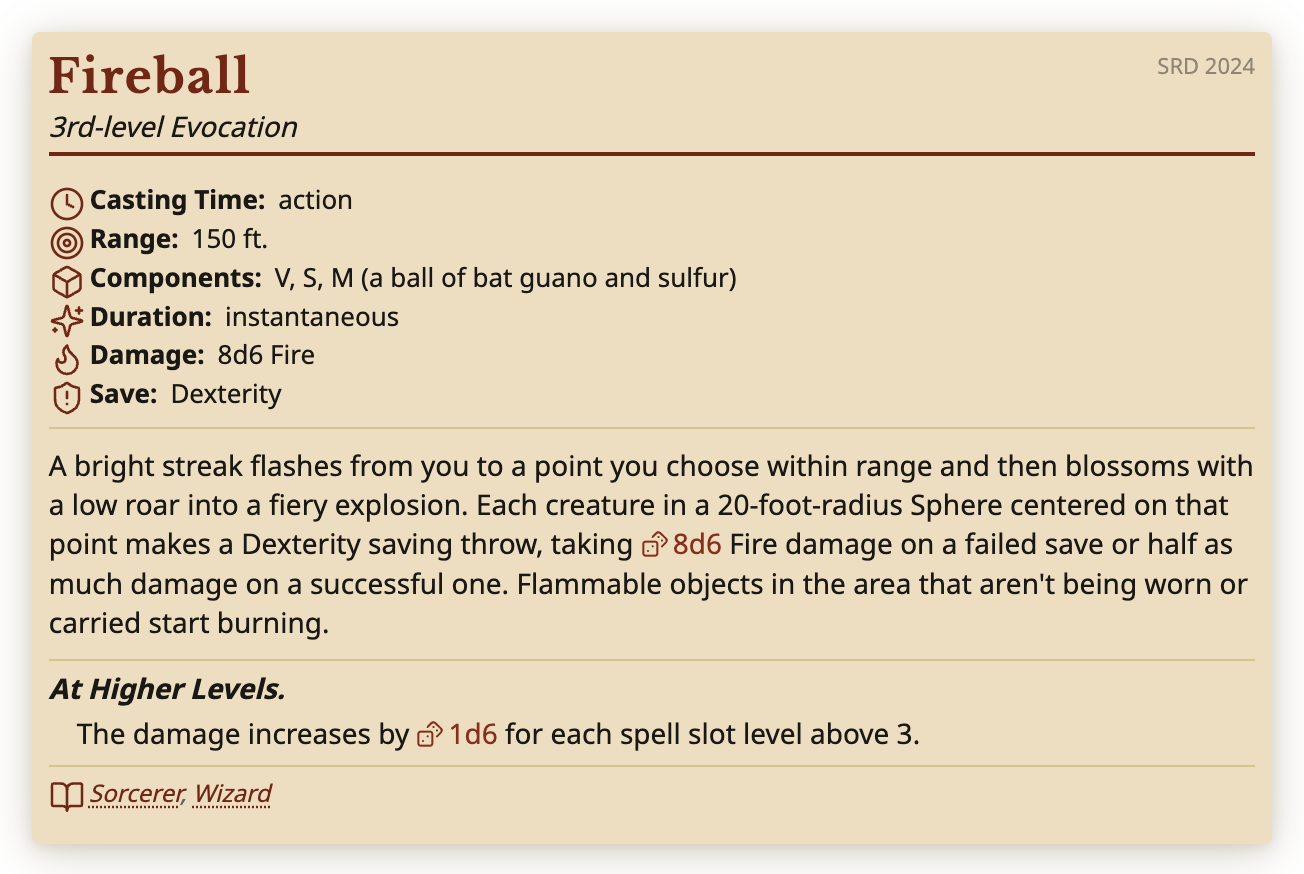
Write a monster, spell or item in any note and it appears as a parchment stat block. A monster looks like this:
```monster
name: Young Red Dragon
size: large
type: dragon
alignment: chaotic evil
ac:
  - ac: 18
    from: [natural armor]
hp:
  average: 178
  formula: 17d10 + 85
speed: { walk: 40, fly: 80, climb: 40 }
abilities: { str: 23, dex: 10, con: 21, int: 14, wis: 11, cha: 19 }
cr: '10'
actions:
  - name: Rend
    entries:
      - 'Melee Attack Roll: `atk:STR+PB`, reach 10 ft. `dmg:2d6+STR` Slashing damage plus `dmg:1d6` Fire damage.'
```
- Twelve kinds of stat block: monsters, spells, magic items, armor, weapons, classes, subclasses, species, backgrounds, feats, class options and conditions.
- The math is done for you. Ability modifiers, Proficiency Bonus and XP come from the scores and challenge rating, and the edit form works out saves, skills, passive Perception and hit points, which you can change. Write
atk:STR+PBordc:WISin an action and the block fills in the number from the creature's own scores. - Senses read the way the SRD 5.2 prints them, on every block and in both editions: "Darkvision 60 ft.; Passive Perception 15". Your note keeps its own words.
- Buttons beside each block: save to compendium, delete, edit in a form (for monsters, spells, items and conditions, with suggestions as you type), and a two-column layout for monsters.
- A creature a spell summons, such as the Otherworldly Steed of Find Steed, shows the numbers that grow with the spell in words: "AC 10 + the spell's level". On a character's Companions tab it shows the numbers worked out for that character.
- The Insert monster block, Insert spell block and Insert magic item block commands start you off with a ready-made outline.
Dice in your notes
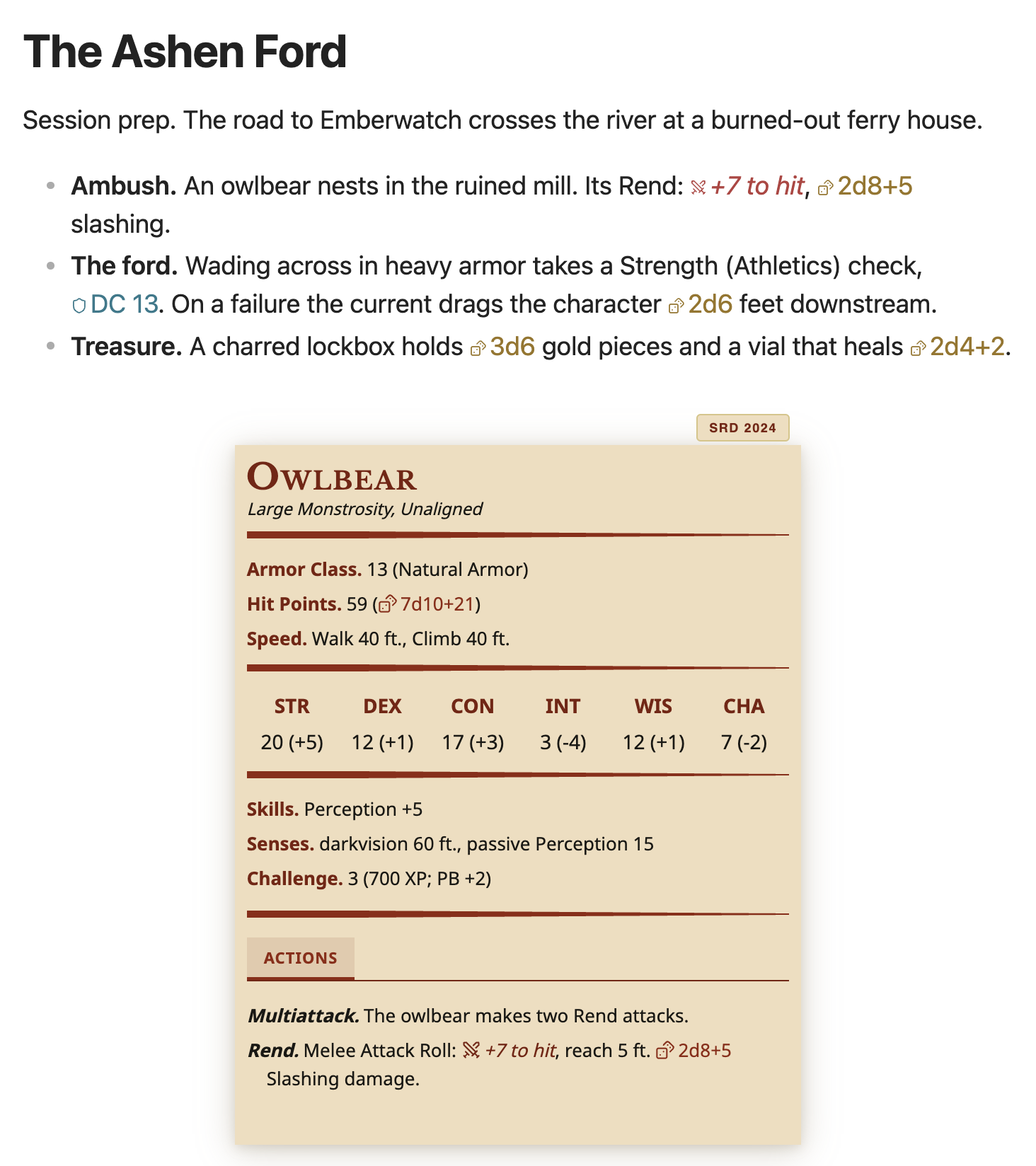
Put a roll between backticks anywhere in a note, like `dice:2d6`, and it turns into a button that rolls 2d6 when you click it. dmg: for damage, atk: for an attack bonus and dc: for a save DC (shown, not rolled) work the same way.
Compendium entries in your notes
Type {{ and start typing a name to pull any entry from your compendiums into a note: a spell, monster, item, species, subclass, class option such as an Eldritch Invocation, and more. Pick it from the list, and on a line of its own it shows as the full stat block, both while you write and when you read.
- Every block names where it comes from in its top right corner, such as SRD 2024 or your own compendium, and so does an item's expanded row in the Inventory. If the name no longer matches anything, it says so.
- Save to compendium on a stat block in a note files it in a compendium, and the note keeps showing the same block, now read from there.
Settings
Settings → Archivist GG:
| Setting | What it does |
|---|---|
| Compendium root folder | The folder that holds your compendiums (Compendium unless you change it). |
| Default player character folder | Where the New character command and the ribbon button put new characters. A character works in any folder. |
| Portraits folder | Where the portrait picker looks for pictures and keeps the ones you import (PlayerCharacters/Portraits unless you change it). |
| Rolls → Critical hits | What a critical hit does to damage: double the dice (the default), maximum dice plus a roll, or double the total. |
| Rolls → Where roll results appear | Top right (the default), bottom right, top left or bottom left of the window, for every roll: the sheet's, a stat block's and the dice in your notes. Next to the number opens a sheet roll's result beside the number you clicked. |
| Rolls → Show 3D dice when you roll | On unless you turn it off. On, Dice Roller's 3D dice roll on screen for every roll and the result appears once they settle. Off, no dice: the result appears at once. |
| Rolls → Roll dice when you click a number on the sheet | On unless you turn it off. Off, a plain click on a to-hit, damage, save, skill, check or Initiative number rolls nothing; Shift+click and the right-click menu still roll. |
| Companions → Ask which creature to summon when you cast | On unless you turn it off. On, casting a spell that brings a creature, such as Find Familiar or Animate Dead, opens the summon window. Off, the cast spends what it costs and opens nothing: you add or change the creature on the Companions tab, whose Summon… still opens the window. |
| Compendiums | SRD 5.1 name and SRD 5.2 name to rename the two SRD compendiums, then one row per compendium, with how many entries it holds and its Visible and Read-only switches. |
Commands
| Command | What it does |
|---|---|
| New character | Makes a new character and opens the Builder. Also on the ribbon, and in the right-click menu of any folder, which puts the character in that folder. |
| Find in character sheet | Opens the find bar on the sheet you are looking at, like Cmd+F (Ctrl+F) or the search button at the top of the sheet. |
| Insert monster block | Adds a monster outline where your cursor is. |
| Insert spell block | Adds a spell outline. |
| Insert magic item block | Adds a magic item outline. |
| Rebuild compendium cache | Reads every compendium note again. Use it if a compendium ever looks out of date. |
FAQ
Is it free?
Yes. You can use all of the current features completely free, under the freeware licence in LICENSE.
Is it in the Community plugins list?
Yes. Search for Archivist GG under Settings → Community plugins → Browse.
Does it work on mobile?
On an iPad or another tablet, yes: the sheet fills the screen edge to edge, and pressing and holding opens the menu a right-click opens on a computer, or shows what hovering shows. You install and update it from Community plugins, as on a computer. On a phone Archivist works too, but the layout is not polished for a small screen yet.
What content does it include?
The System Reference Document 5.1 and 5.2, released by Wizards of the Coast under CC-BY-4.0, and nothing else. Your own homebrew goes in your own compendiums.
Do I need other plugins?
Rolling uses the Dice Roller plugin. Stat blocks, the compendiums and the character sheet work without it.
Does it work with my theme?
Yes. Stat blocks, the character sheet, its windows and the Builder keep their parchment look under any theme.
Is this the Archivist I saw elsewhere?
Only if it is Archivist GG (id archivist-gg) from archivist-gg/archivist-obsidian-plugin. Other plugins and apps named Archivist are unrelated.
Was AI used to build it?
Yes. Archivist is built with help from an AI coding assistant.
Where are my characters and notes stored?
In your vault, as ordinary notes you can open, search and back up. Portraits are ordinary pictures in your vault too.
Where do I report a bug?
In Issues. Tell us your Obsidian and Archivist versions, and if something looks wrong, add a screenshot or the text of the note.
Community
- Website: archivist.gg, with screenshots, a short video and the install steps.
- Discord: join the Archivist Discord to ask questions, share ideas and hear about new versions.
- GitHub Issues: bugs and ideas.
Licence and legal
Licence. Archivist is freeware: free to download and use, with no modifying, reselling or redistributing. See LICENSE.
Archivist's source code is not public. Obsidian's reviewers can read it privately on request.
Compatibility and SRD content. Archivist is a free, unofficial Obsidian plugin, compatible with fifth edition. It includes rules content from SRD 5.1 and SRD 5.2 under CC-BY-4.0. Not affiliated with Wizards of the Coast.
The verbatim SRD 5.1 and SRD 5.2 attribution, and how the material was changed, are in THIRD-PARTY-NOTICES.md.
Credits.
- Icons: the sheet's icons (items, conditions, spell effects and the rest buttons) are by Noun Project creators, under CC BY 3.0. Every icon and creator is listed in CREDITS.md.
- Fonts: Libre Baskerville and Noto Sans, under the SIL Open Font License 1.1.
- Libraries: js-yaml and zod (MIT), monkey-around (ISC).
- Portrait in the screenshots: Man in Armour by Rembrandt (1655), Kelvingrove Art Gallery and Museum, Glasgow. Public domain, from Wikimedia Commons.

Every third-party notice is in THIRD-PARTY-NOTICES.md.