AI Assistant Suite
 rexxall92 downloads
Ask an AI to suggest a title, tags, a folder and tidier text for a note, then review and apply only what you accept. Works with cloud APIs or a local model.
- Overview
- Scorecard
- Updates10


Start in three steps
- Install AI Assistant Suite from Settings → Community plugins → Browse and enable it.
- Open the assistant (anchor icon in the ribbon). Not connected yet? Click Load example (also a command): a demo note with pre-written suggestions, no network and no cost, so you can try ticking, applying and undoing.
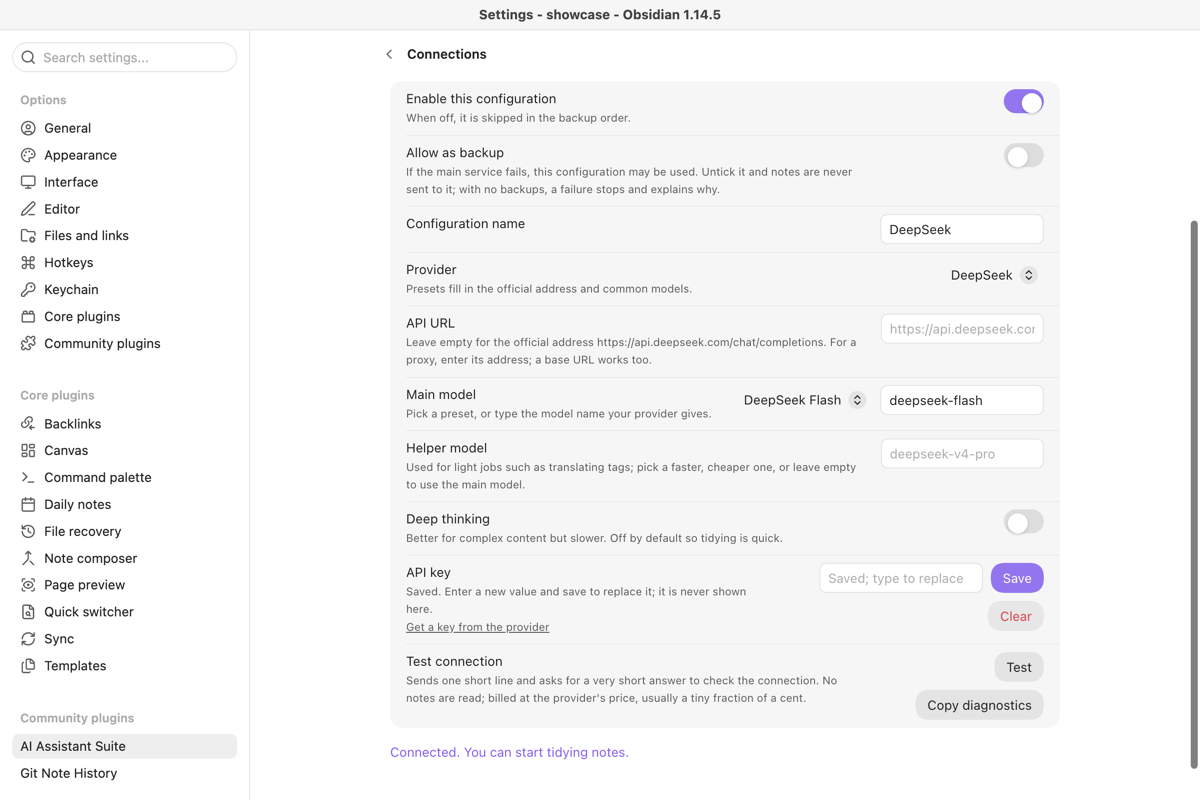
- To use your own notes, open Settings → AI Assistant Suite → Connections: choose a provider (DeepSeek is preselected), choose or create a key, keep the suggested model, and press Test. Then open a note, pick what you want done and choose Generate suggestions.
Needs Obsidian 1.13+ on desktop or mobile, and an API key or a local model. Costs nothing for the plugin; the model is paid to your provider by usage, and a local model is free.
Everything else
How it works
Ask an AI to suggest a title, summary, tags, a folder and tidier text for the note you are on. Every suggestion lands in a review list; nothing is written until you tick it and apply, and every change can be undone.
- Choose what you want for the open note: title and summary, tags, folder, tidy text, furigana for Japanese, or a custom action.
- The suggestions appear under This note. The tidied text opens as a whole-note preview.
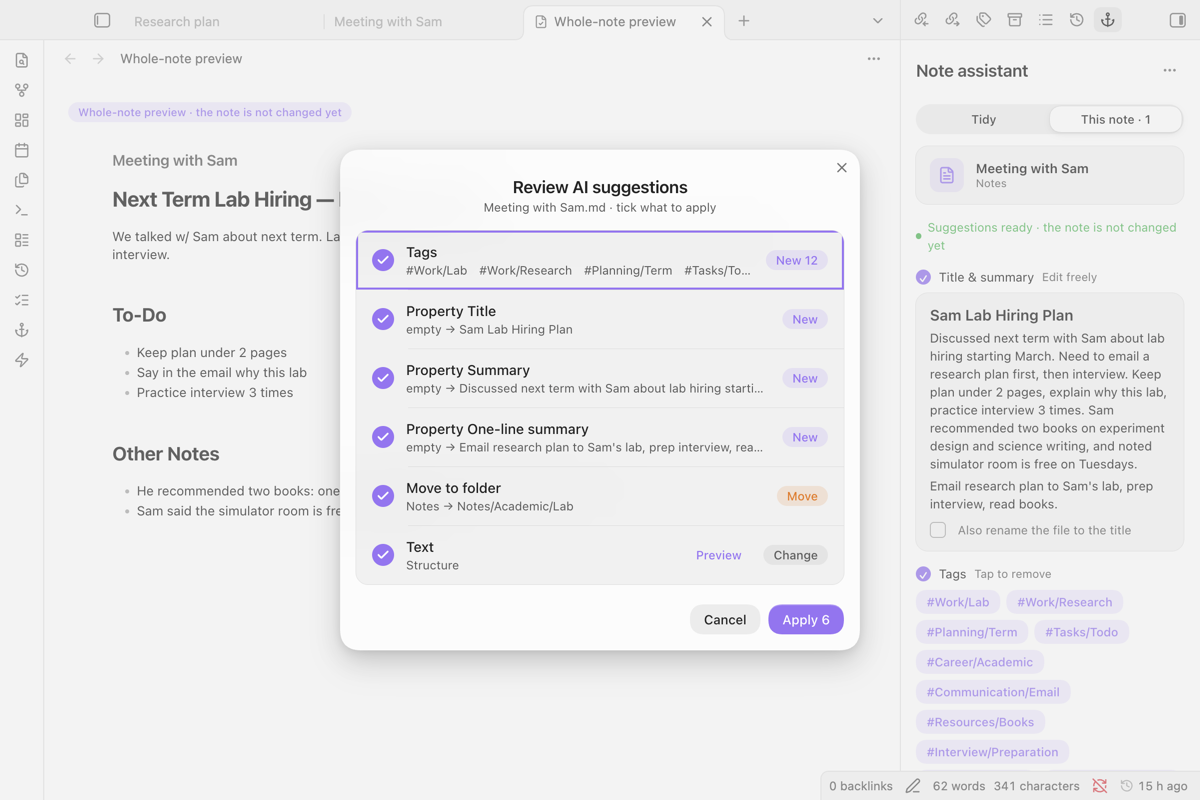
- Review and apply opens the checklist. Only ticked rows are written; if the note changed while you were reviewing, nothing is written and you are asked to generate again.
- Every applied note can be undone. For a folder, run a batch and review the results one note at a time.
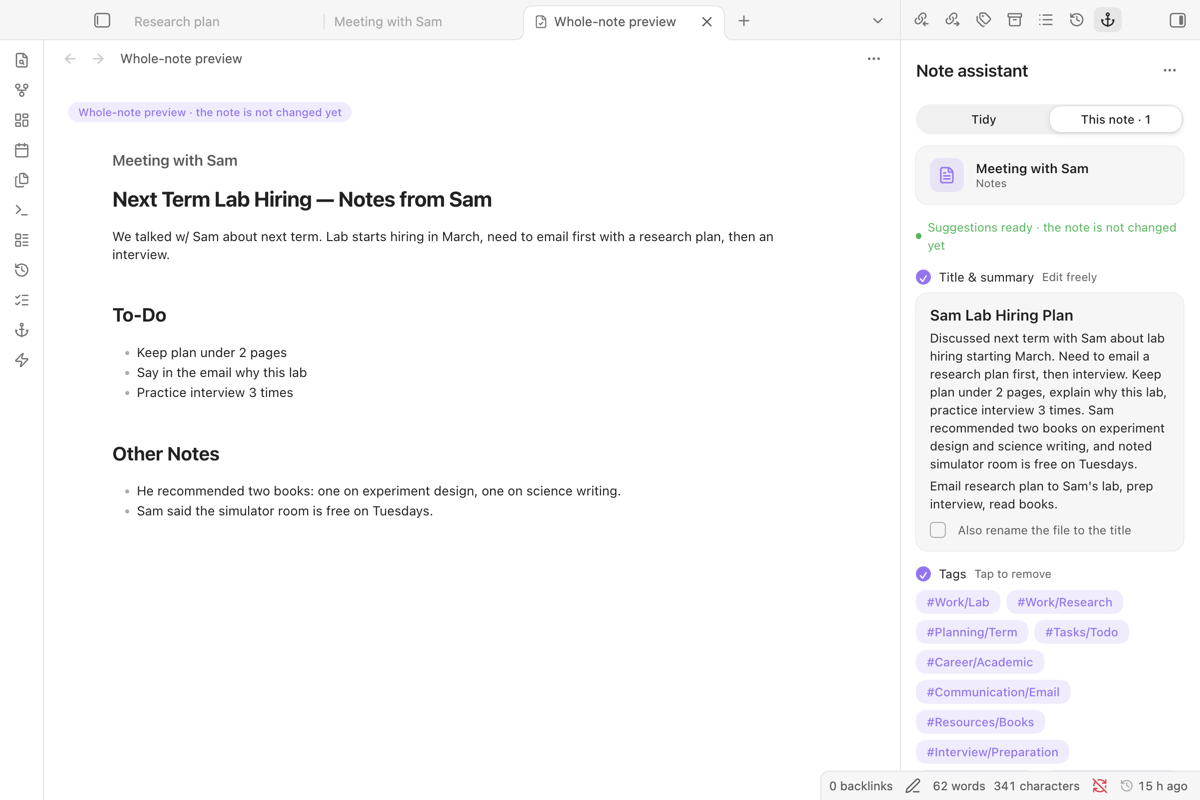
Left: the tidied note, not written yet. Right: suggestions you can edit or remove.
What it needs and what it costs
- Needs: Obsidian 1.13 or later, desktop or mobile, and either an API key from a model provider or a local model (Ollama, LM Studio) on your computer.
- The plugin: free and open source (MIT). No account with the author, no subscription, no telemetry.
- The model: paid to the provider you choose, by usage. A local model costs nothing. Some providers have free tiers or new-user credit; check their own pricing pages, which change often. Test sends one short line and asks for a very short answer, usually a tiny fraction of a cent.
Where your data goes
| What is sent | The text of the note (or selection) you start an action on, plus the instructions for that action. For tag and folder suggestions, the names of your existing tags and folders are sent too. Nothing is sent until you start an action. |
| Who gets it | Only the first enabled configuration. If it fails, only configurations you ticked as Allow as backup (off by default); with none ticked, the action stops and says why. Before a batch, the plugin shows how many notes and how much text go to which services. A local model keeps everything on your computer as long as no cloud configuration is ticked as a backup. |
| Where the key is stored | In Obsidian's Keychain on this device (Settings → Keychain). The plugin's settings file keeps only the key's name, such as deepseek-api-key, so other plugins that use the same name can pick the same key. A key is sent only to the provider it belongs to. Copy diagnostics contains no key, no full address and no note text. |
| Other devices | Keys do not sync with the vault. On another device, open the connection and choose or create the key again. |
| Anything else | Suggestions, undo snapshots and history stay in plugin data. No telemetry. |
Providers
| Provider | Default address | Models offered |
|---|---|---|
| DeepSeek (default) | https://api.deepseek.com/chat/completions |
deepseek-flash, deepseek-v4-pro |
| Qwen (Alibaba Cloud Model Studio) | https://dashscope.aliyuncs.com/compatible-mode/v1/chat/completions |
qwen-plus, qwen-max, qwen-flash |
| SiliconFlow | https://api.siliconflow.cn/v1/chat/completions |
DeepSeek V4 Flash, Qwen3 32B |
| Kimi (Moonshot AI) | https://api.moonshot.cn/v1/chat/completions |
kimi-k3, kimi-k2.6 |
| Zhipu GLM | https://open.bigmodel.cn/api/paas/v4/chat/completions |
glm-5.3, glm-5.3-flash |
| Local model | http://localhost:11434/v1/chat/completions (Ollama; LM Studio is usually port 1234) |
any model you pulled |
| Google Gemini | Google's API | gemini-2.5-flash, gemini-2.5-pro |
| Custom (OpenAI-compatible) | the full address you enter | any |
Leave the address empty to use the official one; a base URL such as https://api.deepseek.com or a proxy also works. The model list is a shortcut; you can type any model name.
Language and themes
Every part of the interface, including errors and empty states, follows Obsidian's language: Chinese, or English for every other language. The prompts sent to the model are editable in settings.
Colours come from your theme's variables and the styles apply only inside the plugin's views.
Limits
- Suggestions are only as good as the model; review them, especially text rewrites.
- Batch runs send one request per note; large folders cost accordingly.
- Answers do not stream: requests use Obsidian's
requestUrl, which works on mobile and is not blocked by CORS but returns the whole answer at once. In testing, tidying a 10,000-character note with DeepSeek Flash took about 48 seconds. - A local model on your computer cannot be reached from a phone.
Development and verifying a release
See CONTRIBUTING.md for checks and reporting issues, and CHANGELOG.md for versions.
From 1.7.1 on, the release files carry a GitHub build attestation; check one with gh attestation verify main.js -R Rexxall/obsidian-ai-assistant-suite.
MIT License