AI Accounting
 rexxall83 downloads
Turn receipt photos and notes into a multi-currency Markdown ledger. AI drafts each entry, you check it, then it is saved. Budgets, refunds, transfers, charts and CSV.
- Overview
- Scorecard
- Updates8


Start in three steps
- Install AI Accounting from Settings → Community plugins → Browse, enable it and click the pie-chart icon in the left ribbon.
- In Settings → AI Accounting → AI services → Add service, choose a service and your key, then click Test.
- Open a note with a receipt photo and run AI Accounting: Read the current note into the ledger.
No AI yet? Click Add to record by hand, or Load samples on the empty ledger.
Needs Obsidian 1.13 or later, desktop or mobile. Costs nothing for the plugin; reading receipts uses your own key or a local model.
Everything else
Every feature
Turn receipt photos and notes into a multi-currency Markdown ledger. The AI drafts each entry, you check it, then it is saved.
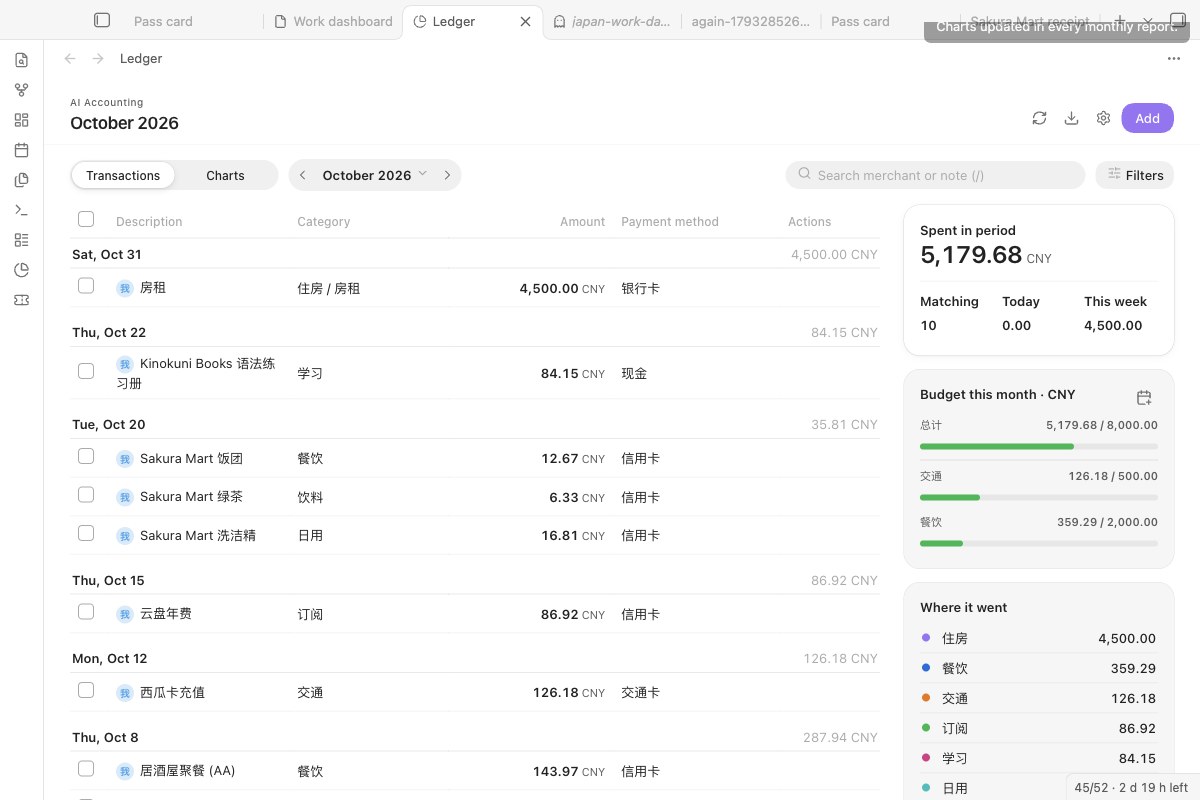
- Reads receipts and notes for you. Drop a photo or a note into an inbox folder, or run a command on the current note; receipts embedded in the note are read too. An AI service fills in date, shop, category, amount, currency and payment method.
- Never writes a guess straight into your books. Every result waits as a draft until you check it. Closing the dialog keeps the draft; nothing is entered until you confirm.
- Keeps the books as plain Markdown. One table per month in your vault, readable and editable without the plugin.
Recording
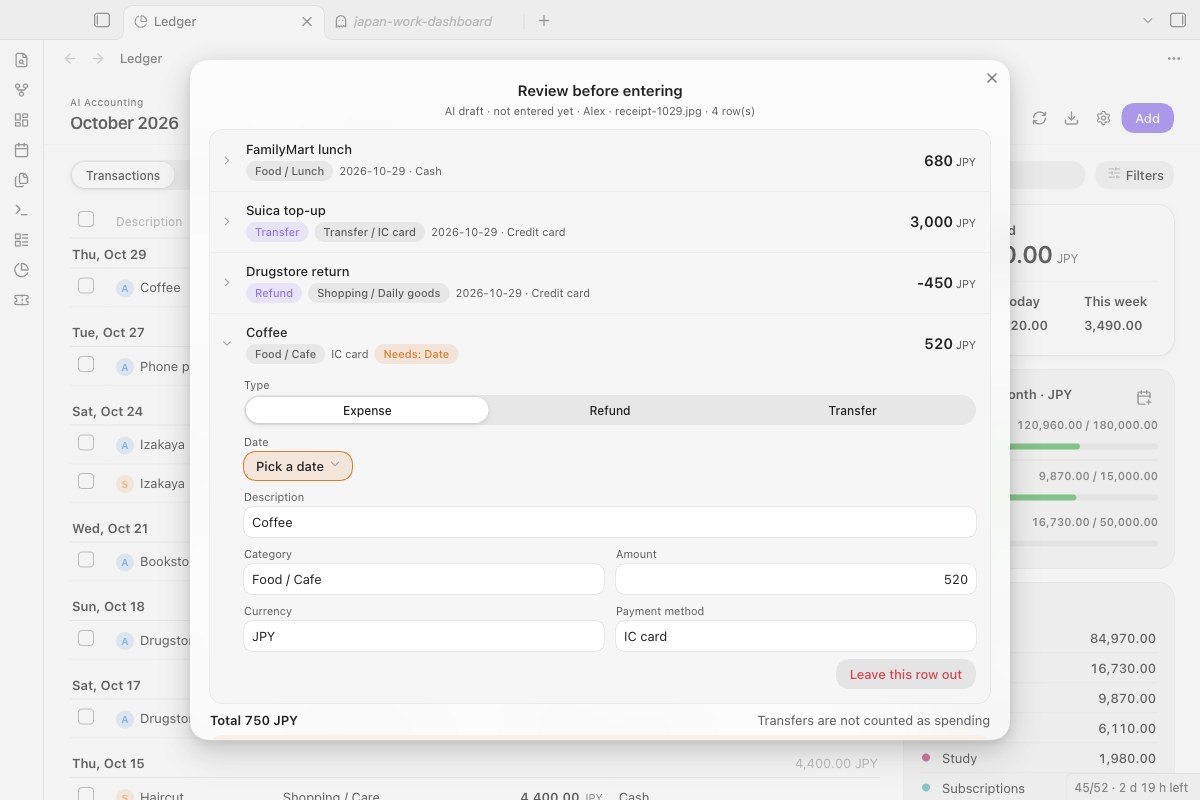
Every AI result is a draft. Mark a row as expense, refund or transfer, fix what was misread, leave a row out, then enter the rest.
- Refunds and transfers. A refund is a negative amount in the original category. A transfer between your own accounts (top-ups, card repayments) uses the top-level category Transfer (转账); it stays in the list but is not counted as spending.
- Duplicate warning. A drafted row with the same date, currency and amount as a row already in the ledger is marked Maybe already entered and opens by itself, so you can leave it out.
- Drafts wait for you. If you close the dialog, the draft is listed on the ledger under To review. The same receipt processed again reuses its draft instead of being sent to the AI a second time.
- Progress, Cancel and Retry. While a receipt is read, a notice shows the step and which service is answering. Cancel stops waiting and drops the reply; on failure the notice says why (no key, key rejected, out of balance, model not found, no reply in time) and offers Retry, or Open settings when nothing is set up.
- Statements from your bank or payment app. Import a bank or payment app statement (CSV), or right-click a CSV in the vault. Alipay, WeChat Pay, Japanese bank and card exports and plain Date / Description / Amount files are read on this device: dates and amounts come from the file, never from AI. Income is left out; refunds and moves between your own accounts are recognised. Each row is filed the way you filed the same shop before; only the rest go to your AI service, and only their description, amount and currency. AI-suggested categories are marked in the review, and nothing is entered until you confirm.
- Multi-currency. Each row keeps its original amount and currency, the rate and the amount in your report currency. When no rate can be fetched (offline, or a currency the rate service does not list), you type it in, starting from the last rate seen.
- Quick entry, split bills, members. Enter a row by hand; split a bill evenly between members; give each member their own ledger folder and inbox.
Reviewing and planning
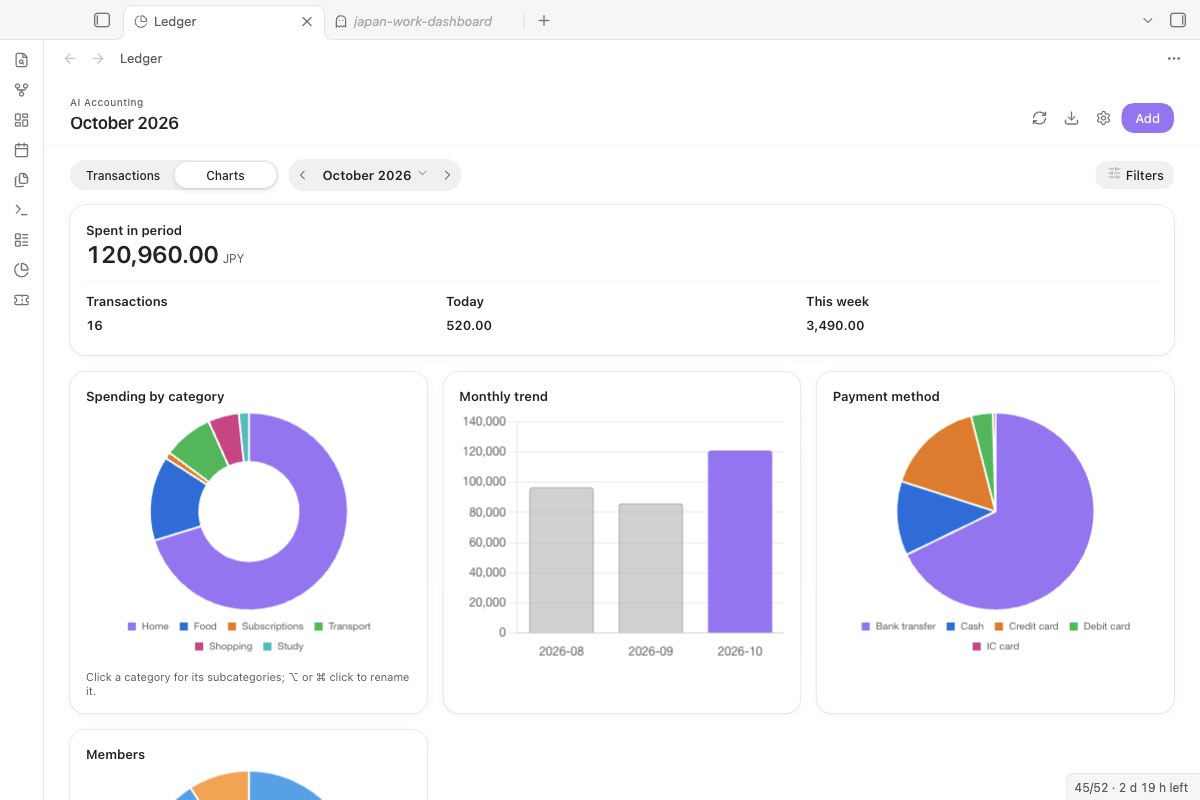
Charts follow your theme. Click a category for its subcategories.
- Ledger grouped by day, search and filters, edit and delete (delete asks twice), rename a category across the ledger, CSV export, optional copy to daily notes. In a narrow pane or on a phone, tap a row to edit it.
- Monthly budgets per category, with bars on the ledger page: orange from 80%, red when over.
- Ledger view for Bases. In a base of monthly ledgers (or any notes with an amount), switch the view to Ledger: the total, the average and one bar per note in your report currency, with a subtotal for each group when the base is grouped, for example by member folder. Monthly ledgers are picked up by their
total_expense. With Bases turned off nothing changes. - Recurring expenses such as rent: set once, add each month through the review dialog, never twice in one month.

Start here, step by step
- Install and enable AI Accounting, then click the pie-chart icon in the left ribbon.
- On an empty ledger, click Load samples. Three made-up rows appear (a purchase, a fare and a refund), marked as samples; Remove samples deletes them.
- Click Add to record your own expense by hand. No AI service is needed for that, or for charts, budgets and CSV export.
- To read receipts, open Settings → AI Accounting → AI services → Add service. DeepSeek is suggested first; pick another service if you like, choose your key, then click Test.
AI services
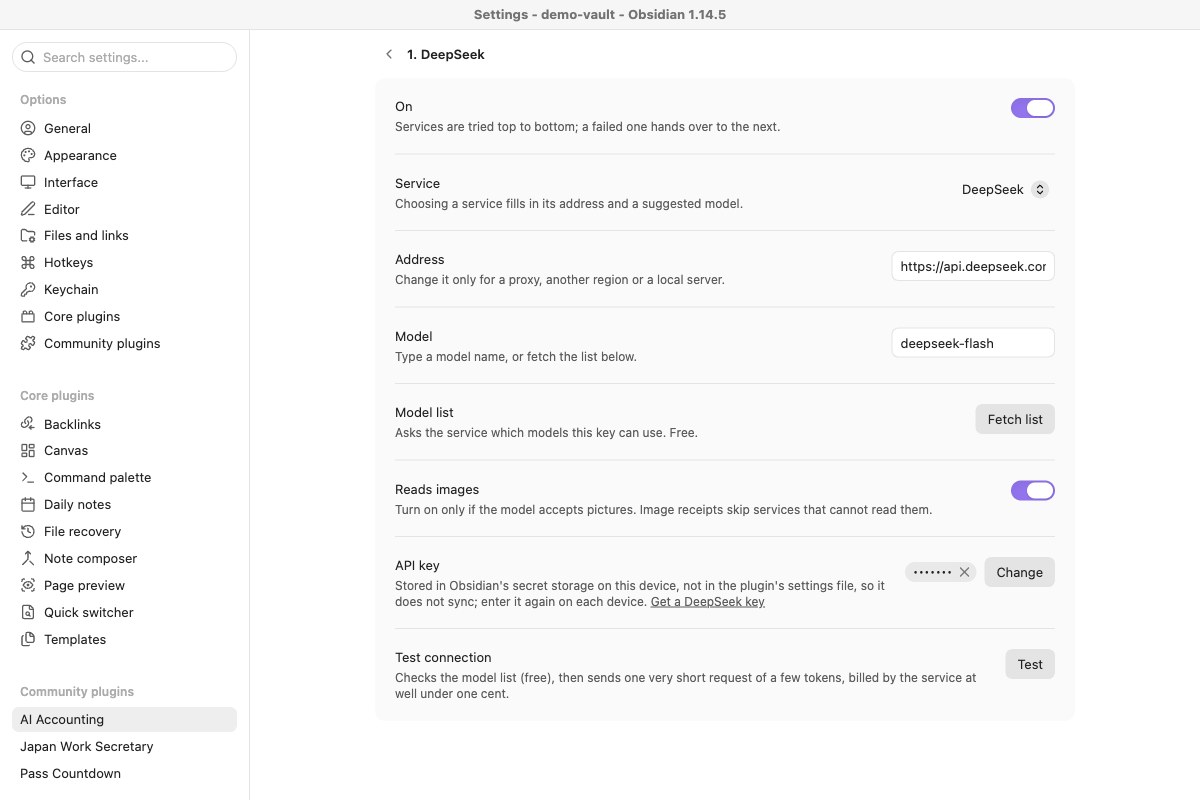
Service, address, model and key are separate. Test tells you exactly what is wrong.
- Presets: DeepSeek (default), Qwen (Alibaba Model Studio), SiliconFlow, Kimi, Zhipu GLM, Google Gemini, OpenAI, and any other OpenAI-compatible or local server.
- Model list asks the service which models your key can use (free). Model names change often; pick from the list rather than typing.
- Reads images: turn it on only for models that accept pictures. Image receipts skip services without it.
- Test connection first checks the model list (free), then sends one very short request (a few tokens, well under one cent).
What it needs and where your data goes
| Obsidian | 1.13 or later, desktop and mobile |
| The plugin | Free, MIT licence. No account, no server of ours, no analytics. |
| AI model | Optional. You use your own key and pay your AI provider for what you send; the plugin adds nothing. A receipt is usually a few thousand tokens. Local models through an OpenAI-compatible server cost nothing. |
| Exchange rates | Free, from frankfurter.app, cached in the plugin folder |
| What | Sent to | When |
|---|---|---|
| The receipt image or note text you process, and the images that note embeds | The AI services you set up, in the order listed | When you run the command, or as soon as a file lands in an inbox folder |
| Currency pair and date (nothing else) | frankfurter.app |
When a row's currency differs from the report currency |
| A request for the model list, then a tiny "reply with ok" request | The service you are testing | Only when you click Test (or Fetch list, which sends only the model-list request) |
The plugin makes no other network requests.
- API keys live in Obsidian's secret storage on this device. The plugin's settings file keeps only the key's name, so keys are not synced with your vault: on a new device, choose the key again in settings.
- Ledgers, drafts and settings stay in your vault (
Finances/Ledger YYYY-MM.md, or账本 YYYY-MM.mdwith a Chinese interface, and the plugin'sdata.json). The prefix keeps a ledger from sharing its name with a monthly note. - Inbox folders send right away. While an inbox folder is set, every image or text file put in it goes to the AI service at once. Leave the folder empty to turn this off.
- Statement imports send little. Dates, account numbers, balances, order numbers and income never leave the device. Rows your ledger already knows are not sent; for the rest, the AI service gets the description, amount, currency and the statement's own category.
- Several services may see one receipt. If the first service fails, the next enabled one is tried. Keep only services you trust in the list.
- Diagnostics (the copy button next to Test) contain the service, address, model, step and error, but no key and no ledger content.
- Clipboard: that copy button is the plugin's only use of the clipboard. It writes the diagnostics when you click it, and the plugin never reads the clipboard.
Install by hand, and upgrading
From Obsidian (once listed): Settings → Community plugins → Browse, search for AI Accounting.
Manually: download main.js, manifest.json and styles.css from the latest release into <vault>/.obsidian/plugins/ai-accounting/, reload Obsidian and enable the plugin.
Checking a download: from 0.7.2 on, GitHub Actions builds the release files and signs where they came from. Check one with gh attestation verify main.js --repo Rexxall/obsidian-ai-accounting.
From 0.4.0 or earlier: the id changed from ai-accounting-plugin to ai-accounting. On first start the new plugin reads the old settings once; your ledger notes are untouched. Then remove the old plugin.
From 0.5.x: Gemini and the OpenAI-compatible endpoints become one list of AI services. Nothing to do: the service each entry belongs to is worked out from its address, and your keys stay where they are.
How it works
- One table row per transaction, ending with a hidden
<!-- aa:ID -->marker. Edits and deletes find a row by that ID, so two identical coffees stay two rows. - Safe cells. Pipes, line breaks and
<>are escaped, so a shop name cannot break the table. - No stale overwrites. If a ledger file changed since the dashboard read it, the plugin asks you to refresh instead of overwriting.
- Nothing half-written. Every row is converted before the first write; if you cancel entering a missing rate, nothing is written and the draft is kept.
- Archiving. Once a draft from an inbox file is entered, the file moves to the archive folder, or to Obsidian's trash if none is set. It is never deleted outright.
Limits
- An expense ledger: income and account balances are not modelled.
- Moving a transaction to another month is blocked for now.
- Category names in the AI prompt are Chinese by default; you can rename categories freely afterwards.
Development and changelog
npm install
npm run build   # type-check and bundle main.js
npm test        # ledger, migration, AI service and request tests
npm run lint
styles.css is generated: edit styles/plugin.css and run npm run styles. For CI, releases and reporting issues, see CONTRIBUTING.md.
0.8.0: a Ledger view for Bases; bank and payment app statements (CSV) imported with categories filed from your own ledger first and suggested by AI for the rest, reviewed before anything is written; monthly ledgers named 账本 YYYY-MM so they no longer clash with monthly notes.
0.7.2: receipt images embedded in a note (![[…]] or , up to six) are sent with its text to services that read images.
0.7.1: when no exchange rate can be fetched, you type it in instead of the entry failing; settings say only what is sent where.
0.7.0: no findings left in the community directory's review, with the same look.
0.6.0: one list of AI services with Chinese presets, a model list and a test that names the problem; drafts that survive closing; refunds, transfers and duplicate warnings; progress with Cancel and Retry; sample rows; English and Chinese interface. Full history in CHANGELOG.md.
日本語
レシート写真やノートを、多通貨の Markdown 家計簿に変えます。AI が下書きを作り、あなたが確認してから記帳します。下書きは閉じても残り、確定するまで帳簿には入りません。AI サービスは DeepSeek、通義、SiliconFlow、Kimi、智譜、Gemini、OpenAI、ローカルサーバーから選べ、接続テストで原因(キーなし、認証失敗、残高不足、モデルなし、タイムアウト)を表示します。API キーはこの端末の Obsidian シークレット保存にあり、同期されません。通信先は設定した AI サービスと為替レートの frankfurter.app だけです。クリップボードは、接続テストの診断情報をコピーするボタンを押したときに書き込むだけで、読み取りはしません。プラグインは無料で、AI の利用料は各サービスに直接支払います。
MIT License