Zen Space
 amatya-aditya4k downloads
An enhanced file explorer showing relevant only relevant files when required.
- Overview
- Scorecard
- Updates9
An enhanced file explorer showing relevant only relevant files when required.

Features
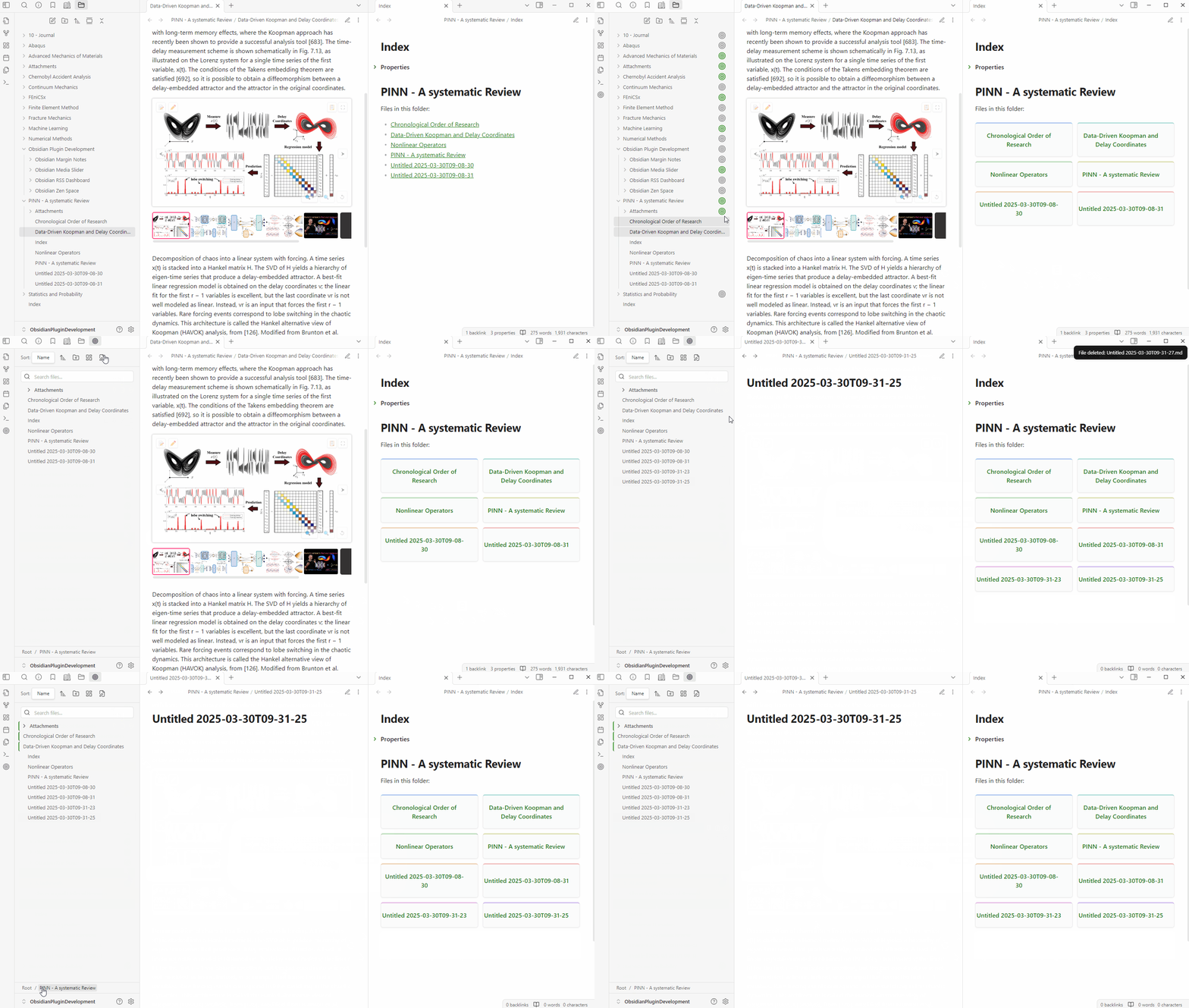
📁 Distraction-Free Folder View - Focus on your content with a dedicated, clean interface for browsing files.
🗂️ Auto-Index Generation - Automatically create and update Index files from folder creating map of content
🖼️ Visual Grid Layout - Display files in an elegant, card-based grid layout for enhanced visual organization.
⚡ Quick Action Buttons - Access common operations (rename, delete, pin) through intuitive hover buttons.
📌 Pin Important Items - Pin frequently used files and folders for quick access.
🧭 Seamless Navigation - Effortlessly navigate nested folders using breadcrumb trails without disrupting your workflow
Installation
- Install BRAT from the Community Plugins in Obsidian.
- Copt this link: https://github.com/amatya-aditya/obsidian-zen-space
- Open the command palette and run the command BRAT: Add a beta plugin for testing
- Using the link from step 2, copy that into the modal that opens up.
- Click on Add Plugin -- wait a few seconds and BRAT will tell you what is going on.
- After BRAT confirms the installation, in Settings go to the Community plugins tab.
- Find the Zen Space and Enable it.
Manual installation
- Download the latest release files (manifest.json, styles.css, main.js) from the Releases page.
- Create a folder named "zen-space" in the Obsidian plugins folder (.obsidian/plugins).
- Copy the files from step 1 into the new folder.
- Enable the plugin in the Obsidian settings under the "Community plugins" section. You might have to restart Obsidian to see the plugin.
Support the development:
HealthGood
ReviewCaution
About
Browse files in a distraction-free, card-based grid and focus on relevant notes with hover quick-action buttons for rename, delete, and pin. Generate and update Index files automatically, pin important items for fast access, and navigate nested folders with breadcrumb trails.Details
Current version
1.2.1
Last updated
Last year
Created
Last year
Updates
9 releases
Downloads
4k
Compatible with
Obsidian 1.1.0+
Platforms
Desktop, Mobile
License
MIT
Sponsor