X Bookmarks Sync
 feinix3k downloads
Save your X (Twitter) bookmarks as structured Markdown notes, with selective import, incremental sync, and no API key needed.
- Overview
- Scorecard
- Updates27
Sync your X (Twitter) bookmarks directly into your Obsidian vault as clean, structured Markdown notes. No API key. No OAuth. Just your existing browser session.
Features
- No API key required — runs in an embedded webview using your existing X session; no OAuth, no tokens to manage
- Verified capture — reads your bookmark list directly instead of scrolling the page, so large libraries sync quickly. Each sync confirms it actually reached the end of your bookmark list; when it can't, the next one re-scans in full rather than assuming
- Import X article body — for native X long-form articles, pull the full article text into the note and rename it to the article's title (right-click, command palette, or toolbar button)
- Incremental sync — "Sync from last" stops as soon as it reaches already-imported bookmarks, for quick top-ups
- Selective import — choose exactly which bookmarks to save from a checklist, with All / None / First N controls for working through a large backlog in batches; bookmarks already in your vault are filtered out
- Rich content — full long-form text, images, and video/GIF thumbnails; quoted tweets are folded inline under a Quoted tweet heading
- Structured Markdown notes — YAML frontmatter, configurable folder / tags / filename format, and an
obsidian://deep-link back to the tweet - Re-import on next sync — refresh a single note with one click to pick up newer fields
- Copy main content — clipboard-copy the focal tweet/article with replies stripped, powered by Defuddle
Desktop only. This plugin uses Electron's
<webview>tag, which is not available in Obsidian mobile.
Usage
Syncing bookmarks
- Click the X Bookmarks Sync icon in the Obsidian ribbon (or run the command Open X Bookmarks View).
- A side panel opens with X.com loaded. Log in to your account if prompted.
- Navigate to your Bookmarks page.
- Click Extract bookmarks in the panel toolbar. A scan overlay appears while the plugin reads your bookmarks directly — no scrolling, and you can Cancel anytime.
- A selection modal appears listing the bookmarks that aren't in your vault yet, all pre-checked. Anything already imported is filtered out rather than listed.
- Adjust the selection — row by row, or with the All / None / First N buttons — then click Import Selected.
- Notes appear in your configured bookmarks folder (default:
x-bookmarks/).
Sync from last (incremental mode)
Check Sync from last in the toolbar before clicking Extract bookmarks. The plugin stops as soon as it reaches bookmarks you've already imported — ideal for regular top-up syncs without re-reading your entire history.
First sync: The checkbox is unchecked by default until you have completed at least one full sync. This ensures your entire bookmark history is captured on the first run.
Automatic full scans: The shortcut is only safe if an earlier scan actually reached the end of your bookmark list — otherwise it would stop at a gap and hide everything below it. So the checkbox also clears itself, and the next scan is a full one, whenever that can't be confirmed: after a scan that ended without reaching the end of the list, or after you import only part of what was offered. Re-check it any time to go back to fast top-ups.
Importing a large backlog in batches
If a first sync turns up more bookmarks than you want to file at once, use First N in the selection modal — set the number, import that batch, then click Extract bookmarks again for the next one. The plugin keeps "Sync from last" unchecked while bookmarks remain unimported, so each round picks up where the last left off. Once you import everything offered, it re-checks itself and normal fast syncing resumes.
Import X article body

For bookmarks that point at native X long-form articles (URLs like x.com/<user>/status/<id> rendered as an Article), the plugin can pull the full article body into the note. Three entry points:
- In the note — right-click in the editor of a bookmark note → Import X article body.
- From the command palette — Import X article body to current note.
- From the webview — open the tweet via its
obsidian://link; while on a/status/or/article/page, click Import article in the toolbar. The plugin finds the matching bookmark note by id, fetches the article in a hidden background webview, appends the body under a## Full articleheading, and renames the file to the article's title (keeping the{date}-{author}-prefix).
If the bookmarked tweet isn't actually an article, the plugin shows a Notice and skips the import — no replies or unrelated content get pulled in.
Re-import a bookmark
Need to refresh a single note (for example, you imported it before long-tweet support landed)? Right-click in the note's editor → Re-import this bookmark on next sync (also in the command palette). The plugin removes the tweet id from import history and moves the file to the system trash; on the next sync the bookmark appears as new in the selection modal.
Copy main content
While viewing any X page in the webview, click Copy main content in the toolbar to copy the focal tweet or article as Markdown to your clipboard. Replies and surrounding thread context are stripped automatically — you get just the post you opened.
Commands & menu items reference
| Action | Right-click in bookmark note | Command palette | Toolbar button (X bookmarks view) |
|---|---|---|---|
| Open the X bookmarks view | — | Open X bookmarks view | — |
| Sync bookmarks from the bookmarks page | — | — | Extract bookmarks (visible on /i/bookmarks) |
| Copy the focal tweet/article to clipboard | — | — | Copy main content (visible on any non-bookmarks X page) |
| Import the article body into the bookmark note | Import X article body | Import X article body to current note | Import article (visible on /status/ or /article/ pages) |
| Re-import a single bookmark on the next sync | Re-import this bookmark on next sync | Re-import this bookmark on next sync | — |
The right-click menu items only appear on bookmark notes — that is, notes whose YAML frontmatter contains an X URL (url: or article_url:).
Settings
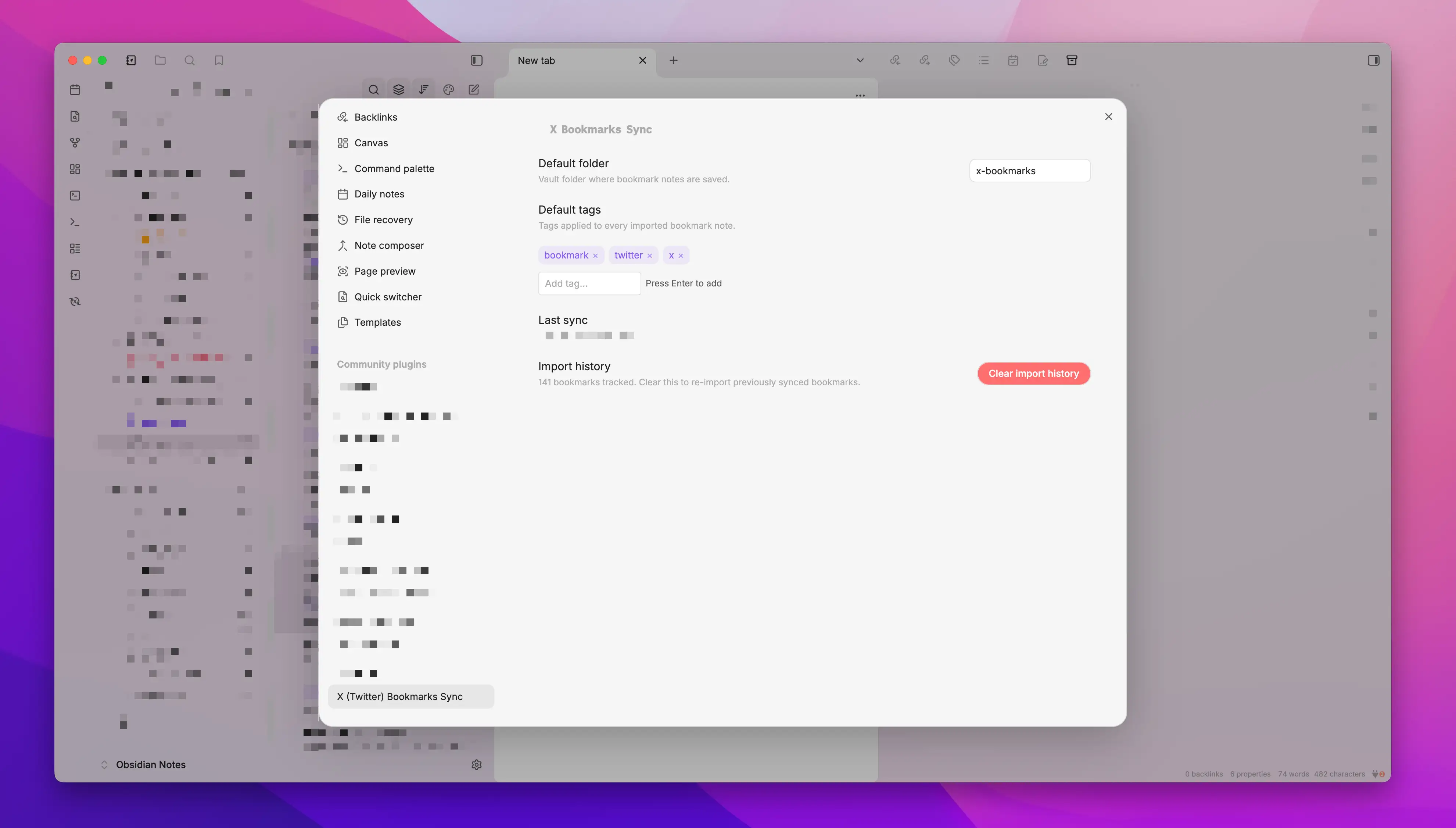
Open Settings → X Bookmarks Sync to configure:
| Setting | Description | Default |
|---|---|---|
| Default folder | Vault folder where bookmark notes are saved | x-bookmarks |
| Default tags | Tags applied to every imported note (chip UI — press Enter to add) | twitter, bookmark |
| Note name format | How note filenames are built — Date – author – title, Author – title, Date – title, or Title – author | Date – author – title |
| Last sync | Timestamp of the most recent successful import (read-only) | — |
| Clear import history | Removes all tracked import IDs, allowing previously imported bookmarks to be re-imported | — |
Note on Clear import history: This resets all record of previously imported bookmarks. On the next sync, everything will be treated as new. Use this if you want to start fresh or re-import after cleaning up your vault.
Installation
From Obsidian's Community Plugins (recommended)
- Open Settings → Community plugins.
- Make sure Restricted mode is off.
- Click Browse and search for X Bookmarks Sync.
- Click Install, then Enable.
Via BRAT (for pre-release versions)
Use this if you want early access to fixes or features that haven't been published to the community store yet.
- Install the BRAT plugin from the Obsidian community plugins list.
- In BRAT settings, click Add Beta Plugin and enter:
hfknight/x-bookmarks-sync - Enable X Bookmarks Sync in Settings → Community plugins.
Manual
- Download the latest
x-bookmarks-sync.zipfrom the Releases page. - Extract the zip — you'll get
main.jsandmanifest.json. - In your vault, navigate to
.obsidian/plugins/(create the folder if it doesn't exist). - Create a new subfolder named
x-bookmarks-sync. - Place
main.jsandmanifest.jsoninside it. - Restart Obsidian, then go to Settings → Community plugins and enable X Bookmarks Sync.
From source
git clone https://github.com/hfknight/x-bookmarks-sync
cd x-bookmarks-sync
npm install
npm run build:plugin
Copy obsidian-plugin/main.js and obsidian-plugin/manifest.json into .obsidian/plugins/x-bookmarks-sync/ in your vault.
Note Format
Each saved bookmark becomes a Markdown file. Optional sections are added when the bookmark contains photos, a video/GIF, a quoted tweet, an article card, or has had its article body imported.
---
id: "1234567890"
author: "Display Name"
username: "@handle"
published: 2024-01-12 # the tweet's original post date
scraped_date: 2024-01-15 # when it was imported
url: "https://x.com/handle/status/1234567890"
article_url: "https://x.com/handle/article/1234567890" # only if the tweet links to an X article
tags: [twitter, bookmark]
---
# Tweet by Display Name (@handle)
The full text of the tweet goes here...

[▶ Video](https://x.com/handle/status/1234567890/video/1) # only if the tweet has a video/GIF
[](https://x.com/handle/status/1234567890/video/1)
## Quoted tweet # only if the tweet quotes another tweet
> **Quoted Author** (@quoted_handle)
>
> The quoted tweet's text…
>
> [View on X](https://x.com/quoted_handle/status/...)
## Linked article # only if the tweet contains an X article card
**Article title here**
Short excerpt rendered in the card…
[Read full article](https://x.com/...)
[View on X](https://x.com/...) | [Open in Obsidian Webview](obsidian://x-bookmarks?url=...)
## Full article # added by Import X article body
…full Defuddle-extracted article body…
File naming: configurable via the Note name format setting (default {date}-{author}-{title}). The title comes from the tweet's text — or the article's title for bookmarked X articles. Import X article body renames the note to the article's title. All names are sanitized and length-capped to stay within filesystem limits.
Limitations
- Desktop only — requires Electron's
<webview>tag, not available in Obsidian mobile. - Subject to X.com changes — the plugin uses X's internal data API (with a page-scraping fallback); major changes on X's side may require a plugin update.
- Video/GIF streams not downloaded — the poster thumbnail is embedded with a ▶ Video link to the tweet's video viewer on X, but the video file itself isn't saved locally.
- CDN-hosted images — embedded images reference X's CDN (
pbs.twimg.com). If X removes the image, the link in your note breaks. Local-download support is planned. - Existing notes don't backfill new fields — when you upgrade and gain new features (like long-tweet text or image embedding), already-imported notes stay as they were. Use Re-import this bookmark on next sync to refresh individual notes, or Clear import history to wipe everything and re-sync.
License
MIT