
- Overview
- Scorecard
- Updates10
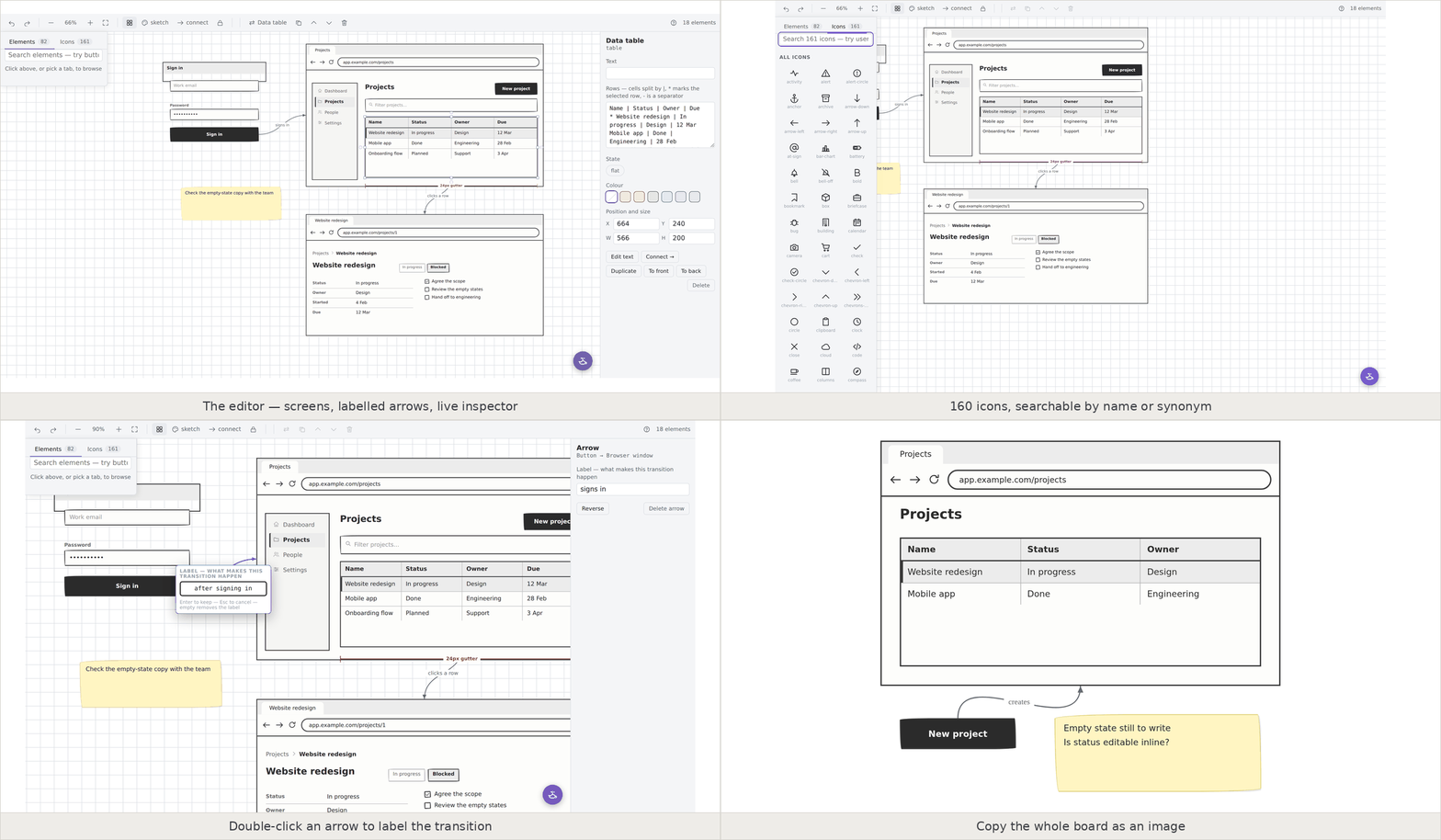
Lo-fi wireframing without leaving your vault. A drag-and-drop editor with 82 UI widgets, 161 icons, shapes and text you can put anywhere, connecting arrows and three hand-drawn skins — all in a plain text file that lives next to the note it belongs to.
82 widgets · 161 icons · transform in place · labelled arrows · a genie that reads your screenshots · presentation mode · no clickable prototyping.
Why
The point of a lo-fi wireframe is to look unfinished. When nothing looks final it is easier to ask "what if?", and reviewers argue about the structure instead of the font. Every polished mockup you have ever shared came back with comments about spacing.
Obsidian is already where the spec, the notes and the open questions live. Wireframy puts the drawing there too, as a .wire file you can diff, link to and search — not in a separate tool behind a separate login.
It draws static screens and the flow between them. It is deliberately not a clickable prototyper.
Install
From Obsidian, once it is in the directory
Settings → Community plugins → Browse → search Wireframy → Install → Enable.
Manually
- Download
main.js,manifest.jsonandstyles.cssfrom the latest release. - Put them in
<your vault>/.obsidian/plugins/wireframy/. - Reload Obsidian, then enable Wireframy in Settings → Community plugins.
With BRAT
Install BRAT, then add Divyaraj-M/wireframy as a beta plugin.
Getting started
Click the ribbon icon, or run New wireframe from the command palette. You get a .wire file with an empty browser frame in it.
- Drag a widget from the palette, or click one to drop it in the middle.
- Double-click anything to edit its text — including an arrow, to label it.
- Drag to move, handles to resize. Alignment guides appear as edges line up.
- Hover an element's edge and a small nub appears: click it, then click another element, to draw an arrow.
- Nothing is nested. Containers are boxes you place things on top of. That is what keeps direct manipulation simple.
The palette
Collapsed, it is a bar of two tabs and a search box floating over the top-left of the canvas. Click it or start typing and the list opens; Esc, or a click back on the board, closes it. The canvas keeps its full width either way.
Elements opens on an Essentials tier — the fourteen you reach for constantly — then the full set by group.
Icons is all 161 as a grid, searchable by name or by one of 75 synonyms (email finds mail, gear finds settings), with the name under each one so you know what to type in a wf block. Searching Elements for something only the icons have — "camera", "printer" — offers to take you across, keeping what you typed.
Shapes and text
rect (also rectangle, box) and circle (also ellipse, oval) are the draw-anything primitives, and both hold text, so a labelled box is one element rather than two stacked:
rect: Anything goes in here
circle: Or here
rect: Filled and dashed (fill, dashed)
triangle:
text (also textbox, label, caption) is free text with no box around it. (fill), (dashed), (bold), (muted), (small) and (large) change how any of them read.
Real pictures
A wireframe is lo-fi on purpose, but a logo is not worth drawing by hand. Drop a PNG or a JPEG onto a board, paste one from the clipboard, or drag one out of the file explorer, and it is drawn as itself. Wireframe: place a picture from the vault does it from the keyboard, and an image already on the board has a Choose a picture… button in the inspector.
img: Login.images/logo.png
img: brand/icon.png (cover)
img: 320x180
The last one is still the hatched placeholder, which is what you want while the real thing does not exist yet.
Pictures dropped from outside the vault are written beside the board: a board at Wireframes/Login.wire keeps them in Wireframes/Login.images/, and the element stores the path relative to the board, so the two move together and the .wire file stays a short readable line. A picture already in your vault is pointed at where it is, never copied.
Resizing is the same as for anything else: the handles are free, and the picture is contained inside its box rather than stretched by them, so a logo never comes out squashed. (stretch) fills the box exactly and (cover) fills it by cropping.
PNG and JPEG, from your vault, and nothing is downloaded. img: https://cdn.example.com/logo.png is refused rather than fetched. To use a logo from a website: right-click it, Copy image, then paste it onto the board.
Arrows
Hover an element's edge, click the nub, then click the element you want to point at. Arrows are cubic curves that follow their elements when you move them.
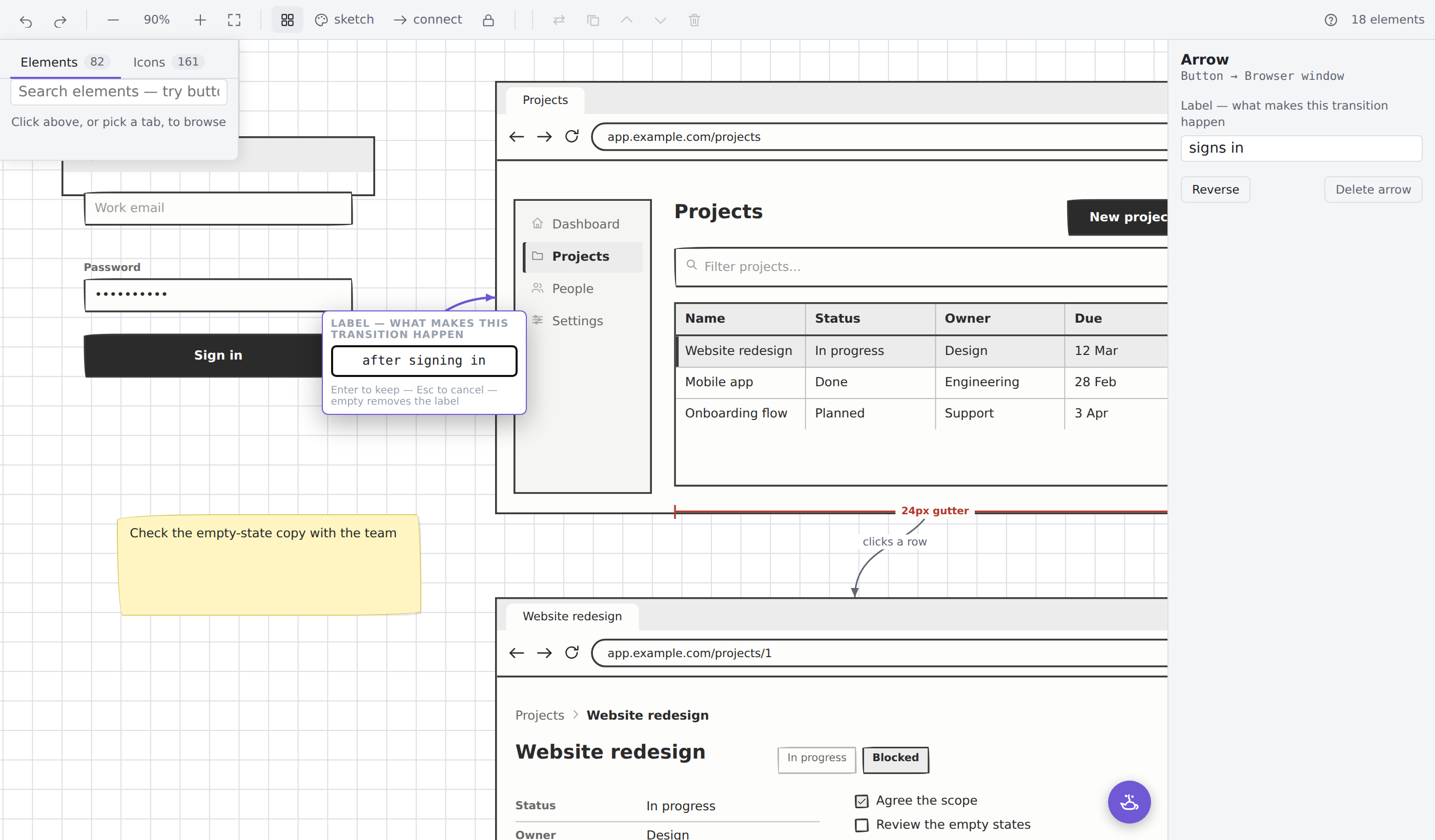
Double-click an arrow and a box opens on the curve itself. Type what makes the transition happen — signs in, clicks a row — and Enter keeps it. Clearing the text removes the label.
Changing your mind
Transform to… (⌘⌥T on macOS, Ctrl+Alt+T elsewhere) changes what an element is while keeping where it is. Text, rows and modifiers carry over wherever the new widget can hold them; the notice names anything it could not:
Data table → Button. Text, position and size kept. Dropped: rows, bold.
Position, size and any attached arrows survive, and it is one undo step. This is the command to reach for when you realise the combo box should have been a radio group.
Showing it to people
- Present this board (
⌘⇧F/Ctrl+Shift+F) — chrome-free and read-only, for a meeting.Esccomes back. - Copy this board as an image (
⌘⇧C/Ctrl+Shift+C) — renders the whole board, not the viewport, to a PNG beside the file and onto the clipboard where the platform allows it. An element 3000px off-screen still lands in the picture. - Lock this board — read-only. Panning and zooming still work; nothing can be moved. For the board you opened only to look at.
Keeping the thinking with the drawing
- Write board notes creates a sibling
.mdnote, linked both ways, seeded from the board: its screens, its labelled flow, and every sticky note as a- [ ]open question. Search, backlinks and graph view come free. - Create an alternate version writes
<name> (alt).wirebeside the original, so a second take costs one keystroke and neither becomes the archived one.
Also works inside a note, and on Canvas
The same 82 widgets render from a small indentation-based DSL in a wf code block, so a wireframe can sit inline in a spec:
```wf
window: Projects | app.example.com/projects
  row:
    h3: Projects
    search: Search projects (fill)
    avatar: DM
  row: (fill)
    sidebar: *Dashboard | Projects | People
    col: (fill)
      tabs: *Active | Archived
      table: (fill)
        [ ] | * | Name | Owner | Due
        [x] | * | Website redesign | Design | 12 Mar
        [ ] |   | Mobile app | Engineering | 19 Mar
```
Three things carry most of the weight there.
(fill) means the box is sized by its container rather than by its contents, and which way it grows depends on where it sits: in a row it takes the leftover width, in a column the leftover height. So the search box spans the header, the sidebar keeps the 220px it was designed at, and the table reaches the bottom of the pane.
Everything else is sized from what you wrote. A four-row table is a four-row table, not a 240px guess with a pool of empty paper under the last row, and boxes sitting side by side in a row come out the same height.
A cell holding nothing but [x], [ ] or * draws a real checkbox or star, and that column narrows to the width of the mark so the columns holding sentences get the room. An asterisk on a list or tab item marks it as selected, at either end.
On an Obsidian Canvas the side panel drops these blocks into nodes, groups act as screen frames and edges as flow arrows. Both modes share one renderer, so a widget can never draw two different ways.
A note containing a wf block, embedded as a Canvas file node, is a reusable master: edit it once and every instance updates.
The widgets
Container — browser window, phone frame, card, screen, modal, field set, well, split panes, scroll area, row, column
Navigation — nav bar, tabs, vertical tabs, sidebar, open menu, menu bar, accordion, tree, breadcrumb, steps, pagination, icon toolbar, scroll bar
Input — text input, password, textarea, search, dropdown, checkbox, radio, toggle, slider, number stepper, date picker, calendar month, colour picker, star rating, file dropzone
Action — button, button group, link, icon, floating action button
Display — rectangle, circle / ellipse, triangle, headings, paragraph, greeked text, image (real PNG and JPEG, or a placeholder), avatar, list, data table, key/value, badge, alert, progress, stat tile, bar chart, pie chart, line chart, tag cloud, sitemap, video player, map, icon row, empty state, spinner, divider, spacer
Annotations — sticky note, numbered callout, comment bubble, tooltip, curly braces, annotation arrow, redline measurement
Most have aliases (button, dropdown, grid, kpi…), 157 names in all. Run Rebuild element catalog for a note showing every one of them rendered at full width, plus the icon grid.
Icons
The same 161 icons the palette browses are available by name anywhere a wf block
or a widget takes one:
icon: search
iconrow: briefcase | users | calendar | bar-chart | settings
toolbar: edit | copy | trash | more
sidebar: Dashboard:home | Projects*:folder | People:users | Settings:settings
Label:icon hangs an icon off a nav, sidebar, tab or menu item, and * marks the
current one. The 70 synonyms mean you rarely have to guess the canonical name —
email finds mail, gear finds settings, tick finds check, more finds
more-h. Insert icon in the command palette is a fuzzy search over the same
list, aliases included.
Skins
sketch is hand-drawn, clean is flat grey, wire is outline-only and prints well. Switch per file from the toolbar, or globally in settings.
Commands
Plugin-wide:
- New wireframe — same as the ribbon icon
- Rebuild element catalog — the full-width reference note
- Open wireframe palette — the panel for Canvas mode
- Quick add widget / Insert icon — fuzzy search, worth a hotkey
- New screen frame — one per device preset: Desktop, Laptop, Tablet, Mobile, Modal
- Save selected node as master, Insert master
- Cycle skin
Shortcuts are written macOS first: ⌘ is Command, ⌥ is Option, ⇧ is Shift.
On Windows and Linux, ⌘ is Ctrl. Obsidian writes the same thing as Mod
in Settings → Hotkeys, where you can rebind any of them.
In the editor — all scoped to an open wireframe, so their bindings stay free everywhere else:
- Wireframe: transform to… —
⌘⌥T/Ctrl+Alt+T - Wireframe: present this board —
⌘⇧F/Ctrl+Shift+F - Wireframe: copy this board as an image —
⌘⇧C/Ctrl+Shift+C - Wireframe: create an alternate version
- Wireframe: write board notes
- Wireframe: lock this board
- Wireframe: connect two elements — click one element, then the next
- Wireframe: edit the text of the selection — what double-clicking does
- Wireframe: describe a screen for AI to draw — needs AI turned on
- Wireframe: turn a screenshot into a wireframe — needs AI turned on
- Wireframe: ask the genie about this board — opens the lamp; needs AI turned on
And plugin-wide: What's new, Report a problem or ask for help.
Also, all prefixed Wireframe: — duplicate selection, copy, cut, paste, delete selection, select all, undo, redo, bring to front, send to back, zoom in, zoom out, zoom to 100%, fit everything, toggle the snap grid, cycle skin.
The file format
A .wire file is plain JSON: a skin, a viewport, a flat list of absolutely-positioned elements, and a list of arrows. Nothing is nested, ids are stable, and an empty field is omitted rather than written as "".
{
  "version": 1,
  "skin": "sketch",
  "view": { "x": 0, "y": 0, "zoom": 1 },
  "elements": [
    { "id": 1, "type": "window", "x": 0, "y": 0, "w": 900, "h": 600,
      "value": "Projects | app.example.com/projects" }
  ],
  "links": [{ "id": 2, "from": 1, "to": 3, "label": "signs in" }]
}
It diffs cleanly in git, and anything can read it. That is the point of it living in your vault rather than in someone's cloud.
Screenshots
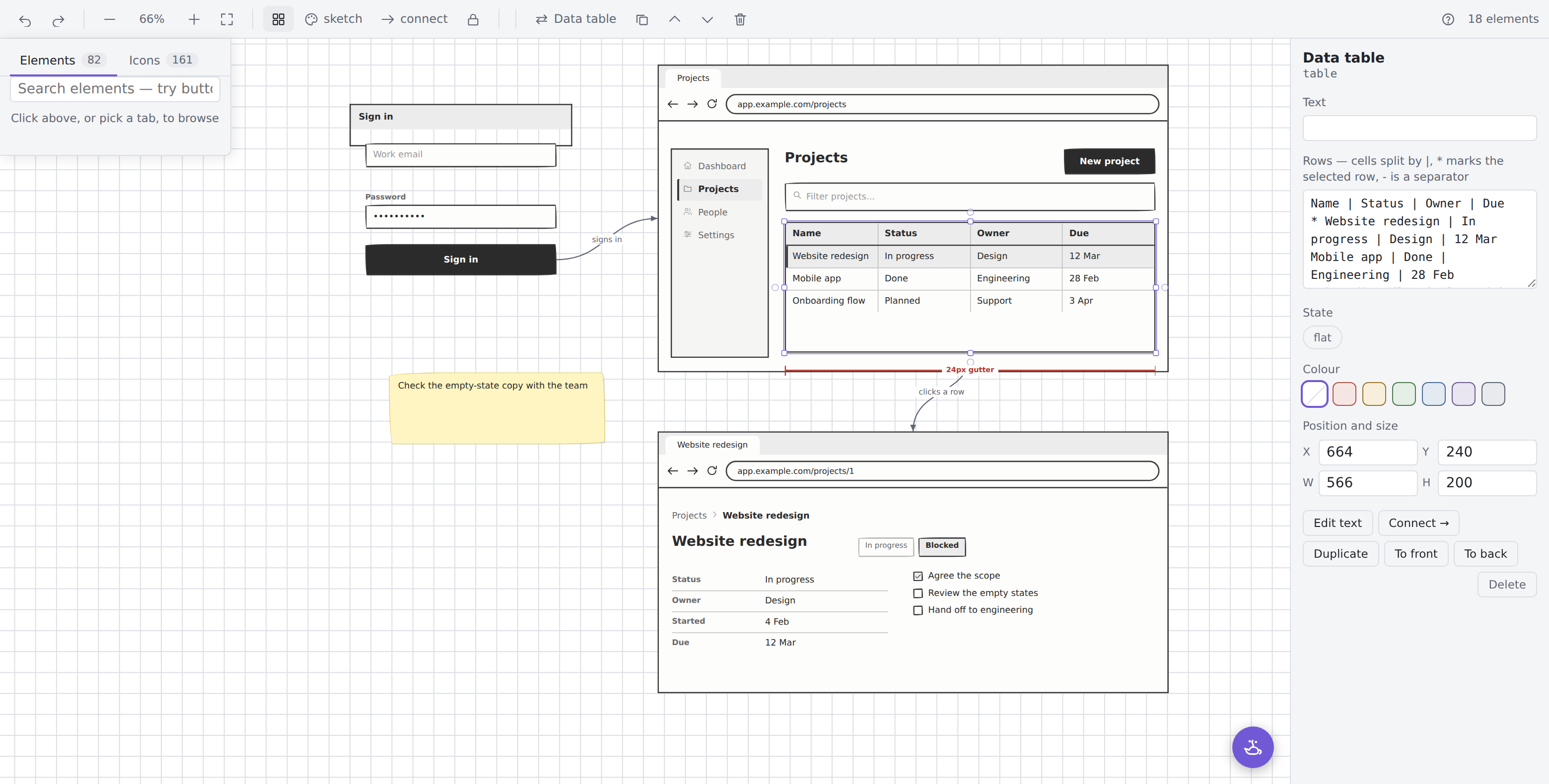
The four frames above, full size
 |
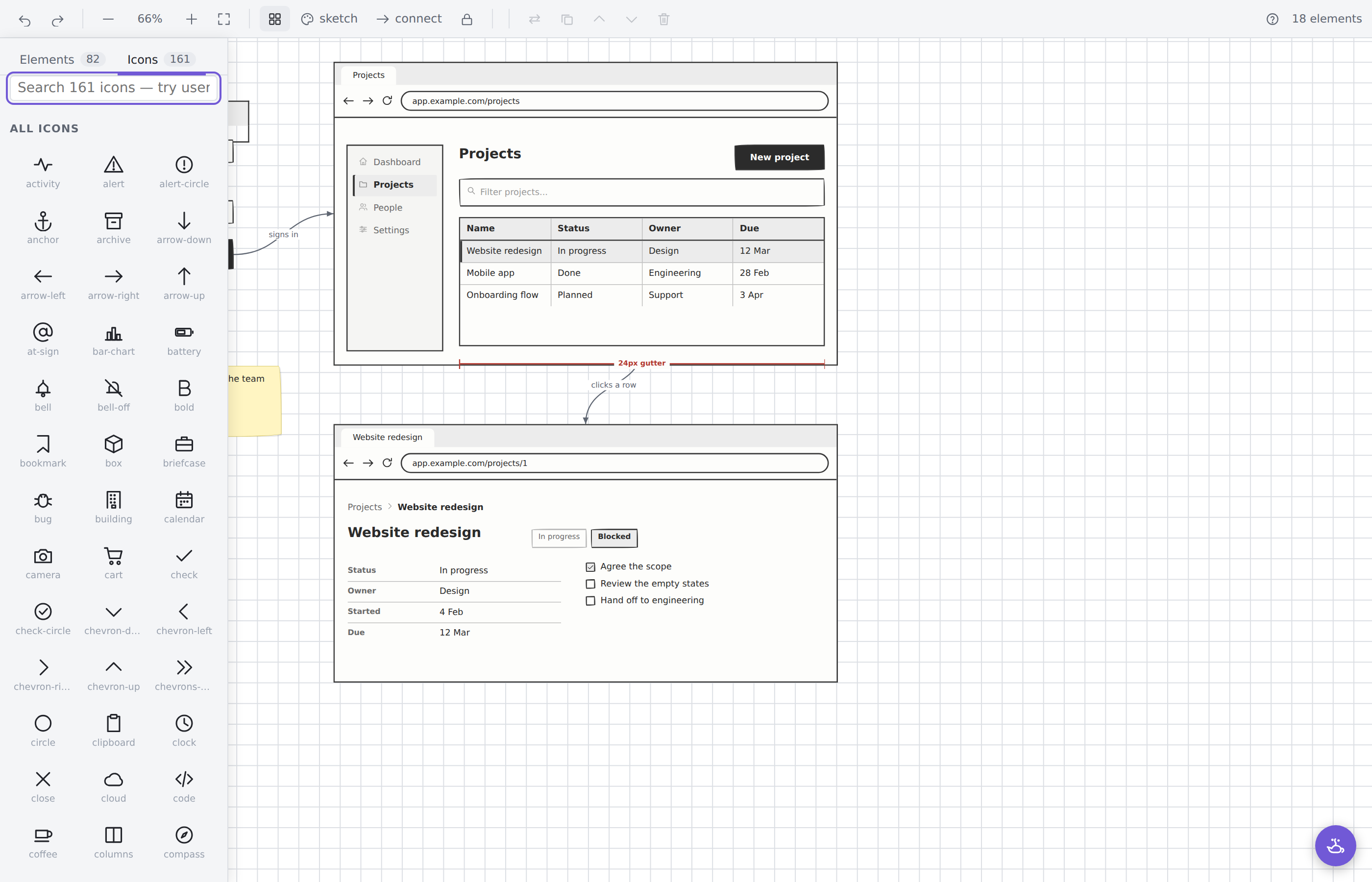 |
| The editor | The icon browser |
 |
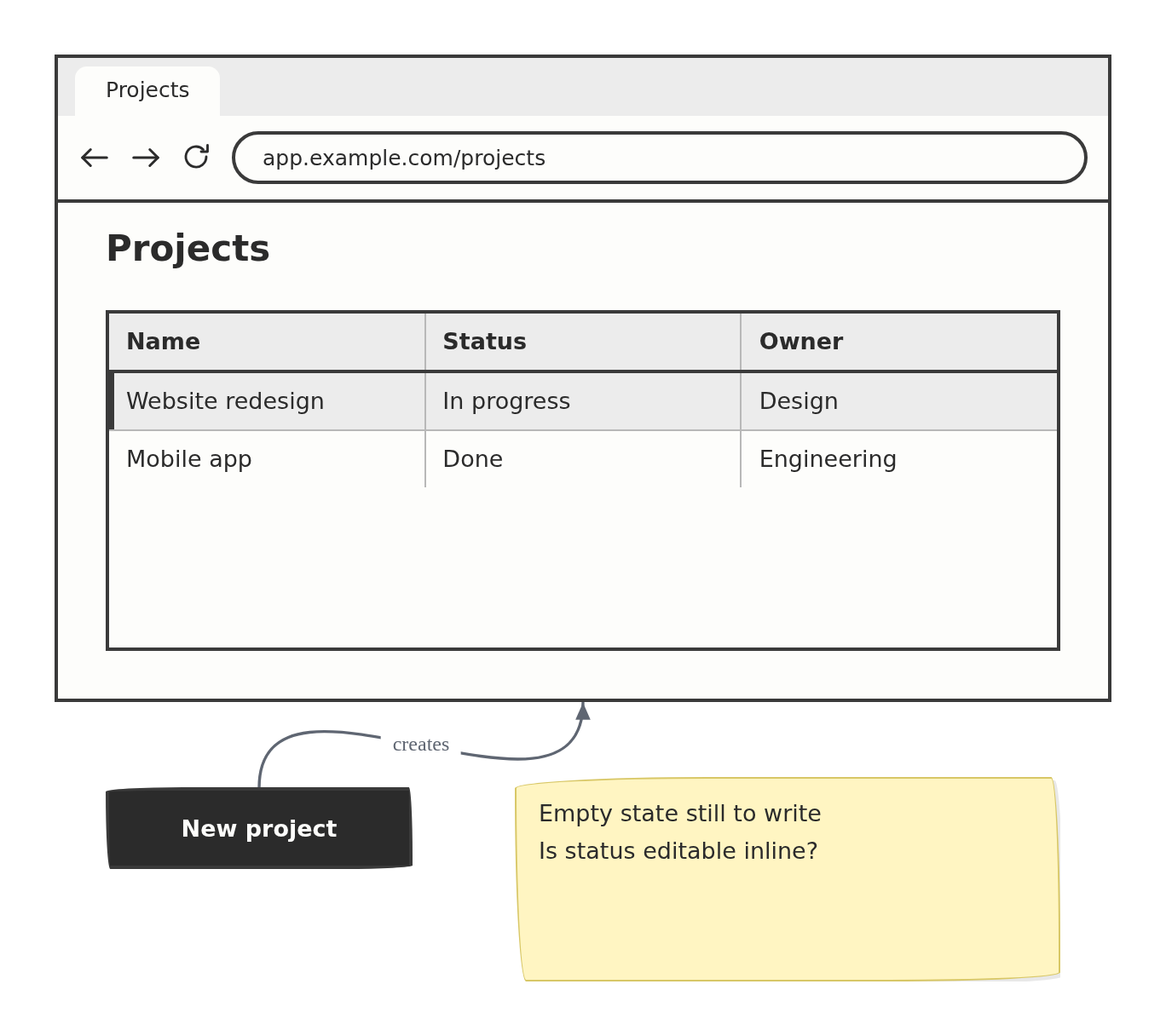 |
| Labelling an arrow | An exported board |
AI, if you want it
Off until you turn it on, in Settings → Wireframy → AI. Bring your own API key — Anthropic (Claude) or Google (Gemini), whichever you already have. Leave the model box empty and you get that provider's default; requests go straight to the provider, and the key travels in a header, never in a URL.
Three ways to use it:
- The genie — the lamp in the bottom-right corner of a board. Paste a screenshot, drop one in, or pick one from your vault, then ask. "What is wrong with this?" gets you an answer. "Draw me a better version" gets you an answer and an Add to board button.
- Describe a screen — "a settings page with three toggles and a save button" — and it arrives on the board as ordinary elements you can move, resize and edit.
- Turn a screenshot into a wireframe — point it at an image in your vault and get back an editable board rather than a picture.
The genie adds. It cannot edit. There is no path from the chat to an element that is already on your board — the only board-touching call the panel can make appends new elements. If what arrives is wrong, delete it; what was there before is exactly as you left it. This is enforced by the code, not by the prompt, and there is a test that fails if a second way to reach the board ever appears.
Everything stays in your vault. A board at Wireframes/Login.wire gets:
Wireframes/Login.chat.md      the transcript, as plain markdown
Wireframes/Login.chat/        the screenshots it refers to
The transcript is an ordinary note — searchable, linkable, yours to edit or delete — and
because the wireframes are stored as wf blocks, opening it renders what the genie drew.
Screenshots you paste or drop are written into that folder so the transcript points at a
real file; a screenshot already in your vault is linked where it lives rather than copied.
JPEG and PNG only.
The model never draws and never touches your file. Nothing reaches the board until the parser accepts it, so an invented widget name is reported rather than rendered. Only your question and the one image you attached are sent — never your notes, never the rest of the vault, and never anything you have not just asked for. There is no Wireframy server.
Your key is stored in .obsidian/plugins/wireframy/data.json, in plain text, like every
Obsidian plugin's settings. If your vault is synced or in git, the key goes with it.
Help, and telling me it's broken
There's a Discord: discord.gg/wZgjp2B987. It is where the feedback goes — questions, bugs, half-formed ideas. Post what broke, what you expected, and your Obsidian version. Report a problem or ask for help in the command palette opens it, and the plugin shows the invite once when you first install it.
Bugs and feature requests are also fine as GitHub issues if you'd rather.
Known limits
- No clickable prototyping. By design. Static screens and the flow between them.
- No nesting in the editor. Containers are backdrops you place things on. The
wfDSL does nest, and drops the laid-out children for you. - A layout box has no text. Double-clicking a row, column, well, scroll area, splitter or triangle says so rather than opening an empty field; drop widgets onto them instead.
- Icons beyond the 161 built in fall through to Obsidian's bundled Lucide set, which may not match the hand-drawn skin.
- Pictures are PNG and JPEG only, and must be in your vault. No SVG, no WebP, and nothing is fetched from a URL. A picture named in a
wfblock is sized by the layout until it loads, so a wide logo typed by hand may need one drag to sit right; a dropped one arrives at its own size. - Mobile works, but it is cramped; the editor assumes a pointer.
Contributing
Issues and pull requests are welcome. The whole plugin is a single main.js with no build step — clone it into .obsidian/plugins/wireframy/ and reload Obsidian.
main.js        parser, 82 widgets, 161 icons, the editor
styles.css     three skins plus the editor chrome
manifest.json  the plugin manifest
Releases are automated. Bump version in manifest.json, write
docs/release-notes/<version>.md if you have something to say, then:
git tag 1.2.3 && git push origin 1.2.3
.github/workflows/release.yml checks the tag against the manifest, attaches
main.js, manifest.json and styles.css as separate assets, titles the
release after the tag, and attests their provenance. A tag that disagrees with
the manifest fails the run rather than publishing something Obsidian cannot
install.
Licence
MIT © Divyaraj Murugan
Every widget and all 161 icons are drawn from scratch in this repository — no third-party artwork or icon set is bundled.