Wheel Tab Switcher
 22-22k downloads
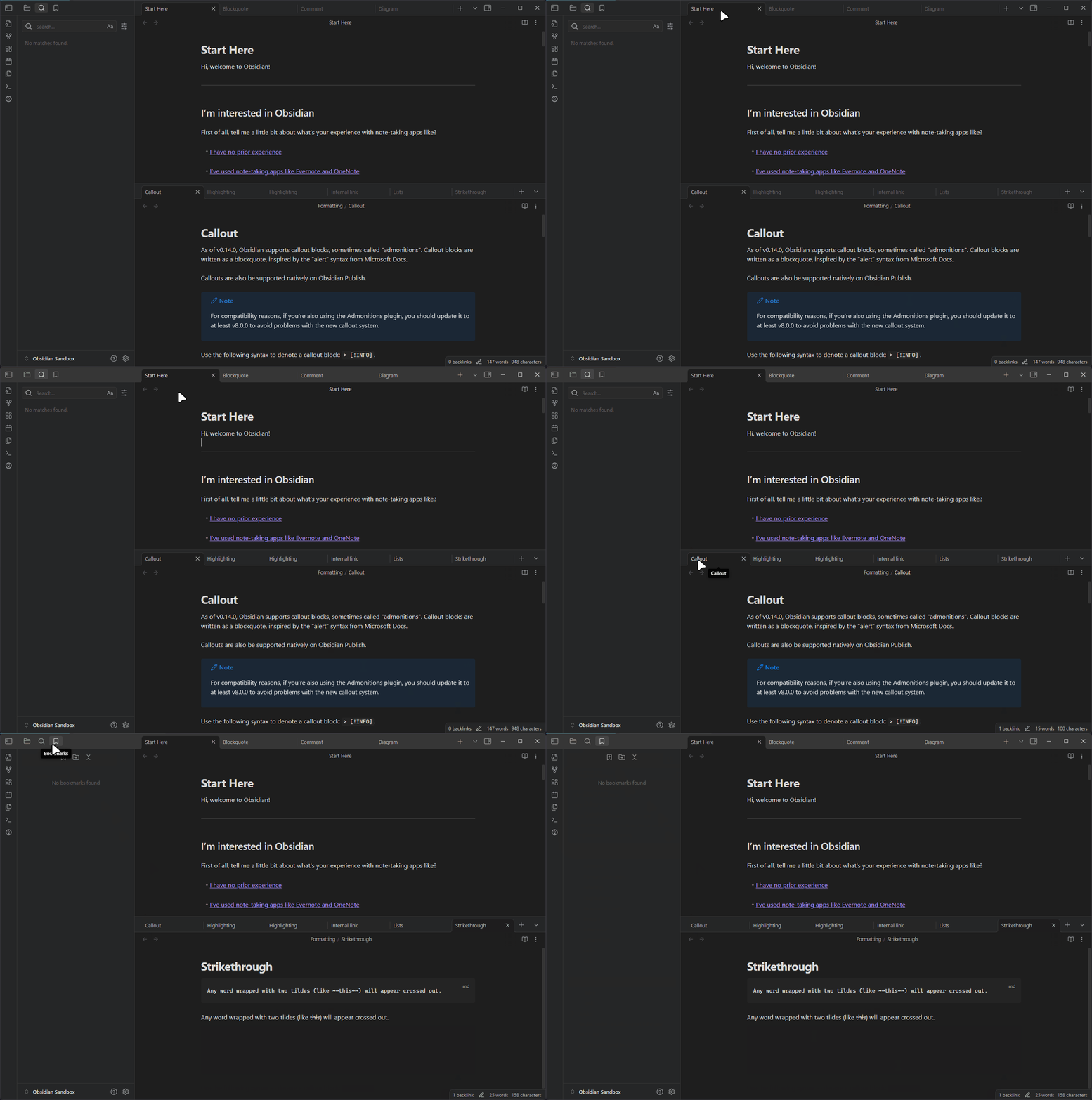
Switch between Tabs using your mouse wheel when hovering over tab headers
- Overview
- Scorecard
- Updates16
A plugin for Obsidian that allows you to switch between tabs using your mouse wheel when hovering over tab headers.
Demo
Features
- Switch tabs with mouse wheel on tab headers.
- Scroll up: previous tab, Scroll down: next tab.
- Loop around at tab ends.
- Works in all Obsidian windows.
How to Use
- Install the plugin
- Hover your mouse over any tab header
- Scroll up to switch to the tab on the left
- Scroll down to switch to the tab on the right
No additional configuration is required!
Installation
From Obsidian Community Plugins
- Open Obsidian Settings
- Go to Community Plugins
- Browse and search for "Wheel Tab Switcher"
- Click Install, then Enable
Manual Installation
- Create a folder named
wheel-tab-switcherin your vault's.obsidian/plugins/directory - Download the latest release from the GitHub repository
- Extract
main.jsandmanifest.jsonto the folder you created - Reload Obsidian
- Go to Settings > Community Plugins and enable "Wheel Tab Switcher"
Development
This plugin is built using TypeScript and the Obsidian API.
Prerequisites
- Node.js (version 16 or higher)
- npm or yarn
Setup for Development
- Clone this repository to your local machine
- Run
npm install(oryarn) to install dependencies - Run
npm run devto start compilation in watch mode - Create a symbolic link from the repository to your vault's plugins folder for testing
Building
npm run build- Builds the pluginnpm run dev- Builds the plugin and watches for changes
Support
If you encounter any issues or have feature requests, please file them on the GitHub issues page.
License
This project is licensed under the MIT License - see the LICENSE file for details.
Author
22-2
Acknowledgements
- The Obsidian team for their amazing app and plugin API
- The Obsidian community for their support and feedback
- Claude and Gemini for their AI-powered help with code commenting, refactoring, and commit messages.
HealthExcellent
ReviewSatisfactory
About
Switch tabs using the mouse wheel while hovering over tab headers. Scroll up to go to the previous tab and scroll down to go to the next; loop around at the ends and work in all Obsidian windows.Details
Current version
0.3.2
Last updated
2 months ago
Created
2 years ago
Updates
16 releases
Downloads
2k
Compatible with
Obsidian 1.8.9+
Platforms
Desktop only
License
MIT
Sponsor
Author