Vinyl Catalog Tools
 iart0s202 downloads
Manage your vinyl collection: table/cards view, Discogs CSV import, and export.
- Overview
- Scorecard
- Updates3
Manage your vinyl collection in Obsidian: add records, browse in table/cards view, import Discogs CSV, and export collection data or images.
Features
- Add new vinyl record cards with optional cover URL download
- Table view with sorting, search, open-note action, and hide action
- Cards view with cover previews
- Discogs CSV import (
release_id, upsert mode, cover backfill) - Export collection to
CSV,Markdown, or.base - Export card grid to
PNG/JPEG:- single image or multi-file grid
- custom columns/rows for multi-file mode
- aspect ratio options:
1:1,16:9,21:9 - light or dark theme
- RU/EN interface localization (
Auto,RU,EN)
Commands
Vinyl: Add recordVinyl: Open collectionVinyl: Initialize foldersVinyl: Create .base fileVinyl: Import Discogs data
Screenshot
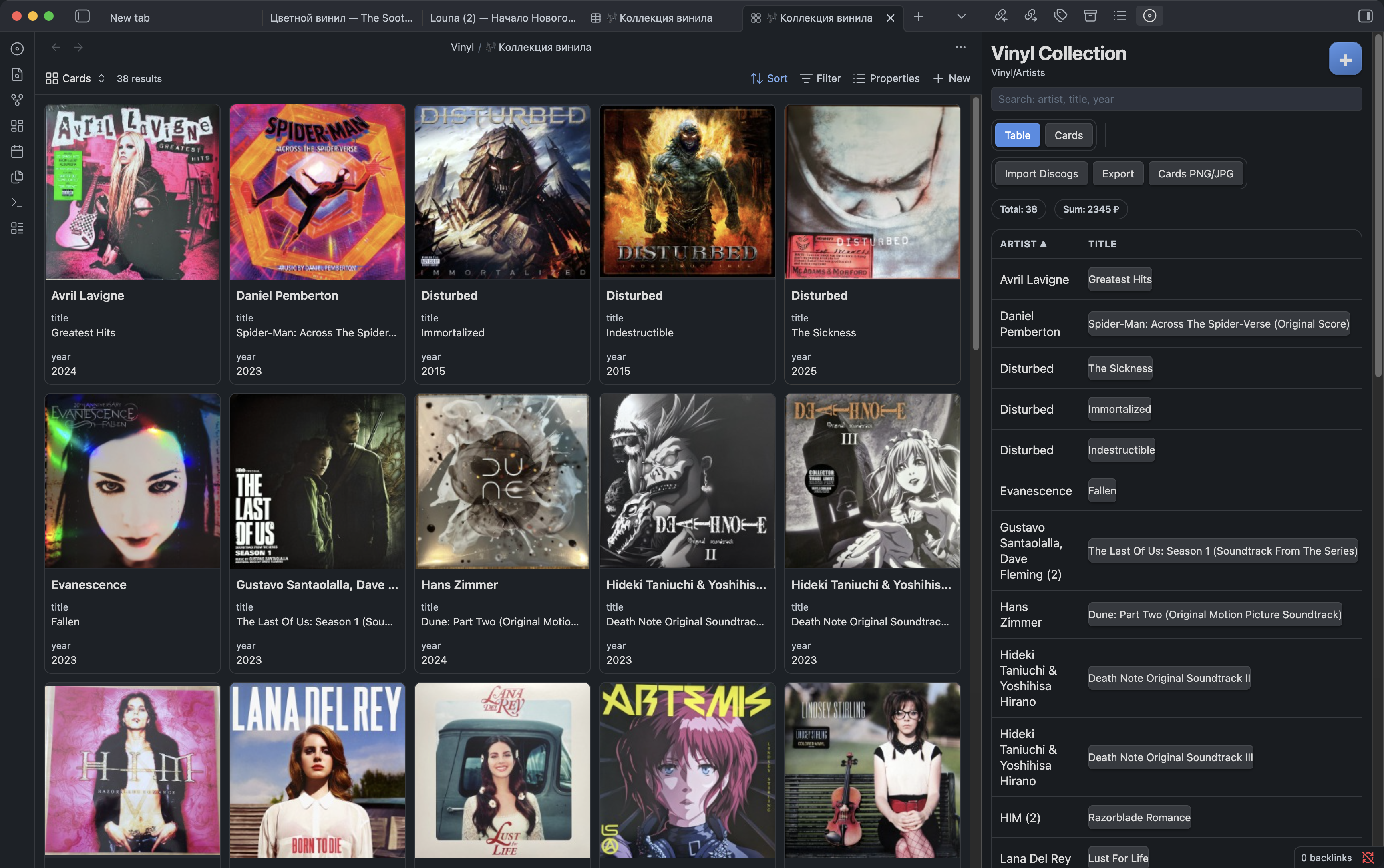
Default Paths
- Collection folder:
Vinyl - Records folder:
Vinyl/Artists - Covers folder:
Vinyl/covers - Mobile image export folder:
<Collection folder>/exports
All paths are configurable in plugin settings.
Quick Start
- Enable Community Plugins in your vault.
- Enable
Vinyl Catalog Tools. - Run
Vinyl: Initialize folders. - (Optional) Run
Vinyl: Import Discogs data. - Run
Vinyl: Open collection.
Notes
- Discogs import works from local CSV only (no token required).
- On mobile, exported card images are saved into vault (
<Collection folder>/exports). - Hidden records are marked with frontmatter
hidden: true.
Say Thanks
If this plugin saves you time and you want to support development:
HealthExcellent
ReviewPassed
About
Manage your vinyl collection in Obsidian: add record cards with optional cover download, browse in sortable table or cover-card views, and import Discogs CSV with upsert and cover backfill. Export collection to CSV, Markdown or .base and export card grids to PNG/JPEG as single or multi-file images with custom layouts and aspect-ratio options.Details
Current version
0.5.13
Last updated
4 months ago
Created
7 months ago
Updates
3 releases
Downloads
202
Compatible with
Obsidian 1.5.0+
Platforms
Desktop, Mobile
License
MIT