Vertical Tabs Lite
 sumi-112433 downloads
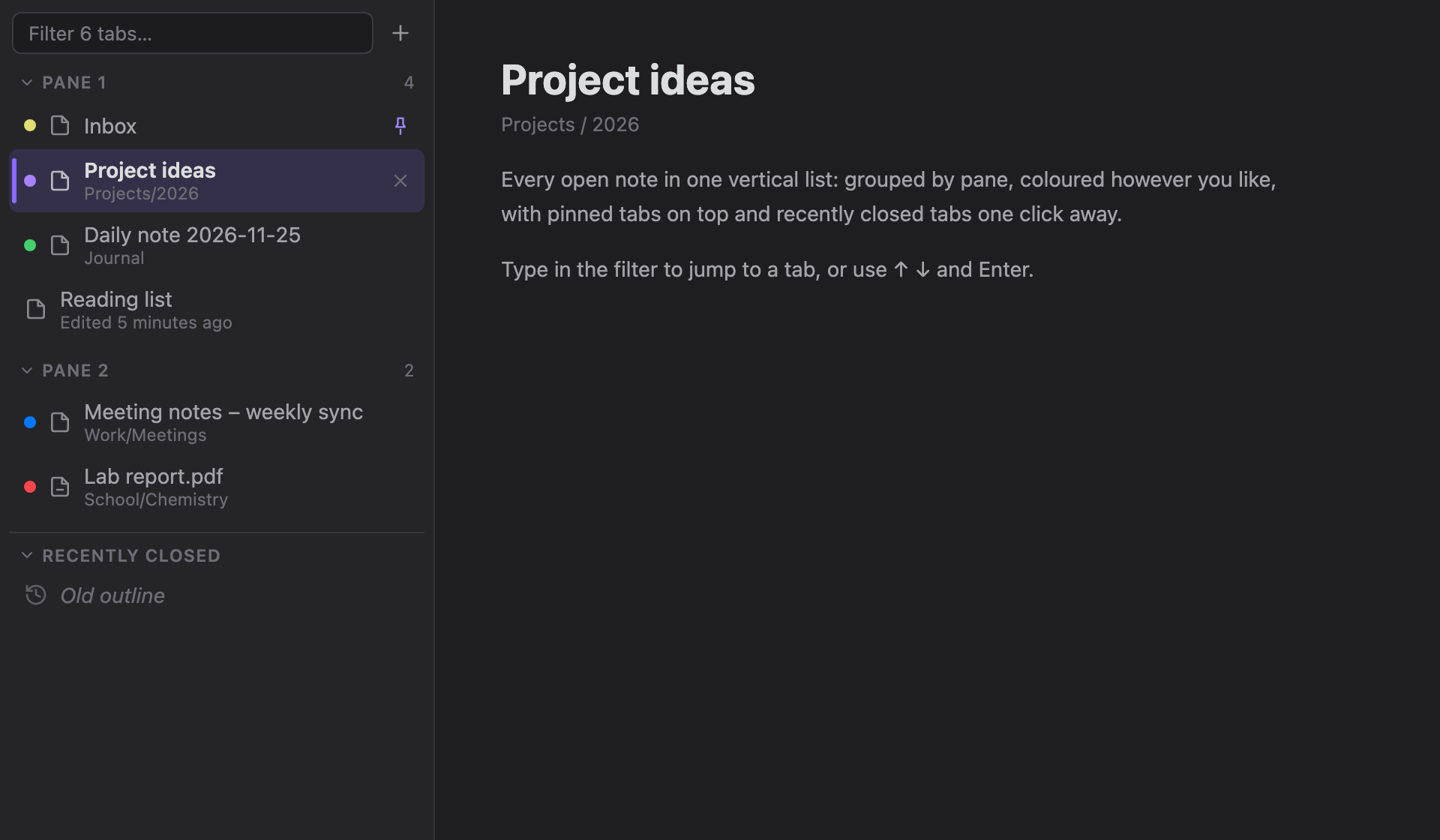
A vertical list of your open notes in the sidebar, like vertical tabs in a browser.
- Overview
- Scorecard
- Updates7
Your open notes as a vertical list in the sidebar, like vertical tabs in a browser. Colour them, pin them, filter them, reopen the ones you just closed, and save whole sets of tabs for later.
Requires Obsidian 1.13.0 or newer · Desktop only · MIT licence
Highlights
- All your tabs at a glance. One list of every open note, grouped by pane, with the one you're on highlighted.
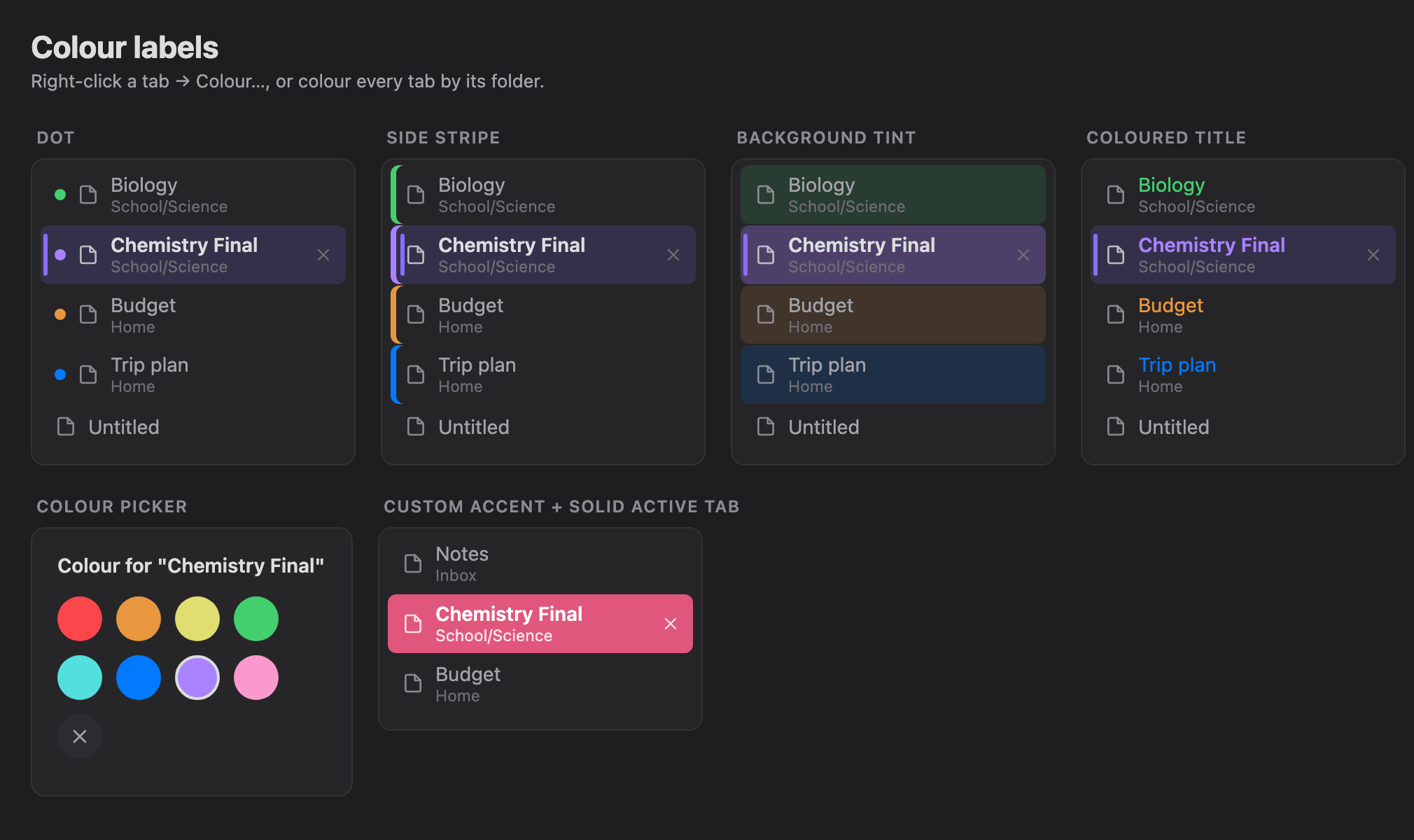
- Colour labels. Give any tab a colour, or colour every tab by its folder.
- Make it yours. Density, text size, corner roundness, active-tab style, what each tab is called, and what the line under it says.
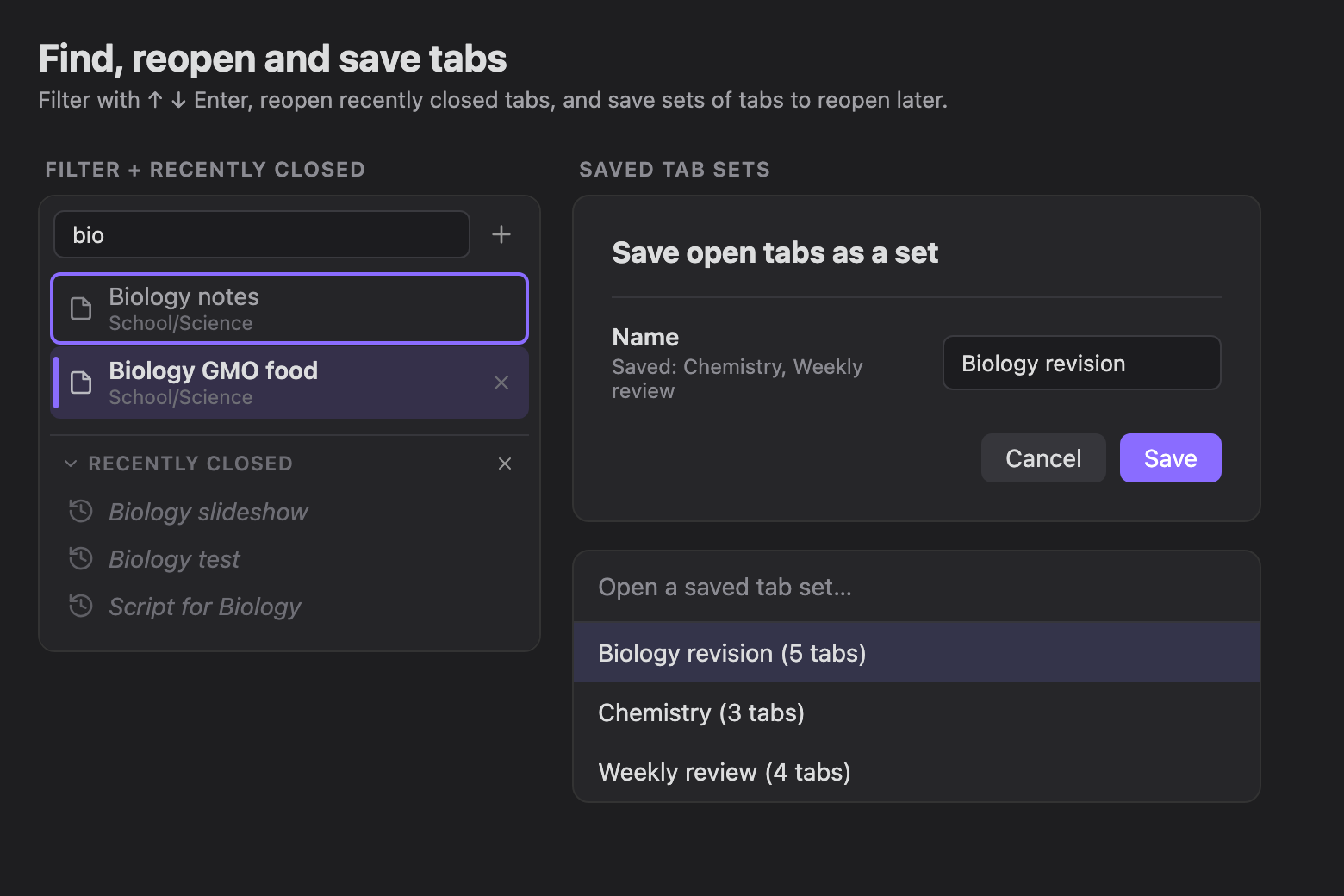
- Find tabs fast. Filter as you type, move with ↑ ↓, open with Enter, or use the quick switcher.
- Never lose a tab. Recently closed tabs stay one click away, and saved tab sets bring a whole group back at once.
- Plays nicely with other sidebar panels. Slim rows and a "share sidebar" mode put the list under Notebook Navigator or the file explorer, so you see both at once.
- Hide Obsidian's top tab bar if you want this list to be the only place tabs show.
Colour labels
Right-click a tab and choose Colour…, or run the command Set colour of current tab. Pick how colours show: a dot, a side stripe, a background tint, or a coloured title. Turn on Colour by folder to colour every tab automatically; colours you pick yourself still win. You can also give the active tab your own accent colour.
Make it yours
Choose slim, compact, comfortable or spacious rows. Set text size (80–130%) and corner roundness. Pick how the active tab stands out: soft tint, solid colour, or side bar only.
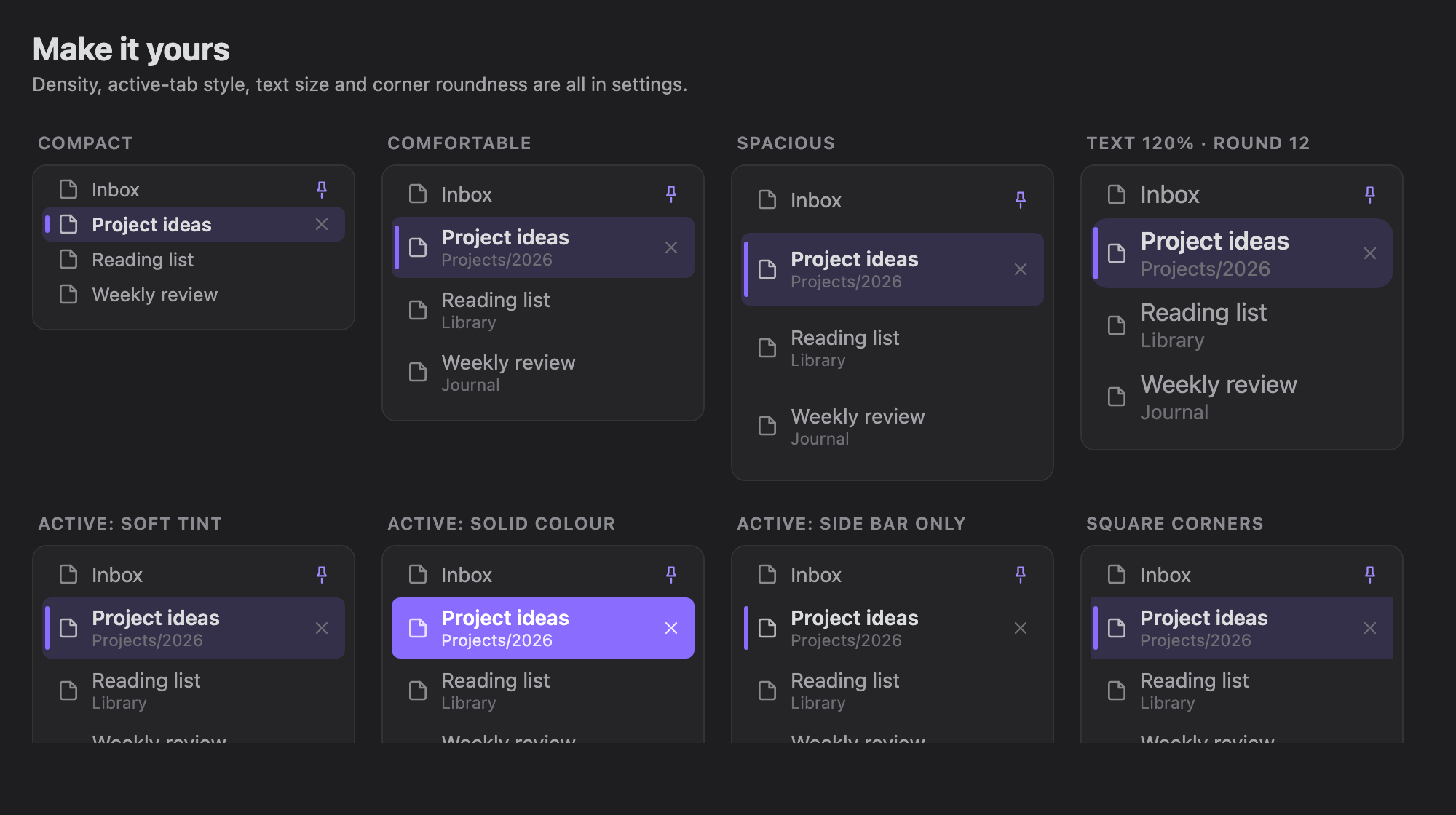
Each tab can be called by its file name, the note's frontmatter title, or its first heading. The second line can show the folder, the full path, when it was last edited ("Edited 5 minutes ago"), or nothing.
Use it with Notebook Navigator
Turn on Share sidebar with other panels and set Density to Slim. The tab list then sits under Notebook Navigator (or the file explorer) in the same sidebar, one short line per tab, and you can drag the divider to resize.
Find, reopen and save tabs
- Filter box: type to narrow by title or folder; ↑ ↓ to move, Enter to open, Esc to clear.
- Recently closed: tabs you closed this session appear at the bottom; click one to reopen it.
- Saved tab sets: save the tabs you have open under a name ("Biology revision") and reopen them all later.
- Quick switcher: "Switch to open tab…" searches your open tabs by name.
Settings
Everything is in Settings → Vertical Tabs Lite, and every option also shows up in Obsidian's settings search.
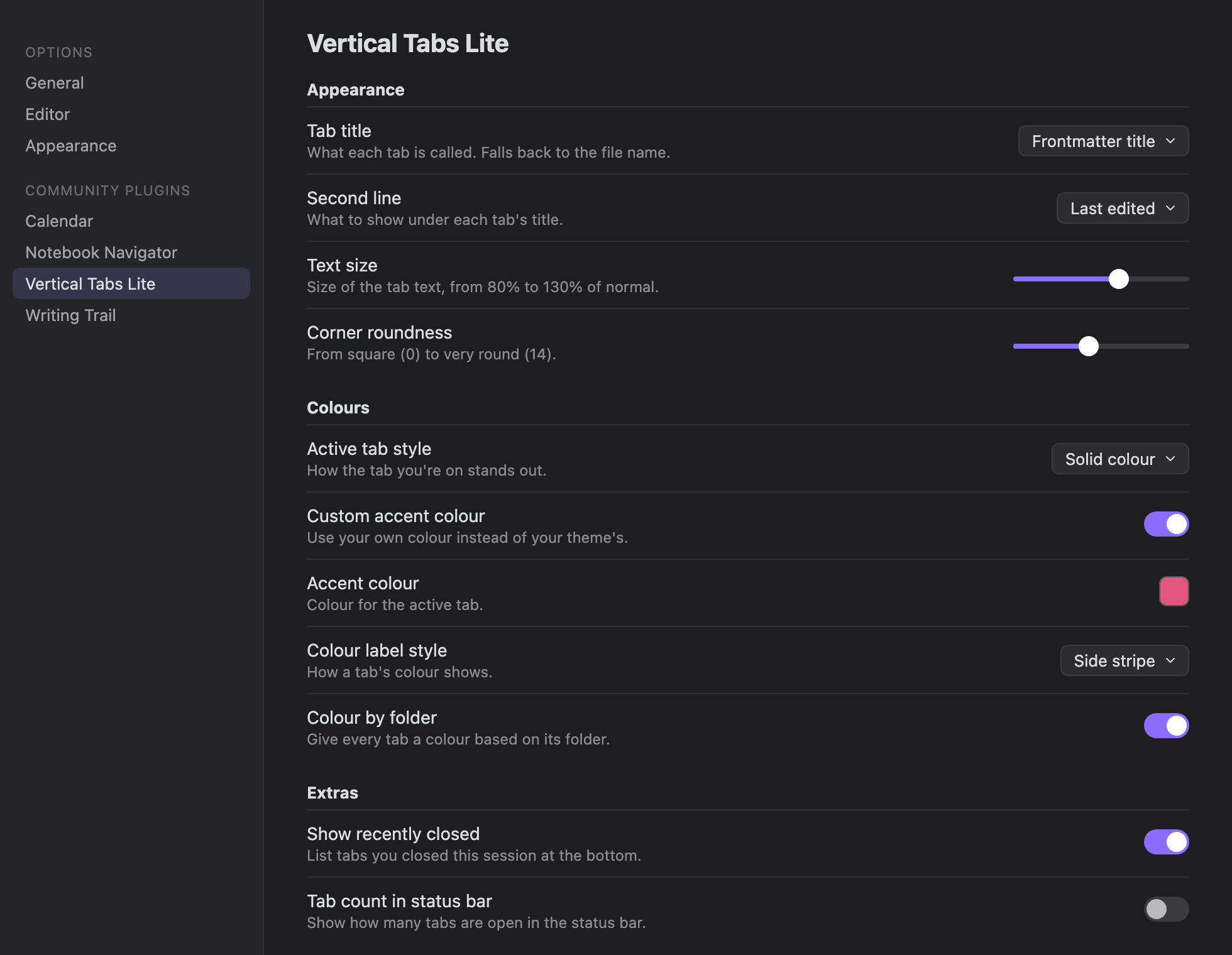
All settings
| Section | Setting | Default | What it does |
|---|---|---|---|
| Placement | Sidebar | Left | Which sidebar the list lives in |
| Share sidebar with other panels | Off | Show the list below the sidebar's other panels (e.g. Notebook Navigator) instead of as its own tab | |
| Open on startup | On | Open the list when Obsidian starts | |
| Hide native tab bar | Off | Hide the horizontal tabs above your notes | |
| Appearance | Density | Comfortable | Slim, Compact, Comfortable or Spacious rows |
| Show icons | On | File-type icon next to each tab | |
| Tab title | File name | File name, Frontmatter title, or First heading | |
| Second line | Folder | Folder, Full path, Last edited, or Nothing | |
| Show file extensions | Off | Show .pdf, .canvas etc. for files that aren't notes |
|
| Wrap long titles | Off | Let long titles take more than one line | |
| Text size | 100% | 80–130% | |
| Corner roundness | 6 | 0 (square) to 14 (very round) | |
| Show filter box | On | Search box above the list | |
| Show new tab button | On | The + button next to the filter box | |
| Show tab count | On | Number of open tabs in the filter box and pane headings | |
| Close button | On hover | When to show the ×: on hover, always, or never | |
| Colours | Active tab style | Soft tint | Soft tint, Solid colour, or Side bar only |
| Custom accent colour | Off | Use your own colour for the active tab instead of the theme accent | |
| Accent colour | Purple | The colour to use (shown when the option above is on) | |
| Colour label style | Dot | Dot, Side stripe, Background tint, or Coloured title | |
| Colour by folder | Off | Colour every tab by its folder; colours you pick still win | |
| Clear tab colours | — | Remove all the colours you've picked | |
| Order and grouping | Sort tabs by | Obsidian's order | Obsidian's tab order, Title (A–Z), Folder, Recently used, or Last edited |
| Pinned tabs first | On | Keep pinned tabs at the top | |
| Group by pane | On | Heading per pane when the editor is split (click to collapse) | |
| Extras | Show recently closed | On | List tabs closed this session at the bottom |
| How many recently closed | 5 | 1–15 | |
| Tab count in status bar | Off | Number of open tabs in the status bar | |
| Behaviour | Middle-click closes tab | On | Close a tab with the mouse wheel |
| Double-click opens new tab | On | Double-click empty space below the tabs | |
| Tab limit | 0 (off) | Close least recently used unpinned tabs beyond this many | |
| Confirm before closing all | On | Ask before "Close all" |
Reset to defaults restores everything except "Hide native tab bar", your tab colours and your saved tab sets.
Mouse and menus
- Click a tab to switch to it; middle-click or × to close it.
- Double-click the empty space below the tabs (or press +) for a new tab.
- Hold Cmd/Ctrl and hover to preview a note (uses the core Page preview plugin).
- Click a pane heading to collapse that pane.
- Right-click a tab for: Pin/Unpin, Colour…, Duplicate tab, Open to the right, Open in new window, Reveal in file explorer, Copy path, Close, Close others, Close tabs below, Close duplicate tabs, Close all, Reopen closed tab, Save open tabs as a set…
Commands
Bind any of these to a hotkey in Settings → Hotkeys:
| Command | What it does |
|---|---|
| Open vertical tabs | Show the tab list |
| Filter open tabs | Jump into the filter box |
| Switch to open tab… | Search your open tabs by name |
| Go to next tab / Go to previous tab | Move through the list |
| Go to tab 1–8 / Go to last tab | Jump straight to a tab |
| Pin or unpin current tab | |
| Set colour of current tab | Open the colour picker |
| Reopen last closed tab | |
| Close duplicate tabs | Close extra copies of the same note |
| Close all unpinned tabs | |
| Save open tabs as a set… | Name and save the tabs you have open |
| Open a saved tab set… / Delete a saved tab set… | |
| Toggle native tab bar | Show or hide Obsidian's horizontal tabs |
Install
From Obsidian: Settings → Community plugins → Browse → search Vertical Tabs Lite → Install → Enable.
Manually: download main.js, manifest.json and styles.css from the latest release, put them in <your vault>/.obsidian/plugins/vertical-tabs-lite/, then enable Vertical Tabs Lite in Settings → Community plugins.
Notes
- Tab colours follow a note when you rename or move it, and are forgotten when you delete it.
- "Recently closed" only remembers the current session.
- The pictures above are drawn from the plugin's own stylesheet on a dark theme; your theme's colours may differ.
Build from source
npm install
npm run build   # one-off production build
npm run dev     # rebuild on save