VCF Contacts
 broekema415k downloads
manage, organize, link and interact with your contacts. structured md files according vCard (VCF) standards
- Overview
- Scorecard
- Updates12
VCF Contacts Plugin for Obsidian
Bring people into your knowledge vault.
A powerful way to manage, link, and export contact data directly within Obsidian.
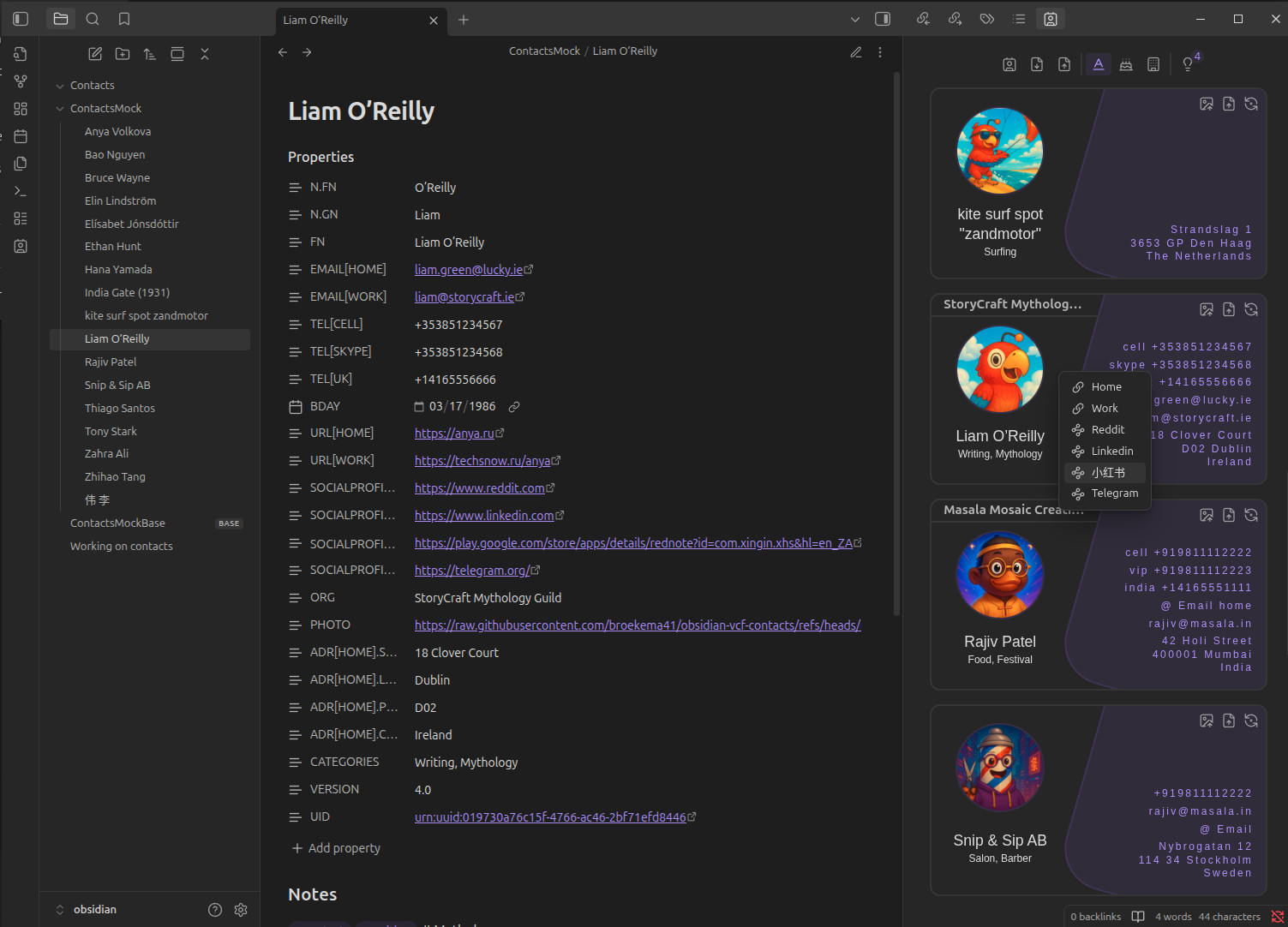
Table of Contents
- VCF Contacts Plugin for Obsidian
🚀 Features at a Glance
- Organized Contact Notes – Every contact is a markdown file, enriched with vCard-compliant frontmatter.
- Smart Search & Linking – Easily find, navigate, and link to contacts from any note.
- vCard 4.0 Support – Import/export full contact data to/from
.vcffiles. - Avatars Support – Add profile pictures from local files or URLs.
- Birthday Reminders – Keep track of important dates.
- Click-to-Call & Quick Copy – Instantly act on phone numbers, emails, and more.
- Minimal, Markdown-native UI – It's just markdown—but smarter.
📦 Installation
🔄 Automatic via Community Plugins
- Open Settings → Community Plugins
- Disable Safe Mode (if enabled)
- Click Browse, search for
VCF Contacts - Click Install, then Enable
🧰 Manual Installation
- Download
main.js,manifest.json, andstyles.cssfrom the GitHub Releases page. - Create the plugin folder in your vault:
/.obsidian/plugins/obsidian-vcf-contacts - Move the downloaded files into this folder.
- Restart Obsidian and enable the plugin from
Settings → Community Plugins.
🛠️ Getting Started
📁 Set Your Contacts Folder
- Go to Settings → Contacts
- Set your Contacts Folder Location to any existing folder in your vault
- You’re ready to start importing or creating contact notes!
📥 Importing vCards (.vcf)
- Open the Contacts sidebar tab
- Click Import VCF
- Choose a
.vcffile (single contact or full database) - If needed, you'll be prompted to fill in:
Given Name(First Name)Family Name(Last Name)
These are required to identify and name contact files properly.
📤 Exporting Contacts to vCard
- Select a contact or open the plugin interface
- Click Export VCF
- Choose a location to save the
.vcffile (vCard 4.0 format)
🖼️ Adding Avatars
You can attach profile pictures using:
🖼️ Local File:
Click Process Avatar, choose an image (.jpg,.png, etc.)🌐 Image URL:
Paste a URL in thePHOTO:field and click Process Avatar
The avatar will be scaled and stored inside Obsidian's vault-local storage.
📞 Actions available on the card
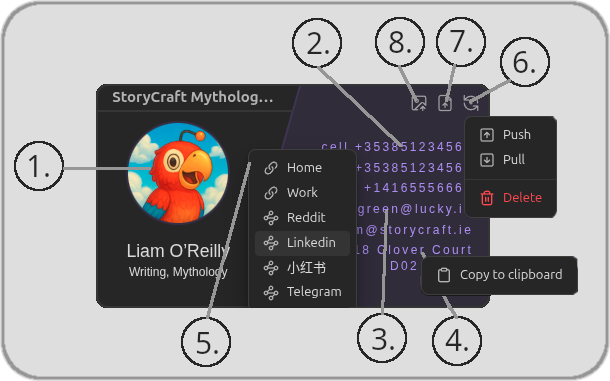
- left-click Open contact markdown note
- Click to Call: Phone numbers auto-open your default dialer
- Click to Email: Launches your email client
- Right-click any contact property → Copy to Clipboard
- Right-click Open Social Links
- left-click contact server sync when active
- left-click export as .vcf file
- left-click process and import avatar from image file
⚡ Quick Actions
The plugin provides command-based quick actions that can be accessed through Obsidian’s Command Palette.
Open the Command Palette with:
- Ctrl + P (Windows/Linux)
- Cmd + P (macOS)
Search for “VCF Contacts” to see all available commands.
VCF Contacts: Create Contact
Create a new contact using your configured default fields.VCF Contacts: Open Contacts Sidebar
Open the contacts sidebar view.VCF Contacts: Apply Default Fields to Current File
Adds any missing default fields (as defined in Settings → Default Contact Fields) to the currently open contact file.
Existing fields are not overwritten.
➕ Create a New Contact
- Click Create Contact
- Fill in:
Given NameFamily Name
- Add any extra details:
- Phone numbers, emails, websites, etc.
- Your contact is now saved as a markdown file and export-ready!
Supports all vCard 4.0-compatible fields. Feel free to link, tag, or extend notes as needed!
🔎 Searching Contacts (Fast!)
Use Obsidian's Quick Switcher:
- Press
Ctrl + O(Windows/Linux) orCmd + O(Mac) - Type part of the contact’s name
- Select and hit Enter — the contact opens instantly
The plugin will scroll to the selected contact card in the sidebar.
📖 Understanding the vCard (VCF) Format
The vCard format (.vcf) is the international standard for storing and sharing contact details in a structured, machine-readable format.
It supports a wide range of information, including:
- 🧑💼 Names and nicknames
- 📱 Phone numbers
- ✉️ Email addresses
- 🏡 Addresses
- 🌐 Websites and social links
- 🖼️ Profile photos
- 🎂 Birthdays and anniversaries
- 🏷️ Tags and categories
- 🔒 Privacy metadata and revision history
Using this format ensures your contacts are portable, interoperable, and future-proof.. Whether you're syncing across devices or backing up your data.
✅ The VCF Contacts plugin uses vCard 4.0, the latest version of the specification.
📜 Read the official vCard 4.0 spec:
RFC 6350 – vCard MIME Directory Profile
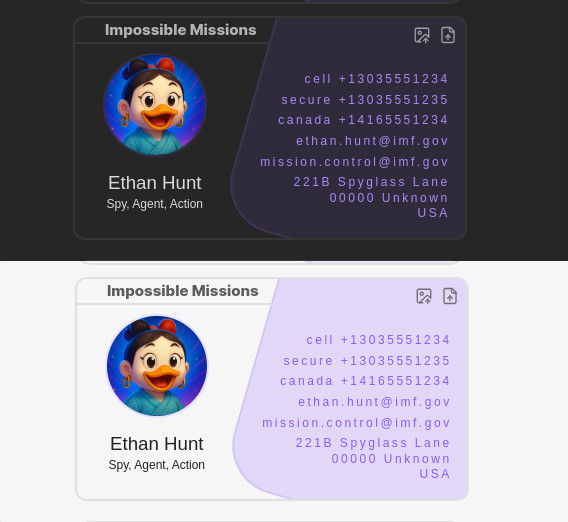
📄 Example Contact Note (Foo Bar)
Below is a sample contact note for Ethan Hunt, showcasing real-world-style fields supported by the plugin and the vCard 4.0 format:
---
N.FN: Hunt
N.GN: Ethan
FN: Ethan Hunt
PHOTO: https://raw.githubusercontent.com/broekema41/obsidian-vcf-contacts/refs/heads/master/assets/demo-data/avatars/avatar10.jpg
"EMAIL[HOME]": [email protected]
"EMAIL[WORK]": [email protected]
"TEL[CELL]": "+13035551234"
"TEL[SECURE]": "+13035551235"
"TEL[CANADA]": "+14165551234"
BDAY: 1964-07-03
"URL[HOME]": https://imf.gov/agents/hunt
"URL[WORK]": https://phoenix.imf.gov/ethan
ORG: Impossible Missions
"ADR[HOME].STREET": 221B Spyglass Lane
"ADR[HOME].LOCALITY": Unknown
"ADR[HOME].POSTAL": "00000"
"ADR[HOME].COUNTRY": USA
CATEGORIES: Spy, Agent, Action
UID: urn:uuid:019730a76c0df-4fa2-b0cf-8078e4717c93
VERSION: "4.0"

---
#### Notes

#Contact #Spy #Agent #Action
📌 Supported vCard Fields
Here’s a breakdown of supported vCard fields and their human-readable meanings — tailored for clarity and real-world use.
📞 Basic Contact Information
| vCard Field | Readable Name | Example |
|---|---|---|
VERSION |
vCard Version | 4.0 |
N.PREFIX |
Name Prefix (e.g., Mr., Dr.) | Dr. |
N.GN |
Given Name (First Name) | Foo |
N.MN |
Middle Name | Middleton |
N.FN |
Family Name (Last Name) | Bar |
N.SUFFIX |
Name Suffix (e.g., Jr., III) | Jr. |
FN |
Full Name | Foo Bar |
NICKNAME |
Nickname | Foobar |
EMAIL[HOME] |
Personal Email | [email protected] |
EMAIL[WORK] |
Work Email | [email protected] |
TEL[CELL] |
Mobile Phone | +1234567890 |
TEL[HOME] |
Home Phone | +1987654321 |
TEL[WORK] |
Work Phone | +1098765432 |
BDAY |
Birthday (YYYY-MM-DD) | 1985-12-31 |
GENDER |
Gender | M, F, X |
ORG |
Organization Name | FakeCorp Inc. |
TITLE |
Job Title | Senior Developer |
ROLE |
Job Role | Software Engineer |
🏠 Address Fields
| vCard Field | Readable Name | Example |
|---|---|---|
ADR[HOME].STREET |
Home Street Address | 123 Fake Street |
ADR[HOME].LOCALITY |
Home City | Faketown |
ADR[HOME].REGION |
Home State/Province | FakeState |
ADR[HOME].POSTAL |
Home Postal Code | 00000 |
ADR[HOME].COUNTRY |
Home Country | Nowhere Land |
ADR[WORK].STREET |
Work Street Address | 789 Corporate Ave |
ADR[WORK].LOCALITY |
Work City | Business City |
ADR[WORK].REGION |
Work State/Province | IndustryState |
ADR[WORK].POSTAL |
Work Postal Code | 99999 |
ADR[WORK].COUNTRY |
Work Country | Enterprise Land |
🌐 Online Presence
| vCard Field | Readable Name | Example |
|---|---|---|
URL[HOME] |
Personal Website | https://foobar.example.com |
URL[WORK] |
Work Website | https://company.fake/foobar |
SOCIALPROFILE[facebook] |
Facebook Profile | https://facebook.com/foobar |
SOCIALPROFILE[twitter] |
Twitter Profile | https://twitter.com/foobar |
SOCIALPROFILE[linkedin] |
LinkedIn Profile | https://linkedin.com/in/foobar |
🖼️ Profile Photo
Photo's avatars can also be imported from file and will be resized so that they become a integrated part of the contact markdown file by default.
💡 Heads-up: The PHOTO field is a bit of a troublemaker when it comes to sync, tools, app interoperability. if there is a avatar loaded into obsidian we will not overwrite it with external data.
| vCard Field | Readable Name | Example |
|---|---|---|
PHOTO |
Profile Picture URL | https://example.com/photos/foo-bar.jpg |
🗂️ Categorization & Metadata
| vCard Field | Readable Name | Example |
|---|---|---|
CATEGORIES |
Tags / Categories | Work, Friends |
CLASS |
Privacy Classification | public, private |
KIND |
individual, group, organization or location | public, private |
REV |
Last Updated Timestamp | 20240312T123456Z (ISO 8601) |
SOURCE |
vCard Source Link | https://example.com/foo-bar.vcf |
UID |
Unique Contact ID | foo-bar-uuid-1234 |
🚀 Why This Format? Why a Plugin for Obsidian?
For many of us, using Obsidian is like brewing that perfect cup of coffee — energizing, efficient, and deeply satisfying. But let’s face it: managing contacts has always been a hassle.
This plugin solves that beautifully. ✨
✔ vCard 4.0 keeps contacts tidy, organized, and universally shareable.
✔ Easily import/export contacts between Obsidian and your favorite apps.
✔ Covers nearly all real-world use cases personal, work, or hybrid.
✔ Integrates contacts directly into your knowledge graph.
✔ Feels native, modern, and fun to use.
Start using the plugin today and share your experience in the 💬 GitHub Discussions!
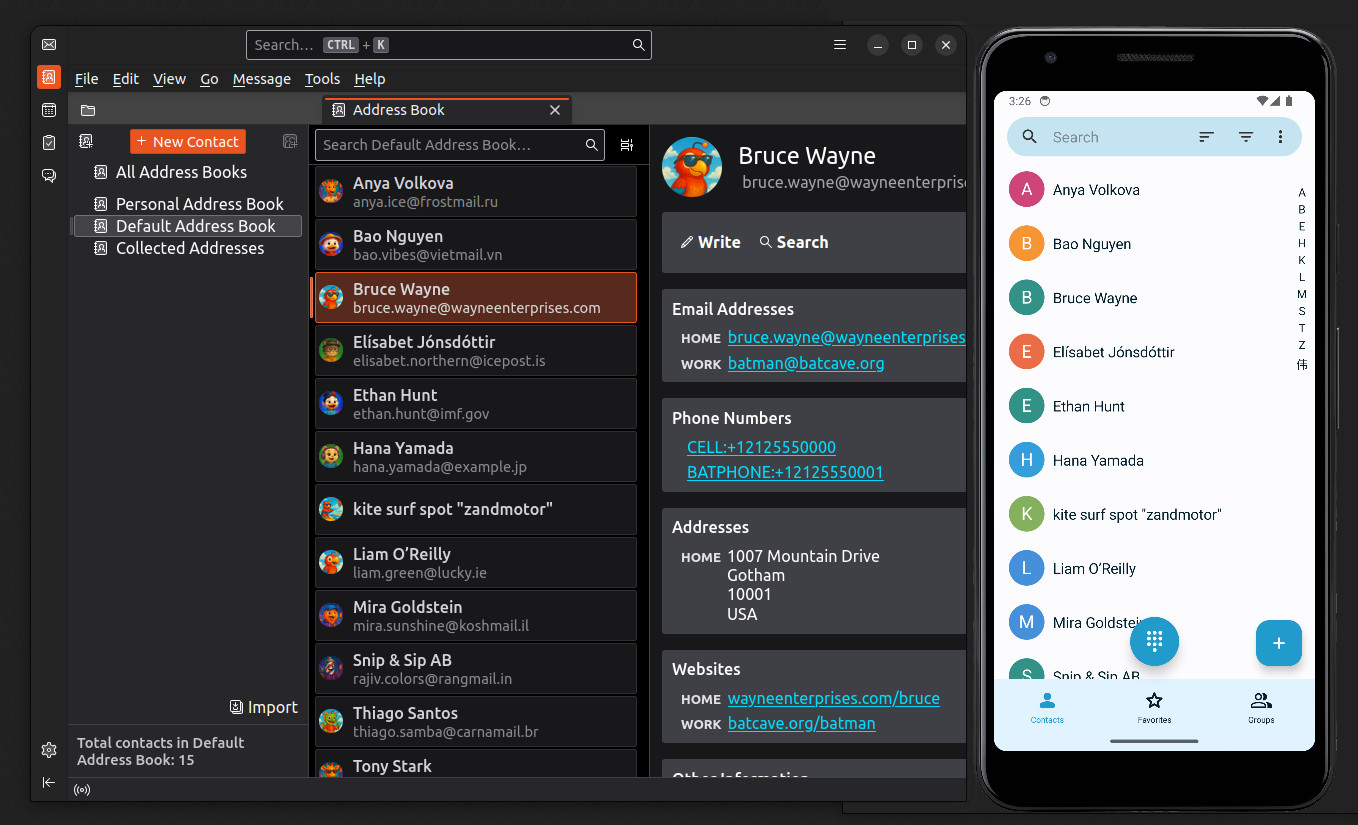
🌍 Access up to date Contacts on Devices (IOS, Android) and apps.
This feature is for the slightly tech-savvy... or you are lucky enough to have a privacy conscious tech friend nearby! We assume you have a CardDAV server running, know how to spin one up, or use a hosted service that does the job for you.
A typical setup looks like this:
Obsidian VCF Contacts Plugin
        ↓
Contacts DAV Server
        ↓
 ├── DAVx⁵ → Android Contacts (read only)
 ├── iOS Contacts (read only)
 └── Thunderbird (or any CardDAV-capable email client) (read only)
CardDAV Server Options
You can self-host or use cardav provider. There are many, some popular options:
- Baïkal lightweight and easy docker container to run
- Radicale minimal, Python-based
- Nextcloud Contacts a popular alternative cloud service
- SOGo open-source groupware server
Synchronization Settings
In the plugin setting page select "sync method" CardDav. Here you can fill in the Address Book URL and credentials. pressing "Enable" button will test the connection and enable the sync when ok
- Basic authentication (username + password)
- API key authentication
OpenID Connect (OAuth2) is not supported at this time.
🔧 Development
For plugin development:
# Install dependencies
npm install

# Build the plugin
npm run build

# Development build
npm run dev
npm run dev watch   # with auto-rebuild on changes
📘 Testing strategy
Our goal is to maintain high-confidence, non-UI testing that focuses on:
- Validating all resolved production bugs.
- Thoroughly testing deep module interfaces (e.g., parsing, formatting, file logic, syncing, processors etc)
Use the following commands to run tests and view coverage:
npm run test
npm run test:coverage
For a breakdown of our testing approach, structure, and goals, see: 👉 our testing strategy
🌟 Support & Get Involved
We rely on our community to keep this project free and moving forward. If you believe in what we’re building, now’s the perfect time to step out of the shadows and help shape the future of this plugin!
Spread the word, connect us with sponsors, or simply share your enthusiasm, your support matters.
Ready to make a difference? Sign up here.
🙏 Acknowledgements
This plugin started as a fork of Vadim Beskrovnov’s Contacts plugin. While the codebase has since evolved significantly, his original work laid the foundation. Immense thanks to Vadim for the early inspiration and groundwork.