Vault Dock
 Ivan Sushkin48 downloads
Open and switch between registered vaults from a customizable dock.
- Overview
- Scorecard
- Updates5
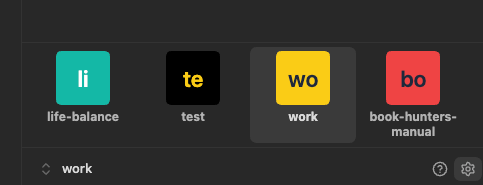
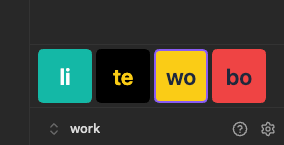
Vault Dock gives you a panel of tiles for opening Obsidian vaults. On desktop, it automatically adds a tile for each registered vault and can bring an existing window into focus.
| With labels | Without labels |
|---|---|
 |
 |
Requirements · Obsidian 1.15.0 or later on desktop, iOS, and Android.
Interface languages · English · Русский · Қазақша · Беларуская · O‘zbekcha · 简体中文 · 繁體中文 · 日本語. The plugin follows Obsidian’s language by default and uses English if that language is unavailable. You can choose a language in the plugin settings.
Desktop features
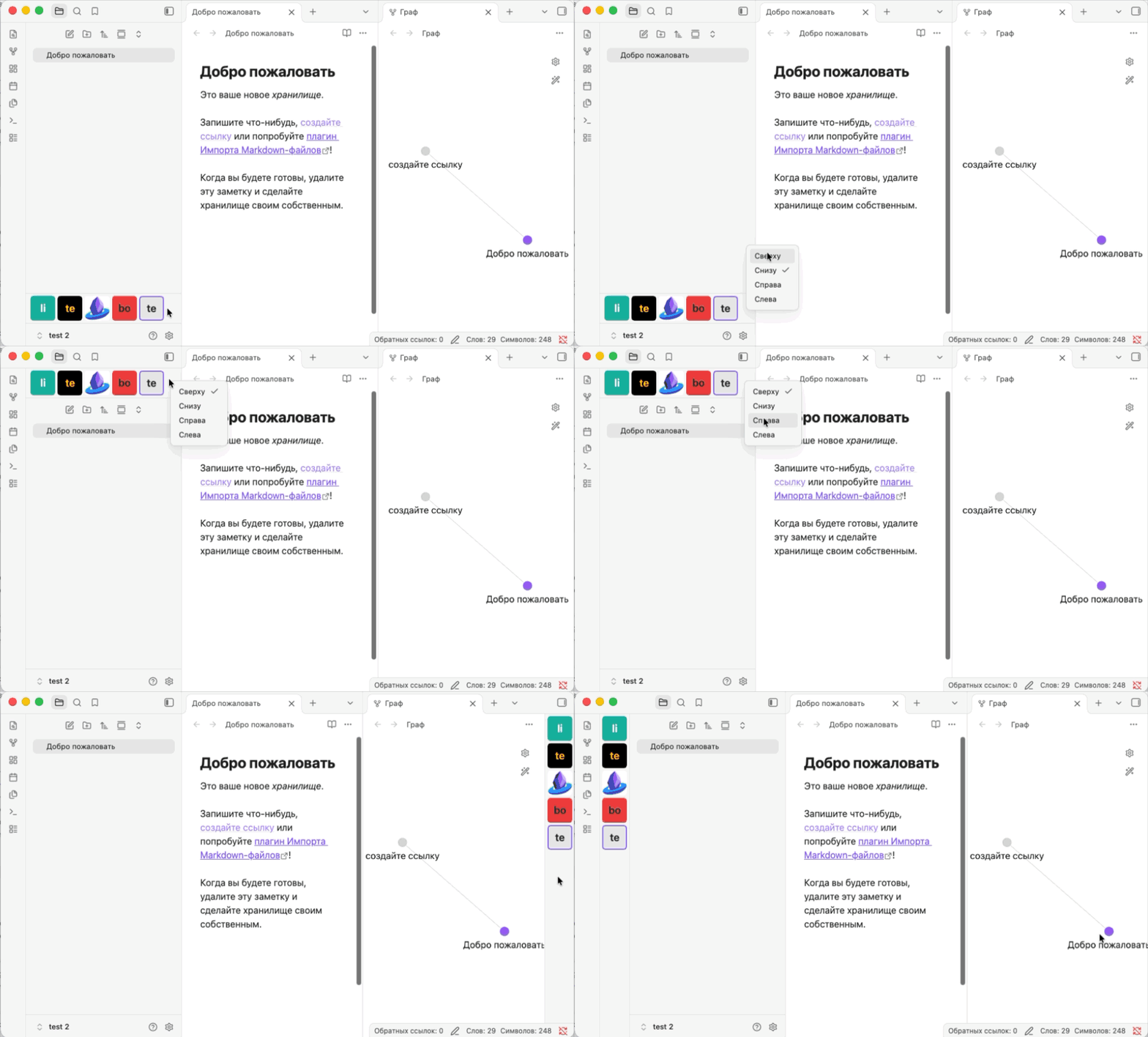
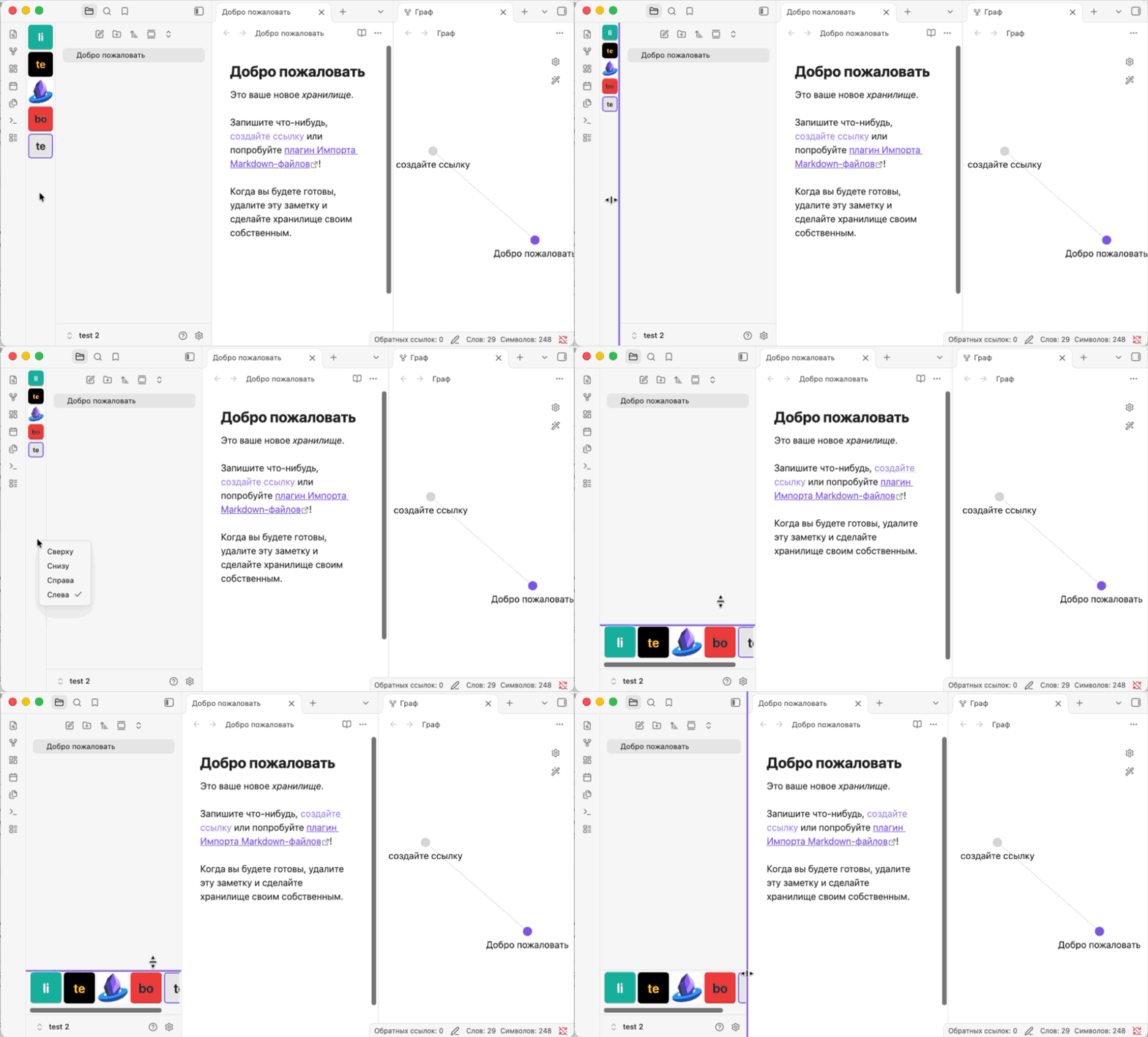
- Place the bar below the left sidebar tabs (default), above Obsidian’s built-in vault switcher, or along the left or right edge of the workspace. The vertical bar stays visible when the sidebars are collapsed.
- Change Tile size in the plugin settings or drag the edge of the bar. Turn on Hide vault labels for square tiles.
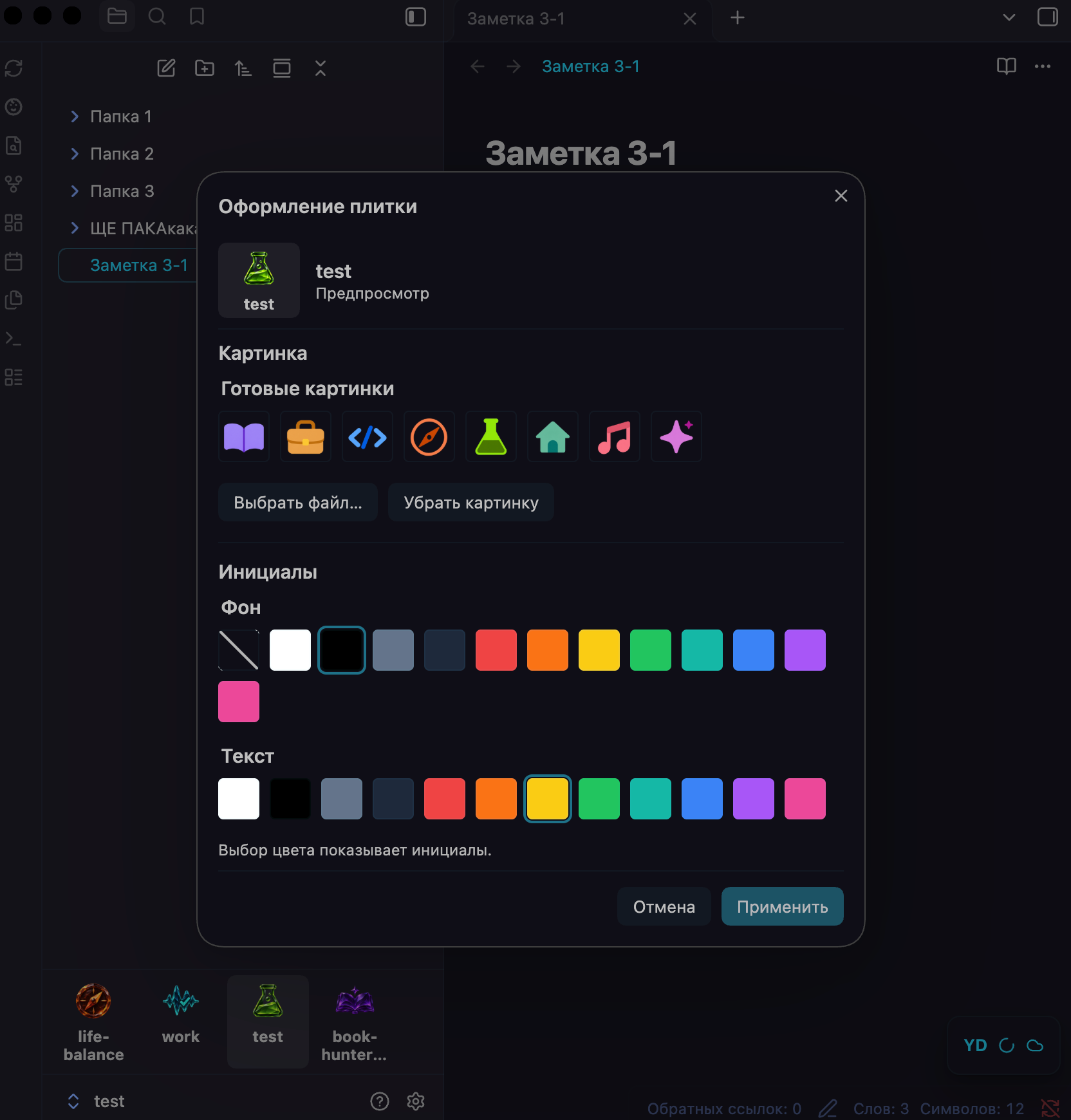
- Right-click a tile and open Tile appearance. Preview a ready-made picture, choose or remove an image file, or set colors for the vault’s initials. Select Apply to update the tile.
- Drag tiles to reorder them, or use Move earlier and Move later in the tile’s menu.
Demos
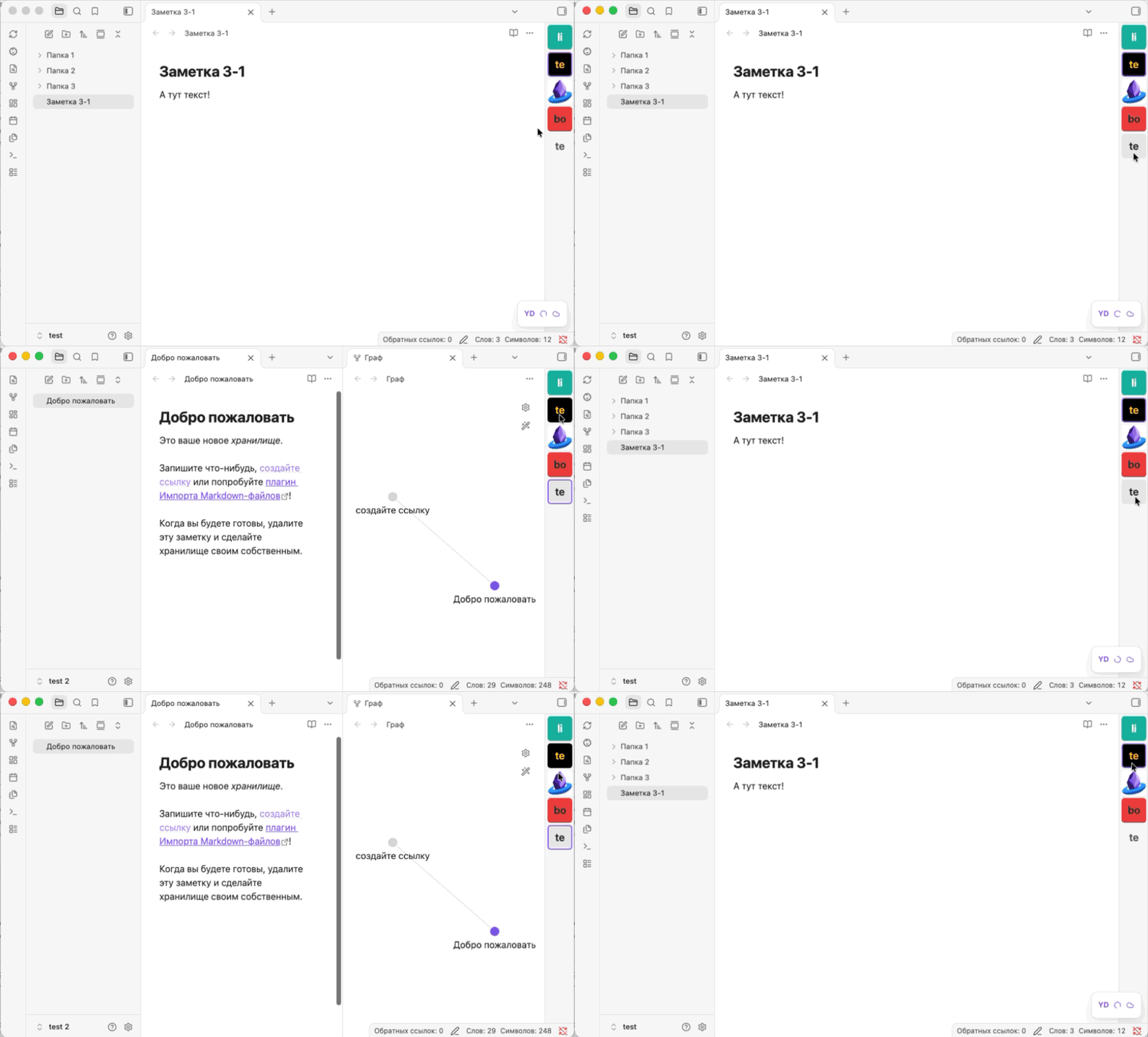
| Switching vaults | Moving the dock |
|---|---|
 |
 |
| Resizing tiles | Reordering tiles |
|---|---|
 |
 |
Tile appearance
Installation
- Download
main.js,manifest.json, andstyles.cssfrom the latest GitHub release. - In your vault, create
.obsidian/plugins/vault-dock/. - Copy the three files into that folder.
- Restart Obsidian and enable Vault Dock under Settings → Community plugins.
If you installed a build under the old vault-switcher-bar ID, disable it in
every vault first. Remove its old installation folder after installing and
enabling vault-dock in each vault. The plugin uses the existing settings
and tile images from the same Obsidian profile.
Switching on desktop
Install and enable the plugin in two vaults, then click the other vault’s tile to switch. Use Switching mode in the plugin settings to choose how the windows behave.
The built-in Obsidian sidebar switcher uses the same mode as the Vault Dock tiles. You can change it in either the switcher menu or the plugin settings.
| Mode | Current window | Destination window |
|---|---|---|
| Hide current window (default) | Hides and keeps its tabs ready for your return. | Takes the current window’s size and position. |
| Close current window | Closes once the destination window is ready. | Takes the current window’s size and position. |
| Keep both windows open | Stays visible. | Opens or receives focus at its own size and position. |
In Hide current window mode, the current window closes if the plugin is disabled or missing in the destination vault. When opening a closed vault, Obsidian may briefly show its window at its previous position.
On native Wayland, Vault Dock cannot transfer the window position. Resizing and focusing depend on the compositor. Use Keep both windows open to switch without transferring window size or position.
Switching on mobile
Vault Dock automatically shows the vaults from Obsidian’s built-in switcher in the left sidebar. Tap a tile to switch. Enable Vault Dock in each vault where you want the panel to appear.
You can adjust the tile size, labels, and language in each vault. Obsidian handles the switch and the workspace state.
Shared desktop settings
The switching mode and tile images are shared across the Obsidian profile by default. Turn off Share settings across vaults to configure them separately. Turning it back on makes the current vault’s mode and images the shared settings.
The desktop interface language, bar position, tile size, label visibility, tile colors, and tile order always apply across the profile.
Local data
On desktop, Vault Dock uses Obsidian's internal Electron IPC to read vault IDs and paths and to open or focus registered vaults. It uses Electron APIs to manage their windows. When you select a vault in Obsidian's built-in switcher, Vault Dock intercepts the open request to apply the selected switching mode.
When you choose a tile image, the plugin reads that file, which can be outside your vaults. It stores a copy of the image and the dock settings in the local Obsidian profile. On mobile it saves appearance settings in each vault’s plugin data. The automatically discovered list stays in memory. The plugin runs offline.
Development
To build from source, run npm ci with Node.js 22, then run
npm run build -- --no-install. The three installation files are in build/.
See the development guide (in Russian) for build commands, installation into test vaults, and manual checks.
License
MIT.