Trietment Kanban
 Trietment1k downloads
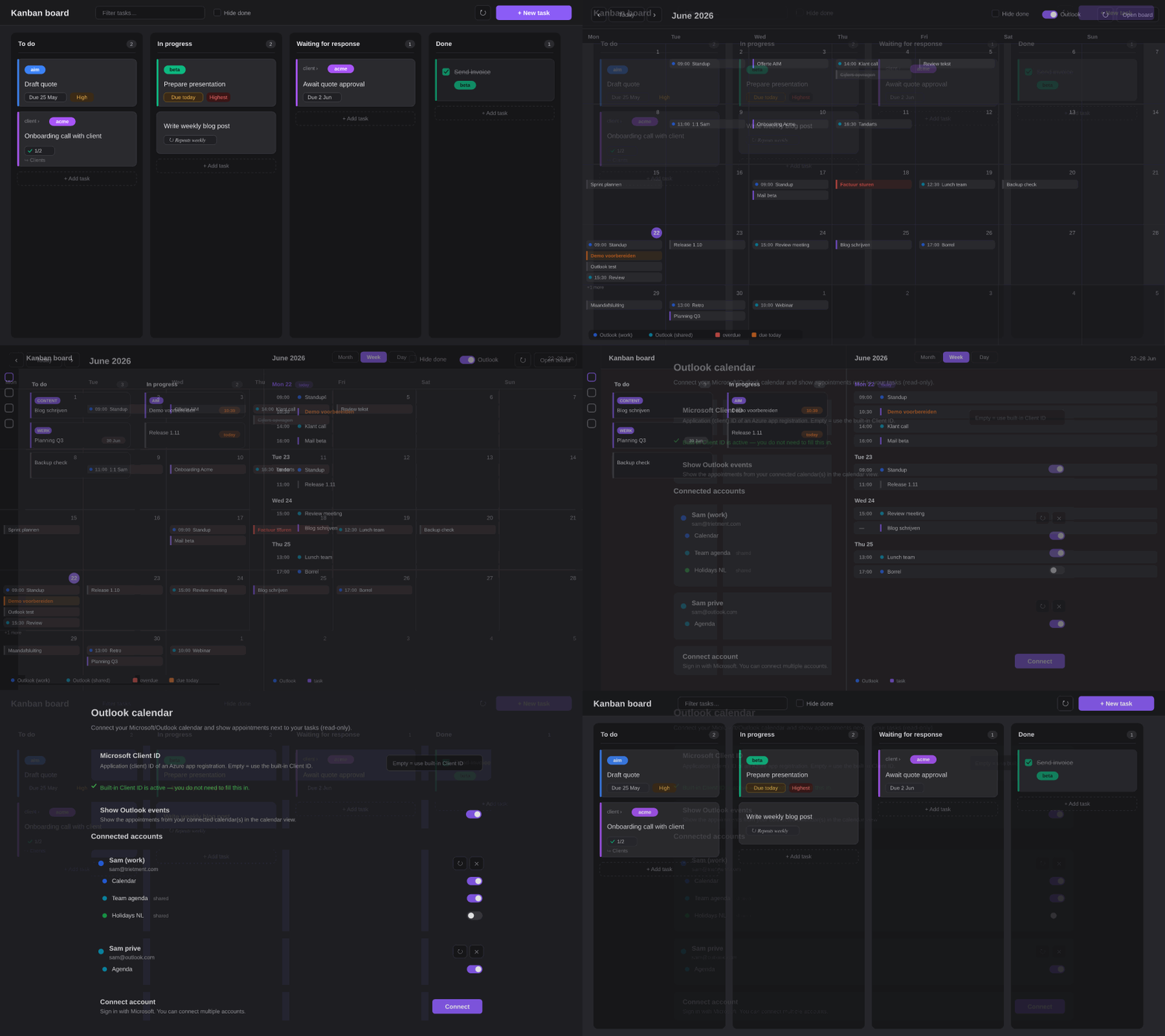
Collect tasks from across your vault as draggable Kanban cards, with due dates, projects, priorities, subtasks and recurring tasks.
- Overview
- Scorecard
- Updates36
English | Nederlands
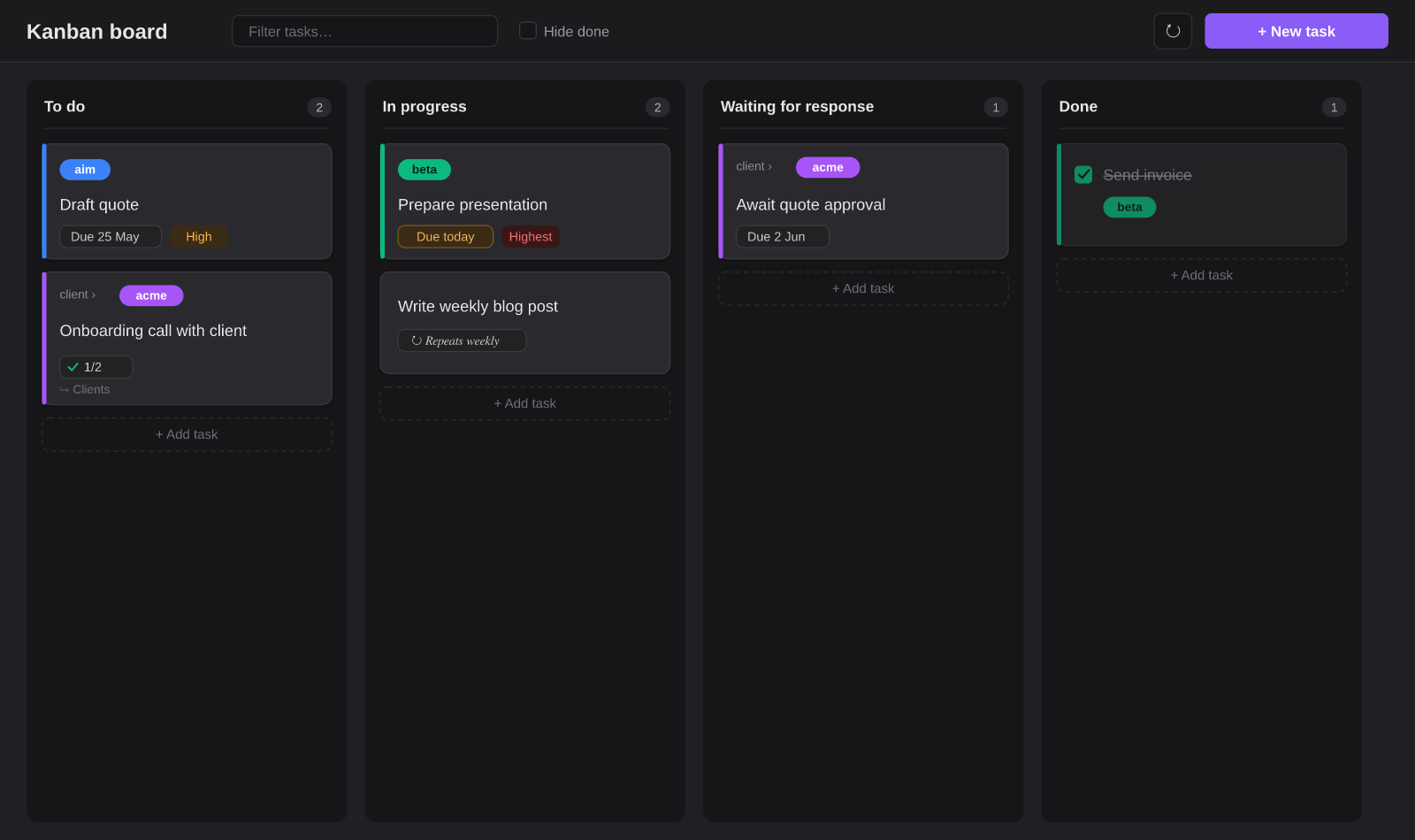
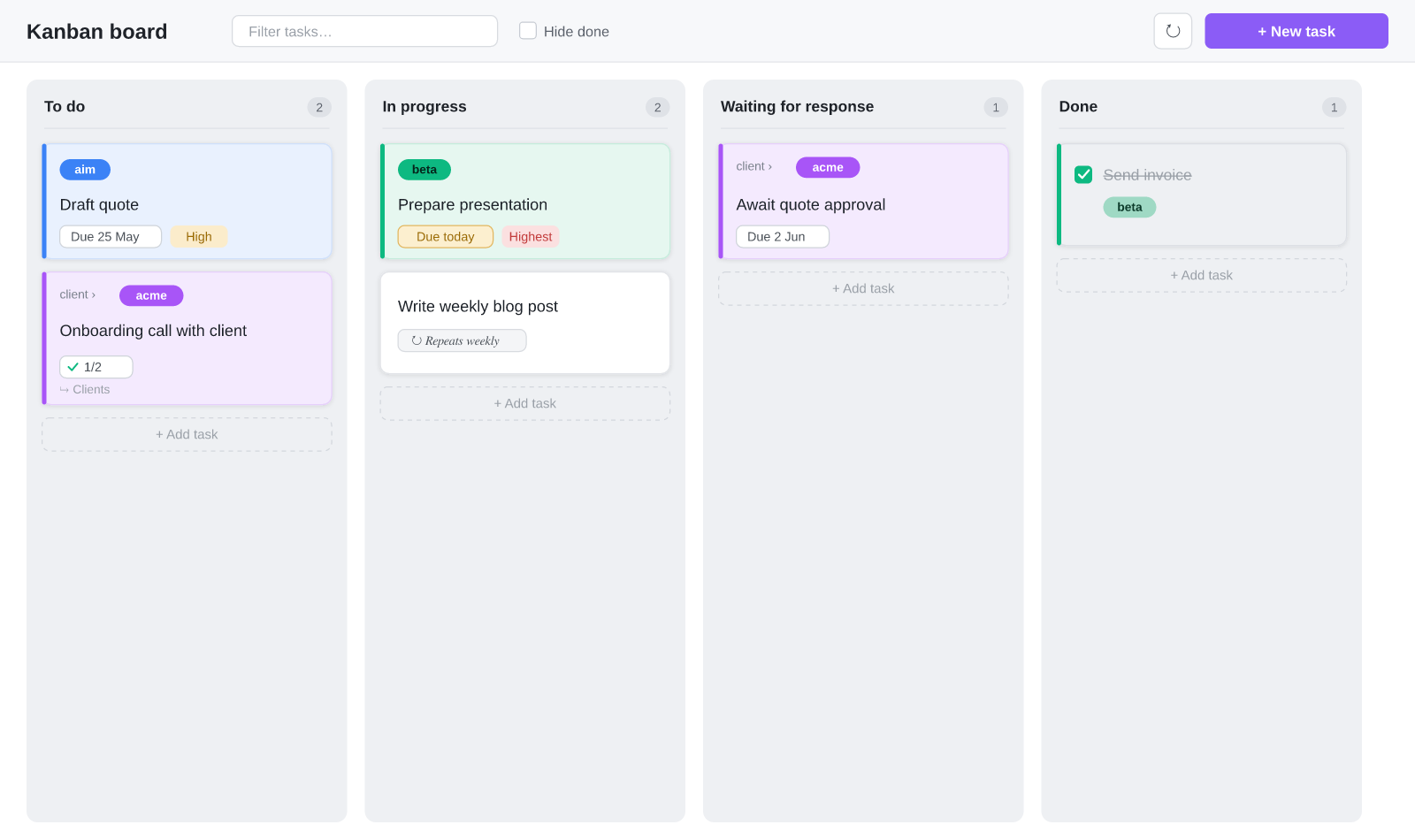
A Kanban board for Obsidian that collects tasks from every note in your vault. Tasks are plain markdown checkboxes with optional metadata; the plugin shows them as draggable cards in columns. Works on desktop and mobile.
If you find this plugin useful, you can buy me a coffee — thank you!
New in 1.19.2
Completing a recurring task on your phone completes the card again
- Completing a recurring task in Reminders or To Do now completes the card. Completing a recurring linked task on your phone makes Microsoft roll the same task straight on to its next occurrence, so the board never saw a "completed" state — the open card only moved its due date along (1.18.1) and kept sitting in its column, typically In progress, now dated in the future. As if nothing had happened. The reconciliation now mirrors what already happened when you tick the card on the board: the card is checked off (it stays in Done as history) and unlinked, and the next sync run imports the new occurrence as a fresh card in the landing column — auto-move brings that one to In progress on the day itself. Nothing is pushed to Microsoft in the process, so the next occurrence is never accidentally completed along.
- Rescheduling to a later day pulls the card out of In progress. Moving a linked task's due date to a later day in Reminders or To Do already updated the date on the board (1.19.0), but a card that had been moved to In progress stayed there — looking active while its due date is days away. Such a card now returns to the default column, and auto-move brings it back to In progress on the new due date. On hold and Done stay untouched: those columns are your choice, not the sync's.
- One honest note. For a recurring task the sync cannot tell completing an occurrence apart from manually pushing its date forward — Microsoft rolls the same task on in both cases. Manually reschedule a recurring task to later, and the board records the current card as done and starts a fresh one on the new date; the end state matches Microsoft either way.
Features
- Tasks from your whole vault — every
- [ ]checkbox with a#kanban/tag appears on the board. - Dynamic columns — defaults: To do / In progress / Waiting for response / Done. Add, rename, reorder or remove columns in the settings. Drag cards between columns (desktop), or use a card's ⋮ menu or the edit modal (phone).
- Made for phones — on a phone the board shows one column at full width with a row of chips above it to switch columns (each with its card count), and every card gets a ⋮ menu to move or delete it without dragging. Tablets and desktop keep the multi-column grid.
- Bilingual (EN/NL) — the whole interface is available in English and Dutch. By default the plugin follows the Obsidian language; you can also choose manually.
- Projects with colors — group with
#project/name, each with its own color and optional label. Subprojects (#project/client/acme) are supported. - Clients — a second colored tag dimension with
#client/namealongside the project, so a card can carry both a client and a project. - Swimlanes — group cards into horizontal lanes by project, client, priority or due date via the board header's "Group by" control.
- Multiple boards — create named boards, each scoped to certain projects/clients with its own lane grouping; switch boards from the header.
- Card covers — show an image (
[cover:: [[logo.png]]]or a URL) or a plain-text banner on a card; upload an image with one click. - Due dates, times & recurrence —
📅 2026-05-28, an optional time⏰ 14:30, and🔁 every week. Completed recurring tasks automatically create the next instance (keeping their time). - Calendar view (Month / Week / Day) — see every task on its due date, with the same color coding as the board (red = overdue, orange = today). Switch between a month grid and agenda-style Week and Day views from the header; tasks with a time and your appointments share one timeline sorted by time. In the month view, "+N more" is clickable and opens that day so nothing stays hidden. The views stay readable in a narrow split pane. Open the calendar from the ribbon (calendar icon), the command palette, or the 📅 button on the board. Click a day to add a task with that date prefilled; click a task to edit it.
- Outlook calendar (optional) — connect one or more Microsoft/Outlook accounts via OAuth and see your appointments next to your tasks in the calendar view (read-only). Pick exactly which calendars to show per account, including shared calendars. See Outlook setup.
- Customizable priorities — define your own priority list (name + color) in the settings, or use the built-in
🔺 ⏫ 🔼 🔽 ⏬. Cards show a colored priority pill. - Subtasks — indented checkboxes under a task. The board shows a
☑ 2/5progress badge; add and check them in the edit modal. - Linked note per card — use the 📄 button to create a dedicated note for a task from a template (a
[[wikilink]]in the task line). If it already exists, the button opens it. Optionally, completing a card moves its note into a0. archivesubfolder (and reopening moves it back). - Click = edit — click a card for the edit modal: status/column, due date, project, recurrence, subtasks and note in one place.
- Automatic moving — tasks due today (or overdue) move automatically to the In-progress column.
- Inbox — quick entry of new tasks into a configurable inbox note.
- Collect from #kanban notes (optional) — tag a note with
#kanbanand all its checkboxes appear on the board without per-task tags, scoping the board to your #kanban notes (new tasks land in the Inbox to sort, done ones in the done column).
Installation
From Obsidian's community plugins (recommended)
- Open Settings → Community plugins and make sure community plugins are enabled.
- Click Browse and search for Trietment Kanban.
- Click Install, then Enable.
Works the same on desktop and mobile. Obsidian offers updates automatically.
Manually
- Create the folder
<vault>/.obsidian/plugins/trietment-kanban/. - Copy
main.js,manifest.jsonandstyles.cssfrom the latest release into it. - Restart Obsidian and enable the plugin under Settings → Community plugins.
Task syntax
A task is a plain markdown checkbox with optional metadata:
- [ ] Draft quote 📅 2026-05-25 ⏰ 09:30 #project/aim #kanban/doing ⏫
    - [ ] Request figures
    - [x] Pick template
- [ ] Onboarding call [[Acme onboarding]] #project/client/acme #kanban/todo
- [x] Mail sent #project/client/beta #kanban/done
| Part | Meaning |
|---|---|
#kanban/<column> |
Which column the task is in (e.g. #kanban/doing) |
#project/<name> |
Project; use / for subprojects (#project/client/acme) |
#client/<name> |
Client — a second colored tag dimension shown alongside the project |
📅 YYYY-MM-DD |
Due date |
⏰ HH:mm |
Time of day (24h), shown on the calendar timeline |
🔁 every week |
Recurrence (every day/week/month/year, also every 2 weeks) |
🔺 ⏫ 🔼 🔽 ⏬ |
Priority (highest → lowest) |
[[Note]] |
Linked note |
[cover:: …] |
Card cover — an image ([[file]] or URL) or plain text |
indented - [ ] |
Subtask of the task above it |
You can put tasks in any note in your vault — they are picked up automatically.
Styling cards with CSS
Card metadata is rendered with data-field / data-value attributes, so you can style values from a CSS snippet (Settings → Appearance → CSS snippets) — for example, turn priorities into colored pills:
.tk-prio { padding: 1px 8px; border-radius: 999px; }
.tk-prio[data-value="highest"] { background: var(--color-red); color: #fff; }
.tk-prio[data-value="low"]     { background: var(--color-green); color: #fff; }
Each meta element (.tk-prio, .tk-due, .tk-recur, the project badge) carries data-field + data-value, and the card carries data-column, data-priority and data-project.
Usage
- + New task (or the
+under a column) adds a task, by default in the inbox note. - Click a card → edit modal with column/status, due date, project, recurrence, subtasks and the linked note.
- 📄 creates/opens the linked note; ☑ 2/5 shows subtask progress.
- Drag a card to another column (desktop) to update the
#kanban/tag. - Click a project badge to filter on that project.
Settings
- Add/rename/remove/reorder columns, default column, done column, inbox note, show inbox column.
- Automatic moving (today → In progress, optionally also overdue).
- Language (automatic / Dutch / English).
- Projects & colors, with a button to scan the vault (or only specific scan folders) for
#project/tags. - Linked notes: note folder and template file (empty = built-in template).
- Outlook calendar: Microsoft Client ID, show events toggle, connected accounts.
Outlook calendar setup
The Outlook integration uses OAuth 2.0 (Authorization Code + PKCE) and Microsoft Graph. It is read-only — appointments are shown next to your tasks, nothing is written back.
- Go to the Microsoft Entra admin center → App registrations → New registration.
- Choose a supported account type. For personal and work/school accounts across organizations, pick Accounts in any organizational directory and personal Microsoft accounts.
- Under Authentication → Add a platform → Mobile and desktop applications, add the redirect URI
obsidian://trietment-kanban-auth, and enable Allow public client flows. - Under API permissions, add the delegated Microsoft Graph permissions
User.Read,Calendars.Read,Calendars.Read.Sharedandoffline_access. - Copy the Application (client) ID and paste it into the plugin settings (Outlook calendar → Microsoft Client ID).
- Click Connect and sign in. Repeat to connect multiple accounts.
- Under each connected account, use the calendar picker to choose which calendars to show. Shared calendars appear once you have added them in Outlook; use the refresh button to reload the list. Each calendar gets its own color.
Sign-in tokens are stored per device (in local storage, not in data.json), so they are never copied by Obsidian Sync — you sign in once per device. Work/school accounts may require admin consent depending on your organization.
Files
main.js— the pluginmanifest.json— plugin metadatastyles.css— stylingversions.json— version ↔ minimum Obsidian version
data.json(your personal settings and project colors) belongs to your vault and is deliberately not in this repo.
License
MIT.
Nederlands
English | Nederlands
Een Kanban-bord voor Obsidian dat taken verzamelt uit alle notes in je vault. Taken zijn gewone markdown-checkboxes met optionele metadata; de plugin toont ze als sleepbare kaarten in kolommen. Werkt op desktop én mobiel.
Vind je deze plugin handig? Je kunt me een koffie trakteren — dankjewel!
Nieuw in 1.19.2
Een herhalende taak afvinken op je telefoon vinkt de kaart weer af
- Een herhalende taak afvinken in Reminders of To Do vinkt nu de kaart af. Bij het afvinken op je telefoon schuift Microsoft dezelfde taak direct door naar de volgende occurrence, dus het bord zag nooit een "voltooid" — de open kaart schoof alleen zijn due date mee (1.18.1) en bleef in zijn kolom staan, meestal Bezig, voortaan met een datum in de toekomst. Alsof er niets gebeurd was. De reconciliatie spiegelt nu wat er al gebeurde bij afvinken óp het bord: de kaart wordt afgevinkt (blijft als historie in Klaar) en losgekoppeld, en de eerstvolgende sync-draai importeert de nieuwe occurrence als verse kaart in de landingskolom — de auto-move brengt die op de dag zelf naar Bezig. Er wordt daarbij niets naar Microsoft gepusht, dus de volgende occurrence wordt nooit per ongeluk mee-afgevinkt.
- Verzetten naar later haalt de kaart uit Bezig. Een gekoppelde taak in Reminders of To Do naar een latere dag verzetten werkte al door in de datum op het bord (1.19.0), maar een kaart die naar Bezig was geschoven bleef daar staan — actief ogend terwijl de due date dagen weg is. Zo'n kaart gaat nu terug naar de standaardkolom, en de auto-move brengt hem op de nieuwe due date vanzelf weer naar Bezig. On hold en Klaar blijven onaangeroerd: die kolommen zijn jouw keuze, niet die van de sync.
- Eén eerlijke kanttekening. Bij een herhalende taak kan de sync een afgeronde occurrence niet onderscheiden van een handmatig naar later verzette datum — Microsoft schuift in beide gevallen dezelfde taak door. Verzet je een herhalende taak handmatig naar later, dan boekt het bord de huidige kaart als afgerond en start een verse op de nieuwe datum; de eindstand klopt in beide gevallen met Microsoft.
Functies
- Taken uit je hele vault — elke
- [ ]checkbox met een#kanban/-tag verschijnt op het bord. - Dynamische kolommen — standaard: Te doen / Bezig / Wacht op reactie / Klaar. Voeg in de instellingen zelf kolommen toe, hernoem ze, wijzig de volgorde of verwijder ze. Sleep kaarten tussen kolommen (desktop), of gebruik het ⋮-menu op een kaart of de edit-modal (telefoon).
- Gemaakt voor de telefoon — op een telefoon toont het bord één kolom op volle breedte, met daarboven een rij chips om te wisselen (elk met het aantal kaarten), en heeft elke kaart een ⋮-menu om te verplaatsen of te verwijderen zonder slepen. Tablet en desktop houden het kolommenraster.
- Tweetalig (NL/EN) — de hele interface is beschikbaar in het Nederlands en het Engels. Standaard volgt de plugin de taal van Obsidian; je kunt ook handmatig kiezen.
- Projecten met kleuren — groepeer met
#project/naam, elk met eigen kleur en optioneel label. Subprojecten (#project/klant/acme) worden ondersteund. - Klanten — een tweede gekleurde tag-dimensie met
#client/naamnaast het project, zodat een kaart zowel een klant als een project kan dragen. - Swimlanes — groepeer kaarten in horizontale banen op project, klant, prioriteit of datum via de "Groeperen in banen"-keuze in de bordkop.
- Meerdere borden — maak benoemde borden, elk afgebakend op bepaalde projecten/klanten met een eigen banen-groepering; wissel bovenaan het bord.
- Kaart-covers — toon een afbeelding (
[cover:: [[logo.png]]]of een URL) of platte tekst op een kaart; upload een afbeelding met één klik. - Due dates, tijd & herhaling —
📅 2026-05-28, een optionele tijd⏰ 14:30, en🔁 every week. Afgevinkte herhalende taken maken automatisch de volgende instance aan (met behoud van hun tijd). - Kalenderweergave (Maand / Week / Dag) — zie elke taak op zijn due date, met dezelfde kleurcodering als het bord (rood = te laat, oranje = vandaag). Schakel in de kop tussen het maandraster en agenda-achtige Week- en Dagweergave; taken met een tijd en je afspraken delen één tijdlijn op tijd gesorteerd. In de maandweergave is "+N meer" klikbaar en opent die dag, zodat niets verborgen blijft. De weergaven blijven leesbaar in een smal split-paneel. Open de kalender via het lint (kalender-icoon), het commandopalet of de 📅-knop op het bord. Klik op een dag om een taak met die datum toe te voegen; klik op een taak om hem te bewerken.
- Outlook-agenda (optioneel) — koppel een of meer Microsoft/Outlook-accounts via OAuth en zie je afspraken naast je taken in de kalenderweergave (alleen-lezen). Kies per account precies welke agenda's je toont, inclusief gedeelde agenda's. Zie Outlook instellen.
- Aanpasbare prioriteiten — stel je eigen prioriteitenlijst in (naam + kleur) in de instellingen, of gebruik de ingebouwde
🔺 ⏫ 🔼 🔽 ⏬. Kaarten tonen een gekleurde prioriteit-pil. - Subtaken — ingesprongen checkboxes onder een taak. Het bord toont een
☑ 2/5-voortgangsbadge; toevoegen en afvinken doe je in de edit-modal. - Gekoppelde notitie per kaart — met de 📄-knop maak je uit een template een eigen notitie voor een taak (een
[[wikilink]]in de taakregel). Bestaat hij al, dan opent de knop hem. Optioneel verhuist het afronden van een kaart zijn notitie naar een submap0. archive(en bij heropenen weer terug). - Klik = bewerken — klik op een kaart voor de edit-modal: status/kolom, due date, project, herhaling, subtaken en notitie op één plek.
- Automatisch verplaatsen — taken die vandaag (of overdue) due zijn schuiven automatisch naar de Bezig-kolom.
- Inbox — snelle invoer van nieuwe taken in een instelbare inbox-note.
- Verzamelen uit #kanban-notities (optioneel) — tag een notitie met
#kanbanen al haar checkboxes verschijnen op het bord zonder per-taak-tag, waarmee je het bord beperkt tot je #kanban-notities (nieuwe taken komen in de Inbox om te sorteren, afgevinkte in de afgerond-kolom).
Installatie
Via de community-plugins (aanbevolen)
- Open Instellingen → Community-plugins en zorg dat community-plugins aan staan.
- Klik op Bladeren en zoek Trietment Kanban.
- Klik op Installeren en daarna Inschakelen.
Werkt hetzelfde op desktop en mobiel. Obsidian biedt updates automatisch aan.
Handmatig
- Maak de map
<vault>/.obsidian/plugins/trietment-kanban/. - Kopieer daarin
main.js,manifest.jsonenstyles.cssuit de laatste release. - Herstart Obsidian en zet de plugin aan bij Instellingen → Community-plugins.
Taaksyntaxis
Een taak is een gewone markdown-checkbox met optionele metadata:
- [ ] Offerte uitwerken 📅 2026-05-25 ⏰ 09:30 #project/aim #kanban/doing ⏫
    - [ ] Cijfers opvragen
    - [x] Template kiezen
- [ ] Onboarding-call [[Acme onboarding]] #project/klant/acme #kanban/todo
- [x] Mail verstuurd #project/klant/beta #kanban/done
| Onderdeel | Betekenis |
|---|---|
#kanban/<kolom> |
In welke kolom de taak staat (bv. #kanban/doing) |
#project/<naam> |
Project; gebruik / voor subprojecten (#project/klant/acme) |
#client/<naam> |
Klant — een tweede gekleurde tag-dimensie naast het project |
📅 JJJJ-MM-DD |
Due date |
⏰ UU:mm |
Tijdstip (24-uurs), getoond op de kalender-tijdlijn |
🔁 every week |
Herhaling (every day/week/month/year, ook every 2 weeks) |
🔺 ⏫ 🔼 🔽 ⏬ |
Prioriteit (hoogst → laagst) |
[[Notitie]] |
Gekoppelde notitie |
[cover:: …] |
Kaart-cover — een afbeelding ([[bestand]] of URL) of platte tekst |
ingesprongen - [ ] |
Subtaak van de taak erboven |
Je kunt taken in elke note van je vault zetten — ze worden vanzelf opgepikt.
Kaarten stylen met CSS
Metadata op een kaart krijgt data-field / data-value-attributen, zodat je waarden vanuit een CSS-snippet (Instellingen → Weergave → CSS-snippets) kunt stylen — bijvoorbeeld prioriteiten als gekleurde pillen:
.tk-prio { padding: 1px 8px; border-radius: 999px; }
.tk-prio[data-value="highest"] { background: var(--color-red); color: #fff; }
.tk-prio[data-value="low"]     { background: var(--color-green); color: #fff; }
Elk meta-element (.tk-prio, .tk-due, .tk-recur, de project-badge) draagt data-field + data-value, en de kaart draagt data-column, data-priority en data-project.
Gebruik
- + Nieuwe taak (of het
+onder een kolom) voegt een taak toe, standaard in de inbox-note. - Klik op een kaart → edit-modal met kolom/status, due date, project, herhaling, subtaken en de gekoppelde notitie.
- 📄 maakt/opent de gekoppelde notitie; ☑ 2/5 toont de subtaak-voortgang.
- Sleep een kaart naar een andere kolom (desktop) om de
#kanban/-tag bij te werken. - Klik op een project-badge om op dat project te filteren.
Instellingen
- Kolommen toevoegen/hernoemen/verwijderen/herordenen, standaardkolom, klaar-kolom, inbox-note, inbox-kolom tonen.
- Automatisch verplaatsen (vandaag → Bezig, optioneel ook overdue).
- Taal (automatisch / Nederlands / Engels).
- Projecten & kleuren, met een knop om de vault (of alleen bepaalde scan-mappen) te scannen op
#project/-tags. - Gekoppelde notities: notitie-map en template-bestand (leeg = ingebouwde template).
- Outlook-agenda: Microsoft Client ID, events-toggle, gekoppelde accounts.
Outlook-agenda instellen
De Outlook-koppeling gebruikt OAuth 2.0 (Authorization Code + PKCE) en Microsoft Graph. Het is alleen-lezen — afspraken worden naast je taken getoond, er wordt niets teruggeschreven.
- Ga naar het Microsoft Entra-beheercentrum → App-registraties → Nieuwe registratie.
- Kies een ondersteund accounttype. Voor persoonlijke én werk-/schoolaccounts over meerdere organisaties: Accounts in elke organisatiemap en persoonlijke Microsoft-accounts.
- Onder Verificatie → Een platform toevoegen → Mobiele en desktop-applicaties voeg je de redirect-URI
obsidian://trietment-kanban-authtoe en zet je Openbare clientstromen toestaan aan. - Onder API-machtigingen voeg je de gedelegeerde Microsoft Graph-rechten
User.Read,Calendars.Read,Calendars.Read.Sharedenoffline_accesstoe. - Kopieer de Application (client) ID en plak die in de plugin-instellingen (Outlook-agenda → Microsoft Client ID).
- Klik op Koppelen en meld je aan. Herhaal dit om meerdere accounts te koppelen.
- Onder elk gekoppeld account kies je met de agenda-kiezer welke agenda's je toont. Gedeelde agenda's verschijnen zodra je ze in Outlook hebt toegevoegd; gebruik de vernieuwen-knop om de lijst opnieuw te laden. Elke agenda krijgt een eigen kleur.
Aanmeld-tokens worden per apparaat bewaard (in lokale opslag, niet in data.json), zodat Obsidian Sync ze niet meeneemt — je meldt je één keer per apparaat aan. Werk-/schoolaccounts vereisen soms goedkeuring van de beheerder, afhankelijk van je organisatie.
Bestanden
main.js— de pluginmanifest.json— plugin-metadatastyles.css— stylingversions.json— versie ↔ minimale Obsidian-versie
data.json(je persoonlijke instellingen en projectkleuren) hoort bij je vault en zit bewust niet in deze repo.
Licentie
MIT.
Changelog / Wijzigingen
All changes per version, in English and Dutch — this is what you see on the plugin page in Obsidian. / Alle wijzigingen per versie, in het Engels en Nederlands — dit is wat je op de pluginpagina in Obsidian ziet.
1.19.2
Completing a recurring task on your phone completes the card again
- Completing a recurring task in Reminders or To Do now completes the card. Completing a recurring linked task on your phone makes Microsoft roll the same task straight on to its next occurrence, so the board never saw a "completed" state — the open card only moved its due date along (1.18.1) and kept sitting in its column, typically In progress, now dated in the future. As if nothing had happened. The reconciliation now mirrors what already happened when you tick the card on the board: the card is checked off (it stays in Done as history) and unlinked, and the next sync run imports the new occurrence as a fresh card in the landing column — auto-move brings that one to In progress on the day itself. Nothing is pushed to Microsoft in the process, so the next occurrence is never accidentally completed along.
- Rescheduling to a later day pulls the card out of In progress. Moving a linked task's due date to a later day in Reminders or To Do already updated the date on the board (1.19.0), but a card that had been moved to In progress stayed there — looking active while its due date is days away. Such a card now returns to the default column, and auto-move brings it back to In progress on the new due date. On hold and Done stay untouched: those columns are your choice, not the sync's.
- One honest note. For a recurring task the sync cannot tell completing an occurrence apart from manually pushing its date forward — Microsoft rolls the same task on in both cases. Manually reschedule a recurring task to later, and the board records the current card as done and starts a fresh one on the new date; the end state matches Microsoft either way.
Nederlands
Een herhalende taak afvinken op je telefoon vinkt de kaart weer af
- Een herhalende taak afvinken in Reminders of To Do vinkt nu de kaart af. Bij het afvinken op je telefoon schuift Microsoft dezelfde taak direct door naar de volgende occurrence, dus het bord zag nooit een "voltooid" — de open kaart schoof alleen zijn due date mee (1.18.1) en bleef in zijn kolom staan, meestal Bezig, voortaan met een datum in de toekomst. Alsof er niets gebeurd was. De reconciliatie spiegelt nu wat er al gebeurde bij afvinken óp het bord: de kaart wordt afgevinkt (blijft als historie in Klaar) en losgekoppeld, en de eerstvolgende sync-draai importeert de nieuwe occurrence als verse kaart in de landingskolom — de auto-move brengt die op de dag zelf naar Bezig. Er wordt daarbij niets naar Microsoft gepusht, dus de volgende occurrence wordt nooit per ongeluk mee-afgevinkt.
- Verzetten naar later haalt de kaart uit Bezig. Een gekoppelde taak in Reminders of To Do naar een latere dag verzetten werkte al door in de datum op het bord (1.19.0), maar een kaart die naar Bezig was geschoven bleef daar staan — actief ogend terwijl de due date dagen weg is. Zo'n kaart gaat nu terug naar de standaardkolom, en de auto-move brengt hem op de nieuwe due date vanzelf weer naar Bezig. On hold en Klaar blijven onaangeroerd: die kolommen zijn jouw keuze, niet die van de sync.
- Eén eerlijke kanttekening. Bij een herhalende taak kan de sync een afgeronde occurrence niet onderscheiden van een handmatig naar later verzette datum — Microsoft schuift in beide gevallen dezelfde taak door. Verzet je een herhalende taak handmatig naar later, dan boekt het bord de huidige kaart als afgerond en start een verse op de nieuwe datum; de eindstand klopt in beide gevallen met Microsoft.
1.19.1
The calendar rolls over at midnight
- A view left on "today" now follows the date change. The calendar anchors on a date and only moved when you navigated or restarted — so an app left open overnight kept showing yesterday. A view standing on today now jumps to the new today the minute the date changes, in day, week and month mode alike. Were you deliberately on another day, week or month? Then you stay there; only the today highlight moves along.
- The board follows the new day too. At the same moment the board re-renders, so due colors and the virtual In-progress column reflect the new day right away — tasks due from today are in place before the auto-move round has even written the tag.
Nederlands
De kalender slaat om bij middernacht
- Een weergave die op "vandaag" stond volgt nu de datumwisseling. De kalender ankert op een datum en bewoog alleen bij navigeren of een herstart — dus een app die 's nachts open bleef staan toonde de volgende ochtend nog gisteren. Een weergave die op vandaag staat springt nu binnen een minuut na de datumwisseling naar de nieuwe vandaag, in dag-, week- én maandweergave. Stond je bewust op een andere dag, week of maand? Dan blijf je daar; alleen het vandaag-accent verspringt mee.
- Ook het bord volgt de nieuwe dag. Op hetzelfde moment rendert het bord opnieuw, zodat due-kleuren en de virtuele Bezig-kolom direct de nieuwe dag weerspiegelen — taken die vanaf vandaag due zijn staan er al voordat de auto-verplaats-ronde de tag überhaupt geschreven heeft.
1.19.0
Due dates of linked cards now sync both ways
- Change a date on the board, and Microsoft follows within seconds. Changing (or clearing) the due date of a linked card pushes the change straight to To Do — and via Exchange to Apple Reminders. A user action has an unambiguous direction, so this is as safe as completing a card.
- Change a date in Reminders or To Do, and the board follows. Because board edits now push immediately, a date difference at reconciliation can only mean Microsoft changed — so open linked cards follow the remote due date, for every linked task instead of only recurring ones. This supersedes 1.18.1's "board dates stay yours": a linked card's due date is now shared state, kept identical on both sides. One honest residual: a board edit made while your desktop happens to be offline can be reverted once by the next reconciliation; your next edit wins again. Cards without a link marker are untouched, as always.
- UTC dates no longer shift a day. Graph returns due dates in UTC; taking the date characters as-is turned a Reminders "today" (local midnight = 22:00 UTC the previous day) into "yesterday", and "tomorrow" into "today". UTC values are now converted to your local calendar day; wall-clock values keep their date. Cards that landed on a shifted day correct themselves on the first sync after updating — no need to touch the dates again.
Nederlands
Due dates van gekoppelde kaarten syncen nu in beide richtingen
- Wijzig een datum op het bord, en Microsoft volgt binnen seconden. De due date van een gekoppelde kaart wijzigen (of wissen) duwt de wijziging direct naar To Do — en via Exchange naar Apple Reminders. Een gebruikersactie heeft een ondubbelzinnige richting, dus dit is net zo veilig als afvinken.
- Wijzig een datum in Reminders of To Do, en het bord volgt. Doordat bord-wijzigingen nu direct gepusht worden, kan een datumverschil bij de reconciliatie alleen betekenen dat Microsoft gewijzigd is — dus volgen open gekoppelde kaarten de remote due date, voor élke gekoppelde taak in plaats van alleen herhalende. Dit vervangt de belofte uit 1.18.1 ("bord-datums blijven van jou"): de due date van een gekoppelde kaart is nu gedeelde staat, aan beide kanten gelijk gehouden. Eén eerlijke restwaarschuwing: een bord-wijziging terwijl je desktop toevallig offline is kan eenmalig door de eerstvolgende reconciliatie worden teruggezet; je volgende wijziging wint weer. Kaarten zonder koppelmarker blijven zoals altijd onaangeroerd.
- UTC-datums verschuiven geen dag meer. Graph geeft due dates in UTC terug; botweg de datumtekens nemen maakte van een Reminders-"vandaag" (lokale middernacht = 22:00 UTC de dag ervoor) "gisteren", en van "morgen" "vandaag". UTC-waarden worden nu omgerekend naar jouw lokale kalenderdag; wall-clock-waarden houden hun datumtekst. Kaarten die op een verschoven dag terechtkwamen corrigeren zichzelf bij de eerste sync na het updaten — je hoeft de datums niet opnieuw aan te raken.
1.18.2
Phone completions now land on the board by themselves — reliably within five minutes
- The sync got its own heartbeat. Completing tasks in Reminders or the To Do app never touches your vault, so an idle Obsidian had no reason to look — changes only arrived once you interacted with the board. A timer now checks every minute whether a sync is due, while the existing limit of at most one real sync per five minutes stays in place. (An interval of exactly five minutes would find "299.9 seconds elapsed", get refused by that same limit, and double the effective pace to ten minutes — hence the one-minute check.)
- Right after a restart, pending changes no longer wait a full window. The first reconciliation runs while Obsidian Sync is still connecting, so the rest gate skips its writes — and the throttle then delayed the retry by up to ten minutes. A run that had to skip writes now rolls the throttle back, so the next attempt follows within about thirty seconds, repeating until the vault settles.
- Net result: complete something on your phone and it is ticked on the board within about five minutes — Obsidian open or idle, no interaction needed. The "Sync Microsoft To Do now" command remains the instant button.
Nederlands
Telefoon-afvinkingen landen nu vanzelf op het bord — betrouwbaar binnen vijf minuten
- De sync heeft een eigen hartslag gekregen. Taken afvinken in Reminders of de To Do-app raakt je vault niet aan, dus een stilstaand Obsidian had geen aanleiding om te kijken — wijzigingen kwamen pas binnen zodra je het bord aanraakte. Een timer kijkt nu elke minuut of er een sync mag draaien, terwijl de bestaande grens van hooguit één echte sync per vijf minuten blijft staan. (Een interval van precies vijf minuten vond telkens "299,9 seconden verstreken", werd door diezelfde grens geweigerd, en verdubbelde de effectieve cadans naar tien minuten — vandaar de minuut-check.)
- Direct na een herstart wacht liggend werk geen vol venster meer. De eerste reconciliatie draait terwijl Obsidian Sync nog aan het verbinden is, dus de rust-poort slaat de schrijfacties over — en de throttle schoof de nieuwe poging daarna tot tien minuten op. Een draai die schrijfwerk moest overslaan draait de throttle nu terug, zodat de volgende poging binnen ongeveer dertig seconden volgt, net zolang tot de vault in rust is.
- Netto resultaat: vink iets af op je telefoon en het staat binnen ongeveer vijf minuten afgevinkt op het bord — Obsidian open of stilstaand, zonder er iets voor te doen. Het commando "Synchroniseer Microsoft To Do nu" blijft de knop voor direct.
1.18.1
Recurring tasks and the To Do sync now understand each other
- Completing a recurring To Do task no longer eats occurrences. Microsoft regenerates a completed recurring task as the same task with the next due date. The reconciliation saw "card checked, task open" and would complete it again — one occurrence per run, silently skipping ahead. It now recognizes the regeneration (same task, later due date), detaches the checked card as history, and imports the new occurrence as a fresh card on the next run.
- The board follows occurrences you complete on your phone. Completing a recurring task in Reminders or the To Do app regenerates it instantly, so the board never sees a completed state — the open card just sat there with the old date. For recurring tasks, an open linked card now moves its due date along to the current occurrence (only the 📅 is rewritten, via the existing due-date path). Deliberately limited to recurring tasks: for one-shot tasks this would overwrite manual date changes on the board. Was the desktop off for weeks? The card jumps straight to the current occurrence — no pile of stale duplicates.
- One recurrence engine per task, by design. A task repeats on the side where it was born: an Obsidian 🔁 task exports each spawned instance as its own To Do task, and a recurring To Do/Reminders task flows occurrence by occurrence onto the board. The pattern itself never crosses over — two engines on one task would spawn duplicates. Practical rule: should the repetition keep running while your desktop is off, create the task in To Do/Reminders with its repetition there; otherwise Obsidian's 🔁 is fine.
Nederlands
Herhalende taken en de To Do-sync begrijpen elkaar nu
- Een herhalende To Do-taak afronden vreet geen occurrences meer op. Microsoft regenereert een afgeronde herhalende taak als dezelfde taak met de volgende due date. De reconciliatie zag "kaart afgevinkt, taak open" en zou hem opnieuw afronden — één occurrence per draai, stilletjes vooruit. Hij herkent het doorschuiven nu (zelfde taak, latere due date), koppelt de afgevinkte kaart los als historie, en importeert de nieuwe occurrence bij de volgende draai als verse kaart.
- Het bord volgt occurrences die je op je telefoon afrondt. Een herhalende taak afvinken in Reminders of de To Do-app regenereert hem direct, dus het bord ziet nooit een afgeronde status — de open kaart bleef gewoon op de oude datum staan. Bij herhalende taken schuift een open gekoppelde kaart nu zijn due date mee naar de actuele occurrence (alleen de 📅 wordt herschreven, via het bestaande datum-pad). Bewust beperkt tot herhalende taken: bij eenmalige taken zou dit handmatige datum-wijzigingen op het bord overschrijven. Stond de desktop weken uit? Dan springt de kaart in één keer naar de actuele occurrence — geen stapel verouderde duplicaten.
- Eén herhaal-motor per taak, bewust. Een taak herhaalt aan de kant waar hij geboren is: een Obsidian-🔁-taak exporteert elke gespawnde instantie als eigen To Do-taak, en een herhalende To Do/Reminders-taak stroomt occurrence voor occurrence het bord op. Het patroon zelf steekt nooit over — twee motoren op één taak zouden dubbelingen spawnen. Praktische regel: moet de herhaling doorlopen terwijl je desktop uit staat, maak de taak dan in To Do/Reminders aan met de herhaling dáár; anders is Obsidians 🔁 prima.
1.18.0
Microsoft To Do, now in both directions: send tasks out, map lists to clients, subtasks as steps
- Send your Obsidian tasks to Microsoft To Do. New switch (off by default): open tasks whose client is mapped to a checked list are created in that list — title and due date travel along — and get the link marker on their line. From then on completing syncs both ways, and via Exchange they appear in Apple Reminders too. It works retroactively: the first run picks up every existing open task with that client, wherever it lives in your vault. As always, nothing is ever deleted on either side.
- Map each To Do list to a client. Pick a client per list from a dropdown of your existing clients — no typing, no typo tags. Tasks imported from that list get the
#client/tag and its color; the export uses the same single mapping in the other direction, so one choice drives both. A client mapped to two lists is deliberately skipped (ambiguous destination), and mappings of lists that no longer exist on the server are cleaned up when the lists refresh. - Subtasks travel as steps. Importing a task brings its To Do steps along as indented subtasks, checked state included; exporting a task brings your subtasks along as steps. Afterwards, completing a linked step syncs both ways — same rule as tasks, only open→done. Steps or subtasks added after linking deliberately stay where they are: bringing them over would mean inserting lines mid-file, exactly the write surface this plugin avoids. Note that Apple Reminders cannot show steps on Exchange accounts — use the To Do app for those.
- Imported tasks now land in your default column instead of the Inbox, so a task due today joins auto-move straight to In progress. A new setting "Column for new tasks" lets you keep the Inbox as intake, or pick any other column (except done — an import never lands completed).
- The board stays the quiet party. All of the above follows the existing rules: only the desktop talks to Microsoft, markers are written in single raw-matched edits behind the sync-rest gate, and a list that cannot be read this round contributes nothing — so nothing is ever concluded from a missing list.
Nederlands
Microsoft To Do, nu in twee richtingen: taken versturen, lijsten aan clients koppelen, subtaken als stappen
- Stuur je Obsidian-taken naar Microsoft To Do. Nieuwe schakelaar (standaard uit): open taken waarvan de client aan een aangevinkte lijst is gekoppeld, worden in die lijst aangemaakt — titel en due date reizen mee — en krijgen de koppelmarker op de regel. Vanaf dat moment synchroniseert afvinken in beide richtingen, en via Exchange verschijnen ze ook in Apple Reminders. Het werkt met terugwerkende kracht: de eerste draai pakt élke bestaande open taak met die client op, waar die ook in je vault staat. Zoals altijd wordt er aan geen van beide kanten ooit iets verwijderd.
- Koppel elke To Do-lijst aan een client. Kies per lijst een client uit een keuzelijst van je bestaande clients — geen typwerk, geen tikfout-tags. Taken die uit die lijst geïmporteerd worden krijgen de
#client/-tag en de bijbehorende kleur; de export gebruikt dezelfde ene koppeling in de andere richting, dus één keuze stuurt beide kanten. Een client die aan twee lijsten hangt wordt bewust overgeslagen (dubbelzinnige bestemming), en koppelingen van lijsten die op de server niet meer bestaan worden bij het vernieuwen opgeruimd. - Subtaken reizen mee als stappen. Bij het importeren komen de stappen van een To Do-taak als ingesprongen subtaken mee, afvinkstatus incluis; bij het exporteren gaan je subtaken als stappen mee. Daarna synchroniseert het afvinken van een gekoppelde stap in beide richtingen — zelfde regel als bij taken, alleen open→afgevinkt. Stappen of subtaken die je ná het koppelen toevoegt blijven bewust waar ze zijn: die overbrengen zou regels midden in bestanden invoegen, precies het schrijfoppervlak dat deze plugin vermijdt. Let op: Apple Reminders kan op Exchange-accounts geen stappen tonen — gebruik daarvoor de To Do-app.
- Geïmporteerde taken landen nu in je standaardkolom in plaats van de Inbox, zodat een taak die vandaag due is direct met automatisch verplaatsen mee naar Bezig gaat. Een nieuwe instelling "Kolom voor nieuwe taken" laat je de Inbox als intake behouden, of een andere kolom kiezen (behalve afgerond — een import landt nooit afgevinkt).
- Het bord blijft de rustige partij. Alles hierboven volgt de bestaande regels: alleen de desktop praat met Microsoft, markers worden in enkele raw-gematchte bewerkingen achter de sync-rust-poort geschreven, en een lijst die deze draai niet leesbaar is telt niet mee — er wordt dus nooit iets geconcludeerd uit een ontbrekende lijst.
1.17.0
New: Microsoft To Do on your board — and automatic moves that sync can no longer mangle
- Your Microsoft To Do tasks become cards. Turn on "Import Microsoft To Do tasks" and pick per connected account which lists to import — nothing picked means the default "Tasks" list, the one that also collects flagged e-mails. Open tasks land as cards in the Inbox column, in a note of your choosing ("MS To Do.md" by default), each with a subtle To Do mark. An invisible marker on the task line ties the card to its source task and survives renaming, editing, moving between columns and auto-move.
- Completing syncs both ways. Tick a card — or move it to the done column — and the task completes in Microsoft To Do within seconds. Complete it in To Do, or in Apple Reminders on the same Exchange account, and the card is ticked at the next reconciliation: opening the board (at most once per five minutes) or the command "Sync Microsoft To Do now". Deliberately nothing more travels: titles, due dates and columns stay yours, only open→done is propagated, and nothing is ever deleted on either side.
- The desktop does the syncing. Phones never call Microsoft and never write a note for this sync — they simply show what Obsidian Sync delivers, one writer like everything else in this plugin. The import needs the Tasks.ReadWrite permission, so reconnect an account once before first use; settings show a hint where it is missing. Exchange environments that reject OData query parameters get a plain fallback, so the lists load there too.
- Automatic moves now have a single writer. Only the desktop rewrites the
#kanban/tag when a due task moves to In progress; every other device shows the same board virtually, derived from the synced note itself — a task due today (or overdue, per your setting) simply renders in In progress whether the tag is written yet or not. A per-device setting ("This device writes moves") overrides the default. This closes the window in which two devices rewrote the same line around a sync moment and the versions merged character by character into tags like#kanban/ingdoing. - Broken merged tags heal themselves. A column id exactly one character away from precisely one real column (
toto→todo) renders in that column immediately and is repaired in the note during the writer's next gated round — the manual "Move tasks due today to In progress" command heals too. Ambiguous damage stays visible in the Inbox instead of being guessed at. - On Android the add-task button no longer hides behind the navigation bar. That overlap was only measured on iOS; Obsidian now renders edge-to-edge on Android, so with a short column "+ Add task" fell exactly in the covered strip with nothing to scroll. The measurement now runs on every phone — where nothing overlaps, nothing changes.
Nederlands
Nieuw: Microsoft To Do op je bord — en automatische verplaatsingen die sync niet meer kapot kan mergen
- Je Microsoft To Do-taken worden kaarten. Zet "Microsoft To Do-taken importeren" aan en kies per gekoppeld account welke lijsten meedoen — niets aangevinkt betekent de standaardlijst "Taken", waar ook gevlagde e-mails in landen. Open taken verschijnen als kaarten in de Inbox-kolom, in een note naar keuze (standaard "MS To Do.md"), elk met een subtiel To Do-kenteken. Een onzichtbare marker op de taakregel koppelt de kaart aan zijn bron-taak en overleeft hernoemen, bewerken, verplaatsen tussen kolommen en auto-verplaatsen.
- Afvinken synchroniseert in beide richtingen. Vink een kaart af — of verplaats hem naar de afgerond-kolom — en de taak staat binnen seconden op voltooid in Microsoft To Do. Vink hem af in To Do, of in Apple Reminders op hetzelfde Exchange-account, en de kaart wordt bij de eerstvolgende synchronisatie afgevinkt: het bord openen (hooguit eens per vijf minuten) of het commando "Synchroniseer Microsoft To Do nu". Bewust reist er niets méér mee: titels, due dates en kolommen blijven van jou, alleen open→afgevinkt wordt doorgegeven, en er wordt aan geen van beide kanten ooit iets verwijderd.
- De desktop doet het synchroniseren. Telefoons bellen nooit met Microsoft en schrijven voor deze sync geen letter in je notes — ze tonen simpelweg wat Obsidian Sync aanlevert, één schrijver zoals alles in deze plugin. De import vereist het recht Tasks.ReadWrite; koppel een account daarom eenmalig opnieuw — de instellingen tonen een hint waar dat nodig is. Exchange-omgevingen die OData-parameters weigeren krijgen een kale terugval, zodat de lijsten ook daar laden.
- Automatisch verplaatsen heeft nu één schrijver. Alleen de desktop herschrijft de
#kanban/-tag wanneer een due taak naar Bezig gaat; elk ander apparaat toont hetzelfde bord virtueel, afgeleid uit de gesyncte note zelf — een taak die vandaag due is (of overdue, afhankelijk van je instelling) staat gewoon in Bezig, of de tag nu al herschreven is of niet. Een instelling per apparaat ("Dit apparaat schrijft verplaatsingen") overschrijft de standaard. Dit sluit het venster waarin twee apparaten rond een sync-moment dezelfde regel herschreven en de versies teken voor teken samensmolten tot tags als#kanban/ingdoing. - Kapotgemergde tags helen zichzelf. Een kolom-id dat precies één teken afwijkt van precies één echte kolom (
toto→todo) staat meteen in die kolom en wordt in de note hersteld tijdens de eerstvolgende gepoorte schrijfronde — ook het handmatige commando "Verplaats taken die vandaag due zijn naar Bezig" heelt mee. Dubbelzinnige schade blijft bewust zichtbaar in de Inbox in plaats van dat er gegokt wordt. - Op Android valt de taak-toevoegen-knop niet meer achter de navigatiebalk. Die overlap werd alleen op iOS gemeten; Obsidian rendert inmiddels edge-to-edge op Android, dus bij een korte kolom viel "+ Taak toevoegen" precies in de bedekte strook zonder dat er iets te scrollen viel. De meting draait nu op elke telefoon — waar niets overlapt, verandert niets.
1.16.3
Your phone board opens on the column you left it on
- No more jumping back to the first column. The board has remembered which column you had open since 1.16.0, but it drew itself before that memory arrived — so every time you opened it you landed on the first column anyway. The remembered column is now in place before the board appears, per board and per device.
- The chips respond to the first tap. Because the board thought it was already on your remembered column while showing the first one, the chip for that column did nothing: it saw itself as active. Only after tapping a different column did it start working. Chips now compare against what is actually on screen, so the first tap always lands.
- Still nothing written to your vault. The remembered column sits in Obsidian's own per-device storage: your phone does not follow your laptop's column, and no note or settings file changes — so there is nothing for a sync to merge.
Nederlands
Je telefoonbord opent op de kolom waar je gebleven was
- Niet meer terug naar de eerste kolom. Het bord onthoudt sinds 1.16.0 welke kolom je open had staan, maar tekende zichzelf vóórdat die herinnering binnenkwam — dus kwam je bij elke keer openen alsnog op de eerste kolom uit. De onthouden kolom staat nu klaar voordat het bord in beeld komt, per bord en per apparaat.
- De chips reageren op de eerste tik. Doordat het bord dácht dat het al op je onthouden kolom stond terwijl het de eerste toonde, deed de chip van die kolom niets: hij zag zichzelf als actief. Pas na een tik op een andere kolom begon hij te werken. Chips vergelijken nu met wat er echt op het scherm staat, dus de eerste tik komt altijd aan.
- Nog steeds niets in je vault. De onthouden kolom staat in de opslag van Obsidian zelf, per apparaat: je telefoon volgt de kolom van je laptop niet, en er verandert geen notitie of instellingenbestand — er valt tijdens een sync dus niets te mergen.
1.16.2
Checked cards no longer linger in the Inbox
- Completing a task outside the board now moves it to the done column. Ticking a card on the board has always tagged the line
#kanban/done. Ticking that same task anywhere else — in the note itself, in reading view, on your phone, from another plugin — only changed the checkbox. With no#kanban/tag on the line the card fell back to the Inbox, so finished work piled up in the one column meant for sorting. A checked task without its own column tag now lands in the done column. Open tasks without a tag still go to the Inbox: that is what it is for. - Nothing is written to your notes. This is purely how the board reads them, so it takes effect immediately for tasks you completed long ago, and unticking a card sends it straight back to the Inbox. It also means no automatic write that two devices could merge into a broken tag mid-sync.
- A quieter Inbox, a fuller done column. The board reads every checkbox in your vault, so checked lines from ordinary notes now surface in the done column instead of the Inbox. They were always on the board — just in the wrong place. "Hide done" settles the view; Folders to exclude or "Tasks from #kanban notes" narrows what reaches the board at all.
Nederlands
Afgevinkte kaarten blijven niet meer in de Inbox hangen
- Buiten het bord afvinken verplaatst de taak nu naar de afgerond-kolom. Een kaart afvinken op het bord zette altijd
#kanban/doneachter de regel. Diezelfde taak érgens anders afvinken — in de notitie zelf, in leesweergave, op je telefoon, vanuit een andere plugin — veranderde alleen het vinkje. Zonder#kanban/-tag op de regel viel de kaart terug op de Inbox, dus stapelde afgerond werk zich op in juist die ene kolom die voor sorteren bedoeld is. Een afgevinkte taak zonder eigen kolom-tag komt nu in de afgerond-kolom. Open taken zonder tag blijven in de Inbox: daar is hij voor. - Er wordt niets naar je notities geschreven. Dit is puur hoe het bord ze léést, dus het geldt meteen ook voor taken die je lang geleden afvinkte, en een kaart weer uitvinken stuurt hem direct terug naar de Inbox. Het betekent ook: geen automatische schrijfactie die twee apparaten tijdens een sync tot een kapotte tag kunnen samenvoegen.
- Een rustigere Inbox, een vollere afgerond-kolom. Het bord leest élk vinkje in je vault, dus afgevinkte regels uit gewone notities komen nu in de afgerond-kolom terecht in plaats van in de Inbox. Ze stonden altijd al op het bord — alleen op de verkeerde plek. "Verberg klaar" maakt het rustig; Mappen uitsluiten of "Taken uit #kanban-notities" beperkt wat er überhaupt op het bord komt.
1.16.1
Housekeeping on top of 1.16.0 — no functional changes
The new features are in 1.16.0, just below: one column at a time on your phone with a chip row to switch, a ⋮ menu on every card to move it without dragging, and writes that survive Obsidian Sync. 1.16.1 only tidies up after it.
- Dead phone styling removed. The single-column board from 1.16.0 made a handful of stylesheet rules unreachable (the sticky column header it now hides, and the swimlane rules for a layout that no longer renders on phones). Removed — behaviour on every device is unchanged.
- Releases no longer leave a failed build. The release workflow starts on the version tag, but the release is created by hand, so the workflow always tripped over "a release with the same tag name already exists". It now updates the assets instead of failing.
Nederlands
Opruimwerk boven op 1.16.0 — geen functionele wijzigingen
Het nieuwe zit in 1.16.0, direct hieronder: één kolom tegelijk op je telefoon met een chiprij om te wisselen, een ⋮-menu op elke kaart om te verplaatsen zonder slepen, en schrijfacties die een Obsidian Sync overleven. 1.16.1 ruimt daar alleen achter op.
- Dode telefoon-styling verwijderd. Het single-column-bord uit 1.16.0 maakte een handvol stijlregels onbereikbaar (de sticky kolomkop die nu verborgen wordt, en de banen-regels voor een layout die op telefoons niet meer rendert). Weggehaald — het gedrag op elk apparaat blijft gelijk.
- Een release laat geen mislukte build meer achter. De release-workflow start op de versietag, maar de release wordt met de hand aangemaakt, dus struikelde de workflow altijd over "a release with the same tag name already exists". Hij werkt nu de assets bij in plaats van te falen.
1.16.0
New: a phone board you can actually use — and writes that survive sync
- One column at a time on your phone. Four columns side by side never fit on a phone screen. The board now shows one column at full width, with a scrollable row of chips above it to switch between them. Each chip names the column and how many cards are in it, following your filter and "hide done". The board remembers which column you were on, per board. Tablets and desktop keep the familiar column grid.
- Move cards without dragging. Drag-and-drop has never worked in the iOS webview, so on iPhone a card could only be moved via selection mode. Every card now has a ⋮ button with "Move to …" for each other column, Inbox included — plus the same delete action as the × button. Long-press for multi-select still works alongside it.
- No more edits lost to sync. Every change to a note read the file and saved it back as two separate steps. If Obsidian Sync changed that same note in between, saving overwrote the synced change. Reading and writing now happen as one atomic step, so two devices working on the same note no longer overwrite each other. This covers every write: moving, bulk moving, auto-move, completing, subtasks, adding and deleting tasks, and every field in the edit dialog.
- Swimlanes are skipped on phones. Lanes on top of a single column is too much for that screen, so the "Group by" control is hidden there. Tablet and desktop are unchanged.
- Now requires Obsidian 1.5 or newer (was 1.4), for the atomic writes above.
Nederlands
Nieuw: een telefoonbord dat echt werkt — en schrijfacties die een sync overleven
- Eén kolom tegelijk op je telefoon. Vier kolommen naast elkaar passen nooit op een telefoonscherm. Het bord toont nu één kolom op volle breedte, met daarboven een scrollbare rij chips om te wisselen. Elke chip noemt de kolom en het aantal kaarten erin, en volgt je filter en "verberg klaar". Het bord onthoudt per bord welke kolom je open had staan. Tablet en desktop houden het vertrouwde kolommenraster.
- Kaarten verplaatsen zonder slepen. Slepen heeft nooit gewerkt in de iOS-webview, dus op de iPhone kon een kaart alleen via de selectiemodus verplaatst worden. Elke kaart heeft nu een ⋮-knop met "Verplaats naar …" voor elke andere kolom, Inbox inbegrepen — plus dezelfde verwijderactie als de ×-knop. Lang indrukken voor meervoudige selectie blijft daarnaast gewoon werken.
- Geen wijzigingen meer kwijt door sync. Elke wijziging in een notitie las het bestand en schreef het in een aparte stap terug. Wijzigde Obsidian Sync diezelfde notitie ertussenin, dan overschreef het opslaan die sync-wijziging. Lezen en schrijven gebeuren nu als één ondeelbare stap, zodat twee apparaten in dezelfde notitie elkaar niet meer overschrijven. Dit geldt voor élke schrijfactie: verplaatsen, bulk verplaatsen, automatisch verplaatsen, afvinken, subtaken, taken toevoegen en verwijderen, en elk veld in het bewerkvenster.
- Banen worden overgeslagen op de telefoon. Banen bovenop één kolom is te veel voor dat scherm, dus de keuze "Groeperen in banen" is daar verborgen. Tablet en desktop blijven ongewijzigd.
- Vraagt nu Obsidian 1.5 of nieuwer (was 1.4), voor de atomaire schrijfacties hierboven.
1.15.2
Fixed: dialog alignment on iPhone — and the full changelog on the plugin page
- Dialogs line up again on iPhone. The bottom-sheet fix in 1.15.1 took the add/edit dialogs out of Obsidian's own centering, pushing them against the left edge with a gap on the right. They now use Obsidian's normal centering again (only anchored to the bottom), so they line up exactly like every other dialog.
- All changes visible when installing. Obsidian's community-plugins page shows a plugin's README — release notes and CHANGELOG.md never appear there. The README now ends with the full changelog, so you can read every version's changes right on the plugin page.
Nederlands
Opgelost: uitlijning van vensters op de iPhone — en de volledige changelog op de pluginpagina
- Vensters lijnen weer netjes uit op de iPhone. De bottom-sheet-fix uit 1.15.1 haalde de toevoeg-/bewerkvensters uit Obsidians eigen centrering, waardoor ze tegen de linkerrand vielen met rechts een kier. Ze gebruiken nu weer de normale centrering (alleen onderaan verankerd), zodat ze precies uitlijnen zoals elk ander venster.
- Alle wijzigingen zichtbaar bij installeren. De community-plugins-pagina van Obsidian toont de README van een plugin — release notes en CHANGELOG.md verschijnen daar nooit. De README eindigt nu met de volledige changelog, zodat je op de pluginpagina per versie alle wijzigingen kunt lezen.
1.15.1
Fixed: iPhone keyboard and bottom-bar problems
- Add button reachable again. The floating navigation bar / home indicator overlapped the bottom of the board on iPhone, covering "+ Add task" at the end of a column. The board now measures the actual overlap and keeps its bottom edge clear (the bulk-move bar too). Android and desktop are untouched.
- No more jumping screen while typing. iOS pans the whole app towards a focused input field, which shoved the fixed layout out of view when editing a card title. The add/edit dialogs now undo that panning immediately, so what you type stays visible.
- Nothing behind the keyboard. On iPhone the add/edit dialogs become a bottom sheet that stays above the keyboard; subtasks and buttons low on the card scroll into view and the active field is brought into view automatically. With the keyboard closed, the Save/Add buttons stay clear of the home indicator.
Nederlands
Opgelost: toetsenbord- en balkje-problemen op de iPhone
- Toevoegen-knop weer bereikbaar. De zwevende navigatiebalk/home-indicator viel op de iPhone over de onderkant van het bord, waardoor "+ Taak toevoegen" onder in een kolom onbereikbaar was. Het bord meet nu de werkelijke overlap en houdt de onderrand vrij (ook voor de bulk-verplaatsbalk). Android en desktop blijven ongewijzigd.
- Geen verspringend scherm meer tijdens het typen. iOS schuift de hele app richting een gefocust invoerveld, waardoor de vaste layout uit beeld schoof bij het aanpassen van een kaarttitel. De vensters draaien dat schuiven nu direct terug, zodat je ziet wat je typt.
- Niets meer achter het toetsenbord. Op de iPhone worden de toevoeg-/bewerkvensters een bottom-sheet die boven het toetsenbord blijft; subtaken en knoppen laag op de kaart scrollen gewoon in beeld en het actieve veld springt automatisch in beeld. Met het toetsenbord dicht blijven de knoppen Opslaan/Voeg toe boven de home-indicator.
1.15.0
New: bulk move, and the board keeps your scroll position
- Bulk move. "☑ Select" in the board header (or long-press a card on mobile) switches to selection mode: tap cards to select, then move them all at once via the action bar below the board (count, target column, Move, Cancel). One write per note; dragging and opening cards are disabled while selecting.
- No more scroll jumps. The board remembers the horizontal position and each column's scroll position (and the swimlane stack) across every re-render — dragging, filtering, sync refreshes and auto-move no longer throw you back to the top.
Nederlands
Nieuw: bulk verplaatsen, en het bord onthoudt je scrollpositie
- Bulk verplaatsen. "☑ Selecteer" in de bordkop (of een kaart lang indrukken op mobiel) zet de selectiemodus aan: tik kaarten aan en verplaats ze in één keer via de balk onder het bord (aantal, doelkolom, Verplaats, Annuleer). Eén schrijfactie per notitie; slepen en kaarten openen staan tijdens het selecteren uit.
- Geen scroll-sprongen meer. Het bord onthoudt de horizontale positie en de scrollpositie van elke kolom (en de banen-stapel) over elke re-render heen — slepen, filteren, sync-refreshes en auto-move gooien je niet meer terug naar boven.
1.14.0
New: client card colors, and a tidier settings page
- The client colors the card, the project colors the ring. The left rail and background wash follow the card's client; a card with a project gets a thin colored ring all around (the project pill stays). Priority keeps the top edge. Previously the project colored the whole card and the client was only a pill.
- Tidier settings. Sections are ordered thematically (Projects and Clients now sit with the board content) and every section renders as one visual block: heading and intro on top, its rows together in a rounded card.
- Clearer linked accounts. Each Outlook account is a card with its calendars indented behind a rail. The redundant "Name" label, the unused rename field and the account color dot are gone — the email address is the account's title; the dots next to calendars still show each calendar's color in the calendar view.
Nederlands
Nieuw: klantkleuren op kaarten, en een overzichtelijkere instellingenpagina
- De klant kleurt de kaart, het project de ring. De linkerrail en de achtergrondwaas volgen de klant van de kaart; een kaart met een project krijgt een dun gekleurd randje rondom (de projectpill blijft). Prioriteit houdt de bovenrand. Voorheen kleurde het project de hele kaart en was de klant alleen een pill.
- Overzichtelijkere instellingen. Secties staan thematisch geordend (Projecten en Klanten bij de bord-inhoud) en elke sectie is één visueel blok: kopje en intro erboven, de rijen samen in een afgeronde kaart.
- Duidelijkere gekoppelde accounts. Elk Outlook-account is een kaartje met zijn agenda's ingesprongen achter een rail. Het overbodige "Naam"-label, het ongebruikte naamveld en het accountkleur-bolletje zijn weg — het e-mailadres is de titel van het account; de bolletjes naast de agenda's tonen nog steeds de kleur van die agenda in de kalenderweergave.
1.13.0
New: hide an empty Inbox, and ignored folders for archived clients
- Hide empty inbox — optional (under "Show inbox column"): the Inbox column hides itself while it has no cards and reappears as soon as something lands in it — a new untagged task, or a card with an unknown/broken column tag, so the 1.12.2 safety net stays visible. Works on the plain board and in swimlanes.
- Ignored folders (archive) — notes in these folders are skipped entirely: their tasks never appear on the board or the calendar, and project detection ignores them too. Archive a client by moving its folder here; the notes themselves stay untouched.
Nederlands
Nieuw: lege Inbox verbergen, en genegeerde mappen voor gearchiveerde klanten
- Lege Inbox verbergen — optioneel (onder "Inbox-kolom tonen"): de Inbox-kolom verbergt zichzelf zolang er geen kaarten in staan en verschijnt vanzelf weer zodra er iets in belandt — een nieuwe taak zonder kolomtag, of een kaart met een onbekende/kapotte kolomtag, zodat het vangnet uit 1.12.2 zichtbaar blijft. Werkt op het gewone bord en bij swimlanes.
- Genegeerde mappen (archief) — notities in deze mappen worden volledig overgeslagen: hun taken verschijnen niet op het bord en niet in de kalender, en ook de projectdetectie negeert ze. Archiveer een klant door zijn map hierheen te verplaatsen; de notities zelf blijven onaangetast.
1.12.2
Bugfix: sync-safe auto-move — no more disappearing cards on multi-device vaults
- Auto-move waits for sync. When two devices rewrote the same task line around a sync moment (e.g. opening the app while Obsidian Sync was still pulling), Obsidian Sync could merge the versions character by character and mangle the column tag (e.g.
#kanban/ingdoing), making the card invisible on every device. The automatic "move due tasks to In progress" now only runs once Obsidian Sync reports Fully synced and the vault has been quiet for a few seconds; offline it writes nothing and retries until you are back online and synced. Vaults without Obsidian Sync use the quiet window. The manual command keeps working and warns while sync is busy. - Unknown column tags show in the Inbox. Cards whose
#kanban/tag matches no column appear in the Inbox instead of nowhere, auto-move repairs due cards with a mangled tag, and editing such a card normalizes the tag.
Nederlands
Bugfix: sync-veilige auto-move — geen verdwijnende kaarten meer bij meerdere apparaten
- Auto-move wacht op de sync. Als twee apparaten rond een sync-moment dezelfde taakregel herschreven (bv. de app openen terwijl Obsidian Sync nog aan het binnenhalen was), kon Obsidian Sync de versies teken voor teken samenvoegen en de kolom-tag verhaspelen (bv.
#kanban/ingdoing), waardoor de kaart op elk apparaat onzichtbaar werd. Het automatische "due taken naar Bezig" draait nu pas zodra Obsidian Sync Fully synced meldt en de vault een paar seconden in rust is; offline schrijft hij niets en probeert hij het opnieuw zodra je weer online en gesynchroniseerd bent. Vaults zonder Obsidian Sync gebruiken het rustvenster. Het handmatige commando blijft werken en waarschuwt zolang de sync bezig is. - Onbekende kolom-tags in de Inbox. Kaarten waarvan de
#kanban/-tag bij geen kolom hoort staan voortaan in de Inbox in plaats van nergens, auto-move herstelt due kaarten met een verhaspelde tag, en bewerken normaliseert de tag.
1.12.1
- Shorten the plugin description to stay within Obsidian's 250-character manifest limit (it was 272). No functional changes.
NL: Plugin-beschrijving ingekort zodat hij binnen Obsidians limiet van 250 tekens past (was 272). Geen functionele wijzigingen.
1.12.0
New: custom priorities, clients, swimlanes, multiple boards, #kanban-note collection, and richer cards
- Edit the card title in the edit dialog (full-width field); date/time/tags/priority/links preserved.
- Edit priority while editing an existing card (not only on creation).
- Customizable priorities — define your own priority list (name + color) in Settings → Priorities. Custom priorities are stored as
#priority/<name>; the five built-ins keep their emoji (Tasks-plugin compatible); cards show a colored priority pill. - Card covers —
[cover:: …]shows an image (vault[[image]]or URL) or a plain-text banner; add or upload a cover (uploads go to a configurable Cover folder, defaultKanban Notes/assets). - CSS-targetable cards — metadata renders with
data-field/data-value, and the card withdata-priority/data-project/data-client/data-column, so values can be styled via a CSS snippet. - Clients — a second colored tag dimension
#client/namealongside the project. - Swimlanes — group cards into horizontal lanes by project, client, priority or due date.
- Multiple boards — named boards, each scoped to projects/clients with its own grouping; switch from a header picker.
- Collect tasks from #kanban notes — tag a note
#kanbanand all its tasks appear without per-task tags; the board is then scoped to your #kanban notes (open → Inbox, checked → done, explicit#kanban/<column>→ that column). - Calendar remembers the last view (Month/Week/Day).
Nederlands
Nieuw: eigen prioriteiten, klanten, swimlanes, meerdere borden, #kanban-notitie-verzameling en rijkere kaarten
- Kaarttitel bewerken in het bewerk-venster (veld over de volle breedte); datum/tijd/tags/prioriteit/koppelingen blijven behouden.
- Prioriteit bewerken bij een bestaande kaart (niet alleen bij toevoegen).
- Aanpasbare prioriteiten — eigen prioriteitenlijst (naam + kleur) bij Instellingen → Prioriteiten. Eigen prioriteiten als
#priority/<naam>; de vijf standaard houden hun emoji (Tasks-compatibel); kaarten tonen een gekleurde prioriteit-pil. - Kaart-covers —
[cover:: …]toont een afbeelding (vault-[[afbeelding]]of URL) of een platte-tekst-banner; toevoegen of uploaden (uploads in een instelbare Cover-map, standaardKanban Notes/assets). - CSS-targetbare kaarten — metadata krijgt
data-field/data-value, en de kaartdata-priority/data-project/data-client/data-column, zodat je waarden met een CSS-snippet kunt stylen. - Klanten — een tweede gekleurde tag-dimensie
#client/naamnaast het project. - Swimlanes — kaarten in horizontale banen op project, klant, prioriteit of datum.
- Meerdere borden — benoemde borden, elk afgebakend op projecten/klanten met eigen groepering; wissel via een kiezer in de kop.
- Taken uit #kanban-notities — tag een notitie
#kanbanen al haar taken verschijnen zonder per-taak-tag; het bord is dan beperkt tot je #kanban-notities (open → Inbox, afgevinkt → afgerond, eigen#kanban/<kolom>→ die kolom). - Kalender onthoudt de laatste weergave (Maand/Week/Dag).
1.11.1
- Support link — you can now support development via Buy Me a Coffee. The link appears on the plugin page (
fundingUrl), in the README, and at the bottom of the plugin settings. The plugin stays free.
NL: Je kunt de ontwikkeling nu steunen via Buy Me a Coffee. De link staat op de plugin-pagina (
fundingUrl), in de README en onderaan de plugin-instellingen. De plugin blijft gratis.
1.11.0
New: week & day calendar views, times on cards, and note archiving
- Week and Day calendar views — switch between Month, Week and Day in the calendar header. Week and Day are agenda lists that show every appointment and task for a day without cutting anything off, and they stay readable in a narrow split pane (the week stacks into a vertical agenda and the toolbar wraps).
- Clickable "+N more" — in the month view the overflow indicator now opens that day so you can see all of its items.
- Times on cards — add a time (24h) to a task in the add/edit dialog. It is stored as a separate
⏰token next to the📅date (compatible with the Obsidian Tasks plugin). In the calendar, appointments and timed tasks share one timeline sorted by time, each with a bold time badge; the time also shows on the board card and is carried forward for recurring tasks. - Archive notes when done — when a card reaches the done column its linked note moves into a
0. archivesubfolder, and reopening the card moves it back (wikilinks stay correct). Toggle it and set the folder name under Settings → Linked notes; on by default.
Nederlands
Nieuw: week- en dagweergave, tijd op kaarten, en notities archiveren
- Week- en dagweergave — schakel in de kalenderkop tussen Maand, Week en Dag. Week en Dag zijn agenda-lijsten die elke afspraak en taak van een dag tonen zonder iets af te kappen, en ze blijven leesbaar in een smal split-paneel (de week stapelt tot een verticale agenda en de knoppenbalk vloeit door).
- Klikbare "+N meer" — in de maandweergave opent de "meer"-aanduiding nu die dag, zodat je alle items kunt zien.
- Tijd op kaarten — voeg een tijd (24-uurs) toe aan een taak in het toevoeg-/bewerk-venster. De tijd wordt als apart
⏰-token naast de📅-datum opgeslagen (compatibel met de Obsidian Tasks-plugin). In de kalender delen afspraken en getimede taken één tijdlijn op tijd gesorteerd, elk met een vetgedrukte tijd-badge; de tijd staat ook op de bordkaart en gaat mee bij terugkerende taken. - Notities archiveren bij afronden — zodra een kaart in de afgerond-kolom komt, verhuist de gekoppelde notitie naar een submap
0. archive, en bij heropenen komt hij weer terug (wikilinks blijven kloppen). Aan/uit en de mapnaam instelbaar bij Instellingen → Gekoppelde notities; standaard aan.
1.10.2
- Outlook tokens are now stored per device — sign-in tokens are kept in device-local storage instead of
data.json, so they are never copied by Obsidian Sync and cannot cause refresh-token conflicts between devices. Your account list and calendar choices still sync; you just sign in once per device. Existing tokens migrate automatically on first load.
NL: Outlook-tokens worden nu per apparaat bewaard (device-lokaal i.p.v. in
data.json), zodat ze niet meesyncen met Obsidian Sync en er geen token-botsingen tussen apparaten ontstaan. Je accountlijst en agenda-keuzes syncen wél; je meldt je alleen één keer per apparaat aan. Bestaande tokens verhuizen automatisch.
1.10.1
- Rename connected accounts — give each Outlook account a recognizable name in settings, so it is clear which account is which.
- Better automatic names — added the
User.Readpermission so the account name and email are filled in automatically on connect. Existing connections show "Account" until you reconnect (or just type your own name).
NL: Outlook-accounts hernoemen — geef elk account een herkenbare naam in de instellingen. Daarnaast worden naam en e-mail voortaan automatisch ingevuld (
User.Read); bestaande koppelingen tonen "Account" tot je opnieuw koppelt of zelf een naam typt.
1.10.0
New: Calendar view + Outlook calendar sync
- Calendar view — a month grid that shows every task on its due date, with the same color coding as the board (red = overdue, orange = today). Open it from the ribbon (calendar icon), the command palette, or the 📅 button on the board. Click a day to add a task with that date prefilled; click a task to edit it. Bilingual, Monday-start, localized month/weekday names.
- Outlook calendar (optional) — connect one or more Microsoft/Outlook accounts via OAuth 2.0 (PKCE, no client secret) and see your appointments next to your tasks in the calendar view (read-only). Works on desktop and mobile.
- Calendar picker — per account, choose exactly which calendars to show, including shared calendars. Each calendar gets its own color.
- Zero setup for sign-in — a built-in Client ID ships with the plugin, so connecting only takes a sign-in. Advanced users can supply their own Client ID.
See the README ("Outlook calendar setup") for the one-time Azure app registration.
Nederlands
Nieuw: kalenderweergave + Outlook-agenda
- Kalenderweergave — een maandraster met elke taak op zijn due date, met dezelfde kleurcodering als het bord (rood = te laat, oranje = vandaag). Open hem via het lint (kalender-icoon), het commandopalet of de 📅-knop op het bord. Klik op een dag om een taak met die datum toe te voegen; klik op een taak om hem te bewerken.
- Outlook-agenda (optioneel) — koppel een of meer Microsoft/Outlook-accounts via OAuth 2.0 (PKCE, geen client secret) en zie je afspraken naast je taken (alleen-lezen). Werkt op desktop en mobiel.
- Agenda-kiezer — kies per account precies welke agenda's je toont, inclusief gedeelde agenda's. Elke agenda krijgt een eigen kleur.
- Geen setup om aan te melden — een ingebouwd Client ID wordt meegeleverd, dus koppelen is alleen aanmelden. Eigen Client ID invullen kan ook.
Zie de README ("Outlook-agenda instellen") voor de eenmalige Azure-app-registratie.