Search...Search plugins and themes...
⌘K
Sign in
  • Get started
  • Download
  • Pricing
  • Enterprise
  • Account
  • Obsidian
  • Overview
  • Sync
  • Publish
  • Canvas
  • Mobile
  • Web Clipper
  • CLI
  • Learn
  • Help
  • Developers
  • Changelog
  • About
  • Roadmap
  • Blog
  • Resources
  • System status
  • License overview
  • Terms of service
  • Privacy policy
  • Security
  • Community
  • Plugins
  • Themes
  • Discord
  • Forum / 中文论坛
  • Merch store
  • Brand guidelines
Follow us
DiscordTwitterBlueskyThreadsMastodonYouTubeGitHub
© 2026 Obsidian

toolbar+

woodamsclarkwoodamsclark17 downloads

A configurable mobile toolbar that detaches into an eight-direction gesture launcher.

Add to Obsidian
  • Overview
  • Scorecard
  • Updates3

A customizable mobile toolbar that detaches into an eight-direction gesture pad.

Flick down on the nine-dot handle while docked to hide the keyboard. No need to hold first. The toolbar stays docked and returns when you reopen the keyboard.
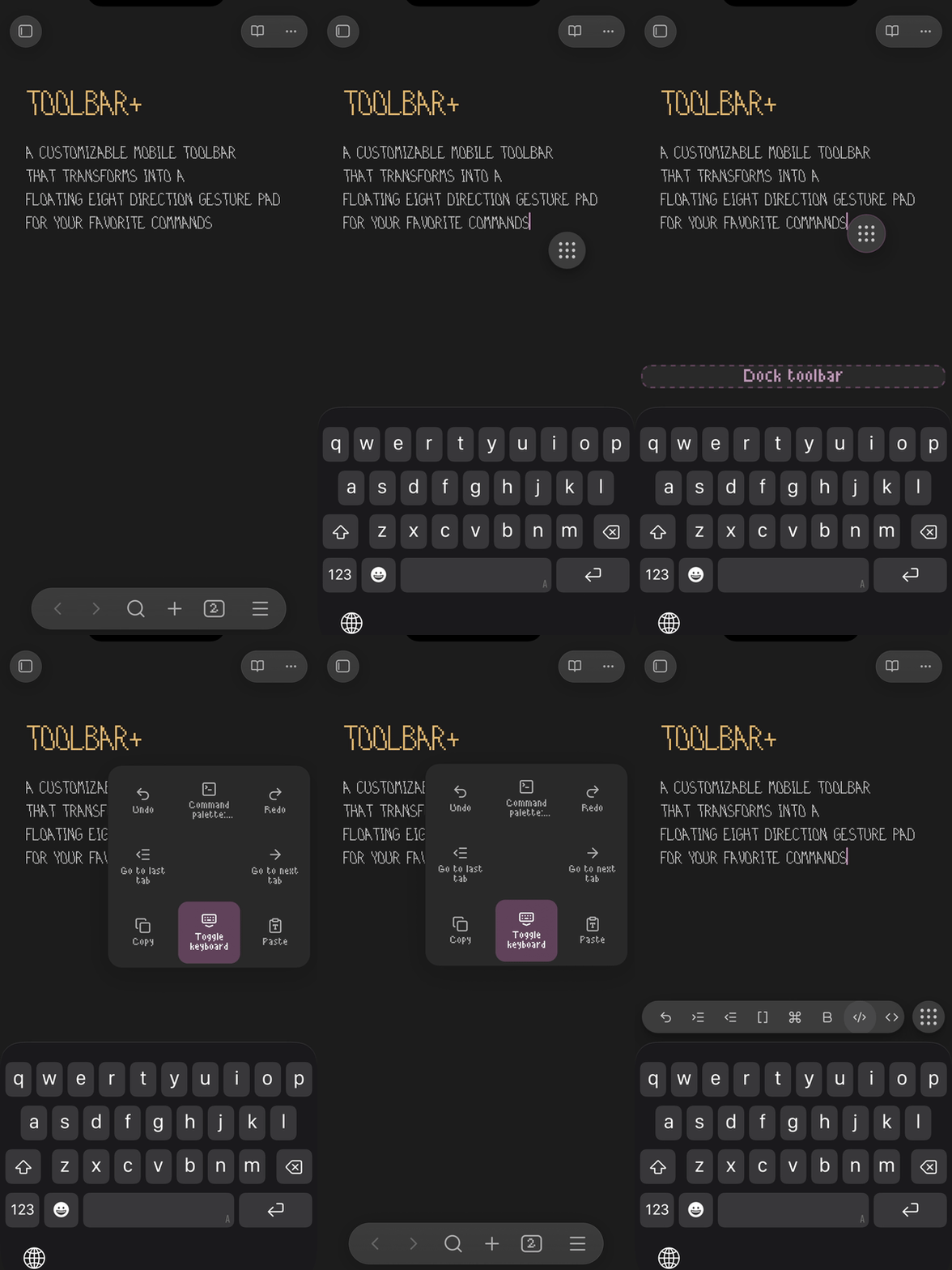
Toolbar+ on mobile: detach the control, use directional gestures, and dock it again.

How to use it

Open a Markdown note and bring up the keyboard to see the toolbar.

  • Tap a toolbar button to run its command.
  • Tap the nine-dot handle to customize buttons, icons, and gestures.
  • Hold the docked handle, then drag to detach it and place the floating control.
  • Flick the floating handle in a direction and release to run its command. Return to the center before releasing to cancel.
  • Hold the floating handle, then drag to the bottom target and release to dock it again.

Customize commands

Add, remove, reorder, and change docked toolbar commands, or assign a command to each floating gesture. Choose any available Obsidian or community-plugin command.
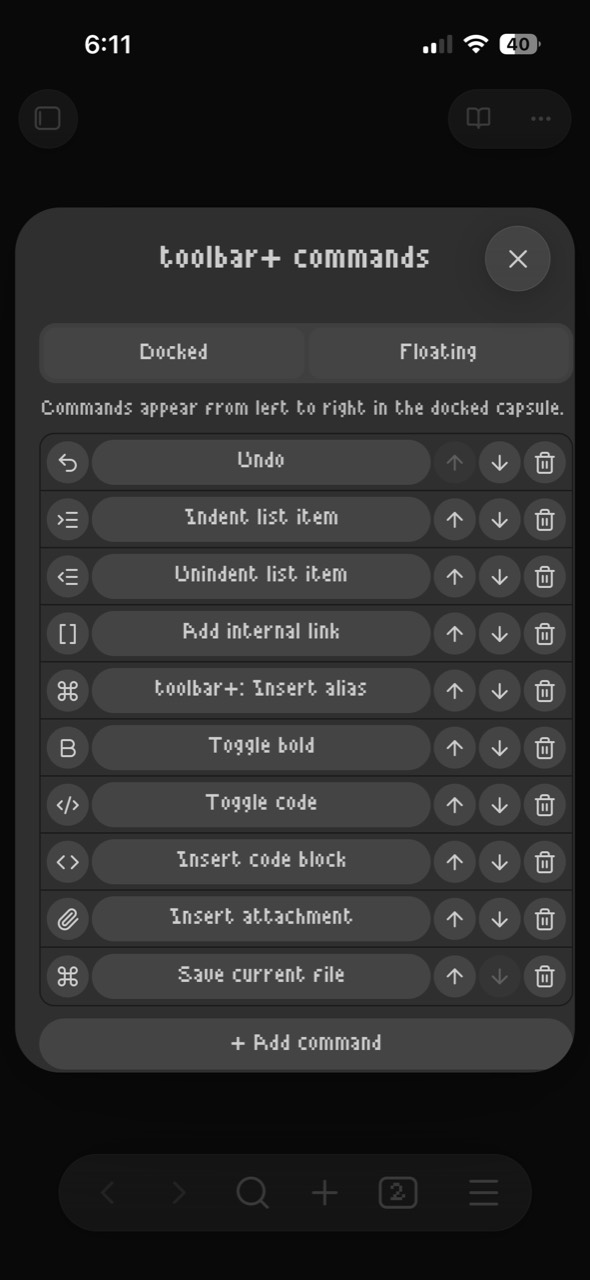
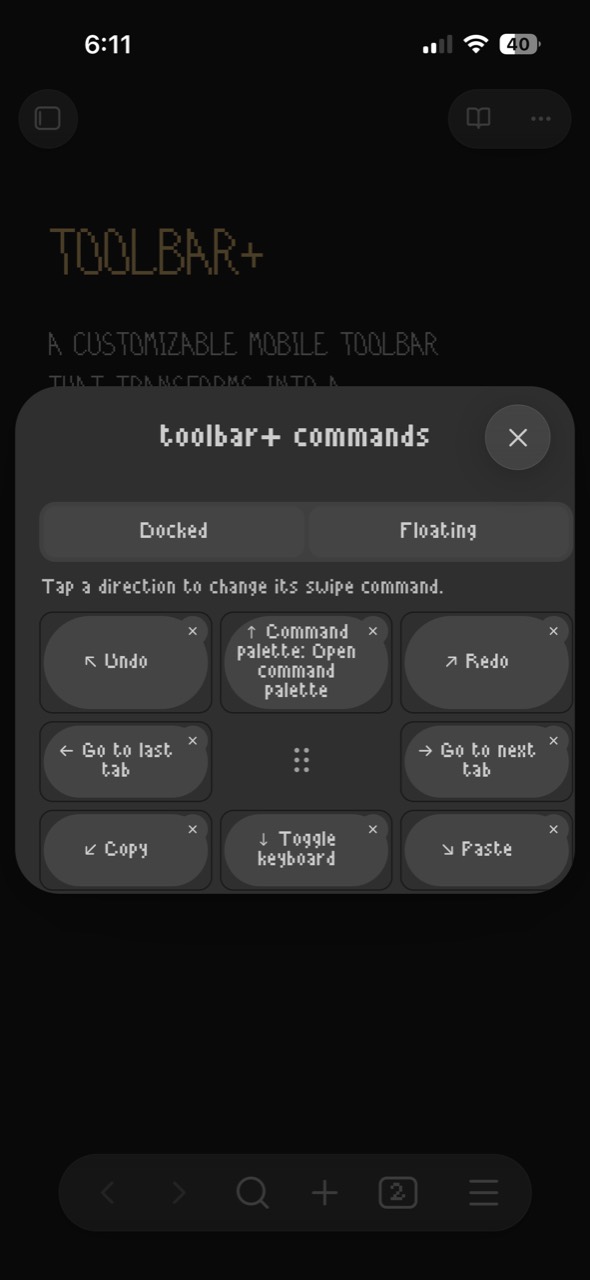
Toolbar+ docked command editor with controls to change, reorder, remove, and add commands. Toolbar+ floating gesture editor with a customizable command for each of the eight directions.

Default floating gestures

↖ Undo ↑ Command palette ↗ Redo
← Previous tab • Handle / configure → Next tab
↙ Copy ↓ Toggle keyboard ↘ Paste

Settings → toolbar+ controls the gesture grid, vibration, hold duration, and flick distance. Enable Show on desktop there to use it with a mouse or trackpad.

The Command Palette also offers Dock toolbar, Float gesture control, and Insert alias, which wraps selected text in [[|selected text]] so you can choose the linked note.

Requires Obsidian 1.13.7+. Version 0.1.20 is verified on iPhone; Android is untested.

Licensed under MPL 2.0.

HealthExcellent
ReviewPassed
About
Add a mobile-first toolbar that detaches into an eight-direction gesture launcher for quick command access. Use docked and floating modes with a tactile control—swipe down to hide the keyboard, hold to detach and drag to reposition—and configure visible commands, icons, ordering, and gesture bindings.
CommandsInterface
Details
Current version
0.1.20
Last updated
3 days ago
Created
Last month
Updates
3 releases
Downloads
17
Compatible with
Obsidian 1.13.7+
Platforms
Desktop, Mobile
License
MPL-2.0
Report bugRequest featureReport plugin
Author
woodamsclarkwoodamsclarkwoodamsclark
GitHubwoodamsclark
woodams
  1. Community
  2. Plugins
  3. Commands
  4. toolbar+

Related plugins

Note Toolbar

Add customizable toolbars to your notes.

Commander

Customize your workspace by adding commands everywhere, create macros and supercharge your mobile toolbar.

Lean Terminal

Embedded terminal panel powered by xterm.js and node-pty - no external windows.

Hotkey Helper

Easily see and access any plugin's settings or hotkey assignments (and conflicts) from the Community Plugins tab.

Tray

Run Obsidian from the system tray for customisable window management and global quick notes.

Slash Commander

Customize the slash command list, assign each command an icon.

Refresh Any View

Allows to refresh any view without reopening it.

Copilot

Run AI agents such as Claude Code, Codex, and OpenCode inside your vault. Turn your second brain into a smart assistant that gets knowledge work done.

Hider

Hide interface elements such as tooltips, status bar, titlebar, and more.

Meta Bind

Make your notes interactive with inline input fields, metadata displays, and buttons.